2006 FORD EXPEDITION light
[x] Cancel search: lightPage 41 of 360
Wireless headphone operation
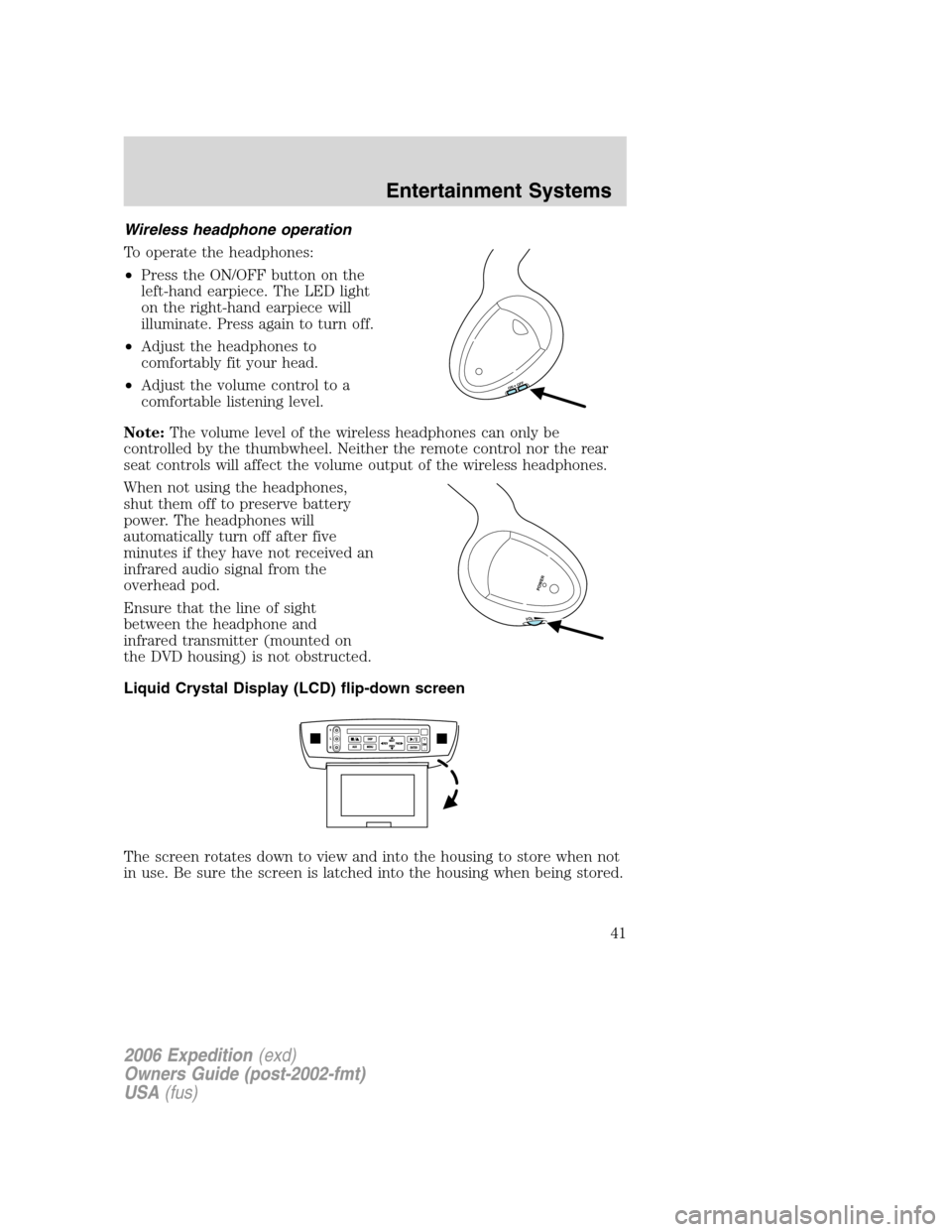
To operate the headphones:
•Press the ON/OFF button on the
left-hand earpiece. The LED light
on the right-hand earpiece will
illuminate. Press again to turn off.
•Adjust the headphones to
comfortably fit your head.
•Adjust the volume control to a
comfortable listening level.
Note:The volume level of the wireless headphones can only be
controlled by the thumbwheel. Neither the remote control nor the rear
seat controls will affect the volume output of the wireless headphones.
When not using the headphones,
shut them off to preserve battery
power. The headphones will
automatically turn off after five
minutes if they have not received an
infrared audio signal from the
overhead pod.
Ensure that the line of sight
between the headphone and
infrared transmitter (mounted on
the DVD housing) is not obstructed.
Liquid Crystal Display (LCD) flip-down screen
The screen rotates down to view and into the housing to store when not
in use. Be sure the screen is latched into the housing when being stored.
ON OFF
V
O
L
POW
ER
2006 Expedition(exd)
Owners Guide (post-2002-fmt)
USA(fus)
Entertainment Systems
41
Page 45 of 360
7. AUDIO OUTPUT (not changeable)
8. AUDIO VERSION — (01 ENG., etc.)
9. DISPLAY SETTING (4x3, Zoom, 16x9)
10. STATUS ICON (FWD, x4, x8, x32, REV, x4, x8, x32, etc.)
Safety information
Read all of the safety and operating instructions before operating the
system and retain for future reference.
Do not attempt to service, repair or modify the Rear Seat Entertainment
DVD System. See your Ford or Lincoln Mercury dealer.
Do not insert foreign objects into the DVD compartment.
The front glass on the liquid crystal display (LCD) flip-down
screen may break when hit with a hard surface. If the glass
breaks, do not touch the liquid crystalline material. In case of contact
with skin, wash immediately with soap and water.
Do not expose the liquid crystal display (LCD) flip-down screen
to direct sunlight or intensive ultraviolet rays for extensive
periods of time. Ultraviolet rays deteriorate the liquid crystal.
Be sure to review user manuals for video games and video game
equipment when used as auxiliary inputs for your Rear Seat
Entertainment DVD System.
Do not operate video games or video equipment if the power cords
and/or cables are broken, split or damaged. Carefully place cords and/or
cables where they will not be stepped on or interfere with the operation
of seats and/or compartments.
Disconnect video games and video equipment power cords and/or cables
when not in use.
Avoid touching auxiliary input jacks with your fingers. Do not blow on
them or allow them to get wet or dirty.
Do not clean any part of the DVD player with benzene, paint thinner or
any other solvent.
Whenever a warning is received, the radio volume will be lowered
to a volume that will allow the tones to be heard. The radio
volume will return to the previous level after the warning goes
away.
2006 Expedition(exd)
Owners Guide (post-2002-fmt)
USA(fus)
Entertainment Systems
45
Page 46 of 360
Federal Communication Commission (FCC) Compliance
Changes or modifications not approved by Ford Motor Company could
void user’s authority to operate the equipment. This equipment has been
tested and found to comply with the limits for a Class B digital device,
pursuant to Part 15 of the FCC Rules. These limits are designed to
provide reasonable protection against harmful interference in a
residential installation. This equipment generates, uses and can radiate
radio frequency energy and, if not installed and used in accordance with
the instructions, may cause harmful interference with radio
communications.
However, there is no guarantee that interference will not occur in a
particular installation. If this equipment does cause harmful interference
to radio or television reception, which can be determined by turning the
equipment off and on, the user is encouraged to consult the dealer or an
experienced radio/TV technician for help.
Care and service of the DVD player
Environmental extremes
DVD players that are subjected to harsh environmental conditions may
be damaged or perform at less than maximum capability. To avoid these
outcomes, whenever possible avoid exposing your DVD player to:
•extremely hot or cold temperatures.
•direct sunlight.
•high humidity.
•a dusty environment.
•locations where strong magnetic fields are generated.
Temperature extremes
When the vehicle is parked under direct sunlight or in an extremely cold
place for a long period of time, wait until the cabin temperature of the
vehicle is at normal temperature before operating the system.
Humidity and moisture condensation
Moisture in the air will condense in the DVD player under extremely
humid conditions or when moving from a cold place to a warm one. If
moisture condensation occurs, do not insert a CD or DVD into the
player. If one is already in the player, remove it. Turn the DVD player ON
to dry the moisture before inserting a DVD. This could take an hour or
more.
2006 Expedition(exd)
Owners Guide (post-2002-fmt)
USA(fus)
Entertainment Systems
46
Page 50 of 360

3.Navigation (NAV):Press the
NAV control to access the navigation
system menu.
4.Cursor control:Use this control
when viewing a menu in the
navigation system. Press the control
up or down, left or right to highlight
an item in the display. Press the
center of the control to make your
selection.
5.BACK:Use this control in the
navigation system. Press to return
to the previous screen or you can
press MENU to return to the main
navigation menu.
6.MAP:The MAP control works in
all modes. Press to show current
location.
7.Memory presets:The memory
presets store favorite AM/FM
stations and allow you to access
various discs when in CD DJ mode.
Press and hold a preset control until
PRESET SAVED appears in the display.
8.SEEK:Use this control to find the next listenable radio station or
advancing tracks in CD mode.
9.Headphone/speaker:Press the
control to enable Rear Seat Control
(RSC) mode. The
headphone/speaker or headphone
icon will appear in the display. Press the control again to disable RSC
control mode (the icon will appear with a red slash through it).
When in RSC mode, Dual Play mode can be enabled and disabled by the
RSC, or by pressing Preset 2 and 4 simultaneously on the Navigation
radio system. The system is in Dual Play mode if both the Headphone
and Speaker icons are present, and in just RSC mode if only the
Headphone icon is present.
NAV
BACK
MAP
12
3456
2006 Expedition(exd)
Owners Guide (post-2002-fmt)
USA(fus)
Entertainment Systems
50
Page 55 of 360
AM/FM select in radio mode
This control allows you to select AM or FM frequency bands. Press the
control to switch between AM, FM1 or FM2 memory preset stations.
AM/FM select in CD mode
Press to stop CD play and begin radio play.
Radio reception factors:
•Distance/strength.The further an FM signal travels, the weaker it is.
The listenable range of the average FM station is approximately 40 km
(24 miles). This range can be affected by “signal modulation.” Signal
modulation is a process radio stations use to increase their
strength/volume relative to other stations.
•Terrain.Hills, mountains and tall buildings between your vehicle’s
antenna and the radio station signal can cause FM reception problems.
Static can be caused on AM stations by power lines, electric fences,
traffic lights and thunderstorms. Moving away from an interfering
structure (out of its “shadow”) returns your reception to normal.
•Station overload.Weak signals are sometimes captured by stronger
signals when you pass a broadcast tower. A stronger signal may
temporarily overtake a weaker signal and play while the weak station
frequency is displayed.
AM/FM select in navigation mode
Press once when in navigation mode to return to the audio screen (while
the navigation function continues to work in the background). Press
again to enter AM/FM mode where you are able to make frequency band
adjustments.
CD select
To begin CD play (if a CD is already
loaded), press the CD control. The
first track of the disc will begin
playing. After that, CD play will
begin where it stopped last. Press the CD control again to toggle
between CD, CD DJ, DVD/Video (or DVD/Aux Mode), if equipped with
DVD Rear seat entertainment system.
If a navigation CD is in the head unit and you press CD, the system will
automatically search for an audio CD in the CD DJ and begin play if it is
present.
2006 Expedition(exd)
Owners Guide (post-2002-fmt)
USA(fus)
Entertainment Systems
55
Page 59 of 360
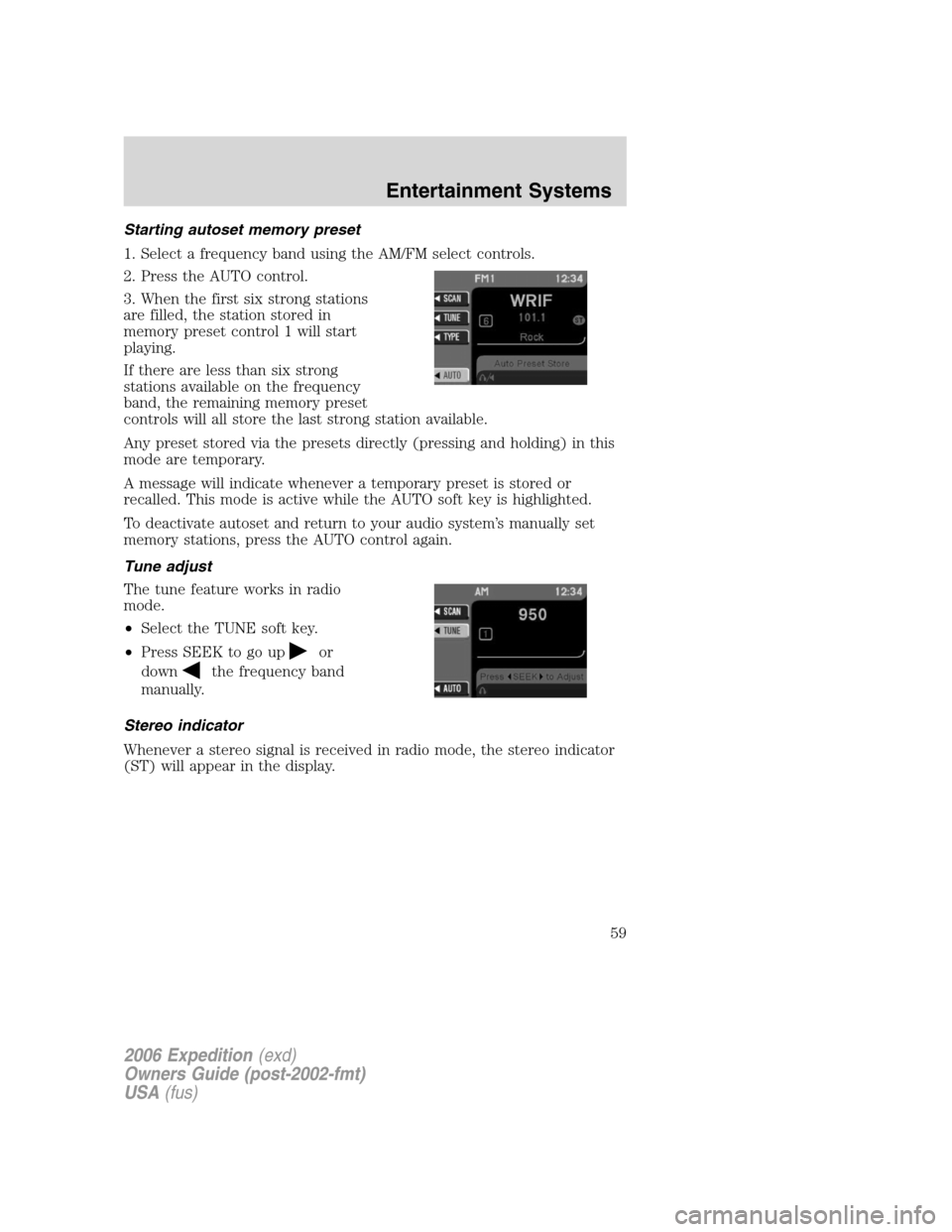
Starting autoset memory preset
1. Select a frequency band using the AM/FM select controls.
2. Press the AUTO control.
3. When the first six strong stations
are filled, the station stored in
memory preset control 1 will start
playing.
If there are less than six strong
stations available on the frequency
band, the remaining memory preset
controls will all store the last strong station available.
Any preset stored via the presets directly (pressing and holding) in this
mode are temporary.
A message will indicate whenever a temporary preset is stored or
recalled. This mode is active while the AUTO soft key is highlighted.
To deactivate autoset and return to your audio system’s manually set
memory stations, press the AUTO control again.
Tune adjust
The tune feature works in radio
mode.
•Select the TUNE soft key.
•Press SEEK to go up
or
down
the frequency band
manually.
Stereo indicator
Whenever a stereo signal is received in radio mode, the stereo indicator
(ST) will appear in the display.
2006 Expedition(exd)
Owners Guide (post-2002-fmt)
USA(fus)
Entertainment Systems
59
Page 71 of 360
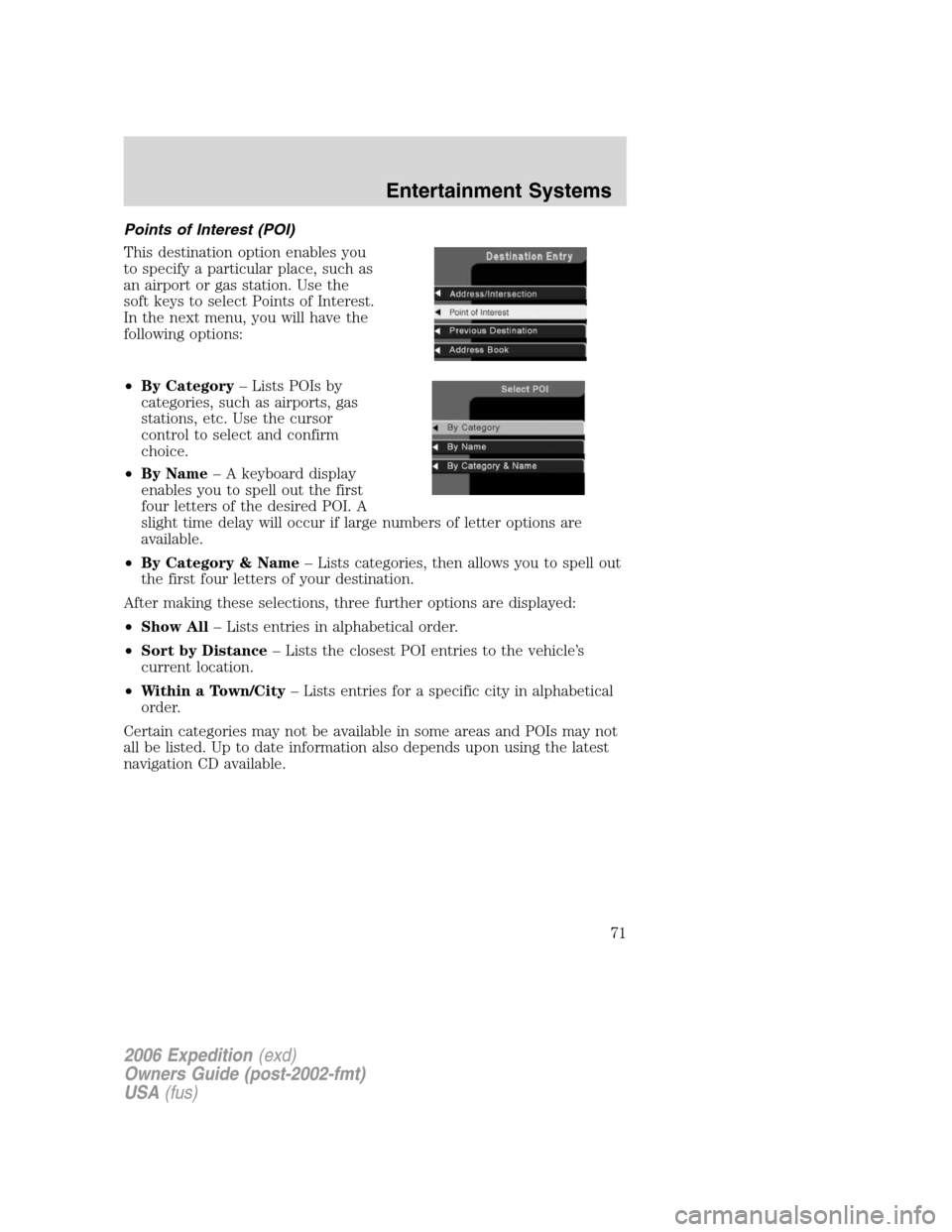
Points of Interest (POI)
This destination option enables you
to specify a particular place, such as
an airport or gas station. Use the
soft keys to select Points of Interest.
In the next menu, you will have the
following options:
•By Category– Lists POIs by
categories, such as airports, gas
stations, etc. Use the cursor
control to select and confirm
choice.
•By Name– A keyboard display
enables you to spell out the first
four letters of the desired POI. A
slight time delay will occur if large numbers of letter options are
available.
•By Category & Name– Lists categories, then allows you to spell out
the first four letters of your destination.
After making these selections, three further options are displayed:
•Show All– Lists entries in alphabetical order.
•Sort by Distance– Lists the closest POI entries to the vehicle’s
current location.
•Within a Town/City– Lists entries for a specific city in alphabetical
order.
Certain categories may not be available in some areas and POIs may not
all be listed. Up to date information also depends upon using the latest
navigation CD available.
2006 Expedition(exd)
Owners Guide (post-2002-fmt)
USA(fus)
Entertainment Systems
71
Page 72 of 360
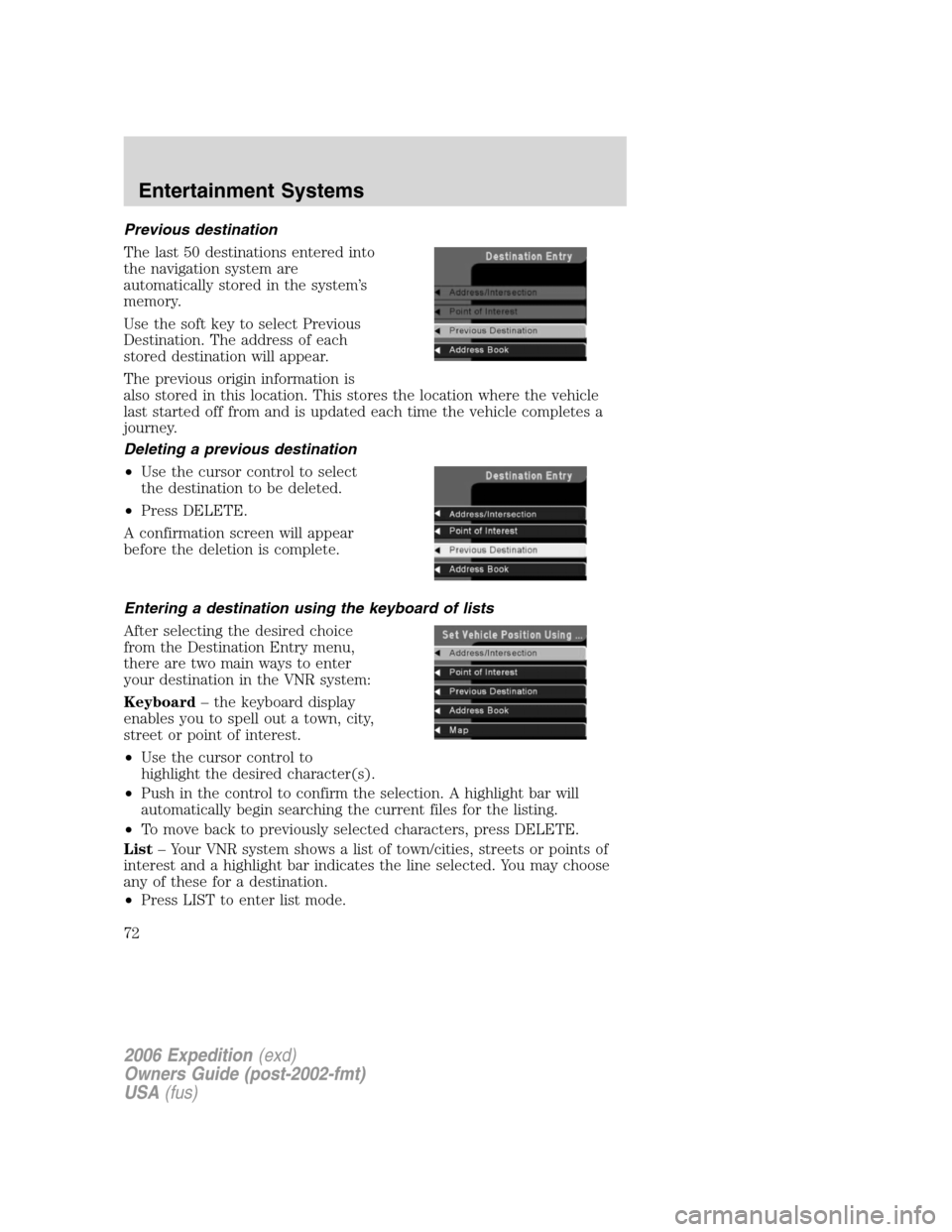
Previous destination
The last 50 destinations entered into
the navigation system are
automatically stored in the system’s
memory.
Use the soft key to select Previous
Destination. The address of each
stored destination will appear.
The previous origin information is
also stored in this location. This stores the location where the vehicle
last started off from and is updated each time the vehicle completes a
journey.
Deleting a previous destination
•Use the cursor control to select
the destination to be deleted.
•Press DELETE.
A confirmation screen will appear
before the deletion is complete.
Entering a destination using the keyboard of lists
After selecting the desired choice
from the Destination Entry menu,
there are two main ways to enter
your destination in the VNR system:
Keyboard– the keyboard display
enables you to spell out a town, city,
street or point of interest.
•Use the cursor control to
highlight the desired character(s).
•Push in the control to confirm the selection. A highlight bar will
automatically begin searching the current files for the listing.
•To move back to previously selected characters, press DELETE.
List– Your VNR system shows a list of town/cities, streets or points of
interest and a highlight bar indicates the line selected. You may choose
any of these for a destination.
•Press LIST to enter list mode.
2006 Expedition(exd)
Owners Guide (post-2002-fmt)
USA(fus)
Entertainment Systems
72