2006 CHEVROLET SUBURBAN ECO mode
[x] Cancel search: ECO modePage 280 of 540
1 through 0 (Numeric Keypad):The numeric keypad
provides you with the capability of direct chapter,
title, and track number selection.
}10 (Double Digit Entries):Press this button to
select chapter, title, and track numbers greater than 9.
Press this button before inputting the number.
\(Clear):Press this button within three seconds after
inputting a number to clear the number(s).
P(Illumination):Press this button to turn the remote
control backlight on. The backlight will time out after
about 7 to 10 seconds if no other button is pressed while
the backlight is on.
y(Main DVD Menu):Press this button to access
the DVD menu. The DVD menu is different on every
DVD. Use the up, down, left, and right arrow buttons to
move the cursor around the DVD menu. After making
a selection press the enter button. This button only
operates when playing a DVD.
r(Enter):Press this button to select the choices
that are highlighted in any menu.
q(Return):Press this button to exit the current
active menu and return to the previous menu. This
button will operate only when a DVD is playing and a
menu is active.
|(Camera Angle):Press this button to change
camera angles on DVDs that have this feature when a
DVD is playing. The format and content of this
function will vary for each disc.
{(Subtitle):Press this button to turn on subtitles
and to move through subtitle options when a DVD
is playing. The format and content of this function will
vary for each disc.
[(Fast Forward):Press this button to fast forward
the DVD or CD. To stop fast forwarding, press this
button again. This button may not work when the DVD
is playing the copyright information or the previews.
s(Play/Pause):Press this button to start play of a
DVD or CD. Press this button while a DVD or CD is
playing to pause it. Press this button again to continue
the play of the DVD or CD.
When the DVD is playing, press the pause button then
press the fast forward button. The DVD will continue
playing in a slow play mode. To cancel slow play mode,
press the play/pause button.
u(Next Track/Chapter):Press this button to advance
to the beginning of the next track or chapter. This
button may not work when the DVD is playing the
copyright information or the previews.
3-124
Page 281 of 540
Battery Replacement
To change the batteries, do the following:
1. Remove the battery compartment door located on
the bottom of the remote control.
2. Replace the two AA batteries in the compartment.
Make sure that they are installed correctly, using the
diagram on the inside of the battery compartment.
3. Close the battery door securely.
If the remote control is to be stored for a long period of
time, remove the batteries and keep them in a cool,
dry place.
Problem Recommended Action
No power. The ignition might not be
in on or accessory.
The parental control
button might have been
turned on. The power
indicator light will ash.
Disc will not play. The system might be off.
The parental control
button might have been
turned on. The power
indicator light will ash.
The system might be in
auxiliary mode.
The disc is upside down
or is not compatible.
Problem Recommended Action
The picture does not ll the
screen. There are black
borders on the top and
bottom or on both sides or
it looks stretched out.Check the display
mode settings in the
display menu.
The disc was ejected, but
it was pulled back into the
DVD player.The disc is being stored in
the DVD player. Press the
eject button again to eject
the disc.
In auxiliary mode, the
picture moves or scrolls.Check the auxiliary input
connections at both
devices.
Change the Video Format
to PAL or NTSC. See
“Stereo RCA Jacks”
previously for how to
change the video format.
The language in the audio
or on the screen is wrong.Check the audio or
language selection in the
main DVD menu.
3-125
Page 282 of 540
Problem Recommended Action
The remote control does
not work.Check to make sure there
is no obstruction between
the remote control and the
transmitter window.
Check the batteries to
make sure they are not
dead or installed
incorrectly.
The parental control
button might have been
turned on. The power
indicator light will ash.
After stopping the player, I
push Play but sometimes
the DVD starts where I
left off and sometimes at
the beginning.If the stop button was
pressed one time, the
DVD player will resume
playing where the DVD
was stopped. If the stop
button was pressed two
times the DVD player will
begin to play from the
beginning of the DVD.
The auxiliary source is
running but there is no
picture or sound.Check that the DVD
player is in the auxiliary
source mode.
Check the auxiliary input
connections at both
devices.Problem Recommended Action
My disc is stuck in the
player. The Load/Eject
button does not work.Turn the DVD power off,
then on, then press the
load/eject button on the
DVD player.
Do not attempt to forcibly
remove the disc from the
DVD player. This could
permanently damage the
disc and DVD player.
Sometimes the wireless
headphone audio cuts out
or buzzes.Check for obstructions,
low batteries, reception
range, and interference
from cellular telephone
towers or by using your
cellular telephone in the
vehicle.
Check that the
headphones are facing
the front of the vehicle.
I lost the remote and/or
the headphones.See your dealer for
assistance.
The DVD is playing,
but there is no picture
or sound.Check that the DVD
player is in DVD mode.
3-126
Page 353 of 540
Trailering is different than just driving your vehicle by
itself. Trailering means changes in acceleration, braking,
handling, durability and fuel economy. Successful,
safe trailering takes correct equipment, and it has to be
used properly.
That’s the reason for this part. In it are many time-tested,
important trailering tips and safety rules. Many of
these are important for your safety and that of your
passengers. So please read this section carefully before
you pull a trailer.
If You Do Decide To Pull A Trailer
If you do, here are some important points:
There are many different laws, including speed limit
restrictions, having to do with trailering. Make sure
your rig will be legal, not only where you live
but also where you’ll be driving. A good source for
this information can be state or provincial police.
Consider using a sway control. See “Hitches” later
in this section.
Don’t tow a trailer at all during the rst 500 miles
(800 km) your new vehicle is driven. Your engine,
axle or other parts could be damaged.
Then, during the rst 500 miles (800 km) that you
tow a trailer, don’t drive over 50 mph (80 km/h)
and don’t make starts at full throttle. This helps your
engine and other parts of your vehicle wear in at
the heavier loads.
You can tow in DRIVE (D). You may want to shift
the transmission to THIRD (3) or, if necessary, a
lower gear selection if the transmission shifts
too often (e.g., under heavy loads and/or hilly
conditions). See “Tow/Haul Mode” later in
this section.
Three important considerations have to do with weight:
The weight of the trailer
The weight of the trailer tongue
The weight on your vehicle’s tires
4-63
Page 354 of 540
Tow/Haul Mode
Tow/Haul is a feature that assists when pulling a heavy
trailer or a large or heavy load. The purpose of the
Tow/Haul mode is to:
Reduce the frequency and improve the predictability
of transmission shifts when pulling a heavy trailer or
a large or heavy load.
Provide the same solid shift feel when pulling a
heavy trailer or a large or heavy load as when
the vehicle is unloaded.
Improve control of vehicle speed while requiring
less throttle pedal activity when pulling a heavy
trailer or a large or heavy load.
Your vehicle may be equipped with a button at the
end of the shift lever which, when pressed, enables
tow/haul. Your vehicle may be equipped with Autoride
®
which further improves your vehicle’s ride while
towing. SeeAutoride®on page 4-62for more
information. When the button is pressed, a light on
the instrument panel will illuminate to indicate that
Tow/Haul has been selected. Tow/Haul may be turned
off by pressing the button again, at which time the
indicator light on the instrument panel will turn off.
The vehicle will automatically turn off Tow/Haul every
time it is started.Tow/Haul is designed to be most effective when the
vehicle and trailer combined weight is at least 75 percent
of the vehicle’s Gross Combined Weight Rating
(GCWR). See Weight of the Trailer later in this section.
Tow/Haul is most useful under the following driving
conditions:
When pulling a heavy trailer or a large or heavy
load through rolling terrain.
When pulling a heavy trailer or a large or heavy
load in stop and go traffic.
When pulling a heavy trailer or a large or heavy
load in busy parking lots where improved low
speed control of the vehicle is desired.
Operating the vehicle in tow/haul when lightly loaded or
with no trailer at all will not cause damage. However,
there is no benet to the selection of Tow/Haul when the
vehicle is unloaded. Such a selection when unloaded
may result in unpleasant engine and transmission driving
characteristics and reduced fuel economy. Tow/Haul
is recommended only when pulling a heavy trailer or a
large or heavy load.
4-64
Page 434 of 540
Load Index:An assigned number ranging from 1 to 279
that corresponds to the load carrying capacity of a tire.
Maximum Ination Pressure:The maximum air
pressure to which a cold tire may be inated. The
maximum air pressure is molded onto the sidewall.
Maximum Load Rating:The load rating for a tire at the
maximum permissible ination pressure for that tire.
Maximum Loaded Vehicle Weight:The sum of curb
weight; accessory weight; vehicle capacity weight;
and production options weight.
Normal Occupant Weight:The number of occupants a
vehicle is designed to seat multiplied by 150 lbs (68 kg).
SeeLoading Your Vehicle on page 4-48.
Occupant Distribution:Designated seating positions.
Outward Facing Sidewall:The side of an
asymmetrical tire that has a particular side that faces
outward when mounted on a vehicle. The side of the
tire that contains a whitewall, bears white lettering,
or bears manufacturer, brand, and/or model name
molding that is higher or deeper than the same moldings
on the other sidewall of the tire.
Passenger (P-Metric) Tire:A tire used on passenger
cars and some light duty trucks and multipurpose
vehicles.Recommended Ination Pressure:Vehicle
manufacturer’s recommended tire ination pressure and
shown on the tire placard. SeeInation - Tire Pressure
on page 5-65andLoading Your Vehicle on page 4-48.
Radial Ply Tire:A pneumatic tire in which the ply cords
that extend to the beads are laid at 90 degrees to the
centerline of the tread.
Rim:A metal support for a tire and upon which the tire
beads are seated.
Sidewall:The portion of a tire between the tread and
the bead.
Speed Rating:An alphanumeric code assigned to a
tire indicating the maximum speed at which a tire
can operate.
Traction:The friction between the tire and the road
surface. The amount of grip provided.
Tread:The portion of a tire that comes into contact
with the road.
Treadwear Indicators:Narrow bands, sometimes
called wear bars, that show across the tread of a tire
when only 1/16 inch (1.6 mm) of tread remains.
SeeWhen It Is Time for New Tires on page 5-71.
5-64
Page 488 of 540
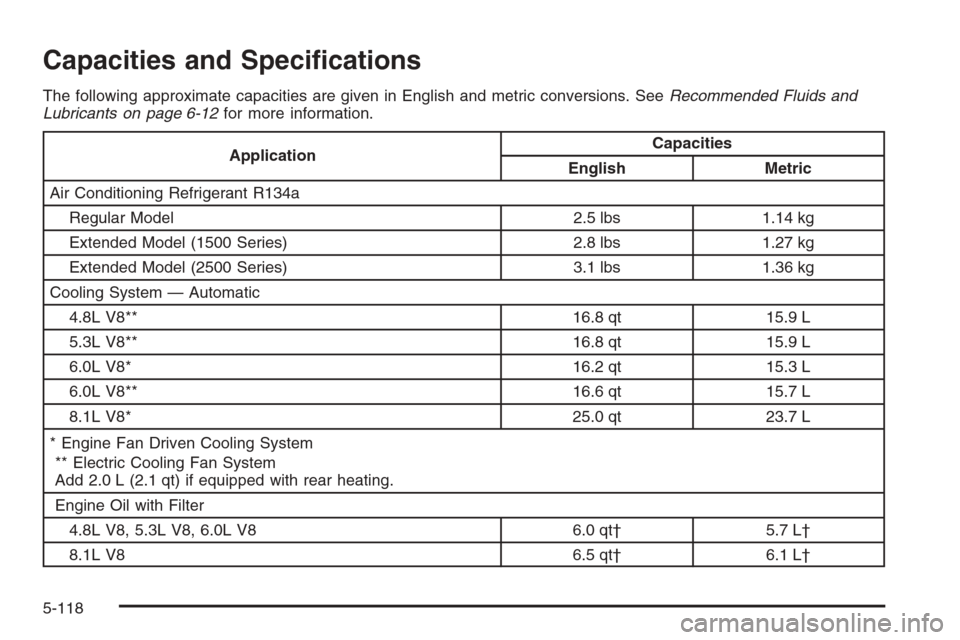
Capacities and Specications
The following approximate capacities are given in English and metric conversions. SeeRecommended Fluids and
Lubricants on page 6-12for more information.
ApplicationCapacities
English Metric
Air Conditioning Refrigerant R134a
Regular Model 2.5 lbs 1.14 kg
Extended Model (1500 Series) 2.8 lbs 1.27 kg
Extended Model (2500 Series) 3.1 lbs 1.36 kg
Cooling System — Automatic
4.8L V8** 16.8 qt 15.9 L
5.3L V8** 16.8 qt 15.9 L
6.0L V8* 16.2 qt 15.3 L
6.0L V8** 16.6 qt 15.7 L
8.1L V8* 25.0 qt 23.7 L
* Engine Fan Driven Cooling System
** Electric Cooling Fan System
Add 2.0 L (2.1 qt) if equipped with rear heating.
Engine Oil with Filter
4.8L V8, 5.3L V8, 6.0L V8 6.0 qt† 5.7 L†
8.1L V8 6.5 qt† 6.1 L†
5-118
Page 515 of 540
Flat Tire Change:Installation of a spare tire will be
covered at no charge. The customer is responsible
for the repair or replacement of the tire if not covered
by a warrantable failure.
Jump Start:No-start occurrences which require a
battery jump start will be covered at no charge.
Dealer Locator Service
In many instances, mechanical failures are covered
under Chevrolet’s Bumper-to-Bumper warranty.
However, when other services are utilized, our Roadside
Assistance Representatives will explain any payment
obligations you might incur.
For prompt and efficient assistance when calling, please
provide the following to the Roadside Assistance
Representative:
Your name, home address, and home telephone
number.
Telephone number of your location.
Location of the vehicle.
Model, year, color, and license plate number.
Mileage, Vehicle Identication Number (VIN),
and delivery date of the vehicle.
Description of the problem.While we hope you never have the occasion to use our
service, it is added security while traveling for you and
your family. Remember, we are only a phone call away.
Chevrolet Roadside Assistance:1-800-CHEV-USA
(1-800-243-8872), text telephone (TTY) users,
call1-888-889-2438.
Chevrolet reserves the right to limit services or
reimbursement to an owner or driver when, in
Chevrolet’s judgement, the claims become excessive
in frequency or type of occurrence.
Roadside Assistance is not part of or included in the
coverage provided by the New Vehicle Limited Warranty.
Chevrolet reserves the right to make any changes or
discontinue the Roadside Assistance program at
any time without notication.
Canadian Roadside Assistance
Vehicles purchased in Canada have an extensive
roadside assistance program accessible from anywhere
in Canada or the United States. Please refer to the
Warranty and Owner Assistance Information book.
7-7