2006 CHEVROLET MALIBU ECO mode
[x] Cancel search: ECO modePage 165 of 442
Instrument Panel Cluster
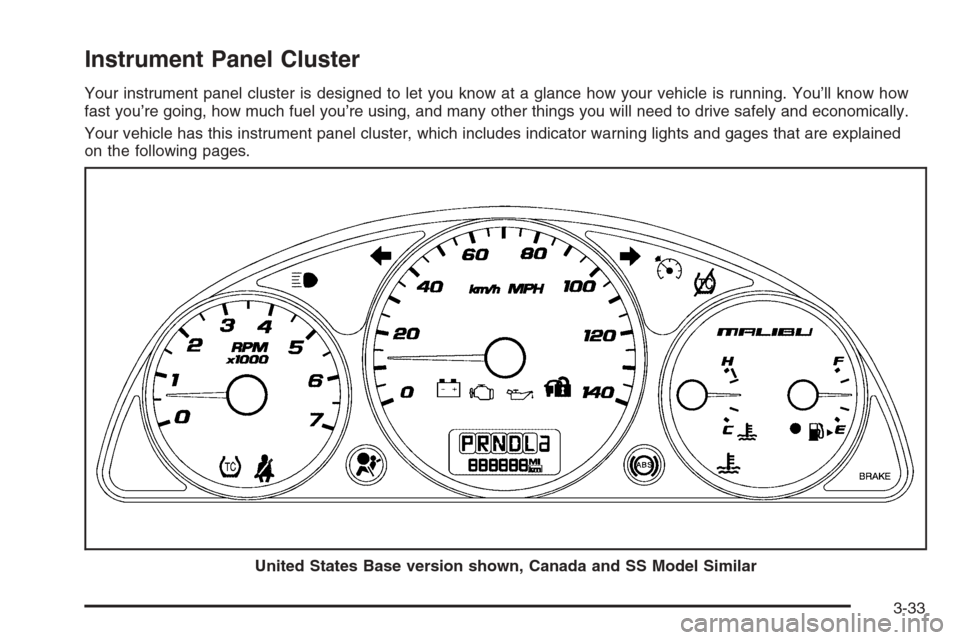
Your instrument panel cluster is designed to let you know at a glance how your vehicle is running. You’ll know how
fast you’re going, how much fuel you’re using, and many other things you will need to drive safely and economically.
Your vehicle has this instrument panel cluster, which includes indicator warning lights and gages that are explained
on the following pages.
United States Base version shown, Canada and SS Model Similar
3-33
Page 179 of 442
Driver Information Center (DIC)
The Driver Information Center (DIC) provides the
following:
A way to personalize your vehicle
Trip information
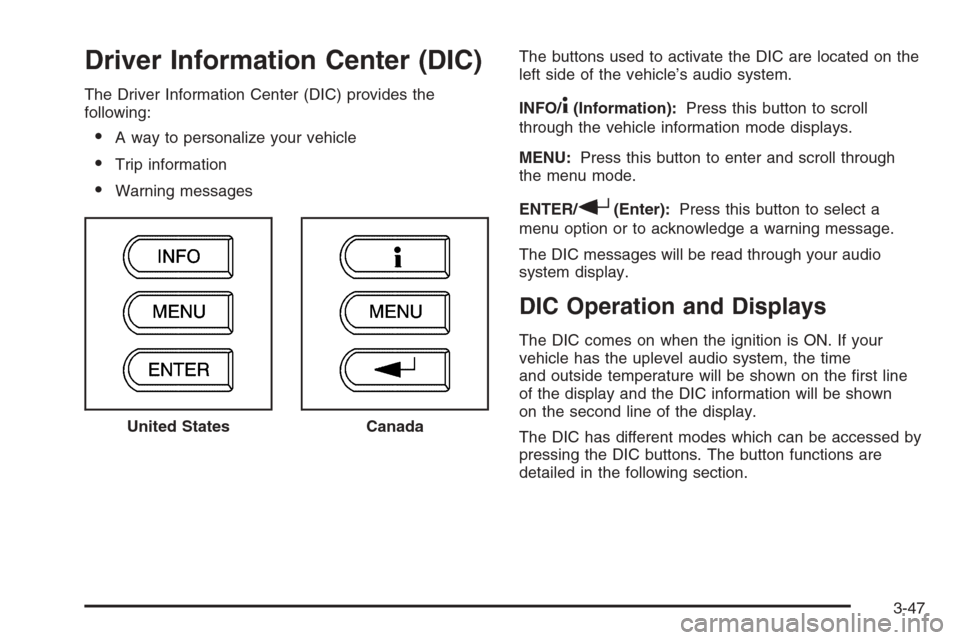
Warning messagesThe buttons used to activate the DIC are located on the
left side of the vehicle’s audio system.
INFO/
4(Information):Press this button to scroll
through the vehicle information mode displays.
MENU:Press this button to enter and scroll through
the menu mode.
ENTER/
r(Enter):Press this button to select a
menu option or to acknowledge a warning message.
The DIC messages will be read through your audio
system display.
DIC Operation and Displays
The DIC comes on when the ignition is ON. If your
vehicle has the uplevel audio system, the time
and outside temperature will be shown on the rst line
of the display and the DIC information will be shown
on the second line of the display.
The DIC has different modes which can be accessed by
pressing the DIC buttons. The button functions are
detailed in the following section. United States
Canada
3-47
Page 180 of 442
Information Mode
INFO/4(Information):Press this button to scroll
through the vehicle information mode displays in
the following order:
TRIP A
TRIP B
FUEL RANGE (Fuel Range Until Empty)
ECON (Average Fuel Economy)
AV SPEED (Average Vehicle Speed)
OIL LIFE (Engine Oil Life System)
TRIP A or TRIP B:Press the information button
until TRIP A or TRIP B is displayed. This shows the
current distance traveled since the last reset for each
trip odometer in either miles (mi) or kilometers (km).
Both odometers can be used at the same time. Each trip
odometer can be reset to zero separately by pressing
and holding the enter button for a few seconds while
the desired trip odometer is displayed.
FUEL RANGE:Press the information button until
FUEL RANGE is displayed. This shows the remaining
distance you can drive without refueling. It is based
on fuel economy and the fuel remaining in the tank.The fuel economy data used to determine fuel range is an
average of recent driving conditions. As your driving
conditions change, this data is gradually updated. Fuel
range cannot be reset.
ECON (Economy):Press the information button until
ECON is displayed. Average fuel economy is how
many miles per gallon (mpg) or liters per 100 kilometers
(L/100 km) your vehicle is getting based on current
and past driving conditions.
Press and hold the enter button while ECON is
displayed to reset the average fuel economy. Average
fuel economy will then be calculated starting from
that point. If the average fuel economy is not reset, it
will be continually updated each time you drive.
AV (Average) SPEED:Press the information button
until AV SPEED is displayed. This shows the vehicle’s
average speed in miles per hour (mph) or kilometers per
hour (km/h).
Press and hold the enter button while AV SPEED is
displayed to reset the average vehicle speed.
OIL LIFE:Press the information button until OIL LIFE is
displayed. The engine oil life system shows an
estimate of the oil’s remaining useful life. It will show
100% when the system is reset after an oil change.
It will alert you to change your oil on a schedule
consistent with your driving conditions.
3-48
Page 181 of 442
Always reset the engine oil life system after an oil
change. SeeEngine Oil Life System on page 5-20.
In addition to the engine oil life system monitoring the oil
life, additional maintenance is recommended in the
Maintenance Schedule in this manual. SeeScheduled
Maintenance on page 6-4andEngine Oil on page 5-17.
Personalization
MENU:Press this button while the vehicle is in ON
to scroll through each of the personalization options
in the following order. If the vehicle is moving faster
than 2 mph (3 km/h), the personalization menu options
are not available, except for the UNITS option. All of
the personalization options may not be available
on your vehicle. Only the options available will be
displayed on your DIC.
Units Selection (English/Metric)
Oil Life Reset
Remote Start Capability
Horn Chirp During Remote Keyless Entry Locking
Horn Chirp During Remote Keyless Entry Unlocking
Exterior Light Flash During Remote Keyless
Entry Locking or Unlocking
Delayed Locking
Automatic Vehicle Unlocking: Specic Doors
Automatic Vehicle Unlocking: When Key is Off or
When Shift To Park
Exterior Perimeter Lighting During Remote Keyless
Entry Unlock
Select Language: (English, French, Spanish or
German)
When the desired option is reached, press the enter
button to toggle between the modes of that option.
To make a selection, press the MENU button again.
If no selection is made within 10 seconds, the display
will revert back to the previous information displayed.
The MENU mode is exited when the information button
is pressed, a 10 second time period has elapsed,
the ignition is turned to OFF, or the end of the MENU
list is reached.
SeeDIC Vehicle Personalization on page 3-52for
more information on the personalization options.
Enter
ENTER/r(Enter):Press this button to reset certain
functions and to turn off or acknowledge messages
on the DIC display. This button also toggles through
the options available in each personalization menu.
3-49
Page 187 of 442
Notice:Before adding any sound equipment to
your vehicle, such as an audio system, CD player,
CB radio, mobile telephone, or two-way radio,
make sure that it can be added by checking with
your dealer. Also, check federal rules covering
mobile radio and telephone units. If sound
equipment can be added, it is very important to do
it properly. Added sound equipment may interfere
with the operation of your vehicle’s engine, radio,
or other systems, and even damage them. Your
vehicle’s systems may interfere with the operation
of sound equipment that has been added.
Your vehicle has a feature called Retained Accessory
Power (RAP). With RAP, the audio system can be
played even after the ignition is turned off. See
Retained Accessory Power (RAP) on page 2-24for
more information.
Setting the Time for Radios without
Radio Data Systems (RDS)
To set the hour, press the clock button. The clock
symbol will appear on the display and the hour number
will ash. Then turn the ADJ knob to increase or to
decrease. To set the minutes, press the clock button
again. The minute numbers will ash. Then turn the
ADJ knob to increase or to decrease. The time can be
set with the ignition on or off.
Setting the Time for Radios with
Radio Data Systems (RDS)
To set the hour, press the clock button. The clock
symbol will appear on the display and the hour number
will ash. Then turn the ADJ knob to increase or to
decrease. To set the minutes, press the clock button
again. The minute numbers will ash. Then turn the
ADJ knob to increase or to decrease. The time can be
set with the ignition on or off.
To synchronize the time with an FM station broadcasting
Radio Data System (RDS) information, press and
hold the clock button to enter the clock set mode,
then press and hold the clock button for three seconds
until UPDATED appears on the display. If the time
is not available from the station, NO UPDATE will
appear on the display.
RDS time is broadcast once a minute. After tuning to
an RDS broadcast station, it may take a few minutes for
the time to update.
3-55
Page 192 of 442
SEEKw:Press this button to go to the next track.
The track number will appear on the display. If this
button is pressed more than once, the player will
continue moving forward through the CD.
If this button is held for more than two seconds, the
CD will enter CD scan mode and the CD will play the
rst 10 seconds of each track. Press this button again
to stop scanning.
SEEK
x:Press this button to go to the start of the
current track if more than eight seconds have played.
The track number will appear on the display. If this
button is pressed more than once, the player will
continue moving backward through the CD.
If this button is held for more than two seconds, the
CD will enter CD scan mode and the CD will play the
rst 10 seconds of each track. Press this button again
to stop scanning.
DISP (Display):Press this knob to see the current track
number, time, and temperature or the track number, the
elapsed time of the track, and the temperature.
To change the default on the display, press this knob
until you see the display you want, then hold the knob
for two seconds. You will hear a beep and the selected
display will now be the default.
AM/FM/CD:Press this button when listening to the
radio to play a CD.EJECT /
Z(Eject):Press this button to eject a CD.
Eject may be activated with either the ignition or
radio off. CDs may be loaded with the ignition and
radio off if this button is pressed rst.
CD Messages
If the CD comes out, it could be for one of the following
reasons:
It is very hot. When the temperature returns to
normal, the CD should play.
You are driving on a very rough road. When the
road becomes smoother, the CD should play.
The CD is dirty, scratched, wet, or upside down.
The air is very humid. If so, wait about an hour
and try again.
There may have been a problem while burning
the CD.
The label may be caught in the CD player.
If the CD is not playing correctly, for any other reason,
try a known good CD.
If any error occurs repeatedly or if an error cannot be
corrected, contact your GM dealer. If the radio displays
an error message, write it down and provide it to
your GM dealer when reporting the problem.
3-60
Page 194 of 442
XM™ Satellite Radio Service
XM™ is a satellite radio service that is based in the
48 contiguous United States and in Canada (if available).
XM™ offers over 100 coast-to-coast channels including
music, news, sports, talk, and children’s programming.
XM™ provides digital quality audio and text information
that includes song title and artist name. A service fee is
required in order to receive the XM™ service. For more
information, contact XM™ at www.xmradio.com or call
1-800-852-XMXM (9696).
Playing the Radio
O
(Power):Press this knob to turn the system on
and off.
u(Volume):Turn this knob to increase or to decrease
the volume.
DISP (Display):Press this knob to switch the display
between the time and the temperature or the radio
station frequency and the temperature. When the ignition
is off, press this knob to display the time.
For RDS, press this knob to change what appears on
the display while using RDS. The display options
are station name, RDS station frequency, PTY, and
the name of the program (if available).For XM™ (if equipped), press this knob while in XM mode
to retrieve four different categories of information related
to the current song or channel: Artist, Song Title,
Category or PTY, Channel Number/Channel Name.
To change the default on the display, press the DISP
knob until you see the display you want, then hold the
knob for two seconds. The radio will produce a beep
and the selected display will now be the default.
AUTO
u(Automatic Volume):With automatic
volume, the audio system adjusts automatically to make
up for road and wind noise as you drive.
Set the volume at the desired level. Press this button to
select LOW, MEDIUM, or HIGH. AUTO VOL LOW,
AUTO VOL MEDIUM, or AUTO VOL HIGH will appear
on the display. Each higher setting will allow for
more volume compensation at faster vehicle speeds.
Then as you drive, automatic volume increases
the volume, as necessary, to overcome noise at any
speed. The volume level should always sound the same
to you as you drive. AUTO VOL NONE will appear on
the display if the radio cannot determine the vehicle
speed or if the engine is not running. To turn automatic
volume off, press this button until AUTO VOL OFF
appears on the display.
3-62
Page 196 of 442
Setting the Tone
(Bass/Midrange/Treble)
TONE /P/Q(Bass/Treble):Press and release this
button until BASS, MID, or TREB appears on the
display. Turn the ADJ knob to increase or to decrease.
The display will show the bass, midrange, or treble
level. If a station is weak or noisy, decrease the treble.
To adjust bass, midrange, or treble to the middle
position, select BASS, MID, or TREB. Then press and
hold the tone button for more than two seconds. You will
hear one beep and the tone control will be adjusted to
the middle position.
To adjust all tone controls to the middle position, press
and hold the tone button when no tone control is
displayed. ALL CENTERED will appear on the display
and you will hear a beep. The bass, midrange, and
treble will be adjusted to the middle position.
AUTO TONE/AUTO EQ (Automatic Equalization):
Press this button to select customized equalization
settings designed for country, jazz, talk, pop, rock,
and classical.
To return to the manual mode, press the AUTO TONE or
AUTO EQ button until CUSTOM appears on the display.
You can also manually adjust the bass, midrange, and
treble using the tone button.
Adjusting the Speakers (Balance/Fade)
BAL/FADE /S(Balance/Fade):To adjust
the balance between the right and the left speakers,
push and release the balance and fade button until
BAL appears on the display. Turn the ADJ knob to
move the sound toward the right or the left speakers.
To adjust the fade between the front and the rear
speakers, push and release the balance and fade
button until FADE appears on the display. Turn the
ADJ knob to move the sound toward the front or the
rear speakers.
To adjust balance or fade to the middle position,
select BAL or FADE. Then press and hold the balance
and fade button for more than two seconds. You will
hear one beep and the speaker control will be adjusted
to the middle position.
To adjust both speaker controls to the middle position,
push and hold the tone button when no speaker
control is displayed. ALL CENTERED will appear on
the display and you will hear one beep. The balance
and fade will be adjusted to the middle position.
3-64