2006 CHEVROLET EPICA change time
[x] Cancel search: change timePage 150 of 368
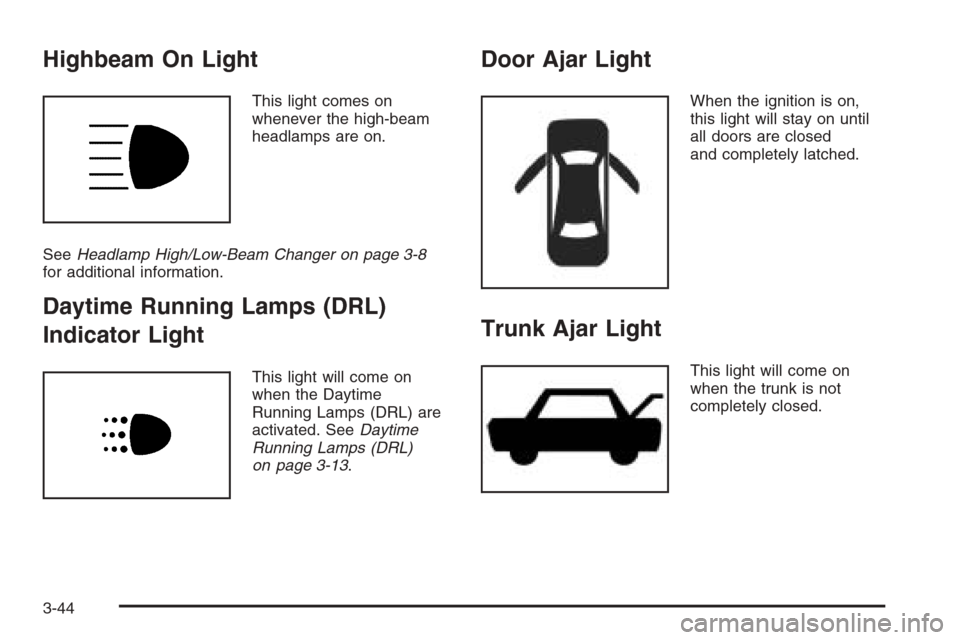
Highbeam On Light
This light comes on
whenever the high-beam
headlamps are on.
SeeHeadlamp High/Low-Beam Changer on page 3-8
for additional information.
Daytime Running Lamps (DRL)
Indicator Light
This light will come on
when the Daytime
Running Lamps (DRL) are
activated. SeeDaytime
Running Lamps (DRL)
on page 3-13.
Door Ajar Light
When the ignition is on,
this light will stay on until
all doors are closed
and completely latched.
Trunk Ajar Light
This light will come on
when the trunk is not
completely closed.
3-44
Page 171 of 368
Playing an MP3/WMA
With the ignition on, insert a CD partway into the slot,
label side up. The player will pull it in, Loading, then
Filecheck, and then MP3 or WMA will appear on
the display. The CD should begin playing. You cannot
insert a CD with the ACC off.
As each new track starts to play, the track number,
and the song name will appear on the display.
If the ignition or radio is turned off with a CD in the
player, it will stay in the player. When a CD is in
the player and the ignition is turned on, the radio
must be turned on before the CD will start playback.
When the ignition and radio are turned on, the CD
will start playing where it stopped, if it was the
last selected audio source.
The CD player can play the smaller 3 inch (8 cm)
single CDs with an adapter ring. Full-size CDs and
the smaller CDs are loaded in the same manner.
If playing a CD-R, the sound quality may be reduced
due to CD-R quality, the method of recording, the
quality of the music that has been recorded, and the
way the CD-R has been handled. There may be
an increase in skipping, difficulty in finding tracks,
and/or difficulty in loading and ejecting. If these
problems occur, check the bottom surface of the CD.If the surface of the CD is damaged, such as cracked,
broken, or scratched, the CD will not play properly. If the
surface of the CD is soiled, seeCare of Your CDs on
page 3-80for more information.
If there is no apparent damage, try a known good CD.
Do not add any label to a CD, it could get caught in the
CD player. If a CD is recorded on a personal computer
and a description label is needed, try labeling the top of
the recorded CD with a marking pen instead.
Notice:If you add any label to a CD, insert more
than one CD into the slot at a time, or attempt to play
scratched or damaged CDs, you could damage the
CD player. When using the CD player, use only CDs
in good condition without any label, load one CD at a
time, and keep the CD player and the loading slot free
of foreign materials, liquids, and debris.
If an error appears on the display, see “CD Messages”
later in this section.
All of the CD functions work the same while playing an
MP3/WMA, except for those listed here. See “Playing
a CD” earlier for more information.
SCROLL (MP3/WMA Mode Only):Press the SOUND
button for longer than two seconds. The song title or
other available information of a song will scroll on/off.
The offset is scroll on. The scroll mode can be changed
only when the SOUND button is pressed for longer
than two seconds.
3-65
Page 172 of 368
DIR (Directory):Press this button to repeat the tracks
in the current directory. DIR will appear on the display.
Press this button again to repeat the tracks in all of
the directories. ALL will appear on the display.
Press this button again to turn off repeat play.
¦¥SEEK (Previous/Next Folder) (in MP3/WMA
Mode):Press the up or down arrows to change
the folder. If CD-R don’t have any folder, “ROOT”
will flash on display for a short time.
()TUNE (Previous/Next Track):Press the down
arrows to go to the start of the current track or press
the up arrows to go to the next track. The track number
will appear on the display. The player will continue
moving backward or forward through the CD with each
press of the up or down arrows.
INFO/DISP (Information/Display):Press this button
to display additional text information related to the
current MP3/WMA song. A choice of additional
information such as: Song Title, Album Title, and
Artist. Bit rate may also appear on display.
When information is not available, No Info will appear
on the display.
Press this button for longer than two seconds to
change display mode.
CD Messages
CHECK CD:If this message appears on the display
and/or the CD comes out, it could be for one of the
following reasons:
•It is very hot. When the temperature returns to
normal, the CD should play.
•You are driving on a very rough road. When the
road becomes smoother, the CD should play.
•The CD is dirty, scratched, wet, or upside down.
•The air is very humid. If so, wait about an hour
and try again.
•The format of the CD may not be compatible.
See “MP3 Format” earlier in this section.
•There may have been a problem while burning
the CD.
•The label may be caught in the CD player.
If the CD is not playing correctly, for any other reason,
try a known good CD.
If any error occurs repeatedly or if an error cannot be
corrected, contact your dealer. If the radio displays
an error message, write it down and provide it to your
dealer when reporting the problem.
3-66
Page 180 of 368
Do not add any label to a CD, it could get caught in the
CD player. If a CD is recorded on a personal computer
and a description label is needed, try labeling the top of
the recorded CD with a marking pen instead.
Notice:If you add any label to a CD, insert more
than one CD into the slot at a time, or attempt to play
scratched or damaged CDs, you could damage the
CD player. When using the CD player, use only CDs
in good condition without any label, load one CD at a
time, and keep the CD player and the loading slot free
of foreign materials, liquids, and debris.
If an error appears on the display, see “CD Messages”
later in this section.
All of the CD functions work the same while playing an
MP3WMA, except for those listed here. See “Playing
a CD” earlier for more information.
SCROLL (MP3/WMA Mode Only):Press the SOUND
button for longer than two seconds. The song title
and other available information of the song will scroll
on/off. The offset is scroll on. The scroll mode can
be changed only when the SOUND button is pressed
for longer than two seconds.
1 DIR (Directory):Press this button to repeat the
tracks in the current directory. DIR will appear on
the display.Press this button again to repeat the tracks in all of the
directories. ALL will appear on the display.
Press this button again to turn off repeat play.
¦¥SEEK (Previous/Next Folder) (in MP3/WMA
Mode):Press the up or down arrows to change
the folder. If CD-R don’t have any folder, “ROOT”
will flash on display for a short time.
()TUNE (Previous/Next Track):Press the down
arrows to go to the start of the current track or press
the up arrows to go to the next track. The track number
will appear on the display. The player will continue
moving backward or forward through the CD with each
press of the up or down arrows.
INFO/DISP (Information/Display):Press this button
to display additional text information related to the
current MP3/WMA song. A choice of additional
information such as: Song Title, Album Title, and
Artist. Bit rate may also appear on display.
When information is not available, No Info will appear
on the display.
Press this button for longer than two seconds to
change display mode.
3-74
Page 183 of 368
Whenever a CD magazine with CDs is loaded in the
changer and the door is closed, the CD symbol
will appear on the radio display. If the CD changer is
checking the magazine for CDs, the CD symbol will flash
on the display until the changer is ready to play. If CD
changer mode is entered during initialization, LOADING
will appear on the display. When a CD begins playing,
a CD and track number will appear on the radio display.
The CD numbers are listed on the front of the
magazine.
All of the CD functions are controlled by the radio
buttons except for ejecting the magazine.
Playing a CD
If an error appears on the display, see “CD Messages”
later in this section.
TRACK (Reverse/Fast Forward):Turn this knob to
select the previous or next track on the current CD.
Push and turn this knob to quickly reverse or advance
within a track. As the CD advances, the elapsed time of
the track will appear on the display.
5 DN (Previous):Press and hold this pushbutton to
select the previous CD in the magazine.
6 UP (Next):Press and hold this pushbutton to select
the next CD in the magazine.2 RPT (Repeat):Press this pushbutton to repeat the
current track. RPT will appear on the display. Press this
pushbutton again to turn off repeat play.
3 INT (Scan):To scan the tracks on the current CD,
press this pushbutton until INTRO appears on the
display. The first ten seconds of each track on the CD
will play. To stop scanning, press this pushbutton again.
4 RDM (Random):Press this pushbutton to listen to
the tracks on the current CD in random, rather than
sequential, order. RDM will appear on the display.
Press this pushbutton again to turn off random play.
While in random, you can turn the tune knob to select
another track.
AM/FM:Press this button to listen to the radio when
playing a CD. The inactive CD(s) will remain safely
inside the player for future listening.
CD:Press this button to play a CD when listening to
the radio. CDC will appear on the display when the
CD changer has been selected.
Press this button while a CD is playing to pause
the CD. Press this button again to resume play.
3-77
Page 184 of 368
CD Messages
No Maga:An empty magazine is inserted in the CD
changer. Try the magazine again with a CD loaded
in one of the trays.
Notice:If you add any label to a CD, insert more
than one CD into the slot at a time, or attempt
to play scratched or damaged CDs, you could
damage the CD player. When using the CD player,
use only CDs in good condition without any
label, load one CD at a time, and keep the CD player
and the loading slot free of foreign materials,
liquids, and debris.
If the CD is not playing correctly, for any other reason,
try a known good CD.
If any error occurs repeatedly or if an error cannot be
corrected, contact your dealer. If the radio displays
an error message, write it down and provide it to your
dealer when reporting the problem.
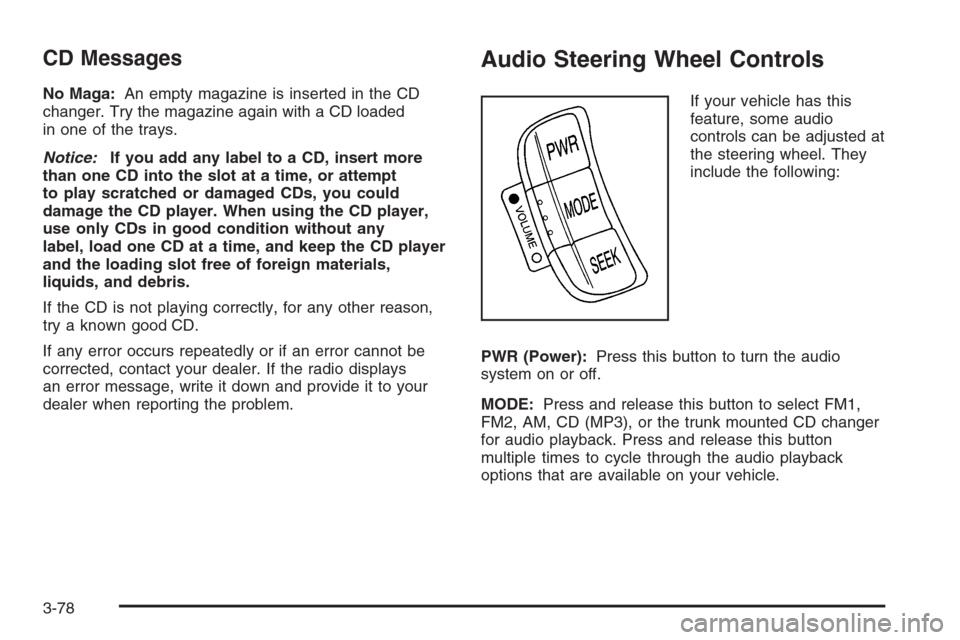
Audio Steering Wheel Controls
If your vehicle has this
feature, some audio
controls can be adjusted at
the steering wheel. They
include the following:
PWR (Power):Press this button to turn the audio
system on or off.
MODE:Press and release this button to select FM1,
FM2, AM, CD (MP3), or the trunk mounted CD changer
for audio playback. Press and release this button
multiple times to cycle through the audio playback
options that are available on your vehicle.
3-78
Page 196 of 368
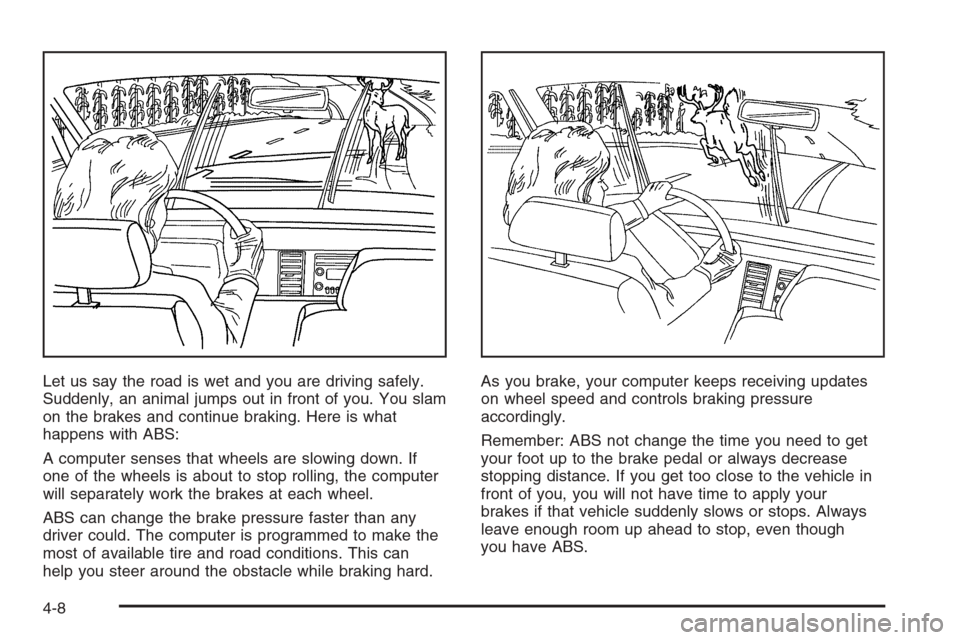
Let us say the road is wet and you are driving safely.
Suddenly, an animal jumps out in front of you. You slam
on the brakes and continue braking. Here is what
happens with ABS:
A computer senses that wheels are slowing down. If
one of the wheels is about to stop rolling, the computer
will separately work the brakes at each wheel.
ABS can change the brake pressure faster than any
driver could. The computer is programmed to make the
most of available tire and road conditions. This can
help you steer around the obstacle while braking hard.As you brake, your computer keeps receiving updates
on wheel speed and controls braking pressure
accordingly.
Remember: ABS not change the time you need to get
your foot up to the brake pedal or always decrease
stopping distance. If you get too close to the vehicle in
front of you, you will not have time to apply your
brakes if that vehicle suddenly slows or stops. Always
leave enough room up ahead to stop, even though
you have ABS.
4-8
Page 202 of 368
•Do not get too close to the vehicle you want to
pass while you are awaiting an opportunity. For
one thing, following too closely reduces your area
of vision, especially if you are following a larger
vehicle. Also, you will not have adequate space
if the vehicle ahead suddenly slows or stops. Keep
back a reasonable distance.
•When it looks like a chance to pass is coming up,
start to accelerate but stay in the right lane and
do not get too close. Time your move so you will
be increasing speed as the time comes to move into
the other lane. If the way is clear to pass, you will
have a running start that more than makes up
for the distance you would lose by dropping back.
And if something happens to cause you to
cancel your pass, you need only slow down and
drop back again and wait for another opportunity.
•If other vehicles are lined up to pass a slow vehicle,
wait your turn. But take care that someone is not
trying to pass you as you pull out to pass the slow
vehicle. Remember to glance over your shoulder
and check the blind spot.
•Check your mirrors, glance over your shoulder,
and start your left lane change signal before moving
out of the right lane to pass. When you are far
enough ahead of the passed vehicle to see its front
in your inside mirror, activate your right lane
change signal and move back into the right lane.
Remember that your passenger side outside mirror
is convex. The vehicle you just passed may
seem to be farther away from you than it really is.
•Try not to pass more than one vehicle at a time
on two-lane roads. Reconsider before passing
the next vehicle.
•Do not overtake a slowly moving vehicle too rapidly.
Even though the brake lamps are not flashing,
it may be slowing down or starting to turn.
•If you are being passed, make it easy for the
following driver to get ahead of you. Perhaps
you can ease a little to the right.
4-14