2006 BMW M6 COUPE ESP
[x] Cancel search: ESPPage 122 of 227

Destination guidance
120 1.Select "Navigation" and press the control-
ler.
2.Change into the fourth field from the top.
Turn the controller until the desired map
view is selected:
>"Map facing north"
>"Map direction of travel"
>"Perspective"
3.Press the controller.
1Switching voice instructions on/off
2Starting/stopping destination guidance
3Selecting destination using map
4Showing/hiding information last selected,
refer to Selecting destination using infor-
mation on page112
5Changing map view
> "Map facing north"
> "Map direction of travel"
> "Perspective"
6Changing route criteria
7Arrow to destination as the crow flies
The estimated time of arrival and the distance
to the destination are shown in the bottom line
of the Control Display.To exit from the menu:
Select the arrow and press the controller.
At scales of less than 250 miles/500 km, you
have the option of deciding whether to orient
the map to north, toward your current direction
of travel, or show the map in perspective. At
scales of 250 miles/500 km or greater, the map
always points toward north.
Changing map view
Select the corresponding symbol and press the
controller.
The next map view is displayed.
Changing scale
Turn the controller to change the scale.
Displaying towns/cities and streets of
the route
You can have the roads and towns along the
route displayed during destination guidance.
The distances remaining to be traveled on each
individual road are also displayed.
1.Select "Navigation" and press the control-
ler.
2.Change into the third field from the top.
Turn the controller until "Route list" is
selected and press the controller.
To exit the menu:
Select the arrow and press the controller.
Page 133 of 227

Navigation
Entertainment
Driving tips
131Reference
At a glance
Controls
Communications
Mobility
Changing selection criteria
1.Change into the second field from the top.
2.Turn the controller until the desired selec-
tion criterion is selected and press the con-
troller.
Buttons next to CD player
Press the button for the corresponding
direction.
The system switches to the next displayed sta-
tion.
You can also change stations with buttons on
the steering wheel, refer to page11.
Sampling stations, scan
The system automatically plays a brief sample
from each of the stations on the current wave-
band.
1.Select "FM" or "AM" and press the control-
ler.
"Set" is selected.
2.Press the controller.
Other menu items are displayed.
3.Select "Scan" and press the controller.
The stations are sampled.To end sampling:
1.Press the controller.
2.Select "Scan" and press the controller.
This cancels sampling of the stations, and the
radio remains on the current station.
Buttons next to CD player
To sample the stations, press and hold
the button for the corresponding direction.
To stop scanning, press the button again.
Selecting frequency manually
With "Manual" you can select stations that are
received in addition to those displayed.
1.Select "FM" or "AM" and press the control-
ler.
2.Change into the second field from the top.
3.Select "Manual" and press the controller.
4.Turn the controller to set a certain fre-
quency.
Updating stations with best reception
For Professional radio with "AM" and with Busi-
ness radio:
If you are on a longer journey and leave the
transmission range of the stations originally set,
you can update the list of stations with the best
reception.
1.Select "FM" or "AM" and press the control-
ler.
2.Change into the second field from the top.
Page 140 of 227
Radio
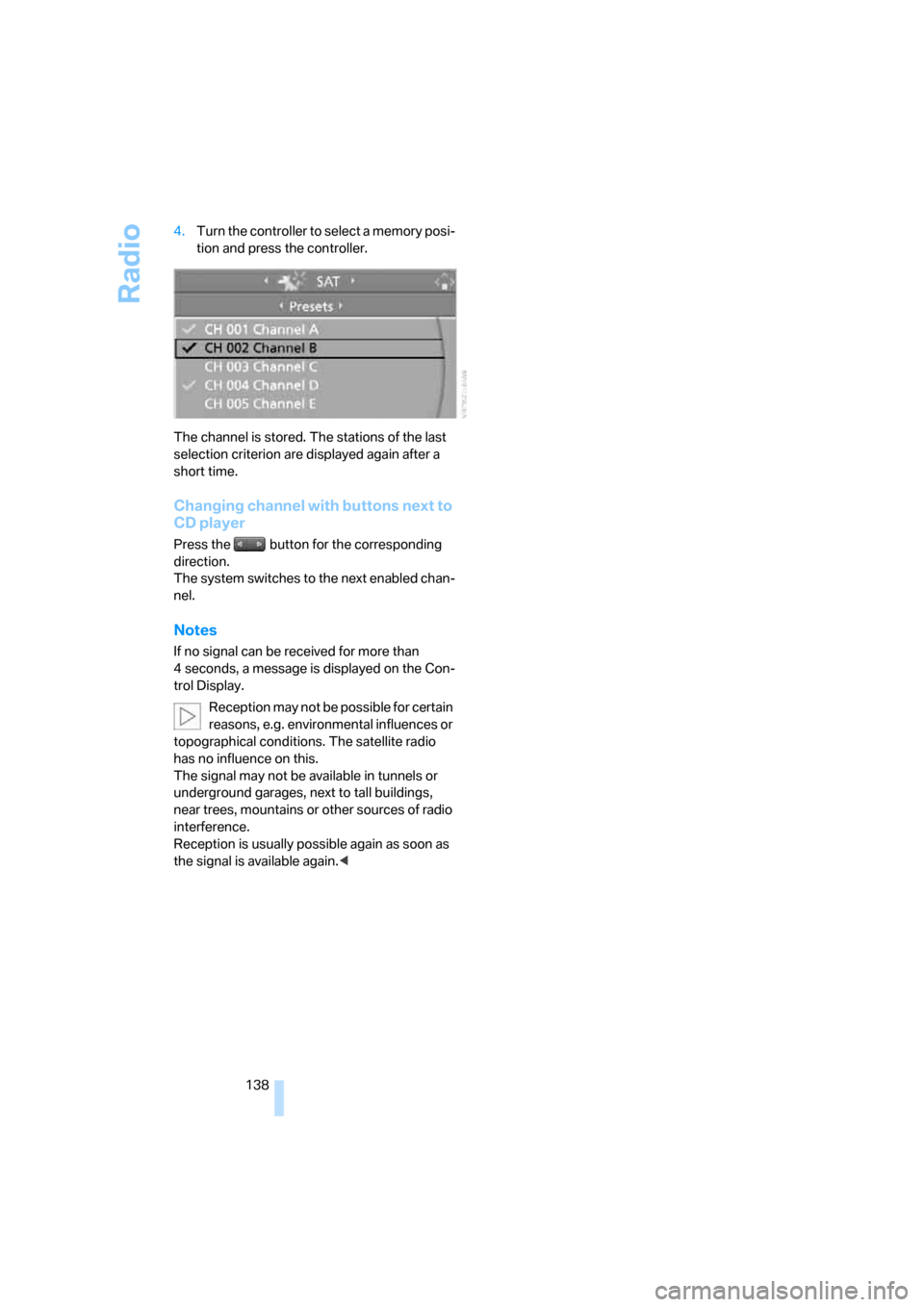
138 4.Turn the controller to select a memory posi-
tion and press the controller.
The channel is stored. The stations of the last
selection criterion are displayed again after a
short time.
Changing channel with buttons next to
CD player
Press the button for the corresponding
direction.
The system switches to the next enabled chan-
nel.
Notes
If no signal can be received for more than
4 seconds, a message is displayed on the Con-
trol Display.
Reception may not be possible for certain
reasons, e.g. environmental influences or
topographical conditions. The satellite radio
has no influence on this.
The signal may not be available in tunnels or
underground garages, next to tall buildings,
near trees, mountains or other sources of radio
interference.
Reception is usually possible again as soon as
the signal is available again.<
Page 142 of 227
CD player and CD changer
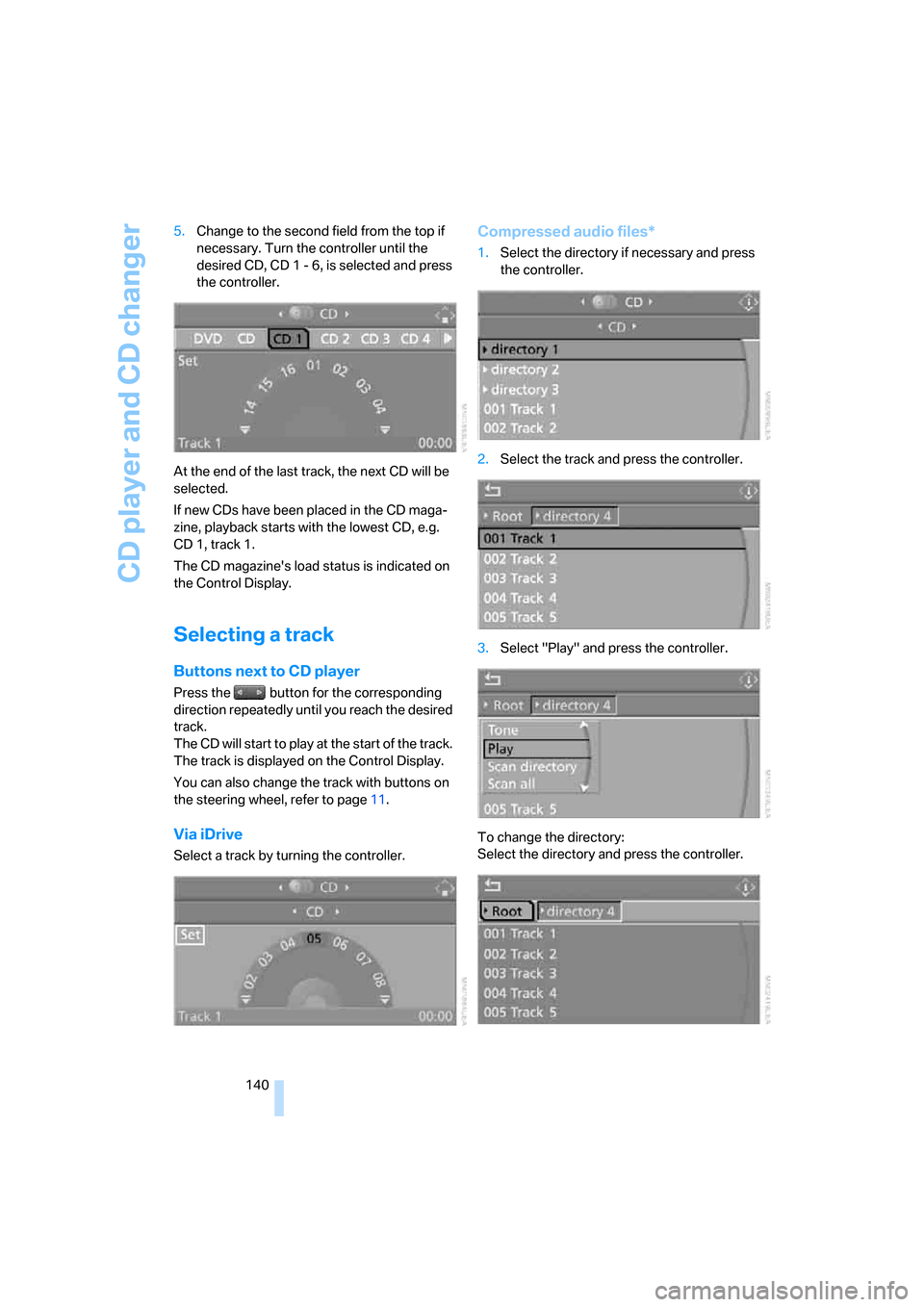
140 5.Change to the second field from the top if
necessary. Turn the controller until the
desired CD, CD 1 - 6, is selected and press
the controller.
At the end of the last track, the next CD will be
selected.
If new CDs have been placed in the CD maga-
zine, playback starts with the lowest CD, e.g.
CD 1, track 1.
The CD magazine's load status is indicated on
the Control Display.
Selecting a track
Buttons next to CD player
Press the button for the corresponding
direction repeatedly until you reach the desired
track.
The CD will start to play at the start of the track.
The track is displayed on the Control Display.
You can also change the track with buttons on
the steering wheel, refer to page11.
Via iDrive
Select a track by turning the controller.
Compressed audio files*
1.Select the directory if necessary and press
the controller.
2.Select the track and press the controller.
3.Select "Play" and press the controller.
To change the directory:
Select the directory and press the controller.
Page 155 of 227

153
Entertainment
Reference
At a glance
Controls
Driving tips Communications
Navigation
Mobility
Rejecting a call
Select "Reject" and press the controller.
The caller is diverted to your mailbox if it has
been activated.
Calling
Dialing phone numbers
1.Select "Phone" and press the controller.
2.Select "Dial" and press the controller.
3.Enter the desired phone number by dialing
the individual digits and pressing the con-
troller.
Always enter the complete phone number
consisting of national dialing code, area
code, and phone number.
The letters correspond to the digits on the
keypad of the mobile phone.
To delete an incorrect character:
Move the controller toward the right to
select and press the controller.
4.Select "Dial number" and press the control-
ler.
Ending a call
1.Select the phone number and press the
controller.
2.Select "End call" and press the controller.
Dialing a phone number from phone
book or a phone number stored in a list
Phone numbers you have called, incoming calls
and the entries of the phone book are stored in
lists when the mobile phone is connected to the
vehicle via Bluetooth. If the caller is entered in
the phone book, the name of the entry is dis-
played instead of the phone number.
You can select the desired subscriber from the
list and establish the connection.
Five lists are available:
>"A - Z"
The entries of the mobile-phone phone
book, consisting of the name and phone
number, are sorted alphabetically.
>"Top 8"
The eight numbers called most frequently
from the phone book "A - Z" are automati-
cally stored in the Top 8 list. The list is
sorted according to frequency.
>"Redial"
The last eight phone numbers you have
Page 158 of 227

Telephoning
156
Transferring phone number via tone
dialing method
The tone dialing method is required for access
to network services or for controlling devices,
e.g. remote checking of an answering machine.
This function is available when a connection
has been established.
1.Establish connection.
2.Press the controller.
3.Select "Keypad" and press the controller.
4.Select the desired character
and press the
controller.
Each character is sent immediately and
confirmed by a tone depending the mobile
phone model.
Changing between mobile
phone and handsfree system
From mobile phone to handsfree
system
You can continue calls begun outside the Blue-
tooth range of the vehicle via the handsfree sys-
tem when the motor is running or the ignition is
switched on. Depending on your mobile phone, the system automatically switches over to the
handsfree mode.
For mobile phones that do not automatically
switch over to the handsfree mode:
>You may also be able to continue the con-
versation via the handsfree system,
depending on the mobile phone used. Fol-
low the instructions displayed on the mobile
phone display, refer to the operating
instructions of your mobile phone.
>Press the button above the storage
compartment. Switching over may take
several seconds.
From handsfree system to mobile
phone
When you telephone via the handsfree system,
you can also continue the call via the mobile
phone if necessary, depending on the mobile
phone model. Follow the instructions displayed
on the mobile phone display, refer to the oper-
ating instructions of your mobile phone.
Operation by voice*
The concept
You can operate your mobile phone without
having to remove your hands from the steering
wheel. When making your entries, you will be
assisted by announcements and questions in
many cases.
The same prerequisites as for operation via
iDrive apply, refer to page152.
Symbols in Owner's Manual
{...} Say the specified commands word for
word.
{{...}} Indicates responses of the system.
Page 159 of 227
157
Entertainment
Reference
At a glance
Controls
Driving tips Communications
Navigation
Mobility
Voice commands
Activating system
1.Press the button on the steering wheel.
An acoustic signal indicates that you can
say commands.
2.Say the command.
The text or numbers that the voice com-
mand system has registered will appear on
the Control Display.
Ending/canceling operation by voice
Press the button on the steering wheel
or
In dialogs where text is spoken, not a command,
e.g. a name, canceling is only possible using the
button on the steering wheel.
Having possible commands read aloud
The system understands default commands
that must be spoken word for word.
You can have the system read aloud the possi-
ble commands at any point:
Using alternative commands
There are often a number of commands to run a
function, e.g.:
The system recognizes digits from zero to nine.
You can say each digit individually or group
them into a sequence to accelerate the input.
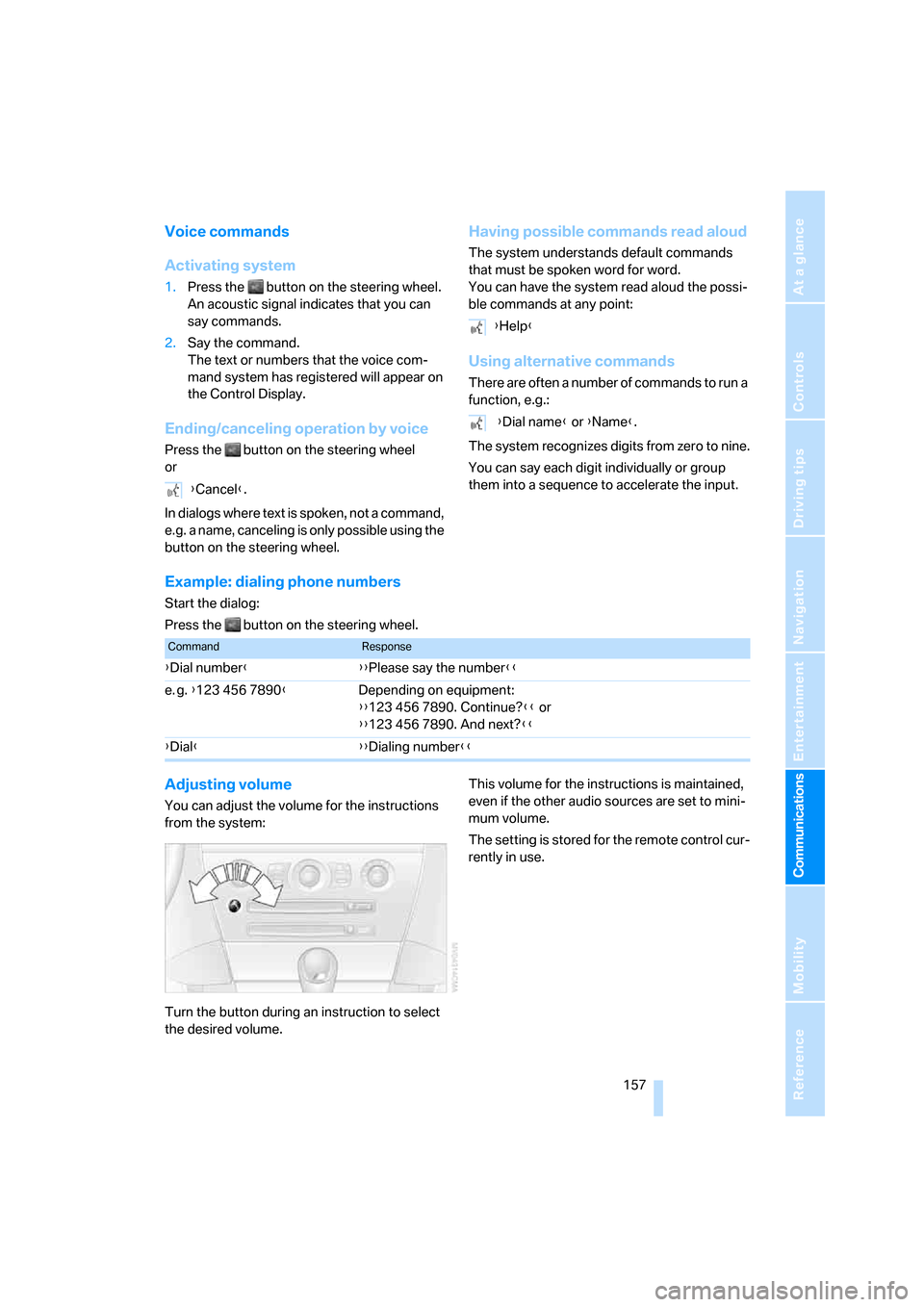
Example: dialing phone numbers
Start the dialog:
Press the button on the steering wheel.
Adjusting volume
You can adjust the volume for the instructions
from the system:
Turn the button during an instruction to select
the desired volume.This volume for the instructions is maintained,
even if the other audio sources are set to mini-
mum volume.
The setting is stored for the remote control cur-
rently in use. {Cancel}.
{Help}
{Dial name} or {Name}.
CommandResponse
{Dial number}{{Please say the number}}
e. g. {123 456 7890}Depending on equipment:
{{123 456 7890. Continue?}} or
{{123 456 7890. And next?}}
{Dial}{{Dialing number}}
Page 163 of 227

161
Entertainment
Reference
At a glance
Controls
Driving tips Communications
Navigation
Mobility
TeleService , BMW Assist
TeleService
TeleService assists you when communicating
with a BMW center. The built-in car phone can
be used to transmit data regarding the service
status of your vehicle or regarding legally man-
dated inspections directly to your BMW center.
This is the same data that is also stored in the
remote control for CBS Condition Based Ser-
vice. Your BMW center can then contact you,
and you can make an appointment that suits
you while you are still on the road. Your advan-
tage here is that your BMW center can prepare
in advance for the required maintenance work.
The TeleService functions are country-specific:
the data regarding the service status of your
vehicle or regarding legally mandated inspec-
tions is transmitted on a country-specific basis
either automatically before they fall due or dur-
ing your calls to the BMW center. Your BMW
center will be glad to provide more detailed
information.
BMW Assist
BMW Assist provides you with other services in
addition to TeleService. For example, the posi-
tion data of your vehicle can be transferred to
the BMW Assist response center if an emer-
gency call
* has been initiated.
Many functions of BMW Assist depend on the
individually agreed contract. Data transmission,
e. g. of the CBS Condition Based Service, dif-
fers from country to country.
The contract of participation with BMW Assist
and the activation must be completed before
you can use BMW Assist.
When the contract expires, the car phone can
be deactivated by a BMW center without your
having to visit a BMW center. Following deacti-
vation of the car phone, no emergency calls can
be made. The car phone can be reactivated
after signing a new contract with a BMW center.You can also use the services of BMW Assist via
the Internet. The range of services is continually
being expanded.
Requirements
You can use TeleService or BMW Assist when
the following requirements are met:
>The installed car phone is logged on to a
cellular telephone network. This network
must be capable of transmitting the ser-
vices.
>To transmit position data, the vehicle must
be able to determine the current position.
This can be displayed on the Control Dis-
play.
>For TeleService or BMW Assist to be acti-
vated and updated, the GPS signal must be
available.
>For BMW Assist: you have applied to your
BMW center or BMW Customer Support for
BMW Assist.
Enabling TeleService or BMW Assist
For you to be able to use the services of
TeleService or BMW Assist, these must be
enabled.
Requirements
>Make sure that the vehicle can determine its
current location. Reception is best when
you have an unobstructed view to the sky.
>Leave radio readiness switched on while
connecting to the system.
Enabling
iDrive, for explanation of principle, refer to
page16.
1.Press the button.
This opens the start menu.
2.Press the controller to open the menu.
**