2006 BMW M6 COUPE ESP
[x] Cancel search: ESPPage 93 of 227

Controls
91Reference
At a glance
Driving tips
Communications
Navigation
Entertainment
Mobility
The corresponding memory button 1 is now
programmed with the signal of the original
hand-held transmitter.
You can operate the system when the engine is
running or when the ignition is switched on.
If the device can not be used after
repeated programming, check whether
the original hand-held transmitter uses an alter-
nating-code system. To do so, either read the
instructions for the original hand-held transmit-
ter or hold down the programmed memory
button1 of the integrated universal remote
control. If the LED2 on the integrated universal
remote control flashes rapidly for a short time
and then remains lit for approx. 2 seconds, this
indicates that the original hand-held transmitter
uses an alternating-code system. In the case of
an alternating-code system, program the mem-
ory buttons1 as described at Alternating-code
transmitters.<
Alternating-code hand-held
transmitters
To program the integrated universal remote
control, consult the operating instructions for
the equipment to be set. You will find informa-
tion there on the possibilities for synchroniza-
tion.
When programming hand-held transmitters
that employ an alternating code, please observe
the following supplementary instructions:
P r o g ra m m in g w i ll b e ea s i er w it h t h e a i d o f
a second person.<
1.Park your vehicle within the range of the
remote-controlled equipment.
2.Program the integrated universal remote
control as described above in Fixed-code
hand-held transmitters.
3.Locate the button on the receiver of the
device to be set, e.g. on the drive unit.
4.Press the button on the receiver of the
equipment to be set. After step 4, you have
approx. 30 seconds for step 5.
5.Press the programmed memory button1
of the integrated universal remote control
three times.The corresponding memory button 1 is now
programmed with the signal of the original
hand-held transmitter.
If you have any additional questions,
please contact your BMW center.<
Deleting stored programs
Press both outer buttons 1 for approx. 20 sec-
onds, maintaining pressure until the LED2
starts to flash: all stored programs are deleted.
Programs cannot be deleted individually.
Glove compartment
Opening
Press the button. The glove compartment
opens automatically and the lamps come on.
To prevent injury in the event of an acci-
dent while the vehicle is being driven,
close the glove compartment immediately after
use.<
Closing
Fold the cover up.
Rechargeable flashlight*
The flashlight is located on the left side of the
glove compartment.
The flashlight can remain there continuously.
Page 94 of 227

Practical interior accessories
92 Remove the flashlight from the socket when
needed.
Be sure that the flashlight is switched off
when it is inserted into its socket. Failure
to comply with this precaution could lead to
overcharging and damage.<
Center armrest
A storage compartment is located in the arm-
rest between the front seats. This compartment
is integrated into the central locking system and
can also be locked separately using the hotel
function, refer to page33.
To open the cover:
Pull the left button. The cover opens and can be
folded upward.
Depending on the version, the storage com-
partment can be equipped with a correspond-
ing cradle
* for the telephone or mobile phone.
Adjusting height
The center armrest can be set in two positions.
Pull the right button:
Move the armrest upward or downward and
lock it in the desired position.
Storage compartments
Storage compartment behind center
armrest
To open, raise the cover at the left or right edge.
The compartment contains the cup holder
and
the lock for the hotel function, refer to page33.
Other compartments and nets
Other compartments are provided in the doors
as well as in the front center console
*.
Ticket pockets are located in the sun visors.
Storage nets are located on the backrests of the
front seats and in the passenger footwell
*.
To prevent the risk of injury during an
accident, do not stow hard or sharp-
edged items in the nets.<
Page 101 of 227

Driving tips
99Reference
At a glance
Controls
Communications
Navigation
Entertainment
Mobility
the risk of serious property damage as well as
personal injury.<
Mobile communications devices in
vehicle
BMW advises against using mobile com-
munications devices, e.g. mobile phones,
inside the vehicle without a direct connection to
an external antenna. Otherwise, the vehicle
electronics and mobile communications device
can interfere with each other. In addition, there
is no assurance that the radiation emitted dur-
ing transmission will be conveyed out of the
vehicle interior.<
Hydroplaning
When driving on wet or slushy roads,
reduce road speed. If you do not, a wedge
of water can form between tires and road sur-
face. This phenomenon is referred to as hydro-
planing, and is characterized by a partial or
complete loss of contact between the tires and
the road surface, ultimately undermining your
ability to steer and brake the vehicle.<
The risk of hydroplaning increases as the tread
depth of the tires decreases, also refer to Mini-
mum tire tread on page172.
Driving through water
Do not drive through water on the road if it
is deeper than 1 ft/30 cm, and then only at
walking speed at the most. Otherwise, the vehi-
cle's engine, the electrical systems and the
transmission may be damaged.<
Starting off
On slopes
The starting assistant enables starting off on
slopes virtually without rolling back.
1.Hold the vehicle with the footbrake.
2.Make sure that the handbrake is released.
3.Release the footbrake and immediately
drive off quickly.The starting assistant holds the vehicle
for approx. 1 second after releasing the
footbrake. Depending on the load, the vehicle
may also roll back slightly during this time.
After releasing the footbrake, immediately start
quickly, otherwise the starting assistant no
longer holds the vehicle after approx. 1 second
and it begins to roll back.<
Start off quickly on slopes. Do not hold
the vehicle on a hill by pressing the accel-
erator, but apply the footbrake or handbrake
instead. Otherwise overheating and heavy wear
can result in the area of the Sequential Manual
Transmission.<
To protect the clutch of the Sequential Manual
Transmission from overheating, the starting-off
behavior is changed under heavy loading, e.g. a
rapid succession of starts on slopes. This can
be noticed from shaking during starting off.
On a slippery surface
1.Select program "P 400" of M Engine
Dynamic Control, refer to page55.
2.Gently press accelerator pedal to prevent
wheels from spinning when starting off.
Braking safely
Your BMW is equipped with ABS as a standard
feature. In situations that require it, it is best to
brake with full force. Since the vehicle maintains
steering responsiveness, you can still avoid
possible obstacles with a minimum of steering
effort.
The pulsing of he brake pedal indicates that the
ABS is controlling braking.
In certain braking situations the perforated
brake rotors can cause operating noises which,
however, have not effect on the performance
and operating safety of the brake system.
Do not drive with your foot resting on the
brake pedal. Even light but consistent
pedal pressure can lead to high temperatures,
brake wear and possibly even brake failure.<
Page 102 of 227

Things to remember when driving
100
Driving in wet conditions
When driving on wet roads or in heavy rain, it is
a good idea to apply light pressure to the brake
pedal every few miles. Monitor traffic conditions
to ensure that this maneuver does not endan-
ger other road users. The heat generated in this
process helps dry the pads and rotors to ensure
that full braking efficiency will then be available
when you need it.
Hills
To prevent overheating and thus reduced
efficiency of the brake system, downshift
to a gear in which only minimal brake applica-
tions are needed when descending long or
steep downhill stretches. Even light but consis-
tent pressure on the brake pedal can lead to
high temperatures, brake wear and possibly
even brake failure.<
Do not drive in idle or with the engine
switched off, otherwise there will be no
engine braking action or support of the braking
force and steering.
Never allow floor mats, carpets or any other
objects to protrude into the area of movement
of the pedals and impair their operation.<
Corrosion on brake rotors
When the vehicle is driven only occasionally,
during extended periods when the vehicle is not
used at all, and in operating conditions where
brake applications are less frequent, there is an
increased tendency for corrosion to form on
rotors, while contaminants accumulate on the
brake pads. This occurs because the minimum
pressure which must be exerted by the pads
during brake applications to clean the rotors is
not reached.
Should corrosion form on the brake rotors, the
brakes will tend to respond with a pulsating
effect that even extended application will fail to
cure.
When vehicle is parked
Condensation forms in the automatic climate
control during operation, and then exits under the vehicle. Traces of condensed water under
the vehicle are therefore normal.
Before driving into a car wash
Fold in the exterior mirrors, refer to page44,
otherwise they could be damaged due to the
width of the vehicle.
General information on the care and mainte-
nance of your BMW is contained in the Caring
for your vehicle brochure.
Ground clearance
Ensure that sufficient ground clearance
is available. To drive down curbs, select
the "Sport" program of the EDC Electronic
Damping Control, refer to page73, to keep the
ground clearance as uniform as possible. Oth-
erwise, the vehicle may be damaged.<
Cargo loading
To avoid loading the tires beyond their
approved carrying capacity, never over-
load the vehicle. Overloading can lead to over-
heating and increases the rate at which damage
develops inside the tires. The ultimate result
can assume the form of a sudden blow-out.<
Determining loading limit
1.Locate the following statement on your
vehicle's placard
*:
The combined weight of occupants
and cargo should never exceed
XXX lbs. or YYY kg, otherwise the vehicle
may be damaged and unstable driving con-
ditions may result.<
Page 111 of 227
Navigation
Driving tips
109Reference
At a glance
Controls
Communications
Entertainment
Mobility
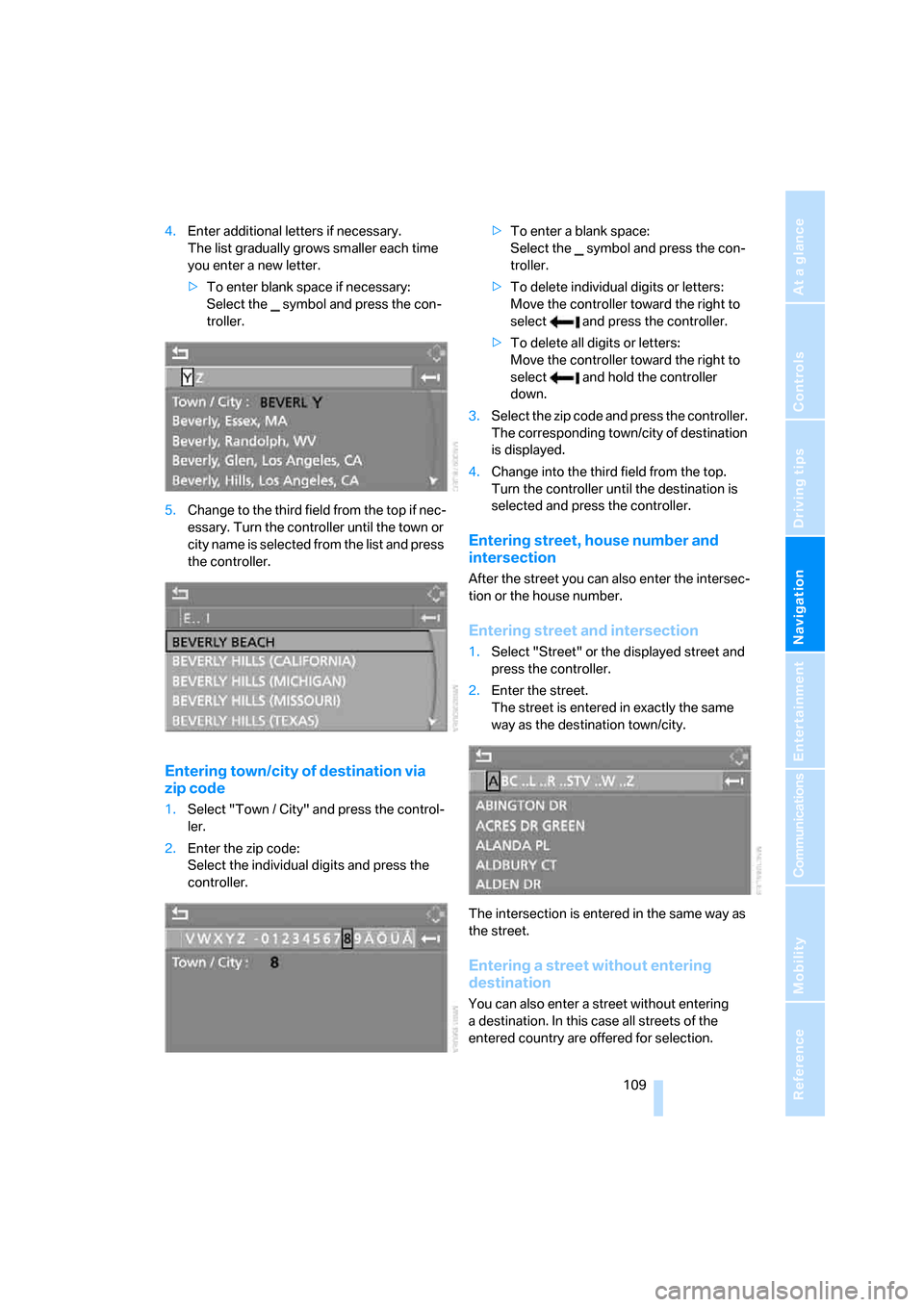
4.Enter additional letters if necessary.
The list gradually grows smaller each time
you enter a new letter.
>To enter blank space if necessary:
Select the symbol and press the con-
troller.
5.Change to the third field from the top if nec-
essary. Turn the controller until the town or
city name is selected from the list and press
the controller.
Entering town/city of destination via
zip code
1.Select "Town / City" and press the control-
ler.
2.Enter the zip code:
Select the individual digits and press the
controller.>To enter a blank space:
Select the symbol and press the con-
troller.
>To delete individual digits or letters:
Move the controller toward the right to
select and press the controller.
>To delete all digits or letters:
Move the controller toward the right to
select and hold the controller
down.
3.Select the zip code and press the controller.
The corresponding town/city of destination
is displayed.
4.Change into the third field from the top.
Turn the controller until the destination is
selected and press the controller.
Entering street, house number and
intersection
After the street you can also enter the intersec-
tion or the house number.
Entering street and intersection
1.Select "Street" or the displayed street and
press the controller.
2.Enter the street.
The street is entered in exactly the same
way as the destination town/city.
The intersection is entered in the same way as
the street.
Entering a street without entering
destination
You can also enter a street without entering
a destination. In this case all streets of the
entered country are offered for selection.
Page 113 of 227

Navigation
Driving tips
111Reference
At a glance
Controls
Communications
Entertainment
Mobility
Selecting country
Say the name of the destination country in the
language of the voice input system.
Entering destination
To enter the destination, spell it using the cus-
tomary spelling of the destination country.
Say the letters smoothly and at normal volume,
avoiding excessive emphasis and pauses.
The system can suggest up to 20 desti-
nations that match your entries. Up to 6
entries are displayed at once on the Control
Display.
The town/city can also be selected from the list
via iDrive:
Turn the controller until the destination is
selected and press the controller.
Entering street and house number
The street is entered in the same way as the
destination.
To enter the house number:
Up to 4-digit house numbers can be entered.
Starting destination guidance
Destination guidance starts immediately.
Saving destination
The destination is added to the destination list
or can be saved in the address book.
Map-guided destination
selection
If you only know the location of the town or
street of the destination, then you can input the
destination by using a map. You can use the
cursor to select the destination on the map and
then adopt it into the destination guidance.
1.Select "Navigation" and press the control-
ler.
"New destination" is selected.
2.Press the controller. Say country of destination.
1.Spell town/city name:
Say at least the first three letters of the
destination. The more letters you say,
the more exactly the system recognizes
the town/city.
A destination is suggested by the system.
2.Selecting location:
Select {Yes}
or
Other town/city:
{No}
Select entry, e.g. {Entry 3}
The following options are available:
{Next page}: additional entries of the
list are displayed.
{Repeat}: the town/city can be
respelled.
Say the house number.
{Start guidance}
{Add to destination list} or
{Add to address book}
Page 114 of 227
Destination entry
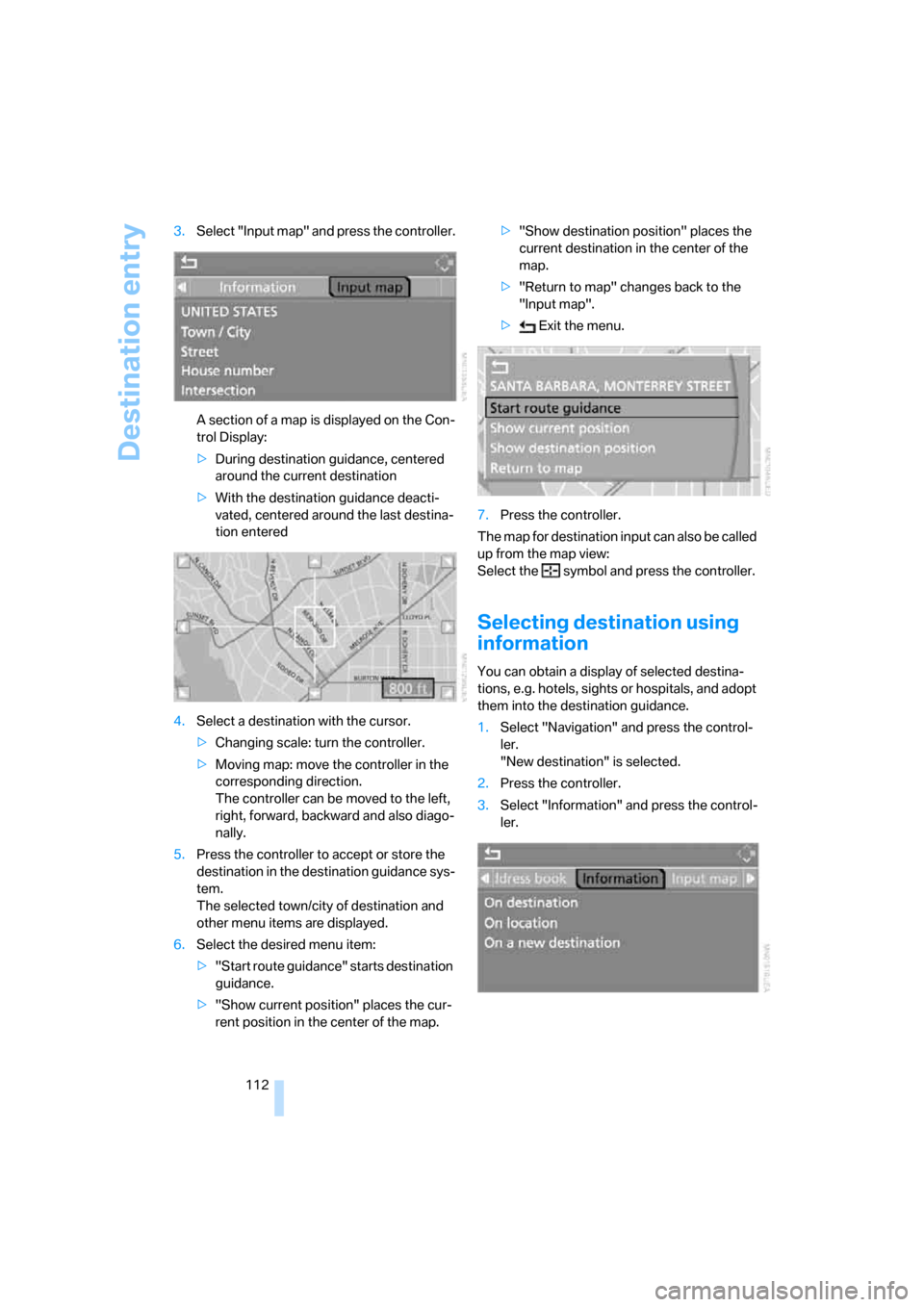
112 3.Select "Input map" and press the controller.
A section of a map is displayed on the Con-
trol Display:
>During destination guidance, centered
around the current destination
>With the destination guidance deacti-
vated, centered around the last destina-
tion entered
4.Select a destination with the cursor.
>Changing scale: turn the controller.
>Moving map: move the controller in the
corresponding direction.
The controller can be moved to the left,
right, forward, backward and also diago-
nally.
5.Press the controller to accept or store the
destination in the destination guidance sys-
tem.
The selected town/city of destination and
other menu items are displayed.
6.Select the desired menu item:
>"Start route guidance" starts destination
guidance.
>"Show current position" places the cur-
rent position in the center of the map.>"Show destination position" places the
current destination in the center of the
map.
>"Return to map" changes back to the
"Input map".
> Exit the menu.
7.Press the controller.
The map for destination input can also be called
up from the map view:
Select the symbol and press the controller.
Selecting destination using
information
You can obtain a display of selected destina-
tions, e.g. hotels, sights or hospitals, and adopt
them into the destination guidance.
1.Select "Navigation" and press the control-
ler.
"New destination" is selected.
2.Press the controller.
3.Select "Information" and press the control-
ler.
Page 119 of 227

Navigation
Driving tips
117Reference
At a glance
Controls
Communications
Entertainment
Mobility
3.Select a route criterion for the route:
>"With highways"
Freeways and major traffic arteries are
given priority.
>"Avoid highways"
Freeways are avoided where possible.
>"Fast route"
The short traveling time, being a combi-
nation of the shortest possible route and
the fastest roads
>"Short route"
Short route, regardless of how fast or
slow progress will be
4.Press the controller.
The route criterion is highlighted.
5.If necessary, select an additional route cri-
terion and then press the controller:
>"Avoid tollroads"
Tollroads are avoided where possible.
>"Avoid ferries"
Ferries are avoided where possible.
To exit from the menu:
Select the arrow and press the controller.
The route criteria can also be changed in the
map view:
1.Select the symbol for the route criterion and
press the controller.
2.Select a route criterion and press the con-
troller.Word matching principle
The system supports the word matching princi-
ple to make it easier for you to enter the names
of streets or towns/cities. The system runs
ongoing checks, comparing your destination
entries with the data stored on the navigation
DVD as the basis for instant response. The user
benefits include:
>Names of specific locations can also vary
from the official versions, provided that the
spelling of the entry corresponds to a stan-
dard form used in another country.
Example:
Instead of "Munich", you can also enter the
German spelling "München" or the Italian
spelling "Monaco".
>When you are entering the names of towns/
cities and streets, the system will complete
them automatically as soon as enough let-
ters are available to ensure unambiguous
identification.
>The system only accepts name entries
beginning with letters that are stored on the
navigation DVD. The system will not accept
nonexistent names and addresses.