2005 NISSAN PATHFINDER driving
[x] Cancel search: drivingPage 6 of 192
This manual uses special words and icons, orga-
nized by function. Please refer to the following
items and familiarize yourself with these symbols.
FOR SAFE OPERATION
WARNING
This is used to indicate the presence of
a hazard that could cause death or se-
rious personal injury. To avoid or re-
duce the risk, the procedures must be
followed precisely.
CAUTION
This is used to indicate the presence of
a hazard that could cause minor or
moderate personal injury or damage to
your vehicle. To avoid or reduce the
risk, the procedures must be followed
carefully.
NOTE:
This indicates an item to help you under-
stand the maximum performance of your
vehicle. If ignored, it may lead to a mal-
function or poor performance.
REFERENCE SYMBOLS
INFO:
This indicates information necessary for efficient
use of your vehicle or accessories.
DEST button
This is a button on the control panel.
View key
This is a select key on the screen. By selecting
this key you can proceed to the next function.This system is primarily designed to help you
reach your destination, and also performs other
functions as outlined in this manual. However,
you, the driver, must use the system safely and
properly. Information concerning road
conditions, traffic signs and the availability of
services may not always be up-to-date.The
system is not a substitute for safe, proper,
and legal driving.
Before using the navigation system, please read
the following safety information. Always use the
system as outlined in this manual.
WARNING
cWhen the driver operates the naviga-
tion system or uses the joystick
(screen function) , first park the ve-
hicle in a safe place and set the park-
ing brake. Using the system while
driving can distract the driver and
may result in a serious accident.
Destinations cannot be set while the
vehicle is in motion.
cDo not rely on voice guidance alone.
Always be sure that all driving ma-
neuvers may be made legally and
safely to avoid an accident.
HOW TO USE THIS MANUAL SAFETY NOTE
1-2Introduction
ZREVIEW COPYÐ2005(nav)
Navigation System OMÐUSA_English(nna)
07/10/04Ðdebbie
X
Page 7 of 192
cDo not disassemble or modify this
system. If you do, it may result in
accidents, fire, or electrical shock.
cDo not use this system if you notice
any malfunction such as a frozen
screen or lack of sound. Continued
use of the system may result in
accident, fire, or electrical shock.
cIf you notice any foreign object in the
system hardware or spilled liquid, or
notice smoke or a smell coming from
it, stop using the system immediately
and contact your nearest NISSAN
dealer. Ignoring such conditions may
lead to accidents, fire, or electrical
shock.
NOTE:
Some states/provinces may have laws lim-
iting the use of video screens while
driving. Use this system only where legal.
LASER PRODUCT
This navigation system is certified as a Class 1
laser product.
The navigation system complies with DHHS
Laser-Radiation Standards, 21 CFR Chapter 1,
subchapter J.
WARNING
cDo not disassemble or modify this
system. There are no user service-
able parts in this navigation system.
cIf maintenance, adjustments and op-
erations other than those specified
in this manual are attempted, injury
due to laser radiation and exposure
could occur.
Introduction
1-3
ZREVIEW COPYÐ2005(nav)
Navigation System OMÐUSA_English(nna)
07/10/04Ðdebbie
X
Page 11 of 192

POSITIONING ADJUSTMENT
When the system judges that the vehicle posi-
tion information is not accurate based on vehicle
speed and gyro sensor data calculations, the
system will adjust the vehicle position informa-
tion using GPS signals.
RECEIVING SIGNALS FROM GPS
SATELLITES
Sometimes, satellite reception is weak. The fol-
lowing are places where signals tend to be
weak:
cInside tunnels and parking lots in buildings
cAreas with numerous tall buildings
cUnder multi-layered highways
cIn a dense forest
cNear military bases and certain government
facilities
Vehicles in these areas may not receive GPS
signals (Indicator color: gray) .INFO:
The antenna for GPS is located behind the in-
strument panel inside the vehicle.Do not place
any objects, especially mobile phones or
transceivers, on the instrument panel.Be-
cause the strength of the GPS signals are ap-
proximately one billionth of that of TV waves;
phones and transceivers will decrease the
strength or may totally disrupt the signals.DISPLAY OF GPS INFORMATION
This system displays GPS information.
Please refer to “GPS information display” on
page 11-17.This system is designed to help you reach your
destination, and also performs other functions as
outlined in this manual. However, you, the driver,
must use the system safely and properly. Infor-
mation concerning road conditions, traffic signs
and the availability of services may not always be
up-to-date. The system is not a substitute for
safe, proper, and legal driving.
Map data covers select metropolitan areas in the
United States.
Map data is available on map DVD-ROM. For in-
formation about map DVD-ROMs, contact a
NISSAN dealer or call the NISSAN Navigation
System help desk at 1-800-661–9995.
Map data includes 2 types of areas: “Detailed
coverage areas” providing all detailed road data
and other areas showing “Main roads only”.
NOTE:
Detailed map data is not available in many
areas and is generally limited to select ma-
jor metropolitan areas.
For information on which metropolitan areas are
in detailed coverage areas, please refer to the
NISSAN Navigation System Software Booklet
(included) . When you purchase an updated map
DVD-ROM, a new software booklet will be
provided.
DETAILED MAP COVERAGE AREAS
(MCA) FOR THE NAVIGATION SYS-
TEM
How does the Nissan navigation system work?2-3
ZREVIEW COPYÐ2005(nav)
Navigation System OMÐUSA_English(nna)
07/10/04Ðdebbie
X
Page 12 of 192

WHEN A GRAY ROAD OR DARK
GREEN ROAD IS DISPLAYED ON
THE MAP
cWhen you are driving on a gray road after the
vehicle has deviated from the suggested
route during route guidance, automatic re-
routing may not start immediately.
cThe navigation system does not provide route
guidance for dark green roads. Therefore, if
the destination is set on a dark green road, the
enlarged map display will return to the ordi-
nary map screen at a point on a suggested
road that is near the destination. Also, the
voice guidance will stop at a point on a sug-
gested road that is near the destination. Refer
to “About route guidance on page4-26 for
details.
cPOI information and street names near gray
roads may not be contained in the map data.
2-4How does the Nissan navigation system work?
ZREVIEW COPYÐ2005(nav)
Navigation System OMÐUSA_English(nna)
07/22/04Ðmarlene
X
Page 43 of 192
This navigation system can calculate and display
the expected arrival time to the destination. To
do this, set average vehicle speeds when driving
on freeways, main roads and ordinary roads.
The following settings are available.
cFreeway
Default: 55 MPH (90 km/h)
Max: 70 MPH (115 km/h)
Min: 40 MPH (65 km/h)
cMain Roads
Default: 25 MPH (40 km/h)
Max: 50 MPH (80 km/h)
Min: 10 MPH (20 km/h)
cOrdinary Roads
Default: 15 MPH (25 km/h)
Max: 35 MPH (55 km/h)
Min: 5 MPH (10 km/h)
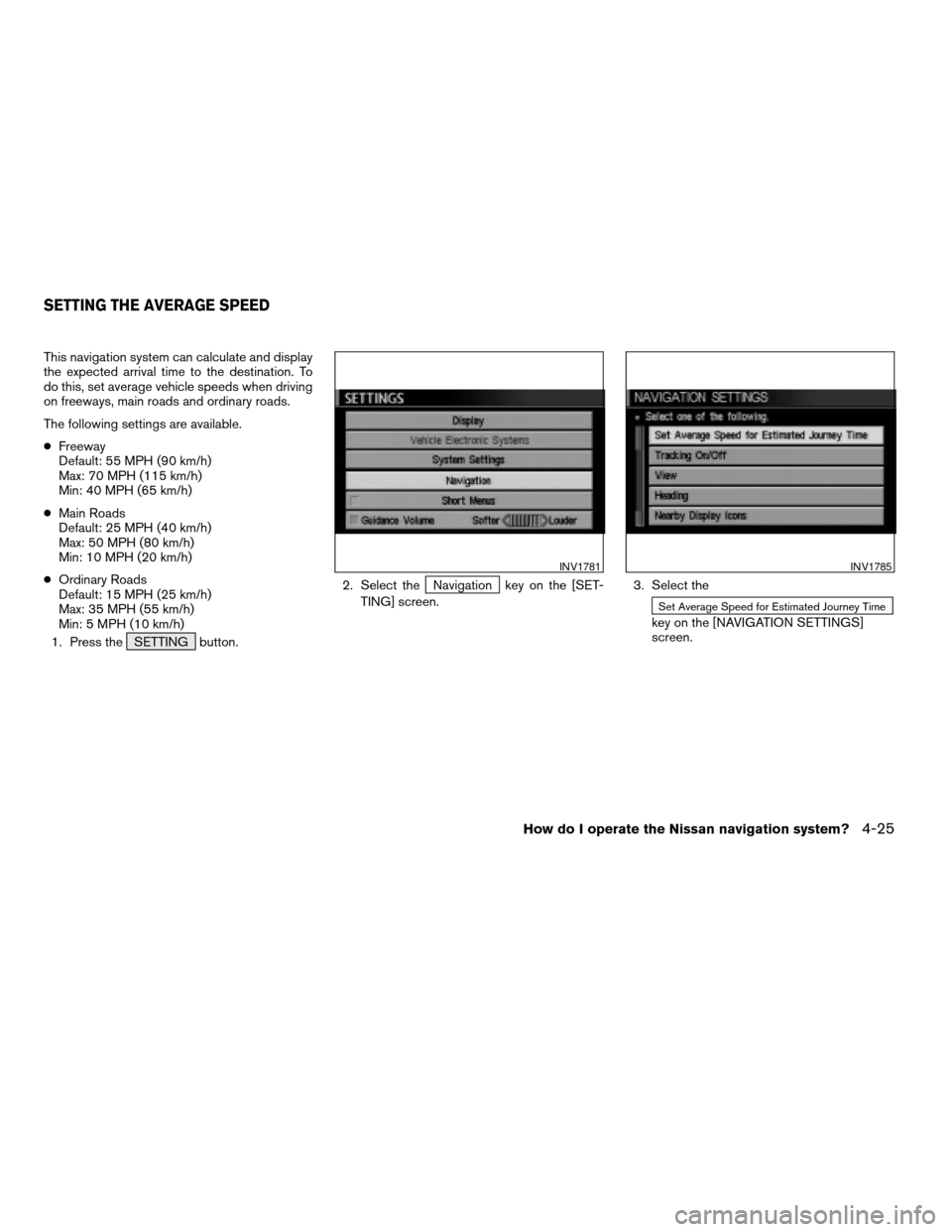
1. Press the SETTING button.2. Select the
Navigation key on the [SET-
TING] screen.3. Select the
Set Average Speed for Estimated Journey Time
key on the [NAVIGATION SETTINGS]
screen.
INV1781INV1785
SETTING THE AVERAGE SPEED
How do I operate the Nissan navigation system?4-25
ZREVIEW COPYÐ2005(nav)
Navigation System OMÐUSA_English(nna)
07/10/04Ðdebbie
X
Page 45 of 192

cIn some cases, after the calculation is
complete, it may take some time to get the
calculated route on the display.
cWaypoints that have been passed will not be
covered by the re-routing calculation.
cIf you scroll the map while the suggested
route is being drawn, it may take more time to
finish drawing.
cIf waypoints are set, the system is calculating
multiple routes between waypoints
simultaneously, and the following may result:
– If one section (or more) of the routes be-
tween the waypoints is not found, none
of the route will be displayed.
– The route may not connect completely at
some waypoints.
– The route may require a U-turn close to
some waypoints.
cRoute calculation may not be completed in
the following cases:
– If there is no main road within 3.1 miles
(5 km) from the vehicle, a message say-
ing so will appear on the screen. Try re-
questing route calculation when the ve-
hicle is closer to the main road.– If there is no main road within 3.1 miles
(5 km) from the destination or waypoint,
a message saying so will appear on the
screen. Try setting the location closer to
the main road.
– If the vehicle is too close to the destina-
tion or if there are no branches of the
roads to the destination. A message say-
ing so will appear on the screen.
– If it is deemed impossible to reach the
destination or waypoints because of traf-
fic regulations, etc.
– If the only route to reach the destination
or waypoints is extremely complicated.
– If the destination, current vehicle position
or waypoint is within the avoid area.
– If the setting of avoid areas covers the
routes to the destination, route calcula-
tion may not be possible.
cThe following may occur when the route is be-
ing displayed:
– If you are requesting a calculation from
the main road, the origin of the route may
not exactly match the current vehicle
position.– If you are requesting a calculation to a
destination on the main road, the end of
the route may not exactly match the
destination.
– If you are requesting a calculation from
the main road, the system may show a
route from another main road. This may
be because the icon to show the current
vehicle position (vehicle icon) is not set
accurately. In that case, park the car in a
safe place and reset the vehicle icon, or
continue driving to see if the vehicle icon
appears on the main road before re-
questing route calculation again.
– There are cases in which the system
shows a detoured route to reach the
destination or waypoints, if you set them
from memory or facility information. In or-
der to correct this, you will have to be
careful about the traffic direction, espe-
cially when the lanes with different travel
directions are shown separately. Such
places are interchanges and service
areas.
– This system makes no distinction be-
tween limited traffic control and total
control (blockage) . It may show a de-
toured route even if the road is usable.
How do I operate the Nissan navigation system?4-27
ZREVIEW COPYÐ2005(nav)
Navigation System OMÐUSA_English(nna)
07/10/04Ðdebbie
X
Page 46 of 192

– Even if the freeway preference is set to
OFF, the route may be set on them. To
avoid this, set a waypoint on another
road type and request calculation.
– Even if the preference is set as OFF for a
ferry line, the route may be set on it. To
avoid this, set a waypoint on a road and
request calculation.
– Ferry lines, except those which accept
only pedestrians, bicycles and
motorcycles, are stored in this system.
When using them, take into consider-
ation the travel time required and opera-
tional condition to decide whether to use
them or not.
ABOUT THE DISPLAY ERROR
The following cases may affect the display accu-
racy of the vehicle’s position or travel direction.
The accuracy will return to normal if the driving
conditions return to normal:
– When there is a similar road nearby.
– When the vehicle is traveling on a long stretch
of straight road or series of curves with a large
radius.
– When the vehicle is traveling in an area with a
checkerboard road system.– When the vehicle is making consecutive S
curves.
– When the vehicle is at a large Y-shaped
junction.
– When the vehicle is on a loop bridge.
– When the vehicle is on a snow-covered or un-
paved road.
– When the vehicle has made several consecu-
tive turns or zigzags.
– When the vehicle is rotated on a parking lot
turntable while the ignition switch is OFF.
– Immediately after the vehicle is driven out of a
parking garage or underground parking lot.
– When the vehicle has different sizes of tires or
tire chains.
– When the vehicle is moved immediately after
the engine is started.
4-28How do I operate the Nissan navigation system?
ZREVIEW COPYÐ2005(nav)
Navigation System OMÐUSA_English(nna)
07/10/04Ðdebbie
X
Page 81 of 192
NOTE:
If the “Use Time Restricted Roads” is not
selected, the navigation system calculates
a route without including carpool lanes.
The auto reroute function is activated and
recalculates a route including carpool
lanes if both of the following conditions
are met:
cthe auto reroute function is turned ON.
cyou deviate from suggested road and
drive on a carpool lane. With this auto
reroute calculation, a suggested route
including carpool lanes will be
displayed, and the message “The route
has changed to include time restricted
roads. Please be sure to obey traffic
regulations.” will be displayed on the
screen. Because the suggested route
provided at this time is calculated with-
out taking regulations and limitations of
time restricted roads into consideration
at all, please drive safely and follow the
actual roads and regulations when
driving.
NOTE:
When driving on a time restricted road, be
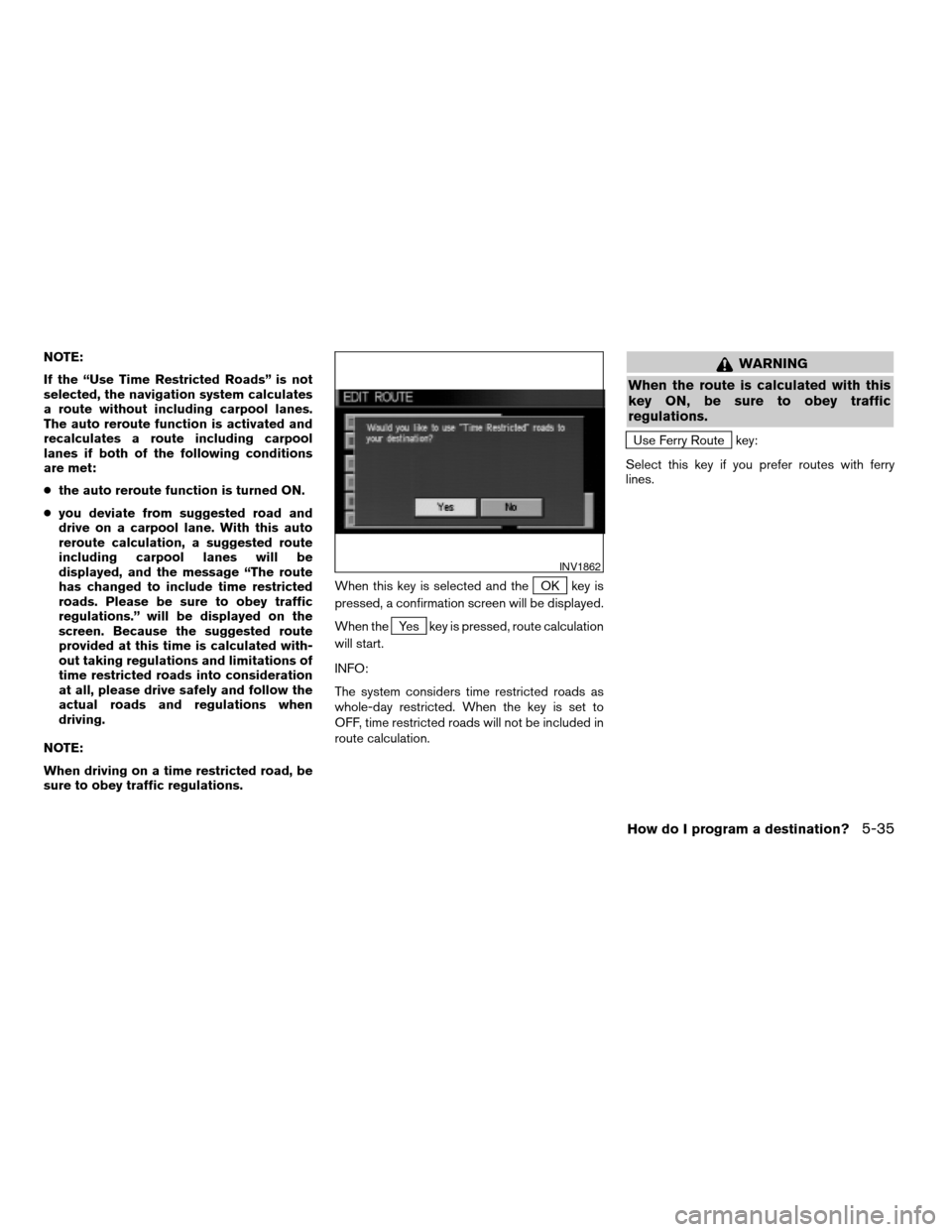
sure to obey traffic regulations.When this key is selected and the
OK key is
pressed, a confirmation screen will be displayed.
When the
Yes key is pressed, route calculation
will start.
INFO:
The system considers time restricted roads as
whole-day restricted. When the key is set to
OFF, time restricted roads will not be included in
route calculation.
WARNING
When the route is calculated with this
key ON, be sure to obey traffic
regulations.
Use Ferry Route key:
Select this key if you prefer routes with ferry
lines.
INV1862
How do I program a destination?5-35
ZREVIEW COPYÐ2005(nav)
Navigation System OMÐUSA_English(nna)
07/22/04Ðmarlene
X