Page 14 of 328
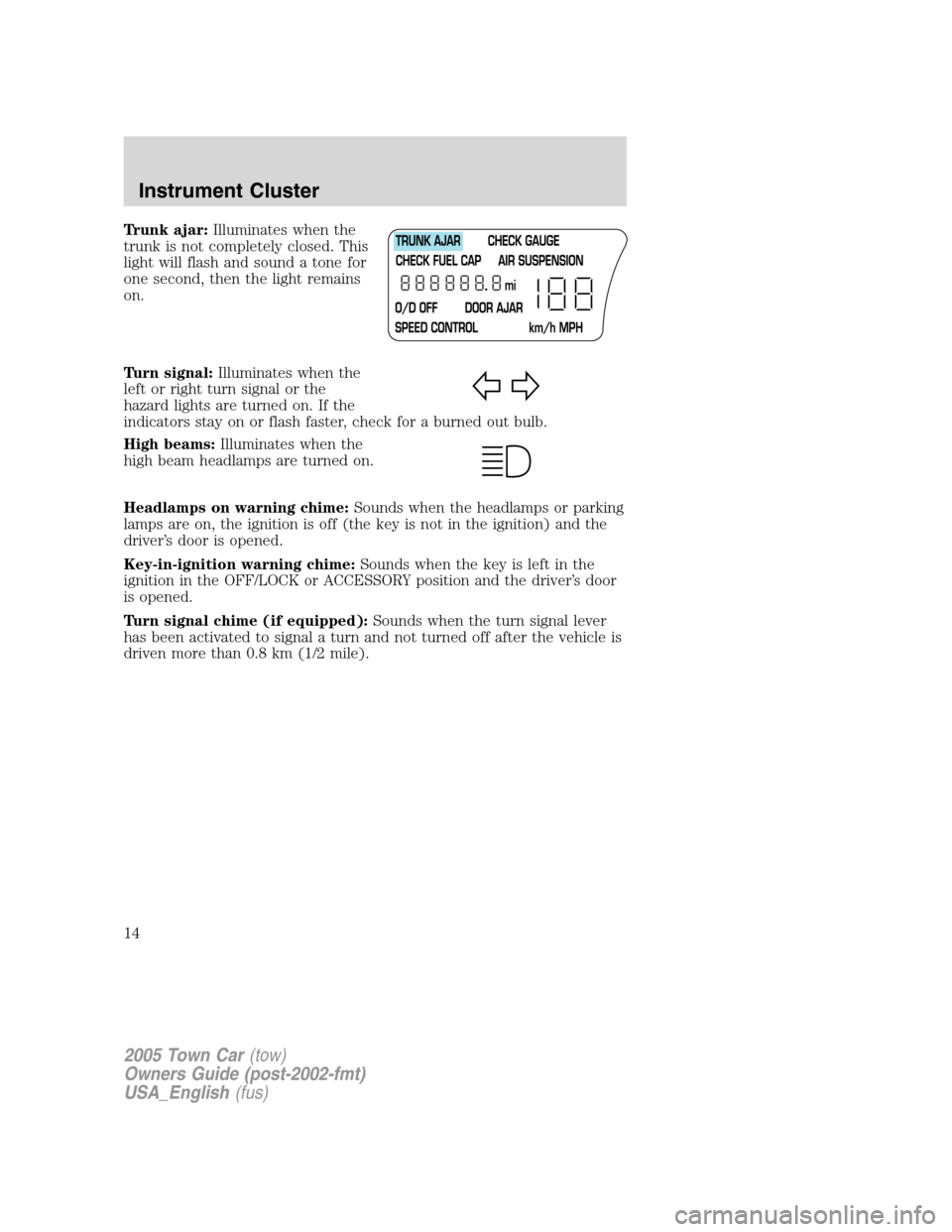
Trunk ajar:Illuminates when the
trunk is not completely closed. This
light will flash and sound a tone for
one second, then the light remains
on.
Turn signal:Illuminates when the
left or right turn signal or the
hazard lights are turned on. If the
indicators stay on or flash faster, check for a burned out bulb.
High beams:Illuminates when the
high beam headlamps are turned on.
Headlamps on warning chime:Sounds when the headlamps or parking
lamps are on, the ignition is off (the key is not in the ignition) and the
driver’s door is opened.
Key-in-ignition warning chime:Sounds when the key is left in the
ignition in the OFF/LOCK or ACCESSORY position and the driver’s door
is opened.
Turn signal chime (if equipped):Sounds when the turn signal lever
has been activated to signal a turn and not turned off after the vehicle is
driven more than 0.8 km (1/2 mile).
2005 Town Car(tow)
Owners Guide (post-2002-fmt)
USA_English(fus)
Instrument Cluster
14
Page 44 of 328
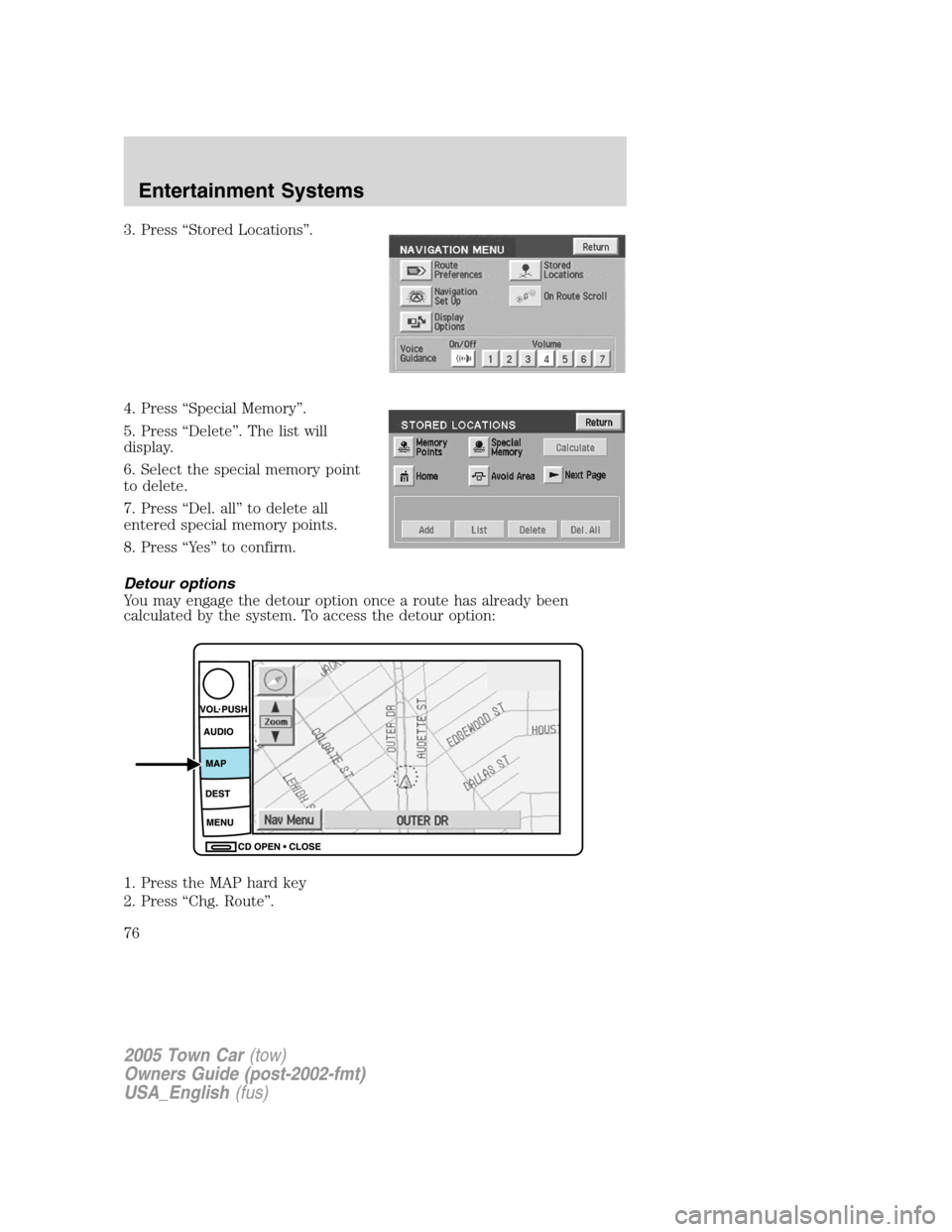
4. Press DEST at the bottom of the
map screen.
5. Choose the desired route by
pressing the NEXT button (if it
appears). There can be up to three
alternative routes.
6. Press START to begin the
navigation guidance.
To adjust the voice guidance volume:
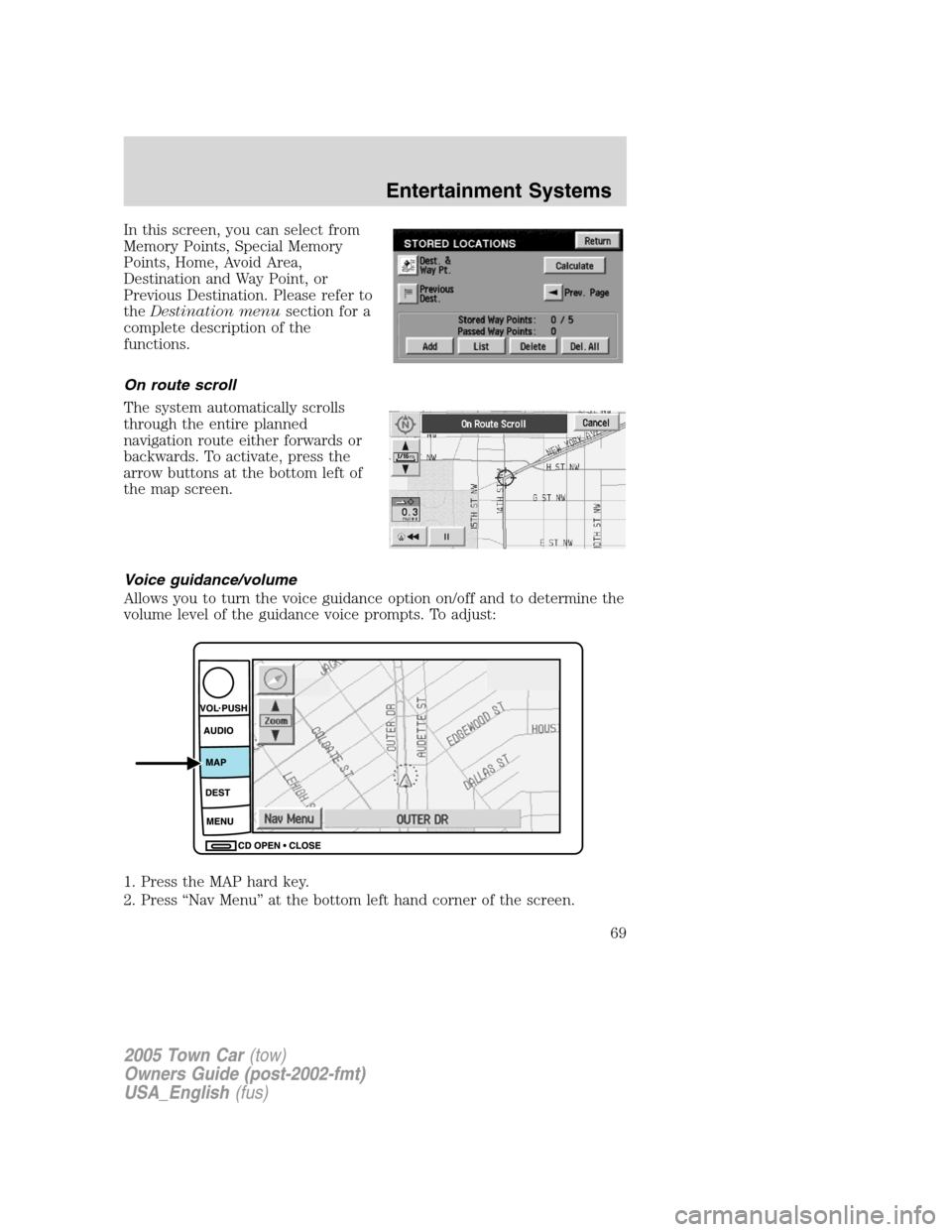
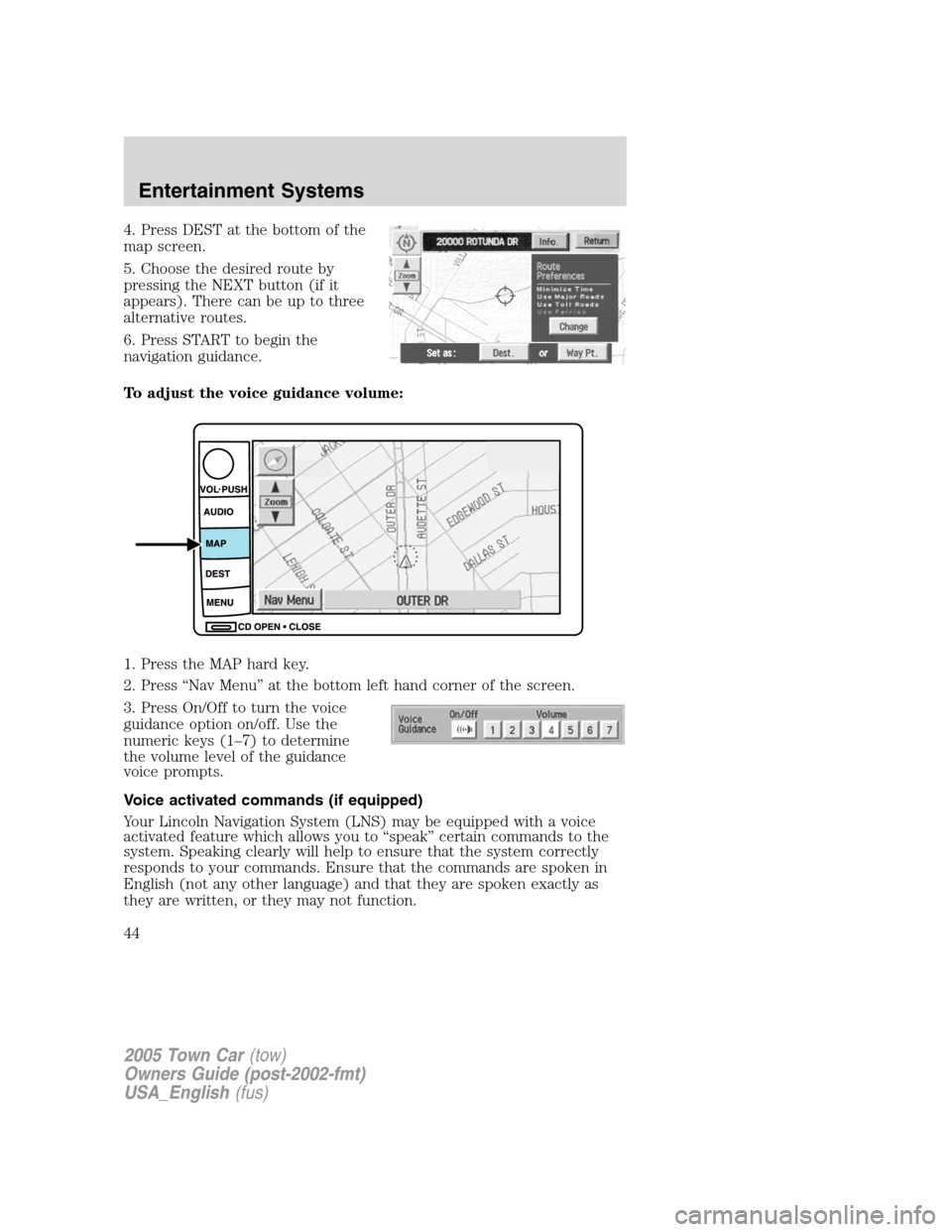
1. Press the MAP hard key.
2. Press “Nav Menu” at the bottom left hand corner of the screen.
3. Press On/Off to turn the voice
guidance option on/off. Use the
numeric keys (1–7) to determine
the volume level of the guidance
voice prompts.
Voice activated commands (if equipped)
Your Lincoln Navigation System (LNS) may be equipped with a voice
activated feature which allows you to “speak” certain commands to the
system. Speaking clearly will help to ensure that the system correctly
responds to your commands. Ensure that the commands are spoken in
English (not any other language) and that they are spoken exactly as
they are written, or they may not function.
2005 Town Car(tow)
Owners Guide (post-2002-fmt)
USA_English(fus)
Entertainment Systems
44
Page 61 of 328
Zoom control
When ’Zoom’ is pressed, the scale indicator is shown on the screen. The
scale markings are: 1/32, 1/16,1/4, 1/8, 1/2, 1, 2, 4, 8, 16, 32, 64, 128
miles. The control can be used in a number of ways:
•Touch and hold one of the arrow buttons for the map to be displayed
again at each zoom level.
•Touch one of the arrow buttons repeatedly for the map to be
displayed again at the final zoom level.
•Touch one of the segments of the scale indicator for the map to be
displayed at the selected zoom level.
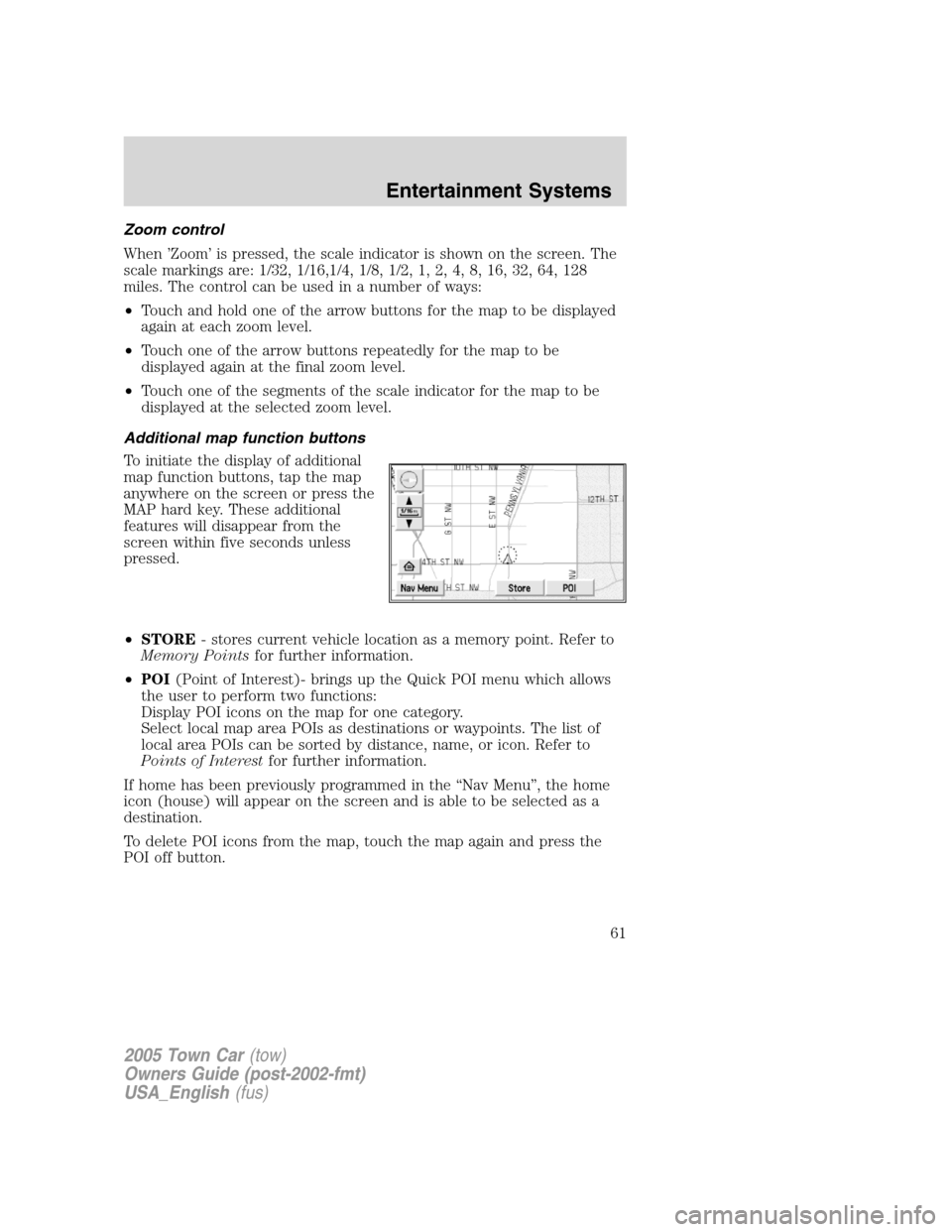
Additional map function buttons
To initiate the display of additional
map function buttons, tap the map
anywhere on the screen or press the
MAP hard key. These additional
features will disappear from the
screen within five seconds unless
pressed.
•STORE- stores current vehicle location as a memory point. Refer to
Memory Pointsfor further information.
•POI(Point of Interest)- brings up the Quick POI menu which allows
the user to perform two functions:
Display POI icons on the map for one category.
Select local map area POIs as destinations or waypoints. The list of
local area POIs can be sorted by distance, name, or icon. Refer to
Points of Interestfor further information.
If home has been previously programmed in the “Nav Menu”, the home
icon (house) will appear on the screen and is able to be selected as a
destination.
To delete POI icons from the map, touch the map again and press the
POI off button.
2005 Town Car(tow)
Owners Guide (post-2002-fmt)
USA_English(fus)
Entertainment Systems
61
Page 69 of 328
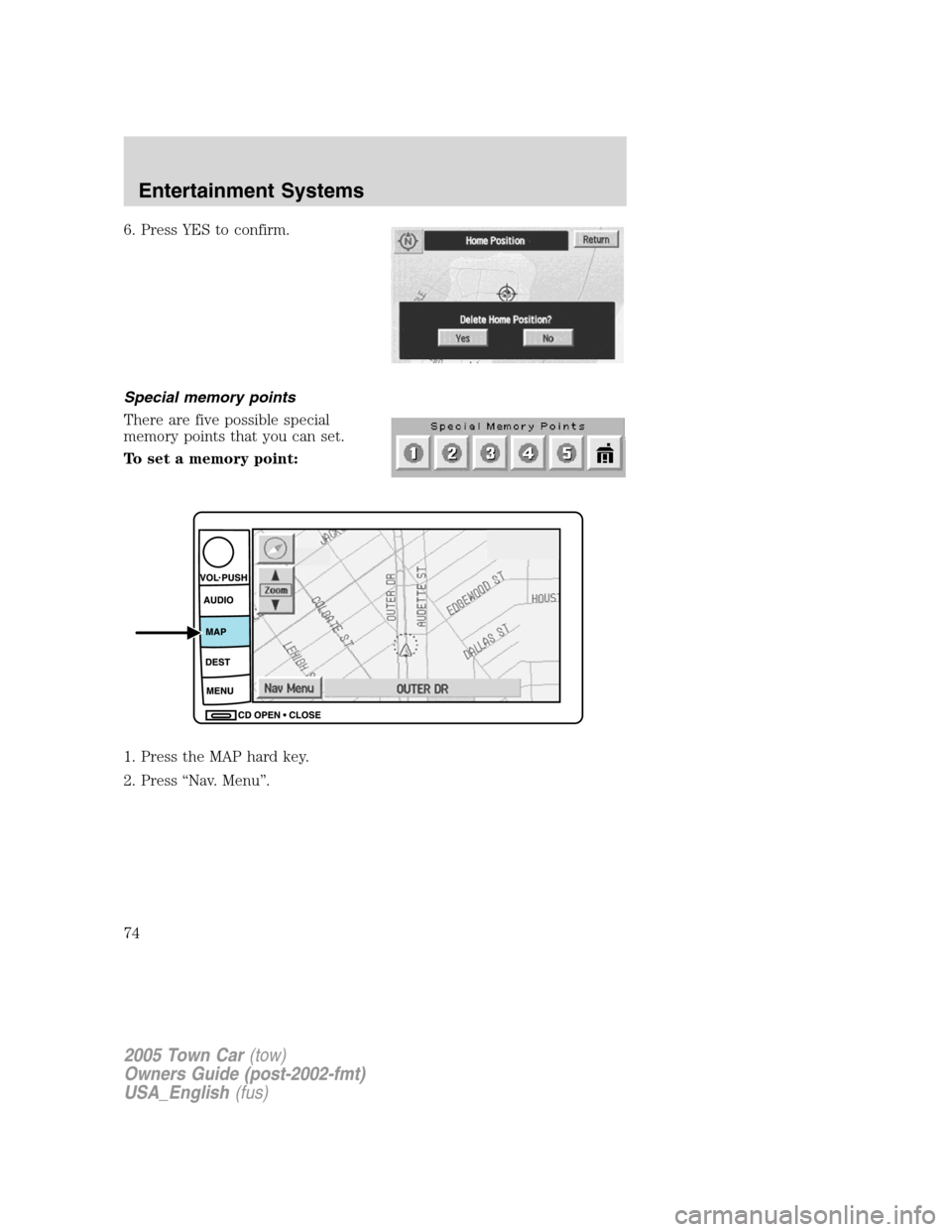
In this screen, you can select from
Memory Points, Special Memory
Points, Home, Avoid Area,
Destination and Way Point, or
Previous Destination. Please refer to
theDestination menusection for a
complete description of the
functions.
On route scroll
The system automatically scrolls
through the entire planned
navigation route either forwards or
backwards. To activate, press the
arrow buttons at the bottom left of
the map screen.
Voice guidance/volume
Allows you to turn the voice guidance option on/off and to determine the
volume level of the guidance voice prompts. To adjust:
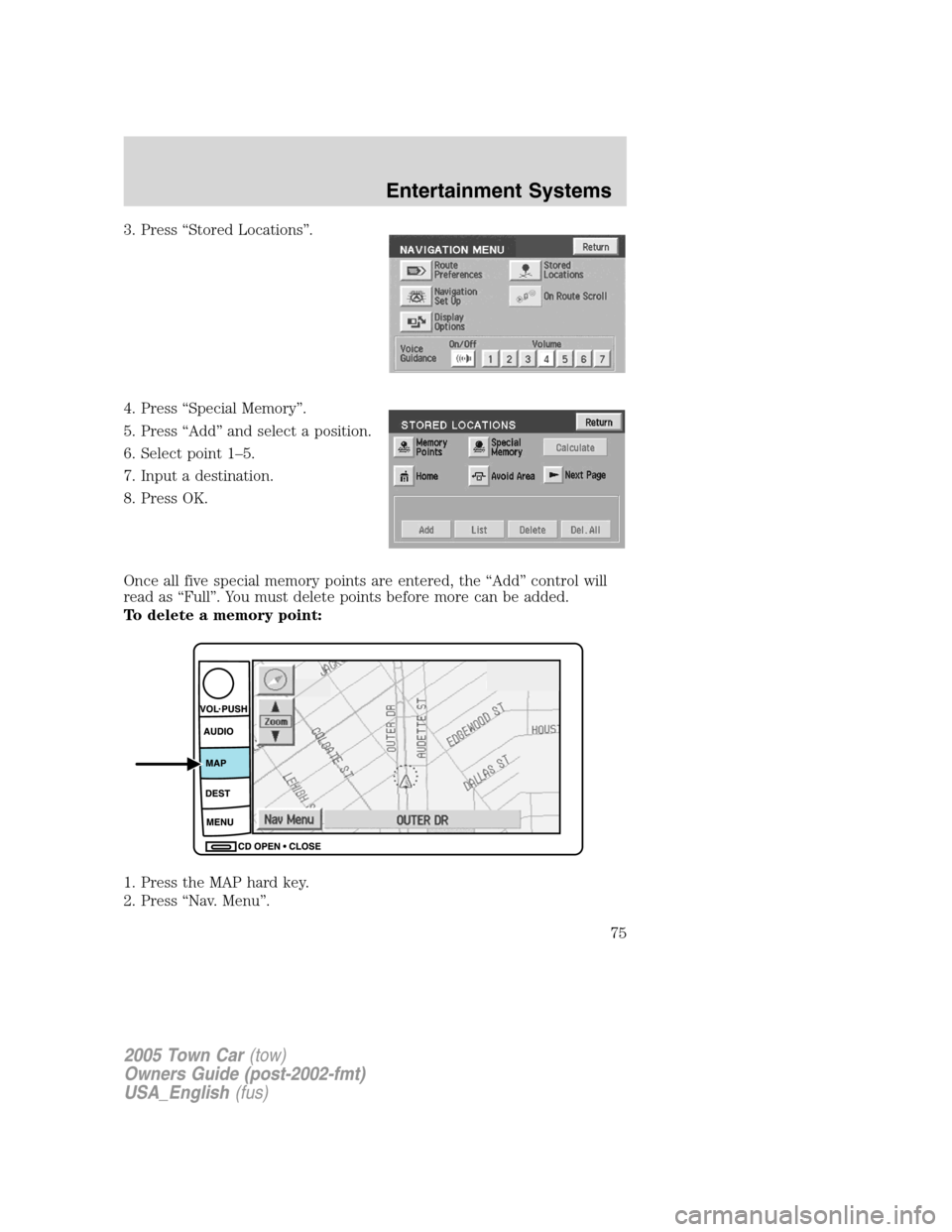
1. Press the MAP hard key.
2. Press “Nav Menu” at the bottom left hand corner of the screen.
2005 Town Car(tow)
Owners Guide (post-2002-fmt)
USA_English(fus)
Entertainment Systems
69
Page 74 of 328
6. Press YES to confirm.
Special memory points
There are five possible special
memory points that you can set.
To set a memory point:
1. Press the MAP hard key.
2. Press “Nav. Menu”.
2005 Town Car(tow)
Owners Guide (post-2002-fmt)
USA_English(fus)
Entertainment Systems
74
Page 75 of 328
3. Press “Stored Locations”.
4. Press “Special Memory”.
5. Press “Add” and select a position.
6. Select point 1–5.
7. Input a destination.
8. Press OK.
Once all five special memory points are entered, the “Add” control will
read as “Full”. You must delete points before more can be added.
To delete a memory point:
1. Press the MAP hard key.
2. Press “Nav. Menu”.
2005 Town Car(tow)
Owners Guide (post-2002-fmt)
USA_English(fus)
Entertainment Systems
75
Page 76 of 328
3. Press “Stored Locations”.
4. Press “Special Memory”.
5. Press “Delete”. The list will
display.
6. Select the special memory point
to delete.
7. Press “Del. all” to delete all
entered special memory points.
8. Press “Yes” to confirm.
Detour options
You may engage the detour option once a route has already been
calculated by the system. To access the detour option:
1. Press the MAP hard key
2. Press “Chg. Route”.
2005 Town Car(tow)
Owners Guide (post-2002-fmt)
USA_English(fus)
Entertainment Systems
76
Page 80 of 328
Initial map display
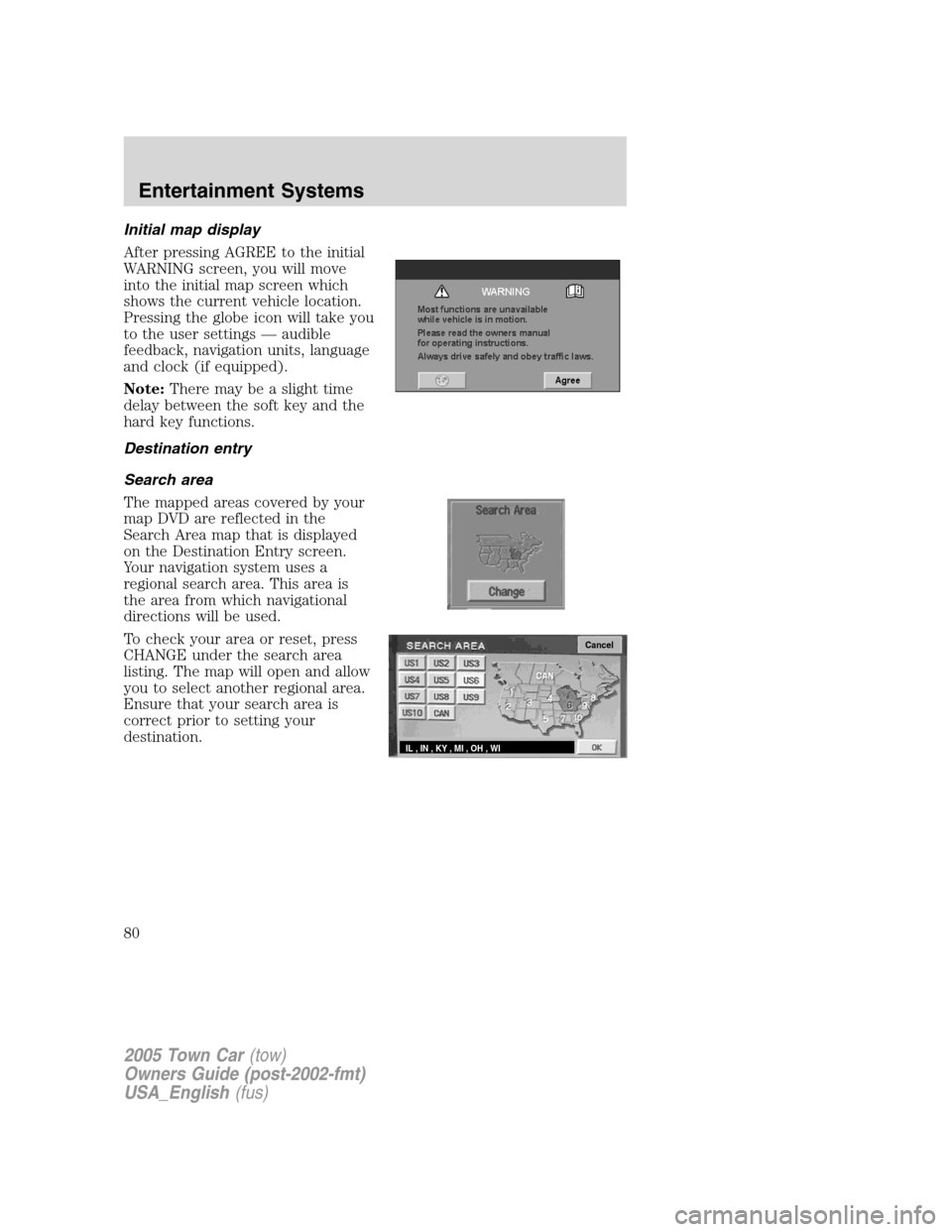
After pressing AGREE to the initial
WARNING screen, you will move
into the initial map screen which
shows the current vehicle location.
Pressing the globe icon will take you
to the user settings — audible
feedback, navigation units, language
and clock (if equipped).
Note:There may be a slight time
delay between the soft key and the
hard key functions.
Destination entry
Search area
The mapped areas covered by your
map DVD are reflected in the
Search Area map that is displayed
on the Destination Entry screen.
Your navigation system uses a
regional search area. This area is
the area from which navigational
directions will be used.
To check your area or reset, press
CHANGE under the search area
listing. The map will open and allow
you to select another regional area.
Ensure that your search area is
correct prior to setting your
destination.
Cancel
IL , IN , KY , MI , OH , WI
2005 Town Car(tow)
Owners Guide (post-2002-fmt)
USA_English(fus)
Entertainment Systems
80