2005 FORD FREESTYLE display
[x] Cancel search: displayPage 28 of 288
CD play mode
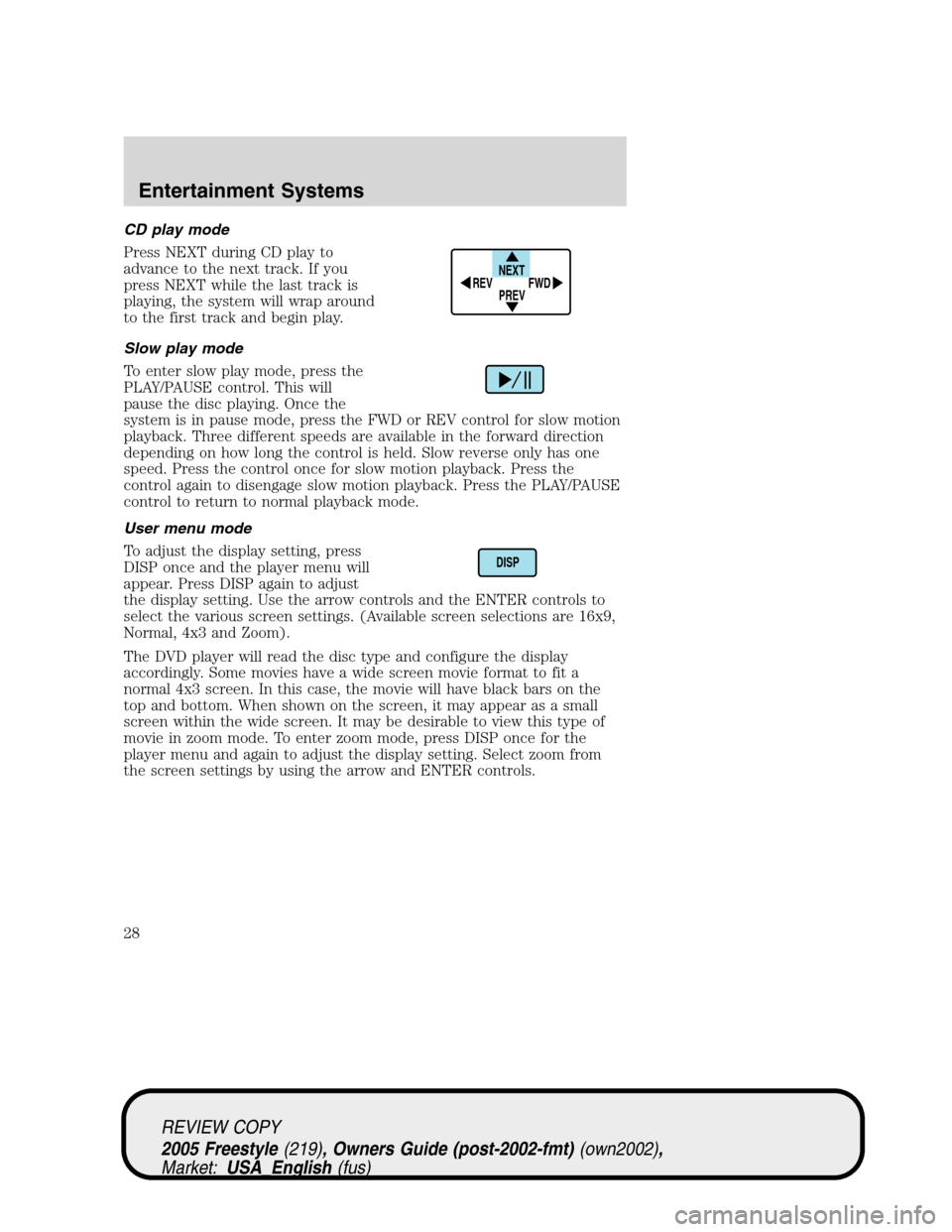
Press NEXT during CD play to
advance to the next track. If you
press NEXT while the last track is
playing, the system will wrap around
to the first track and begin play.
Slow play mode
To enter slow play mode, press the
PLAY/PAUSE control. This will
pause the disc playing. Once the
system is in pause mode, press the FWD or REV control for slow motion
playback. Three different speeds are available in the forward direction
depending on how long the control is held. Slow reverse only has one
speed. Press the control once for slow motion playback. Press the
control again to disengage slow motion playback. Press the PLAY/PAUSE
control to return to normal playback mode.
User menu mode
To adjust the display setting, press
DISP once and the player menu will
appear. Press DISP again to adjust
the display setting. Use the arrow controls and the ENTER controls to
select the various screen settings. (Available screen selections are 16x9,
Normal, 4x3 and Zoom).
The DVD player will read the disc type and configure the display
accordingly. Some movies have a wide screen movie format to fit a
normal 4x3 screen. In this case, the movie will have black bars on the
top and bottom. When shown on the screen, it may appear as a small
screen within the wide screen. It may be desirable to view this type of
movie in zoom mode. To enter zoom mode, press DISP once for the
player menu and again to adjust the display setting. Select zoom from
the screen settings by using the arrow and ENTER controls.
NEXT
PREV REV
FWD
DISP
REVIEW COPY
2005 Freestyle(219), Owners Guide (post-2002-fmt)(own2002),
Market:USA_English(fus)
Entertainment Systems
28
Page 29 of 288
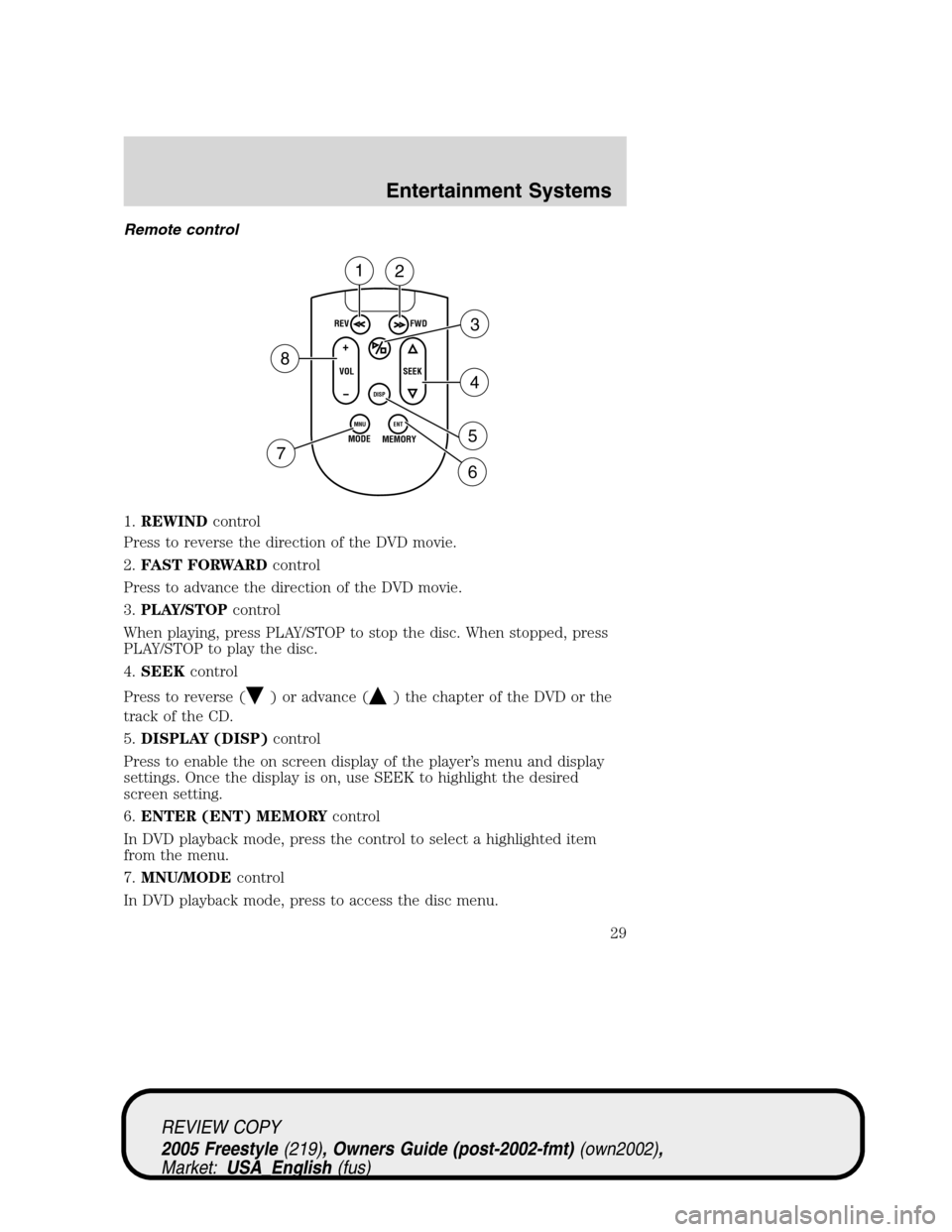
Remote control
1.REWINDcontrol
Press to reverse the direction of the DVD movie.
2.FAST FORWARDcontrol
Press to advance the direction of the DVD movie.
3.PLAY/STOPcontrol
When playing, press PLAY/STOP to stop the disc. When stopped, press
PLAY/STOP to play the disc.
4.SEEKcontrol
Press to reverse (
) or advance () the chapter of the DVD or the
track of the CD.
5.DISPLAY (DISP)control
Press to enable the on screen display of the player’s menu and display
settings. Once the display is on, use SEEK to highlight the desired
screen setting.
6.ENTER (ENT) MEMORYcontrol
In DVD playback mode, press the control to select a highlighted item
from the menu.
7.MNU/MODEcontrol
In DVD playback mode, press to access the disc menu.
REV
FWD
SEEK VOL
MODE
MEMORY
+
DISP
MNU
ENT-
12
3
4
5
6 7
8
REVIEW COPY
2005 Freestyle(219), Owners Guide (post-2002-fmt)(own2002),
Market:USA_English(fus)
Entertainment Systems
29
Page 33 of 288

Liquid Crystal Display (LCD) flip-down screen
The LCD screen rotates down and can be adjusted to your desired
viewing angle. When not in use, rotate the screen up into the storage
housing.
Note:Ensure that the screen is securely latched into the housing when
stored.
1. 7.0”(diagonal) active matrix liquid crystal display (LCD).
2. Display housing.
3. Dimmer switch. Press +/- to increase/decrease the brightness of the
display.
Playback and format
•The DVD player of your Family Entertainment DVD System can only
be used in the“playback”mode. (The DVD player does not offer a
record feature.)
•The system plays standard CDs or DVDs, CDR/RW, DVDRs, VCDs and
MP3 media.
Family Entertainment DVD System protection circuits
High temperature sensor circuit
•Excessively high temperatures may cause damage to the DVD player.
REVIEW COPY
2005 Freestyle(219), Owners Guide (post-2002-fmt)(own2002),
Market:USA_English(fus)
Entertainment Systems
33
Page 34 of 288

•When the temperature of the DVD player becomes too hot, the high
temperature sensor circuit stops machine operation. DVD/CD HOT will
be displayed on the radio display.
•The DVD player will remain disabled until it cools to a normal
operating temperature. The length of time for the system to cool will
vary depending on the climate and operating conditions.
Operating
•Only use the system when the vehicle is started for optimal
performance and to maintain battery life.
•If the Family Entertainment System (FES) is playing and the ignition
is turned OFF, the system will turn off, and suspend playback. When
the ignition is turned on again, playback will begin from the last
selected media source when the play control is pressed.
•To disable the DVD player rear controls, simultaneously press the 3
and 5 memory presets on the radio face. To enable the DVD player
rear controls again, press the 3 and 5 presets simultaneously.
•The DVD player is only capable of reading the bottom side of a disc.
When inserting a single sided disc, the label should be up. For a
multi-sided disc, the desired play side should be down when the disc
is inserted into the player.
•DVDs are formatted by regions. This DVD system can only play region
1 DVDs (DVDs manufactured for U.S. and Canada).
This unit is designed to play commercially pressed 4.75 (12 cm)
audio compact discs and DVDs only. Due to technical
incompatibility, certain recordable and re-recordable compact
discs may not function correctly when used in Ford DVD/CD
players. Irregular shaped discs, discs with a scratch protection
film attached, and discs with homemade paper (adhesive) labels
should not be inserted into the player. The label may peel and
cause the disc to become jammed. It is recommended that
homemade discs be identified with permanent felt tip marker
rather than adhesive labels. Ball point pens may damage discs.
Please contact your dealer for further information.
Inserting a CD/DVD
With the ignition ON, inserting a CD/DVD into the DVD player
automatically turns ON the FES and playback should begin immediately.
The counter is automatically reset to 0:00:00 when any disc is inserted
into the FES.
REVIEW COPY
2005 Freestyle(219), Owners Guide (post-2002-fmt)(own2002),
Market:USA_English(fus)
Entertainment Systems
34
Page 35 of 288
Removing a CD/DVD (while playing)
1. Press the STOP/EJECT control to stop playback if a disc is playing.
2. Press the STOP/EJECT control again to eject the CD/DVD.
If the CD/DVD is not removed within the allotted time, the system will
pull the CD/DVD back into the system for safety purposes.
If the CD/DVD will not eject from the system, press and hold the EJECT
control for approximately 2 seconds. The disc should eject whether the
vehicle ignition is ON or OFF.
Playing a video game/auxiliary device
1. Connect the video line from your video game device to the YELLOW
auxiliary input jack.
2. Connect the left and right audio lines to the WHITE (left) and RED
(right) auxiliary input jacks respectively.
3. Press the MODE control repeatedly until DVD/CD AUX (no disc in
player) or DVD/CD play (disc in player) illuminates in the radio display.
If a disc is in the system, playback should begin. To enable the aux
inputs, press the STOP control or press the AUX control on the DVD
player.
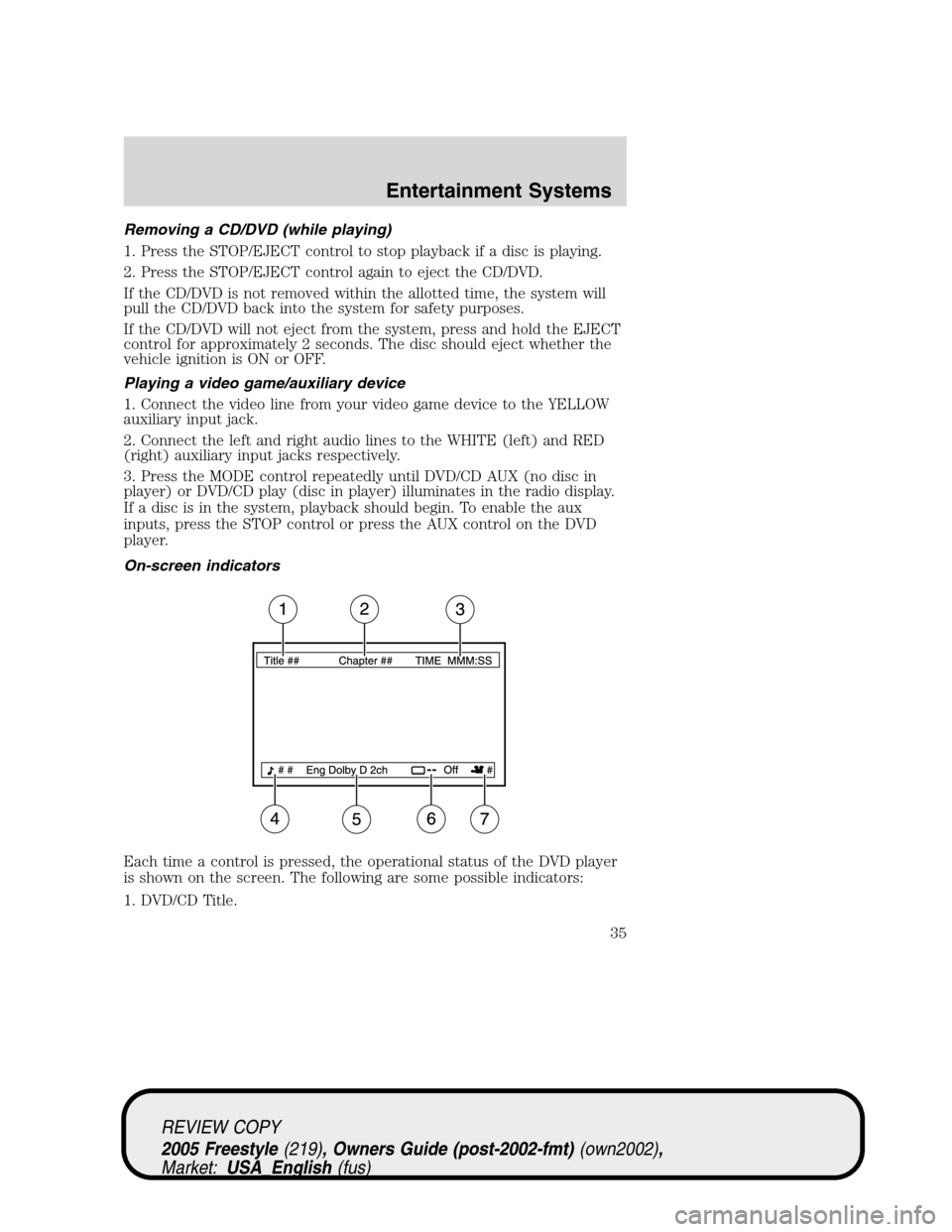
On-screen indicators
Each time a control is pressed, the operational status of the DVD player
is shown on the screen. The following are some possible indicators:
1. DVD/CD Title.
REVIEW COPY
2005 Freestyle(219), Owners Guide (post-2002-fmt)(own2002),
Market:USA_English(fus)
Entertainment Systems
35
Page 36 of 288
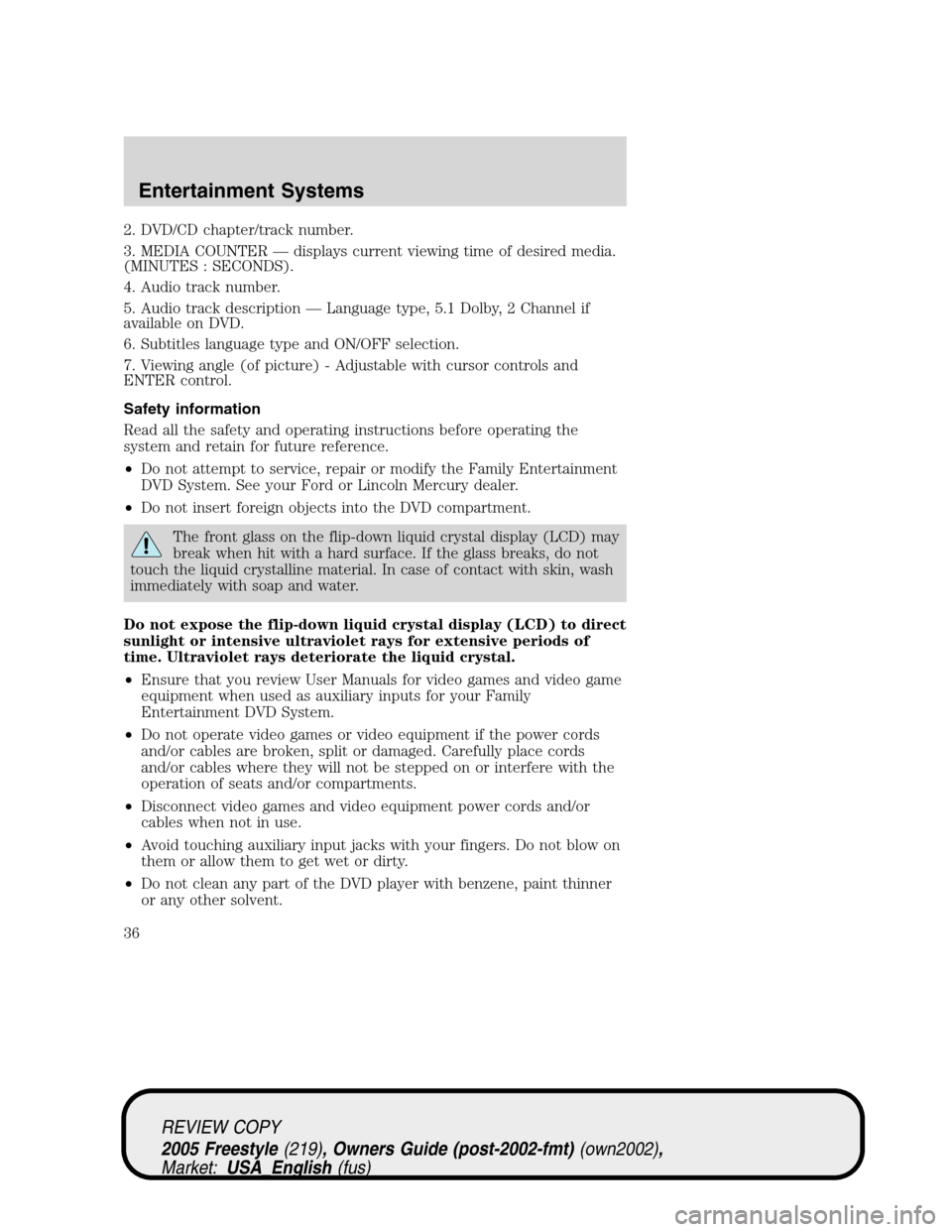
2. DVD/CD chapter/track number.
3. MEDIA COUNTER—displays current viewing time of desired media.
(MINUTES : SECONDS).
4. Audio track number.
5. Audio track description—Language type, 5.1 Dolby, 2 Channel if
available on DVD.
6. Subtitles language type and ON/OFF selection.
7. Viewing angle (of picture) - Adjustable with cursor controls and
ENTER control.
Safety information
Read all the safety and operating instructions before operating the
system and retain for future reference.
•Do not attempt to service, repair or modify the Family Entertainment
DVD System. See your Ford or Lincoln Mercury dealer.
•Do not insert foreign objects into the DVD compartment.
The front glass on the flip-down liquid crystal display (LCD) may
break when hit with a hard surface. If the glass breaks, do not
touch the liquid crystalline material. In case of contact with skin, wash
immediately with soap and water.
Do not expose the flip-down liquid crystal display (LCD) to direct
sunlight or intensive ultraviolet rays for extensive periods of
time. Ultraviolet rays deteriorate the liquid crystal.
•Ensure that you review User Manuals for video games and video game
equipment when used as auxiliary inputs for your Family
Entertainment DVD System.
•Do not operate video games or video equipment if the power cords
and/or cables are broken, split or damaged. Carefully place cords
and/or cables where they will not be stepped on or interfere with the
operation of seats and/or compartments.
•Disconnect video games and video equipment power cords and/or
cables when not in use.
•Avoid touching auxiliary input jacks with your fingers. Do not blow on
them or allow them to get wet or dirty.
•Do not clean any part of the DVD player with benzene, paint thinner
or any other solvent.
REVIEW COPY
2005 Freestyle(219), Owners Guide (post-2002-fmt)(own2002),
Market:USA_English(fus)
Entertainment Systems
36
Page 38 of 288
Humidity and moisture condensation
Moisture in the air will condense in the DVD player under extremely
humid conditions or when moving from a cold to a warm location. If
moisture condensation occurs, do not insert a CD or DVD into the
player. If one is already in the player, remove it and turn the DVD player
ON to dry the moisture before inserting a DVD. This could take an hour
or more depending on the amount of moisture.
Cleaning the liquid crystal display (LCD) flip-down screen
Clean the display screen by applying a small amount of water or any
ammonia-based household glass cleaner directly to a soft cloth. Rub the
screen gently until the dust, dirt or fingerprints are removed. Do not
spray the screen directly with water or glass cleaning solvents. Overspray
from these fluids could drip down into the internal electronics of the
screen and cause damage. Do not apply excessive pressure while
cleaning the screen.
Foreign substances
Exercise care to prevent dirt and foreign objects from entering the DVD
player compartment. If liquid is accidentally spilled onto the system,
immediately turn the system OFF and consult a qualified service
technician.
Cleaning compact discs
Inspect all discs for contamination before playing. If necessary, clean
discs only with an approved CD cleaner and wipe from the center out to
the edge. Do not wipe in a circular motion.
Cleaning the DVD player
Clean the exterior of the DVD player with a damp cloth. Do not use CD
cleaning kits or CDs intended to clean the interior of your DVD player.
Use of these products may damage your system.
REVIEW COPY
2005 Freestyle(219), Owners Guide (post-2002-fmt)(own2002),
Market:USA_English(fus)
Entertainment Systems
38
Page 42 of 288
9.:Distributes air through the instrument panel vents.
10.Manual override controls:Allows you to manually select where
airflow is directed. To return to full automatic control, press AUTO.
11.
Front fan speed control:Press to manually increase or
decrease the fan speed. To return to automatic fan operation, press
AUTO.
12.EXT:Press to display outside temperature. Press again to display
cabin temperature settings.
13.°F°C (Temperature conversions):Press to switch temperature
display between°Fahrenheit and°Celsius.
14.OFF:Outside air is shut out and the climate control system is turned
off.
15.Driver temperature control:Press to increase/decrease the
temperature on the driver side of the cabin. Sets the passenger side
temperature also when DUAL is disengaged. Recommended temperature
range is 72°to 75°Fahrenheit.
Dual temperature control:Press and hold the AUTO button to
engage-disengage separate passenger side temperature control.
16.Auto:To engage automatic temperature control, press AUTO and
select the desired temperature using the temperature control. The
system will automatically determine fan speed, airflow location, A/C on
or off, and outside or recirculated air, to heat or cool the vehicle to reach
the desired temperature.
REVIEW COPY
2005 Freestyle(219), Owners Guide (post-2002-fmt)(own2002),
Market:USA_English(fus)
Climate Controls
42