Page 204 of 420

To insert disc(s) into the changer, follow the instructions
shown:
1. On vehicles equipped with the premium version,
select and press any numbered button without an illumi-
nated light above it.
2. Gently insert the disc with the label facing up while
the light below the loading slot is illuminated. On
vehicles equipped with the premium version the light
above the chosen button will also be flashing, indicating
which numbered position the disc will be loaded into.
The disc will automatically be pulled into the CD/DVD
changer.
3. Upon insertion, the disc will begin to play, and the
light below the loading slot will turn off. On vehicles
equipped with the premium version the light above the
chosen button will remain illuminated.4. Repeat the process for loading any additional CD/
DVDs into the premium version multi-disc changer. The
CD/DVD changer will stop while additional CD/DVDs
are loaded.
If the radio volume control is ON, the unit will switch
from radio to CD/DVD mode. If the DVD supports the
autoplay feature, play will begin automatically in ap-
proximately 10 seconds, after the DVD disc menu is
displayed. If the DVD does not play automatically, press
the ENTER button on the remote control or on the side of
the video screen to select play from the menu options.
The radio display will show the chapter number and
index time in hours and minutes of the DVD, or the track
number, minutes and second of the CD.
NOTE:
•You may eject a disc with the radio OFF.
204 UNDERSTANDING YOUR INSTRUMENT PANEL
Page 205 of 420
•If you insert a disc with the ignition ON and the radio
OFF, the DVD will automatically be pulled into the
DVD changer and the display will show the time of
day.
•It is recommended to label home made burned discs
with a permanent marker instead of adhesive labels.
These types of labels may become loose and cause the
disc to be stuck in the DVD player. This may cause
permanent damage to the DVD mechanism.
EJECT (EJT) Button
If there is a disc in the changer, press the EJT button and
the disc will eject. If you do not remove the disc within 10
seconds, it will be reloaded and the display will show
PAUSE. The radio mode will continue to operate.To eject additional discs from the premium version
multi-disc changer, first select the numbered button
where the disc is located and then press the EJT button.
The disc can be ejected with the radio OFF.
Operating Instructions—Remote Control
NOTE:Aim the remote control at the DVD changer
located on the center of the instrument panel and press
the desired button. Direct sunlight or objects blocking the
line of sight may affect the function of the remote control.
UNDERSTANDING YOUR INSTRUMENT PANEL 205
4
Page 206 of 420
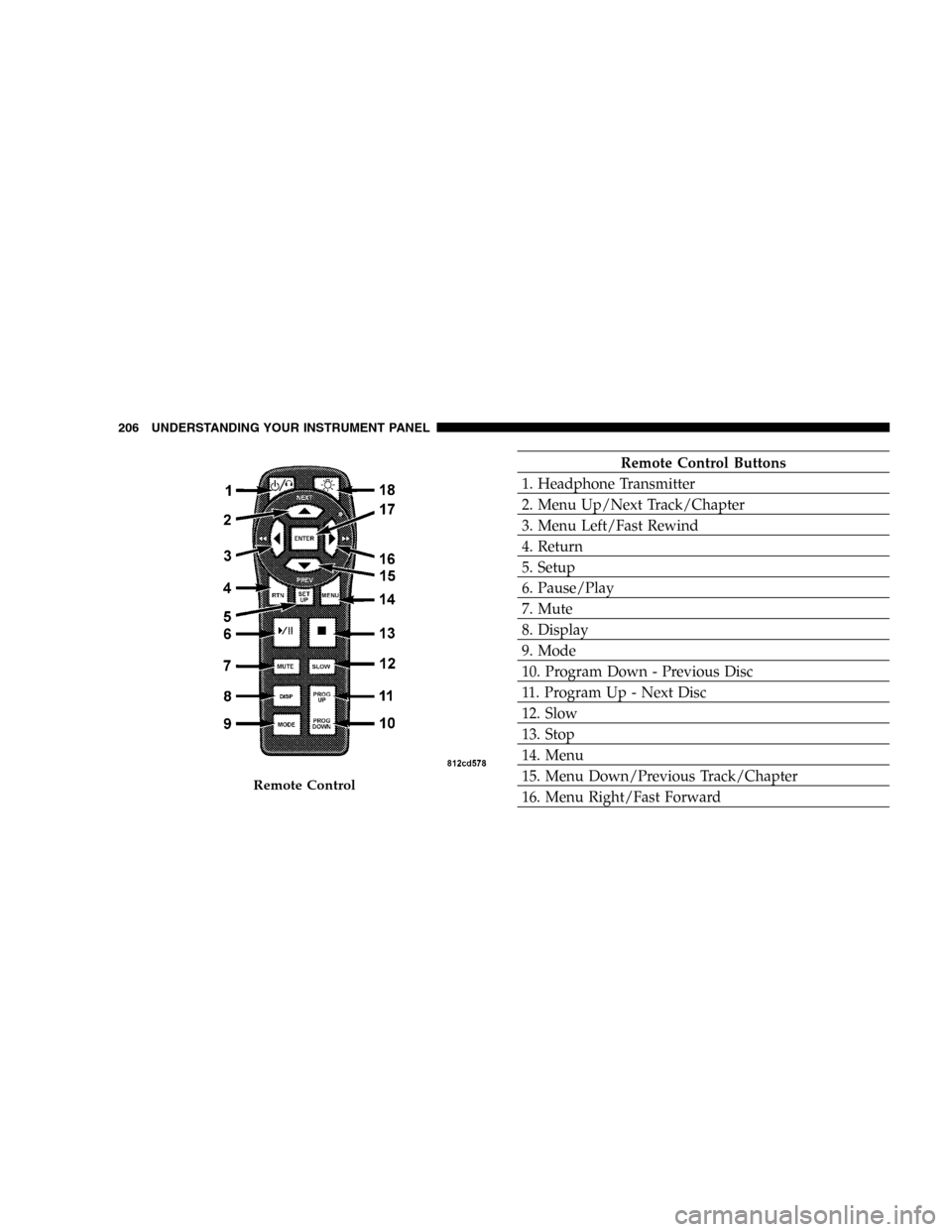
Remote Control Buttons
1. Headphone Transmitter
2. Menu Up/Next Track/Chapter
3. Menu Left/Fast Rewind
4. Return
5. Setup
6. Pause/Play
7. Mute
8. Display
9. Mode
10. Program Down - Previous Disc
11. Program Up - Next Disc
12. Slow
13. Stop
14. Menu
15. Menu Down/Previous Track/Chapter
16. Menu Right/Fast Forward
Remote Control
206 UNDERSTANDING YOUR INSTRUMENT PANEL
Page 207 of 420
Remote Control Buttons
17. Enter
18. Light
Headphone Transmitter Button (1)
After a disc is inserted into the DVD changer, both the
headphone transmitter button (1) on the remote control
and the power button on the headphones must be turned
ON before sound can be heard from the headphones. On
some radios the headphone symbol will flash for ap-
proximately 5 seconds in the radio display, indicating the
headphones are in use.
ARROW Buttons (2, 3, 15, 16)
These buttons only function in DVD video mode. Use the
arrow buttons to toggle through the DVD disc menu
screen options.
RTN Button (4)
This button only functions in DVD video mode. Press this
button to return to the previous menu when in the DVD
disc menu mode.
SETUP Button (5)
This button only functions in DVD video mode. Press the
button after pressing the STOP button to access the DVD
changer set up menu. Use the right and left arrows to
move between tabs for language, rating, mark, audio and
aspect. Use the up and down arrows to move between
options within each tab.
To change an item highlighted in blue, press ENTER. This
should cause the highlight to turn yellow. Again, using
the up and down arrows will cause the arrow to move up
or down. Once the arrow is on the desired selection, press
ENTER. When finished, press setup or play to return to
playing the DVD or Menu to return to the DVD disc
menu.
UNDERSTANDING YOUR INSTRUMENT PANEL 207
4
Page 208 of 420
PAUSE/PLAY Button (6)
This button only functions in DVD video mode. Press this
button once to pause the video, press a second time to
play the video.
MUTE Button (7)
No function.
DISP Button (8)
This button only functions in DVD video mode. When a
DVD video is playing, press this button to display the
play menu options.
MODE Button (9)
No Function
PROG UP/DOWN Buttons (10, 11)
PROG UP selects the next disc loaded in the changer.
PROG DOWN selects the previous disc loaded in the
changer.
SLOW Button (12)
This button only functions in DVD video mode. Press this
button to advance the video. If the DVD is paused,
pressing this button will advance the video frame by
frame.
STOP Button (13)
This button only functions in DVD video mode. Press this
button to stop the DVD.
MENU Button (14)
This button only functions in DVD video mode. Press this
button to select the DVD disc menu.
208 UNDERSTANDING YOUR INSTRUMENT PANEL
Page 209 of 420

NEXT/PREV Buttons (2, 15)
Press the up arrow or the NEXT button for the next
chapter or track on the disc. Press the down arrow or
PREV button to return to the beginning of the current
chapter or track. Press the down arrow or PREV button
twice within two seconds to return to the previous
chapter or track. Each press of the NEXT/PREV button
up or down will toggle through the chapters or tracks.
FF/RW Buttons (3, 16)
Press and hold FF (Fast Forward) once and the CD/DVD
changer will begin to fast forward until the FF button is
released. The RW (Reverse) button works in a similar
manner.
ENTER Button (17)
This button only functions in DVD video mode. Use the
ENTER button to enter selections from the menu screens.
Use the arrow buttons to toggle through the menu screen
options.
Light Button (18)
Pressing this button illuminates the buttons on the re-
mote control.
Remote Control Battery Service
•
To replace the batteries for the remote control slide the
cover rearward.
The replacement batteries for the remote control are two
AAA batteries.
UNDERSTANDING YOUR INSTRUMENT PANEL 209
4
Page 210 of 420
Operating Instructions—Video Screen
Push up on the release button to lower the video screen.
1. Screen Width Button
Changes the width of the screen picture.
2. Enter Button
This button will enter the selection from the
on-screen menu.
3. Brightness Button
Changes the brightness of the screen picture.
Lowering Video Screen
210 UNDERSTANDING YOUR INSTRUMENT PANEL
Page 211 of 420
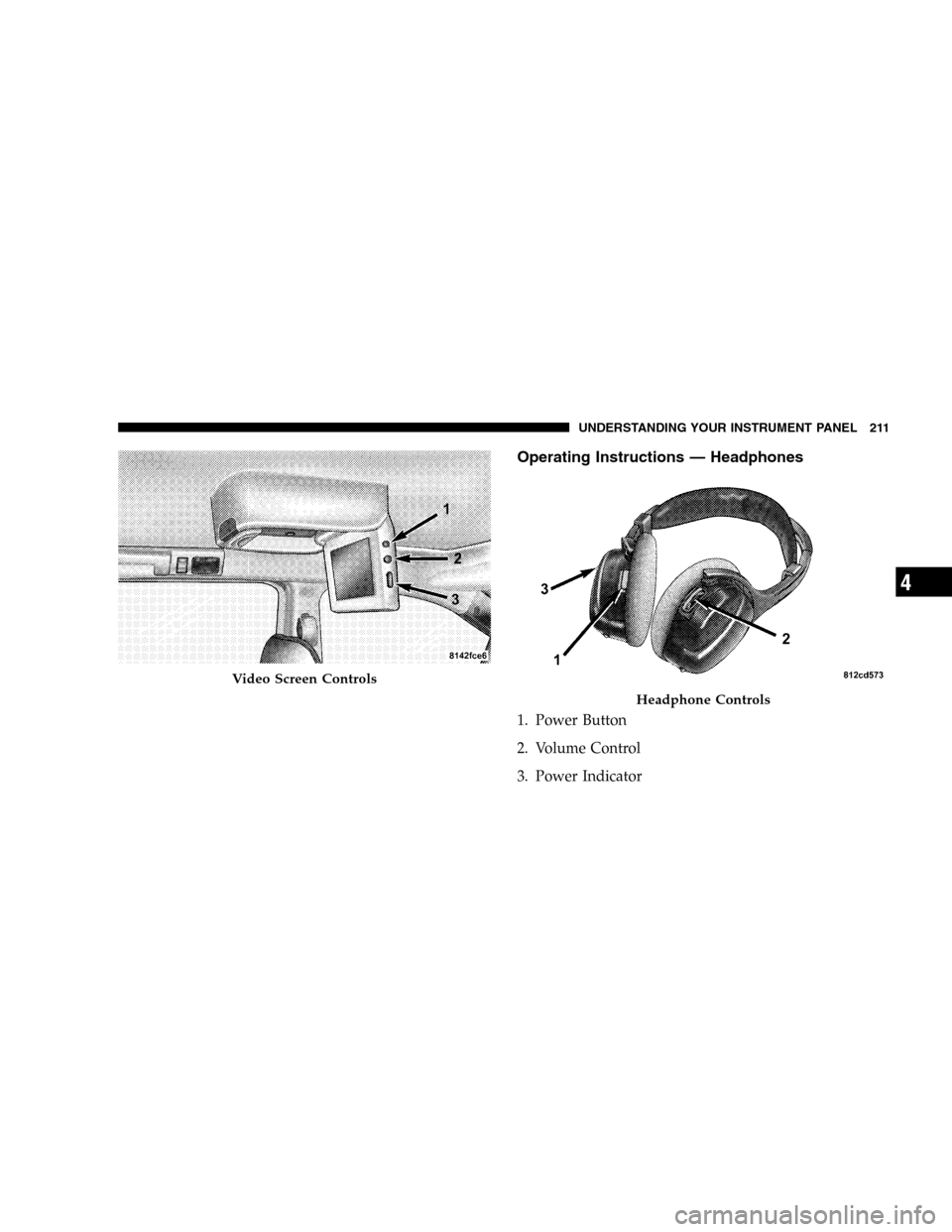
Operating Instructions—Headphones
1. Power Button
2. Volume Control
3. Power Indicator
Video Screen Controls
Headphone Controls
UNDERSTANDING YOUR INSTRUMENT PANEL 211
4