2005 CHEVROLET MALIBU lock
[x] Cancel search: lockPage 215 of 434
TAPE SEEK and a negative number will appear on the
display while the cassette player is in the previous mode.
Pressing the down arrow multiple times will increase the
number of selections to be searched back.
Press the up arrow to go to the next selection on the tape.
If the up arrow is pressed more than once, the player will
continue moving forward through the tape. TAPE SEEK
and a positive number will appear on the display.
BAND:Press this button to listen to the radio when a
cassette tape or CD is playing. The inactive tape or CD
will remain safely inside the radio for future listening.
SRCE (Source):Press this button to play a tape, CD,
or a remote device (if installed) when listening to the
radio. The inactive tape or CD will remain safely inside
the radio for future listening.
EJECT /
Z(Eject):Press this button, located to the
left of the cassette tape slot, to eject a tape. Eject
may be activated with the radio off. Cassette tapes may
be loaded with the ignition and radio off if this button
is pressed rst.
Cassette Tape Messages
If an error occurs while trying to play a cassette tape, it
could be for one of the following reasons:
TIGHT TAPE:This message is displayed when the
tape is tight and the player cannot turn the tape hubs.
Remove the tape. Hold the tape with the open end down
and try to turn the right hub counterclockwise with a
pencil. Turn the tape over and repeat. If the hubs do not
turn easily, the tape may be damaged and should not
be used in the player. Try a new tape to make sure the
player is working properly.
BROKEN TAPE:If this message appears on the radio
display, the tape will not play because of one of the
following:
The tape is broken. Try a new tape.
The tape is wrapped around the tape head. Attempt
to get the cassette out. Try a new tape.
CLEAN TAPE:If this message appears on the display,
the cassette tape player needs to be cleaned. It will
still play tapes, but it should be cleaned as soon
as possible to prevent damage to the tapes and player.
SeeCare of the Cassette Tape Player on page 3-123.
If any error occurs repeatedly or if an error cannot
be corrected, contact your GM dealer. If the radio
displays an error message, write it down and provide it
to your GM dealer when reporting the problem.
3-85
Page 224 of 434
MSG (Message):If the current station has a message,
MSG will appear on the display. Press this button to
see the message. The message may display the artist,
song title, call in phone numbers, etc.
If the entire message is not displayed, parts of the
message will appear every three seconds. To scroll
through the message, press and release the MSG
button. A new group of words will appear on the display
after every press of this button. Once the complete
message has been displayed, MSG will disappear from
the display until another new message is received.
The last message can be displayed by pressing
the MSG button. You can view the last message until a
new message is received or a different station is
tuned to.
When a message is not available from a station, NO
MESSAGE will appear on the display.
MSG (Traffic):If TRAFFIC appears on the display, the
tuned station broadcasts traffic announcements and
when a traffic announcement comes on the tuned radio
station you will hear it.
If the current tuned station does not broadcast traffic
announcements, press and hold this button for
two seconds and the radio will seek to a station that
does. When a station that broadcasts traffic
announcements is found, the radio will stop seeking and
TRAF and brackets will appear on the display.When a traffic announcement comes on the tuned radio
station you will hear it. If no station is found that
broadcasts traffic announcements, NO TRAFFIC INFO
will appear on the display.
If TRAF is on the display, press and hold the MSG
button for two seconds to turn off the traffic
announcements.
The radio will play the traffic announcement even if the
volume is low. The radio will interrupt the play of a
CD if the last tuned station broadcasts traffic
announcements.
This function does not apply to XM™ Satellite Radio
Service.
Radio Messages
CALIBRATE:The audio system has been calibrated for
your vehicle from the factory. If CALIBRATE appears
on the display it means that the radio has not been
congured properly for the vehicle and it must be
returned to your GM dealer for service.
LOCKED:This message is displayed when the
THEFTLOCK
®system has locked up. Take your vehicle
to your GM dealer for service.
If any error occurs repeatedly or if an error cannot be
corrected, contact your GM dealer.
3-94
Page 225 of 434
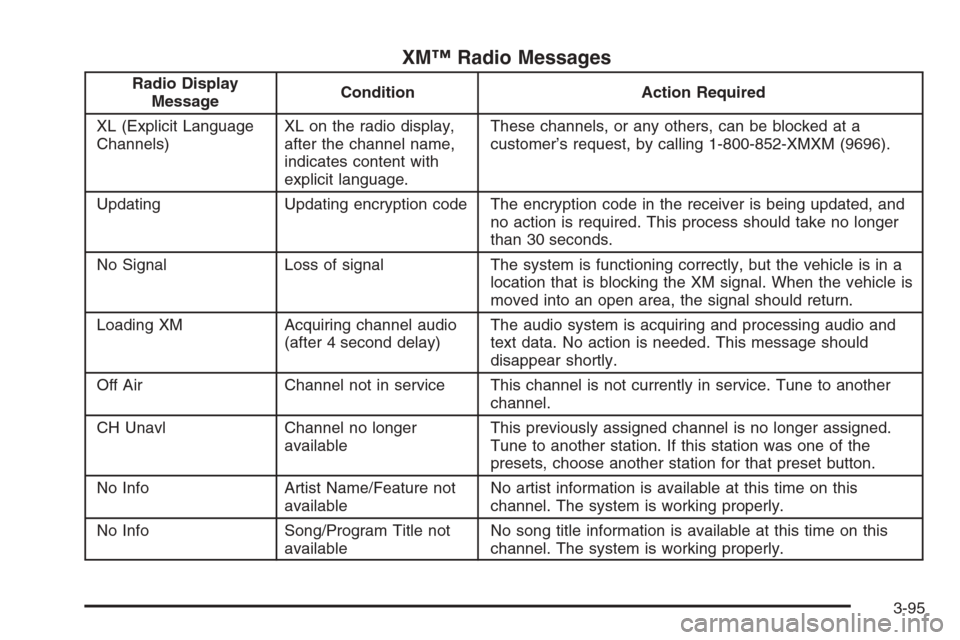
XM™ Radio Messages
Radio Display
MessageCondition Action Required
XL (Explicit Language
Channels)XL on the radio display,
after the channel name,
indicates content with
explicit language.These channels, or any others, can be blocked at a
customer’s request, by calling 1-800-852-XMXM (9696).
Updating Updating encryption code The encryption code in the receiver is being updated, and
no action is required. This process should take no longer
than 30 seconds.
No Signal Loss of signal The system is functioning correctly, but the vehicle is in a
location that is blocking the XM signal. When the vehicle is
moved into an open area, the signal should return.
Loading XM Acquiring channel audio
(after 4 second delay)The audio system is acquiring and processing audio and
text data. No action is needed. This message should
disappear shortly.
Off Air Channel not in service This channel is not currently in service. Tune to another
channel.
CH Unavl Channel no longer
availableThis previously assigned channel is no longer assigned.
Tune to another station. If this station was one of the
presets, choose another station for that preset button.
No Info Artist Name/Feature not
availableNo artist information is available at this time on this
channel. The system is working properly.
No Info Song/Program Title not
availableNo song title information is available at this time on this
channel. The system is working properly.
3-95
Page 226 of 434
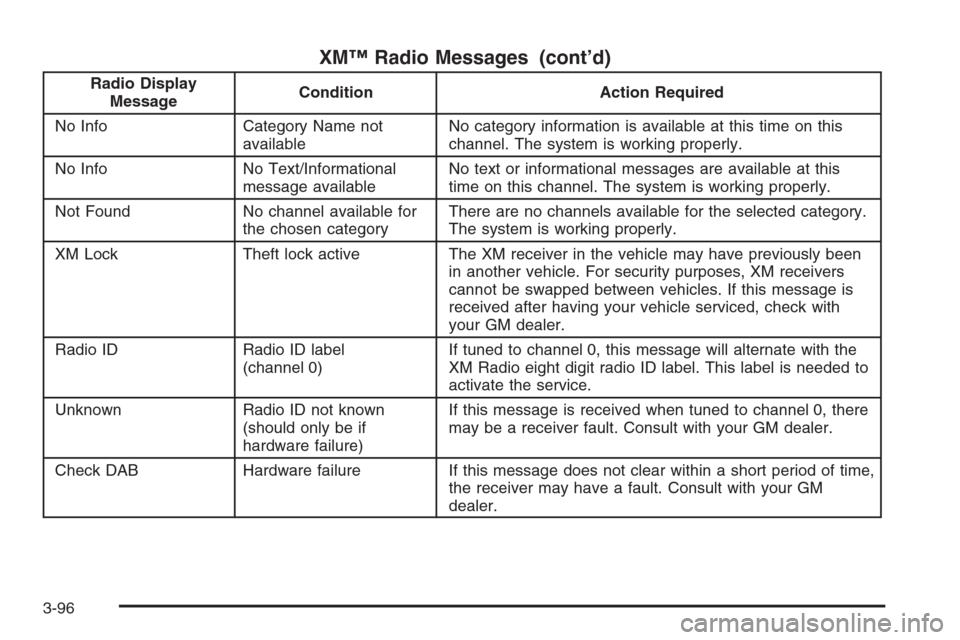
XM™ Radio Messages (cont’d)
Radio Display
MessageCondition Action Required
No Info Category Name not
availableNo category information is available at this time on this
channel. The system is working properly.
No Info No Text/Informational
message availableNo text or informational messages are available at this
time on this channel. The system is working properly.
Not Found No channel available for
the chosen categoryThere are no channels available for the selected category.
The system is working properly.
XM Lock Theft lock active The XM receiver in the vehicle may have previously been
in another vehicle. For security purposes, XM receivers
cannot be swapped between vehicles. If this message is
received after having your vehicle serviced, check with
your GM dealer.
Radio ID Radio ID label
(channel 0)If tuned to channel 0, this message will alternate with the
XM Radio eight digit radio ID label. This label is needed to
activate the service.
Unknown Radio ID not known
(should only be if
hardware failure)If this message is received when tuned to channel 0, there
may be a receiver fault. Consult with your GM dealer.
Check DAB Hardware failure If this message does not clear within a short period of time,
the receiver may have a fault. Consult with your GM
dealer.
3-96
Page 239 of 434
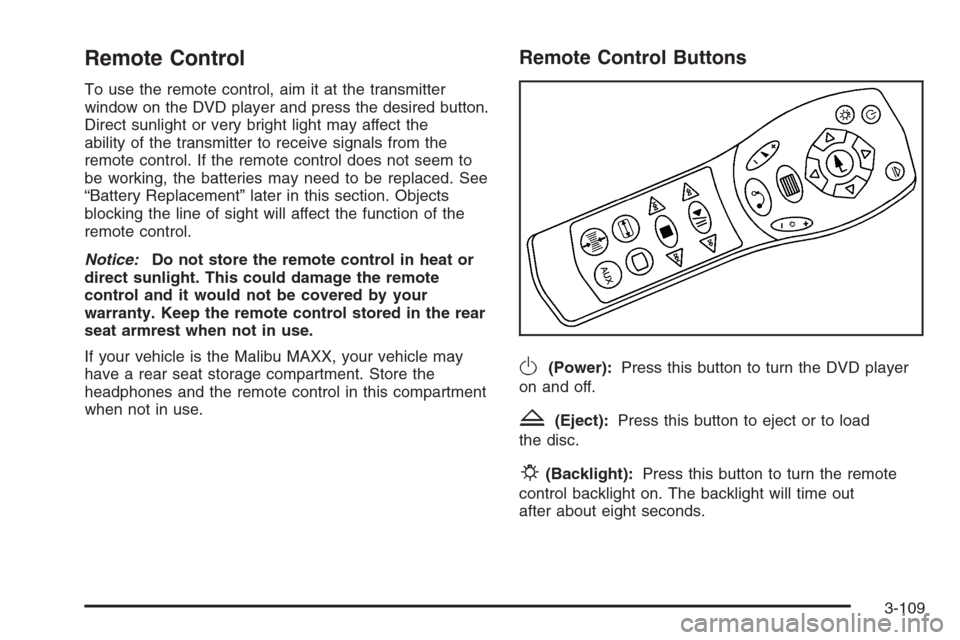
Remote Control
To use the remote control, aim it at the transmitter
window on the DVD player and press the desired button.
Direct sunlight or very bright light may affect the
ability of the transmitter to receive signals from the
remote control. If the remote control does not seem to
be working, the batteries may need to be replaced. See
“Battery Replacement” later in this section. Objects
blocking the line of sight will affect the function of the
remote control.
Notice:Do not store the remote control in heat or
direct sunlight. This could damage the remote
control and it would not be covered by your
warranty. Keep the remote control stored in the rear
seat armrest when not in use.
If your vehicle is the Malibu MAXX, your vehicle may
have a rear seat storage compartment. Store the
headphones and the remote control in this compartment
when not in use.
Remote Control Buttons
O(Power):Press this button to turn the DVD player
on and off.
Z(Eject):Press this button to eject or to load
the disc.
P(Backlight):Press this button to turn the remote
control backlight on. The backlight will time out
after about eight seconds.
3-109
Page 247 of 434
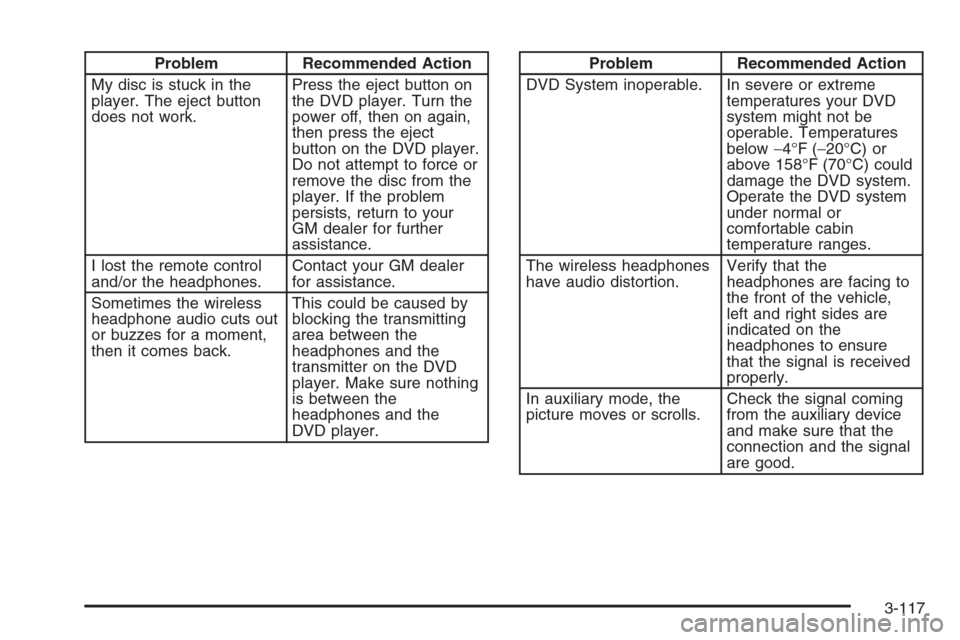
Problem Recommended Action
My disc is stuck in the
player. The eject button
does not work.Press the eject button on
the DVD player. Turn the
power off, then on again,
then press the eject
button on the DVD player.
Do not attempt to force or
remove the disc from the
player. If the problem
persists, return to your
GM dealer for further
assistance.
I lost the remote control
and/or the headphones.Contact your GM dealer
for assistance.
Sometimes the wireless
headphone audio cuts out
or buzzes for a moment,
then it comes back.This could be caused by
blocking the transmitting
area between the
headphones and the
transmitter on the DVD
player. Make sure nothing
is between the
headphones and the
DVD player.Problem Recommended Action
DVD System inoperable. In severe or extreme
temperatures your DVD
system might not be
operable. Temperatures
below−4°F (−20°C) or
above 158°F (70°C) could
damage the DVD system.
Operate the DVD system
under normal or
comfortable cabin
temperature ranges.
The wireless headphones
have audio distortion.Verify that the
headphones are facing to
the front of the vehicle,
left and right sides are
indicated on the
headphones to ensure
that the signal is received
properly.
In auxiliary mode, the
picture moves or scrolls.Check the signal coming
from the auxiliary device
and make sure that the
connection and the signal
are good.
3-117
Page 252 of 434
When a CD is playing in the six-disc CD changer, press
this button to select the next CD, if multiple CDs are
loaded. This function is not active if the front seat
passengers are listening to a CD.
BAND:Press this button to switch between FM1, FM2,
AM, or XM1 or XM2 (if equipped).
SRCE (Source):Press this button to switch between
playing a cassette tape and CD.
xSEEKw:When listening to the radio, press the up
or the down arrow to go to the next or the previous station
and stay there. This function is inactive if the front seat
passengers are listening to the same band.
When a cassette tape is playing, press the up or the
down arrow to go to the next or the previous selection.
This function is inactive if the front seat passengers are
listening to a cassette tape.When a CD is playing, press the up arrow to go to the
next track on the CD. Press the down arrow to go to the
start of the current track if more than ve seconds have
played. This function is inactive if the front seat
passengers are listening to a CD.
xw(Volume):Press the up or down arrow to
increase or decrease the volume on the wired
headphones (not included). The arrows on the right are
for the right headphones and the arrows on the left
are for the left headphones.
Theft-Deterrent Feature
THEFTLOCK®is designed to discourage theft of your
vehicle’s radio. The feature works automatically by
learning a portion of the Vehicle Identication
Number (VIN). If the radio is moved to a different
vehicle, it will not operate and LOCKED will appear on
the display.
With THEFTLOCK
®activated, the radio will not operate
if stolen.
3-122
Page 257 of 434
Your Driving, the Road, and Your Vehicle..........4-2
Defensive Driving...........................................4-2
Drunken Driving.............................................4-2
Control of a Vehicle........................................4-5
Braking.........................................................4-5
Anti-Lock Brake System (ABS).........................4-6
Braking in Emergencies...................................4-8
Enhanced Traction System (ETS).....................4-8
Steering......................................................4-10
Off-Road Recovery.......................................4-12
Passing.......................................................4-13
Loss of Control.............................................4-14
Driving at Night............................................4-15
Driving in Rain and on Wet Roads..................4-17City Driving..................................................4-19
Freeway Driving...........................................4-20
Before Leaving on a Long Trip.......................4-21
Highway Hypnosis........................................4-22
Hill and Mountain Roads................................4-22
Winter Driving..............................................4-24
If Your Vehicle is Stuck in Sand, Mud,
Ice or Snow..............................................4-28
Rocking Your Vehicle to Get It Out.................4-29
Loading Your Vehicle....................................4-29
Towing..........................................................4-34
Towing Your Vehicle.....................................4-34
Recreational Vehicle Towing...........................4-35
Towing a Trailer...........................................4-38
Section 4 Driving Your Vehicle
4-1