2005 CHEVROLET EPICA display
[x] Cancel search: displayPage 136 of 340
Speedometer and Odometer
Your speedometer lets you see your speed in both
miles per hour (mph) and kilometers per hour (km/h).
Your odometer shows how far your vehicle has
been driven in kilometers.
Trip Odometer
The trip odometer can record the number of kilometers
traveled for up to two trips.
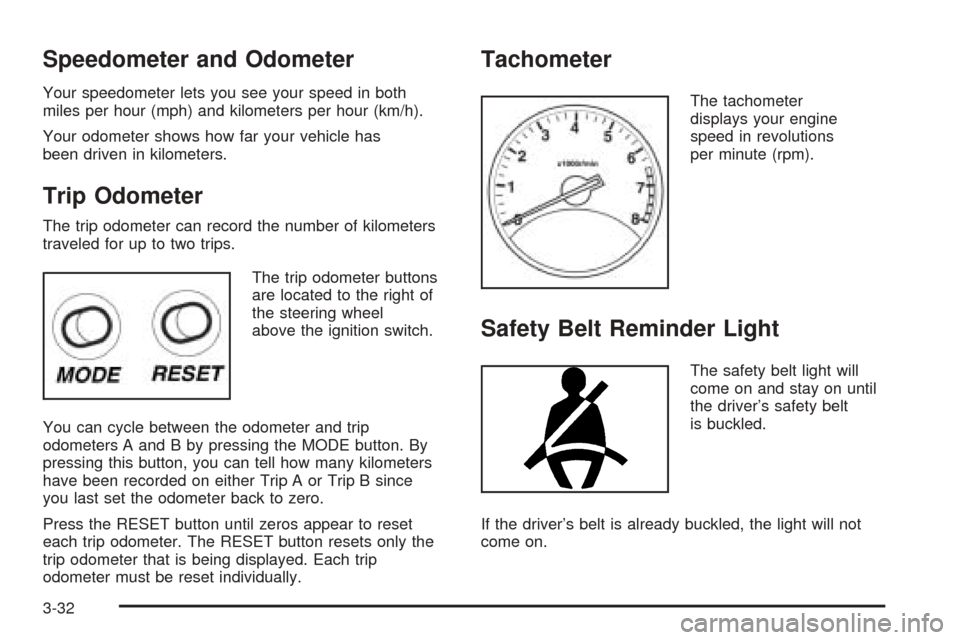
The trip odometer buttons
are located to the right of
the steering wheel
above the ignition switch.
You can cycle between the odometer and trip
odometers A and B by pressing the MODE button. By
pressing this button, you can tell how many kilometers
have been recorded on either Trip A or Trip B since
you last set the odometer back to zero.
Press the RESET button until zeros appear to reset
each trip odometer. The RESET button resets only the
trip odometer that is being displayed. Each trip
odometer must be reset individually.
Tachometer
The tachometer
displays your engine
speed in revolutions
per minute (rpm).
Safety Belt Reminder Light
The safety belt light will
come on and stay on until
the driver’s safety belt
is buckled.
If the driver’s belt is already buckled, the light will not
come on.
3-32
Page 152 of 340
Radio with CD (Base Level)
Playing the Radio
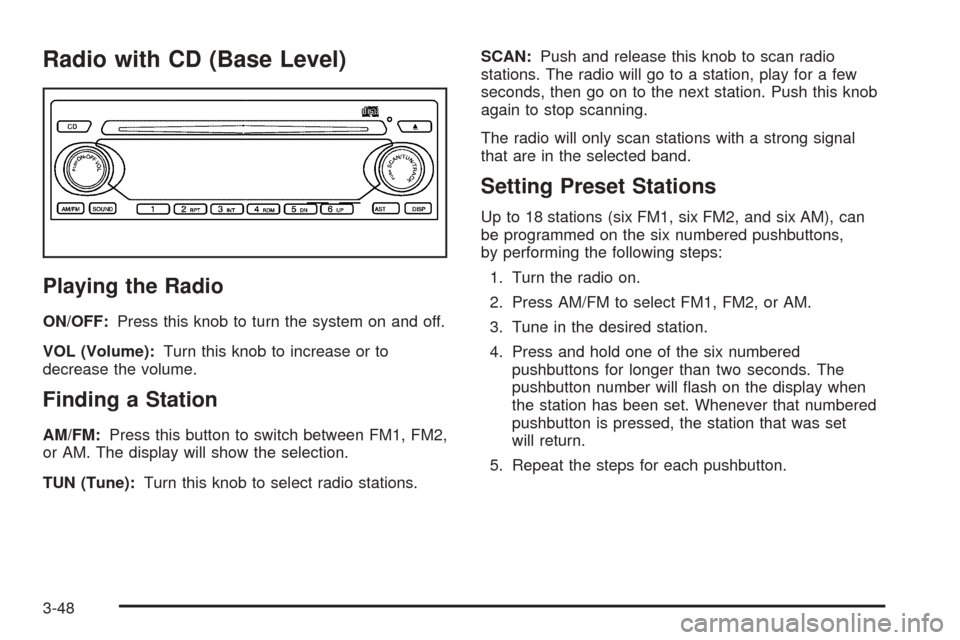
ON/OFF:Press this knob to turn the system on and off.
VOL (Volume):Turn this knob to increase or to
decrease the volume.
Finding a Station
AM/FM:Press this button to switch between FM1, FM2,
or AM. The display will show the selection.
TUN (Tune):Turn this knob to select radio stations.SCAN:Push and release this knob to scan radio
stations. The radio will go to a station, play for a few
seconds, then go on to the next station. Push this knob
again to stop scanning.
The radio will only scan stations with a strong signal
that are in the selected band.
Setting Preset Stations
Up to 18 stations (six FM1, six FM2, and six AM), can
be programmed on the six numbered pushbuttons,
by performing the following steps:
1. Turn the radio on.
2. Press AM/FM to select FM1, FM2, or AM.
3. Tune in the desired station.
4. Press and hold one of the six numbered
pushbuttons for longer than two seconds. The
pushbutton number will flash on the display when
the station has been set. Whenever that numbered
pushbutton is pressed, the station that was set
will return.
5. Repeat the steps for each pushbutton.
3-48
Page 153 of 340
Automatic Store
Six FM1 preset stations with the strongest reception in
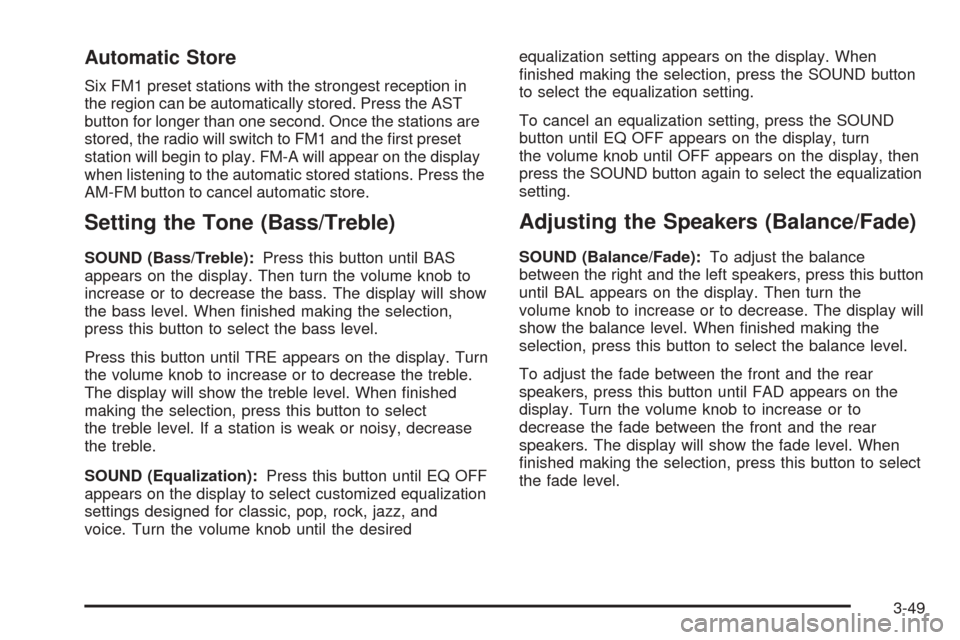
the region can be automatically stored. Press the AST
button for longer than one second. Once the stations are
stored, the radio will switch to FM1 and the first preset
station will begin to play. FM-A will appear on the display
when listening to the automatic stored stations. Press the
AM-FM button to cancel automatic store.
Setting the Tone (Bass/Treble)
SOUND (Bass/Treble):Press this button until BAS
appears on the display. Then turn the volume knob to
increase or to decrease the bass. The display will show
the bass level. When finished making the selection,
press this button to select the bass level.
Press this button until TRE appears on the display. Turn
the volume knob to increase or to decrease the treble.
The display will show the treble level. When finished
making the selection, press this button to select
the treble level. If a station is weak or noisy, decrease
the treble.
SOUND (Equalization):Press this button until EQ OFF
appears on the display to select customized equalization
settings designed for classic, pop, rock, jazz, and
voice. Turn the volume knob until the desiredequalization setting appears on the display. When
finished making the selection, press the SOUND button
to select the equalization setting.
To cancel an equalization setting, press the SOUND
button until EQ OFF appears on the display, turn
the volume knob until OFF appears on the display, then
press the SOUND button again to select the equalization
setting.
Adjusting the Speakers (Balance/Fade)
SOUND (Balance/Fade):To adjust the balance
between the right and the left speakers, press this button
until BAL appears on the display. Then turn the
volume knob to increase or to decrease. The display will
show the balance level. When finished making the
selection, press this button to select the balance level.
To adjust the fade between the front and the rear
speakers, press this button until FAD appears on the
display. Turn the volume knob to increase or to
decrease the fade between the front and the rear
speakers. The display will show the fade level. When
finished making the selection, press this button to select
the fade level.
3-49
Page 154 of 340
Playing a CD
Insert a CD partway into the slot, label side up. The
player will pull it in and the CD should begin playing.
You can insert a CD with the ignition off.
When the CD is inserted, CDP will appear on the
display. As the CD is loading Filecheck will appear on
the display. As each new track starts to play, Track and
the track number will appear on the display.
If the ignition or radio is turned off with a CD in the
player, it will stay in the player. When the ignition
or radio is turned on, the CD will start playing where it
stopped, if it was the last selected audio source.
The CD player can play the smaller 3 inch (8 cm) single
CDs with an adapter ring. Full-size CDs and the
smaller CDs are loaded in the same manner.
If playing a CD-R the sound quality may be reduced
due to CD-R quality, the method of recording, the quality
of the music that has been recorded, and the way the
CD-R has been handled. You may experience an
increase in skipping, difficulty in finding tracks, and/or
difficulty in loading and ejecting. If these problems occur
try a known good CD.
Do not add paper labels to CDs, they could get caught
in the CD player.
If an error appears on the display, see “CD Messages”
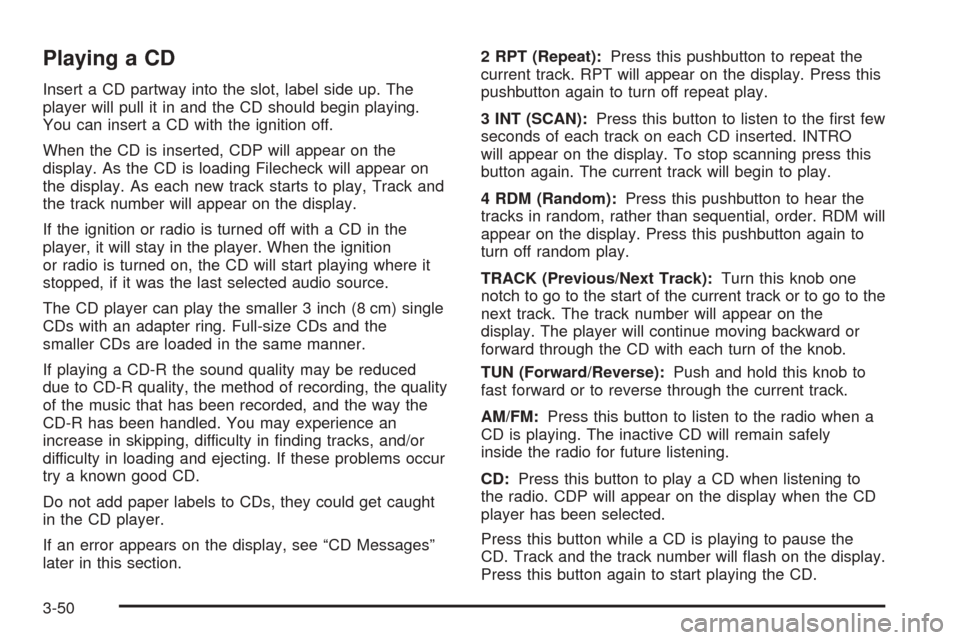
later in this section.2 RPT (Repeat):Press this pushbutton to repeat the
current track. RPT will appear on the display. Press this
pushbutton again to turn off repeat play.
3 INT (SCAN):Press this button to listen to the first few
seconds of each track on each CD inserted. INTRO
will appear on the display. To stop scanning press this
button again. The current track will begin to play.
4 RDM (Random):Press this pushbutton to hear the
tracks in random, rather than sequential, order. RDM will
appear on the display. Press this pushbutton again to
turn off random play.
TRACK (Previous/Next Track):Turn this knob one
notch to go to the start of the current track or to go to the
next track. The track number will appear on the
display. The player will continue moving backward or
forward through the CD with each turn of the knob.
TUN (Forward/Reverse):Push and hold this knob to
fast forward or to reverse through the current track.
AM/FM:Press this button to listen to the radio when a
CD is playing. The inactive CD will remain safely
inside the radio for future listening.
CD:Press this button to play a CD when listening to
the radio. CDP will appear on the display when the CD
player has been selected.
Press this button while a CD is playing to pause the
CD. Track and the track number will flash on the display.
Press this button again to start playing the CD.
3-50
Page 155 of 340
X(Eject):Press this button to eject a CD. Eject may
be activated with either the ignition or radio off.
CD Messages
CHECK CD:If this message appears on the display
and/or the CD comes out, it could be for one of the
following reasons:
•It is very hot. When the temperature returns to
normal, the CD should play.
•You are driving on a very rough road. When the
road becomes smoother, the CD should play.
•The CD is dirty, scratched, wet, or upside down.
•The air is very humid. If so, wait about an hour and
try again.
•There may have been a problem while burning
the CD.
•The label may be caught in the CD player.
If the CD is not playing correctly, for any other reason,
try a known good CD.
If any error occurs repeatedly or if an error cannot be
corrected, contact your dealer. If the radio displays
an error message, write it down and provide it to your
dealer when reporting the problem.
Radio with CD (MP3)
Playing the Radio
ON/OFF:Press this knob to turn the system on and off.
VOL (Volume):Turn this knob to increase or to
decrease the volume.
Finding a Station
AM/FM:Press this button to switch between FM1, FM2,
or AM. The display will show the selection.
TUN (Tune):Turn this knob to select radio stations.
SCAN:Push and release this knob to scan radio
stations. The radio will go to a station, play for a few
seconds, then go on to the next station. Push this knob
again to stop scanning.
The radio will only scan stations with a strong signal
that are in the selected band.
3-51
Page 156 of 340
Setting Preset Stations
Up to 18 stations (six FM1, six FM2, and six AM), can
be programmed on the six numbered pushbuttons,
by performing the following steps:
1. Turn the radio on.
2. Press AM/FM to select FM1, FM2, or AM.
3. Tune in the desired station.
4. Press and hold one of the six numbered
pushbuttons for longer than two seconds. The
pushbutton number will flash on the display when
the station has been set. Whenever that numbered
pushbutton is pressed, the station that was set
will return.
5. Repeat the steps for each pushbutton.
Automatic Store
Six FM1 preset stations with the strongest reception in
the region can be automatically stored. Press the
AST button for longer than one second. Once the
stations are stored, the radio will switch to FM1 and the
first preset station will begin to play. FM-A will appear
on the display when listening to the automatic stored
stations. Press the AM-FM button to cancel automatic
store.
Setting the Tone (Bass/Treble)
SOUND (Bass/Treble):Press this button until BAS
appears on the display. Turn the volume knob to
increase or to decrease the bass. The display will show
the bass level. When finished making the selection,
press this button to select the bass level.
Press this button until TRE appears on the display. Turn
the volume knob to increase or to decrease the treble.
The display will show the treble level. When finished
making the selection, press this button to select
the treble level. If a station is weak or noisy, decrease
the treble.
SOUND (Equalization):Press this button until EQ OFF
appears on the display to select customized equalization
settings designed for classic, pop, rock, jazz, and
voice. Turn the volume knob until the desired
equalization setting appears on the display. When
finished making the selection, press the SOUND button
to select the equalization setting.
To cancel an equalization setting, press the SOUND
button until EQ OFF appears on the display, turn
the volume knob until OFF appears on the display, then
press the SOUND button again to select the equalization
setting.
3-52
Page 157 of 340
Adjusting the Speakers (Balance/Fade)
SOUND (Balance/Fade):To adjust the balance
between the right and the left speakers, press this button
until BAL appears on the display. Turn the volume
knob to increase or to decrease. The display will show
the balance level. When finished making the selection,
press this button to select the balance level.
To adjust the fade between the front and the rear
speakers, press this button until FAD appears on the
display. Turn the volume knob to increase or to
decrease the fade between the front and the rear
speakers. The display will show the fade level. When
finished making the selection, press this button to select
the fade level.
Playing a CD
Insert a CD partway into the slot, label side up. The
player will pull it in and the CD should begin playing.
You can insert a CD with the ignition off.
When the CD is inserted, CDP will appear on the
display. As the CD is loading Filecheck will appear on
the display. As each new track starts to play, Track and
the track number will appear on the display.
If the ignition or radio is turned off with a CD in the
player, it will stay in the player. When the ignition
or radio is turned on, the CD will start playing where it
stopped, if it was the last selected audio source.The CD player can play the smaller 3 inch (8 cm) single
CDs with an adapter ring. Full-size CDs and the
smaller CDs are loaded in the same manner.
If playing a CD-R the sound quality may be reduced
due to CD-R quality, the method of recording, the quality
of the music that has been recorded, and the way the
CD-R has been handled. There may be an increase
in skipping, difficulty in finding tracks, and/or difficulty in
loading and ejecting. If these problems occur try a
known good CD.
Do not add paper labels to CDs, they could get caught
in the CD player.
If an error appears on the display, see “CD Messages”
later in this section.
2 RPT (Repeat):Press this pushbutton to repeat the
current track. RPT will appear on the display. Press this
pushbutton again to turn off repeat play.
3 INT (Scan):Press this button to listen to the first few
seconds of each track on each loaded CD. INTRO
will appear on the display. To stop scanning press this
button again. The current track will begin to play.
4 RDM (Random):Press this pushbutton to hear the
tracks in random, rather than sequential, order. RDM will
appear on the display. Press this pushbutton again to
turn off random play.
3-53
Page 158 of 340
TRACK (Previous/Next Track):Turn this knob one
notch to go to the start of the current track or to go to the
next track. The track number will appear on the
display. The player will continue moving backward or
forward through the CD with each turn of the knob.
TUN (Forward/Reverse):Push and hold this knob to
fast forward or to reverse through the current track.
AM/FM:Press this button to listen to the radio when a
CD is playing. The inactive CD will remain safely
inside the radio for future listening.
CD:Press this button to play a CD when listening to
the radio. CDP will appear on the display when the CD
player has been selected. The CD symbol will appear
on the display when a CD is loaded.
Press this button while a CD is playing to pause the
CD. Track and the track number will flash on the display.
Press this button again to start playing the CD.
X(Eject):Press this button to eject a CD. Eject may
be activated with either the ignition or radio off.
Using an MP3 CD
MP3 Format
This MP3 player will accept MP3 files that were recorded
on an up to 700 MB CD-R CD. The files can be
recorded with the following fixed bit rates: 32 kpbs,
40 kpbs, 56 kpbs, 64 kpbs, 80 kpbs, 96 kpbs, 112 kpbs,
128 kpbs, 160 kpbs, 192 kpbs, 224 kpbs, 256 kpbs,
and 320 kpbs or a variable bit rate. Song title, artist
name, and album will be available when recorded using
ID3 tags versions 1 and 2.
The player will be able to read and play a maximum of
50 folders, 50 playlists, 10 sessions, and 255 files.
Long file, folder, or playlist names or a combination of a
large number of files and folders or playlists may
cause the player to be unable to play up to the
maximum number of files, folders, playlists, or sessions.
If you wish to play large numbers of files, folders,
playlists or sessions minimize the length of the file,
folder or playlist name. You can also play an MP3 CD
that was recorded using no file folders. The system
can support up to 11 folders in depth, though, keep the
depth of the folders to a minimum in order to keep
down the complexity and confusion in trying to locate a
particular folder during playback. If a CD contains
more than the maximum of 50 folders, 50 playlists,
10 sessions, and 255 files the player will let you access
and navigate up to the maximum, but all items over
the maximum will be ignored.
3-54