2005 CHEVROLET CORVETTE display
[x] Cancel search: displayPage 130 of 400

Driver Information Center (DIC).......................3-49
DIC Controls and Displays.............................3-49
DIC Warnings and Messages.........................3-54
Other Messages...........................................3-68
DIC Vehicle Personalization............................3-69Audio System(s).............................................3-78
Setting the Time...........................................3-78
Radio with CD..............................................3-79
Navigation/Radio System...............................3-98
Theft-Deterrent Feature..................................3-98
Radio Reception...........................................3-98
Care of Your CDs.........................................3-99
Care of the CD Player...................................3-99
Diversity Antenna System..............................3-99
XM™ Satellite Radio Antenna System.............3-99
Section 3 Instrument Panel
3-2
Page 133 of 400

The main components of your instrument panel are the following:
A. Air Outlet. SeeOutlet Adjustment on page 3-31.
B. Head-Up Display Controls. SeeHead-Up
Display (HUD) on page 3-20.
C. Turn Signal/Multifunction Lever. SeeTurn
Signal/Multifunction Lever on page 3-8. Cruise
Control. SeeCruise Control on page 3-11. Fog
Lamps. SeeFog Lamps on page 3-17. Headlamp
Controls. SeeExterior Lamps on page 3-15.
D. Driver Information Center (DIC). SeeDriver
Information Center (DIC) on page 3-49.
E. Instrument Panel Cluster. SeeInstrument Panel
Cluster on page 3-33.
F. Windshield Wiper/Washer Lever. SeeWindshield
Wipers on page 3-10andWindshield Washer
on page 3-11.
G. Driver Information Center (DIC) Controls. SeeDIC
Controls and Displays on page 3-49.
H. Center Air Outlets. SeeOutlet Adjustment on
page 3-31.
I. Hazard Warning Flasher Button. SeeHazard
Warning Flashers on page 3-6.
J. Audio System. SeeAudio System(s) on page 3-78.
K. Climate Controls. SeeDual Automatic Climate
Control System on page 3-25.L. Fuel Door Release Button. SeeFilling the Tank on
page 5-7. Hatch/Trunk Release Button. See
“Hatch/Trunk Lid Release” underHatch/Trunk on
page 2-14.
M. Instrument Panel Brightness Control. SeeInstrument
Panel Brightness on page 3-19.
N. Power Folding Top Switch. SeeConvertible Top
(Manual) on page 2-57orConvertible Top (Power)
on page 2-64.
O. Ignition Switch. SeeIgnition Positions on page 2-21.
P. Heated Seat Controls. SeeHeated Seats on
page 1-4.
Q. Shift Lever (Automatic Shown). SeeAutomatic
Transmission Operation on page 2-25orManual
Transmission Operation on page 2-27.
R. Active Handling Button. SeeActive Handling System
on page 4-10.
S. Accessory Power Outlet. SeeAccessory Power
Outlets on page 3-24.
T. Airbag Off Light. SeeAirbag Off Light on page 3-36.
U. Instrument Panel Cupholder. SeeCupholder(s)
on page 2-46.
V. Ashtray and Cigarette Lighter. SeeAshtrays and
Cigarette Lighter on page 3-25.
3-5
Page 139 of 400
Windshield Washer
The lever on the right side of the steering column also
controls the windshield washer. There is a button at
the end of the lever. To spray washer uid on the
windshield, press the button and hold it. The washer will
spray until you release the button. The wipers will
continue to clear the window for about six seconds after
the button is released and then stop or return to your
preset speed.
{CAUTION:
In freezing weather, do not use your washer
until the windshield is warmed. Otherwise the
washer uid can form ice on the windshield,
blocking your vision.
If the uid in the windshield washer uid reservoir is
low, the message CHECK WASHER FLUID will appear
on the Driver Information Center (DIC) display. It will
take 15 seconds after the bottle is relled for this
message to turn off. For information on the correct
washer uid to use, seeWindshield Washer Fluid on
page 5-33andRecommended Fluids and Lubricants on
page 6-12.
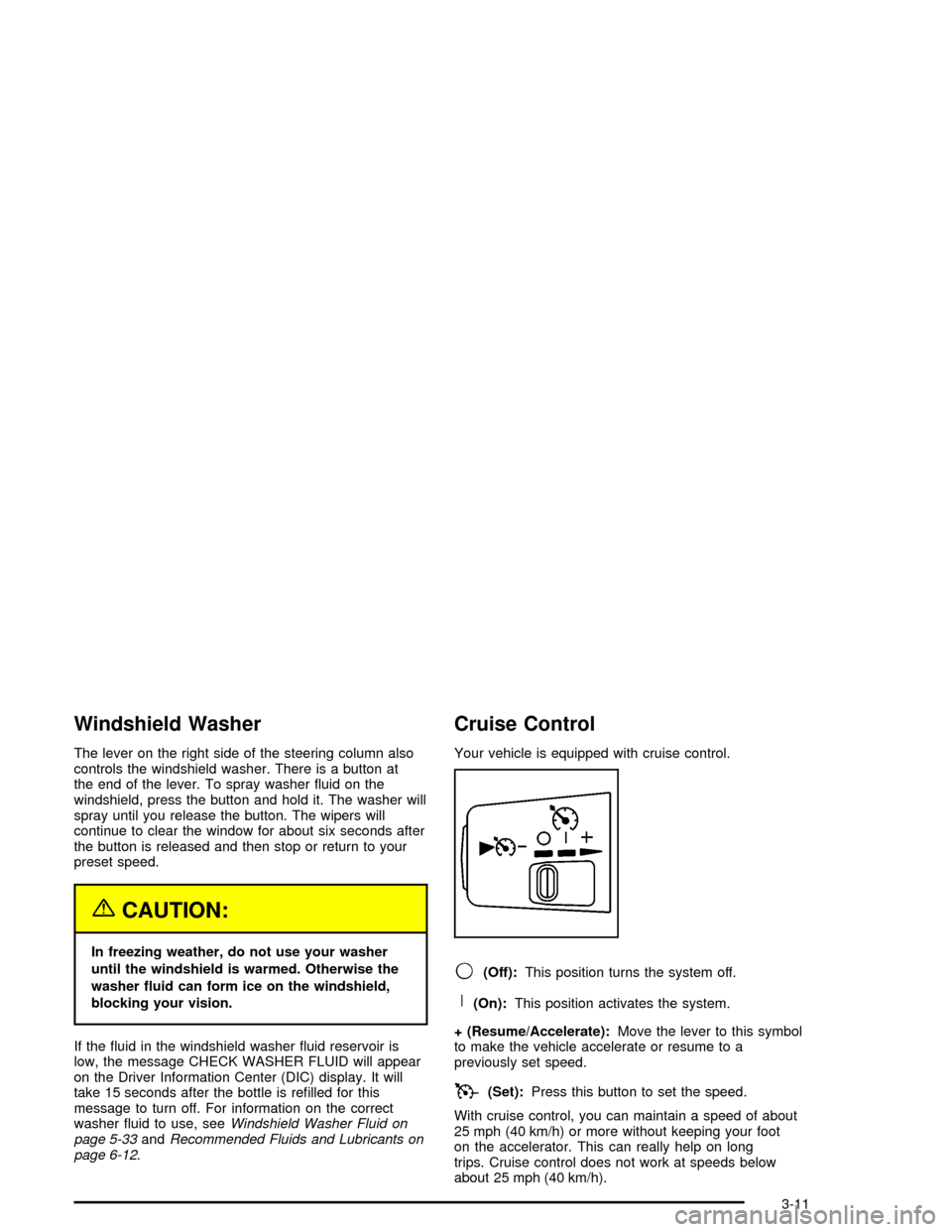
Cruise Control
Your vehicle is equipped with cruise control.
9(Off):This position turns the system off.
R(On):This position activates the system.
+ (Resume/Accelerate):Move the lever to this symbol
to make the vehicle accelerate or resume to a
previously set speed.
T(Set):Press this button to set the speed.
With cruise control, you can maintain a speed of about
25 mph (40 km/h) or more without keeping your foot
on the accelerator. This can really help on long
trips. Cruise control does not work at speeds below
about 25 mph (40 km/h).
3-11
Page 145 of 400

When it is bright enough outside, the regular lamps will
go off, and the front turn signal lamps will take over.
If you start your vehicle in a dark garage, the automatic
headlamp system will come on immediately. Once
you leave the garage, it will take approximately
one minute for the automatic headlamp system to
change to DRL if it is light outside. During that delay,
your instrument panel cluster may not be as bright
as usual. Make sure your instrument panel brightness
knob is in the full bright position. SeeInstrument
Panel Brightness on page 3-19for more information.
If it is dark enough outside and the exterior lamp control
is off, a HEADLAMPS SUGGESTED message will
display on the Driver’s Information Center (DIC). This
message informs the driver that turning on the exterior
lamps is recommended.
Turning the exterior lamp control to off a second time,
or turning on the headlamps will remove the
HEADLAMPS SUGGESTED message. If the parking
lamps or the fog lamps were turned on instead,
the HEADLAMPS SUGGESTED message will continue
to be displayed.
As with any vehicle, you should turn on the regular
headlamp system when you need it.Fog Lamps
Use fog lamps for better vision in foggy or misty
conditions.
The fog lamps control is located on the multifunction
lever next to the exterior lamp control.
-(Fog Lamps):Turning the band to this position will
turn the fog lamps on.
When you turn the fog lamps on, the fog lamp light will
appear on the instrument panel cluster to indicate
that the fog lamps and the parking lamps are on.
If you turn the high-beam headlamps on, the fog lamps
will turn off. They will turn on again when you switch
to low-beam headlamps.
The ignition must be on for the fog lamps to operate.
Some localities have laws that require the headlamps to
be on along with the fog lamps.
3-17
Page 148 of 400

Battery Run-Down Protection
Your vehicle has a feature to help prevent you from
draining the battery in case the underhood lamp, vanity
mirror lamps, cargo lamps, reading lamps, console
or glove box lamps are accidentally left on. If you leave
any of these lamps on, they will automatically time-out
after about 20 minutes. To reset it, all of the above
lamps must be turned off or the ignition key on.
Head-Up Display (HUD)
{CAUTION:
If the HUD image is too bright, or too high in
your eld of view, it may take you more time to
see things you need to see when it is dark
outside. Be sure to keep the HUD image dim
and placed low in your eld of view.
If your vehicle is equipped with the Head-Up
Display (HUD), you can see some of the driver
information that appears on your instrument panel
cluster.The information may be displayed in English or metric
units and appears as an image focused out toward
the front of your vehicle. The HUD consists of the
following information:
Speedometer
Turn Signal Indicators
High-Beam Indicator Symbol
Tachometer
Oil and Temperature Gages
Shift Light (Performance SHIFT Light)
This light is used for performance driving to indicate
that the vehicle’s best performance level has
been reached to shift the transmission into the next
higher gear. The SHIFT light will display at an
engine speed of about 6,250 rpm, just prior
to reaching the engine fuel cut-off mode.
Check Gages Warning
Engine Coolant Temperature Gage
Transmission Oil Temperature Gage
Engine Oil Temperature Gage
Engine Oil Pressure Gage
G-Force Gage
3-20
Page 149 of 400

Audio Functions, Street Mode Only
Navigation, Only with Navigation Radio, Street
Mode Only
Check Gages Warning
There are three HUD modes that you can choose
to view in the HUD display. By pressing the MODE
button, you can scroll through these modes in the
following order:
Street Mode supports
audio and navigation
functions with your choice
of tachometer settings.
Track Mode 1 supports the
G-Force gage and minor
gages with a circular
tachometer.Track Mode 2 supports
G-Force gages and minor
gages with a linear
tachometer.
When you have chosen the desired HUD display,
release the MODE button.
Within each mode, the display, can be further
customized by pressing the PAGE button. Pressing this
button in each mode will turn off and on the following:
Street Mode — No tachometer, circular tachometer
and linear tachometer.
Track Modes 1 and2—Nominor gage, coolant
temperature, transmission oil temperature, engine
oil temperature and engine oil pressure.
3-21
Page 150 of 400

If your vehicle is equipped
with a navigation radio,
many of the turn-by-turn
navigation features
will also be displayed on
the HUD if you are in
Street Mode.
Be sure to continue scanning your displays, controls
and driving environment just as you would in a vehicle
without HUD. If you never look at your instrument
panel cluster, you may not see something important,
such as a warning light. Under important warning
conditions, the CHECK GAGES warning will illuminate
in the HUD. View your Driver Information Center (DIC)
for more information.The HUD controls are
located to the left of the
steering wheel.
To adjust the HUD so you can see it properly, do the
following:
1. Start your engine and press the HUD dimmer
control all the way up by pressing the (+) button.
The brightness of the HUD image is determined by
the light conditions in the direction your vehicle is
facing and where you have the HUD dimmer control
set. If you are facing a dark object or a heavily
shaded area, your HUD may anticipate that you are
entering a dark area and may begin to dim.
It is possible for sunlight to enter the HUD making
it difficult to see the image. The display will return
to normal when the sunlight is no longer entering
the HUD.
3-22
Page 151 of 400

2. Adjust the seat to a comfortable driving position. If
you change your seat position later, you may have
to re-adjust your HUD.
3. Press the up or down arrows to center the HUD
image in your view.
The HUD image can only be adjusted up and down,
not side-to-side.
4. Press the dimmer control downward until the HUD
image is no brighter than necessary.
To turn HUD off, press and hold the (–) button until the
HUD display turns off.
If the sun comes out or it becomes cloudy, you may
need to adjust the HUD brightness again using
the dimmer control. Polarized sunglasses could make
the HUD image harder to see.
The HUD information can be displayed in one of
six languages including English, Spanish, French,
German, Italian or Japanese. The speedometer can be
displayed in either English or Metric units.
To change the language and unit selections, see
“OPTION” underDIC Controls and Displays on
page 3-49.Clean the inside of the windshield as needed to remove
any dirt or lm that reduces the sharpness or clarity
of the HUD image.
To clean the HUD, spray household glass cleaner on a
soft, clean cloth. Wipe the HUD lens gently, then dry
it. Do not spray cleaner directly on the lens because the
cleaner could leak into the unit.
If the ignition is on and you can’t see the HUD image,
check to see if:
Something is covering the HUD unit.
The HUD dimmer control is adjusted properly.
The HUD image is adjusted to the proper height.
Ambient light is low, in the direction your vehicle
is facing.
A fuse is blown. SeeFuses and Circuit Breakers on
page 5-85.
Keep in mind that your windshield is part of the HUD
system. SeeWindshield Replacement on page 5-48.
3-23