2004 PEUGEOT 607 change time
[x] Cancel search: change timePage 52 of 173

02-02-2004
Selecting telephone mode / Entering a number / Switching off the microphoneTo change to telephone mode, press the 'TEL'button or for more than 2 seconds on the steering column
remote control. Insert your bank card format SIM card fully into the slot at the front (use the 2nd generation SIM card only).
Note: the SIM card must not be taken out while the audio/telephone system is still in use. If you forget this, an audible signal
will sound for a few seconds after the ignition is switched off.
Enter your PIN number and confirm with the 'OK' button in order to access the network. The welcome screen is
displayed.Note: the PIN code is erased each time the ignition is switched off, but the ''PIN code protection'' function may be
cancelled.
Enter the number of the person you wish to speak to on the digital keypad and press the 'OK' button to make the call.
To switch off the microphone mid-communication, press the 'TEL' button.
Cancelling the PIN code request
To cancel the PIN code request, select 'PIN code protection' in the 'Telephone parameters' menu and confirm; select 'OFF' and confirm, then input your PIN code and confirm. Receiving / Ending a call When a ringing sounds to let you know that a call is waiting, you can choose either to accept it by pressing the 'OK' button or not to accept it by pressing button Por by selecting 'Refuse call'using the steering
column remote control, pressing the end to confirm. If you do not accept it, the call is diverted to your voice mail (if this service is available and active).
To end the call, press button Por the end of the steering wheel remote control.
Note: Not accepting or ending a call by means of the steering wheel control returns the system to radio mode.
Receiving two incoming calls
During a call, when there is another incoming call, you are informed of this by a ring and a message. You may choose:
- to accept the call by pressing button 2then "OK" ; the first caller is put on hold and you are in contact with the second.
However, pressing button 2again allows you to return to the first caller,
- to finish the call you are on and talk to the second caller by pressing button 1then "OK" ,
- not to accept the new call by pressing button "C".
YOUR 607 IN DETAIL 55
Page 53 of 173
02-02-2004
Handset
To change to the 'confidential' function during a call, lift the handset located in the front armrest; the 'hands free'function
is then neutralised.
To return to the 'hands free'function during the call, replace the handset on its support.
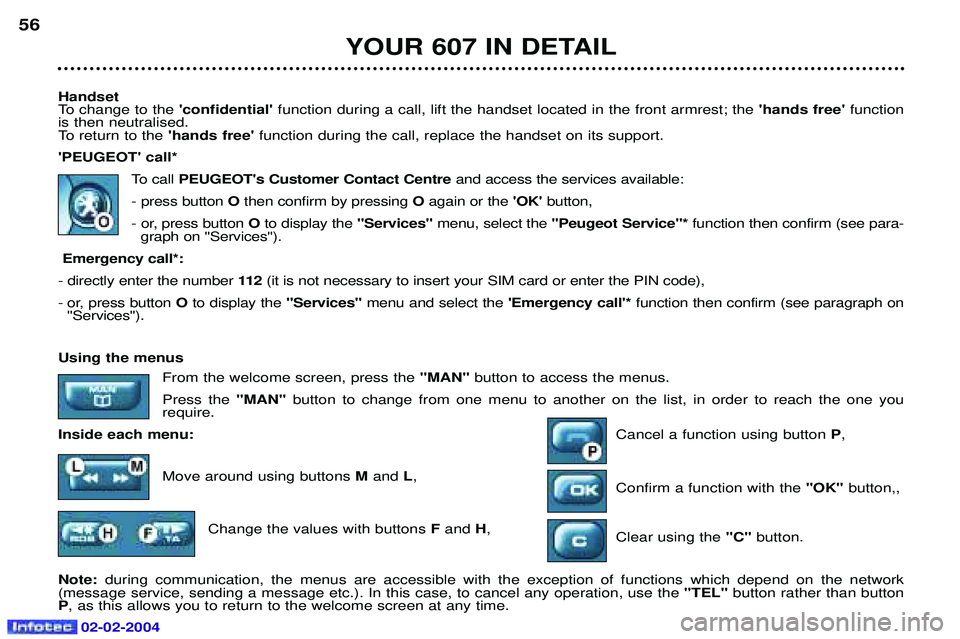
'PEUGEOT' call*
To callPEUGEOT's Customer Contact Centre and access the services available:
- press button Othen confirm by pressing Oagain or the 'OK'button,
- or, press button Oto display the "Services"menu, select the ''Peugeot Service"* function then confirm (see para-
graph on ''Services'').
Emergency call*:
- directly enter the number 11 2(it is not necessary to insert your SIM card or enter the PIN code),
- or, press button O to display the "Services" menu and select the 'Emergency call'*function then confirm (see paragraph on
''Services'').
YOUR 607 IN DETAIL
56
Using the menus
From the welcome screen, press the "MAN" button to access the menus.
Press the "MAN" button to change from one menu to another on the list, in order to reach the one you
require.
Inside each menu: Cancel a function using button P,
Move around using buttons M and L,
Confirm a function with the "OK" button,,
Change the values with buttons Fand H,
Clear using the "C" button.
Note: during communication, the menus are accessible with the exception of functions which depend on the network
(message service, sending a message etc.). In this case, to cancel any operation, use the "TEL" button rather than button
P , as this allows you to return to the welcome screen at any time.
Page 55 of 173

YOUR 607 IN DETAIL
58
Storing numbers in the telephone directory (SIM) In the 'Phonebook' menu, validate the 'New Entry' function with the 'OK' button.
Using the alphanumerical keypad input the name, telephone number and address (the memory number) or keep the one suggested. Confirm each operation with the 'OK' button.
To access a number in the memory:
- look for and select it in the menu 'Find by name'or 'Find by address' of the'PHONEBOOK' menu and
press the 'OK' button to make the call,
- or press the end of the steering wheel remote control for more than two seconds, look for and select the number, then press the end of the remote control to make the call,
- or enter the memory number using the keypad, then press button Ffollowed by the 'OK' button to make
the call.
Note: the first nine numbers in this list are directly accessible. Hold one of the nine buttons of the keypad down, then press
the 'OK' button to call. Selecting the previous item of a menu
Press button Las many times as necessary to select the required item. Confirm with the 'OK' button.
Selecting the following item of a menu Press button Mas many times as necessary to select the required item. Confirm with the 'OK'button.
Accessing text messagesIn telephone mode: when the buzzer sounds and the 'envelope' symbol is displayed on the screen, you can access new
messages by pressing the 'MAN'button.
In radio mode: when the symbol appears, you must change to telephone mode (press the "TEL"button) to be able to
access the new messages.Note: the old stored messages are accessible. In the 'SMS' menu, confirm the 'Messages received' function with the 'OK'
button, then select the message using button 'M'or 'L' to consult it.
02-02-2004
Page 57 of 173

YOUR 607 IN DETAIL
60
'CALL SETTINGS' Network search: if automatic mode is active, your telephone will automatically select the cellular network available which
is compatible with your SIM card. In manual mode, you must choose from the list of networks the one which matches the operator who supplied you with your SIM card.
Voice mail: allows you to call your voice mail to listen to the latest messages received.
Call broadcast: activates the receipt of information issued by your network (depending on subscription agreement).
Call waiting: in the case of two simultaneous calls, you can go from one to the other.
Call diverting: allows incoming calls to be diverted to your voice mail or to another telephone number.
My phone number: allows three telephone numbers to be stored.
Barring: allows calls from the telephone to be restricted (it is necessary to use PIN 2 code).
Call ID display: allows your number to be disclosed to or withheld from the person being called (depending on subscription
agreement). 'TELEPHONE SETTINGS' Cumulative time: tells you the total duration of incoming and outgoing calls.
Ring tone: allows you to select a ring tone from the six options.
Ring volume: allows you to adjust the ring volume of the incoming call.
Operating tone: allows you to activate or disarm the sound signal (bleep) emitted each time a button is pressed, and to
adjust the volume.
TEL position: allows you to select the monitor speakers (left side/right side/both).
Automatic answer: allows you to programme the automatic reply (after five seconds) to an incoming call.
Automatic redial: when your call is not successful, automatic redial (ten times maximum) of the same number.
PIN request: protects your SIM card against any unauthorised use.
PIN change: lets you change your pin code.
Language select: lets you select the displayed language (French/English/German/Spanish/Italian/Dutch).
Master reset: lets you restore the initial parameters of your telephone, without erasing the information in the memory.
02-02-2004
Page 66 of 173
02-02-2004
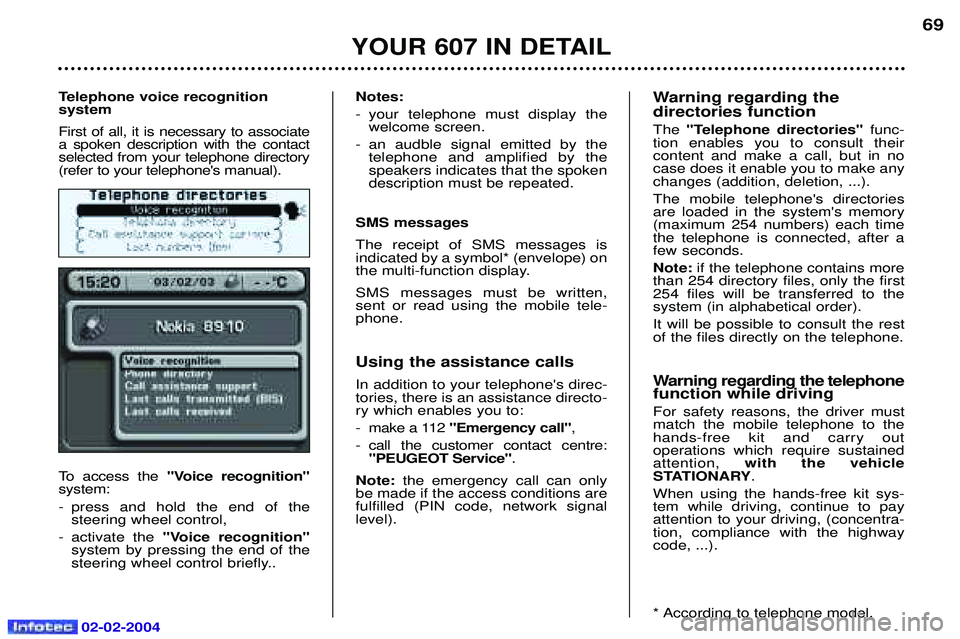
Telephone voice recognition system First of all, it is necessary to associate a spoken description with the contactselected from your telephone directory(refer to your telephone's manual).
To access the "Voice recognition"
system:
- press and hold the end of the steering wheel control,
- activate the "Voice recognition"
system by pressing the end of the
steering wheel control briefly.. Notes:
- your telephone must display the
welcome screen.
- an audble signal emitted by the telephone and amplified by the speakers indicates that the spokendescription must be repeated.
SMS messages The receipt of SMS messages is indicated by a symbol* (envelope) on
the multi-function display. SMS messages must be written, sent or read using the mobile tele-phone.
Using the assistance calls In addition to your telephone's direc- tories, there is an assistance directo-ry which enables you to:
- make a 112 "Emergency call" ,
- call the customer contact centre: "PEUGEOT Service" .
Note: the emergency call can only
be made if the access conditions are fulfilled (PIN code, network signallevel). Warning regarding the directories function The
"Telephone directories" func-
tion enables you to consult their content and make a call, but in nocase does it enable you to make anychanges (addition, deletion, ...). The mobile telephone's directories are loaded in the system's memory(maximum 254 numbers) each timethe telephone is connected, after afew seconds. Note: if the telephone contains more
than 254 directory files, only the first 254 files will be transferred to thesystem (in alphabetical order). It will be possible to consult the rest of the files directly on the telephone.
Warning regarding the telephone function while driving For safety reasons, the driver must match the mobile telephone to thehands-free kit and carry out operations which require sustainedattention, with the vehicle
STATIONARY .
When using the hands-free kit sys-tem while driving, continue to payattention to your driving, (concentra-tion, compliance with the highwaycode, ...).
* According to telephone model.
YOUR 607 IN DETAIL
69
Page 68 of 173
02-02-2004
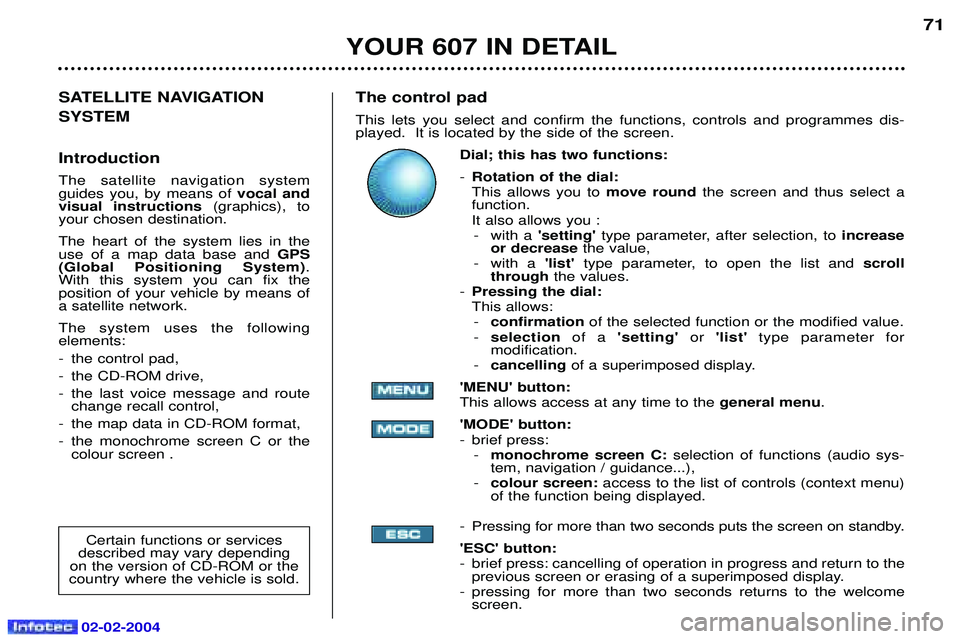
The control pad This lets you select and confirm the functions, controls and programmes dis- played. It is located by the side of the screen.Dial; this has two functions: -Rotation of the dial: This allows you to move roundthe screen and thus select a
function.
It also allows you : - with a 'setting'type parameter, after selection, to increase
or decrease the value,
- with a 'list' type parameter, to open the list and scroll
through the values.
- Pressing the dial:This allows:
- confirmation of the selected function or the modified value.
- selection of a 'setting' or'list' type parameter for
modification.
- cancelling of a superimposed display.
'MENU' button:This allows access at any time to the general menu.
'MODE' button:
- brief press: - monochrome screen C: selection of functions (audio sys-
tem, navigation / guidance...),
- colour screen: access to the list of controls (context menu)
of the function being displayed.
- Pressing for more than two seconds puts the screen on standby. 'ESC' button:
- brief press: cancelling of operation in progress and return to the previous screen or erasing of a superimposed display.
- pressing for more than two seconds returns to the welcome screen. 71
SATELLITE NAVIGATION SYSTEM Introduction The satellite navigation system guides you, by means of vocal and
visual instructions (graphics), to
your chosen destination. The heart of the system lies in the use of a map data base and GPS
(Global Positioning System) .
With this system you can fix the position of your vehicle by means ofa satellite network. The system uses the following elements:
- the control pad,
- the CD-ROM drive,
- the last voice message and route change recall control,
- the map data in CD-ROM format,
- the monochrome screen C or the colour screen .
Certain functions or services
described may vary depending
on the version of CD-ROM or the
country where the vehicle is sold.
YOUR 607 IN DETAIL
Page 76 of 173

02-02-2004
Navigation options From the navigation/guidance menu, the'Navigation options'
menu offers the following options:
- management of the directories. This allows details of a stored address to be renamed or deleted, by selecting the directory and the details to be modified,
- voice synthesis volume adjustment. Once the function has been selected, adjust the volumeof the voice synthesis using the dial, the audio systembutton or the steering wheel stalk, then confirm. Note: the voice synthesis volume can also be adjusted
during a message using the audio system button or the steering wheel stalk.
- deletion of all data stored in both directories.
- stopping or resuming of guidance. Two messages may be displayed depending on the previous status: "Resume guidance" or "Stop guidance" . Guidance tools Access to the
'Guidance tools' menu is by pressing the
dial at any time during guidance. It enables:
- the current guidance criterion to be changed,
- the programmed destination to be displayed or changed,
- the voice synthesis volume to be adjusted (see ''Navigation options'' ' paragraph),
- the current guidance to be stopped.
YOUR 607 IN DETAIL
79
Page 82 of 173
02-02-2004
Map configuration
This function offers various possibilities to optimise and enhance the display of the route: - map orientation,- type of services displayed,- selection of scale. Map orientation This function allows orientation of the map to be selected: North or according to the direction of the vehicle. Note: the "vehicle orientation" option is only active if the
display scale is less than or equal to 1km.
Types of services displayed This function allows the required service to be displayed.From the list presented, select the service(s) required (for insertion), the service(s) not required (for deletion), orchoose 'Any'(parking, hotel, restaurant, service station,
cinema...). Changing the routeThis function allows you, for example, to avoid a tail-back on the route which has been worked out. Using the 'Navigation/Guidance' context menu, or by
holding down the last voice message recall control, you can introduce a change to the route that had been workedout, at any time during guidance. This change occurs on the stretch between your present position and a point located at a distance which has to beinput, using the initial route. Enter a distance between 1 and 10 km, using the alphanumeric keypad, then confirm. The system takes this change into account and suggests new guidance, having invalidated the section selected. Details of the route At all times during guidance, the sub-menu
'Details of the
route' gives you access to the following functions:
- destination selected,
- see the places to be travelled through (display of roads, streets and towns to be passed),
- see the route on the map (change to map display).
A pointer located on the side indicates your position in rela- tion to the route. Geographical information The sub-menu 'Geographical information' presents the
GPS information regarding the position of the vehicle.
YOUR 607 IN DETAIL
85