Page 111 of 400

111 Controls in detail
Instrument cluster
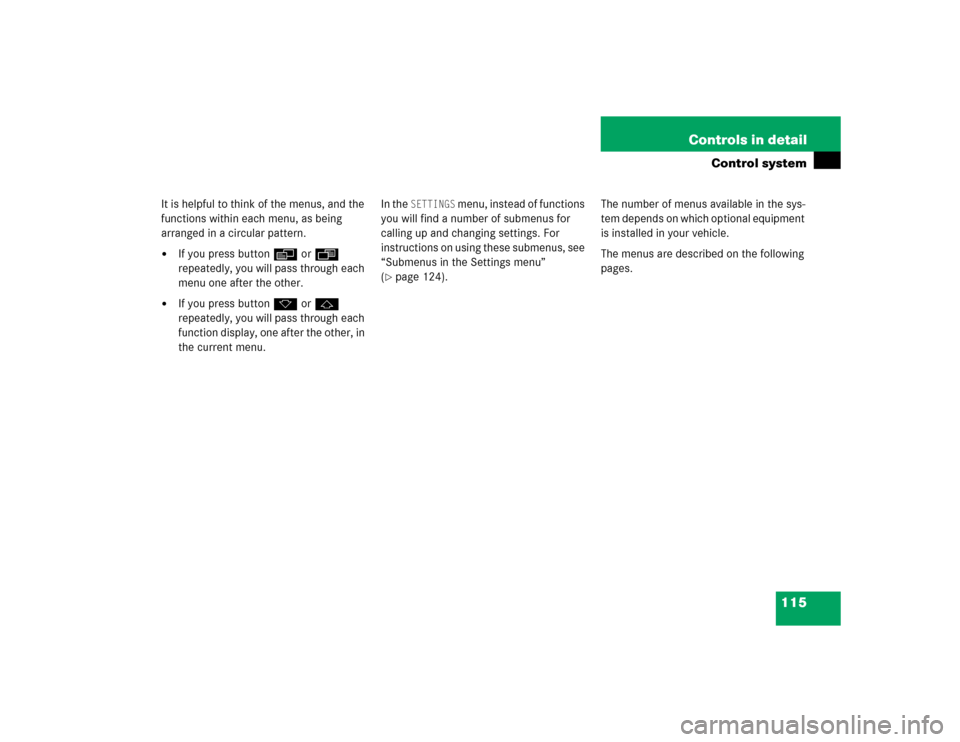
Trip odometer�
Make sure you are viewing the trip
odometer and main odometer in the
multifunction display (
�page 113).
�
If it is not displayed, press buttonè
orÿ on the multifunction steering
wheel until the trip odometer appears
(�page 114).
�
Press and hold the reset button on the
instrument cluster (
�page 22) until
the trip odometer is reset.
Tachometer
The red marking on the tachometer
denotes excessive engine speed.
To help protect the engine, the fuel supply
is interrupted if the engine is operated
within the red marking.
Outside temperature indicator
The outside temperature is indicated in the
multifunction display (
�page 23). For
information on how to select the unit of the
indicated temperature, i.e. degrees
Celsius (°C) or degrees Fahrenheit (°F),
see “Selecting temperature display mode”
(
�page 127).
!Avoid driving at excessive engine
speeds, as it may result in serious
engine damage that is not covered by
the Mercedes-Benz Limited Warranty.
Warning!
G
The outside temperature indicator is not de-
signed to serve as an ice-warning device and
is therefore unsuitable for that purpose.
Indicated temperatures just above the freez-
ing point do not guarantee that the road sur-
face is free of ice. The road may still be icy,
especially in wooded areas or on bridges.
Page 114 of 400
114 Controls in detailControl systemMultifunction steering wheel
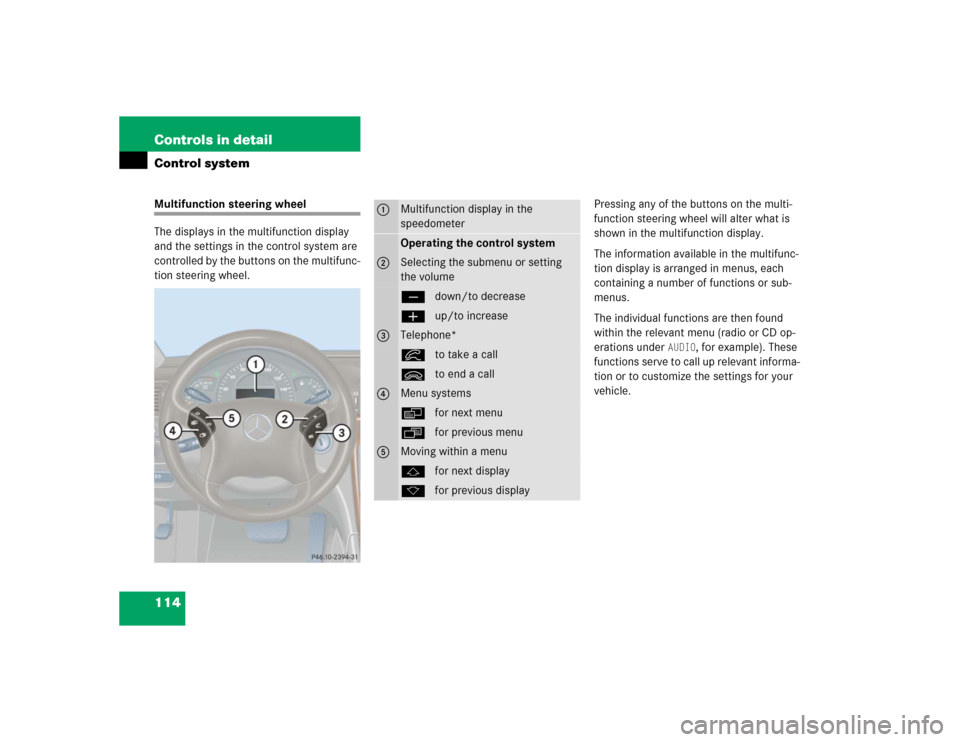
The displays in the multifunction display
and the settings in the control system are
controlled by the buttons on the multifunc-
tion steering wheel.Pressing any of the buttons on the multi-
function steering wheel will alter what is
shown in the multifunction display.
The information available in the multifunc-
tion display is arranged in menus, each
containing a number of functions or sub-
menus.
The individual functions are then found
within the relevant menu (radio or CD op-
erations under
AUDIO
, for example). These
functions serve to call up relevant informa-
tion or to customize the settings for your
vehicle.
1
Multifunction display in the
speedometerOperating the control system
2
Selecting the submenu or setting
the volumeçdown/to decreaseæup/to increase
3
Telephone*íto take a callìto end a call
4
Menu systemsèfor next menuÿfor previous menu
5
Moving within a menujfor next displaykfor previous display
Page 115 of 400
115 Controls in detail
Control system
It is helpful to think of the menus, and the
functions within each menu, as being
arranged in a circular pattern.�
If you press buttonè orÿ
repeatedly, you will pass through each
menu one after the other.
�
If you press buttonk orj
repeatedly, you will pass through each
function display, one after the other, in
the current menu.In the
SETTINGS
menu, instead of functions
you will find a number of submenus for
calling up and changing settings. For
instructions on using these submenus, see
“Submenus in the Settings menu”
(
�page 124).The number of menus available in the sys-
tem depends on which optional equipment
is installed in your vehicle.
The menus are described on the following
pages.
Page 118 of 400

118 Controls in detailControl system
Standard display menu
You can select the functions in the
standard display menu with buttonk
orj.
The following functions are available:
Display digital speedometer�
Press buttonj twice.
The current vehicle speed is shown in
the multifunction display.
AUDIO menu
The functions in the
AUDIO
menu operate
the audio equipment which you currently
have turned on.
If no audio equipment is currently turned
on, the message
AUDIO OFF
is shown in the
display.
The following functions are available:
iThe headings used in the menus table
are designed to facilitate navigation
within the system and are not neces-
sarily identical to those shown in the
control system displays.
The first function displayed in each
menu will automatically show you
which part of the system you are in.
Function
Page
Call up coolant temperature
display
110
Call up digital speedometer
118
Call up FSS
265
Check engine oil level
254
Function
Page
Select radio station
119
Select satellite radio station*
119
Operate CD player*
120
Operate cassette player
121
Page 119 of 400

119 Controls in detail
Control system
Select radio station�
Turn on the radio (
�page 176).
Vehicles with COMAND*:
Refer to separate operating
instructions.
�
Press buttonè orÿ repeatedly
until you see the currently tuned
station in the display.
1Station frequency
2Waveband setting
3Setting for station selection using
memory
�
Press buttonk orj repeatedly
until the desired station is found.
The type of search depends on the
setting for the station tuning
(�page 132):
�
The next stored station is selected
(SP)
�
Station searchSelect satellite radio station*
The Sirius-Satellite-Radio is treated as a
radio application.
�
Select SAT radio with the correspond-
ing softkey in the radio menu.
1Channel name or number
2SAT mode and preset number
3Setting for station selection using
memory
iYou can only store new stations using
the corresponding feature on the radio
(�page 181).
Vehicles with COMAND*:
Refer to separate operating
instructions.
You can also operate the radio in the
usual manner.
��
Page 120 of 400
120 Controls in detailControl system�
Press buttonk orj repeatedly
until the desired channel is found.Operate the CD player*
�
Turn on the radio and select the CD
player (
�page 189).
Vehicles with COMAND*:
Refer to separate operating
instructions.
�
Press buttonè orÿ repeatedly
until the settings for the CD currently
being played are shown in the display.
1Current track
2Current CD (for CD changer*)
�
Press buttonk orj repeatedly
until the desired track is selected.
iFeature description is based on
preliminary information available at
time of printing.
For more information on satellite radio
operation, see “Satellite radio (SAT)*
(USA only)” (
�page 182).
Vehicles with COMAND*:
Refer to separate operating
instructions.
iTo select a CD from the magazine,
press a number on the audio system or
the COMAND* system key pad located
in the center dashboard.
��
Page 121 of 400

121 Controls in detail
Control system
Operate the cassette player�
Turn on the radio and select the
casette player (
�page 186).
Vehicles with COMAND*:
Refer to separate operating
instructions.
�
Press buttonè orÿ repeatedly
until the settings for the cassette
currently being played are shown in the
display.
1Current side
�
Press buttonj to fast forward to
the next track.
�
Press buttonk to rewind the
cassette to the beginning of the current
track.
NAVI* menu
The
NAVI
menu contains the functions
needed to operate your navigation system.
�
Press buttonè orÿ repeatedly
until you see the message
NAVI
in the
display.
�
If the navigation system is switched off,
the message
NAVI OFF
is shown in the
display.
�
If the navigation system is on, the
message
NAVI ACTIVE
is shown in the
display.
Please refer to the COMAND* manual for
instructions on how to activate the route
guidance system*.
iTo select the reverse side of the tape,
press button below track number on
the audio system display, or enter
request on the COMAND* system
located in the center dashboard.
Page 122 of 400
122 Controls in detailControl systemMalfunction memory menu
Use the malfunction memory menu to scan
malfunction and warning messages that
may be stored in the system. What
information is shown in the display
depends on whether malfunctions have
actually occurred.
�
Press buttonè orÿ repeatedly
until you see the malfunction message
memory in the display.
No malfunction messages
If no malfunctions have occurred, the
message in the display is:
NO MALFUNCTIONMalfunctions have occurred
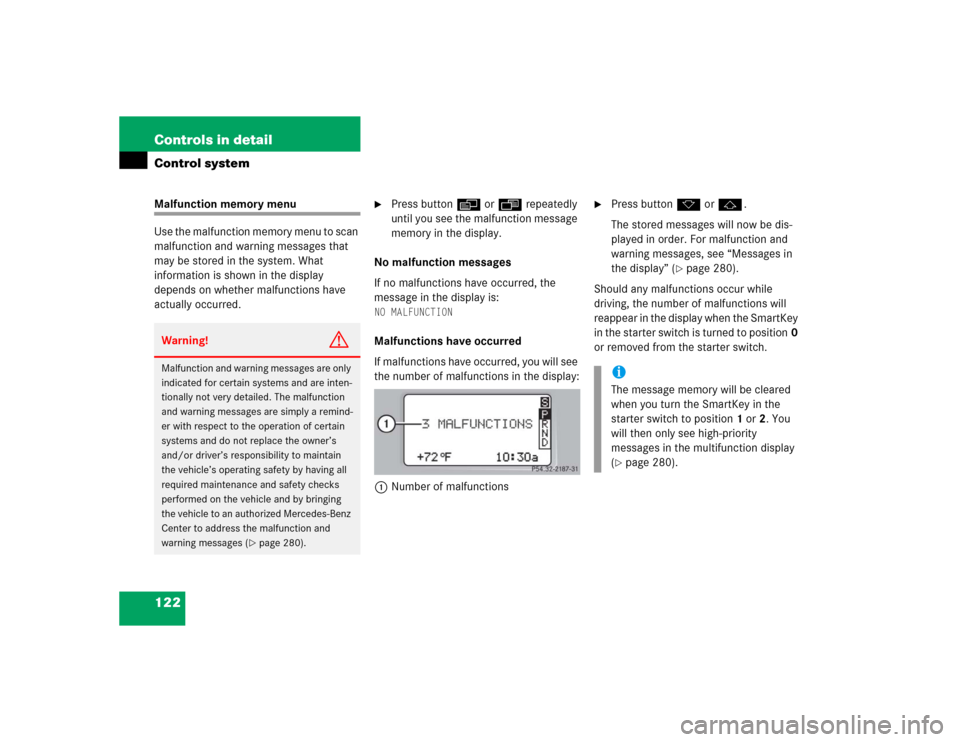
If malfunctions have occurred, you will see
the number of malfunctions in the display:
1Number of malfunctions
�
Press buttonk orj.
The stored messages will now be dis-
played in order. For malfunction and
warning messages, see “Messages in
the display” (
�page 280).
Should any malfunctions occur while
driving, the number of malfunctions will
reappear in the display when the SmartKey
in the starter switch is turned to position0
or removed from the starter switch.
Warning!
G
Malfunction and warning messages are only
indicated for certain systems and are inten-
tionally not very detailed. The malfunction
and warning messages are simply a remind-
er with respect to the operation of certain
systems and do not replace the owner’s
and/or driver’s responsibility to maintain
the vehicle’s operating safety by having all
required maintenance and safety checks
performed on the vehicle and by bringing
the vehicle to an authorized Mercedes-Benz
Center to address the malfunction and
warning messages (
�page 280).
iThe message memory will be cleared
when you turn the SmartKey in the
starter switch to position1 or2. You
will then only see high-priority
messages in the multifunction display
(�page 280).