Page 61 of 243
54 AudioCD operation�
Turn the right-hand rotary/push-button
v to highlight “CD Select” in the main
CD menu and press to confirm.
The “CD Select” menu will appear.
�
Turn the right-hand rotary/push-button
v to highlight the desired CD and
press to confirm.
The message “Loading CD ...” will ap-
pear in 1. Playback will then begin
with track 1, the main CD menu will ap-
pear.
Fast forward
�
Press h longer than 2 seconds and
keep it depressed.
The message “Forward S” will appear.
The display shows the current position
via the time indicator display.Fast reverse
�
Press g longer than 2 seconds and
keep it depressed.
The message “T Reverse” will appear.
Ending the function
�
Releaseg or h.
Playback will resume.
iIf magazine slots are empty, it is not
possible to select them with the right-
hand rotary/push-button v.
If you select an empty magazine slot
with a number key, e.g. 4 the message
“No CD” is displayed.
Fast forward/reverse
P82.85-9104-31
Page 63 of 243
56 AudioCD operationNaming the CDs inserted in the CD chan-
ger* or CD drive�
Turn the right-hand rotary/push-button
v to highlight “CD Naming” in the
main CD menu and press to confirm.
The “CD Naming” menu will appear.
�
Turn the right-hand rotary/push-button
v to highlight the desired character
and press to confirm.
The character is entered in 1.
�
Repeat the last step to enter additional
characters.Deleting the character that has been ente-
red last
�
Press r briefly.
The input marker moves to the left as it
deletes.
Deleting a complete name
�
Press r longer than 2 seconds.
Altering an entered name
�
Delete one character at a time or the
entire name.
�
Then enter the new name.
�
Press the right-hand rotary/push-
button v longer than 2 seconds.
The name of the CD currently playing
will appear in the main CD menu above
the track number.iThe CD will retain this name even if you
later insert it in a different magazine
slot.
P82.85-9107-31
Page 65 of 243
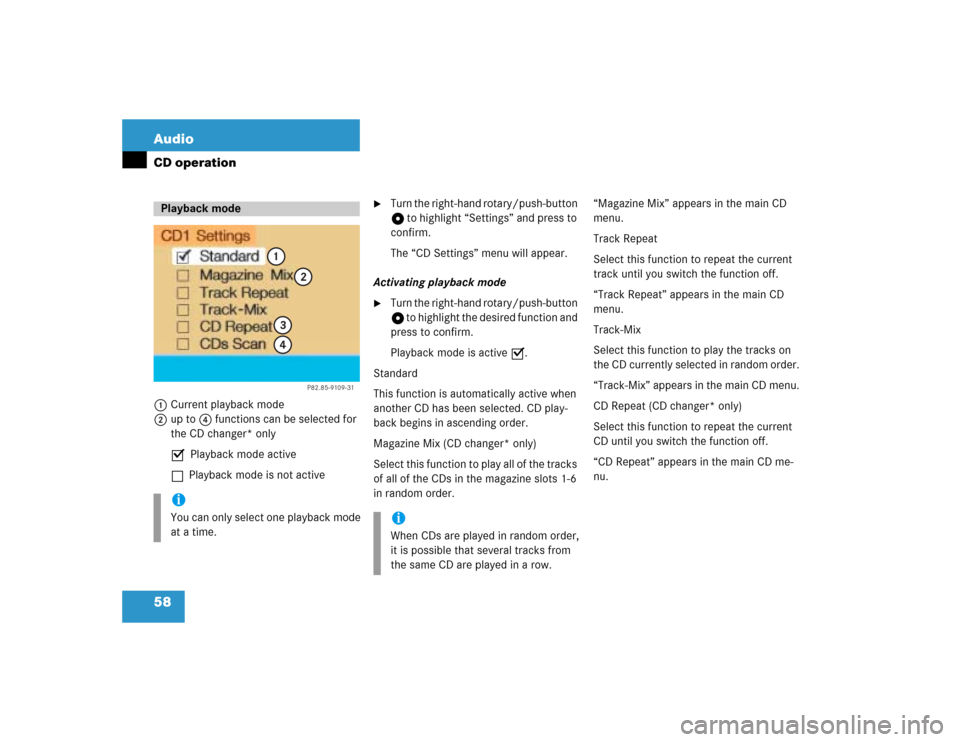
58 AudioCD operation1Current playback mode
2up to 4 functions can be selected for
the CD changer* only
P Playback mode active
Q Playback mode is not active
�
Turn the right-hand rotary/push-button
v to highlight “Settings” and press to
confirm.
The “CD Settings” menu will appear.
Activating playback mode
�
Turn the right-hand rotary/push-button
v to highlight the desired function and
press to confirm.
Playback mode is active P.
Standard
This function is automatically active when
another CD has been selected. CD play-
back begins in ascending order.
Magazine Mix (CD changer* only)
Select this function to play all of the tracks
of all of the CDs in the magazine slots 1-6
in random order.“Magazine Mix” appears in the main CD
menu.
Track Repeat
Select this function to repeat the current
track until you switch the function off.
“Track Repeat” appears in the main CD
menu.
Track-Mix
Select this function to play the tracks on
the CD currently selected in random order.
“Track-Mix” appears in the main CD menu.
CD Repeat (CD changer* only)
Select this function to repeat the current
CD until you switch the function off.
“CD Repeat” appears in the main CD me-
nu.
Playback modeiYou can only select one playback mode
at a time.
P82.85-9109-31
1
2
34
iWhen CDs are played in random order,
it is possible that several tracks from
the same CD are played in a row.
Page 73 of 243
66 AudioSound settingsActivating sound optimization�
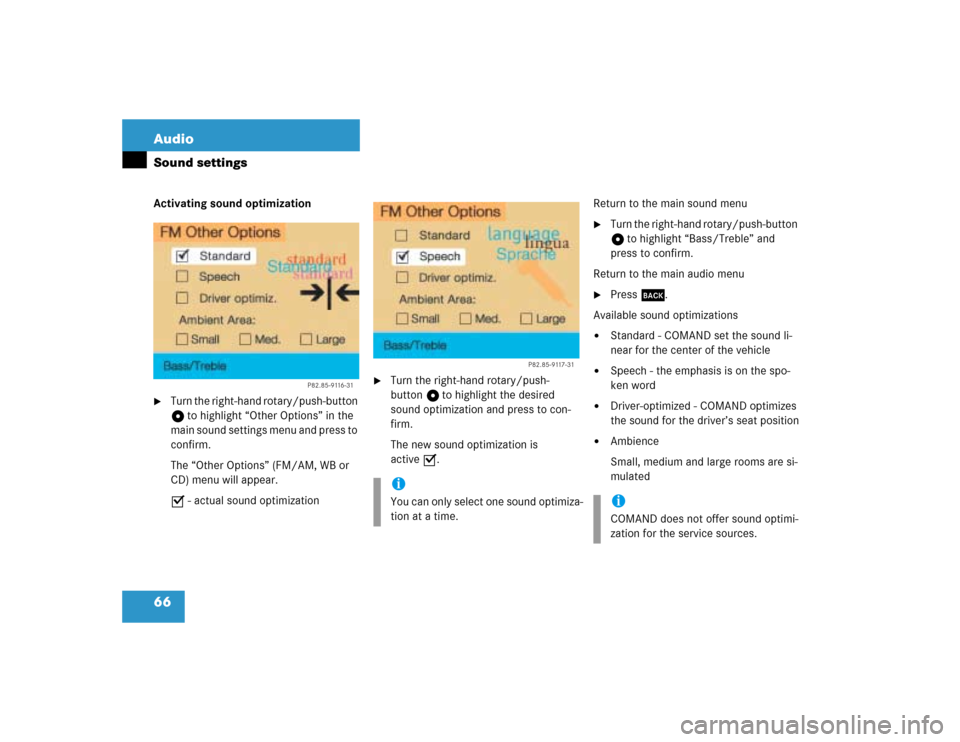
Turn the right-hand rotary/push-button
v to highlight “Other Options” in the
main sound settings menu and press to
confirm.
The “Other Options” (FM/AM, WB or
CD) menu will appear.
P - actual sound optimization
�
Turn the right-hand rotary/push-
button v to highlight the desired
sound optimization and press to con-
firm.
The new sound optimization is
active P.Return to the main sound menu
�
Turn the right-hand rotary/push-button
v to highlight “Bass/Treble” and
press to confirm.
Return to the main audio menu
�
Press *.
Available sound optimizations
�
Standard - COMAND set the sound li-
near for the center of the vehicle
�
Speech - the emphasis is on the spo-
ken word
�
Driver-optimized - COMAND optimizes
the sound for the driver’s seat position
�
Ambience
Small, medium and large rooms are si-
mulated
P82.85-9116-31
iYou can only select one sound optimiza-
tion at a time.
P82.85-9117-31
iCOMAND does not offer sound optimi-
zation for the service sources.
Page 75 of 243

68 Satellite radio*Important notes
� Important notesIn chapter “Satellite radio”, you will find
detailed information regarding�
selecting a station and a program cate-
gory
�
memory functions
�
sound adjustments
If you have not done so already, please fa-
miliarize yourself with these functions by
reading chapter “At a glance”.Sirius Satellite Radio provides approxima-
tely 100 channels, so called streams, of di-
gital-quality radio, among others music,
sports, news, and entertainment commer-
cial-free.
Sirius Satellite Radio uses a fleet of high-
power satellites to broadcast 24 hours per
day, coast-to-coast.
This diverse, satellite-delivered program-
ming is available for a monthly subscripti-
on fee. For more information, call the
Sirius Service Center (
�page 69) or con-
tact www.siriusradio.com.
iAdditional optional satellite radio equip-
ment and a subscription to satellite ra-
dio service provider are required for the
satellite radio operation described here.
Feature description is based on prelimi-
nary information available at time of
printing. At time of printing, no date for
the availability of optional equipment
required for satellite radio operation
had been set. Contact your authorized
Mercedes-Benz Center for details and
availability for your vehicle.
Page 93 of 243

86 Telephone*Important notes
� Important notesIn chapter “Telephone”, you will find de-
tailed information regarding the telepho-
ne*, including emergency call, SMS
function and service numbers.
1 Observe all legal requirements�
Please read the chapter “Telephone”
first before attempting to operate your
telephone.
�
Always drive with extreme caution
when you operate the telephone
hands-free.
�
For safety reasons, you should not use
the mobile telephone handset to make
a call while driving the vehicle.
If the signal strength is very weak (dis-
play in the symbol field of all menus):
Wait until reception improves before
making a call.
Warning
G
Some jurisdictions prohibit the driver from
using a cellular telephone while driving a ve-
hicle. Whether or not prohibited by law, for
safety reasons, the driver should not use the
cellular telephone while the vehicle is in mo-
tion. Stop the vehicle in a safe location be-
fore answering or placing a call.
If you nonetheless choose to use the cellular
phone while driving, please use the hands-
free device and be sure to pay attention to
the traffic situation at all times. Use the cel-
lular phone
1 only when road, weather and
traffic conditions permit.
Never operate radio transmitters equipped
with a built-in or attached antenna (i.e.
without being connected to an external an-
tenna) from inside the vehicle while the en-
gine is running. Doing so could lead to
malfunction of the vehicle’s electronic sys-
tems, possibly resulting in an accident and
personal injury.
!Radio transmitters, such as a portable
telephone or a citizens band unit
should only be used inside the vehicle
if they are connected to a separate ex-
terior antenna that has been approved
by Mercedes-Benz.
Page 98 of 243
91 Telephone*
Multifunction display
Function
Page
1
The telephone is switched off
Switching telephone operati-
on on
96
2
Entering the unlock code
96
3
The system is searching for
the corresponding network
96
4
The telephone is ready for use
103
5
The vehicle is currently out-
side the transmission or re-
ception range
Function
Page
6
Phone book is empty and/or
has not been loaded into the
COMAND telephone memory
103
7
Name selected from the
phone book
103
8
Dialing begins
104
9
Dialing is completed and the
name is displayed.
The display will remain until
you end the call
104
Function
Page
a
Reception strength is indica-
ted by up to 5 bars for a con-
nected and functional
telephone.
97
b
Number of the memory locati-
on and the name stored here
103
c
Call time
104
Page 103 of 243
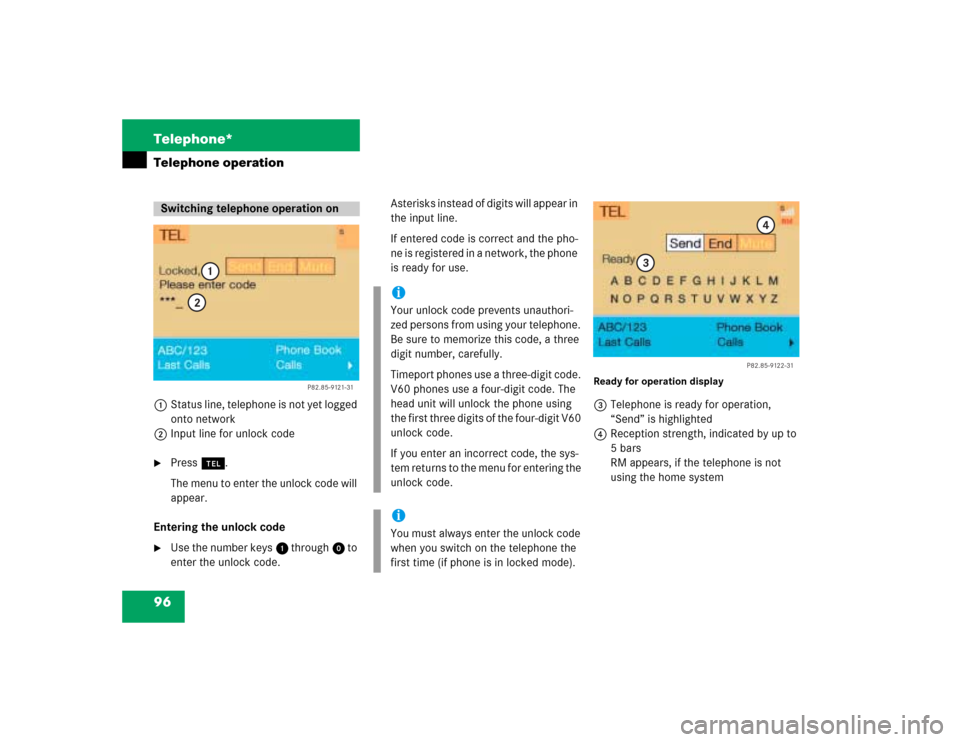
96 Telephone*Telephone operation1Status line, telephone is not yet logged
onto network
2Input line for unlock code�
Press a.
The menu to enter the unlock code will
appear.
Entering the unlock code
�
Use the number keys 1 through 0 to
enter the unlock code.Asterisks instead of digits will appear in
the input line.
If entered code is correct and the pho-
ne is registered in a network, the phone
is ready for use.
Ready for operation display3Telephone is ready for operation,
“Send” is highlighted
4Reception strength, indicated by up to
5 bars
RM appears, if the telephone is not
using the home system
Switching telephone operation on
P82.85-9121-31
1
2
iYour unlock code prevents unauthori-
zed persons from using your telephone.
Be sure to memorize this code, a three
digit number, carefully.
Timeport phones use a three-digit code.
V60 phones use a four-digit code. The
head unit will unlock the phone using
the first three digits of the four-digit V60
unlock code.
If you enter an incorrect code, the sys-
tem returns to the menu for entering the
unlock code.iYou must always enter the unlock code
when you switch on the telephone the
first time (if phone is in locked mode).
P82.85-9122-31
3
4


