2004 JEEP LIBERTY buttons
[x] Cancel search: buttonsPage 127 of 374
WARNING!
Your motorized door or gate will open and close
while you are programming HomeLink. Do not
program HomeLink if people or pets are in the path
of the door or gate. A moving door or gate can cause
serious injury or death to people and pets or damage
to objects.
1. Position the end of your hand-held transmitter 1-3
inches (5-14 cm) away from the lower left corner of the
EVIC display while keeping the display in view.
NOTE:Some gate operators and garage door openers
may require you to replace the next step with procedures
noted in the9Gate Operator/Canadian Programming9
section.
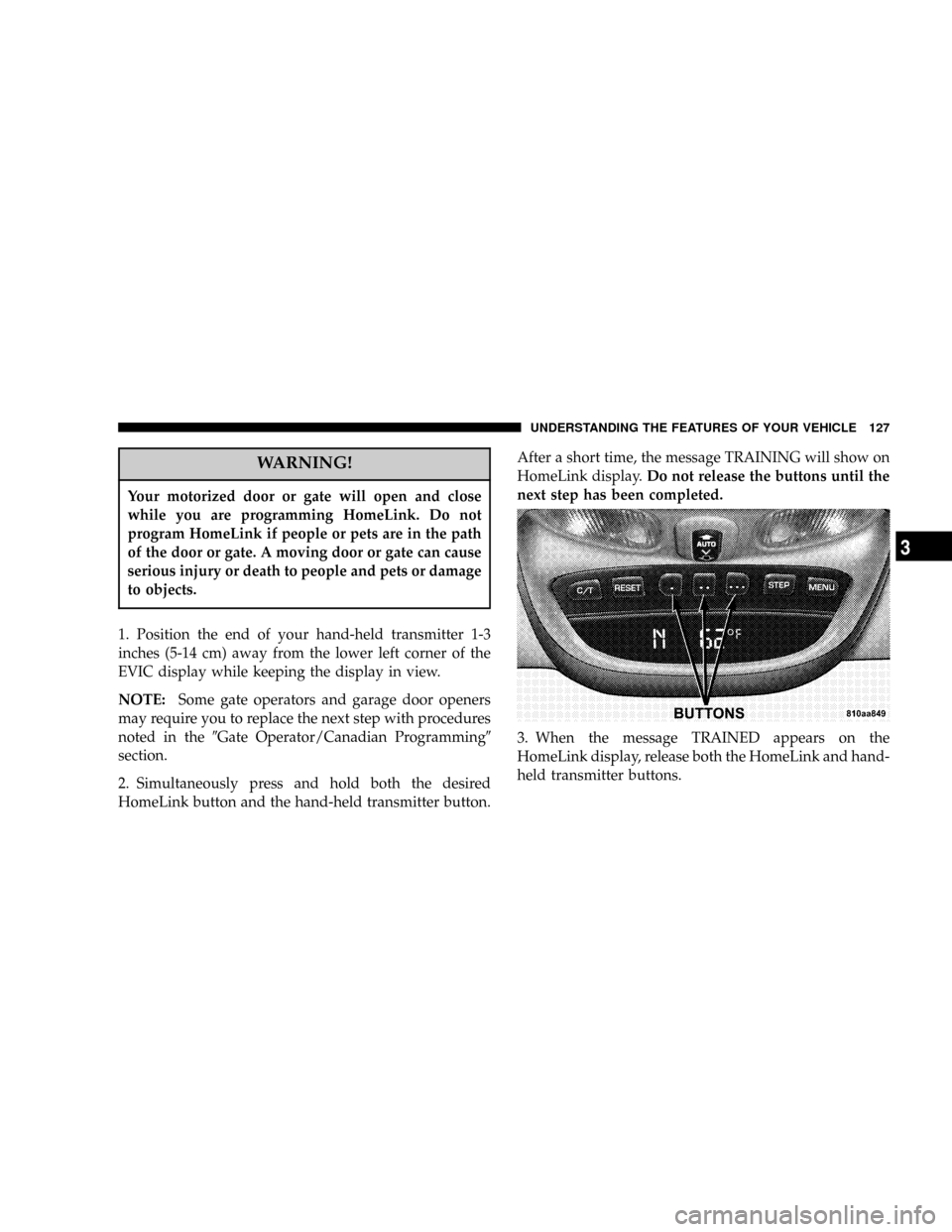
2. Simultaneously press and hold both the desired
HomeLink button and the hand-held transmitter button.After a short time, the message TRAINING will show on
HomeLink display.Do not release the buttons until the
next step has been completed.
3. When the message TRAINED appears on the
HomeLink display, release both the HomeLink and hand-
held transmitter buttons.
UNDERSTANDING THE FEATURES OF YOUR VEHICLE 127
3
Page 158 of 374

when driving, if the driver seat belt remains unbuckled,
the Seat Belt Warning Light will flash or remain on
continuously. Refer to9Enhanced Driver Seat Belt Re-
minder System (BeltAlertŸ)9in the Occupant Restraints
section for more information.
27. Light Bar Indicator Light Ð If Equipped
This light indicates when the light bar lamps
are on.
ELECTRONIC DIGITAL CLOCK
The clock and radio each use the display panel built into
the radio. A digital readout shows the time in hours and
minutes whenever the ignition switch is in the ON or
ACC position and the time button is pressed.
When the ignition switch is in the OFF position, or when
the radio frequency is being displayed, time keeping is
accurately maintained.
Clock Setting Procedure
1. Turn the ignition switch to the ON or ACC position
and press the time button. Using the tip of a ballpoint pen
or similar object, press either the hour (H) or minute (M)
buttons on the radio.
2. Press the H button to set hours or the M button to set
minutes. The time setting will increase each time you
press a button.
RADIO GENERAL INFORMATION
Radio Broadcast Signals
Your new radio will provide excellent reception under
most operating conditions. Like any system, however, car
radios have performance limitations, due to mobile op-
eration and natural phenomena, which might lead you to
believe your sound system is malfunctioning. To help
158 UNDERSTANDING YOUR INSTRUMENT PANEL
Page 163 of 374

You can turn the tape player ON by inserting a cassette or
activating the MODE button (with a cassette in the radio),
but only when the ignition and radio are on.
Each time a cassette is inserted the tape player will begin
playing on the side of the cassette that is facing up in the
player.
Music Search
Pressing the SEEK button while playing a tape will start
the Music Search mode. Press the SEEK button up for the
next selection on the tape and down to return to the
beginning of the current selection, or return to the
beginning of the previous selection if the tape is within
the first 5 seconds of the current selection.
The SEEK symbol appears on the display when Music
Search is in operation. Music Search shuts off automati-
cally when a selection has been located.
Selective Music Search
Press the SEEK button up or down to move the track
number to skip forward or backward 1 to 7 selections.
Press the SEEK button once to move 1 selection, twice to
move 2 selections, etc.
Fast Forward And Rewind Buttons
Pressing the TUNE button up or down momentarily
activates Fast Forward or Rewind and makes the direc-
tional arrows appear on the display.
To stop Fast Forward or Rewind, press the TUNE button
again.
Time Button
Press the time button to toggle between station frequency
and time of day.
Pressing this button while playing a cassette tape will
change the side of the tape being played.
UNDERSTANDING YOUR INSTRUMENT PANEL 163
4
Page 164 of 374

NR (Noise Reduction)
Pushing the Number 2 Pre-set button when a tape is
playing deactivates the Dolby Noise Reduction System*.
When Dolby is ON, the NR symbol appears on the
display. Each time a tape is inserted the Dolby will turn
ON.
* ªDolbyº noise reduction manufactured under license
from Dolby Laboratories Licensing Corporation. Dolby
and the double-D symbol are trademarks of Dolby Labo-
ratories Licensing Corporation.
CD Changer Control Capability Ð If Equipped
This radio is compatible with a remote mounted CD
changer available through Mopar Accessories. The fol-
lowing instructions are for the radio controls that operate
this CD changer.
Mode Button
To activate the CD changer, press the MODE button until
CD information appears on the display.
Push-Button
While the CD changer is playing, press the NUMBER 1
push-button or the NUMBER 5 push-button to select a
disc numbered higher or lower than the one currently
being played.
Seek Button
Press the SEEK up or down to select another track on the
same disc. A SEEK symbol will appear on the display.
Fast Forward And Rewind Buttons
Press and hold the FF button for fast forward. Press and
hold the RW button for fast reverse.
The audio output can be heard when fast forward and
fast reverse are activated.
Random Play (RND)
Press the Random button to play the tracks on the
selected disc in random order for an interesting change of
pace.
164 UNDERSTANDING YOUR INSTRUMENT PANEL
Page 171 of 374

Mode
Press the MODE button repeatedly to select between the
CD player, the optional remote CD changer and the
Satellite Radio (if equipped). When Satellite Radio (if
equipped) is selected ªSAº will appear in your radio
display.
A CD or tape may remain in the player while in the
Satellite mode.
Time
Press the TIME button to change the display from
elapsed CD playing time to time of day.
CD Changer Control Capability Ð If Equipped
This radio is compatible with a remote mounted CD
changer available through Mopar Accessories. The fol-
lowing instructions are for the radio controls that operate
this CD changer.
Mode Button
To activate the CD changer, press the MODE button until
CD information appears on the display.
Push-Button
While the CD changer is playing, press the NUMBER 1
push-button or the NUMBER 5 push-button to select a
disc numbered higher or lower than the one currently
being played.
Seek Button
Press the SEEK up or down to select another track on the
same disc. A SEEK symbol will appear on the display.
Fast Forward And Rewind Buttons
Press and hold the FF button for fast forward. Press and
hold the RW button for fast reverse.
The audio output can be heard when fast forward and
fast reverse are activated.
UNDERSTANDING YOUR INSTRUMENT PANEL 171
4
Page 178 of 374

To set the clock, use a ballpoint pen or similar object to
press the hour (H) or minute (M) buttons on the radio,
The time setting will increase each time you press the
button. Press any other button to exit from the clock
setting mode.
General Information
This radio complies with Part 15 of FCC rules and with
RSS-210 of Industry Canada. Operation is subject to the
following conditions:
1. This device may not cause harmful interference,
2. This device must accept any interference received,
including interference that may cause undesired opera-
tion.
NOTE:Changes or modifications not expressively ap-
proved by the party responsible for compliance could
void the user's authority to operate the equipment.
Tape Player Operation
Insert the cassette with the exposed tape side toward the
right and the mechanical action of the player will gently
pull the cassette into the play position.
NOTE:When subjected to extremely cold temperatures,
the tape mechanism may require a few minutes to warm
up for proper operation. Sometimes poor playback may
be experienced due to a defective cassette tape. Clean and
demagnetize the tape heads at least twice a year.
Tape Side йD/PTY
Pressing the¹Dbutton during tape mode will cause the
other side of the tape to be played. The display will
confirm the selected tape play direction. The time is
always displayed.
Tape
Press the TAPE button to select the Tape mode.
178 UNDERSTANDING YOUR INSTRUMENT PANEL
Page 191 of 374

ESN/SID Access With RBB and RBK Radios
With the ignition switch in the ACCESSORY position and
the radio OFF, press the Tape Eject or CD Eject (depend-
ing on the radio type) and Time buttons simultaneously
for 3 seconds. The first four digits of the twelve-digit
ESN/SID number will be displayed. Press the SEEK UP
button to display the next four digits. Continue to press
the SEEK UP button until all twelve ESN/SID digits have
been displayed. The SEEK DOWN will page down until
the first four digits are displayed. The radio will exit the
ESN/SID mode when any other button is pushed, the
ignition is turned OFF, or 5 minutes has passed since any
button was pushed.
ESN/SID Access With RBP, RBU, RAZ, and RBQ
Radios
With the ignition switch in the ACCESSORY position and
the radio OFF, press the CD Eject and TIME buttons
simultaneously for 3 seconds. All twelve ESN/SID num-
bers will be displayed. The radio will exit the ESN/SIDmode when any other button is pushed, the ignition is
turned OFF, or 5 minutes has passed since any button
was pushed.
Selecting Satellite Mode in RBB and RBK Radios
Press the MODE button repeatedly until9SA9appears in
the display. A CD or tape may remain in the radio while
in the Satellite radio mode.
Selecting Satellite Mode in RBP, RBU, RAZ, and
RBQ Radios
Press the MODE button repeatedly until the word
9SIRIUS9appears in the display. These radios will also
display the following:
²After 3 seconds, the current channel name and channel
number will be displayed for 5 seconds.
²The current program type and channel number will
then be displayed for 5 seconds.
UNDERSTANDING YOUR INSTRUMENT PANEL 191
4
Page 192 of 374

²The current channel number will then be displayed
until an action occurs.
A CD or tape may remain in the radio while in the
Satellite radio mode.
Selecting a Channel
Press and release the SEEK or TUNE buttons to search for
the next channel. Press the top of the button to search up
and the bottom of the button to search down. Holding the
TUNE button causes the radio to bypass channels until
the button is released.
Press and release the SCAN button (if equipped) to
automatically change channels every 7 seconds. The
radio will pause on each channel for 7 seconds before
moving on to the next channel. The word9SCAN9will
appear in the display between each channel change. Press
the SCAN button a second time to stop the search.NOTE:Channels that may contain objectionable content
can be blocked. Contact Sirius Customer Care at 888-539-
7474 to discuss options for channel blocking or unblock-
ing. Please have your ESN/SID information available.
Storing and Selecting Pre-Set Channels
In addition to the 10 AM and 10 FM pre-set stations, you
may also commit 10 satellite stations to push button
memory. These satellite channel pre-set stations will not
erase any AM or FM pre-set memory stations. Follow the
memory pre-set procedures that apply to your radio.
Using the PTY (Program Type) Button (if
equipped)
Follow the PTY button instructions that apply to your
radio.
192 UNDERSTANDING YOUR INSTRUMENT PANEL