2004 CHEVROLET MALIBU light
[x] Cancel search: lightPage 166 of 426
LANGUAGE:To select your choice of language,
use the ENTER button to move between the optional
languages.
The languages are English, French, German and
Spanish.
Choosing a language will display all of the information
on the DIC in the desired language.
When you have made your choice, press the MENU
button for at least one second to record your selection.
The initial setting from the factory is ENGLISH.
ENTER:The ENTER button is used to reset certain
functions and turn off or acknowledge messages on the
DIC display. The ENTER button also toggles through
the options available in each personalization menu.
DIC Warnings and Messages
These messages will appear if there is a problem
sensed in one of your vehicle’s systems.
Any message will clear when the vehicle’s condition is no
longer present. The warning message will come back on
the next time the vehicle is turned off and back on if the
condition is still present. With most messages, a warning
chime will sound when the message is displayed.
Your vehicle may have other warning messages.AUTO LIGHTS OFF:This message is displayed if
the automatic headlamp system is disabled with
the headlamp switch.
AUTO LIGHTS ON:This message is displayed if
the automatic headlamp system is enabled with the
headlamp switch.
BRAKE FLUID:This message will display if the ignition
is in ON to inform the driver that the brake uid level
is low. Have the brake system serviced by a technician
as soon as possible.
CHANGE OIL SOON:This message is displayed when
the life of the engine oil has expired and it should be
changed within 200 miles.
When you acknowledge the Change Engine Oil message
by clearing it from the display, you still must reset the
engine oil life monitor separately. SeeEngine Oil on
page 5-17andScheduled Maintenance on page 6-4
for more information.
CHECK GAS CAP:This message will appear if the
gas cap has not been fully tightened. You should
recheck your gas cap to ensure that it’s on properly.
A few driving trips with the cap properly installed should
turn the display off.
3-50
Page 167 of 426
DOOR AJAR:This message is displayed if one or
more of the vehicle’s doors are not closed properly.
When this message appears, you should make sure
that the door is closed completely.
ENGINE DISABLED:This message is displayed if the
starting of the engine is disabled. Have y our vehicle
serviced by your dealership immediately.
ENG PWR REDUCED:This message informs you that
the vehicle has reduced engine power to avoid
damaging the engine.
ICE POSSIBLE:This message appears when the
outside air temperature is cold enough to create icy
road conditions.
KEY FOB BATT LOW:This message is displayed if
the remote keyless entry transmitter battery is low.
LOW COOLANT:This message is displayed when
there is a low level of engine coolant. Have the cooling
system serviced by a technician as soon as possible.
LOW FUEL:This message is displayed when your
vehicle is low on fuel. You should rell the tank as soon
as possible. You will also see a low fuel warning light
on the instrument panel cluster.LOW WASHER FLUID:This message is displayed
when your vehicle is low on windshield washer uid.
You should rell the tank as soon as possible.
POWER STEERING:This message is displayed if a
problem has been detected with the electric power
steering. Have your vehicle serviced immediately.
PUSH PARK PEDAL:This message is displayed if
the parking brake is left engaged and you try to
drive away.
SERVICE AIR BAG:There is a problem with the air
bag system when this message appears. Let only
a qualied technician work on your vehicle. Have your
vehicle serviced by your dealership immediately.
TRUNK OR GATE AJAR:This message is displayed
when the trunk lid or liftgate of your vehicle is not closed
completely. You should make sure that the trunk lid or
liftgate is closed completely.
3-51
Page 213 of 426
Before You Drive
The RSE is designed for rear seat passengers only.
The driver cannot safely view the video screen
while driving and should not try to do so.
Your DVD system is designed to be inoperable when
the vehicle is exposed to extremely low or high
temperatures, in order to protect your system from
damage. Operate your DVD system under normal or
comfortable cabin temperature ranges.
Headphones
The entertainment system includes two wireless
headphones.
The wireless headphones have an ON/OFF button,
and a volume control. To use the headphones press the
ON/OFF button. An indicator light on the headphones
will illuminate. If the light does not illuminate, the
batteries may need to be replaced. See “Battery
Replacement” later in this section for more information.
Press the button to turn the headphones OFF when
not in use.If the RSE system is shut off, or if the headphones are
out of range of the transmitters, located at the top of
the DVD player, for more than three minutes, the
headphones will shut off automatically to save the
battery power. If you move too far forward or step out of
the vehicle, the headphones will lose the audio signal.
To adjust the volume on the wireless headphones,
use the volume control.
Make sure that the headphones are worn correctly,
left to right, to ensure the signal is received properly.
Notice:Do not store the headphones in heat or
direct sunlight. This could damage the headphones
and repairs would not be covered by your warranty.
Keep the headphones stored in a cool, dry place.
If there is a decreased audio signal during CD or
DVD play, you may hear a low “hissing” noise through
the speakers and/or headphones. If the hissing sound
in the wireless headphones seems excessive, make
sure that the headphone batteries are fully charged.
Some amount of hissing is normal.
3-97
Page 219 of 426
Remote Control
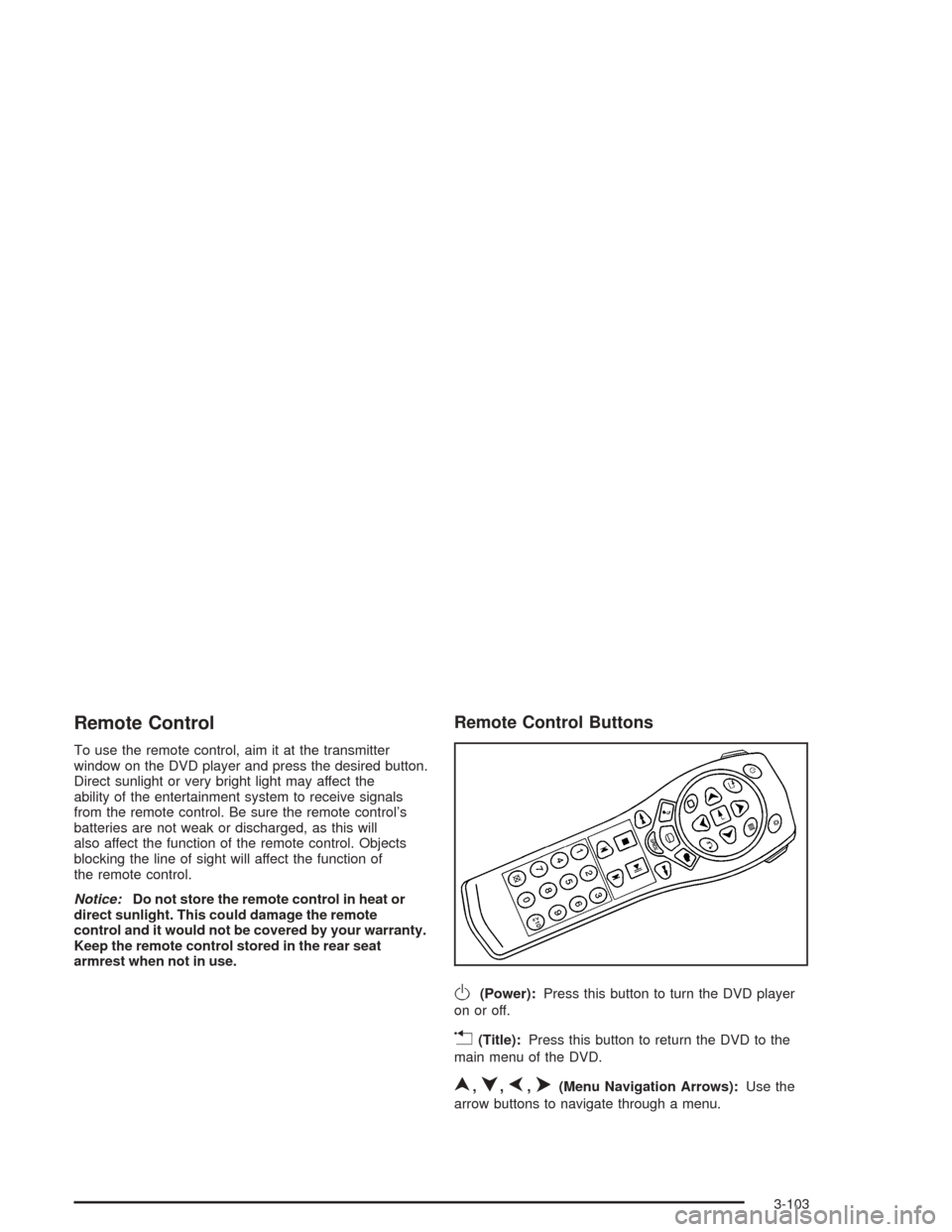
To use the remote control, aim it at the transmitter
window on the DVD player and press the desired button.
Direct sunlight or very bright light may affect the
ability of the entertainment system to receive signals
from the remote control. Be sure the remote control’s
batteries are not weak or discharged, as this will
also affect the function of the remote control. Objects
blocking the line of sight will affect the function of
the remote control.
Notice:Do not store the remote control in heat or
direct sunlight. This could damage the remote
control and it would not be covered by your warranty.
Keep the remote control stored in the rear seat
armrest when not in use.
Remote Control Buttons
O(Power):Press this button to turn the DVD player
on or off.
v(Title):Press this button to return the DVD to the
main menu of the DVD.
n,q,p,o(Menu Navigation Arrows):Use the
arrow buttons to navigate through a menu.
3-103
Page 220 of 426
z(Set-up Menu):Press this button to adjust the
color, tint, brightness, contrast, and display mode
(normal, full, or zoom). The dynamic range compression
feature can be used to reduce loud audio and increase
low audio produced by some DVDs.
e(Audio):Press this button to display a menu that
will only appear when a DVD is being played. The format
and content of this function is dependent on the disc.
r(Fast Reverse):Press this button to fast reverse
the DVD or CD. To stop fast reversing, press this button
again. This button may not work when the DVD is
playing the copyright information or the previews.
SRCE (Source):Press this button to toggle between
the DVD player and an auxiliary source.
c(Stop):Press this button to stop playing, rewinding,
or fast forwarding a DVD or CD. Press this button
twice to return to the beginning of the DVD.
t(Previous Track/Chapter):Press this button to
return to the start of the current track or chapter. Press
this button again to return to the previous track or
chapter. This button may not work when the DVD is
playing the copyright information or the previews.
1 through 0 (Numeric Keypad):The remote control
numeric keypad provides you with the capability of direct
chapter, title, and track number selection.
\:Press this button, within 3 seconds after inputting
a numeric selection to clear all numeric inputs. Press
this button before inputting the number.
}10:Press the button, to select chapter, title, and
track numbers greater than 9. Press this button before
inputting the number.
P(Illumination):Press this button to turn the remote
control backlight on. The backlight will time out after
about 7 to 10 seconds if no other button is pressed while
the backlight is on.
y(Main DVD Menu):Press this button to access
the DVD menu. The DVD menu is different on every
DVD. Use the up, down, left, and right arrow buttons to
move the cursor around the DVD menu. After making
a selection press the enter button. This button only
operates when using a DVD.
r(Enter):Press this button to select the choices
that are highlighted in any menu.
q(Return):Press this button to exit the current
active menu and return to the previous menu. This
button will operate only when a DVD is being played
and a menu is active.
3-104
Page 226 of 426
Problem Recommended Action
When I return to the
DVD from the system
menu, sometimes it
plays from the beginning
and sometimes from
where it left off.If the stop button was
pressed once, it resumes
play from where it left off.
If the stop button was
pressed twice, it will start
at the beginning of the
DVD. However, if a change
was made to the menu
the DVD will start from
where it left off, even if
the stop button was only
pressed once.
The fast forward,
reverse, previous
and next functions
do not work.Some commands that do
one thing for DVDs will
not always work or
perform the same function
for audio CDs or games.
These functions may also
be disabled when the DVD
is playing the copyright
information or previews.Problem Recommended Action
My disc is stuck in the
player. The eject button
does not work.Press the eject button on
the DVD player. Turn the
power off, then on again,
then press the eject button
on the DVD player. Do not
attempt to force or remove
the disc from the player. If
the problem persists, return
to your dealer for further
assistance.
I lost the remote control
and/or the headphones.Contact your dealer for
assistance.
What is the best way
to clean the screen?Wipe the video screen with
a soft cloth that is slightly
damp with water.
Sometimes the wireless
headphone audio
cuts out or buzzes
for a moment, then it
comes back.This could be caused by
blocking the transmitting
area between the
headphones and the
transmitter on the DVD
player. Make sure nothing
is between the headphones
and the DVD player.
3-110
Page 228 of 426
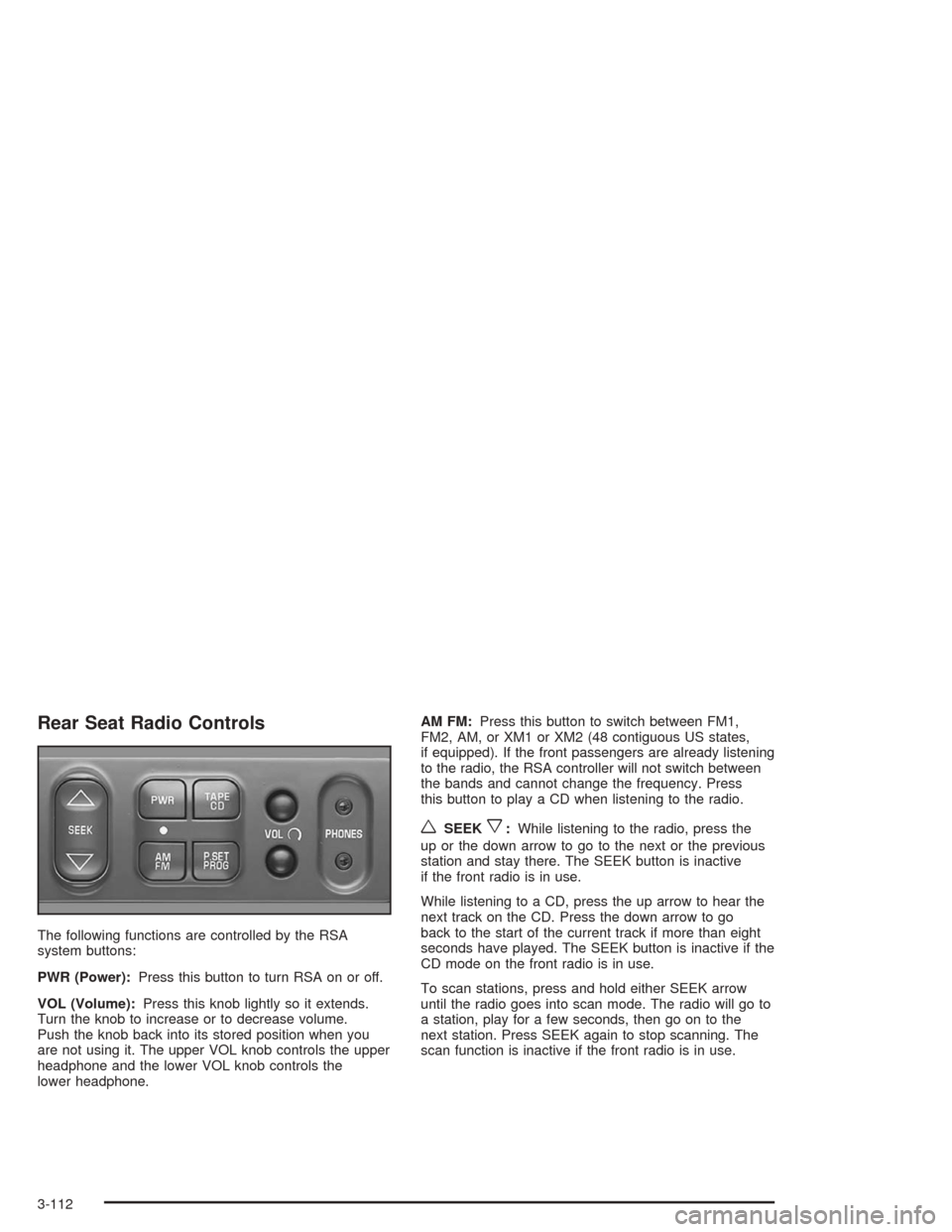
Rear Seat Radio Controls
The following functions are controlled by the RSA
system buttons:
PWR (Power):Press this button to turn RSA on or off.
VOL (Volume):Press this knob lightly so it extends.
Turn the knob to increase or to decrease volume.
Push the knob back into its stored position when you
are not using it. The upper VOL knob controls the upper
headphone and the lower VOL knob controls the
lower headphone.AM FM:Press this button to switch between FM1,
FM2, AM, or XM1 or XM2 (48 contiguous US states,
if equipped). If the front passengers are already listening
to the radio, the RSA controller will not switch between
the bands and cannot change the frequency. Press
this button to play a CD when listening to the radio.
wSEEKx:While listening to the radio, press the
up or the down arrow to go to the next or the previous
station and stay there. The SEEK button is inactive
if the front radio is in use.
While listening to a CD, press the up arrow to hear the
next track on the CD. Press the down arrow to go
back to the start of the current track if more than eight
seconds have played. The SEEK button is inactive if the
CD mode on the front radio is in use.
To scan stations, press and hold either SEEK arrow
until the radio goes into scan mode. The radio will go to
a station, play for a few seconds, then go on to the
next station. Press SEEK again to stop scanning. The
scan function is inactive if the front radio is in use.
3-112
Page 233 of 426
Care of Your Cassette Tape Player
A tape player that is not cleaned regularly can cause
reduced sound quality, ruined cassettes, or a damaged
mechanism. Cassette tapes should be stored in their
cases away from contaminants, direct sunlight, and
extreme heat. If they are not, they may not operate
properly or may cause failure of the tape player.
Your tape player should be cleaned regularly after
every 50 hours of use. Your radio may display CLEAN
TAPE to indicate that you have used your tape
player for 50 hours without resetting the tape clean
timer. If this message appears on the display, your
cassette tape player needs to be cleaned. It will still play
tapes, but you should clean it as soon as possible to
prevent damage to your tapes and player. If you notice
a reduction in sound quality, try a known good
cassette to see if the tape or the tape player is at fault.
If this other cassette has no improvement in sound
quality, clean the tape player.
For best results, use a scrubbing action, non-abrasive
cleaning cassette with pads which scrub the tape
head as the hubs of the cleaner cassette turn.
The recommended cleaning cassette is available
through your dealer.The broken tape detection feature of your cassette
tape player may identify the cleaning cassette as
a damaged tape, in error. To prevent the cleaning
cassette from being ejected, use the following steps:
1. Turn the ignition on.
2. Turn the radio off.
3. Press and hold the TAPE CD button for ve
seconds. READY will appear on the display and
a cassette symbol will ash for ve seconds.
4. Insert the scrubbing action cleaning cassette.
5. Eject the cleaning cassette after the manufacturer’s
recommended cleaning time.
After the cleaning cassette is ejected, the broken tape
detection feature will be active again.
You may also choose a non-scrubbing action, wet-type
cleaner which uses a cassette with a fabric belt to
clean the tape head. This type of cleaning cassette will
not eject on its own. A non-scrubbing action cleaner
may not clean as thoroughly as the scrubbing type
cleaner. The use of a non-scrubbing action, dry-type
cleaning cassette is not recommended.
3-117