Page 37 of 183
10-02-2003
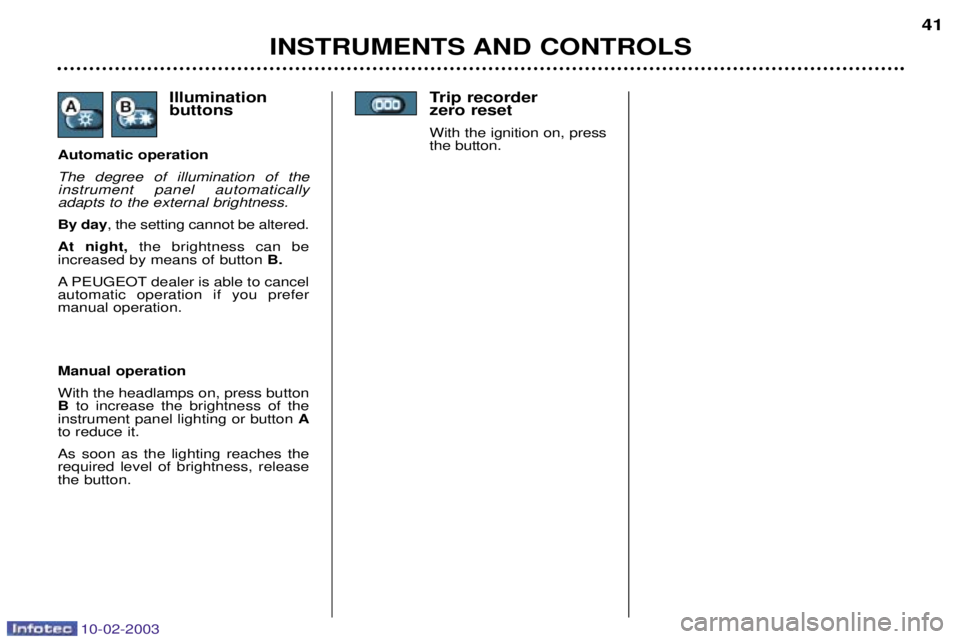
Trip recorder zero reset
With the ignition on, pressthe button.
INSTRUMENTS AND CONTROLS 41
Manual operation With the headlamps on, press button B to increase the brightness of the
instrument panel lighting or button A
to reduce it. As soon as the lighting reaches the required level of brightness, releasethe button. Illumination buttons
Automatic operation The degree of illumination of the instrument panel automaticallyadapts to the external brightness. By day , the setting cannot be altered.
At night, the brightness can be
increased by means of button B.
A PEUGEOT dealer is able to cancel automatic operation if you prefermanual operation.
Page 43 of 183
10-02-2003
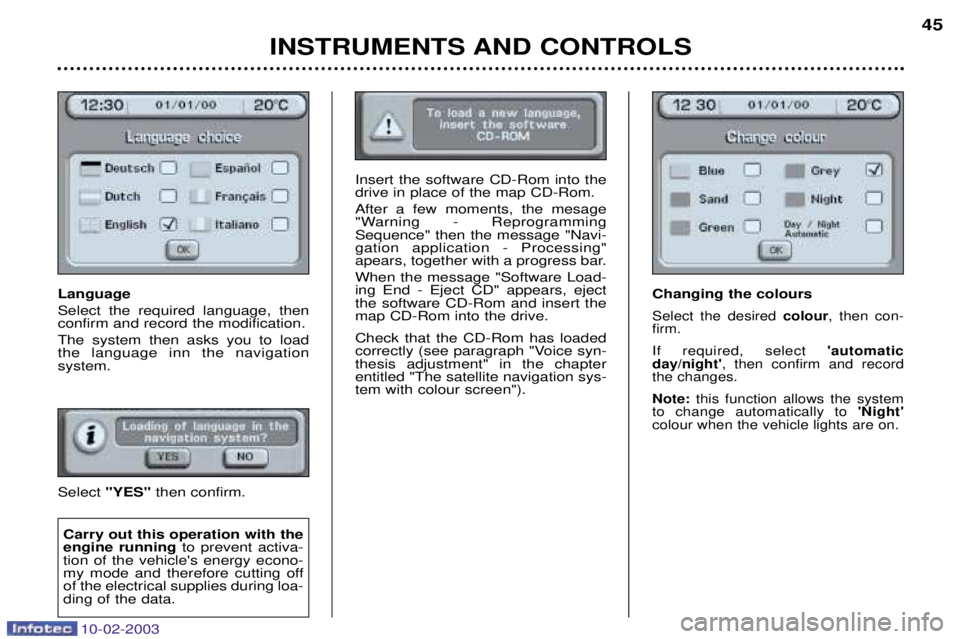
Language Select the required language, then confirm and record the modification. The system then asks you to load the language inn the navigation system. Select "YES" then confirm.
INSTRUMENTS AND CONTROLS 45
Carry out this operation with the engine running
to prevent activa-
tion of the vehicle's energy econo-
my mode and therefore cutting offof the electrical supplies during loa-ding of the data.
Insert the software CD-Rom into the drive in place of the map CD-Rom. After a few moments, the mesage
"Warning - ReprogrammingSequence" then the message "Navi-gation application - Processing"
apears, together with a progress bar. When the message "Software Load- ing End - Eject CD" appears, ejectthe software CD-Rom and insert themap CD-Rom into the drive. Check that the CD-Rom has loaded
correctly (see paragraph "Voice syn-thesis adjustment" in the chapterentitled "The satellite navigation sys-tem with colour screen"). Changing the colours
Select the desired
colour, then con-
firm. If required, select 'automatic
day/night' , then confirm and record
the changes.Note: this function allows the system
to change automatically to 'Night'
colour when the vehicle lights are on.
Page 44 of 183
10-02-2003
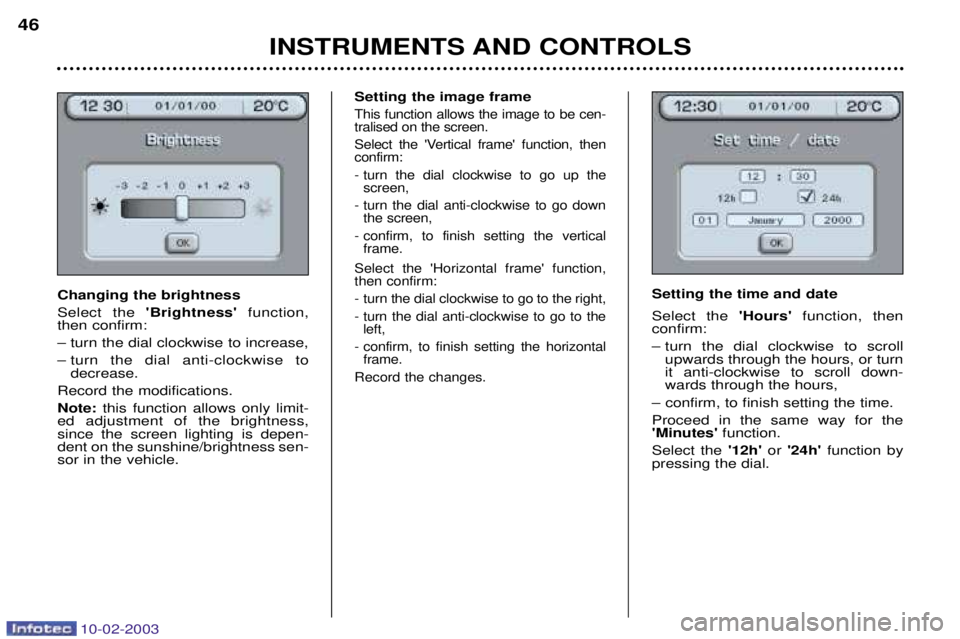
Setting the image frame
This function allows the image to be cen- tralised on the screen.
Select the 'Vertical frame' function, then confirm:
- turn the dial clockwise to go up thescreen,
- turn the dial anti-clockwise to go down the screen,
- confirm, to finish setting the vertical frame.
Select the 'Horizontal frame' function, then confirm:
- turn the dial clockwise to go to the right,
- turn the dial anti-clockwise to go to the left,
- confirm, to finish setting the horizontal frame.
Record the changes.
Setting the time and date Select the 'Hours'function, then
confirm:
Ð turn the dial clockwise to scroll upwards through the hours, or turn it anti-clockwise to scroll down-wards through the hours,
Ð confirm, to finish setting the time. Proceed in the same way for the 'Minutes' function.
Select the '12h'or '24h' function by
pressing the dial.
INSTRUMENTS AND CONTROLS
46
Changing the brightness Select the
'Brightness' function,
then confirm:Ð turn the dial clockwise to increase,
Ð turn the dial anti-clockwise to decrease.
Record the modifications.Note: this function allows only limit-
ed adjustment of the brightness, since the screen lighting is depen-dent on the sunshine/brightness sen-sor in the vehicle.
Page 56 of 183
10-02-2003
YOUR 607 IN DETAIL59
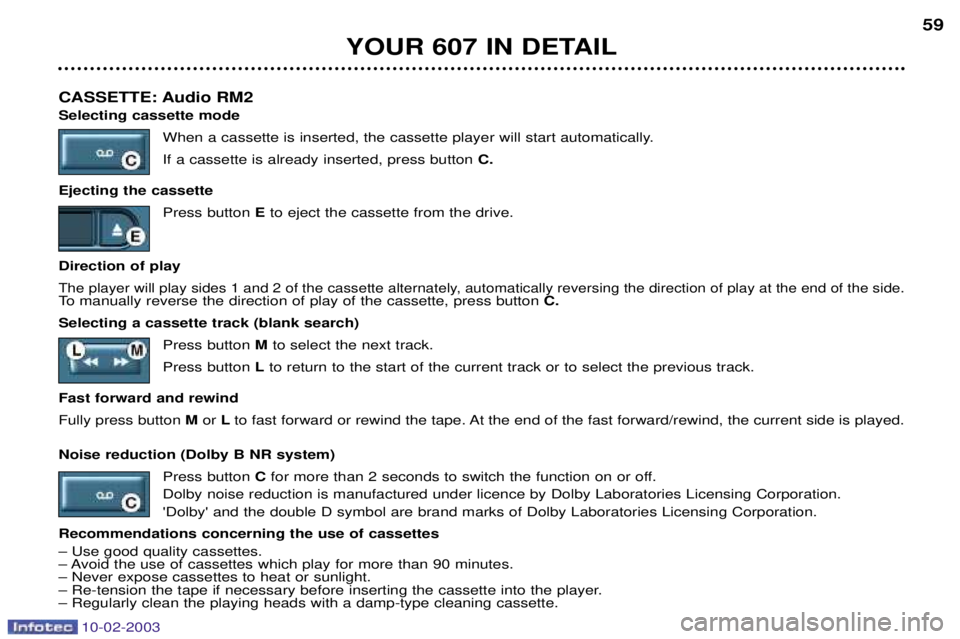
CASSETTE: Audio RM2 Selecting cassette mode When a cassette is inserted, the cassette player will start automatically. If a cassette is already inserted, press button C.
Ejecting the cassette Press button Eto eject the cassette from the drive.
Direction of play
The player will play sides 1 and 2 of the cassette alternately, automatically reversing the direction of play at the end of the side.To manually reverse the direction of play of the cassette, press button C.
Selecting a cassette track (blank search) Press button Mto select the next track.
Press button Lto return to the start of the current track or to select the previous track.
Fast forward and rewindFully press button Mor Lto fast forward or rewind the tape. At the end of the fast forward/rewind, the current side is played.
Noise reduction (Dolby B NR system) Press button Cfor more than 2 seconds to switch the function on or off.
Dolby noise reduction is manufactured under licence by Dolby Laboratories Licensing Corporation. 'Dolby' and the double D symbol are brand marks of Dolby Laboratories Licensing Corporation.
Recommendations concerning the use of cassettesÐ Use good quality cassettes.
Ð Avoid the use of cassettes which play for more than 90 minutes.Ð Never expose cassettes to heat or sunlight.
Ð Re-tension the tape if necessary before inserting the cassette into the player.Ð Regularly clean the playing heads with a damp-type cleaning cassette.
Page 61 of 183
10-02-2003
TELEPHONE: Audio/Telephone RT2 This function is a GSM 900 MHZ telephone incorporated in the audio system. It possesses a 'hands free'function, provided by a microphone located in the front courtesy light and a steering column
remote control which allows access to most of the functions. It also possesses a 'confidential' function, provided by the instrument panel located in the upper casing of the centre front
armrest. Note: An echo may be heard for a few seconds at the beginning of the call.
The principal "mobile"type functions are shown on the display incorporated in the audio system; the menu lists can be
referrred to on the multi-function display.This function is active when the ignition key is in the accessories position (1st notch), the ignition is switched on (2nd notch),
the engine is running or the vehicle is being driven. Note: when the ignition key is in the accessories position (1st notch) or the ignition is switched on (2nd notch), this function
will be interrupted after thirty minutes, when the message 'Economy mode active'appears on the multi-function display. If
you are using the telephone at that time, you will be able to finish your call.
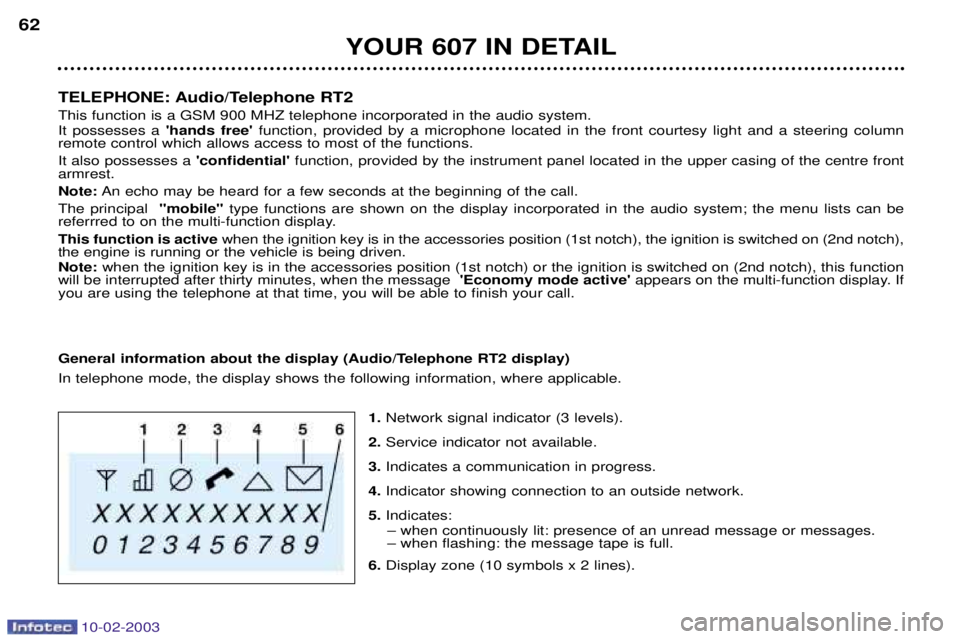
General information about the display (Audio/Telephone RT2 display) In telephone mode, the display shows the following information, where applicable.
1.Network signal indicator (3 levels).
2. Service indicator not available.
3. Indicates a communication in progress.
4. Indicator showing connection to an outside network.
5. Indicates:
Ð when continuously lit: presence of an unread message or messages. Ð when flashing: the message tape is full.
6. Display zone (10 symbols x 2 lines).
YOUR 607 IN DETAIL
62
Page 70 of 183
10-02-2003
This kit enables you to use a standard mobile telephone, in "hands-free" mode. It consists of:
- a support Aintended to accommodate the mobile telephone, located in the
upper compartment of the front armrest,
- a microphone Blocated in the front courtesy light.
The support holds the NOKIA 6310i telephone and connects its aerial to the roof aerial. The hands-free telephone kit uses the following on-board functions:
- the audio system of the RM2 audio equipment,
- the steering wheel control or the multi-function display control keypad,
- the multi-function display displays the telephone's main functions.
HANDS-FREE TELEPHONE KIT
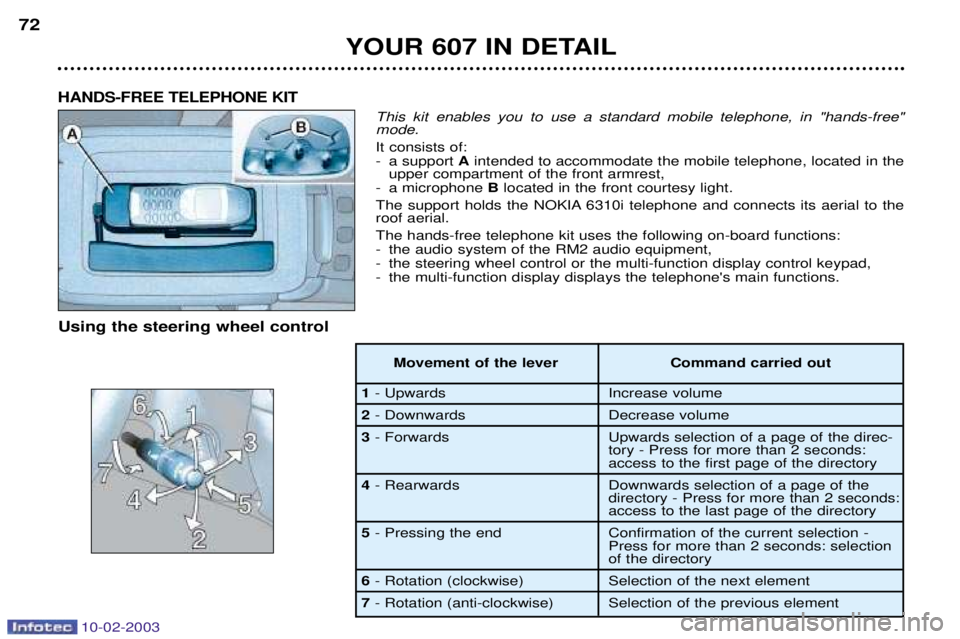
Using the steering wheel control
Movement of the lever Command carried out
1- Upwards Increase volume
2- Downwards Decrease volume
3 - Forwards Upwards selection of a page of the direc-
tory - Press for more than 2 seconds:
access to the first page of the directory
4 - Rearwards Downwards selection of a page of the
directory - Press for more than 2 seconds:
access to the last page of the directory
5 - Pressing the end Confirmation of the current selection -
Press for more than 2 seconds: selection
of the directory
6- Rotation (clockwise) Selection of the next element
7 - Rotation (anti-clockwise) Selection of the previous element
YOUR 607 IN DETAIL
72
Page 76 of 183
10-02-2003
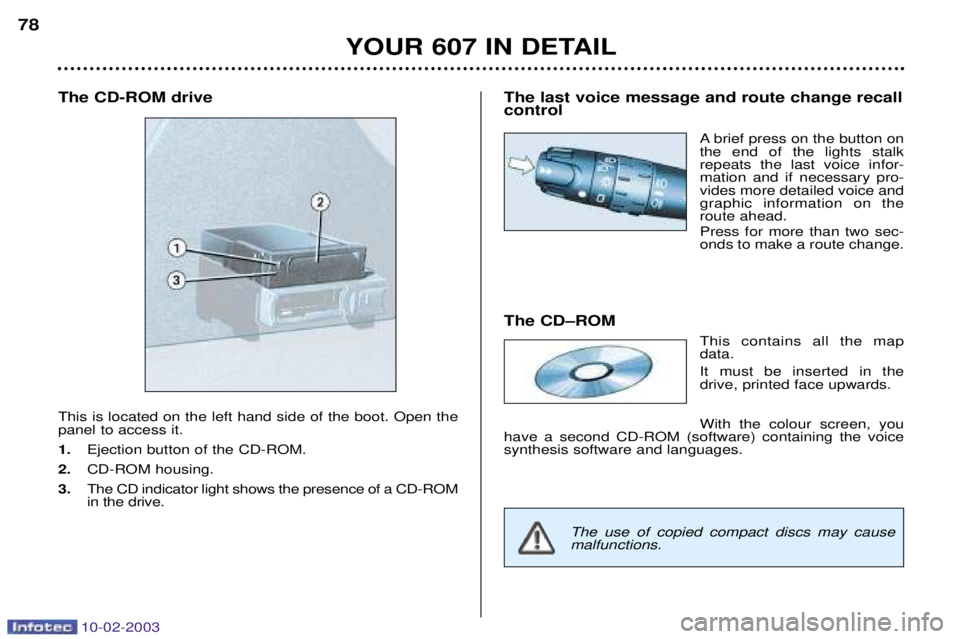
The CD-ROM drive This is located on the left hand side of the boot. Open the panel to access it. 1.Ejection button of the CD-ROM.
2. CD-ROM housing.
3. The CD indicator light shows the presence of a CD-ROM in the drive.
78
YOUR 607 IN DETAILThe last voice message and route change recall control
A brief press on the button onthe end of the lights stalkrepeats the last voice infor-mation and if necessary pro-vides more detailed voice andgraphic information on theroute ahead. Press for more than two sec- onds to make a route change.
The CDÐROM This contains all the mapdata. It must be inserted in the drive, printed face upwards. With the colour screen, you
have a second CD-ROM (software) containing the voice synthesis software and languages.
The use of copied compact discs may cause malfunctions.
Page 84 of 183
10-02-2003
Satellite navigation system with colour screen Updating the software When you receive the system update CD-ROMs:
Ð start the engine to avoid any risk ofswitching to energy economy mode during the operation,
Ð eject the mapping CD-ROM from the drive located in the boot,
Ð insert the software update CD- ROM in the drive (the indicatorlight on the drive comes on perma-nently); after a few seconds thescreen 'management of softwareconfiguration of the systemappears,
YOUR 607 IN DETAIL
86
Ð compare the "System" versionsinstalled (Multi-function display-D or Navigation-D) with those of theCD-Rom in the drive; if a softwareversion of the CD-ROM (or both) islater than the version installed,load the CD-ROM by confirming"YES" ; the red indicator light on
the drive flashes while the data isbeing loaded (a few minutes),
Ð when the message "Software Loading End - Eject CD" appears,remove the software CD-ROM andinsert the mapping CD-ROM in itsplace (the indicator light on thedrive comes on permanently aftergoing out briefly).
General remarks regarding the display When using context menus, the functions are presented in variousways:
Ð function selected (text on coloured background),
Ð function accesible (black text),
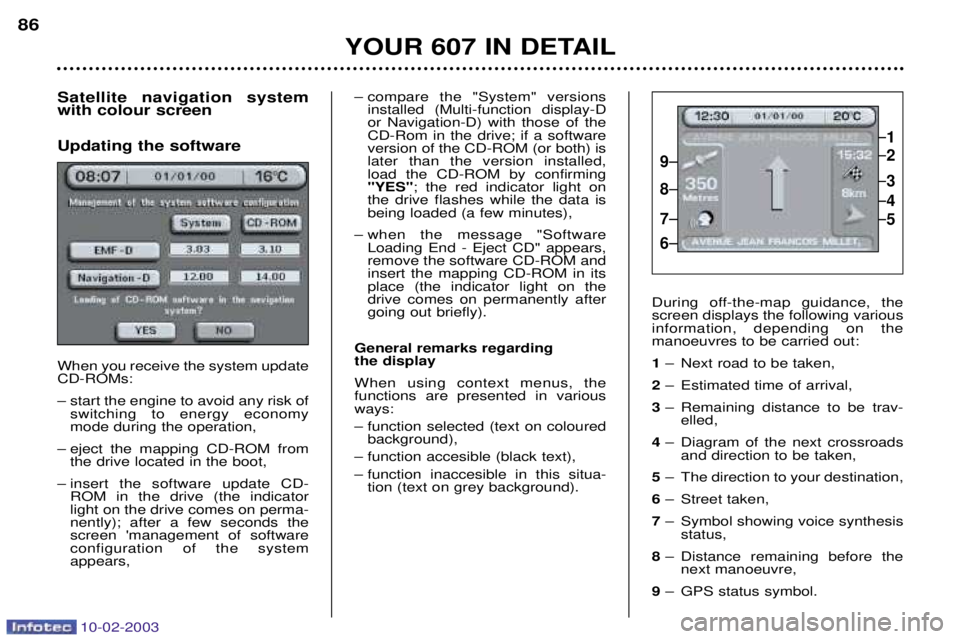
Ð function inaccesible in this situa- tion (text on grey background). During off-the-map guidance, the screen displays the following variousinformation, depending on themanoeuvres to be carried out: 1
Ð Next road to be taken,
2 Ð Estimated time of arrival,
3 Ð Remaining distance to be trav-
elled,
4 Ð Diagram of the next crossroads
and direction to be taken,
5 Ð The direction to your destination,
6 Ð Street taken,
7 Ð Symbol showing voice synthesis
status,
8 Ð Distance remaining before the
next manoeuvre,
9 Ð GPS status symbol.
1
2
3
5
4
9
8
7
6