2003 PEUGEOT 607 display
[x] Cancel search: displayPage 38 of 183
10-02-2003
INSTRUMENTS AND CONTROLS
42
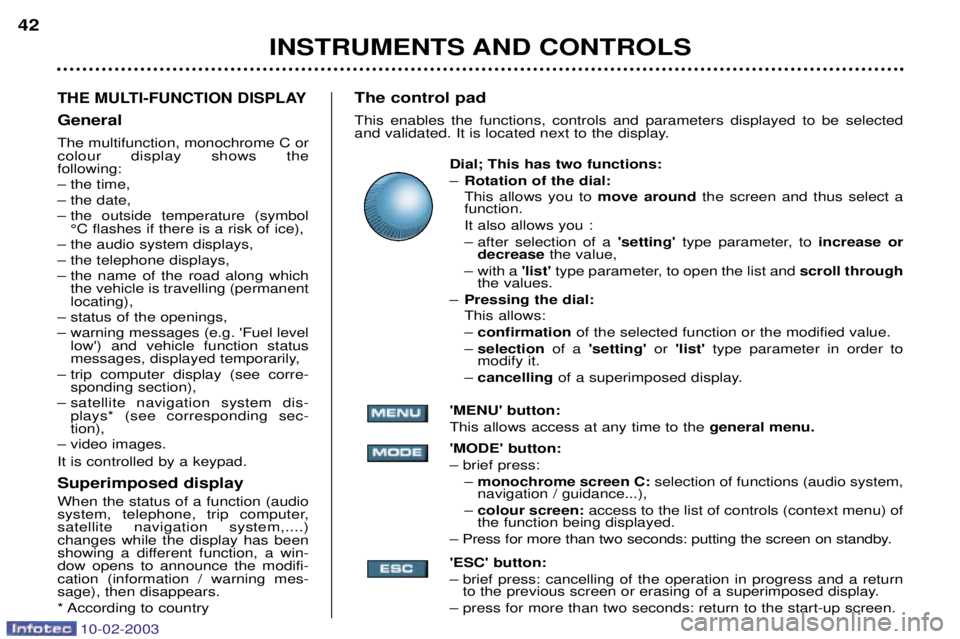
THE MULTI-FUNCTION DISPLAY
General The multifunction, monochrome C or colour display shows the following:
Ð the time,
Ð the date,
Ð the outside temperature (symbol
¡C flashes if there is a risk of ice),
Ð the audio system displays,
Ð the telephone displays,
Ð the name of the road along which the vehicle is travelling (permanent locating),
Ð status of the openings,
Ð warning messages (e.g. 'Fuel level low') and vehicle function status
messages, displayed temporarily,
Ð trip computer display (see corre- sponding section),
Ð satellite navigation system dis- plays* (see corresponding sec-tion),
Ð video images. It is controlled by a keypad. Superimposed display When the status of a function (audio
system, telephone, trip computer,satellite navigation system,....)changes while the display has been
showing a different function, a win-dow opens to announce the modifi-cation (information / warning mes-sage), then disappears.
* According to country The control pad This enables the functions, controls and parameters displayed to be selected
and validated. It is located next to the display.
Dial; This has two functions: ÐRotation of the dial: This allows you to move around the screen and thus select a
function.
It also allows you :
Ð after selection of a 'setting' type parameter, to increase or
decrease the value,
Ð with a 'list'type parameter, to open the list and scroll through
the values.
Ð Pressing the dial: This allows: Ð confirmation of the selected function or the modified value.
Ð selection of a 'setting' or 'list' type parameter in order to
modify it.
Ð cancelling of a superimposed display.
'MENU' button:This allows access at any time to the general menu.
'MODE' button:Ð brief press: Ð monochrome screen C: selection of functions (audio system,
navigation / guidance...),
Ð colour screen: access to the list of controls (context menu) of
the function being displayed.
Ð Press for more than two seconds: putting the screen on standby. 'ESC' button:
Ð brief press: cancelling of the operation in progress and a return to the previous screen or erasing of a superimposed display.
Ð press for more than two seconds: return to the start-up screen.
Page 39 of 183
10-02-2003
INSTRUMENTS AND CONTROLS43
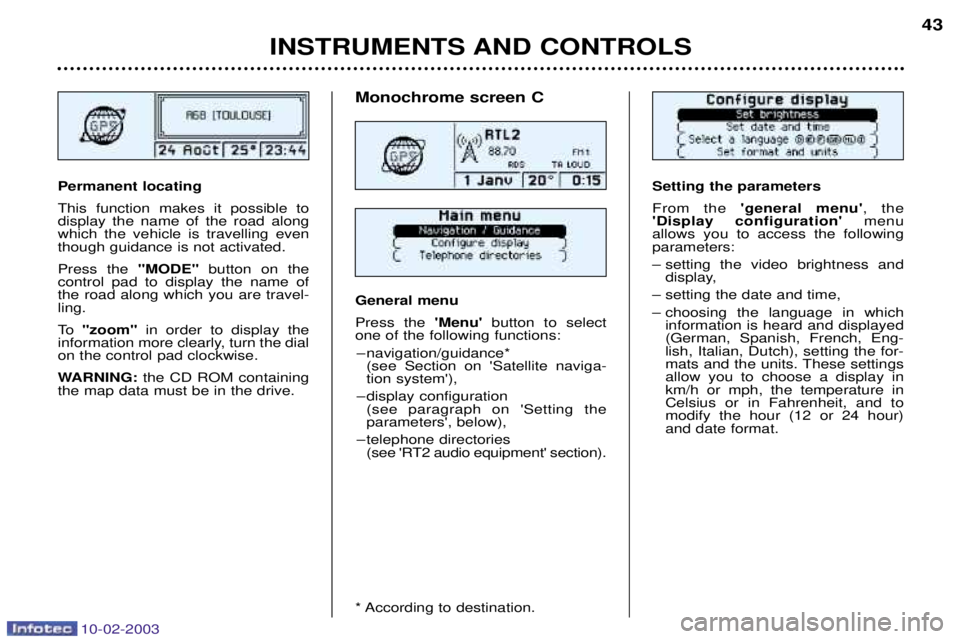
Setting the parameters From the
'general menu' , the
'Display configuration' menu
allows you to access the following parameters:
Ð setting the video brightness and display,
Ð setting the date and time,
Ð choosing the language in which information is heard and displayed (German, Spanish, French, Eng-lish, Italian, Dutch), setting the for-
mats and the units. These settingsallow you to choose a display inkm/h or mph, the temperature inCelsius or in Fahrenheit, and tomodify the hour (12 or 24 hour)and date format.Permanent locating This function makes it possible to display the name of the road alongwhich the vehicle is travelling eventhough guidance is not activated. Press the "MODE"button on the
control pad to display the name of the road along which you are travel-ling.
To "zoom" in order to display the
information more clearly, turn the dial on the control pad clockwise.
WARNING: the CD ROM containing
the map data must be in the drive.
Monochrome screen C General menu Press the 'Menu' button to select
one of the following functions:
Ð navigation/guidance* (see Section on 'Satellite naviga- tion system'),
Ð display configuration (see paragraph on 'Setting theparameters', below),
Ð telephone directories (see 'RT2 audio equipment' section).
* According to destination.
Page 40 of 183
10-02-2003
INSTRUMENTS AND CONTROLS
42
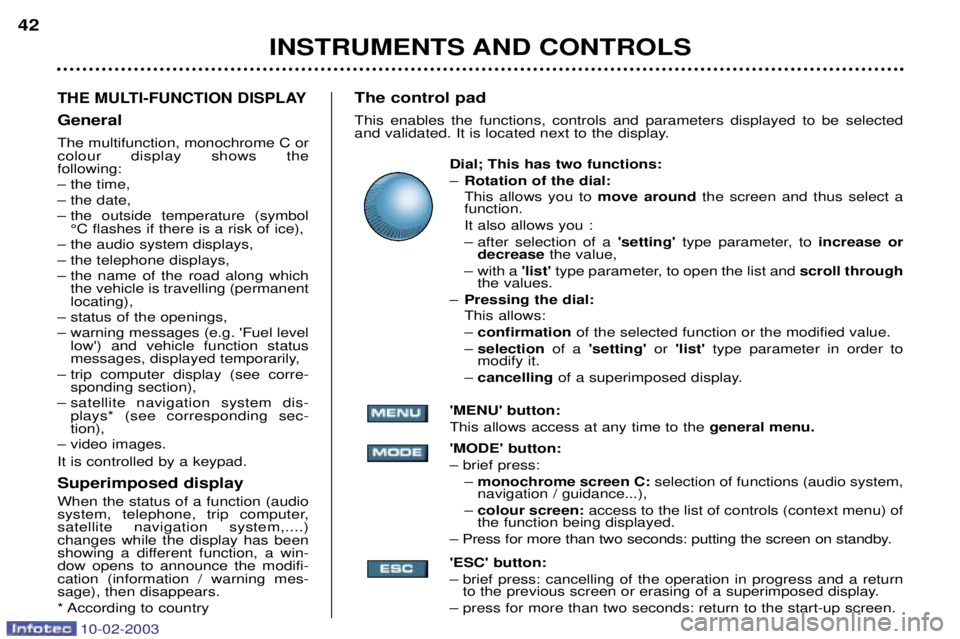
THE MULTI-FUNCTION DISPLAY
General The multifunction, monochrome C or colour display shows the following:
Ð the time,
Ð the date,
Ð the outside temperature (symbol
¡C flashes if there is a risk of ice),
Ð the audio system displays,
Ð the telephone displays,
Ð the name of the road along which the vehicle is travelling (permanent locating),
Ð status of the openings,
Ð warning messages (e.g. 'Fuel level low') and vehicle function status
messages, displayed temporarily,
Ð trip computer display (see corre- sponding section),
Ð satellite navigation system dis- plays* (see corresponding sec-tion),
Ð video images. It is controlled by a keypad. Superimposed display When the status of a function (audio
system, telephone, trip computer,satellite navigation system,....)changes while the display has been
showing a different function, a win-dow opens to announce the modifi-cation (information / warning mes-sage), then disappears.
* According to country The control pad This enables the functions, controls and parameters displayed to be selected
and validated. It is located next to the display.
Dial; This has two functions: ÐRotation of the dial: This allows you to move around the screen and thus select a
function.
It also allows you :
Ð after selection of a 'setting' type parameter, to increase or
decrease the value,
Ð with a 'list'type parameter, to open the list and scroll through
the values.
Ð Pressing the dial: This allows: Ð confirmation of the selected function or the modified value.
Ð selection of a 'setting' or 'list' type parameter in order to
modify it.
Ð cancelling of a superimposed display.
'MENU' button:This allows access at any time to the general menu.
'MODE' button:Ð brief press: Ð monochrome screen C: selection of functions (audio system,
navigation / guidance...),
Ð colour screen: access to the list of controls (context menu) of
the function being displayed.
Ð Press for more than two seconds: putting the screen on standby. 'ESC' button:
Ð brief press: cancelling of the operation in progress and a return to the previous screen or erasing of a superimposed display.
Ð press for more than two seconds: return to the start-up screen.
Page 41 of 183
10-02-2003
INSTRUMENTS AND CONTROLS43
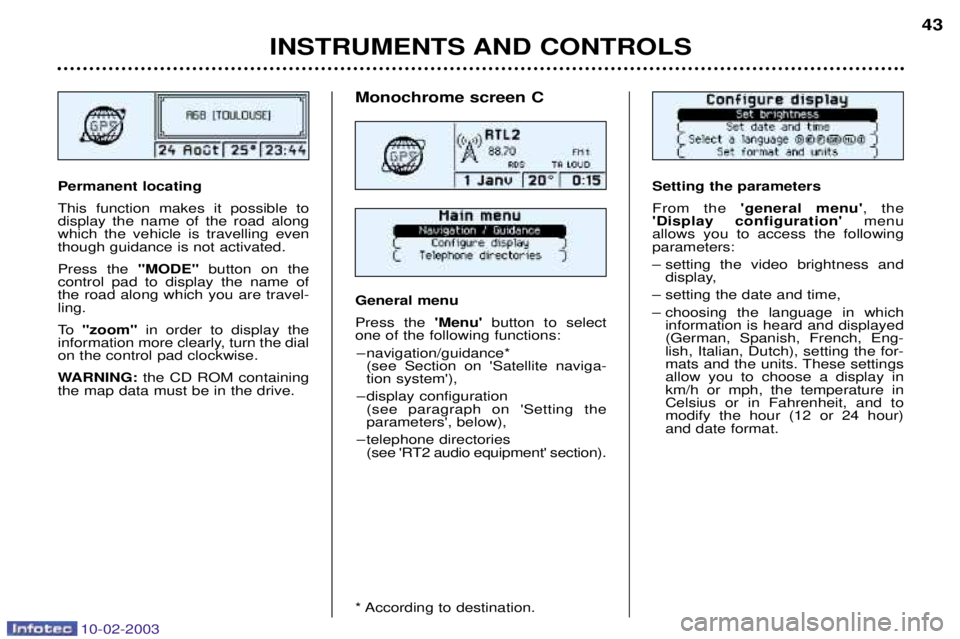
Setting the parameters From the
'general menu' , the
'Display configuration' menu
allows you to access the following parameters:
Ð setting the video brightness and display,
Ð setting the date and time,
Ð choosing the language in which information is heard and displayed (German, Spanish, French, Eng-lish, Italian, Dutch), setting the for-
mats and the units. These settingsallow you to choose a display inkm/h or mph, the temperature inCelsius or in Fahrenheit, and tomodify the hour (12 or 24 hour)and date format.Permanent locating This function makes it possible to display the name of the road alongwhich the vehicle is travelling eventhough guidance is not activated. Press the "MODE"button on the
control pad to display the name of the road along which you are travel-ling.
To "zoom" in order to display the
information more clearly, turn the dial on the control pad clockwise.
WARNING: the CD ROM containing
the map data must be in the drive.
Monochrome screen C General menu Press the 'Menu' button to select
one of the following functions:
Ð navigation/guidance* (see Section on 'Satellite naviga- tion system'),
Ð display configuration (see paragraph on 'Setting theparameters', below),
Ð telephone directories (see 'RT2 audio equipment' section).
* According to destination.
Page 42 of 183
10-02-2003
INSTRUMENTS AND CONTROLS
44
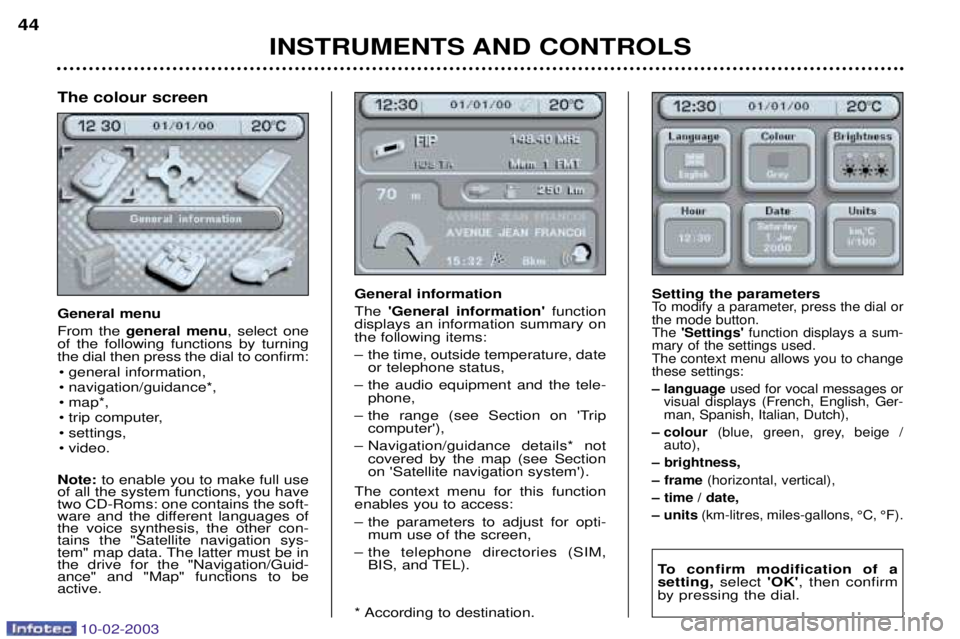
General information The
'General information' function
displays an information summary on the following items:
Ð the time, outside temperature, date or telephone status,
Ð the audio equipment and the tele- phone,
Ð the range (see Section on 'Trip computer'),
Ð Navigation/guidance details* not covered by the map (see Section on 'Satellite navigation system').
The context menu for this functionenables you to access:
Ð the parameters to adjust for opti- mum use of the screen,
Ð the telephone directories (SIM, BIS, and TEL).
* According to destination. Setting the parametersTo modify a parameter, press the dial or the mode button.The
'Settings' function displays a sum-
mary of the settings used.The context menu allows you to changethese settings:
Ð language used for vocal messages or
visual displays (French, English, Ger- man, Spanish, Italian, Dutch),
Ð colour (blue, green, grey, beige /
auto),
Ð brightness,
Ð frame (horizontal, vertical),
Ð time / date,
Ð units (km-litres, miles-gallons, ¡C, ¡F).
To confirm modification of a setting, select 'OK', then confirm
by pressing the dial.
The colour screen General menu From the general menu , select one
of the following functions by turning the dial then press the dial to confirm:
¥ general information,
¥ navigation/guidance*,
¥ map*,
¥ trip computer,
¥ settings,
¥ video.
Note: to enable you to make full use
of all the system functions, you have two CD-Roms: one contains the soft-
ware and the different languages ofthe voice synthesis, the other con-tains the "Satellite navigation sys-
tem" map data. The latter must be inthe drive for the "Navigation/Guid-ance" and "Map" functions to beactive.
Page 48 of 183
10-02-2003
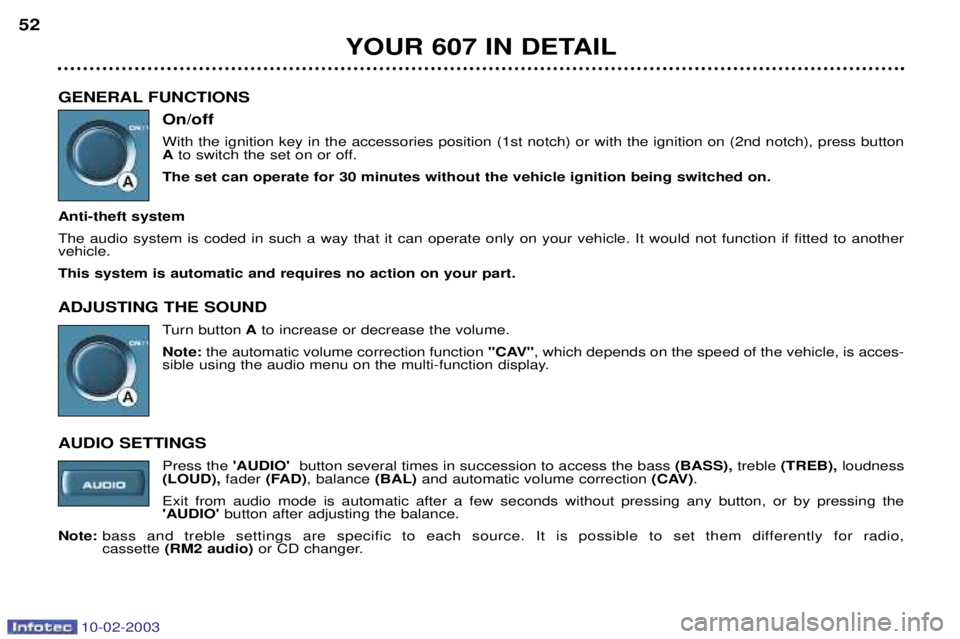
GENERAL FUNCTIONSOn/off With the ignition key in the accessories position (1st notch) or with the ignition on (2nd notch), press button Ato switch the set on or off.
The set can operate for 30 minutes without the vehicle ignition being switched on.
Anti-theft system The audio system is coded in such a way that it can operate only on your vehicle. It would not function if fitted to another vehicle. This system is automatic and requires no action on your part. ADJUSTING THE SOUND Turn buttonAto increase or decrease the volume.
Note: the automatic volume correction function "CAV", which depends on the speed of the vehicle, is acces-
sible using the audio menu on the multi-function display.
AUDIO SETTINGS Press the 'AUDIO' button several times in succession to access the bass (BASS), treble (TREB), loudness
(LOUD), fader (FAD) , balance (BAL)and automatic volume correction (CAV).
Exit from audio mode is automatic after a few seconds without pressing any button, or by pressing the 'AUDIO' button after adjusting the balance.
Note: bass and treble settings are specific to each source. It is possible to set them differently for radio, cassette (RM2 audio) or CD changer.
YOUR 607 IN DETAIL
52
Page 49 of 183
10-02-2003
YOUR 607 IN DETAIL53
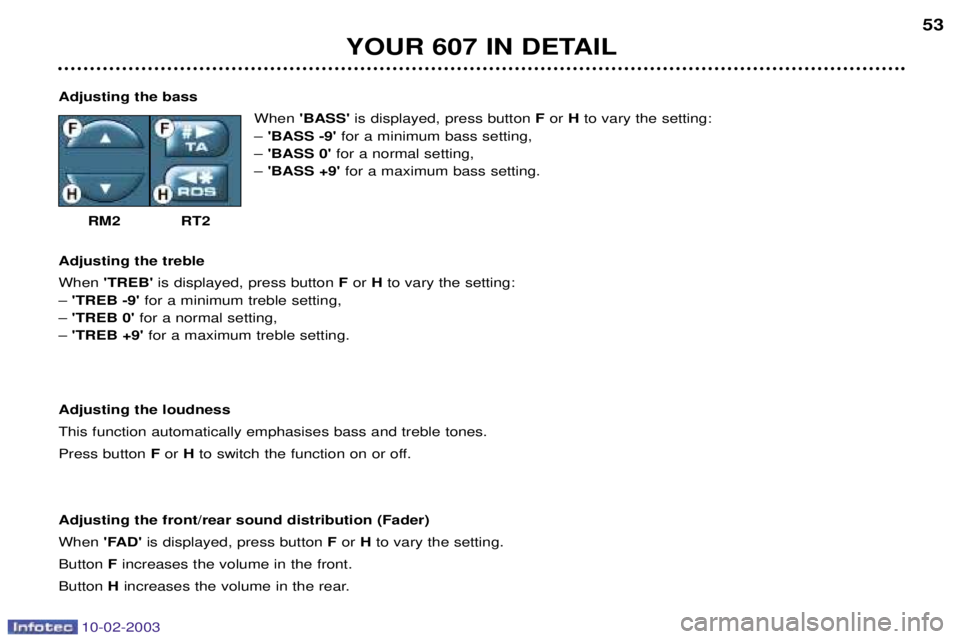
Adjusting the bass When 'BASS' is displayed, press button F or H to vary the setting:
Ð 'BASS -9' for a minimum bass setting,
Ð 'BASS 0' for a normal setting,
Ð 'BASS +9' for a maximum bass setting.
RM2 RT2
Adjusting the treble When 'TREB' is displayed, press button F or H to vary the setting:
Ð 'TREB -9' for a minimum treble setting,
Ð 'TREB 0' for a normal setting,
Ð 'TREB +9' for a maximum treble setting.
Adjusting the loudnessThis function automatically emphasises bass and treble tones.Press button For H to switch the function on or off.
Adjusting the front/rear sound distribution (Fader)When 'FAD'is displayed, press button For Hto vary the setting.
Button Fincreases the volume in the front.
Button Hincreases the volume in the rear.
Page 50 of 183

10-02-2003
YOUR 607 IN DETAIL
54
Adjusting the left/right sound distribution (Balance) When 'BAL'is displayed, press button For Hto vary the setting.
Button Fincreases the volume on the right-hand side.
Button Hincreases the volume on the left-hand side.
Automatic volume correction "CAV"This function allows the volume to be adjusted automatically depending on the level of noise produced by the speed of the vehicle. Press buttons For H to switch the function on or off.
Note: this function is only operational from 35 mph (60 km/h).
RADIO Notes on radio reception
Your radio is subject to phenomena which do not affect domestic radio sets. Both MW/LW and FM reception are subject to
various forms of interference. This is no reflection on the quality of the equipment, but is due to the nature of the signals a nd
the way in which they are transmitted.
On MW/LW, interference may be noticed when passing under high voltage power lines or bridges, or in tunnels.
On FM, interference may be the result of increasing distance from the transmitter, deflection of the signals by obstacles
(mountains, hills, buildings, etc.) or of being in an area which is not covered by a transmitter.
Selecting radio mode / Selecting a waveband Press button B.
Briefly press button Bto select the FM1, FM2, FMast and AM wavebands.
Automatic station searchBriefly press button Mor Lto search for the station immediately above or below. By continuing to press the
button in the direction selected, you will obtain continuous scrolling of the frequency.The scrolling stops at the first station found as soon as the button is released.