2003 Oldsmobile Bravada phone
[x] Cancel search: phonePage 192 of 410

When the video screen is not in use, push it up into its
locked position.
The DVD player and display will continue
to operate
when the display is in either the up or the down position.
Notice: Avoid directly touching the video screen,
as damage may occur. See “Cleaning the Video
Screen” in the Index for more information.
DVD Player
The DVD player is located in the overhead console. The
DVD player can be controlled by the buttons on the
DVD player and by the buttons on the remote control.
See
Remote Control later in this section for more
information.
The DVD player works while the ignition is in RUN or
ACCESSORY. The entertainment system is only compatible with
Region
1 DVDs authorized for use in the United States.
Canada, Puerto Rico, Bermuda, the Virgin Islands
and some islands in the Pacific. On some DVD jackets,
you will see the region displayed. Regular audio CDs
can also be played by the DVD player. The video screen
will default to
off when an audio CD is played. Home
recorded CDs (CDRs) may not play in this DVD player.
Try the audio system’s CD player instead.
If an error message appears on the front instrument
panel display, see DVD
Messages later in this section.
DVD Player Buttons
(I> PWR (Power): Press this button to turn the DVD
player on.
-c)+ (Wired Headphone Volume): Press the plus (+) or
minus (- ) symbol to increase or to decrease the
wired headphone volume.
,/I1 (Play/Pause): Press this button to start play. Press
this button while a DVD is playing
to pause it. Press
it again to continue playing the DVD.
w/h (StopIEject): Press this button to stop playing,
rewinding or fast forwarding. Press the button a second
time
to eject the disc.
3-79
Page 193 of 410

Playing a Disc
To play a disc, gently insert the disc with the label side
up into the loading slot. The DVD player will continue
loading the disc and the player will automatically start.
If a disc is already in the player, press the play/pause
button on the face of the player or on the remote control.
Some DVDs will not allow you
to fast forward or skip
the copyright or previews. Some DVDs will begin playing
after the previews have finished. If the DVD does not
begin playing, refer
to the on-screen instructions.
Stopping and Resume Playback
To stop a disc, press and release the stop/eject button
on the DVD player or the stop button on the remote.
To resume playback, press the play/pause button on the
DVD player or the remote. As long
as the disc has
not been ejected and the stop button has not been
pressed twice on the remote control, the movie should
resume play from where it was last stopped. If the
disc has been ejected or
if the stop button on the remote
has been pressed twice, the disc will resume play at
the beginning.
Parental Control Button: This button is located on the
front of the DVD console which is mounted vertically
above the driver’s right shoulder. Press this button while
a DVD is playing to freeze the video and mute the
audio
to the headphones. It will also disable all other
button operations from the remote and DVD player. The driver will
then be able to gain the attention of the rear
seat passengers. Press this button again
to restore
normal play of the DVD.
Ejecting a Disc
Press the stop/eject button on the DVD player once to
stop and a second time
to eject the disc.
If
a disc is ejected from the player, but not removed, the
DVD player will reload the disc after approximately
10 to 20 seconds.
DVD Messages
The following errors may be displayed:
8
8
Disc Format Error: This message will be displayed
if a disc is inserted upside down, if the disc is not
able to be read or
if the disc format is not
compatible.
Disc Play Error: This message will be displayed if
the mechanism can not play the disc. Severely
scratched discs
will cause this error.
Region Code Error: This message will be
displayed for all non Region
1 discs (DVDs sold
outside of North America).
Load/Eject Error: This message will be displayed if
the disc is not properly lined up in the mechanism.
Disc Not Present: This message will be displayed
if the PLAY, EJECT or DVD AUX buttons are
pressed and no disc is in the player.
3-80
Page 195 of 410

STOP: Press this button to stop playing, reversing
or fast forwarding the DVD.
A EJECT/LOAD: Press this button to eject a DVD
while it is playing. If the disc has been ejected and not
removed from the player, pressing this button will
load the disc. The stop/eject button on the DVD player
will also load the disc
if the disc is ejected and not
removed.
a REW (Rewind): Press this button to reverse the
DVD at
5x speed. To stop reversing, press this
button again. This button may not work when the DVD
is playing the copyright or the previews.
FWD (Fast Forward): Press this button to fast
forward the DVD at
5x speed. To stop fast forwarding,
press this button again. This button may not work
when the DVD is playing the copyright
or the previews.
PREV (Previous): Press this button to return to
the start of the current chapter. Press this button again
to return to the previous chapter. This button may
not work when the DVD is playing the copyright or the
previews.
bb! NEXT: Press this button to jump to the beginning
of the next chapter. This button may not work when
the DVD is playing the copyright or the previews.
MENU: Press this button to view the media menu. The
media menu is different on every disc. Use the up
and down and the right and the left arrow buttons
to
move the cursor around the media menu. After making
your selection, press the ENTER button. Some discs
may contain a short skit leading up
to the media menu.
+cI WIRED VOLUME: Press the plus or the minus
symbol
to increase or to decrease the volume of
the wired headphones.
You can press repeatedly or
press and hold the plus or the minus symbol
to increase
or
to decrease the volume in large amounts.
a SIZE/ANGLE: This button controls the screen
ratio of the video display. Press and release this button
to stretch a 4:3 picture to fit the wide aspect ratio 16.9
screen.
Press and release this button
to choose different angles
of the same scene. Press and hold this button again
to change angles. This feature is not available on
all DVD discs.
DISP/S-TITLE (Display Subtitle) CHAP TRK (Chapter
Track):
Press and release this button to display the
title, chapter and elapsed time of the current video
segment or the track and time
if a CD is being played.
Press and hold this button
to see the DVDs subtitle
language. Press and release this button again
to change
it. This feature is not available on all DVD discs.
3-82
Page 197 of 410

Problem
The ignition might be off. No power.
Recommended Action
The parental control
Disc will not play.
No sound. button
might have been
pressed. (The power
LED
will flash.)
The lnputrritle on the
remote might be set for
auxiliary.
The disc is upside down
or is not compatible.
The volume on the
headphones could be
too
low. Adjust it on the wired
headphones on the front
panel or the remote. For
the wireless headphones,
adjust the dial on the right
earpiece on the
headphones.
The picture is distorted
reverse. operation.
during
fast forward or fast This
is normal for this
Problem
The picture does not fill
the screen. There are
black borders on the top
and bottom or on both
sides or it looks
stretched out.
I ejected the disc and
tried
to take it out, but it
was pulled back into the
slot.
The language in the audio
or on the screen is wrong.
Recommended Action
Quickly press and release
the SIZE/ANGLE button
on the remote. This will
fill
the screen. If the screen
looks stretched out, press
and release the
SIZE/ANGLE button
again.
If there are borders on the
top and bottom, the movie
may have been made that
way for a standard
screen. Pressing the
SIZE/ANGLE button
should
fill the sides.
Eject the disc again.
Press and hold the
COMP/AUDlO button on
the remote. This will
access the
DVD’s main
menu. Then follow the
prompts.
3-84
Page 199 of 410

Problem
When I return to the DVD
from the system menu,
sometimes it plays from
the beginning and
sometimes from where it
left
off.
The fast forward, fast reverse, previous and
next functions do not
work.
Recommended Action
If the STOP button was
pressed once, it resumes
play from where it left
off.
If the STOP button was
pressed twice, it will start
at the beginning of the
DVD.
However,
if a change was
made to the menu, the
DVD will start from the
beginning, even
if the
STOP button was only
pressed once.
Some commands that do
one thing for DVDs will
not always work or
perform the same function
for audio, CDs or games.
- Problem
My disc is stuck in the
player. The EJECT/LOAD
button does not work.
Recommended Action
Press the EJECT/LOAD
button on the remote, or
the STOP/EJECT button
on the DVD player.
Turn the power
off, then
on again.
Do not attempt
to forcibly
remove the disc from the
player.
I lost the remote and/or
Pour some isopropyl or
What
is the best way
to
assistance.
the
headphones. See
your dealer for
clean the screen?
rubbing alcohol on
a clean
Sometimes the wireless
This could be caused by
headphone audio cuts out interference from cell
or buzzes for a moment
towers or by using your
then it comes back.
cell Dhone in the vehicle.
cloth and
wipe.
3-86
Page 200 of 410
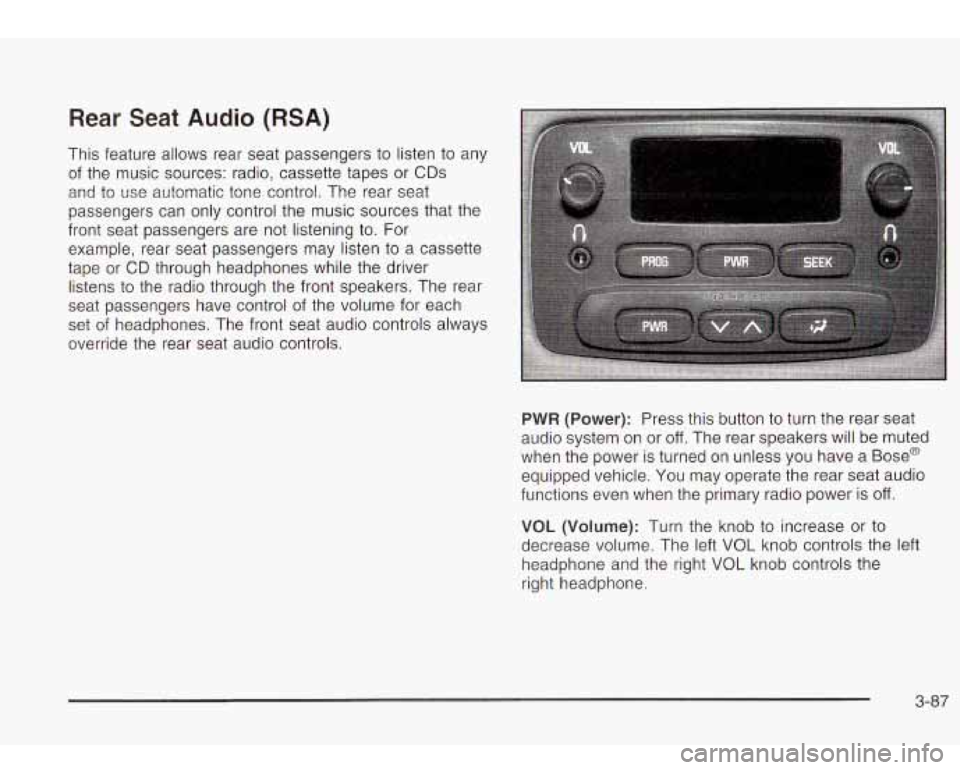
Rear Seat Audio (RSA)
This feature allows rear seat passengers to listen to any
of the music sources: radio, cassette tapes or CDs
and to use automatic tone control. The rear seat
passengers can only control the music sources that the
front seat passengers are not listening
to. For
example, rear seat passengers may listen to a cassette
tape or
CD through headphones while the driver
listens
to the radio through the front speakers. The rear
seat passengers have control of the volume for each
set of headphones. The front seat audio controls always
override the rear seat audio controls.
PWR (Power): Press this button to turn the rear seat
audio system on or
off. The rear speakers will be muted
when the power is turned on unless you have a Bose@
equipped vehicle. You may operate the rear seat audio
functions even when the primary radio power is
off.
VOL (Volume): Turn the knob to increase or to
decrease volume. The left VOL knob controls the left
headphone and the right
VOL knob controls the
right headphone.
3-87
Page 202 of 410
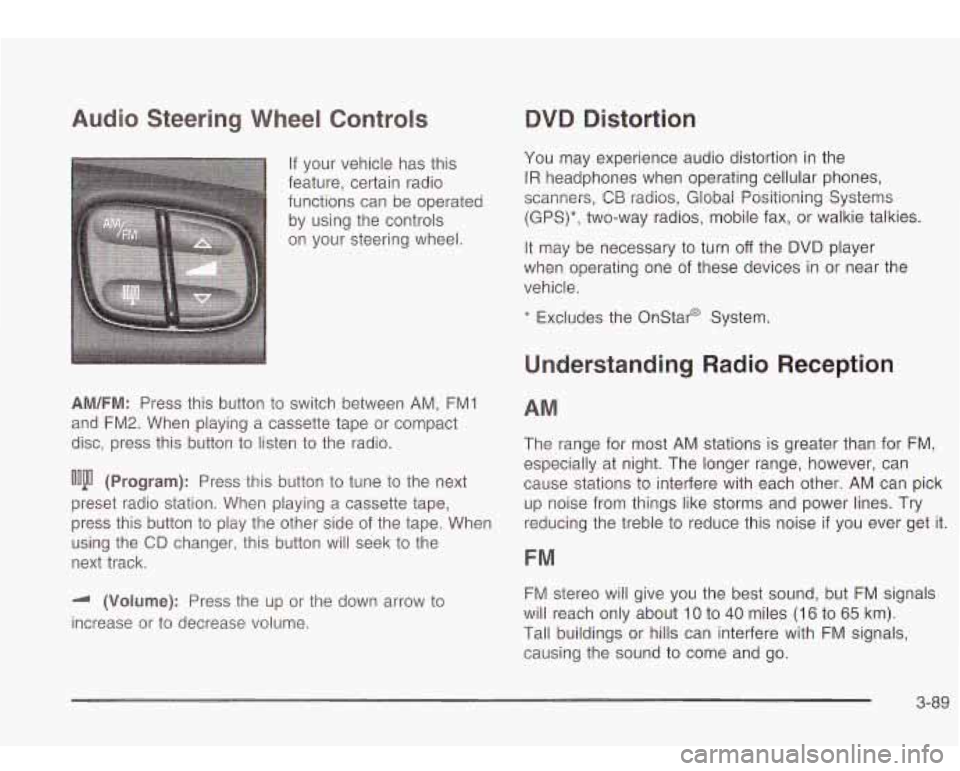
Audio Steering Wheel Controls
If your vehicle has this
feature, certain radio
functions can be operated
by using the controls
on your steering wheel.
AM/FM: Press this button to switch between AM, FMI
and FM2. When playing a cassette tape or compact
disc, press this button
to listen to the radio.
ooju (Program): Press this button to tune to the next
preset radio station. When playing a cassette tape,
press this button
to play the other side of the tape. When
using the
CD changer, this button will seek to the
next track.
-I (Volume): Press the up or the down arrow to
increase or to decrease volume.
QVQ Distortion
You may experience audio distortion in the
IR headphones when operating cellular phones,
scanners,
CB radios, Global Positioning Systems
(GPS)*, two-way radios, mobile fax, or walkie talkies.
It may be necessary to turn
off the DVD player
when operating one of these devices in or near the
vehicle.
* Excludes the Onstar@ System.
Understanding Radio Reception
AM
The range for most AM stations is greater than for FM,
especially at night. The longer range, however, can
cause stations
to interfere with each other. AM can pick
up noise from things like storms and power lines. Try
reducing the treble
to reduce this noise if you ever get it.
FM
FM stereo will give you the best sound, but FM signals
will reach only about
10 to 40 miles (16 to 65 km).
Tall buildings or hills can interfere with FM signals,
causing the sound to come and go.
3-89
Page 207 of 410
Your Driving, the Road, and
Your Vehicle
Defensive Driving
The best advice anyone can give about driving is: Drive
defensively.
Please start with
a very important safety device in your
vehicle: Buckle up. See
Safety Belts: They Are for
Everyone on page 1-8.
Defensive driving really means “be ready for anything.”
On city streets, rural roads or freeways, it means
“always expect the unexpected.”
Assume that pedestrians or other drivers are going to
be careless and make mistakes. Anticipate what
they might do. Be ready for their mistakes.
Rear-end collisions are about the most preventable of
accidents. Yet they are common. Allow enough following
distance.
It’s the best defensive driving maneuver, in
both city and rural driving. You never know when
the vehicle in front of you is going
to brake or turn
suddenly.
Defensive driving requires that a driver concentrate on
the driving task. Anything that distracts from the
driving task
- such as concentrating on a cellular
telephone call, reading, or reaching for something on
the floor
- makes proper defensive driving more difficult and can
even cause a collision, with resulting injury.
Ask a passenger
to help do things like this, or pull off the
road in a safe place to do them yourself. These simple
defensive driving techniques could save your life.
Drunken Driving
Death and injury associated with drinking and driving is
a national tragedy.
It’s the number one contributor to
the highway death toll, claiming thousands of victims
every year.
Alcohol affects four things that anyone needs to drive a
vehicle:
Judgment
Muscular Coordination
Vision
Attentiveness.
Police records show that almost half of all motor
vehicle-related deaths involve alcohol. In most cases,
these deaths are the result of someone who was
drinking and driving. In recent years, more than
16,000 annual motor vehicle-related deaths have been
associated with the use of alcohol, with more than
300,000 people injured.
4-2