Page 80 of 150
77 Telephone
Telephone operation
�By pushing the joystick up or down, you
can select the desired name.
The selected name is highlighted.
or
�By pushing the joystick to the left or
the right, you can jump to the next or
previous page of the list.
Begin dialing:
�If you have found the right name, press
.
Ending the call:
�Press .Opening the numeric scrolling mode
�Make sure the main telephone menu is
displayed.
�Press the softkey “NUM”.
or
�Enter up to 2 letters with the number
keys through (e.g.: ).
�To correct the last digit, press .
�By pushing the joystick up or down, you
can select the desired number.
The selected number is highlighted.
or
�By pushing the joystick to the left or
the right, you can jump to the next or
previous page of the list.
Begin dialing:
�If you have found the right number,
press .
Ending the call:
�Press .
Page 81 of 150

78 Telephone
Telephone operation
Redial
You can redial the last 10 numbers dialed.
�Make sure the main telephone menu is
displayed.
�Press .
The number list appears on the display.
�By pushing the joystick up or down, you
can select the desired number.
The selected number is highlighted.or
�By pushing the joystick to the left or
the right, you can jump to the next or
previous five numbers in the list.
Begin dialing:
�If you have found the right number,
press .
Ending the call:
�Press .Speed-dialing
�Make sure the main telephone menu is
displayed.
�Enter the memory location number us-
ing the number keys through
.
You can enter up to 2 digits.
i
If there is no entry in the numbers list,
the message “LAST NUMBERS MEM-
ORY EMPTY” appears in the telephone
menu.
WarningG
If you enter“1” and confirm this memory lo-
cation as described in “Begin dialing”, the
default emergency number 9-1-1 is dialed.
The 9-1-1 emergency call system is a public
service. Using it without due cause is a crim-
inal offense.
Page 82 of 150
79 Telephone
Telephone operation
Begin dialing:
�If you have found the right number,
press .
Ending the call:
�Press .Quick-dialing for the first 10 memory loca-
tions
�Make sure the main telephone menu is
displayed.
�Press one of the number keys to
longer than 2 seconds.
The phone number or name appears in
the menu. The telephone dials the
phone number stored in this memory
location.
The call time appears when the call is
initiated.Ending the call:
�Press .
WarningG
If you press , the emergency number
9-1-1 (default input) is dialed.
The 9-1-1 emergency call system is a public
service. Using it without due cause is a crim-
inal offense.
Page 83 of 150

80 Telephone
Emergency call
Emergency call
You can use a mobile communications net-
work to make an emergency call to an
emergency rescue station.
The emergency call is placed as long as the
corresponding mobile communication net-
work is available. To place an emergency
call, switch the telephone on.
Emergency calls may not be possible with
all mobile phone networks, or if certain
network services and/or telephone func-
tions are active. Check with your local net-
work operating company.Initiating an emergency call
�Make sure that the main telephone
menu is displayed.
�Press the number key longer
than 2 seconds (quick-dialing).
The telephone begins dialing.
The call time appears when the call is
initiated.
Ending or stopping an emergency call
�Press .
i
The emergency call is also placed if the
phone is locked.
i
This function places a call to a local 9-1-
1 provider. This function does not ini-
tiate a Tele Aid call.
WarningG
The 9-1-1 emergency call system is a public
service. Using it without due cause is a crim-
inal offense.
!
If you press the number key
longer than 2 seconds, the number
stored in memory location “1” (default
is 9-1-1) is dialed.
!
It is not possible to complete the emer-
gency call if the cellular system is busy.
The message “SYSTEM BUSY” ap-
pears.
Take appropriate measures to alert an
emergency service as soon as possi-
ble.
Page 92 of 150
89 Navigation
Destination input
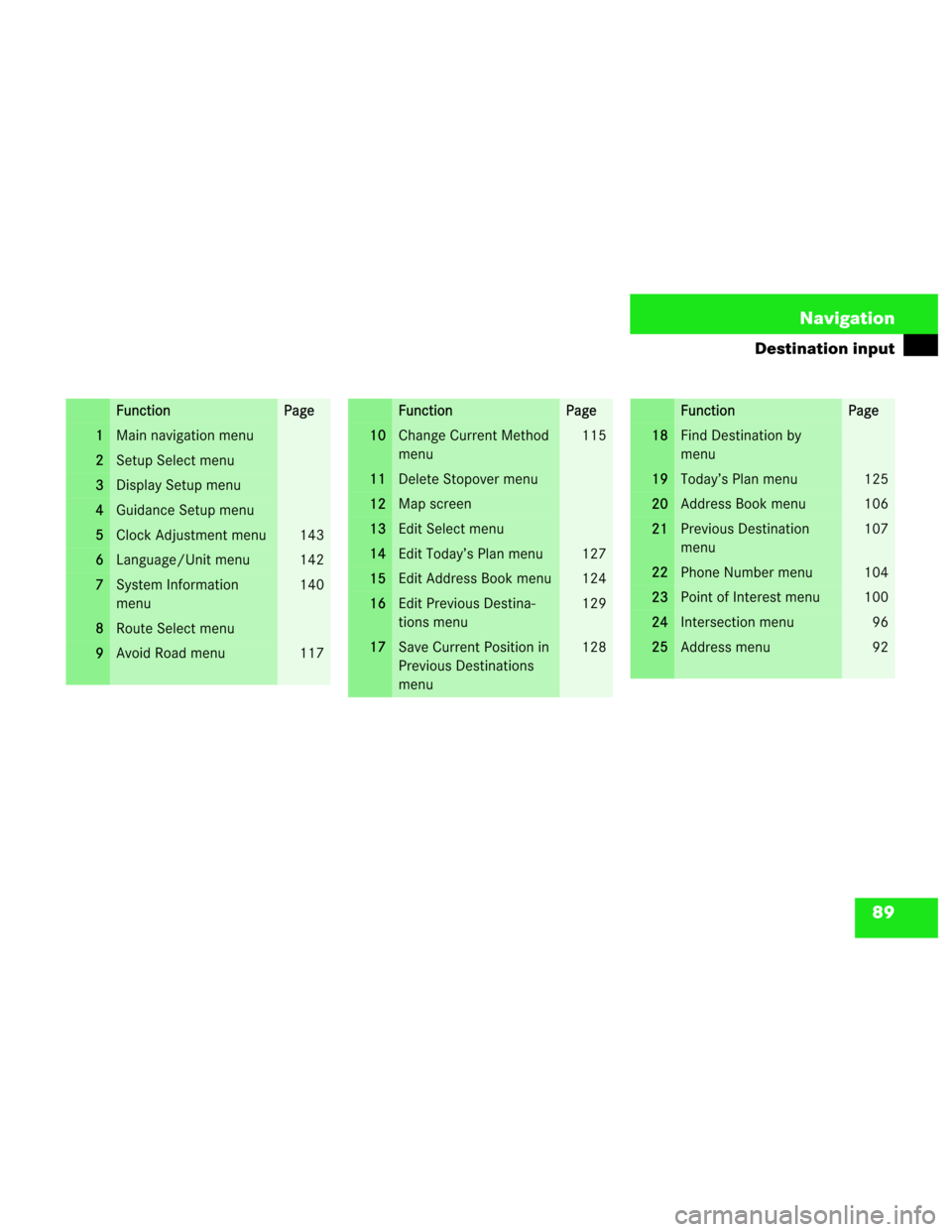
FunctionPage
1Main navigation menu
2Setup Select menu
3Display Setup menu
4Guidance Setup menu
5Clock Adjustment menu143
6Language/Unit menu142
7System Information
menu140
8Route Select menu
9Avoid Road menu117
FunctionPage
10Change Current Method
menu115
11Delete Stopover menu
12Map screen
13Edit Select menu
14Edit Today’s Plan menu127
15Edit Address Book menu124
16Edit Previous Destina-
tions menu129
17Save Current Position in
Previous Destinations
menu128
FunctionPage
18Find Destination by
menu
19Today’s Plan menu125
20Address Book menu106
21Previous Destination
menu107
22Phone Number menu104
23Point of Interest menu100
24Intersection menu96
25Address menu92
Page 94 of 150

91 Navigation
Destination input
Changing over to another system, e.g. radio
�Press to switch to radio opera-
tion.
The navigation system continues to run
in the background.
If you switch off the MCS, the naviga-
tion and audio system also switch off.You can search for a destination by:
�Address (�page 92)
�Intersection (�page 96)
�Point of interest (�page 100)
�Phone number (�page 104)
�Recalling stored destinations from your
address book (
�page 106)
�Selecting previous destinations
(
�page 107)
�Selecting the destination directly from
the map (
�page 108)
�Today’s plan (�page 125)
!
Potential fault messages during naviga-
tion start up:
�“MUSIC CD INSERTED PLEASE
REPLACE WITH A NAVIGA-
TION CD”.
Eject the inserted CD and insert a
navigation DVD.
�“Please insert DVD-ROM”.
Insert a navigation DVD.
�“Error reading DVD-ROM.
Please check the disk”.
Check the DVD for damages like
scratches. Replace DVD.
If the error has been eliminated, you will
see the navigation start up screen.
Entering destination address
Page 107 of 150
104 Navigation
Destination input
�Use the joystick to enter the first few
characters of the city name, select
“List”3
3 and press .
�Use the joystick to select the desired
city name from the name list and press
.
The Select Name menu appears.
�Use the joystick to select the desired
destination and press .
The Confirm Destination menu ap-
pears. Searching for a destination by phone num-
ber
If you know the phone number at your des-
tination, use this function to find the corre-
sponding address.
�Press .
�Use the joystick to select “INPUT
DESTINATION” and press .The Find Destination by menu appears.
�Use the joystick to select “Phone
Number” and press .P82.85-9566-31
P82.85-9562-31
Page 108 of 150
105 Navigation
Destination input
Entering a phone number to find a destina-
tion
�Use the joystick to select the first num-
ber of the desired phone number and
press .
or
�Use the number key pad to enter the
number.
The character appears in the number
window.
�To enter additional numbers, repeat
the above step.
�To correct the last number, use the joy-
stick to select “Delete” and press
.
�After you enter the number, use the
joystick to select “List” and press
.
or
�Use the joystick to enter the first few
numbers of the phone number, select
“List” and press .
�Use the joystick to select the desired
number from the list and press .
The Confirm Destination menu ap-
pears.
P82.85-9573-31