Page 37 of 150
34 Audio
Radio operation
Station selection using the number keypad
(presets)
FM- and AM-Bands
�Press one of the number keys, such as
.
The radio tunes to the frequency as-
signed to that memory location. If you
have not saved a station to the memory
location, the radio does not change fre-
quencies.
F
Weather Band WB
�Tune the radio to the selected channel.
The memory preset number appears in
the status line.Station selection using the direct
frequency entry (FM, AM)
�Press .
Input line appears in the main radio
menu.
�Use the number keys to enter the de-
sired frequency within 8 seconds, e.g.
for 102.7 FM.
The station you have selected begins to
play.
i
FM and AM presets are independent.
You can access them only if you are in
the corresponding band.
Saving stations for FM and AM
(
�page 36).
Page 38 of 150
35 Audio
Radio operation
Automatic station scan
The stations on the bands (FM/AM/WB)
can be scanned in succession for
8 seconds each.
�Press the softkey “SCAN”.
The scan function will begin. “SCAN” is
highlighted.Weather Band WB
The 7 individual weather channels stored
in memory are scanned in succession.
The scan function stops automatically
when the first station received has been
scanned twice.
Ending the scan function
�Press the softkey “SCAN”.
The station selected appears and the
station frequency is displayed.
i
If you do not make another entry within
8 seconds, the function cancels.
i
A frequency entered outside the allow-
able input range will not be accepted.
Page 39 of 150
36 Audio
Radio operation
The following memory functions are avail-
able:
�Saving FM, AM stations manually
(
�page 36)
�Saving FM, AM stations automatically
(
�page 37)
�Selecting a station from the FM/AM
preset menu (
�page 37)
�Selecting channels from the WB preset
menu (
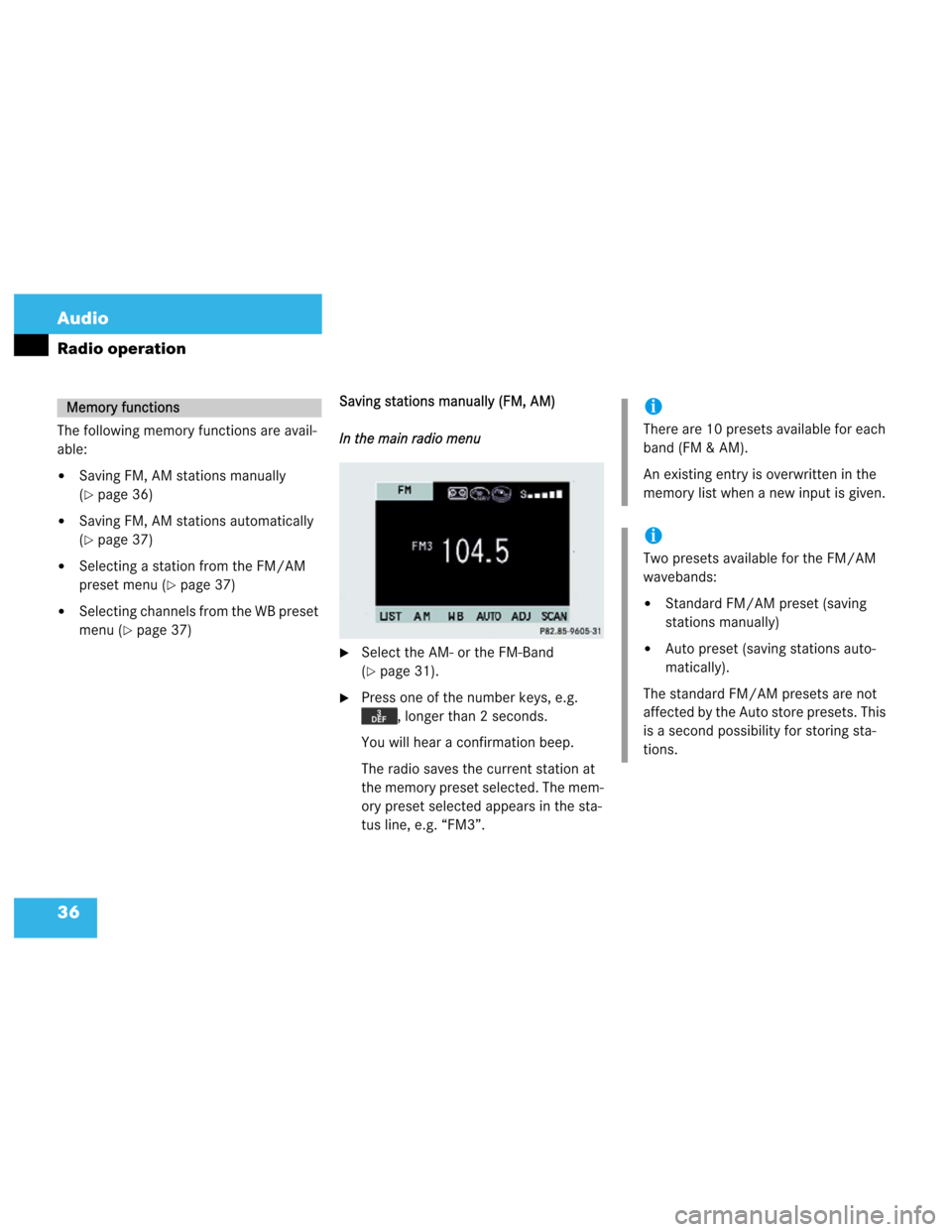
�page 37)Saving stations manually (FM, AM)
In the main radio menu
�Select the AM- or the FM-Band
(
�page 31).
�Press one of the number keys, e.g.
, longer than 2 seconds.
You will hear a confirmation beep.
The radio saves the current station at
the memory preset selected. The mem-
ory preset selected appears in the sta-
tus line, e.g. “FM3”.
Memory functionsi
There are 10 presets available for each
band (FM & AM).
An existing entry is overwritten in the
memory list when a new input is given.
i
Two presets available for the FM/AM
wavebands:
�Standard FM/AM preset (saving
stations manually)
�Auto preset (saving stations auto-
matically).
The standard FM/AM presets are not
affected by the Auto store presets. This
is a second possibility for storing sta-
tions.
Page 40 of 150
37 Audio
Radio operation
Saving (FM, AM) stations automatically
If the FM/AM main radio menu is dis-
played.
�Press the softkey “AUTO” for
longer than two seconds.
The radio stores the 10 strongest sta-
tions. The station frequencies available
will appear in the memory list.
While the stations are being stored
“AUTO STORE IN PROGRESS” ap-
pears in the display.Selecting a (FM, AM) station from the
preset menu
You can view the preset menu with all the
preset positions.
�To view the preset menu, press the
softkey “LIST”.
�To select a desired station, press one
of the number keys, e.g. .
�To exit the preset menu, press the soft-
key “FM” or “AM”.Return to the radio menu
�Press the softkey “LIST”.
Selecting channels from the WB preset
The WB menu is displayed:
�Press a number key from to
to select the desired weather
band.
Page 41 of 150
38 Audio
Tape operation
Tape operation
rQuick reference
Page 42 of 150
39 Audio
Tape operation
FunctionPage
1Switches the tape opera-
tion on44
2Color screen
3Press to:
Open and close the con-
trol panel
The cassette compart-
ment is located behind
the control panel
40
4Press to:
Switch the MCS on and
off
Turn to:
Adjust the volume
14
16
FunctionPage
5Joystick
: Forward music
search
: Reverse music
search
: Fast forward
: Rewind
45
45
45
45
6Softkeys
“II”: Pause
“SIDE”: Changing sides
“ ”: Dolby B
“SKIP”: Blank Skip
“ADJ”: Audio adjust-
ment
“SCAN”: Tape scan
47
44
47
46
63
46
Page 43 of 150
40 Audio
Tape operation
Inserting
�Press .
The control panel opens.
�Insert a cassette into the cassette com-
partment.
The control panel closes automatically
after a few seconds.
Make sure that the wider portion of the
tape faces right.Ejecting
�Press .
�Press to eject the cassette.
�Press .
The control panel closes. After the cas-
sette has been ejected, the MCS
switches to the last audio mode.
Inserting or ejecting a tapei
If a cassette is inserted, a cassette icon
will be displayed in the radio and CD
mode.
Page 44 of 150
41 Audio
Tape operation
i
If the control panel is in the down posi-
tion for more than 20 seconds, two suc-
cessive beeps will be heard.
This will continue at five second inter-
vals until the control panel is returned
to its normal position.
Press to return the control panel
to its closed position.
!
A lowered control panel can easily be
damaged. Close the control panel as
soon as the cassette is ejected.
Do not place anything on the lowered
control panel.


