Page 114 of 399

114 Controls in detailLightingDaytime running lamp mode�
Turn exterior lamp switch to
positionM orU.
When the engine is running, the low beam
headlamps are automatically switched on.
In low ambient light conditions the parking
lamps will also switch on.
Canada only
When you shift from a driving position to
positionN orP, the low beam switches off
(with a three-minute delay).
For nighttime driving you should turn the
exterior lamp switch to positionB to
permit activation of the high beam head-
lamps.
USA only
The high beam headlamps can also be ac-
tivated when driving with the daytime run-
ning lamp mode activated and exterior
lamp switch in positionM.To activate the daytime running lamp
mode, see "Setting daytime running lamp
mode" (
�page 139).
Locator lighting and night security illu-
mination
Locator lighting and night security illumi-
nation are described in the control system
section under "Setting locator lighting"
(
�page 139) and "Setting night security il-
lumination" (
�page 140).
Switching on front fog lamps
�
Check that the low beam headlamps
are switched on.
�
Pull out exterior lamp switch to first
stop.
The green indicator lamp‡ in the
lamp switch lights up.Switching on rear fog lamp
�
Check that the low beam headlamps
are switched on.
�
Pull out e xt eri or la m p swi tc h to s ec ond
stop.
The yellow indicator lamp† in the
lamp switch lights up.
iSee notes on the exterior lamp switch
(�page 112).
iFog lamps will operate with the parking
lamps and/or the low beam headlamps
on. Fog lamps should only be used in
conjunction with low beam headlamps.
Consult your State or Province Motor
Vehicle Regulations regarding allow-
able lamp operation.
ProCarManuals.com
Page 118 of 399

118 Controls in detailInstrument cluster
Instrument clusterA full view illustration of the instrument
cluster can be found in the "At a glance"
section of this manual (
�page 22).
The instrument cluster is activated when
you
�
open a door
�
turn on the ignition
�
press the reset knob (
�page 22)
�
switch on the exterior lamps
You can change the instrument cluster set-
tings in the instrument cluster submenu of
the control system (
�page 134).
Instrument cluster illumination
Use the reset knob (
�page 22) to adjust
the illumination brightness for the instru-
ment cluster.To brighten illumination
�
Turn the reset knob in the instrument
cluster clockwise (
�page 22).
The instrument cluster illumination will
brighten.
To dim illumination
�
Turn the reset knob in the instrument
cluster counterclockwise (
�page 22).
The instrument cluster illumination will
dim.
iThe instrument cluster illumination is
dimmed or brightened automatically to
suit ambient light conditions.
The instrument cluster illumination will
also be adjusted automatically when
you switch on the vehicle’s exterior
lamps.
ProCarManuals.com
Page 121 of 399

121 Controls in detail
Control system
Control system
The control system is activated as soon as
the key in the starter switch is turned to
position1. The control system enables you
to�
call up information about your vehicle
�
change vehicle settings.
For example, you can use the control sys-
tem to find out when your vehicle is next
due for service, to set the language for
messages in the instrument cluster dis-
play, and much more.
The control system relays information to
the multifunction display.
Multifunction display
1Segment ring
2Standard display
3Trip odometer
iThe displays for the audio systems (ra-
dio, CD player, cassette player) will ap-
pear in English, regardless of the
language selected.
Warning!
G
A driver’s attention to the road must always
be his /her primary focus when driving.
For your safety and the safety of others, se-
lecting features through the multifunction
steering wheel should only be done by the
driver when traffic and road conditions per-
mit it to be done safely.
Bear in mind that at a speed of just 30 mph
(approximately 50 km/h), your vehicle is
covering a distance of 44 feet (approximate-
ly 13.5 m) every second.
ProCarManuals.com
Page 122 of 399

122 Controls in detailControl systemMultifunction steering wheel
The displays in the multifunction display
and the settings in the control system
(�page 121) are controlled by the buttons
on the multifunction steering wheel.
Pressing any of the buttons on the multi-
function steering wheel will alter what is
shown in the multifunction display.The information available in the multifunc-
tion display is arranged in menus, each
containing a number of functions or sub-
menus.
The individual functions are then found
within the relevant menu (radio or CD op-
erations under
Audio
, for example). These
functions serve to call up relevant informa-
tion or to customize the settings for your
vehicle.
1
Multifunction display in the speed-
ometerOperating the control system
2
Selecting the submenu or setting
the volumeçdown / to decreaseæup / to increase
3
Telephone*íto take a callìto end a call
4
Menu systemsèfor next menuÿfor previous menu
5
Moving within a menujfor next displaykfor previous display
ProCarManuals.com
Page 123 of 399
123 Controls in detail
Control system
It is helpful to think of the menus, and the
functions within each menu, as being ar-
ranged in a circular pattern.�
If you press buttonè orÿ often
enough, you will pass through each
menu one after the other.
�
If you press buttonk orj often
enough, you will pass through each
function display, one after the other, in
the current menu.In the
Settings
menu, instead of functions
you will find a number of submenus for
calling up and changing settings. For in-
structions on using these submenus, see
the "Settings menu" section (
�page 131).
The number of menus available in the sys-
tem depends on which optional equipment
is installed in your vehicle.The menus are described on the following
pages.
ProCarManuals.com
Page 124 of 399
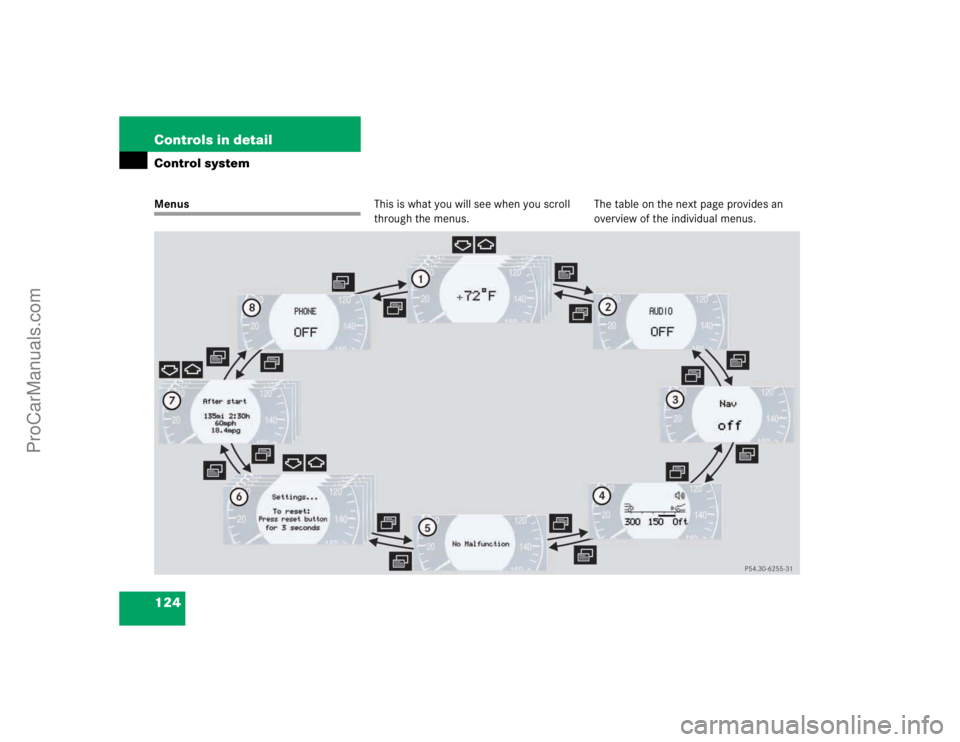
124 Controls in detailControl systemMenusThis is what you will see when you scroll
through the menus.The table on the next page provides an
overview of the individual menus.
ProCarManuals.com
Page 125 of 399
125 Controls in detail
Control system
Menus, submenus and functions
Menu 1
Menu 2
Menu 3
Menu 4
Menu 5
Menu 6
Menu 7
Menu 8
Commands/submenusStandard dis-
play
AUDIO
NAVI*
Distronic*
Malfunction
memory
Settings
Trip computer
Telephone
Digital speed-
ometer
Select radio
station
Activate
route guid-
ance
Call up set-
tings
Call up malfunc-
tion messages
Reset to factory
settings
Fuel consumption
statistics after
start
Load phone
book
Call up FSS
PLUS
Operate CD
player*
Instrument clus-
ter submenu
Fuel consumption
statistics since
the last reset
Search for
name in
phone book
Check tire pres-
sure*
Operate cas-
sette player
Time/Date sub-
menu
Call up range
Check engine oil
level
Lighting sub-
menuVehicle sub-
menuConvenience
submenuDynamic driving
seat* submenu
ProCarManuals.com
Page 126 of 399

126 Controls in detailControl system
Standard display menu
You can select the functions in the stan-
dard display menu with buttonk
orj.
The following functions are available:
Display digital speedometer�
Press buttonj twice.
The current vehicle speed is shown in
the multifunction display.
AUDIO menu
The functions in the
Audio
menu operate
the audio equipment which you currently
have turned on.
If no audio equipment is currently turned
on, the message
AUDIO OFF
is shown in the
display.
The following functions are available:
iThe headings used in the menus table
are designed to facilitate navigation
within the system and are not neces-
sarily identical to those shown in the
control system displays.
The first function displayed in each
menu will automatically show you
which part of the system you are in.
Function
Page
Call up digital speedometer
see
below
Call up FSS PLUS
275
Check tire pressure*
270
Check engine oil level
262
Function
Page
Select radio station
127
Operate CD player*
127
Operate cassette player
128
ProCarManuals.com