Page 19 of 288
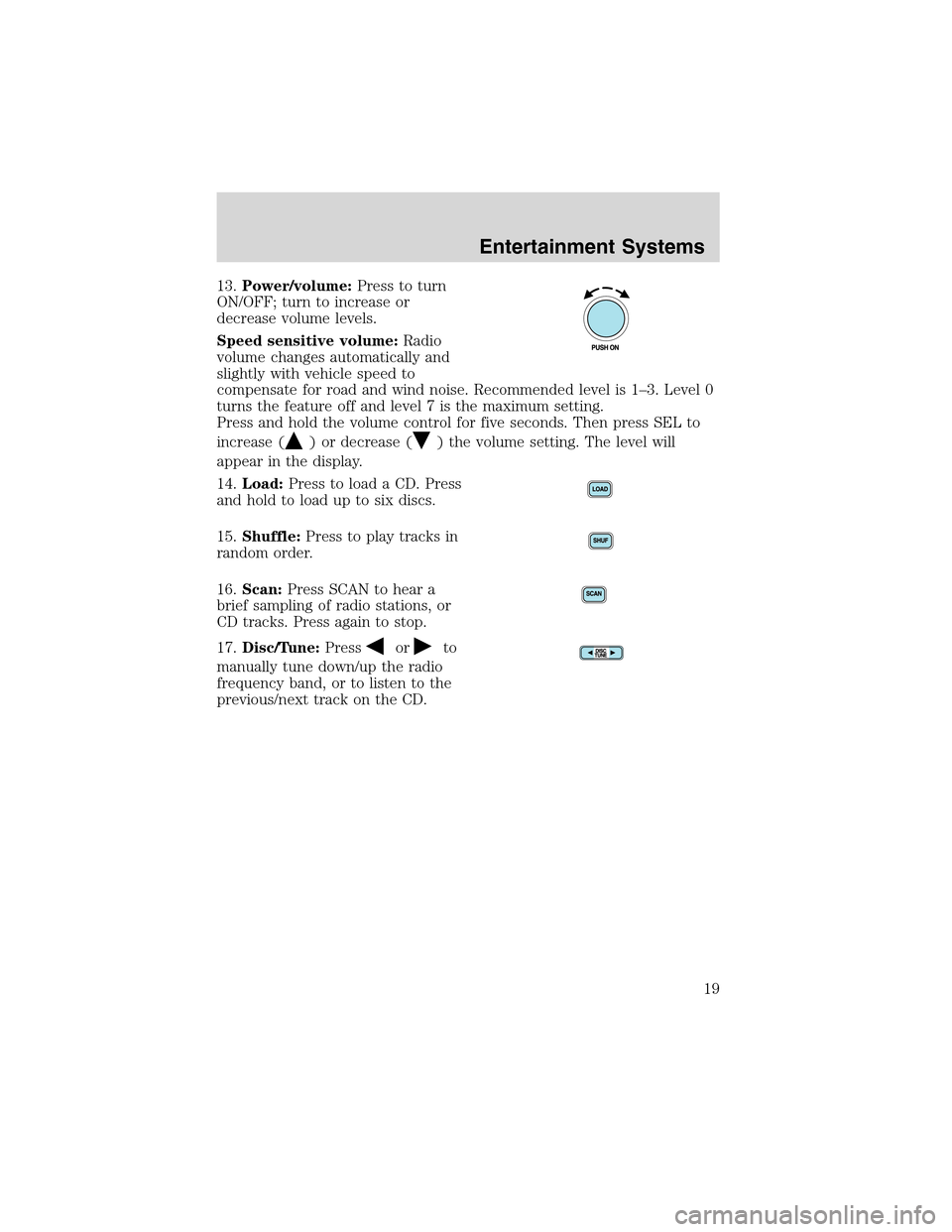
13.Power/volume:Press to turn
ON/OFF; turn to increase or
decrease volume levels.
Speed sensitive volume:Radio
volume changes automatically and
slightly with vehicle speed to
compensate for road and wind noise. Recommended level is 1–3. Level 0
turns the feature off and level 7 is the maximum setting.
Press and hold the volume control for five seconds. Then press SEL to
increase (
) or decrease () the volume setting. The level will
appear in the display.
14.Load:Press to load a CD. Press
and hold to load up to six discs.
15.Shuffle:Press to play tracks in
random order.
16.Scan:Press SCAN to hear a
brief sampling of radio stations, or
CD tracks. Press again to stop.
17.Disc/Tune:Press
orto
manually tune down/up the radio
frequency band, or to listen to the
previous/next track on the CD.
Entertainment Systems
19
Page 23 of 288
function correctly when used in Ford CD players. Irregular
shaped CDs, CDs with a scratch protection film attached, and CDs
with homemade paper (adhesive) labels should not be inserted
into the CD player. The label may peel and cause the CD to
become jammed. It is recommended that homemade CDs be
identified with permanent felt tip marker rather than adhesive
labels. Ball point pens may damage CDs. Please contact your
dealer for further information.
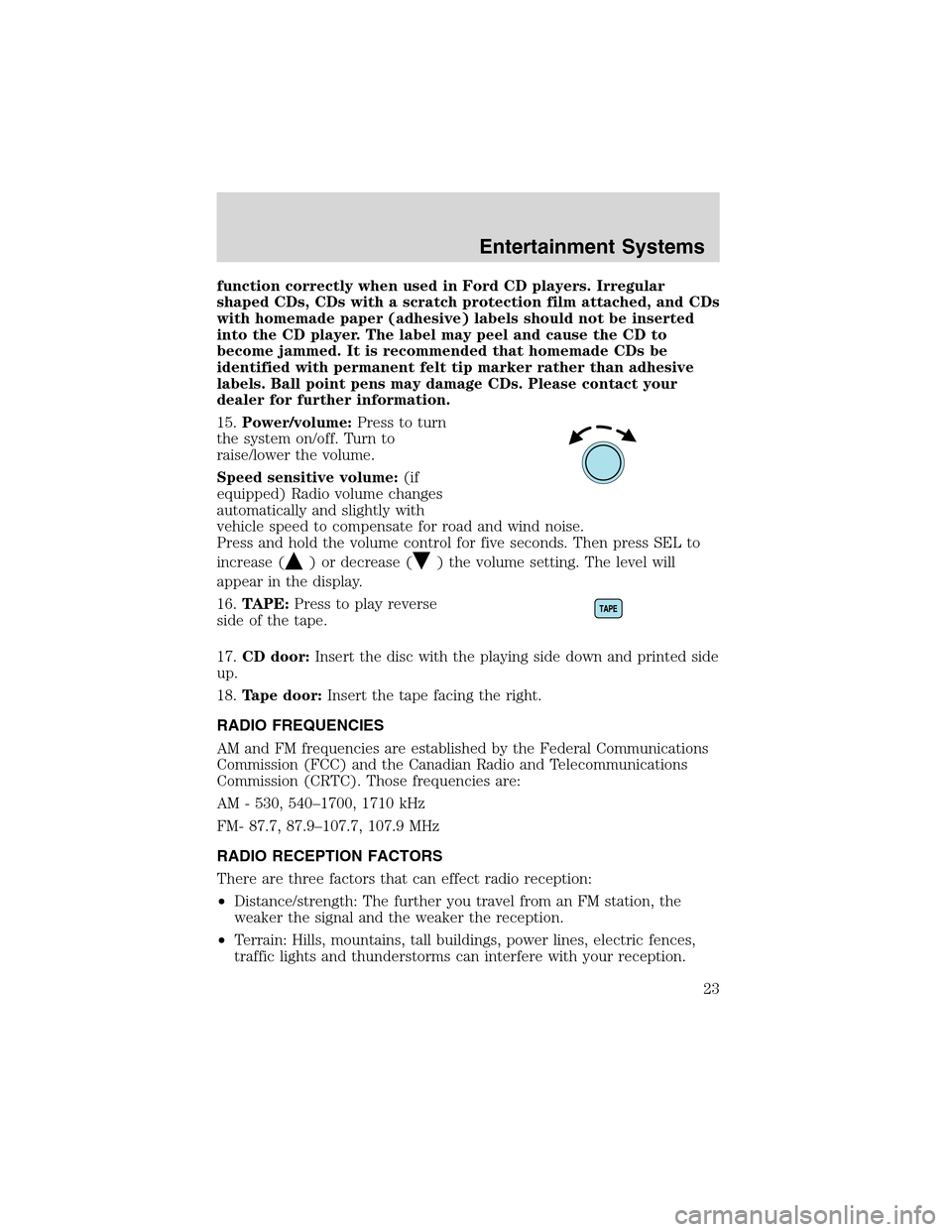
15.Power/volume:Press to turn
the system on/off. Turn to
raise/lower the volume.
Speed sensitive volume:(if
equipped) Radio volume changes
automatically and slightly with
vehicle speed to compensate for road and wind noise.
Press and hold the volume control for five seconds. Then press SEL to
increase (
) or decrease () the volume setting. The level will
appear in the display.
16.TAPE:Press to play reverse
side of the tape.
17.CD door:Insert the disc with the playing side down and printed side
up.
18.Tape door:Insert the tape facing the right.
RADIO FREQUENCIES
AM and FM frequencies are established by the Federal Communications
Commission (FCC) and the Canadian Radio and Telecommunications
Commission (CRTC). Those frequencies are:
AM - 530, 540–1700, 1710 kHz
FM- 87.7, 87.9–107.7, 107.9 MHz
RADIO RECEPTION FACTORS
There are three factors that can effect radio reception:
•Distance/strength: The further you travel from an FM station, the
weaker the signal and the weaker the reception.
•Terrain: Hills, mountains, tall buildings, power lines, electric fences,
traffic lights and thunderstorms can interfere with your reception.
Entertainment Systems
23
Page 24 of 288

•Station overload: When you pass a broadcast tower, a stronger signal
may overtake a weaker one and play while the weak station frequency
is displayed.
CD/CD PLAYER CARE
Do:
•Handle discs by their edges only. Never touch the playing surface.
•Inspect discs before playing. Clean only with an approved CD cleaner
and wipe from the center out.
Don’t:
•Expose discs to direct sunlight or heat sources for extended periods
of time.
•Insert more than one disc into each slot of the CD changer magazine.
•Clean using a circular motion.
CD units are designed to play commercially pressed 12 cm (4.75 in)
audio compact discs only. Due to technical incompatibility, certain
recordable and re-recordable compact discs may not function
correctly when used in Ford CD players. Irregular shaped CDs,
CDs with a scratch protection film attached, and CDs with
homemade paper (adhesive) labels should not be inserted into
the CD player. The label may peel and cause the CD to become
jammed. It is recommended that homemade CDs be identified
with permanent felt tip marker rather than adhesive labels. Ball
point pens may damage CDs. Please contact your dealer for
further information.
AUDIO SYSTEM WARRANTY AND SERVICE
Refer to theWarranty Guidefor audio system warranty information. If
service is necessary, see your dealer or qualified technician.
LINCOLN NAVIGATION SYSTEM (IF EQUIPPED)
Your vehicle may be equipped with a Lincoln Navigation System which
allows you to listen to the radio, play CDs and also navigate the vehicle
using a navigation DVD.
Entertainment Systems
24
Page 27 of 288
Quick Start — How to get going
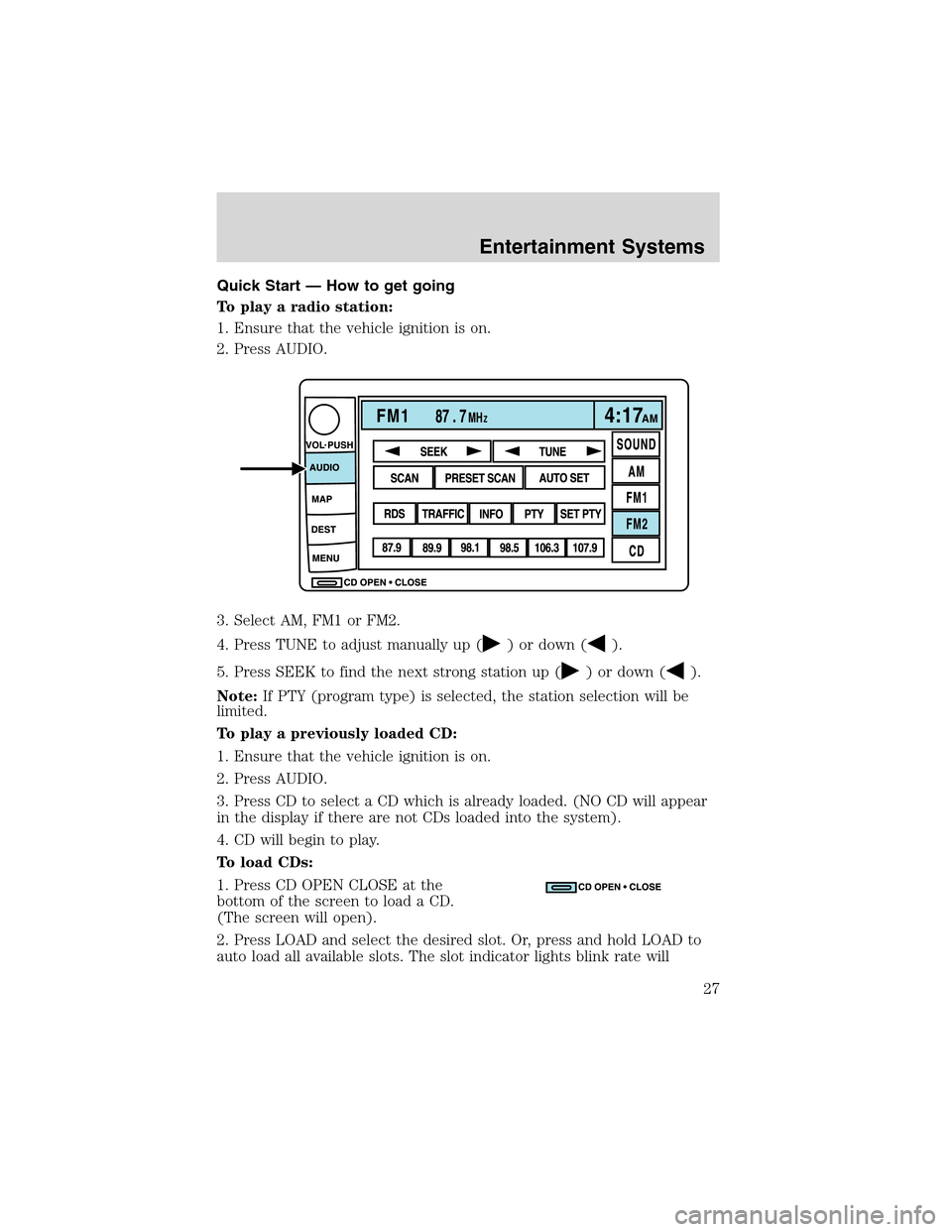
To play a radio station:
1. Ensure that the vehicle ignition is on.
2. Press AUDIO.
3. Select AM, FM1 or FM2.
4. Press TUNE to adjust manually up (
) or down ().
5. Press SEEK to find the next strong station up (
) or down ().
Note:If PTY (program type) is selected, the station selection will be
limited.
To play a previously loaded CD:
1. Ensure that the vehicle ignition is on.
2. Press AUDIO.
3. Press CD to select a CD which is already loaded. (NO CD will appear
in the display if there are not CDs loaded into the system).
4. CD will begin to play.
To load CDs:
1. Press CD OPEN CLOSE at the
bottom of the screen to load a CD.
(The screen will open).
2. Press LOAD and select the desired slot. Or, press and hold LOAD to
auto load all available slots. The slot indicator lights blink rate will
Entertainment Systems
27
Page 30 of 288

2. Press SOUND.
3. SCV is located in the middle of
the screen. Press to turn on.
4. Select setting 1 to 7 or turn off.
The AM/FM control works in radio, CD and navigation modes.
AM/FM select in radio mode
Press to switch between AM/FM1/FM2 memory preset stations.
AM/FM select in CD mode
Press to stop CD play and begin radio play.
Radio reception factors:
•Distance/strength.The further an FM signal travels, the weaker it is.
The listenable range of the average FM station is approximately 40 km
(24 miles). This range can be affected by“signal modulation.”Signal
modulation is a process radio stations use to increase their
strength/volume relative to other stations.
•Terrain.Hills, mountains and tall buildings between your vehicle’s
antenna and the radio station signal can cause FM reception problems.
Static can be caused on AM stations by power lines, electric fences,
traffic lights and thunderstorms. Moving away from an interfering
structure (out of its“shadow”) returns your reception to normal.
•Station overload.Weak signals are sometimes captured by stronger
signals when you pass a broadcast tower. A stronger signal may
temporarily overtake a weaker signal and play while the weak station
frequency is displayed.
AM/FM select in navigation mode
The radio will continue to play in the background of the navigation
screens. To access, press AUDIO then AM/FM1/FM2.SOUND
AM
FM1
FM2
CDSEEK
TUNE
PRESET SCANAUTO SET
SCAN
RDS
TRAFFIC
INFO PTYSET PTY
87.9
89.9 98.1
98.5 106.3 107.9
Entertainment Systems
30
Page 37 of 288
2. The navigation screen will fold down, allowing you access to the
in-dash six CD system.
3. Press LOAD and the desired CD slot number. The indicator light will
blink slowly at first, then quickly, signaling the system is ready.
4. Insert a disc.
5. To load more than one disc, press and hold LOAD. This will initiate
autoload and will allow you to load all open CD slots.
After an allotted time, the screen will close automatically or you may
press CD OPEN CLOSE on the bezel again.
6. Once the screen closes, the system will start playing the last CD
loaded.
Track
Press
/to advance to the
next/previous track.
Entertainment Systems
37
Page 45 of 288
Restore system defaults
Resets all system user-selectable
options to factory default values (i.e,
guidance, voice, search area and
route preferences).
Calibration
Press“Position”to reposition the
vehicle location. This is helpful if
the car has been towed, or is not
registering at the correct location on
the map. Press the screen to scroll
the map to the desired location and
press OK to confirm.
Press“Distance”to calibrate by
distance and improve the navigation
accuracy. It is recommended to
activate this function after ever tire
replacement. When the button is highlighted, calibration is in process
and will turn off automatically when complete.
DVD map version
Displays the version of the inserted
navigation DVD. Refer toOrdering
additional map DVDsfor further
information.
Entertainment Systems
45
Page 48 of 288
Destination menu
Press DEST on the main bezel to access the navigation mode.
Initial map display
After pressing AGREE to the initial
WARNING screen, you will move
into the initial map screen which
shows the current vehicle location.
Pressing the globe icon will take you
to the user settings—audible
feedback, navigation units, language
and clock.
Note:There may be a slight time
delay between the soft key and the hard key functions.
Entertainment Systems
48