2003 CHEVROLET VENTURE CD player
[x] Cancel search: CD playerPage 272 of 486

Compact Disc Messages
CHECK CD:If this message appears on the radio
display, it could be due to one of the following reasons:
·You're driving on a very rough road. When the
road becomes smoother, the disc should play.
·The disc is dirty, scratched, wet or upside down.
·The air is very humid. If so, wait about an hour and
try again.
·There may have been a problem while burning
the CD.
·The label may be caught in the CD player.
If the CD is not playing correctly, for any other reason,
try a known good CD.
If any error occurs repeatedly or if an error can't be
corrected, contact your dealer. If your radio displays an
error message, write it down and provide it to your
dealer when reporting the problem.
Entertainment System
Your vehicle may have an optional Digital Video
Disc (DVD) entertainment system. The entertainment
system works with the vehicle's audio system and
includes a DVD player, a video display screen,
headphones and a remote control. The entertainment
system also integrates the rear climate control and rear
seat audio functions.
Before You Drive
The video entertainment system is for passengers in the
second and third row seats only. The driver cannot
safely view the video screen while driving and should
not try to do so.
In severe or extreme weather conditions your
entertainment system will shut down until the
temperature is within the operating range. This
protection feature will keep your video components from
being damaged while the temperature is below
-4ÉF (-20ÉC) or above 140ÉF (60ÉC). To resume
operation, shut off the entertainment system, pull down
the video screen and then heat or cool the vehicle
until the temperature is within the operating range.
3-92
Page 274 of 486

Stereo RCA Jacks
The RCA jacks are located on the faceplate of the DVD
player. They allow you to hook up an auxiliary device
such as a camcorder or a video game unit. You
may require adapter connectors or cables to connect
your auxiliary device to the RCA jacks. Refer to
the manufacturer's instructions for proper usage.
To use the auxiliary function, connect a camcorder or a
video game unit to the RCA jacks and turn on the
auxiliary device. If you want to view a DVD, insert the
DVD into the DVD player. The system will automatically
switch to DVD and start to play. To switch between
the auxiliary device and the DVD, press the SOURCE
button on the DVD player or on the remote control. See
ªDVD Playerº and ªRemote Controlº later in this
section for more information.
Audio Speakers
Only one audio source can be heard through the
speakers at one time.
Audio from the radio, cassette or CD player will be
heard through all speakers when the front audio system
is being used and the rear seat audio system is off.
Sound from the DVD player or an auxiliary device can
be heard through all speakers when the front audio
system and rear seat audio are off and a DVD or
auxiliary device is playing.
To hear the DVD, auxiliary device, or rear seat audio
system while the front audio system is on, you must use
the headphones. While the rear seat audio system is
on, the rear speakers will be muted.
3-94
Page 276 of 486
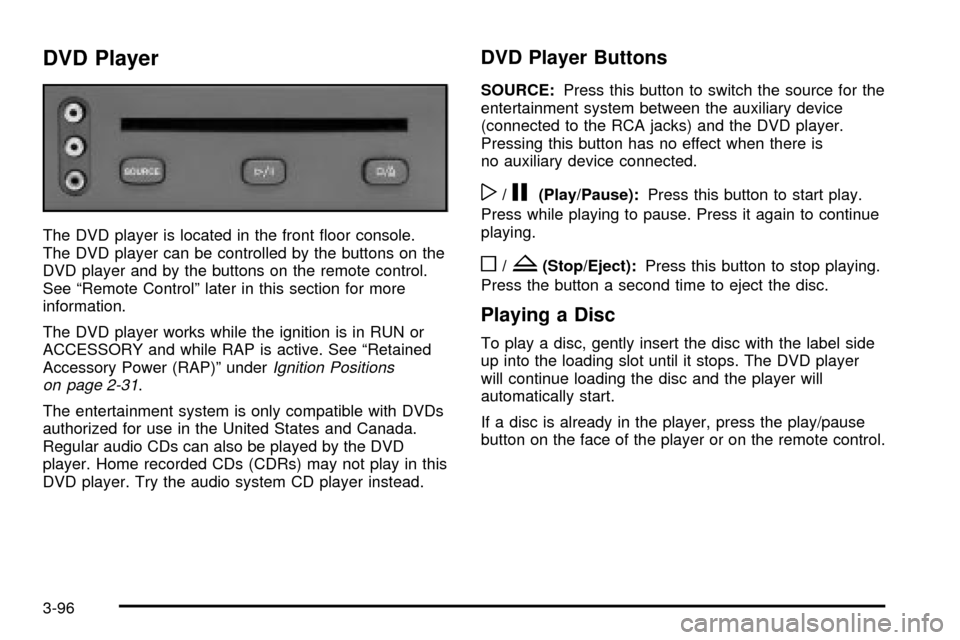
DVD Player
The DVD player is located in the front ¯oor console.
The DVD player can be controlled by the buttons on the
DVD player and by the buttons on the remote control.
See ªRemote Controlº later in this section for more
information.
The DVD player works while the ignition is in RUN or
ACCESSORY and while RAP is active. See ªRetained
Accessory Power (RAP)º under
Ignition Positions
on page 2-31.
The entertainment system is only compatible with DVDs
authorized for use in the United States and Canada.
Regular audio CDs can also be played by the DVD
player. Home recorded CDs (CDRs) may not play in this
DVD player. Try the audio system CD player instead.
DVD Player Buttons
SOURCE:Press this button to switch the source for the
entertainment system between the auxiliary device
(connected to the RCA jacks) and the DVD player.
Pressing this button has no effect when there is
no auxiliary device connected.
w/j(Play/Pause):Press this button to start play.
Press while playing to pause. Press it again to continue
playing.
o/Z(Stop/Eject):Press this button to stop playing.
Press the button a second time to eject the disc.
Playing a Disc
To play a disc, gently insert the disc with the label side
up into the loading slot until it stops. The DVD player
will continue loading the disc and the player will
automatically start.
If a disc is already in the player, press the play/pause
button on the face of the player or on the remote control.
3-96
Page 277 of 486

Some DVDs will not allow you to fast forward or skip
the copyright or previews. Some DVDs will begin playing
the movie automatically after the previews have
®nished (although there may be a delay of up to 30
seconds). If the DVD does not begin playing the movie
automatically, press the play/pause button on the
face of the DVD player or the remote control. If the DVD
still does not play, refer to the on-screen instructions.
Stopping and Resuming Playback
To stop a disc, press the stop/eject button on the DVD
player. To resume playback, press the play/pause
button. As long as you have not ejected the disc, it will
resume playback from the point where it was stopped.
If the disc has been ejected, the player will start playing
at the beginning of the disc.
Ejecting a Disc
Press the stop/eject button on the DVD player once to
stop and a second time to eject the disc.
If a disc is ejected from the player, but not removed,
the DVD player will reload the disc after a short period
of time.
Remote Control
To use the remote control, aim it at the display above
the video screen and press the desired button.
Direct sunlight or very bright light may affect the ability
of the entertainment system to receive signals from
the remote control. Be sure the remote's batteries are
not discharged, as this will also affect the function of the
remote control. Objects blocking the line of sight may
also affect the function of the remote control.
Notice:Storing the remote control in a hot area or
in direct sunlight may damage it, and the repairs
would not be covered by your warranty. Store
the remote control stored in a cool, dry place.
3-97
Page 278 of 486
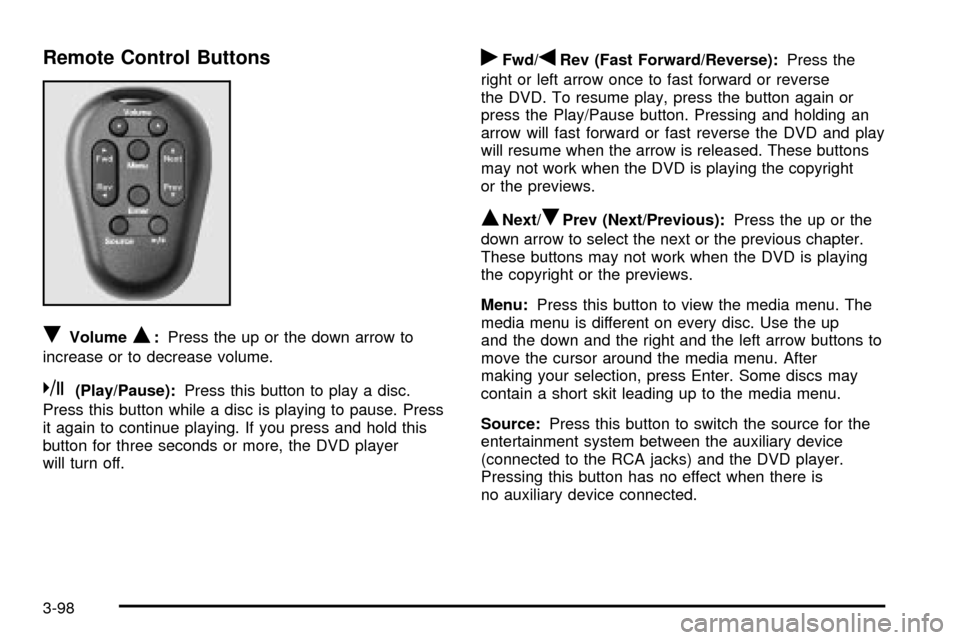
Remote Control Buttons
RVolumeQ:Press the up or the down arrow to
increase or to decrease volume.
k(Play/Pause):Press this button to play a disc.
Press this button while a disc is playing to pause. Press
it again to continue playing. If you press and hold this
button for three seconds or more, the DVD player
will turn off.
rFwd/qRev (Fast Forward/Reverse):Press the
right or left arrow once to fast forward or reverse
the DVD. To resume play, press the button again or
press the Play/Pause button. Pressing and holding an
arrow will fast forward or fast reverse the DVD and play
will resume when the arrow is released. These buttons
may not work when the DVD is playing the copyright
or the previews.
QNext/RPrev (Next/Previous):Press the up or the
down arrow to select the next or the previous chapter.
These buttons may not work when the DVD is playing
the copyright or the previews.
Menu:Press this button to view the media menu. The
media menu is different on every disc. Use the up
and the down and the right and the left arrow buttons to
move the cursor around the media menu. After
making your selection, press Enter. Some discs may
contain a short skit leading up to the media menu.
Source:Press this button to switch the source for the
entertainment system between the auxiliary device
(connected to the RCA jacks) and the DVD player.
Pressing this button has no effect when there is
no auxiliary device connected.
3-98
Page 282 of 486
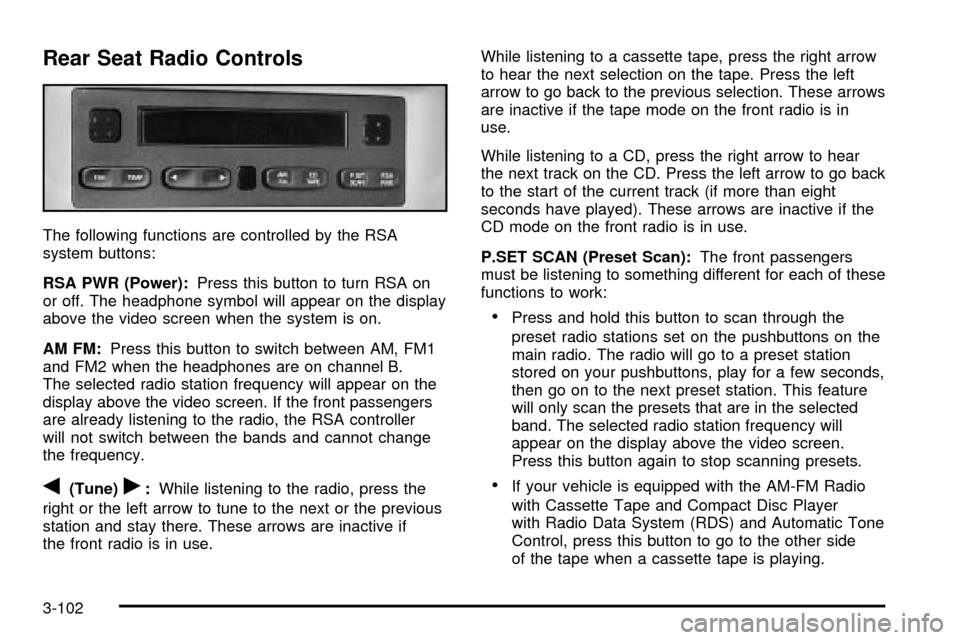
Rear Seat Radio Controls
The following functions are controlled by the RSA
system buttons:
RSA PWR (Power):Press this button to turn RSA on
or off. The headphone symbol will appear on the display
above the video screen when the system is on.
AM FM:Press this button to switch between AM, FM1
and FM2 when the headphones are on channel B.
The selected radio station frequency will appear on the
display above the video screen. If the front passengers
are already listening to the radio, the RSA controller
will not switch between the bands and cannot change
the frequency.
q(Tune)r:While listening to the radio, press the
right or the left arrow to tune to the next or the previous
station and stay there. These arrows are inactive if
the front radio is in use.While listening to a cassette tape, press the right arrow
to hear the next selection on the tape. Press the left
arrow to go back to the previous selection. These arrows
are inactive if the tape mode on the front radio is in
use.
While listening to a CD, press the right arrow to hear
the next track on the CD. Press the left arrow to go back
to the start of the current track (if more than eight
seconds have played). These arrows are inactive if the
CD mode on the front radio is in use.
P.SET SCAN (Preset Scan):The front passengers
must be listening to something different for each of these
functions to work:
·Press and hold this button to scan through the
preset radio stations set on the pushbuttons on the
main radio. The radio will go to a preset station
stored on your pushbuttons, play for a few seconds,
then go on to the next preset station. This feature
will only scan the presets that are in the selected
band. The selected radio station frequency will
appear on the display above the video screen.
Press this button again to stop scanning presets.
·If your vehicle is equipped with the AM-FM Radio
with Cassette Tape and Compact Disc Player
with Radio Data System (RDS) and Automatic Tone
Control, press this button to go to the other side
of the tape when a cassette tape is playing.
3-102
Page 283 of 486

·If your vehicle has the AM-FM Radio with Six-Disc
Compact Disc Player with Equalization and Radio
Data System (RDS), press this button to switch
to playing a different CD when multiple CDs
are loaded into the CD player.
CD TAPE:Press this button to switch between playing
a cassette tape, a compact disc, a DVD or an auxiliary
device when the headphones are on channel B. If one of
the devices is not loaded, the system will skip over
the device when this button is pressed.
Theft-Deterrent Feature
(Non-RDS Radios)
THEFTLOCKžis designed to discourage theft of your
radio. The feature works automatically by learning
a portion of the Vehicle Identi®cation Number (VIN). If
the radio is moved to a different vehicle, it will not
operate and LOCKED will be displayed.
When the radio and vehicle are turned off, the blinking
red light indicates that THEFTLOCK is armed.
With THEFTLOCK activated, your radio will not operate
if stolen.
Theft-Deterrent Feature
(RDS Radios)
THEFTLOCKžis designed to discourage theft of your
radio. The feature works automatically by learning
a portion of the Vehicle Identi®cation Number (VIN). If
the radio is moved to a different vehicle, it will not
operate and LOCKED will be displayed.
When the ignition is off and RAP is not active, the
blinking red light indicates that THEFTLOCK is armed.
With THEFTLOCK activated, your radio will not
operate if stolen.
DVD Distortion
You may experience video distortion when operating
cellular phones, scanners, CB radios, Global Position
Systems (GPS)*, two-way radios, mobile fax, or
walkie talkies.
It may be necessary to turn off the DVD player when
operating one of these devices in or near the vehicle.
*Excludes the OnStar
žSystem.
3-103
Page 284 of 486

Understanding Radio Reception
AM
The range for most AM stations is greater than for FM,
especially at night. The longer range, however, can
cause stations to interfere with each other. AM can pick
up noise from things like storms and power lines. Try
reducing the treble to reduce this noise.
FM
FM stereo will give you the best sound, but FM signals
will reach only about 10 to 40 miles (16 to 65 km).
Tall buildings or hills can interfere with FM signals,
causing the sound to come and go.
Care of Your Cassette Tape Player
A tape player that is not cleaned regularly can cause
reduced sound quality, ruined cassettes or a damaged
mechanism. Cassette tapes should be stored in their
cases away from contaminants, direct sunlight and
extreme heat. If they aren't, they may not operate
properly or may cause failure of the tape player.
Your tape player should be cleaned regularly after every
50 hours of use. Your radio may display CLEAN to
indicate that you have used your tape player for
50 hours without resetting the tape clean timer. If this
message appears on the display, your cassettetape player needs to be cleaned. It will still play tapes,
but you should clean it as soon as possible to
prevent damage to your tapes and player. If you notice
a reduction in sound quality, try a known good
cassette to see if the tape or the tape player is at fault.
If this other cassette has no improvement in sound
quality, clean the tape player.
For best results, use a scrubbing action, non-abrasive
cleaning cassette with pads which scrub the tape
head as the hubs of the cleaner cassette turn. The
recommended cleaning cassette is available through
your dealership.
The broken tape detection feature of your cassette tape
player may identify the cleaning cassette as a
damaged tape, in error. To prevent the cleaning cassette
from being ejected, use the following steps:
1. Turn the ignition on.
2. Turn the radio off.
3. Press and hold the TAPE CD button for ®ve
seconds. READY will appear on the display and a
cassette symbol will ¯ash for ®ve seconds.
4. Insert the scrubbing action cleaning cassette.
5. Eject the cleaning cassette after the manufacturer's
recommended cleaning time.
After the cleaning cassette is ejected, the broken tape
detection feature will be active again.
3-104