2003 BMW 760LI SEDAN stop start
[x] Cancel search: stop startPage 91 of 229
At a glance
Controls
Driving tips
Communications
Navigation
Entertainment
Mobility
Reference
89
Trip computer
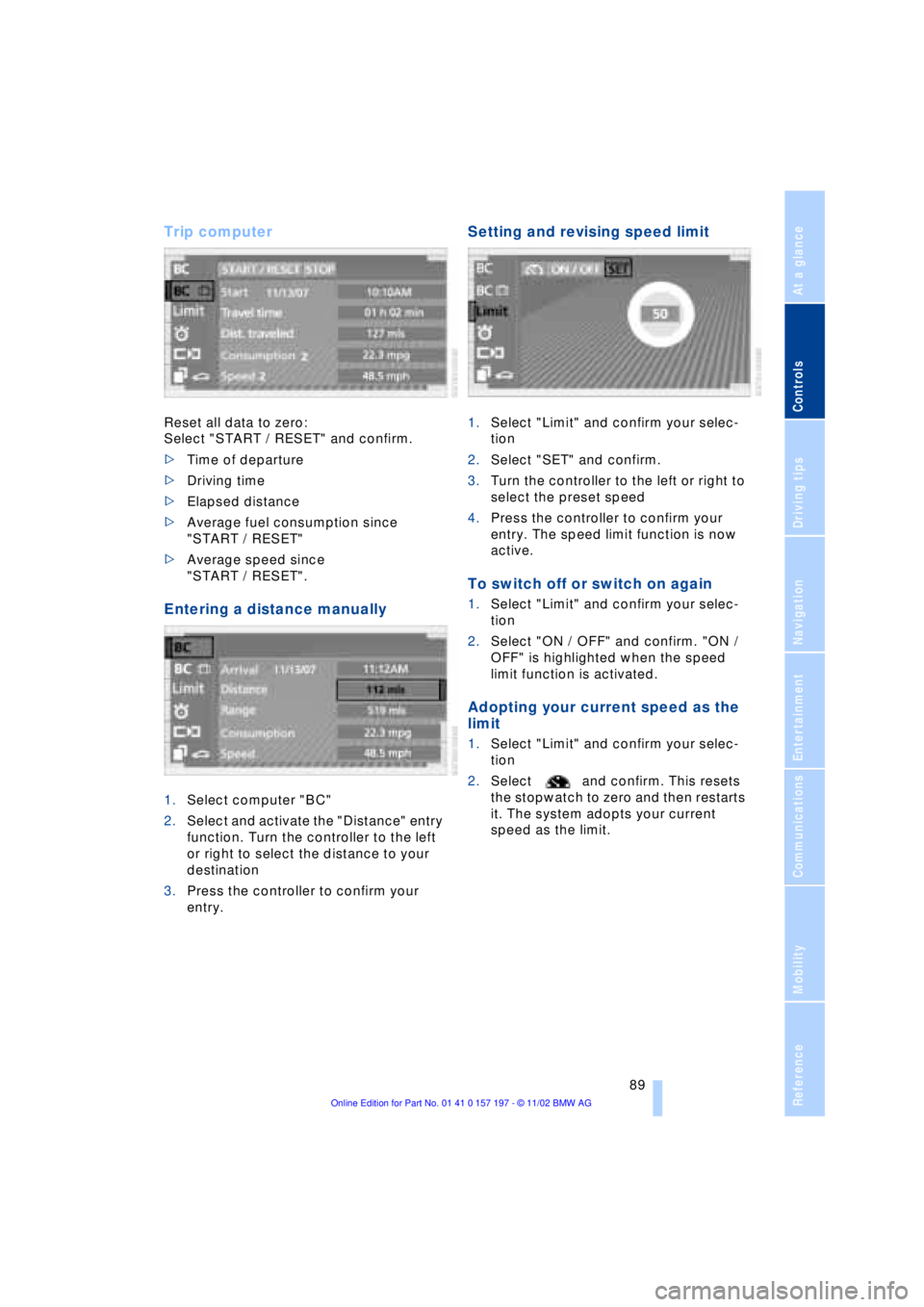
Reset all data to zero:
Select "START / RESET" and confirm.
>Time of departure
>Driving time
>Elapsed distance
>Average fuel consumption since
"START / RESET"
>Average speed since
"START / RESET".
Entering a distance manually
1.Select computer "BC"
2.Select and activate the "Distance" entry
function. Turn the controller to the left
or right to select the distance to your
destination
3.Press the controller to confirm your
entry.
Setting and revising speed limit
1.Select "Limit" and confirm your selec-
tion
2.Select "SET" and confirm.
3.Turn the controller to the left or right to
select the preset speed
4.Press the controller to confirm your
entry. The speed limit function is now
active.
To switch off or switch on again
1.Select "Limit" and confirm your selec-
tion
2.Select "ON / OFF" and confirm. "ON /
OFF" is highlighted when the speed
limit function is activated.
Adopting your current speed as the
limit
1.Select "Limit" and confirm your selec-
tion
2.Select and confirm. This resets
the stopwatch to zero and then restarts
it. The system adopts your current
speed as the limit.
Page 92 of 229
Everything under control
90
Info Display screen contents
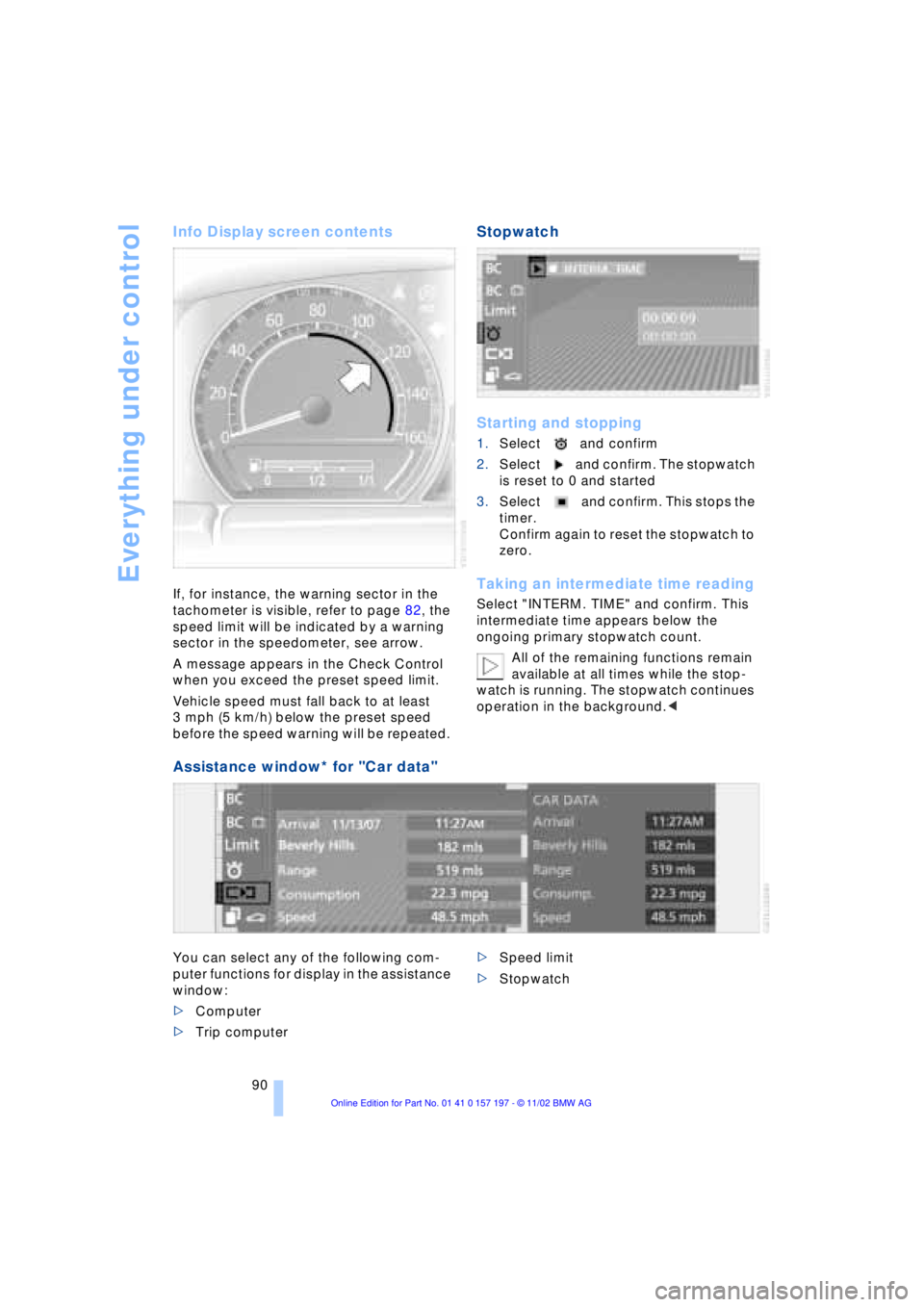
If, for instance, the warning sector in the
tachometer is visible, refer to page 82, the
speed limit will be indicated by a warning
sector in the speedometer, see arrow.
A message appears in the Check Control
when you exceed the preset speed limit.
Vehicle speed must fall back to at least
3 mph (5 km/h) below the preset speed
before the speed warning will be repeated.
Stopwatch
Starting and stopping
1.Select and confirm
2.Select and confirm. The stopwatch
is reset to 0 and started
3.Select and confirm. This stops the
timer.
Confirm again to reset the stopwatch to
zero.
Taking an intermediate time reading
Select "INTERM. TIME" and confirm. This
intermediate time appears below the
ongoing primary stopwatch count.
All of the remaining functions remain
available at all times while the stop-
watch is running. The stopwatch continues
operation in the background.<
Assistance window* for "Car data"
You can select any of the following com-
puter functions for display in the assistance
window:
>Computer
>Trip computer >Speed limit
>Stopwatch
Page 93 of 229
At a glance
Controls
Driving tips
Communications
Navigation
Entertainment
Mobility
Reference
91
Importing display
1.Select the desired function and confirm
Ð here, computer "BC"
2.Select and confirm. This resets
the stopwatch to zero and then restarts
it. The function appears in the assis-
tance window.
The symbol is highlighted if
the function displayed in the asssis-
tance window is selected in the Control
Display. You can also choose to view brief
help texts explaining selected menu
entries, refer to page 23, or the travel route
on vehicles equipped with a GPS naviga-
tion system, refer to page 131.<
Changing settings
Units of measure and display format
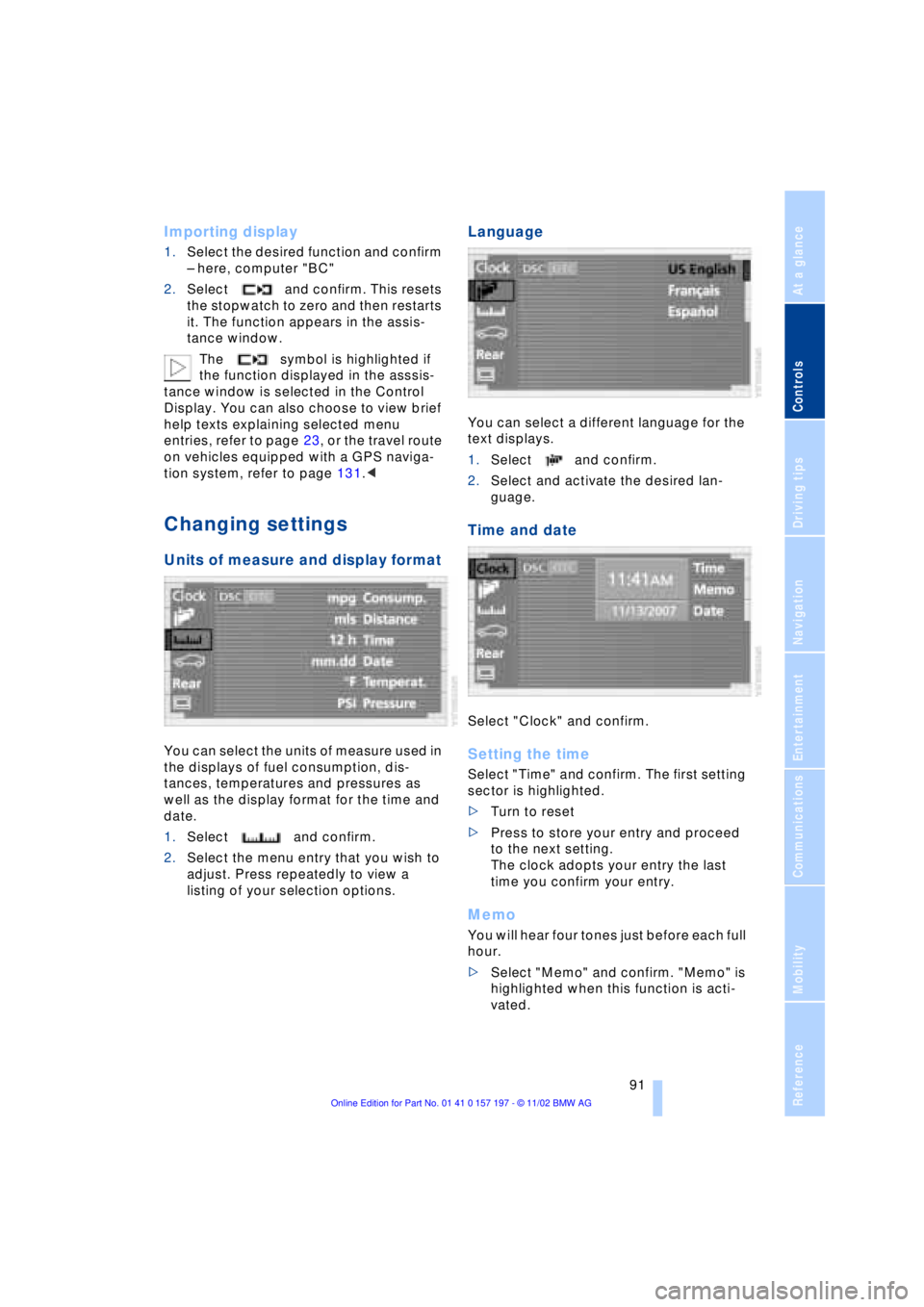
You can select the units of measure used in
the displays of fuel consumption, dis-
tances, temperatures and pressures as
well as the display format for the time and
date.
1.Select and confirm.
2.Select the menu entry that you wish to
adjust. Press repeatedly to view a
listing of your selection options.
Language
You can select a different language for the
text displays.
1.Select and confirm.
2.Select and activate the desired lan-
guage.
Time and date
Select "Clock" and confirm.
Setting the time
Select "Time" and confirm. The first setting
sector is highlighted.
>Turn to reset
>Press to store your entry and proceed
to the next setting.
The clock adopts your entry the last
time you confirm your entry.
Memo
You will hear four tones just before each full
hour.
>Select "Memo" and confirm. "Memo" is
highlighted when this function is acti-
vated.
Page 96 of 229
Technology for comfort, convenience and safety
94
PDC with visual warning
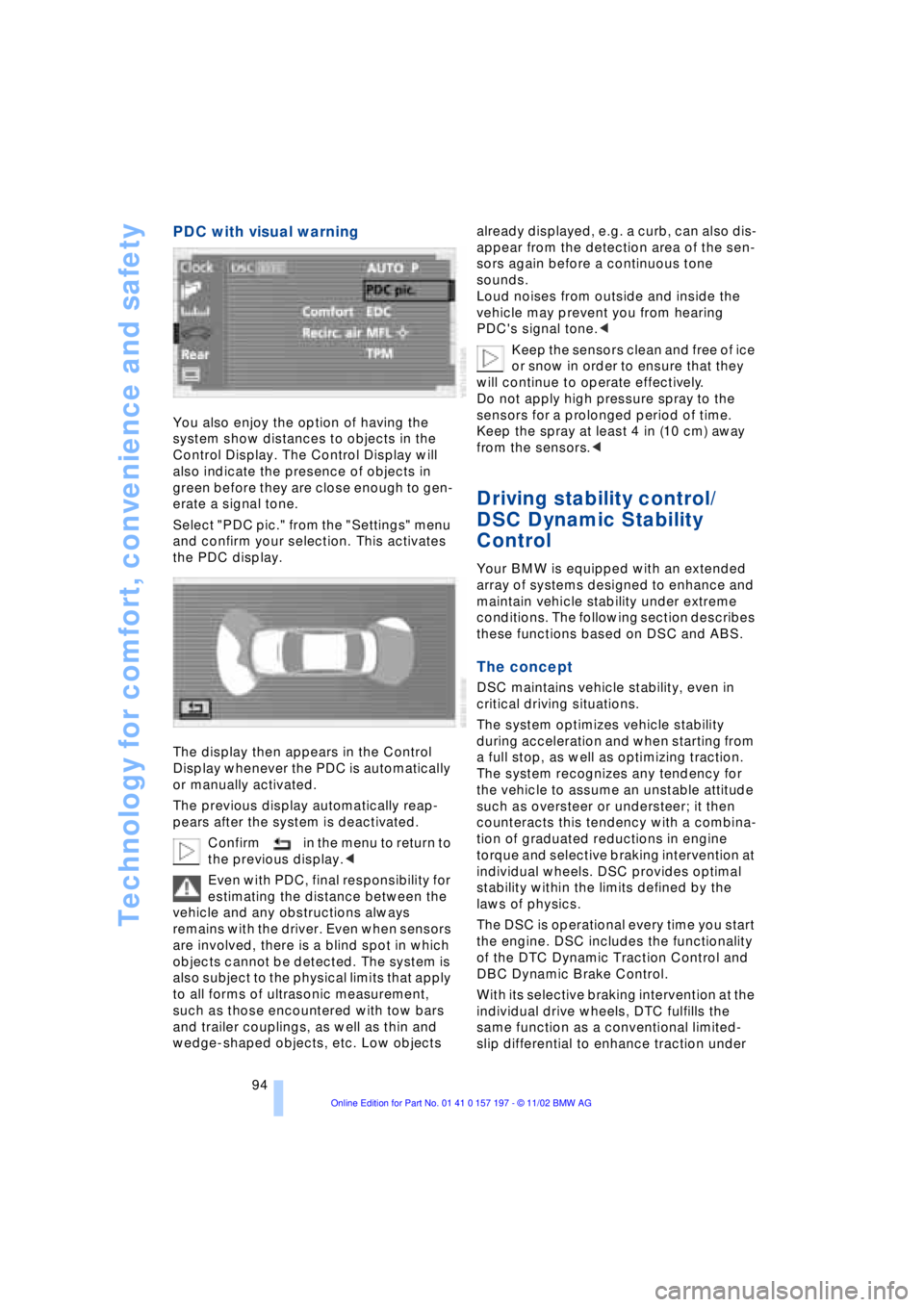
You also enjoy the option of having the
system show distances to objects in the
Control Display. The Control Display will
also indicate the presence of objects in
green before they are close enough to gen-
erate a signal tone.
Select "PDC pic." from the "Settings" menu
and confirm your selection. This activates
the PDC display.
The display then appears in the Control
Display whenever the PDC is automatically
or manually activated.
The previous display automatically reap-
pears after the system is deactivated.
Confirm in the menu to return to
the previous display.<
Even with PDC, final responsibility for
estimating the distance between the
vehicle and any obstructions always
remains with the driver. Even when sensors
are involved, there is a blind spot in which
objects cannot be detected. The system is
also subject to the physical limits that apply
to all forms of ultrasonic measurement,
such as those encountered with tow bars
and trailer couplings, as well as thin and
wedge-shaped objects, etc. Low objects already displayed, e.g. a curb, can also dis-
appear from the detection area of the sen-
sors again before a continuous tone
sounds.
Loud noises from outside and inside the
vehicle may prevent you from hearing
PDC's signal tone.<
Keep the sensors clean and free of ice
or snow in order to ensure that they
will continue to operate effectively.
Do not apply high pressure spray to the
sensors for a prolonged period of time.
Keep the spray at least 4 in (10 cm) away
from the sensors.<
Driving stability control/
DSC Dynamic Stability
Control
Your BMW is equipped with an extended
array of systems designed to enhance and
maintain vehicle stability under extreme
conditions. The following section describes
these functions based on DSC and ABS.
The concept
DSC maintains vehicle stability, even in
critical driving situations.
The system optimizes vehicle stability
during acceleration and when starting from
a full stop, as well as optimizing traction.
The system recognizes any tendency for
the vehicle to assume an unstable attitude
such as oversteer or understeer; it then
counteracts this tendency with a combina-
tion of graduated reductions in engine
torque and selective braking intervention at
individual wheels. DSC provides optimal
stability within the limits defined by the
laws of physics.
The DSC is operational every time you start
the engine. DSC includes the functionality
of the DTC Dynamic Traction Control and
DBC Dynamic Brake Control.
With its selective braking intervention at the
individual drive wheels, DTC fulfills the
same function as a conventional limited-
slip differential to enhance traction under
Page 99 of 229
At a glance
Controls
Driving tips
Communications
Navigation
Entertainment
Mobility
Reference
97
Check Control messages, refer to page 85.
Please note the supplementary information
provided in the Control Display.
Indicator and warning lamps on
Canadian models.
Dynamic Drive
The concept
Dynamic Drive minimizes body roll and
optimizes vehicle stability during cornering
and evasive maneuvers.
Active stabilizers at the front and rear axles
form the basis for Dynamic Drive. Suspen-
sion compliance adapts to suit driving con-
ditions, varying from performance-oriented
during cornering to smooth and comfort-
oriented when the vehicle is proceeding in
a straight line.
The system assumes operational status
each time you start the engine.
Driving with Dynamic Drive
During vehicle operation, the system con-
tinuously runs through closed-loop control
cycles lasting only fractions of a second.
In case of malfunction
The symbol will light up, accompa-
nied by a status message in the
Check Control. Please take note of
the additional information in the Control
Display.
You can find more detailed information on
the Check Control starting on page 85.
If the Dynamic Drive system switches
off in response to malfunction, please
remember to adapt your speed accord-
ingly, especially in curves.
The suspension will be noticeably softer
and the vehicle will display a greater ten-dency to tilt during cornering and in cross-
winds.
If a Check Control message stating that
you should stop appears in addition to the
red symbol, stop immediately and switch
off the engine. In this case the oil level in
the reservoir may have dropped below the
minimum, possibly owing to a leak in the
hydraulic system.
Please observe the additional instructions
provided in the Control Display.<
EDC Electronic Damping
Control*
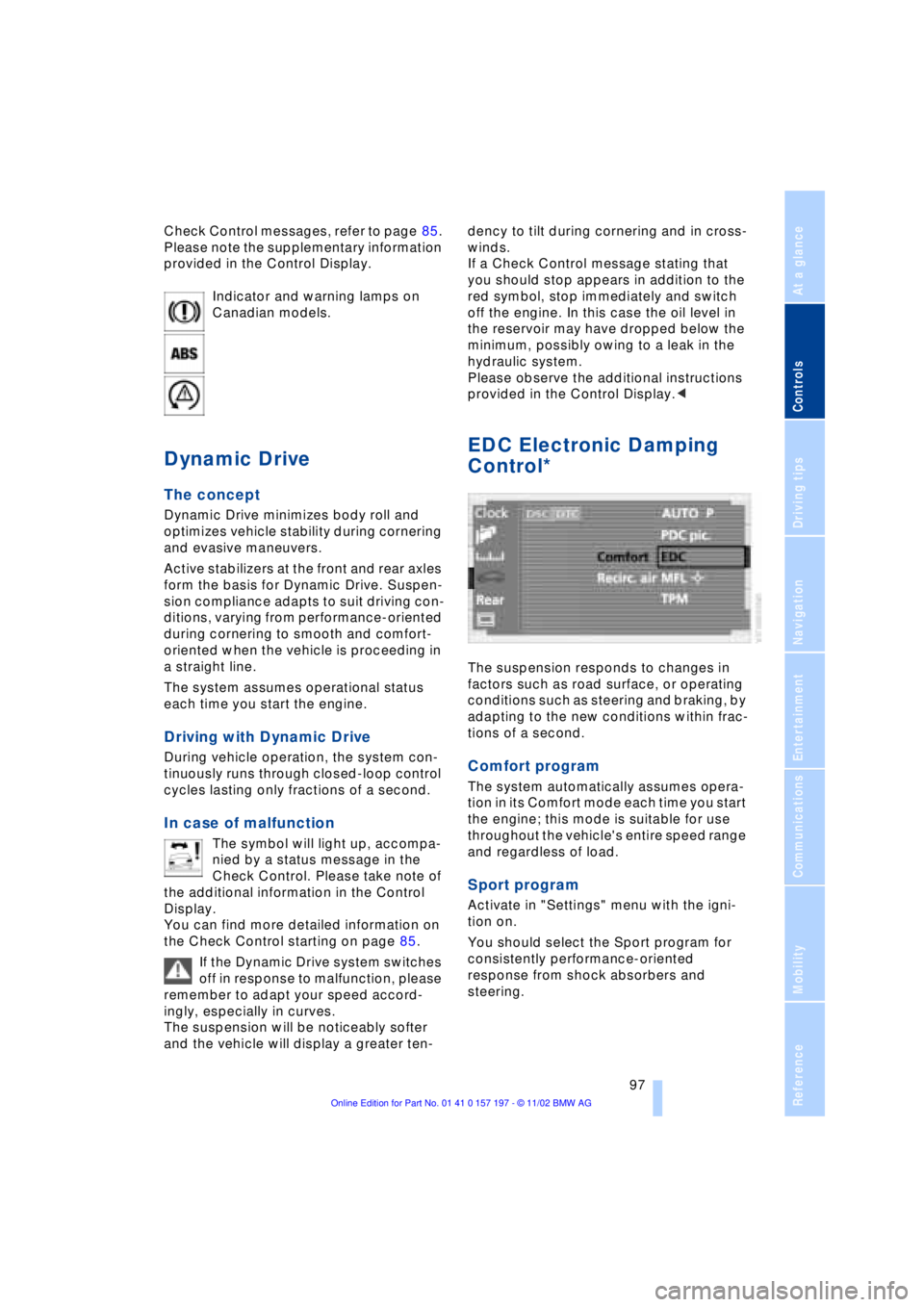
The suspension responds to changes in
factors such as road surface, or operating
conditions such as steering and braking, by
adapting to the new conditions within frac-
tions of a second.
Comfort program
The system automatically assumes opera-
tion in its Comfort mode each time you start
the engine; this mode is suitable for use
throughout the vehicle's entire speed range
and regardless of load.
Sport program
Activate in "Settings" menu with the igni-
tion on.
You should select the Sport program for
consistently performance-oriented
response from shock absorbers and
steering.
Page 100 of 229
Technology for comfort, convenience and safety
98
Flat Tire Monitor*
The concept
The Flat Tire Monitor keeps track of the
inflation pressures in your tires as you
drive. The system provides an alert when-
ever the inflation pressure drops signifi-
cantly below the specified pressure in one
or more tires.
In order for the Flat Tire Monitor to 'learn'
the correct tire inflation pressure, check the
inflation pressure in all tires against the
inflation pressure table on page 185 and
make corrections as necessary. Then pro-
ceed to initialize the system.
This symbol will appear in the
Check Control to inform you that
the inflation pressure of a tire has
fallen significantly. A text message appears
at the same time.
Please take note of the additional informa-
tion in the Control Display.
You can find more information on the
Check Control starting on page 85.
The Flat Tire Monitor cannot indicate
sudden severe tire damage caused
by outside factors and does not detect a
natural, even pressure drop in all four
tires.<
Initializing the system
1.Switch ignition on, do not start the
engine
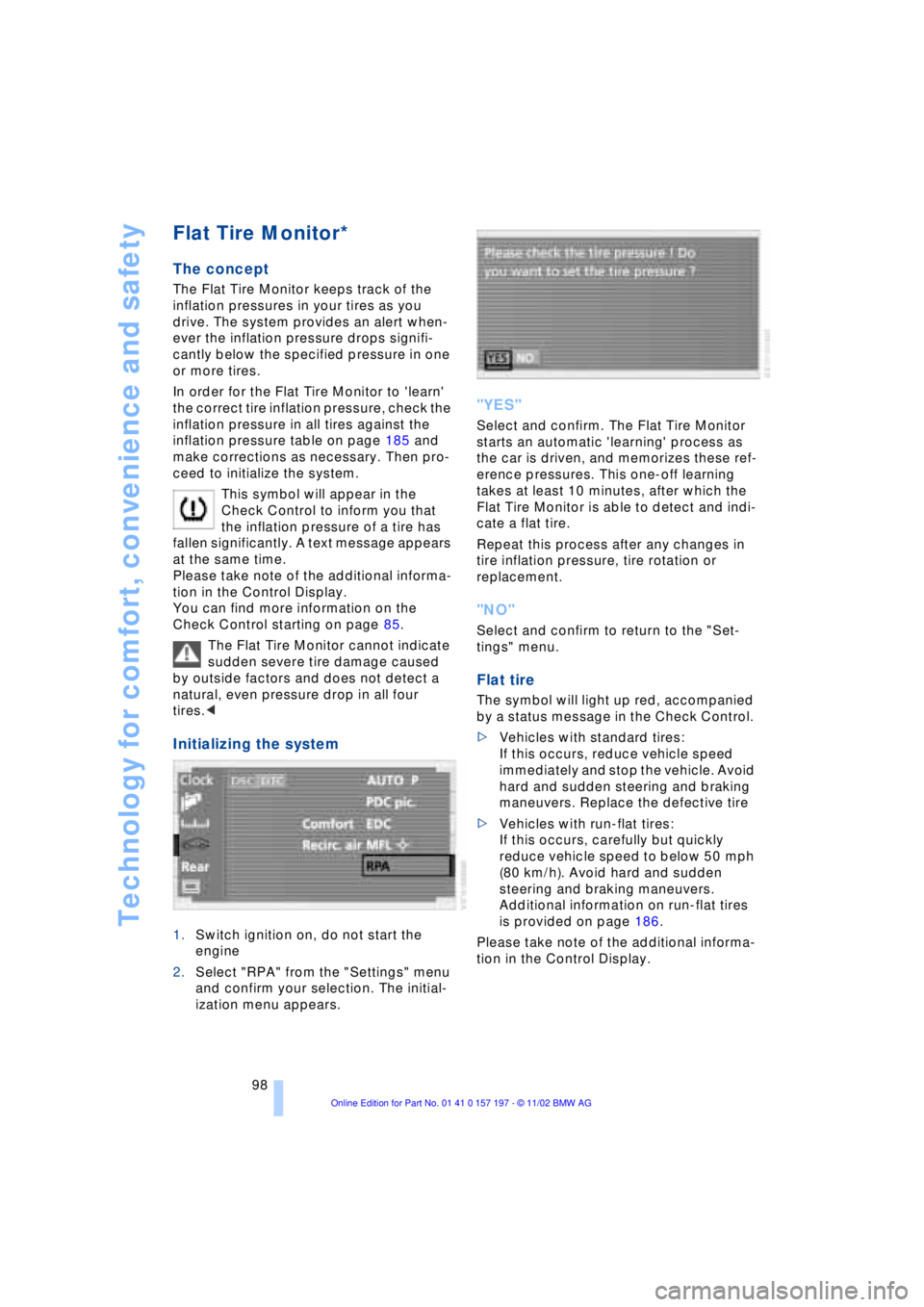
2.Select "RPA" from the "Settings" menu
and confirm your selection. The initial-
ization menu appears.
"YES"
Select and confirm. The Flat Tire Monitor
starts an automatic 'learning' process as
the car is driven, and memorizes these ref-
erence pressures. This one-off learning
takes at least 10 minutes, after which the
Flat Tire Monitor is able to detect and indi-
cate a flat tire.
Repeat this process after any changes in
tire inflation pressure, tire rotation or
replacement.
"NO"
Select and confirm to return to the "Set-
tings" menu.
Flat tire
The symbol will light up red, accompanied
by a status message in the Check Control.
>Vehicles with standard tires:
If this occurs, reduce vehicle speed
immediately and stop the vehicle. Avoid
hard and sudden steering and braking
maneuvers. Replace the defective tire
>Vehicles with run-flat tires:
If this occurs, carefully but quickly
reduce vehicle speed to below 50 mph
(80 km/h). Avoid hard and sudden
steering and braking maneuvers.
Additional information on run-flat tires
is provided on page 186.
Please take note of the additional informa-
tion in the Control Display.
Page 102 of 229
Technology for comfort, convenience and safety
100
Do not start the initialization
Select and confirm to return to the
"Settings" menu.
Status indicators in the Control
Display
The status of the system is indicated by the
color of the tires.
TPM takes into account that the tire pres-
sure changes during driving. A correction is
only required when the TPM requests that
the driver takes action by changing the
color.
Green
Tire inflation pressures correspond to the
initialized level.
Yellow
The inflation pressures in the tires have
fallen to below the specified level, which is
normal in every tire after a certain amount
of time.
This alerts you to have the tires inflated to
the specified pressures as soon as pos-
sible.
Red
Pressure loss in indicated tire.
If this occurs, reduce vehicle speed imme-
diately and stop the vehicle. Avoid hard
and sudden steering and braking maneu-
vers.
Black
The system is being initialized.
The system needs several minutes to com-
plete the initialization process, after which
it is ready to detect and report tire prob-
lems.
In the event of loss in tire pressure
If the indicator lamp symbol in the Check
Control lights up in yellow, and a message
also appears, this indicates that the infla-
tion pressures in the tires have fallen to
below the specified level, which is normal
in every tire after a certain amount of time. This alerts you to have the tires inflated to
the specified pressures as soon as pos-
sible.
Please take note of the additional informa-
tion in the Control Display.
If you are prompted to check the tire
pressure shortly after a correction has
been made, this indicates that the cor-
rected values were not accurate. Please
check the inflation pressure again and
make corrections according to the inflation
pressure table. Then reinitialize the
system.<
Flat tire
If you have a flat tire, the indicator lamp
symbol in the Check Control will light up in
red, and a message will appear. In addition,
a gong sounds.
>Vehicles with standard tires:
If this occurs, reduce vehicle speed
immediately and stop the vehicle. Avoid
hard and sudden steering and braking
maneuvers. Replace the defective tire
>Vehicles with run-flat tires:
If this occurs, carefully but quickly
reduce vehicle speed to below 50 mph
(80 km/h). Avoid hard and sudden
steering and braking maneuvers.
Additional information on run-flat tires
is provided on page 186.
The spare tire provided with your
vehicle is equipped with the elec-
tronics required to support TPM operation;
once the spare is installed, the pressure in
this tire will also be monitored following
system initialization.
Have the tires changed at your BMW
center.
Your BMW center has the information
needed for working with TPM and is
equipped with the necessary special
tools.<
System malfunctions
Other equipment operating on the same
radio frequency as TPM can generate inter-
ference signals that may prevent the
system from operating as intended.
Page 145 of 229
At a glance
Controls
Driving tips
Communications
Navigation
Entertainment
Mobility
Reference
143
What to do if É
What to do if É
>you request the current location of your
vehicle, but do not receive a precise
display?
The system is unable to receive enough
GPS signals at your current location
owing to obstructions, your location is
not yet available on your CD, or the
system is in the process of calculating
your location. Please wait and then try
again later on
>the GPS logo disappears from the Con-
trol Display screen?
Reception is interrupted; a building or
similar obstruction may be the cause
>the guidance system refuses to import
an address from the destination direc-
tory as its destination?
The address is in the list, but not on the
map CD currently in use. Choose an
address as close as possible to the
original one, using the destination entry
map as required
>the guidance system does not adopt an
address without the street?
No specified center is defined for the
selected locality on your CD. Enter any
street, or a destination such as the
railway station, etc., then start the guid-
ance system
>you want to enter an address for the
guidance system, but it is not possible
to select the letters for your desired
entry?
The address is in the list, but not on the
map CD currently in use. In this case,
the system will not offer you any letters
to choose from. Choose an address as
close as possible to the original one,
using the destination entry map as
required
>the system stops furnishing directions
on which way to turn as you approach
intersections?
You are driving in an area that has not
yet been completely recorded on the
map CD. Instead of an arrow indicating a turn, you will see an arrow which indi-
cates the general direction of your
planned route;
or
you have left the recommended route
and the system requires a few seconds
to calculate a new recommended route
>while the destination route map has
automatically been adopted for dis-
play?
You are driving in an area that has not
yet been recorded on the map CD. The
guidance system cannot operate under
these conditions. However, you will see
the current position of your BMW in the
map display to help you orient yourself
>the battery has been disconnected?
It will take approx. 15 minutes for the
system to resume operation.