Page 133 of 421
130 Multifunction steering wheel, multifunction display
Te ch n ica l
data Instruments
and controlsOperationDrivingInstrument
cluster displayPractical hints Car care Index
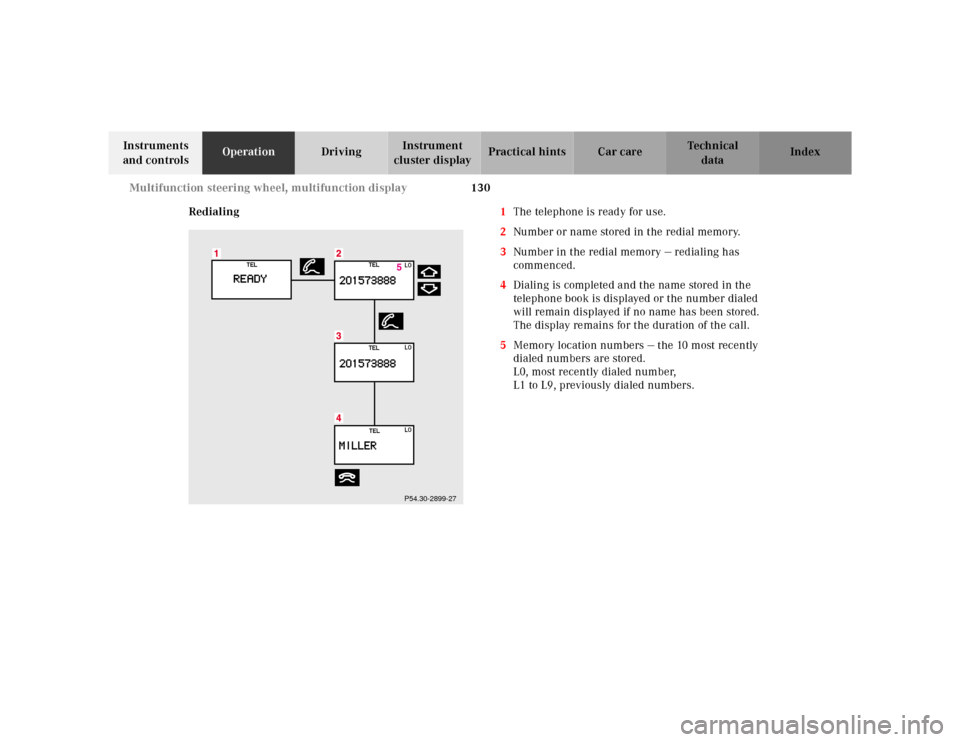
Redialing1The telephone is ready for use.
2Number or name stored in the redial memory.
3Number in the redial memory — redialing has
commenced.
4Dialing is completed and the name stored in the
telephone book is displayed or the number dialed
will remain displayed if no name has been stored.
The display remains for the duration of the call.
5Memory location numbers — the 10 most recently
dialed numbers are stored.
L0, most recently dialed number,
L1 to L9, previously dialed numbers.
P54.30-2899-27
Page 134 of 421
131 Multifunction steering wheel, multifunction display
Te ch n ica l
data Instruments
and controlsOperationDrivingInstrument
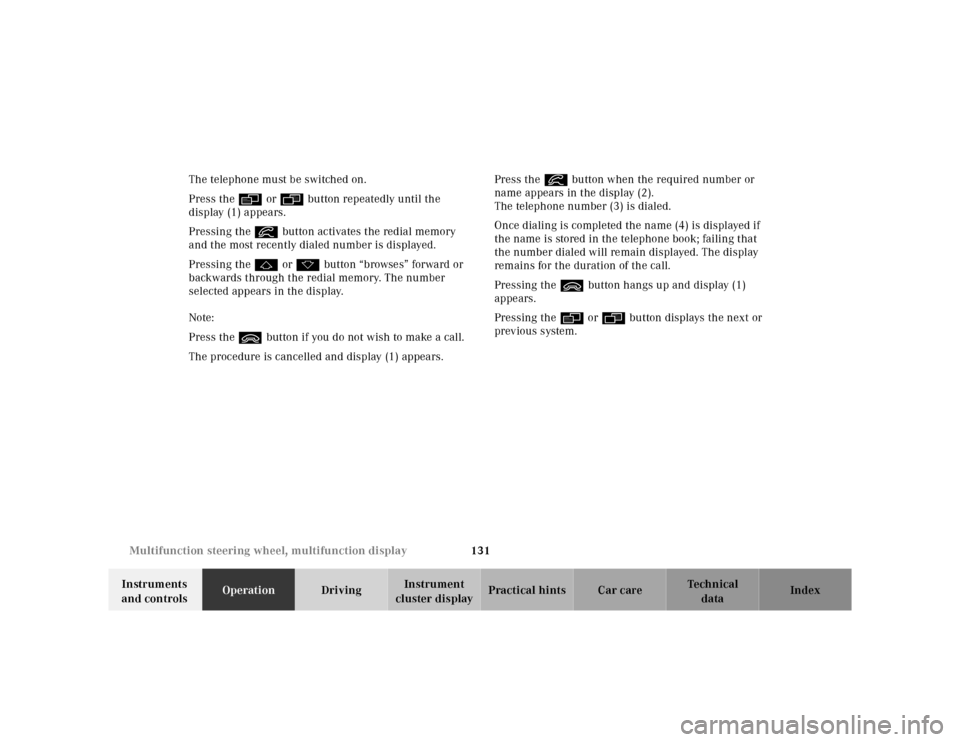
cluster displayPractical hints Car care Index The telephone must be switched on.
Press the è or ÿ button repeatedly until the
display (1) appears.
Pressing the í button activates the redial memory
and the most recently dialed number is displayed.
Pressing the j or k button “browses” forward or
backwards through the redial memory. The number
selected appears in the display.
Note:
Press the ì button if you do not wish to make a call.
The procedure is cancelled and display (1) appears.Press the í button when the required number or
name appears in the display (2).
The telephone number (3) is dialed.
Once dialing is completed the name (4) is displayed if
the name is stored in the telephone book; failing that
the number dialed will remain displayed. The display
remains for the duration of the call.
Pressing the ì button hangs up and display (1)
appears.
Pressing the è or ÿ button displays the next or
previous system.
Page 138 of 421
135 Multifunction steering wheel, multifunction display
Te ch n ica l
data Instruments
and controlsOperationDrivingInstrument
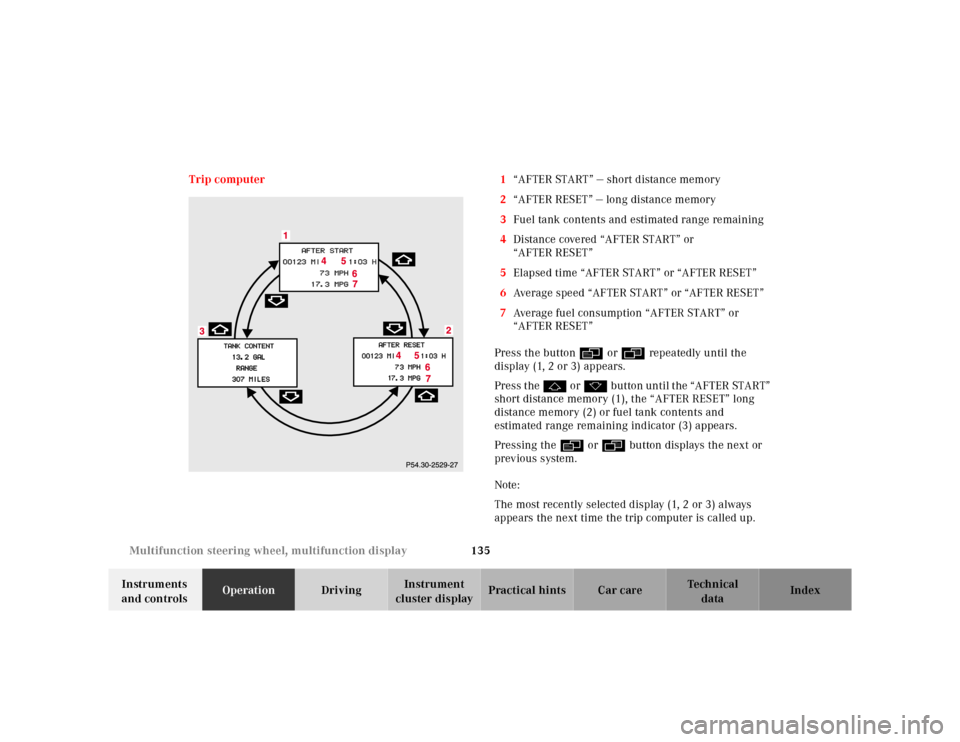
cluster displayPractical hints Car care Index Trip computer 1“AFTER START” — short distance memory
2“AFTER RESET” — long distance memory
3Fuel tank contents and estimated range remaining
4Distance covered “AFTER START” or
“AFTER RESET”
5Elapsed time “AFTER START” or “AFTER RESET”
6Average speed “AFTER START” or “AFTER RESET”
7Average fuel consumption “AFTER START” or
“AFTER RESET”
Press the button è or ÿ repeatedly until the
display (1, 2 or 3) appears.
Press the j or k button until the “AFTER START”
short distance memory (1), the “AFTER RESET” long
distance memory (2) or fuel tank contents and
estimated range remaining indicator (3) appears.
Pressing the è or ÿ button displays the next or
previous system.
Note:
The most recently selected display (1, 2 or 3) always
appears the next time the trip computer is called up.
Page 139 of 421
136 Multifunction steering wheel, multifunction display
Te ch n ica l
data Instruments
and controlsOperationDrivingInstrument
cluster displayPractical hints Car care Index
Transferring values from the previous journey to the
“AFTER START” short distance memory (1):
The “AFTER START” display will flash until a distance of
approximately 1 mile (1.6 km) has been covered or two
minutes have elapsed since the engine was restarted.
During this period you can incorporate the values for
the previous journey by pressing button Jin the
instrument cluster.
To reset the short “AFTER START” (1) or long
“AFTER RESET” distance memory (2):
Call up the relevant display (1 or 2) using the j or
k button and press the Jbutton in the
instrument cluster until the values are reset to “0”.Malfunction /warning message memory
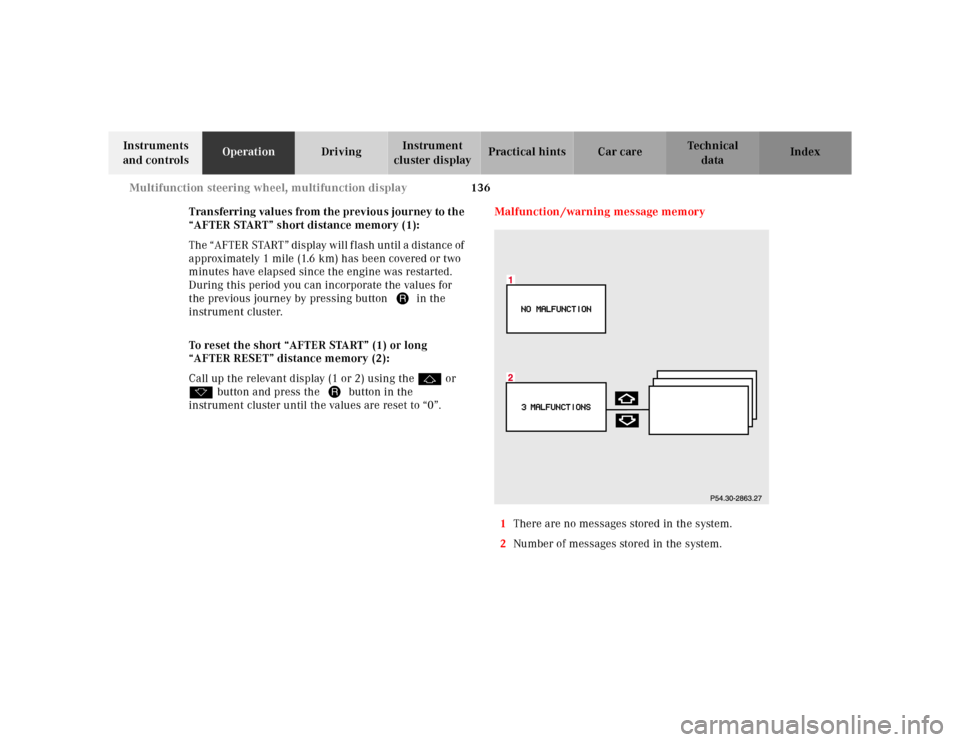
1There are no messages stored in the system.
2Number of messages stored in the system.
Page 140 of 421
137 Multifunction steering wheel, multifunction display
Te ch n ica l
data Instruments
and controlsOperationDrivingInstrument
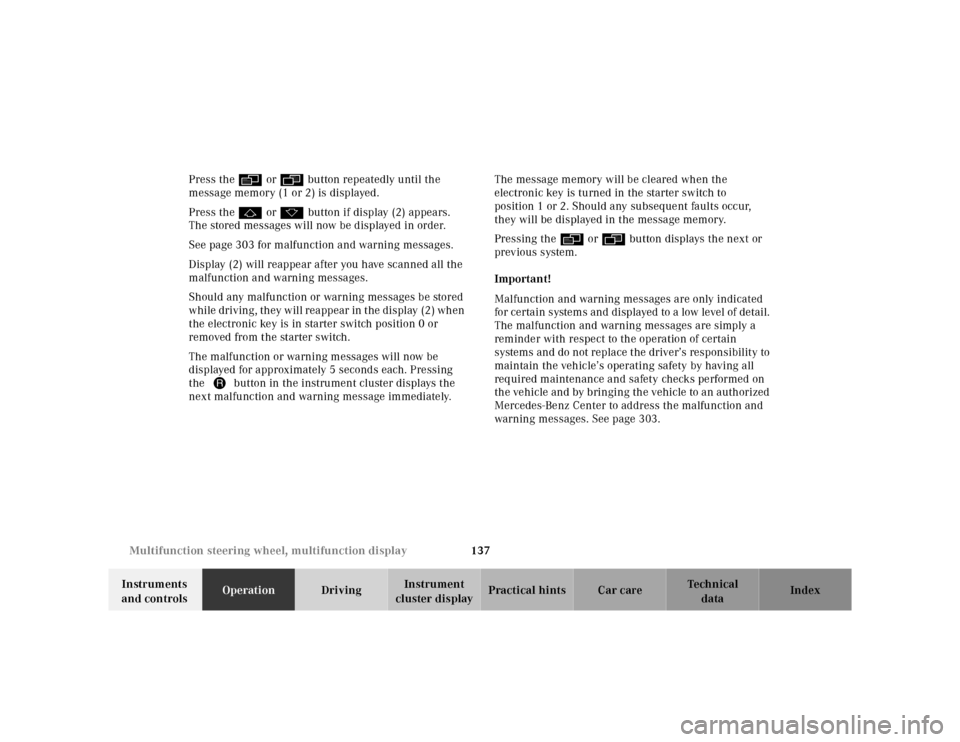
cluster displayPractical hints Car care Index Press the è or ÿ button repeatedly until the
message memory (1 or 2) is displayed.
Press the j or k button if display (2) appears.
The stored messages will now be displayed in order.
See page 303 for malfunction and warning messages.
Display (2) will reappear after you have scanned all the
malfunction and warning messages.
Should any malfunction or warning messages be stored
while driving, they will reappear in the display (2) when
the electronic key is in starter switch position 0 or
removed from the starter switch.
The malfunction or warning messages will now be
displayed for approximately 5 seconds each. Pressing
the Jbutton in the instrument cluster displays the
next malfunction and warning message immediately.The message memory will be cleared when the
electronic key is turned in the starter switch to
position 1 or 2. Should any subsequent faults occur,
they will be displayed in the message memory.
Pressing the è or ÿ button displays the next or
previous system.
Important!
Malfunction and warning messages are only indicated
for certain systems and displayed to a low level of detail.
The malfunction and warning messages are simply a
reminder with respect to the operation of certain
systems and do not replace the driver’s responsibility to
maintain the vehicle’s operating safety by having all
required maintenance and safety checks performed on
the vehicle and by bringing the vehicle to an authorized
Mercedes-Benz Center to address the malfunction and
warning messages. See page 303.
Page 148 of 421
145 Multifunction steering wheel, multifunction display
Te ch n ica l
data Instruments
and controlsOperationDrivingInstrument
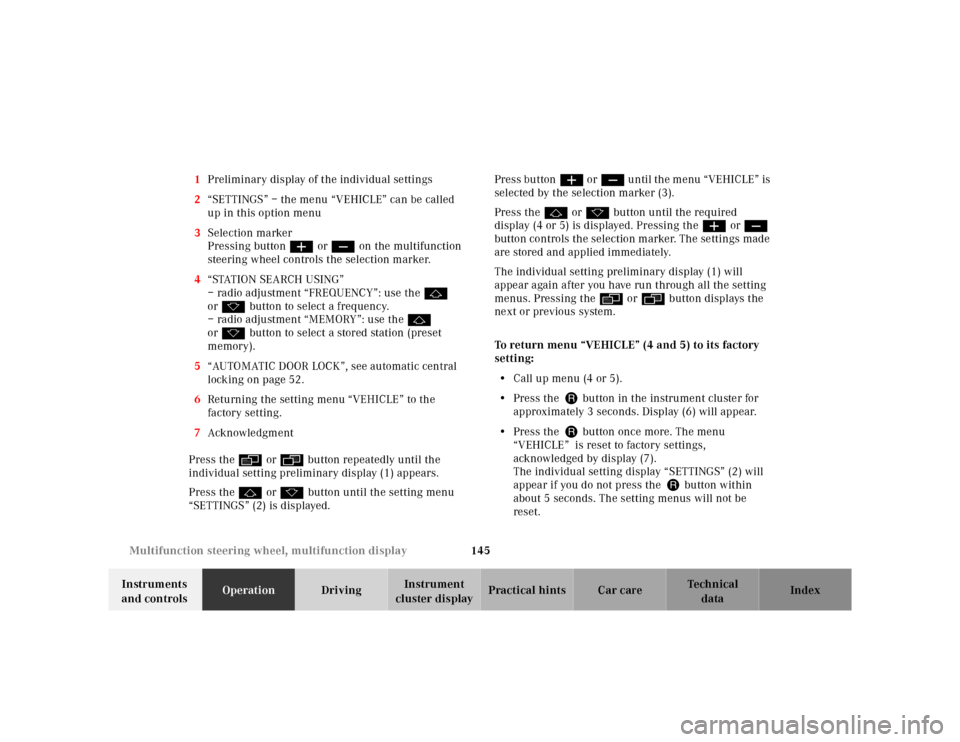
cluster displayPractical hints Car care Index 1Preliminary display of the individual settings
2“SETTINGS” – the menu “VEHICLE” can be called
up in this option menu
3Selection marker
Pressing buttonæ orç on the multifunction
steering wheel controls the selection marker.
4“STATION SEARCH USING”
– radio adjustment “FREQUENCY”: use the j
ork button to select a frequency.
– radio adjustment “MEMORY”: use the j
ork button to select a stored station (preset
memory).
5“AUTOMATIC DOOR LOCK”, see automatic central
locking on page 52.
6Returning the setting menu “VEHICLE” to the
factory setting.
7Acknowledgment
Press the è or ÿ button repeatedly until the
individual setting preliminary display (1) appears.
Press the j or k button until the setting menu
“SETTINGS” (2) is displayed.Press buttonæ orç until the menu “VEHICLE” is
selected by the selection marker (3).
Press the j or k button until the required
display (4 or 5) is displayed. Pressing the æ orç
button controls the selection marker. The settings made
are stored and applied immediately.
The individual setting preliminary display (1) will
appear again after you have run through all the setting
menus. Pressing the è or ÿ button displays the
next or previous system.
To return menu “VEHICLE” (4 and 5) to its factory
setting:
•Call up menu (4 or 5).
•Press the Jbutton in the instrument cluster for
approximately 3 seconds. Display (6) will appear.
•Press the Jbutton once more. The menu
“VEHICLE” is reset to factory settings,
acknowledged by display (7).
The individual setting display “SETTINGS” (2) will
appear if you do not press the Jbutton within
about 5 seconds. The setting menus will not be
reset.
Page 212 of 421
209 Garage door opener
Te ch n ica l
data Instruments
and controlsOperationDrivingInstrument
cluster displayPractical hints Car care Index Operation of remote control:
1. Turn electronic key in starter switch to position 1
or 2.
2. Select and press the appropriate button to activate
the remote controlled device. The integrated remote
control transmitter continues to send the signal as
long as the button is pressed – up to 20 seconds.Erasing the remote control memory:
1. Turn electronic key in starter switch to position 1
or 2.
2. Simultaneously holding down the left and right side
buttons for approximately 20 seconds, or until the
control lamp blinks rapidly, will erase the codes of
all three channels.
Page 261 of 421
258 Driving systems
Te ch n ica l
data Instruments
and controlsOperationDrivingInstrument
cluster displayPractical hints Car care Index
The speed stored in memory is displayed in the
multifunction display, and one or two segments around
the stored speed light up in the speedometer dial, see
page 270.
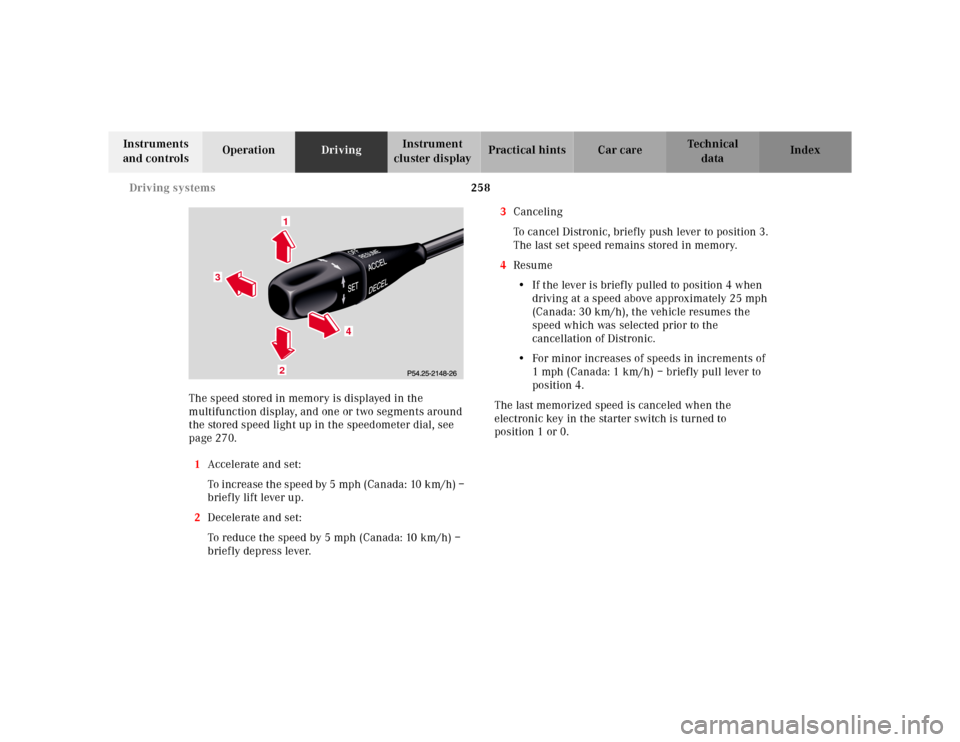
1Accelerate and set:
To increase the speed by 5 mph (Canada: 10 km/h) –
brief ly lift lever up.
2Decelerate and set:
To reduce the speed by 5 mph (Canada: 10 km/h) –
briefly depress lever.3Canceling
To cancel Distronic, briefly push lever to position 3.
The last set speed remains stored in memory.
4Resume
•If the lever is briefly pulled to position 4 when
driving at a speed above approximately 25 mph
(Canada: 30 km/h), the vehicle resumes the
speed which was selected prior to the
cancellation of Distronic.
•For minor increases of speeds in increments of
1 mph (Canada: 1 km/h) – briefly pull lever to
position 4.
The last memorized speed is canceled when the
electronic key in the starter switch is turned to
position 1 or 0.
1
3
4
2