2024 CHEVROLET SILVERADO wheel
[x] Cancel search: wheelPage 132 of 433

Chevrolet Silverado 2500 HD/3500 HD Owner Manual (GMNA-Localizing-U.
S./Canada/Mexico-16908339) - 2024 - CRC - 12/15/22
130 Instruments and Controls
system. When the REPLACE SOON message
displays, the engine air filter should be
replaced at the earliest convenience.
The Air Filter Life display must be reset after
the engine air filter replacement. To reset,
seeEngine Air Filter Life System 0311.
Trailer Brake : On vehicles with the
Integrated Trailer Brake Control (ITBC)
system, the trailer brake display appears in
the DIC.
TRAILER GAIN shows the trailer gain setting.
This setting can be adjusted from 0.0 to 10.0
with either a trailer connected or
disconnected.
OUTPUT shows the power output to the
trailer any time a trailer with electric brakes
is connected. Output is displayed as a bar
graph. Dotted lines may appear in the
OUTPUT display if a trailer is not connected.
Off Road : If equipped, displays vehicle pitch
and roll information, road wheel angle, and
four-wheel drive (4WD) status. If the vehicle
has low traction, a low traction indicator
and the wheels affected will display amber
in the Off-Road page.
Engine Hours (Hourmeter) : Shows the total
number of hours the engine has run. This
display also shows the engine idle hours. Transmission Fluid Temperature :
Shows the
temperature of the automatic transmission
fluid in either degrees Celsius (°C) or degrees
Fahrenheit (°F).
Info Page Options : Scroll to choose which
info pages appear on the DIC. Press the
thumbwheel to select or deselect.
Blank Page : Shows no information.
Head-Up Display (HUD)
{Warning
If the HUD image is too bright or too
high in your field of view, it may take
you more time to see things you need to
see when it is dark outside. Be sure to
keep the HUD image dim and placed low
in your field of view.
If equipped with HUD, some information
about the operation of the vehicle is
projected onto the windshield. The image is
projected through the HUD lens on top of
the instrument panel. The information
appears as an image focused out toward the
front of the vehicle.
Caution
If you try to use the HUD image as a
parking aid, you may misjudge the
distance and damage your vehicle. Do not
use the HUD image as a parking aid.
The HUD information can be displayed in
various languages. The speedometer reading
and other numerical values can be displayed
in either English or metric units.
The language selection is changed through
the radio, and the units of measurement are
changed through the instrument cluster. See
Settings (Uplevel Radio) 0177 or
Settings (Base Radio) 0175 and “Options”
under Instrument Cluster (Base Level) 0107
or Instrument Cluster (Uplevel) 0108.
Page 133 of 433
Chevrolet Silverado 2500 HD/3500 HD Owner Manual (GMNA-Localizing-U.
S./Canada/Mexico-16908339) - 2024 - CRC - 12/15/22
Instruments and Controls 131
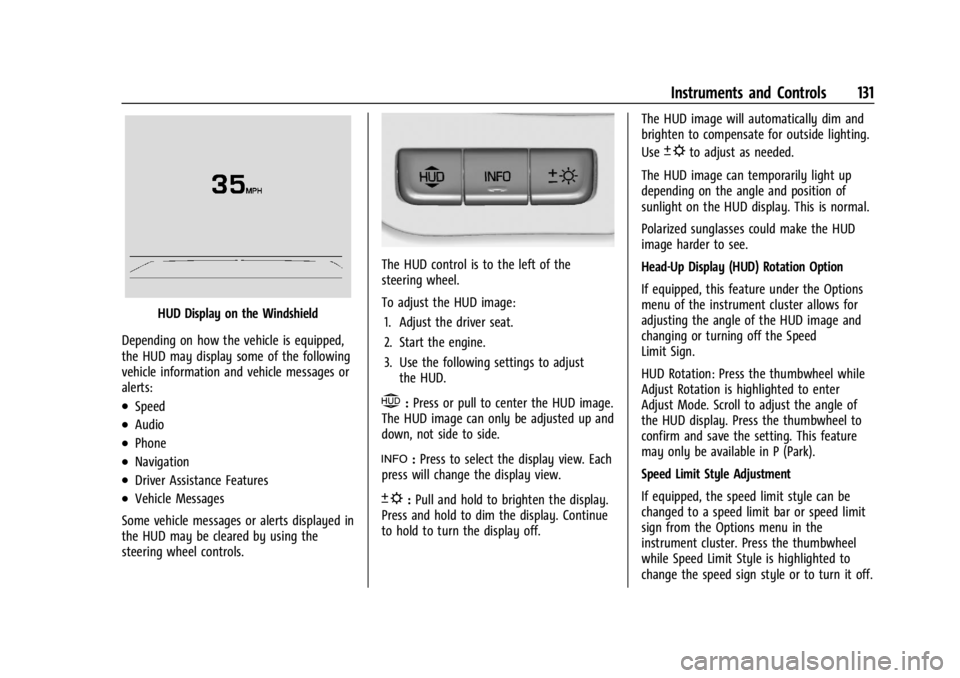
HUD Display on the Windshield
Depending on how the vehicle is equipped,
the HUD may display some of the following
vehicle information and vehicle messages or
alerts:
.Speed
.Audio
.Phone
.Navigation
.Driver Assistance Features
.Vehicle Messages
Some vehicle messages or alerts displayed in
the HUD may be cleared by using the
steering wheel controls.
The HUD control is to the left of the
steering wheel.
To adjust the HUD image: 1. Adjust the driver seat.
2. Start the engine.
3. Use the following settings to adjust the HUD.
$:Press or pull to center the HUD image.
The HUD image can only be adjusted up and
down, not side to side.
!: Press to select the display view. Each
press will change the display view.
D: Pull and hold to brighten the display.
Press and hold to dim the display. Continue
to hold to turn the display off. The HUD image will automatically dim and
brighten to compensate for outside lighting.
Use
Dto adjust as needed.
The HUD image can temporarily light up
depending on the angle and position of
sunlight on the HUD display. This is normal.
Polarized sunglasses could make the HUD
image harder to see.
Head-Up Display (HUD) Rotation Option
If equipped, this feature under the Options
menu of the instrument cluster allows for
adjusting the angle of the HUD image and
changing or turning off the Speed
Limit Sign.
HUD Rotation: Press the thumbwheel while
Adjust Rotation is highlighted to enter
Adjust Mode. Scroll to adjust the angle of
the HUD display. Press the thumbwheel to
confirm and save the setting. This feature
may only be available in P (Park).
Speed Limit Style Adjustment
If equipped, the speed limit style can be
changed to a speed limit bar or speed limit
sign from the Options menu in the
instrument cluster. Press the thumbwheel
while Speed Limit Style is highlighted to
change the speed sign style or to turn it off.
Page 135 of 433
Chevrolet Silverado 2500 HD/3500 HD Owner Manual (GMNA-Localizing-U.
S./Canada/Mexico-16908339) - 2024 - CRC - 12/15/22
Instruments and Controls 133
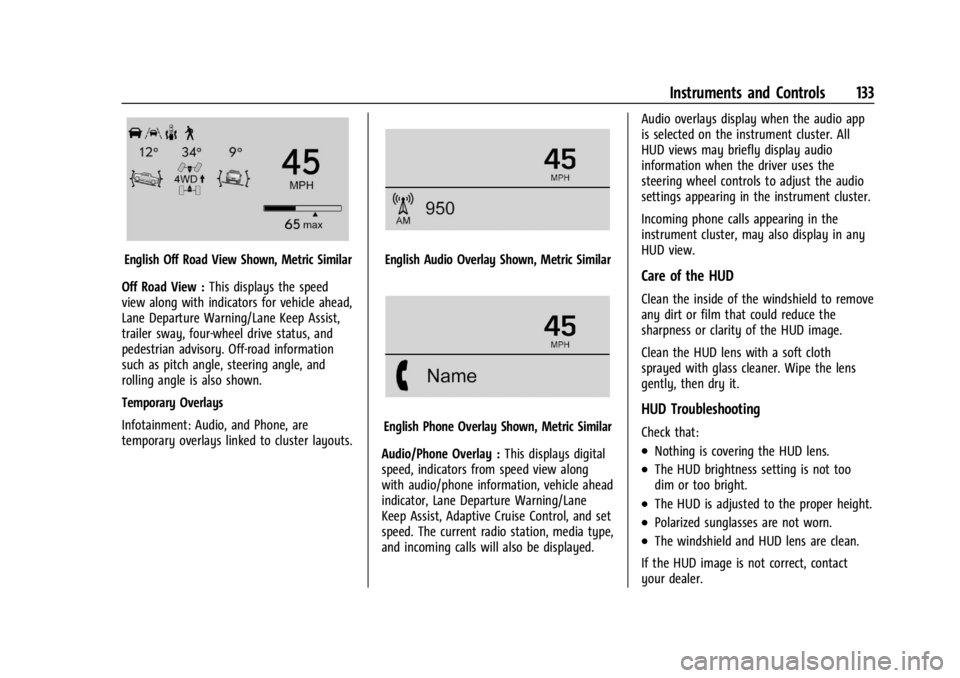
English Off Road View Shown, Metric Similar
Off Road View : This displays the speed
view along with indicators for vehicle ahead,
Lane Departure Warning/Lane Keep Assist,
trailer sway, four-wheel drive status, and
pedestrian advisory. Off-road information
such as pitch angle, steering angle, and
rolling angle is also shown.
Temporary Overlays
Infotainment: Audio, and Phone, are
temporary overlays linked to cluster layouts.English Audio Overlay Shown, Metric Similar
English Phone Overlay Shown, Metric Similar
Audio/Phone Overlay : This displays digital
speed, indicators from speed view along
with audio/phone information, vehicle ahead
indicator, Lane Departure Warning/Lane
Keep Assist, Adaptive Cruise Control, and set
speed. The current radio station, media type,
and incoming calls will also be displayed. Audio overlays display when the audio app
is selected on the instrument cluster. All
HUD views may briefly display audio
information when the driver uses the
steering wheel controls to adjust the audio
settings appearing in the instrument cluster.
Incoming phone calls appearing in the
instrument cluster, may also display in any
HUD view.
Care of the HUD
Clean the inside of the windshield to remove
any dirt or film that could reduce the
sharpness or clarity of the HUD image.
Clean the HUD lens with a soft cloth
sprayed with glass cleaner. Wipe the lens
gently, then dry it.
HUD Troubleshooting
Check that:
.Nothing is covering the HUD lens.
.The HUD brightness setting is not too
dim or too bright.
.The HUD is adjusted to the proper height.
.Polarized sunglasses are not worn.
.The windshield and HUD lens are clean.
If the HUD image is not correct, contact
your dealer.
Page 136 of 433
Chevrolet Silverado 2500 HD/3500 HD Owner Manual (GMNA-Localizing-U.
S./Canada/Mexico-16908339) - 2024 - CRC - 12/15/22
134 Instruments and Controls
The windshield is part of the HUD system.
SeeWindshield Replacement 0326.
Vehicle Messages
Messages displayed on the Driver
Information Center (DIC) indicate the status
of the vehicle or some action that may be
needed to correct a condition. Multiple
messages may appear one after another.
The messages that do not require
immediate action can be acknowledged and
cleared by pressing the thumbwheel. The
messages that require immediate action
cannot be cleared until that action is
performed.
All messages should be taken seriously;
clearing the message does not correct the
problem.
If a SERVICE message appears, see your
dealer.
Follow the instructions given in the
messages. The system displays messages
regarding the following topics:
.Service Messages
.Fluid Levels
.Vehicle Security
.Brakes
.Steering
.Ride Control Systems
.Advanced Driver Assistance Systems
.Cruise Control
.Lighting and Bulb Replacement
.Wiper/Washer Systems
.Doors and Windows
.Seat Belts
.Airbag Systems
.Engine and Transmission
.Tire Pressure
.Battery
Engine Power Messages
REDUCED ACCELERATION DRIVE
WITH CARE
This message displays when the vehicle's
propulsion power is reduced. A reduction in
propulsion power can affect the vehicle's
ability to accelerate. If this message is on,
but there is no observed reduction in
performance, proceed to your destination.
Under certain conditions the performance
may be reduced the next time the vehicle is
driven. The vehicle may be driven while this
message is on, but maximum acceleration
and speed may be reduced. Anytime this message stays on, or displays repeatedly,
the vehicle should be taken to your dealer
for service as soon as possible.
Under certain operating conditions,
propulsion will be disabled. Try restarting
after the ignition has been off for
two minutes.
Vehicle Speed Messages
SPEED LIMITED TO XXX KM/H (MPH)
This message shows that the vehicle speed
has been limited to the speed displayed. The
limited speed is a protection for various
propulsion and vehicle systems, such as
lubrication, thermal, brakes, suspension,
Teen Driver if equipped, or tires.
(If equipped with a diesel engine, see the
Duramax Diesel supplement.)
–For Diesel
Universal Remote System
See Radio Frequency Statement 0407.
Page 140 of 433

Chevrolet Silverado 2500 HD/3500 HD Owner Manual (GMNA-Localizing-U.
S./Canada/Mexico-16908339) - 2024 - CRC - 12/5/22
138 Lighting
Lighting
Exterior Lighting
Exterior Lamp Controls . . . . . . . . . . . . . . . . 138
Exterior Lamps Off Reminder . . . . . . . . . . 140
Headlamp High/Low-Beam Changer . . . 140
Flash-to-Pass . . . . . . . . . . . . . . . . . . . . . . . . . . . 140
Daytime Running Lamps (DRL) . . . . . . . . 140
Automatic Headlamp System . . . . . . . . . . 140
Hazard Warning Flashers . . . . . . . . . . . . . . . 141
Turn and Lane-Change Signals . . . . . . . . . 142
Fog Lamps . . . . . . . . . . . . . . . . . . . . . . . . . . . . . 142
Task Lighting . . . . . . . . . . . . . . . . . . . . . . . . . . 143
Auxiliary Roof-Mounted Lamp . . . . . . . . . 143
Exterior Cargo Lamps . . . . . . . . . . . . . . . . . . 144
Interior Lighting
Instrument Panel IlluminationControl . . . . . . . . . . . . . . . . . . . . . . . . . . . . . . 144
Dome Lamps . . . . . . . . . . . . . . . . . . . . . . . . . . 145
Reading Lamps . . . . . . . . . . . . . . . . . . . . . . . . 145
Lighting Features
Entry Lighting . . . . . . . . . . . . . . . . . . . . . . . . . 146
Exit Lighting . . . . . . . . . . . . . . . . . . . . . . . . . . . 146
Battery Load Management . . . . . . . . . . . . 146
Battery Power Protection . . . . . . . . . . . . . . 147
Exterior Lighting Battery Saver . . . . . . . . 147
Exterior Lighting
Exterior Lamp Controls
The exterior lamp controls are on the
instrument panel to the left of the steering
wheel.
O: Turns off the automatic headlamps and
Daytime Running Lamps (DRL). Turn the
headlamp control to
Oagain to turn the
automatic headlamps or DRL back on.
For vehicles first sold in Canada, off will only
work when the vehicle is in P (Park). AUTO :
Automatically turns on the
headlamps, parking lamps, taillamps,
instrument panel lights, roof marker lamps
(if equipped), front/rear sidemarker lamps,
and license plate lamps.
;: Turns on all lamps, except the
headlamps and fog lamps, if equipped.
For some trim levels and trucks first sold in
Canada, the headlamps may turn on with
the parking lamps.
2: Turns on the headlamps, the parking
lamps, taillamps, instrument panel lights,
roof marker lamps (if equipped), front/rear
sidemarker lamps, and license plate lamps.
#: If equipped, turns on the fog lamps.
See Fog Lamps 0142.
IntelliBeam System
If equipped, this system turns the vehicle
high-beam headlamps on and off according
to surrounding traffic conditions.
The system turns the high-beam headlamps
on when it is dark enough and there is no
other traffic present.
Page 150 of 433

Chevrolet Silverado 2500 HD/3500 HD Owner Manual (GMNA-Localizing-U.
S./Canada/Mexico-16908339) - 2024 - CRC - 12/5/22
148 Infotainment System
Infotainment System
Introduction
Introduction . . . . . . . . . . . . . . . . . . . . . . . . . . . 148
Overview (Base Radio) . . . . . . . . . . . . . . . . . 149
Overview (Uplevel Radio) . . . . . . . . . . . . . . 150
Steering Wheel Controls . . . . . . . . . . . . . . . 151
Using the System . . . . . . . . . . . . . . . . . . . . . . 152
Software Updates . . . . . . . . . . . . . . . . . . . . . . 154
Radio
AM-FM Radio (Base Radio) . . . . . . . . . . . . . 154
AM-FM Radio (Uplevel Radio) . . . . . . . . . . 156
Satellite Radio . . . . . . . . . . . . . . . . . . . . . . . . . 157
Radio Reception . . . . . . . . . . . . . . . . . . . . . . . . 157
Multi-Band Antenna . . . . . . . . . . . . . . . . . . . 158
Audio Players
Avoiding Untrusted Media Devices . . . . . 158
USB Port . . . . . . . . . . . . . . . . . . . . . . . . . . . . . . . 158
Bluetooth Audio (Base Radio) . . . . . . . . . . 158
Bluetooth Audio (Uplevel Radio) . . . . . . . 159
Navigation
Using the Navigation System . . . . . . . . . 160
Maps . . . . . . . . . . . . . . . . . . . . . . . . . . . . . . . . . . 160
Navigation Symbols . . . . . . . . . . . . . . . . . . . . 161
Destination . . . . . . . . . . . . . . . . . . . . . . . . . . . . 161
Global Positioning System (GPS) . . . . . . . 162
Vehicle Positioning . . . . . . . . . . . . . . . . . . . . 162
Problems with Route Guidance . . . . . . . . 163
Voice Recognition
Voice Recognition . . . . . . . . . . . . . . . . . . . . . . 163
Phone
Bluetooth (Overview) . . . . . . . . . . . . . . . . . . 165
Bluetooth (Pairing and Using a Phonefor Uplevel Radio) . . . . . . . . . . . . . . . . . . . 165
Bluetooth (Pairing and Using a Phone for Base Radio) . . . . . . . . . . . . . . . . . . . . . . 169
Apple CarPlay and Android Auto (Base Radio) . . . . . . . . . . . . . . . . . . . . . . . . . . . . . . . . 172
Apple CarPlay and Android Auto (Uplevel Radio) . . . . . . . . . . . . . . . . . . . . . . . 174
Settings
Settings (Base Radio) . . . . . . . . . . . . . . . . . . 175
Settings (Uplevel Radio) . . . . . . . . . . . . . . . . 177
Teen Driver . . . . . . . . . . . . . . . . . . . . . . . . . . . . 179
Trademarks and License Agreements
Trademarks and LicenseAgreements . . . . . . . . . . . . . . . . . . . . . . . . . . 182
Introduction
Read the following pages to become familiar
with the features.
{Warning
Taking your eyes off the road for too
long or too often while using any
infotainment feature can cause a crash.
You or others could be injured or killed.
Do not give extended attention to
infotainment tasks while driving. Limit
your glances at the vehicle displays and
focus your attention on driving. Use voice
commands whenever possible.
The infotainment system has built-in
features intended to help avoid distraction
by disabling some features when driving.
These features may gray out when they are
unavailable. Many infotainment features are
also available through the instrument cluster
and steering wheel controls.
Before driving:
.Become familiar with the operation,
center stack controls, steering wheel
controls, and infotainment display.
Page 151 of 433

Chevrolet Silverado 2500 HD/3500 HD Owner Manual (GMNA-Localizing-U.
S./Canada/Mexico-16908339) - 2024 - CRC - 12/5/22
Infotainment System 149
.Set up the audio by presetting favorite
stations, setting the tone, and adjusting
the speakers.
.Set up phone numbers in advance so they
can be called easily by pressing a single
control or by using a single voice
command.
See Distracted Driving 0193.
Active Noise Cancellation (ANC)
If equipped, ANC reduces engine noise in the
vehicle’s interior. ANC requires the
factory-installed audio system, radio,
speakers, amplifier (if equipped), induction
system, and exhaust system to work
properly. Deactivation is required by your
dealer if related aftermarket equipment is
installed.
Overview (Base Radio)
Infotainment System
The infotainment system is controlled by using the infotainment display, controls on the
center stack, steering wheel controls, and voice recognition, if available.
1.{(Home Page)
.Press to go to the Home Page. See
“Home Page” later in this section.
.Press to exit Android Auto or Apple
CarPlay. To enter back into Android
Auto or Apple CarPlay, press and
hold. SeeApple CarPlay and
Android Auto (Base Radio) 0172 or
Apple CarPlay and Android Auto
(Uplevel Radio) 0174.
2.7
.Radio: Press and release to go to
the previous station or channel.
Press and hold to fast seek the
next strongest previous station or
channel. See AM-FM Radio (Base
Radio) 0154 orAM-FM Radio
(Uplevel Radio) 0156.
Page 152 of 433
Chevrolet Silverado 2500 HD/3500 HD Owner Manual (GMNA-Localizing-U.
S./Canada/Mexico-16908339) - 2024 - CRC - 12/5/22
150 Infotainment System
.USB/Bluetooth: Press to seek to
the beginning of the current or
previous track. Press and hold to
quickly reverse through a track.
Release to return to playing speed.
SeeUSB Port 0158 orBluetooth
Audio (Base Radio) 0158 or
Bluetooth Audio (Uplevel Radio)
0 159.
3.O(Power)
.Press to turn the power on.
.Press to mute/unmute the system
when on.
.Press and hold to display the
power off screen or the option to
display the power off screen.
.Turn to decrease or increase the
volume.
4.6
.Radio: Press and release to go to
the next station or channel. Press
and hold to fast seek the next
strongest station or channel.
.USB/Bluetooth: Press to seek the
next track. Press and hold to fast
forward through a track. Release to
return to playing speed. See USB
Port 0158 orBluetooth Audio
(Base Radio) 0158 orBluetooth
Audio (Uplevel Radio) 0159.
5.v
.Press and release to access the
phone display or answer an
incoming call.
Home Page
The Home Page is where vehicle application
icons are accessed. Some applications are
disabled when the vehicle is moving.
Swipe left or right across the display to
access the pages of icons.
Managing Home Page Icons 1. Touch and hold any of the Home Page icons to enter edit mode.
2. Continue holding the icon and drag it to the desired position.
3. Release your finger to drop the icon in the desired position. Move an Icon to Another Page
1. Drag the icon to the edge of the display toward the desired page.
2. Continue dragging and dropping application icons as desired.
Overview (Uplevel Radio)
Infotainment System
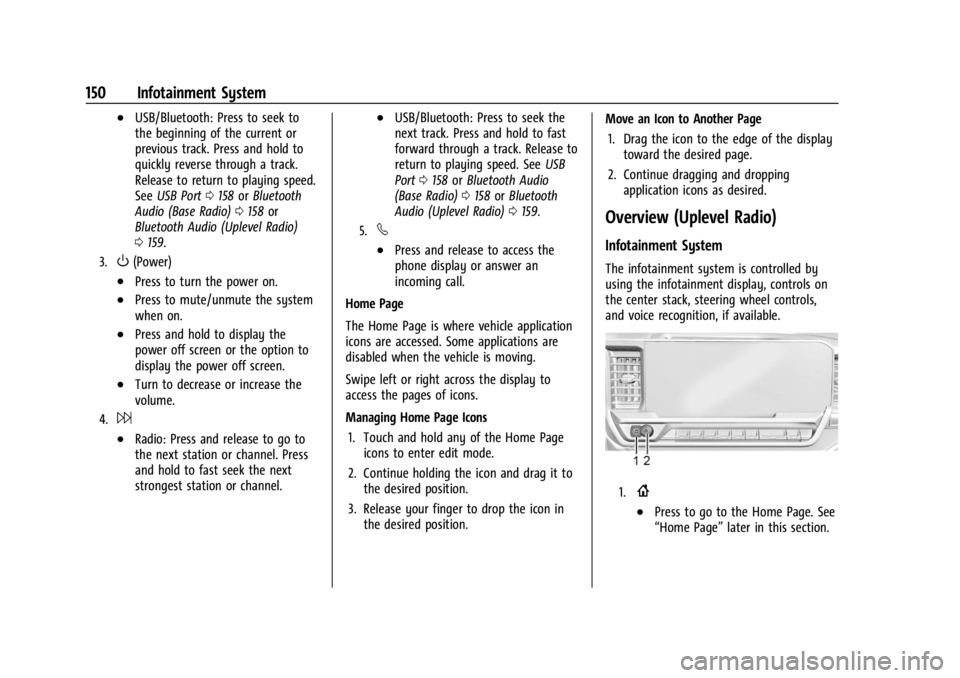
The infotainment system is controlled by
using the infotainment display, controls on
the center stack, steering wheel controls,
and voice recognition, if available.
1.{
.Press to go to the Home Page. See
“Home Page” later in this section.