2024 CADILLAC XT4 eco
[x] Cancel search: ecoPage 70 of 373

Cadillac XT4 Owner Manual (GMNA-Localizing-U.S./Canada/Mexico-
17180837) - 2024 - CRC - 2/28/23
Seats and Restraints 69
Wherever a child restraint is installed, be
sure to follow the instructions that came
with the child restraint and secure the child
restraint properly.
Keep in mind that an unsecured child
restraint can move around in a collision or
sudden stop and injure people in the vehicle.
Be sure to properly secure any child
restraint in the vehicle—even when no
child is in it.
Lower Anchors and Tethers for
Children (LATCH System)
The LATCH system secures a child restraint
during driving or in a crash. LATCH
attachments on the child restraint are used
to attach the child restraint to the anchors
in the vehicle. This system is designed to
make installation of a child restraint easier. In order to use the LATCH system in your
vehicle, you need a child restraint that has
LATCH attachments. LATCH-compatible
rear-facing and forward-facing child seats can
be properly installed using either the LATCH
anchors or the vehicle’s seat belts. Do not
use both the seat belts and the LATCH
anchorage system to secure a rear-facing or
forward-facing child restraint.
Booster seats use the vehicle’s seat belts to
secure the child and the booster seat. If the
manufacturer recommends that the booster
seat be secured with the LATCH system, this
can be done as long as the booster seat can
be positioned properly and there is no
interference with the proper positioning of
the lap-shoulder belt on the child.
Make sure to follow the instructions that
came with the child restraint, and also the
instructions in this manual.
When installing a child restraint with a top
tether, you must also use either the lower
anchors or the seat belts to properly secure
the child restraint. A child restraint must
never be installed using only the top tether
and anchor.
For a forward-facing 5-pt harness child
restraint where the combined weight of the
child and restraint are up to 29.5 kg (65 lb),
use either the lower LATCH anchorages with
the top tether anchorage, or the seat belt
with the top tether anchorage. Where the
combined weight of the child and restraint
are greater than 29.5 kg (65 lb), use the seat
belt with the top tether anchorage only.
Page 71 of 373

Cadillac XT4 Owner Manual (GMNA-Localizing-U.S./Canada/Mexico-
17180837) - 2024 - CRC - 2/28/23
70 Seats and Restraints
Recommended Methods for Attaching Child Restraints
Restraint Type Combined Weight ofthe Child + Child
Restraint Use Only Approved Attachment Methods Shown with an X
LATCH
–Lower
Anchors Only Seat Belt Only LATCH
–Lower
Anchors and Top
Tether Anchor Seat Belt and Top
Tether Anchor
Rear-Facing Child
Restraint Up to 29.5 kg (65 lb)
X X
Rear-Facing Child
Restraint Greater than
29.5 kg (65 lb) X
Forward-Facing Child
Restraint Up to 29.5 kg (65 lb)
X X
Forward-Facing Child
Restraint Greater than
29.5 kg (65 lb) X
See Securing Child Restraints (With the Seat
Belt in the Rear Seat) 076 or
Securing Child Restraints (With the Seat Belt
in the Front Seat) 078. Child restraints built after March 2014 are
labeled with the maximum child weight,
with which the LATCH system can be used
for installing the child restraint.
The following explains how to attach a child
restraint with these attachments in the
vehicle. Not all vehicle seating positions have lower
anchors. In this case, the seat belt must be
used (with top tether where available) to
secure the child restraint. See
Securing Child
Restraints (With the Seat Belt in the Rear
Seat) 076 orSecuring Child Restraints (With
the Seat Belt in the Front Seat) 078.
Page 75 of 373
Cadillac XT4 Owner Manual (GMNA-Localizing-U.S./Canada/Mexico-
17180837) - 2024 - CRC - 2/28/23
74 Seats and Restraints
1.3. Attach and tighten the lowerattachments on the child restraint
to the lower anchors.
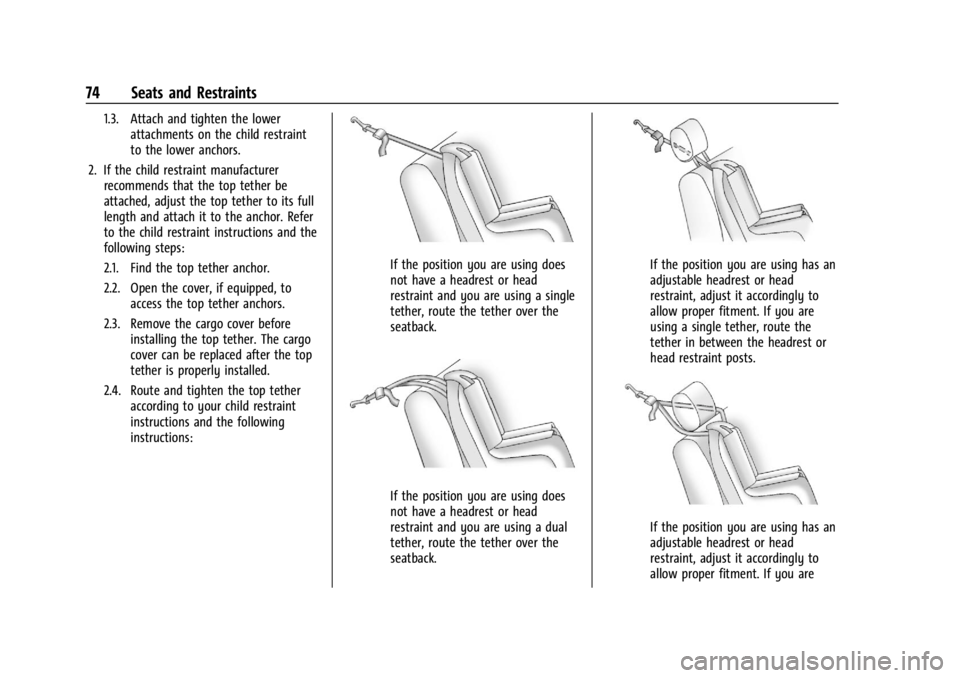
2. If the child restraint manufacturer recommends that the top tether be
attached, adjust the top tether to its full
length and attach it to the anchor. Refer
to the child restraint instructions and the
following steps:
2.1. Find the top tether anchor.
2.2. Open the cover, if equipped, to
access the top tether anchors.
2.3. Remove the cargo cover before installing the top tether. The cargo
cover can be replaced after the top
tether is properly installed.
2.4. Route and tighten the top tether according to your child restraint
instructions and the following
instructions:
If the position you are using does
not have a headrest or head
restraint and you are using a single
tether, route the tether over the
seatback.
If the position you are using does
not have a headrest or head
restraint and you are using a dual
tether, route the tether over the
seatback.
If the position you are using has an
adjustable headrest or head
restraint, adjust it accordingly to
allow proper fitment. If you are
using a single tether, route the
tether in between the headrest or
head restraint posts.
If the position you are using has an
adjustable headrest or head
restraint, adjust it accordingly to
allow proper fitment. If you are
Page 76 of 373

Cadillac XT4 Owner Manual (GMNA-Localizing-U.S./Canada/Mexico-
17180837) - 2024 - CRC - 2/28/23
Seats and Restraints 75
using a dual tether, route the
tether around the headrest or head
restraint posts.
If the child restraint is installed next
to a center seat, make sure the top
tether does not interfere with the
center seating position shoulder
belt/retractor. If it does, find
another suitable seating position to
install the child restraint.
3. Before placing a child in the child restraint, make sure it is securely held in
place. To check, grasp the child restraint
at the LATCH path and attempt to move
it side to side and back and forth. There
should be no more than 2.5 cm (1 in) of
movement for proper installation.
Head Restraint Removal and
Reinstallation
The second row outboard head restraints
can be removed if they interfere with the
proper installation of the child restraint.
To remove the second row head restraint:
1. Partially fold the seatback forward. See Rear Seats 043 for additional
information.
2. Press both buttons on the head restraint posts at the same time, and pull up on
the head restraint.
3. Store the head restraint in a secure place.
4. When the child restraint is removed, reinstall the head restraint before the
seating position is used.
{Warning
With head restraints that are not
installed and adjusted properly, there is a
greater chance that occupants will suffer
a neck/spinal injury in a crash. Do not
(Continued)
Warning (Continued)
drive until the head restraints for all
occupants are installed and adjusted
properly.
To reinstall the head restraint:
1. Insert the head restraint posts into the holes in the top of the seatback. The
notches on the posts should face the
driver side of the vehicle.
2. Push the head restraint down. If necessary, press the height adjustment
release button to further lower the head
restraint. See Head Restraints 035.
Page 93 of 373

Cadillac XT4 Owner Manual (GMNA-Localizing-U.S./Canada/Mexico-
17180837) - 2024 - CRC - 2/28/23
92 Instruments and Controls
{Warning
Wireless charging may affect the
operation of an implanted pacemaker or
other medical devices. If you have one, it
is recommended to consult with your
doctor before using the wireless charging
system.
The vehicle must be on, in accessory mode,
or Retained Accessory Power (RAP) must be
active. The wireless charging feature may
not correctly indicate charging when the
vehicle is in RAP, during a Bluetooth phone
call, or when phone projection (e.g. Apple
CarPlay / Android Auto) is active. See
Retained Accessory Power (RAP) 0179.
The operating temperature is −40 °C (−40 °F)
to 85 °C (185 °F) for the charging system and
0 °C (32 °F) to 35 °C (95 °F) for the phone.
A charging stopped alert may be displayed
on the infotainment screen, if the wireless
charger or smartphone are outside of
normal operating temperature. Charging will
automatically resume when a normal
operating temperature is reached.
{Warning
Remove all objects from the charger
before charging your compatible
smartphone. Objects, such as coins, keys,
rings, paper clips, or cards, between the
smartphone and charger may become
very hot.
On the rare occasion that the charging
system does not detect an object, and
the object gets wedged between the
smartphone and charger, remove the
smartphone and allow the object to cool
before removing it from the charger, to
prevent burns.
To charge a compatible smartphone:
1. Confirm the smartphone is capable of wireless charging.
2. Remove all objects from the charging pad. The system may not charge if there
are any objects between the smartphone
and charger.
3. Place the smartphone face up against the rear of the charger.
To maximize the charge rate, ensure the
smartphone is fully seated and centered
in the holder with nothing under it.
A thick smartphone case may prevent
the charger from working, or reduce the
charging performance. See your dealer
for additional information.
4. A green
]will appear on the
infotainment display, next to the phone
icon. This indicates that the smartphone
is detected.
5. If a smartphone is placed on the charger and
]turns off or turns yellow, remove
the smartphone and any objects from
the pad. Turn the smartphone
180 degrees and wait a few seconds
before placing/aligning it on the pad
again.
Page 94 of 373
![CADILLAC XT4 2024 Owners Manual Cadillac XT4 Owner Manual (GMNA-Localizing-U.S./Canada/Mexico-
17180837) - 2024 - CRC - 2/28/23
Instruments and Controls 93
6. If a smartphone is placed on the chargerand
]turns red, the charger and/o](/manual-img/23/58689/w960_58689-93.png "CADILLAC XT4 2024 Owners Manual Cadillac XT4 Owner Manual (GMNA-Localizing-U.S./Canada/Mexico-
17180837) - 2024 - CRC - 2/28/23
Instruments and Controls 93
6. If a smartphone is placed on the chargerand
]turns red, the charger and/o")
Cadillac XT4 Owner Manual (GMNA-Localizing-U.S./Canada/Mexico-
17180837) - 2024 - CRC - 2/28/23
Instruments and Controls 93
6. If a smartphone is placed on the chargerand
]turns red, the charger and/or the
smartphone is overheated. Remove the
smartphone and any objects from the
charger in order to cool the system.
The smartphone may become warm during
charging. This is normal. In warmer
temperatures, the speed of charging may be
reduced.
For vehicles with wireless phone projection,
the smartphone may overheat during
wireless charging. The smartphone may slow
down, stop charging, or shut down to
protect the battery. The phone may need to
be removed from its case to prevent
overheating. The
]may flash while the
phone is cooling down enough for wireless
charging to automatically resume. This is
normal. Individual phone performance
may vary.
Software Acknowledgements
Certain Wireless Charging Module product
from LG Electronics, Inc. ("LGE") contains the
open source software detailed below. Refer
to the indicated open source licenses (as are
included following this notice) for the terms
and conditions of their use. OSS Notice Information
To obtain the source code that is contained
in this product, please visit
https://opensource.lge.com. In addition to
the source code, all referred license terms,
warranty disclaimers and copyright notices
are available for download. LG Electronics
will also provide open source code to you
on CD-ROM for a charge covering the cost of
performing such distribution (such as the
cost of media, shipping, and handling) upon
email request to [email protected]. This
offer is valid for three (3) years from the
date on which you purchased the product.
Freescale-WCT Library
Copyright (c) 2012-2014 Freescale
Semiconductor, Inc. All rights reserved.
Redistribution and use in source and binary
forms, with or without modification, are
permitted provided that the following
conditions are met:
1. Redistributions of source code must retain the above copyright notice, this
list of conditions and the following
disclaimer.
2. Redistributions in binary form must reproduce the above copyright notice,
this list of conditions and the following disclaimer in the documentation and/or
other materials provided with the
distribution.
3. Neither the name of the copyright holder nor the names of its contributors may be
used to endorse or promote products
derived from this software without
specific prior written permission.
THIS SOFTWARE IS PROVIDED BY THE
COPYRIGHT HOLDERS AND CONTRIBUTORS
"AS IS" AND ANY EXPRESS OR IMPLIED
WARRANTIES, INCLUDING, BUT NOT LIMITED
TO, THE IMPLIED WARRANTIES OF
MERCHANTABILITY AND FITNESS FOR A
PARTICULAR PURPOSE ARE DISCLAIMED. IN
NO EVENT SHALL THE COPYRIGHT HOLDER
OR CONTRIBUTORS BE LIABLE FOR ANY
DIRECT, INDIRECT, INCIDENTAL, SPECIAL,
EXEMPLARY, OR CONSEQUENTIAL DAMAGES
(INCLUDING, BUT NOT LIMITED TO,
PROCUREMENT OF SUBSTITUTE GOODS OR
SERVICES; LOSS OF USE, DATA, OR PROFITS;
OR BUSINESS INTERRUPTION) HOWEVER
CAUSED AND ON ANY THEORY OF LIABILITY,
WHETHER IN CONTRACT, STRICT LIABILITY, OR
TORT (INCLUDING NEGLIGENCE OR
OTHERWISE) ARISING IN ANY WAY OUT OF
THE USE OF THIS SOFTWARE, EVEN IF
ADVISED OF THE POSSIBILITY OF SUCH
DAMAGE.
Page 95 of 373

Cadillac XT4 Owner Manual (GMNA-Localizing-U.S./Canada/Mexico-
17180837) - 2024 - CRC - 2/28/23
94 Instruments and Controls
Warning Lights, Gauges, and
Indicators
Warning lights and gauges can signal that
something is wrong before it becomes
serious enough to cause an expensive repair
or replacement. Paying attention to the
warning lights and gauges could prevent
injury.
Some warning lights come on briefly when
the engine is started to indicate they are
working. When one of the warning lights
comes on and stays on while driving,
or when one of the gauges shows there
may be a problem, check the section that
explains what to do. Waiting to do repairs
can be costly and even dangerous.
Instrument Cluster
English Sport Mode Gauge View Shown, Others and Metric Similar
1.Driver Information Center (DIC) 0111
2. Engine Oil Pressure Gauge 098
3. Fuel Gauge 097
4. Speedometer 096
5. Tachometer 096
6. Engine Coolant Temperature Gauge
099
7. Engine Oil Temperature Gauge 099Reconfigurable Instrument Cluster
The instrument cluster display layout can be
changed. There are two display
configurations to choose from based on the
driver mode selected: Tour, and Sport. To
Page 96 of 373

Cadillac XT4 Owner Manual (GMNA-Localizing-U.S./Canada/Mexico-
17180837) - 2024 - CRC - 2/28/23
Instruments and Controls 95
see how to change the Driver Mode, see
“Mode Activation”underDriver Mode
Control 0190.
.Tour configuration displays the
speedometer in the center of the display.
The fuel gauge is located on the right of
the speedometer and the tachometer is
on the left of it. There are two DIC areas
on the left and right of the display.
.Sport configuration displays the
tachometer in the center of the display.
The gauges are located on the left and
right of the tachometer. The speedometer
is located near the fuel gauge and the
tachometer is above it. There are two DIC
areas on the left and right of the display.
The following are selectable views:
Gauge : Displays information zones to the
left and right of the speedometer.
Map : Displays a navigation map.
Assist : If equipped, displays driver
assistance information in the left
information zone. There is two gauges
located on the bottom of the display.
Clean : Displays no information zones. To change the cluster configuration, touch
Bon the touchscreen to the left of the
instrument cluster. Select the desired option
from the list.
Selecting a different view could hide the
vehicle status that is displayed in the
information zones on the cluster. Once a
view with information zones is selected the
vehicle status that was last selected will
then be displayed. See Driver Information
Center (DIC) 0111 and
Vehicle Status 0113.
Control Panel
There is a touchscreen to the left of the
instrument cluster. Use it for the following: Instrument Cluster Layout
Touch
Bto view and select the available
instrument cluster layouts.
Trip Information
Touch
ato view distance and average fuel
economy for the current trip. View other
trip information by swiping right or left on
the touchscreen.
Touch and hold to reset the current trip.
Lane Keep Assist (LKA)
If equipped, touch
Ato select the
available Lane Keep Assist (LKA) options. See
Lane Keep Assist (LKA) 0245.
Speed Limiter
If equipped, touch
sto select the available
speed limiter options. See Speed Limiter
0 194.
Headlights
Touch
Pto select the available headlight
options. See Exterior Lamp Controls 0122.
Head-Up Display (HUD)
If equipped, touch HUD to select the height
and brightness of the head-up display. See
Head-Up Display (HUD) 0115.