2024 CADILLAC XT4 instrument panel
[x] Cancel search: instrument panelPage 63 of 373

Cadillac XT4 Owner Manual (GMNA-Localizing-U.S./Canada/Mexico-
17180837) - 2024 - CRC - 2/28/23
62 Seats and Restraints
.Front seats, including stitching, seams or
zippers
.Seat belts
.Steering wheel, instrument panel,
overhead console, ceiling trim, or pillar
garnish trim
.Inner door seals, including speakers
Your dealer and the service manual have
information about the location of the airbag
modules and sensors, sensing and diagnostic
module, and airbag wiring along with the
proper replacement procedures.
In addition, the vehicle has a passenger
sensing system for the front outboard
passenger position, which includes sensors
that are part of the passenger seat. The
passenger sensing system may not operate
properly if the original seat trim is replaced
with non-GM covers, upholstery, or trim; or
with GM covers, upholstery, or trim
designed for a different vehicle. Any object,
such as an aftermarket seat heater or a
comfort-enhancing pad or device, installed
under or on top of the seat fabric, could
also interfere with the operation of the
passenger sensing system. This could either
prevent proper deployment of the passenger
airbag(s) or prevent the passenger sensing system from properly turning off the
passenger airbag(s). See
Passenger Sensing
System 058.
If the vehicle has rollover roof-rail airbags,
see Different Size Tires and Wheels 0300
for additional important information.
If the vehicle must be modified because you
have a disability and have questions about
whether the modifications will affect the
vehicle's airbag system, or if you have
questions about whether the airbag system
will be affected if the vehicle is modified for
any other reason, call Customer Assistance.
See Customer Assistance Offices 0342.
Airbag System Check
The airbag system does not need regularly
scheduled maintenance or replacement.
Make sure the airbag readiness light is
working. See Airbag Readiness Light 0101.
Caution
If an airbag covering is damaged, opened,
or broken, the airbag may not work
properly. Do not open or break the airbag
coverings. If there are any opened or
broken airbag coverings, have the airbag
(Continued)
Caution (Continued)
covering and/or airbag module replaced.
For the location of the airbags, see Where
Are the Airbags? 054. See your dealer
for service.
Replacing Airbag System Parts
after a Crash
{Warning
A crash can damage the airbag systems
in the vehicle. A damaged airbag system
may not properly protect you and your
passenger(s) in a crash, resulting in
serious injury or even death. To help
make sure the airbag systems are
working properly after a crash, have
them inspected and any necessary
replacements made as soon as possible.
If an airbag inflates, you will need to
replace airbag system parts. See your dealer
for service.
Page 96 of 373

Cadillac XT4 Owner Manual (GMNA-Localizing-U.S./Canada/Mexico-
17180837) - 2024 - CRC - 2/28/23
Instruments and Controls 95
see how to change the Driver Mode, see
“Mode Activation”underDriver Mode
Control 0190.
.Tour configuration displays the
speedometer in the center of the display.
The fuel gauge is located on the right of
the speedometer and the tachometer is
on the left of it. There are two DIC areas
on the left and right of the display.
.Sport configuration displays the
tachometer in the center of the display.
The gauges are located on the left and
right of the tachometer. The speedometer
is located near the fuel gauge and the
tachometer is above it. There are two DIC
areas on the left and right of the display.
The following are selectable views:
Gauge : Displays information zones to the
left and right of the speedometer.
Map : Displays a navigation map.
Assist : If equipped, displays driver
assistance information in the left
information zone. There is two gauges
located on the bottom of the display.
Clean : Displays no information zones. To change the cluster configuration, touch
Bon the touchscreen to the left of the
instrument cluster. Select the desired option
from the list.
Selecting a different view could hide the
vehicle status that is displayed in the
information zones on the cluster. Once a
view with information zones is selected the
vehicle status that was last selected will
then be displayed. See Driver Information
Center (DIC) 0111 and
Vehicle Status 0113.
Control Panel
There is a touchscreen to the left of the
instrument cluster. Use it for the following: Instrument Cluster Layout
Touch
Bto view and select the available
instrument cluster layouts.
Trip Information
Touch
ato view distance and average fuel
economy for the current trip. View other
trip information by swiping right or left on
the touchscreen.
Touch and hold to reset the current trip.
Lane Keep Assist (LKA)
If equipped, touch
Ato select the
available Lane Keep Assist (LKA) options. See
Lane Keep Assist (LKA) 0245.
Speed Limiter
If equipped, touch
sto select the available
speed limiter options. See Speed Limiter
0 194.
Headlights
Touch
Pto select the available headlight
options. See Exterior Lamp Controls 0122.
Head-Up Display (HUD)
If equipped, touch HUD to select the height
and brightness of the head-up display. See
Head-Up Display (HUD) 0115.
Page 97 of 373

Cadillac XT4 Owner Manual (GMNA-Localizing-U.S./Canada/Mexico-
17180837) - 2024 - CRC - 2/28/23
96 Instruments and Controls
Display Settings
The following options can be turned on or
off using the infotainment display. See
Settings0150.
Speed Information
Choose which speed-related information is
shown in the instrument cluster:
Digital Speedometer : The speedometer
shows how fast the vehicle is moving in
either kilometers per hour (km/h) or miles
per hour (mph). The speedometer cannot be
reset.
Speed Sign : Shows sign information, which
comes from a roadway database in the
onboard navigation, if equipped. The sign
will show “− −”when there is no detected
speed limit or the system is unavailable.
Speed Warning Color : The overspeeding
area within the analog gauge is shown red.
In digital speedometer, the digital number is
shown red.
Turn-by-Turn Graphics
When on, you will see turn-by-turn
navigation graphics in the instrument cluster
when a route is active. These graphics
provide visual directions for upcoming
maneuvers. Traffic Sign Memory
Choose which Traffic Sign Memory
information is shown in the instrument
cluster:
Reset Traffic Signs :
Currently displayed
traffic signs will be cleared, and newly
detected signs will be displayed. Touch
RESET while this display is active to reset.
Upon successful reset, a message will
display on the infotainment screen.
Traffic Sign Detected Alert : When on, you
will receive alerts when your vehicle detects
traffic signs. You will hear a chime and see
the sign in the instrument cluster.
Show in Info Zone : When on, you will see
recently detected traffic signs displayed in
the info zone of the instrument cluster.
Signs may include speed limits, warning
signs, school zones, and more. Select OFF if
you don't want to see road signs.
Speedometer
The speedometer shows the vehicle speed in
either kilometers per hour (km/h) or miles
per hour (mph).
Odometer
The odometer shows how far the vehicle has
been driven, in either kilometers or miles.
Trip Odometer
The trip odometer shows how far the
vehicle has been driven since the trip
odometer was last reset.
The trip odometer is accessed and reset
through the control panel to the left of the
instrument cluster. See Instrument Cluster
0 94.
Tachometer
The tachometer displays the engine speed in
revolutions per minute (rpm).
Page 104 of 373

Cadillac XT4 Owner Manual (GMNA-Localizing-U.S./Canada/Mexico-
17180837) - 2024 - CRC - 2/28/23
Instruments and Controls 103
Caution (Continued)
run smoothly. This could lead to costly
repairs that might not be covered by the
vehicle warranty.
Caution
Modifications to the engine, transmission,
exhaust, intake, or fuel system, or the
use of replacement tires that do not
meet the original tire specifications, can
cause this light to come on. This could
lead to costly repairs not covered by the
vehicle warranty. This could also affect
the vehicle’s ability to pass an Emissions
Inspection/Maintenance test. See
Accessories and Modifications0261.
If the light is flashing : A malfunction has
been detected that could damage the
emission control system and increase vehicle
emissions. Diagnosis and service may be
required.
To help prevent damage, reduce vehicle
speed and avoid hard accelerations and
uphill grades. If towing a trailer, reduce the
amount of cargo being hauled as soon as
possible. If the light continues to flash, find a safe
place to park. Turn the vehicle off and wait
at least 10 seconds before restarting the
engine. If the light is still flashing, follow
the previous guidelines and see your dealer
for service as soon as possible.
If the light is on steady :
A malfunction has
been detected. Diagnosis and service may be
required.
Check the following:
.If fuel has been added to the vehicle
using the capless funnel adapter, make
sure that it has been removed. See
“Filling the Tank with a Portable Gas Can”
under Filling the Tank 0248. The
diagnostic system can detect if the
adapter has been left installed in the
vehicle, allowing fuel to evaporate into
the atmosphere. A few driving trips with
the adapter removed may turn off the
light.
.Poor fuel quality can cause inefficient
engine operation and poor driveability,
which may go away once the engine is
warmed up. If this occurs, change the fuel
brand. It may require at least one full
tank of the proper fuel to turn the light
off. See Recommended Fuel 0247.
If the light remains on, see your dealer.
Emissions Inspection and Maintenance
Programs
If the vehicle requires an Emissions
Inspection/Maintenance test, the test
equipment will likely connect to the
vehicle's Data Link Connector (DLC).
The DLC is under the instrument panel to
the left of the steering wheel. Connecting
devices that are not used to perform an
Emissions Inspection/Maintenance test or to
service the vehicle may affect vehicle
operation. See Add-On Electrical Equipment
0 259. See your dealer if assistance is
needed.
The vehicle may not pass inspection if:
.The light is on when the engine is
running.
.The light does not come on when the
ignition is on while the engine is off.
Page 112 of 373

Cadillac XT4 Owner Manual (GMNA-Localizing-U.S./Canada/Mexico-
17180837) - 2024 - CRC - 2/28/23
Instruments and Controls 111
Cruise Control Light
The cruise control light is white when the
cruise control is on and ready, and turns
green when the cruise control is set and
active.
SeeCruise Control 0192.
Adaptive Cruise Control Light
If equipped, this light is white when the
Adaptive Cruise Control (ACC) is on and
ready, and turns green when the ACC is set
and active. Curve Speed Control Light
If equipped, this light may illuminate green
when ACC is actively controlling the vehicle
speed and detects a sharp curve on the road
ahead.
ACC automatically slows the vehicle down
while navigating the curve and may increase
speed out of the curve, but will not exceed
the set speed.
See
Adaptive Cruise Control (Advanced)
0 196.
Super Cruise Light
If equipped, this light comes on to show the
status of Super Cruise. See Super Cruise
0 206.
Door Ajar Light
This light comes on when a door is open or
not securely latched. Before driving, check
that all doors are properly closed.
Information Displays
Driver Information Center (DIC)
The DIC is displayed in the instrument
cluster. It shows the status of many vehicle
systems.
DIC information is broken down into three
main zones:
Control Panel : A touchscreen display to left
of the instrument cluster.
Left Zone : Displays on the instrument
cluster to the left of the speedometer.
Right Zone : Displays on the instrument
cluster to the right of the speedometer.
Page 113 of 373

Cadillac XT4 Owner Manual (GMNA-Localizing-U.S./Canada/Mexico-
17180837) - 2024 - CRC - 2/28/23
112 Instruments and Controls
yorz:Use the thumbwheel to scroll to
the previous or next selection.
V: Press the thumbwheel to open a menu
or select a menu item. Press and hold to
reset certain displays.
DIC Information Display Options
Select which info display to view by
selecting Add to Driver Display in the
Vehicle Status on the infotainment display.
See Settings 0150 or
Vehicle Status 0113.
DIC Information Displays
The following is the list of all possible DIC
information displays and their locations.
Some of the information displays may not
be available for your particular vehicle.
Control Panel
Trip 1 or Trip 2 and Average Fuel
Economy : The Trip display shows the
current distance traveled, in either
kilometers (km) or miles (mi), since the trip
odometer was last reset. To reset the
current trip, touch and hold the touchscreen
display when trip odometer is displayed.
The Average Fuel Economy display shows
the approximate average liters per
100 kilometers (L/100 km), kilometers per
liter (km/L), or miles per gallon (mpg). This
number is calculated based on the number
of L/100 km (mpg) or km/L recorded since
the last time this menu item was reset. This
number reflects only the approximate
average fuel economy that the vehicle has
right now, and will change as driving
conditions change. The Average Fuel
Economy can be reset along with the trip
odometer by touching and holding the
touchscreen display when trip odometer is
displayed. Left Zone
Time/Date :
Displays current date and time
information.
Auto Lane Change : Displays the status of a
driver-requested lane change when Super
Cruise is active. See Super Cruise0206.
Average Speed : Shows the average speed
of the vehicle in kilometers per hour (km/h)
or miles per hour (mph). This average is
calculated based on the various vehicle
speeds recorded since the last reset of this
value. The average speed can be reset by
touching reset in vehicle status screen.
Timer : This display can be used as a timer.
To start the timer, touch Start while this
display is active. The display will show the
amount of time that has passed since the
timer was last reset. To stop the timer,
touch Stop briefly while this display is active
and the timer is running. To reset the timer
to zero, touch and hold Reset while this
display is active.
Battery Voltage : Shows the current battery
voltage.
Oil Life : Shows an estimate of the oil's
remaining useful life. If REMAINING OIL LIFE
99% is displayed, that means 99% of the
current oil life remains.
Page 116 of 373

Cadillac XT4 Owner Manual (GMNA-Localizing-U.S./Canada/Mexico-
17180837) - 2024 - CRC - 2/28/23
Instruments and Controls 115
When selected, Add to Driver Display may
be chosen in the dialog.
Transmission Fluid Temperature :Displays
the temperature of the automatic
transmission fluid in either degrees Celsius
(°C) or degrees Fahrenheit (°F).
When selected, Add to Driver Display may
be chosen in the dialog.
Oil Pressure : Displays the engine oil
pressure in kPa (kilopascals) or psi (pounds
per square inch).
When selected, Add to Driver Display may
be chosen in the dialog.
Oil Temperature : Displays the current oil
temperature in either degrees Celsius (°C) or
degrees Fahrenheit (°F).
When selected, Add to Driver Display may
be chosen in the dialog.
Engine Hours : Displays the total number of
hours the engine has run.
When selected, Add to Driver Display may
be chosen in the dialog.
Fuel Economy
Fuel Economy : Displays average fuel
economy, the best fuel economy over the
selected distance, and a bar graph showing instantaneous fuel economy. Values are
displayed in liters per 100 kilometers
(L/100 km) or miles per gallon (mpg). This
number reflects only the approximate fuel
economy and changes frequently as driving
conditions change. Only the best score can
be reset.
If the vehicle is equipped with an Active Fuel
Management indicator, the engine operating
mode may be shown in the bottom corner
of this display.
When selected, the following options may
be chosen in the dialog: Change Distance,
Reset Best Score, and Add to Driver Display.
The distance for average fuel economy and
the best fuel economy can be changed to:
40 km (25 mi), 80 km (50 mi), and 725 km
(300 mi).
Head-Up Display (HUD)
{Warning
If the HUD image is too bright or too
high in your field of view, it may take
you more time to see things you need to
see when it is dark outside. Be sure to
keep the HUD image dim and placed low
in your field of view.
If equipped with HUD, some information
about the operation of the vehicle is
projected onto the windshield. The image is
projected through the HUD lens on top of
the instrument panel. The information
appears as an image focused out toward the
front of the vehicle.
Caution
If you try to use the HUD image as a
parking aid, you may misjudge the
distance and damage your vehicle. Do not
use the HUD image as a parking aid.
The HUD information can be displayed in
various languages. The speedometer reading
and other numerical values can be displayed
in either English or metric units.
The language selection is changed through
the radio, and the units of measurement are
changed through the instrument cluster. See
Settings 0150.
Page 123 of 373
Cadillac XT4 Owner Manual (GMNA-Localizing-U.S./Canada/Mexico-
17180837) - 2024 - CRC - 2/28/23
122 Lighting
Lighting
Exterior Lighting
Exterior Lamp Controls . . . . . . . . . . . . . . . . . 122
Exterior Lamps Off Reminder . . . . . . . . . . 124
Headlamp High/Low-Beam Changer . . . . 124
Flash-to-Pass . . . . . . . . . . . . . . . . . . . . . . . . . . . 124
Daytime Running Lamps (DRL) . . . . . . . . . 124
Automatic Headlamp System . . . . . . . . . . 125
Adaptive Forward Lighting (AFL) . . . . . . . 125
Headlamp Leveling Control . . . . . . . . . . . . 127
Hazard Warning Flashers . . . . . . . . . . . . . . 127
Turn and Lane-Change Signals . . . . . . . . . 127
Cornering Lamps . . . . . . . . . . . . . . . . . . . . . . . 127
Interior Lighting
Instrument Panel IlluminationControl . . . . . . . . . . . . . . . . . . . . . . . . . . . . . . 128
Courtesy Lamps . . . . . . . . . . . . . . . . . . . . . . . 128
Dome Lamps . . . . . . . . . . . . . . . . . . . . . . . . . . 128
Reading Lamps . . . . . . . . . . . . . . . . . . . . . . . . 128
Lighting Features
Entry Lighting . . . . . . . . . . . . . . . . . . . . . . . . . 129
Exit Lighting . . . . . . . . . . . . . . . . . . . . . . . . . . . 129
Battery Power Protection . . . . . . . . . . . . . . 129
Exterior Lighting Battery Saver . . . . . . . . 129
Exterior Lighting
Exterior Lamp Controls
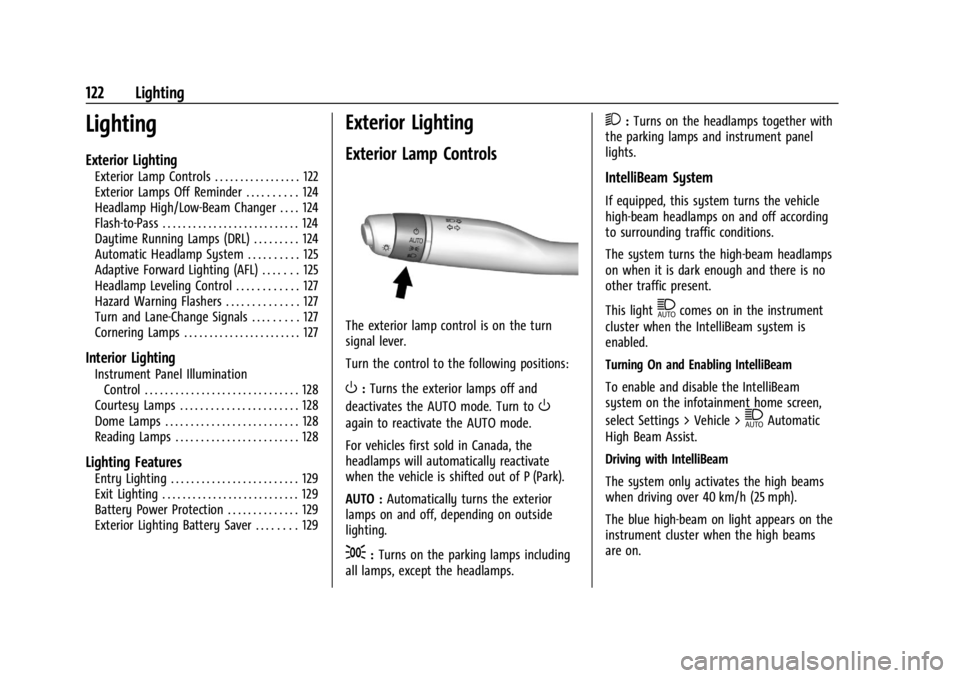
The exterior lamp control is on the turn
signal lever.
Turn the control to the following positions:
O: Turns the exterior lamps off and
deactivates the AUTO mode. Turn to
O
again to reactivate the AUTO mode.
For vehicles first sold in Canada, the
headlamps will automatically reactivate
when the vehicle is shifted out of P (Park).
AUTO : Automatically turns the exterior
lamps on and off, depending on outside
lighting.
;: Turns on the parking lamps including
all lamps, except the headlamps.
2: Turns on the headlamps together with
the parking lamps and instrument panel
lights.
IntelliBeam System
If equipped, this system turns the vehicle
high-beam headlamps on and off according
to surrounding traffic conditions.
The system turns the high-beam headlamps
on when it is dark enough and there is no
other traffic present.
This light
\comes on in the instrument
cluster when the IntelliBeam system is
enabled.
Turning On and Enabling IntelliBeam
To enable and disable the IntelliBeam
system on the infotainment home screen,
select Settings > Vehicle >
\Automatic
High Beam Assist.
Driving with IntelliBeam
The system only activates the high beams
when driving over 40 km/h (25 mph).
The blue high-beam on light appears on the
instrument cluster when the high beams
are on.