2023 TOYOTA SUPRA service
[x] Cancel search: servicePage 66 of 372

663-1. CONTROLS
This chapter describes all stan-
dard, country-specific and
optional features offered with
the series. It also describes fea-
tures that are not necessarily
available in your vehicle, for
instance, due to the selected
options or country versions. This
also applies to safety-related
functions and systems. When
using these functions and sys-
tems, the applicable laws and
regulations must be observed.
The vehicle offers different func-
tions, whose use requires a data
transfer to Toyota or a service
provider. The data transfer can
be deactivated for some func-
tions.
With data transfer deactivated,
the respective function cannot
be used.
Only make these settings while
stationary.Follow the instructions on the
Control Display.
Via Toyota Supra Command:
1
"My Vehicle"
2 "System settings"
3 "Data privacy"
4 Select the desired setting.
Depending on the usage, the
vehicle stores personal data,
such as stored radio stations.
This personal data can be per-
manently deleted using Toyota
Supra Command.
Depending on the equipment
package, the following data can
be deleted:
• Driver profile settings.
• Stored radio stations.
• Stored programmable mem- ory buttons.
• Travel and Onboard Com- puter information.
• Music hard disc.
• Navigation, for instance stored destinations.
• Phone book.
• Online data, for instance Favorites, cookies.
Personal settings
Vehicle features and
options
Data protection
Data transfer
Concept
General information
Activating/deactivating
Deleting personal data in
the vehicle
Concept
General information
Page 76 of 372

763-1. CONTROLS
iPhone 5 or later with iOS 7.1 or
later.
• Corresponding mobile wire-
less contract.
• Bluetooth, Wi-Fi, and Siri voice operation are activated
on the iPhone.
• Booking the Toyota Supra Connect service: Apple Car-
Play preparation.
Via Toyota Supra Command:
1 "My Vehicle"
2 "System settings"
3 "Mobile devices"
4 "Settings"
5 Select the following settings:
• "Bluetooth
®"
• "Apple CarPlay"
Pair the iPhone with the vehicle
via Bluetooth, refer to page 72.
Select CarPlay as the function:
"Apple CarPlay"
The iPhone is connected to the
vehicle and displayed in the
device list, refer to page 78.
For more information, refer to
the NAVIGATION SYSTEM
OWNER'S MANUAL. All requirements are met and all
required steps were completed
in the specified order. Despite
that, the mobile device does not
function as expected.
In this case, the following expla-
nations can help:
The iPhone has already been
paired with Apple CarPlay.
When a new connection is
established, CarPlay can no lon-
ger be selected.
• Delete the iPhone concerned
from the device list.
• On the iPhone, delete the vehicle concerned from the
list of stored vehicles under
Bluetooth and under Wi-Fi.
• Pair the iPhone as a new device.
If the steps listed have been car-
ried out and the required func-
tion is still not available: contact
the Toyota dealer.
Screen Mirroring enables mirror-
ing (outputting) of the smart-
phone display on the Control
Display.
Switching on Bluetooth
and CarPlay
Pairing iPhone with Car-
Play
Operation
Frequently asked ques-
tions
Screen Mirroring
General information
Page 86 of 372

863-1. CONTROLS
Remote Services of the Toy-
ota Supra Connect app
include the ability to lock and
unlock a vehicle.
This requires an active Toyota
Supra Connect contract and the
Toyota Supra Connect app must be
installed on a smartphone.
• Unlocking the vehicle can be requested via the Concierge.
An active Toyota Supra Connect
contract is required.
The driver's door can be locked
and unlocked without remote
control using the integrated key.
The integrated key also fits the
glove compartment. Press the button, arrow 1, and
pull out the integrated key, arrow
2.
1
Pull and hold the door handle
outward with one hand.
2 Guide one finger of your
other hand from the back
Integrated key
General information
Safety information
WARNING
For some country versions,
unlocking from the inside is only
possible with special knowledge.
Persons who spend a lengthy
time in the vehicle while being
exposed to extreme tempera-
tures are at risk of injury or death.
Do not lock the vehicle from the
outside when there are people in
it.
NOTICE
The door lock is permanently
joined with the door. The door
handle can be moved. When pull-
ing the door handle with the inte-
grated key inserted, paint or the
integrated key can be damaged.
There is a risk of damage to prop-
erty. Remove the integrated key
before pulling the outside door
handle.
Removing
Locking/unlocking via the
door lock
Page 147 of 372

1473-1. CONTROLS
3
CONTROLS
with the remaining fuel is perma-
nently displayed in the instru-
ment cluster.
With a low remaining range, a
vehicle message is briefly dis-
played. With a sporty driving
style, for instance fast cornering,
the engine function is not always
ensured.
The vehicle message appears
continuously below a range of
approx. 30 miles/50 km.
The function displays the ser-
vice notifications and the corre-
sponding maintenance scopes.
After switching on drive-ready
state, the instrument cluster
briefly displays available driving
distance or time to the next
scheduled maintenance.More information on the type of
service required may be dis-
played on the Control Display.
Via Toyota Supra Command:
1
"My vehicle"
2 "Vehicle status"
3 "Service required"
Maintenance and service measures
and legally mandated inspections
are displayed.
4Select an entry to call up
detailed information.
Enter the dates for the manda-
tory vehicle inspections.
Make sure that the vehicle's
date and time are set correctly.
Safety informationNOTICE
With a driving range of less than
30 miles/50 km the engine may
no longer have sufficient fuel.
Engine functions are not ensured
anymore. There is a risk of dam-
age to property. Refuel promptly.
Service notifications
Concept
General information
Display
Detailed information on ser-
vice notifications
Symbols
SymbolsDescription
No service is currently
required.
The time for recom-
mended maintenance
or a legally mandated
inspection is approach-
ing.
The time for recom-
mended maintenance
has already passed.
Entering appointment dates
Page 148 of 372

1483-1. CONTROLS
Via Toyota Supra Command:
1"My vehicle"
2 "Vehicle status"
3 "Service required"
4 "Date:"
5 Select the desired setting.
The gear shift indicator recom-
mends the optimal gear for the
current driving situation and
supports an efficient driving
style.
Depending on the vehicle equip-
ment and country version, the
gear shift indicator is active in
the manual mode of the auto-
matic transmission and with
manual transmission.
Suggestions to shift gear up or
down are displayed in the instru-
ment cluster.
On vehicles without a gear shift
indicator, the engaged gear is
displayed. Suggestions to shift gear up or
down are displayed in the instru-
ment cluster.
On vehicles without a gear shift
indicator, the engaged gear is
displayed.
The display can be operated
when necessary.
Entertainment source.
Current audio source.
List of most recent telephone
calls.
If necessary, the corresponding
menu will open on the Control
Display.
Gear shift indicator
Concept
General information
Manual transmission: dis-
playing
ExampleDescription
Efficient gear is set.
Shift into efficient gear.
Automatic transmission:
displaying
ExampleDescription
Efficient gear is set.
Shift into efficient gear.
Selection lists
Concept
Page 154 of 372

1543-1. CONTROLS
cle messages are stored in
the background and can be
displayed on the Control Dis-
play. Displaying stored vehi-
cle messages, refer to page
140.
"Service required": Dis-
playing service notifications,
refer to page 147.
"Remote maintenance
Call": service request.
*: if equipped
This system projects important
information into the driver's field
of vision, for instance the speed.
The driver can get information
without averting his or her eyes
from the road.
Follow the information on clean-
ing the Head-up Display, refer to
page 336. Via Toyota Supra Command:
1
"My vehicle"
2 "System settings"
3 "Displays"
4 "Head-up display"
5 "Head-up display"
The following information is dis-
played on the Head-up Display:
Speed.
Navigation instructions.
Vehicle messages.
Selection list in the instrument
cluster.
Driver assistance systems.
Some of this information is only
displayed briefly as needed.
Head-up Display*
Concept
General information
Overview
Switching on/off
Display
Overview
Page 233 of 372
2333-1. CONTROLS
3
CONTROLS
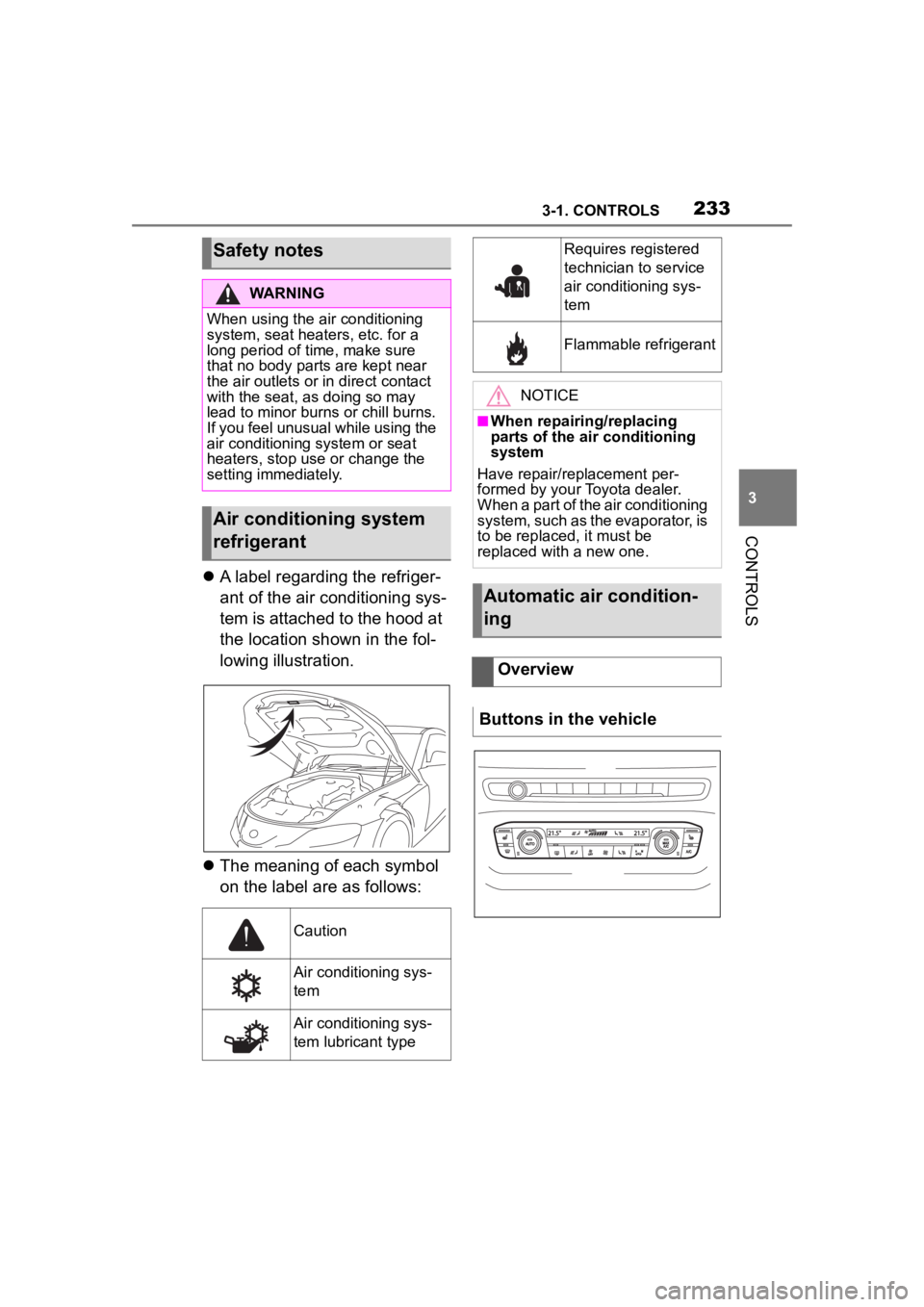
A label regarding the refriger-
ant of the air conditioning sys-
tem is attached to the hood at
the location shown in the fol-
lowing illustration.
The meaning of each symbol
on the label are as follows:
Safety notes
WARNING
When using the air conditioning
system, seat heaters, etc. for a
long period of time, make sure
that no body parts are kept near
the air outlets or i n direct contact
with the seat, as doing so may
lead to minor burns or chill burns.
If you feel unusual while using the
air conditioning system or seat
heaters, stop use or change the
setting immediately.
Air conditioning system
refrigerant
Caution
Air conditioning sys-
tem
Air conditioning sys-
tem lubricant type
Requires registered
technician to service
air conditioning sys-
tem
Flammable refrigerant
NOTICE
■When repairing/replacing
parts of the air conditioning
system
Have repair/replacement per-
formed by your Toyota dealer.
When a part of the air conditioning
system, such as the evaporator, is
to be replaced, it must be
replaced with a new one.
Automatic air condition-
ing
Overview
Buttons in the vehicle
Page 249 of 372

2493-1. CONTROLS
3
CONTROLS
Via Toyota Supra Command:
1“My Vehicle”
2 “System settings”
3 “Wireless charging tray”
4 “Forgotten mobile device
alert”
The charge current may be
reduced or the charging process
may be temporarily interrupted
in the following situations:
Due to excessive tempera-
tures on the surface of the
tray and mobile phone.
If there are objects between
the mobile phone and the
wireless charging tray.
By settings on the mobile
phone, for instance for
charging. Follow the relevant
instructions control display
and in the instructions for the
mobile phone, if applicable.
Your car is equipped with a wire-
less charging tray (WCA) to
charge your mobile phone and
connect it to the mobile network.
To ensure the best possible con-
nection a signal booster
(LTE-Compensator) is used in
conjunction with the WCA. The following paragraphs refer to
this booster:
This is a CONSUMER device.
BEFORE USE, you MUST
REGISTER THIS DEVICE with
your wireless provider and have
your provider's consent. Most
wireless providers consent to
the use of Compensators. Some
providers may not consent to
the use of this device on their
network. If you are unsure, con-
tact your provider. You MUST
operate this device with
approved antennas and cables
as specified by the manufac-
turer. Antennas MUST be
installed at least 20 cm (8
inches) from any person. You
MUST cease operating this
device immediately if requested
by the FCC or a licensed wire-
less service provider. Warning
E911 location information may
not be provided or may be inac-
curate for calls served by using
this device.
Please observe additionally the
following information
Sprint Nextel will allow con-
sumers to register their signal
boosters by calling their
toll-free number.
T-Mobile online registration
link:
(www.T-Mobile.com/Booster-
Registration);
(https://saqat.t-mobile.com/sit
es/SignalBooster#).
Activating
System limits
LTE-Compensator - Infor-
mation and User Manual