2023 TOYOTA PRIUS PRIME ad blue
[x] Cancel search: ad bluePage 66 of 680

661-3. Emergency assistance
After you have signed the
Telematics Subscription Ser-
vice Agreement and are
enrolled, you can begin receiv-
ing services.
A variety of subscription terms
are available for purchase. Con-
tact your Toyota dealer, call the
following appropriate Customer
Experience Center or push the
“SOS” button in your vehicle for
further subscription details.
The United States
1-800-331-4331
Canada
1-888-869-6828
Puerto Rico
1-877-855-8377
■Safety Connect Services Infor-
mation
●Phone calls using the vehicle’s
Bluetooth® technology will not be
possible when Safety Connect is
active and in use.
●Safety Connect is available begin-
ning Fall 2009 on select Toyota
models (in the contiguous United
States only). Contact with the
Safety Connect response center
is dependent upon the telematics
device being in operative condi-
tion, cellular connection availabil-
ity, and GPS satellite signal
reception, which can limit the abil-
ity to reach the response center or
receive emergency service sup-
port. Enrollment and Telematics
Subscription Service Agreement
are required. A variety of subscrip-
tion terms are available; charges vary by subscripti
on term selected
and location.
●Automatic Collision Notification,
Emergency Assistance and Stolen
Vehicle Location are available in
the United States, including
Hawaii and Alaska, Puerto Rico
and Canada, and Enhanced
Roadside Assistance are avail-
able in the United States, Puerto
Rico and Canada.
●Automatic Collision Notification,
Emergency Assistance, Stolen
Vehicle and Enhanced Road
Assistance are not available in the
U.S. Virgin Islands.
For vehicles first sold in the U.S.
Virgin Islands, no Safety Connect
services will function in or outside
the U.S. Virgin Islands.
●Safety Connect services are not
subject to section 255 of the Tele-
communications Act and the
device is not TTY compatible.
■Languages
The Safety Connect response cen-
ter will offer support in multiple lan-
guages. The Safety Connect system
will offer voice prompts in English,
Spanish, and French. Please indi-
cate your language of choice when
enrolling.
■When contacting the response
center
You may be unable to contact the
response center if the network is
busy.
When the power switch is turned
to ON, the red indicator light
comes on for 2 seconds then
turns off. Afterward, the green
indicator light comes on, indicat-
ing that the service is active.
Subscription
Safety Connect LED light
Indicators
Page 158 of 680

1583-1. Instrument cluster
■Hybrid System IndicatorCharge area
Shows regeneration
* status. Regen-
erated energy will be used to charge
the hybrid battery (traction battery).
Eco area
Shows that the vehicle is being
driven in an Eco-friendly manner.
By keeping the indicator needle
within Eco area, more Eco-friendly
driving can be achieved.
Power area
Shows that an Eco-friendly driving
range is being exceeded (during full
power driving etc.)
Hybrid Eco area (HV mode)
Shows that gasoline engine power
is not being used very often.
The gasoline engine will automati-
cally stop and restart under various
conditions.
EV driving area (EV mode or
AUTO EV/HV mode)
Shows that the vehicle is driven
using only the electric motor (trac-
tion motor).
*: When used in this manual, “regen- eration” refers to the conversion of
energy created by the movement
of the vehicle into electrical
energy. In the following situation, the Hybrid
System Indicator does not operate.
●“READY” indicator is not illumi-
nated.
●The shift position is in a position
other than D or B.
■SOC (State of Charge) gauge
Displays the current amount of
charge remaining in the traction bat-
tery.
●The remaining battery for EV driv-
ing in EV mode is displayed in
green, and the remaining battery
used in HV mode is displayed in
blue.
●The amount of the remaining bat-
tery displayed decrease as the
vehicle is driven and increase
when the hybrid battery (traction
battery) is charged, electrical
energy is regenerated using the
regenerative braking ( P.78) or
electricity is generated by the gas-
oline engine.
●If the remaining battery is not dis-
played in green, HV mode is auto-
matically selected and EV mode
cannot be used. To enable EV
driving, charge the hybrid battery
(traction battery). ( P.94)
A
B
C
D
E
Page 164 of 680
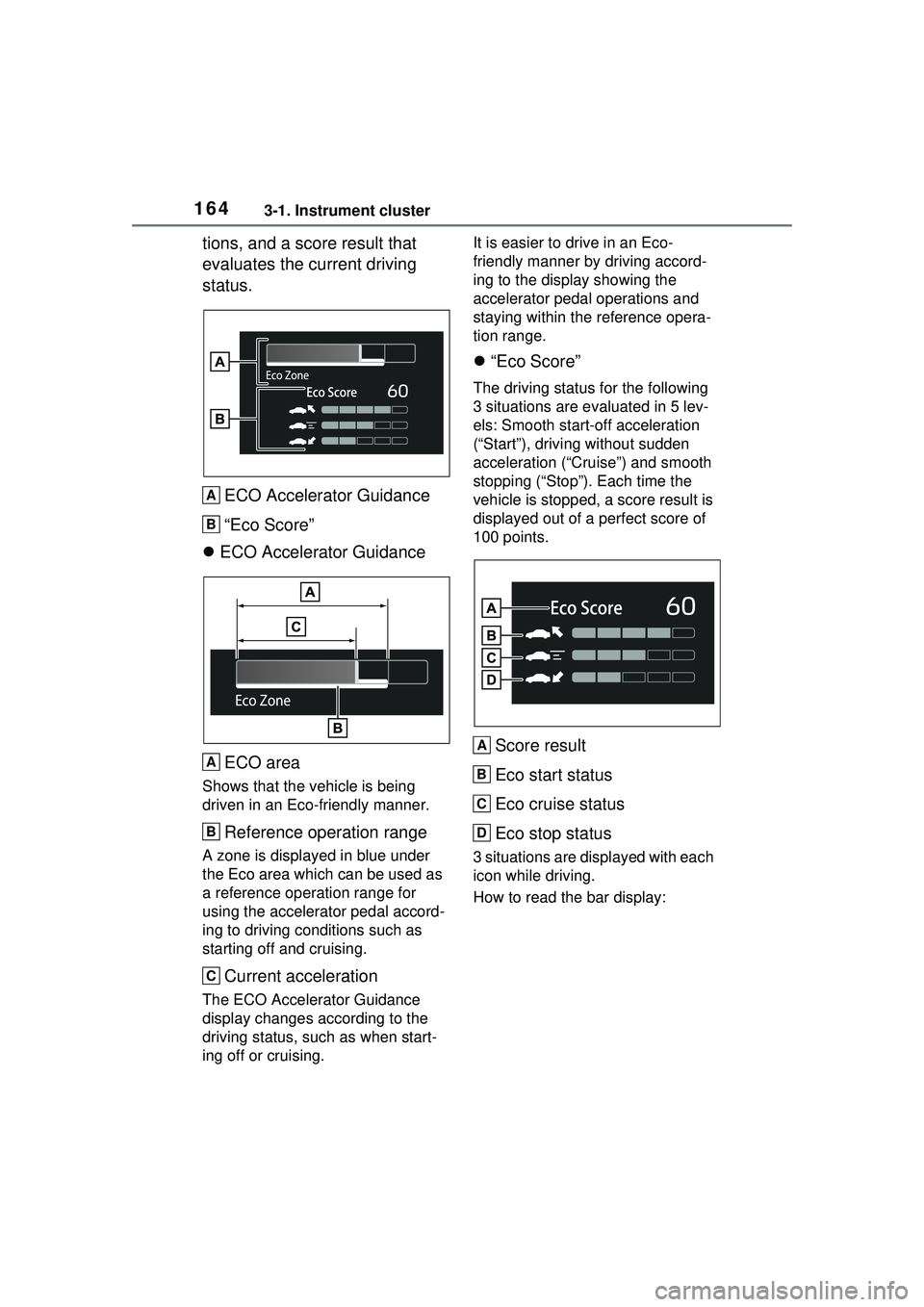
1643-1. Instrument cluster
tions, and a score result that
evaluates the current driving
status.ECO Accelerator Guidance
“Eco Score”
ECO Accelerator Guidance
ECO area
Shows that the vehicle is being
driven in an Eco-friendly manner.
Reference operation range
A zone is displayed in blue under
the Eco area which can be used as
a reference operation range for
using the accelerator pedal accord-
ing to driving conditions such as
starting off and cruising.
Current acceleration
The ECO Accelerator Guidance
display changes according to the
driving status, such as when start-
ing off or cruising. It is easier to drive in an Eco-
friendly manner by driving accord-
ing to the display showing the
accelerator pedal operations and
staying within the reference opera-
tion range.
“Eco Score”
The driving status for the following
3 situations are evaluated in 5 lev-
els: Smooth start-off acceleration
(“Start”), driving without sudden
acceleration (“Cruise”) and smooth
stopping (“Stop”). Each time the
vehicle is stopped, a score result is
displayed out of a perfect score of
100 points.
Score result
Eco start status
Eco cruise status
Eco stop status
3 situations are displayed with each
icon while driving.
How to read the bar display:
A
B
A
B
C
A
B
C
D
Page 173 of 680

1733-1. Instrument cluster
3
Vehicle status information and indicators
Multi-information display
Multimedia Display
Meter control switches
The energy monitor can be used
to check the vehicle drive status,
hybrid system operation status
and energy regeneration status.
■Display procedure
Multi-information display
Use the meter control switches, display the energy monitor on
the multi-information display.
For detail regarding the multi-infor-
mation display, refer to P.161.
Multimedia Display
Touch on the main menu,
then touch “Energy flow” on the
sub menu.
For detail regardin g the Multimedia
Display, refer to “MULTIMEDIA
OWNER’S MANUAL”.
■Reading the display
The arrows will appear in accor-
dance with the energy flow.
When there is no energy flow,
arrows will not be displayed.
The color of the arrows will change
as follows
Blue: When the hybrid battery (trac-
tion battery) is regenerated or
charged.
Orange: When the hybrid battery
(traction battery) is in use.
Red: When the gasoline engine is
in use.
Multi-information display
The image shows all the arrows as
an example. The actual display will
vary depending on conditions.
Energy monitor/con-
sumption screen/solar
charging information
screen (if equipped)
You can view the status of
your hybrid system, fuel
consumption information
and information related to
the solar charging system
on the multi-information
display and Multimedia Dis-
play.
System components
Energy monitor
A
B
C
Page 174 of 680

1743-1. Instrument cluster
Gasoline engine
Tires
Hybrid battery (traction bat-
tery)
Multimedia Display
The image shows all the arrows as
an example. The actual display will
vary depending on conditions.
Gasoline engine
Electric motor (traction
motor)
Solar panel (solar roof) (if
equipped)
Hybrid battery (traction bat-
tery)
Charging connector
*1
Power outlet*2
Tires
*1: The energy flow is displayed while charging. ( P.116)
*2: The energy flow is displayed
when the accessory power outlet
can be used.
■Hybrid battery (traction battery)
status
It will be green when the hybrid bat-
tery (traction battery) is being charged, and yellow when the
hybrid battery (traction battery) is
being used.
■Remaining charge amount
warning of hybrid battery (trac-
tion battery)
●The buzzer sounds intermittently
when the hybrid battery (traction
battery) remains without charging
while the shift posit
ion is in N, or
the remaining charge amount
drops below a certain level. If the
remaining charge amount drops
further, the buzzer sounds contin-
uously.
●When a warning message is
shown on the multi-information
display and the buzzer sounds,
follow the instruct ions displayed
on the screen to perform trouble-
shooting.
■Color of the gasoline engine on
the Multimedia Display
It will be blue when the engine is
warming up, and it will turn to red
when the warming up is finished.
For detail regarding the Multi-
media Display, refer to “MULTI-
MEDIA OWNER’S MANUAL”.
■Display procedure
Touch on the main menu,
then touch “Trip information” on
the sub menu.
■Current fuel consumption
screen
If a screen other than current
fuel consumption screen is dis-
played, touch “Current”.
Use the displayed average fuel
consumption as a reference.
A
B
C
A
B
C
D
E
F
G
Consumption screen
Page 235 of 680

2354-6. Favorite settings
4
Before driving
Digital Key (if equipped)
An individual is identified when the
smart key system detects their Digi-
tal Key. ( P.183)
Bluetooth® devices
An individual can be identified if the
same Bluetooth
® device that was
used as a hands-free phone the
last time the vehicle was entered is
connected to the audio system.
If an individual is identified by
detecting an electronic key, identifi-
cation by Bluetooth
® device will not
be performed.
Bluetooth
® is a registered trade-
mark of Bluetooth SIG, Inc.
When an individual is identified
from an authentication device,
settings for the following func-
tions are recalled.
Driving position (memory
recall function) (if equipped)
After an individual is identified, the
driving position that was set when
driving was last completed is
recalled when either of the follow-
ing operations is performed.
• Identification using electronic key:
The door is unlocked and opened
using the smart key system or
wireless remote control.
• Identification using Digital Key (if equipped): The door is unlocked
and opened using the smart key
system.
Refer to P.231 for information on
driving position registration and recall.
Multimedia settings*
When an individual is identified, the
multimedia system settings used
when the power switch was last
turned off are recalled.
Vehicle settings* (items that
can be set on the multi-infor-
mation display and Multime-
dia Display)
When an individual is identified, the
vehicle settings used when the
power switch was last turned off are
recalled.
*: Some settings are excluded
Recalled functions
Page 312 of 680

3125-5. Using the driving support systems
To change lanes by holding the
turn signal lever in the first posi-
tion without using the LCA, turn
the customize setting of the LCA
off.1
First position: LCA is opera-
tional
2 Second position: LCA is not
operational
LCA can be enabled/disabled
through a customize setting.
( P.626)
The operating state of the LCA system is indicated.
WARNING
■Situations in which the LCA
should not be used
●When driving on a one lane
road
●When there is no broken white
line between the current lane
and the lane to be changed to
Enabling/disabling the
system
Displays and system operation
LCA displaySteering iconCondition
Blue arrow and white lineGreen
LCA is operating
Grey
Approaching vehicle
detected while LCA is operating
Not displayed
Grey
Lane line no longer
detected while LCA is operating
Page 340 of 680

3405-5. Using the driving support systems
The operating state of Dynamic radar cruise control is indicated.
Display and system operation state
IndicatorMulti-information displaySituation
White
Vehicle-to-vehicle
distance setting:
GrayDynamic
radar cruise
control being
OFF
Green
Vehicle-to-vehicle
distance setting:
Blue
Set vehicle speed:
Green
Constant
speed cruis-
ing
Green
Vehicle-to-vehicle
distance setting:
Blue
Set vehicle speed:
Green
Preceding vehicle:
White
Follow-up
cruising
Green
Vehicle-to-vehicle
distance setting: Yel-
low flashing
Set vehicle speed:
Green
Preceding vehicle:
Yellow flashing
Approach
warning