2023 TOYOTA PRIUS PRIME remote control
[x] Cancel search: remote controlPage 228 of 680

2284-5. Opening, closing the windows
5Release the power window
switch for a moment, resume
pushing the switch in the one-
touch opening direction, and
hold it there for approximately 4
seconds or more.
6 Pull and hold the power window
switch in the one-touch closing
direction again. After the side
window is completely closed,
continue holding the switch for a
further 1 second or more.
If you release the switch while the
side window is moving, start again
from the beginning.
If the side window reverses and
cannot be fully closed or opened,
have the vehicle inspected by your
Toyota dealer.
■Door lock linked power window
operation
●The power windows can be
opened and closed using the
mechanical key.
* ( P.587)
●The power windows can be
opened using the wireless remote
control.
* ( P.185)
*: These settings must be custom-
ized at your Toyota dealer.
■Power window open reminder
function
A message is shown on the multi-
information display when the power
switch is turned to OFF and the
driver’s door is opened with the
power windows open.
■Customization
Settings (e.g. linked door lock oper-
ation) can be changed. (Customiz-
able features: P.624)
WARNING
Observe the following precau-
tions.
Failing to do so may result in
death or serious injury.
■Closing the power windows
●The driver is responsible for all
the power window operations,
including the operation for the
passengers. In order to prevent
accidental operation, especially
by a child, do not let a child
operate the power windows. It is
possible for children and other
passengers to have body parts
caught in the power window.
Also, when riding with a child, it
is recommended to use the win-
dow lock switch. ( P.229)
●Check to make sure that all pas-
sengers do not have any part of
their body in a position where it
could be caught when a power
window is being operated.
●When using the wireless remote
control or mechanical key and
operating the power windows,
operate the power window after
checking to make sure that
there is no possibility of any
passenger having any of their
body parts caught in the side
window. Also, do not let a child
operate the power window by
the wireless remote control or
mechanical key. It is possible
for children and other passen-
gers to get caught in the power
window.
●When exiting the vehicle, turn
the power switch to OFF, carry
the key and exit the vehicle
along with the child. There may
be accidental operation, due to
mischief, etc., that may possibly
lead to an accident.
Page 233 of 680
2334-6. Favorite settings
4
Before driving
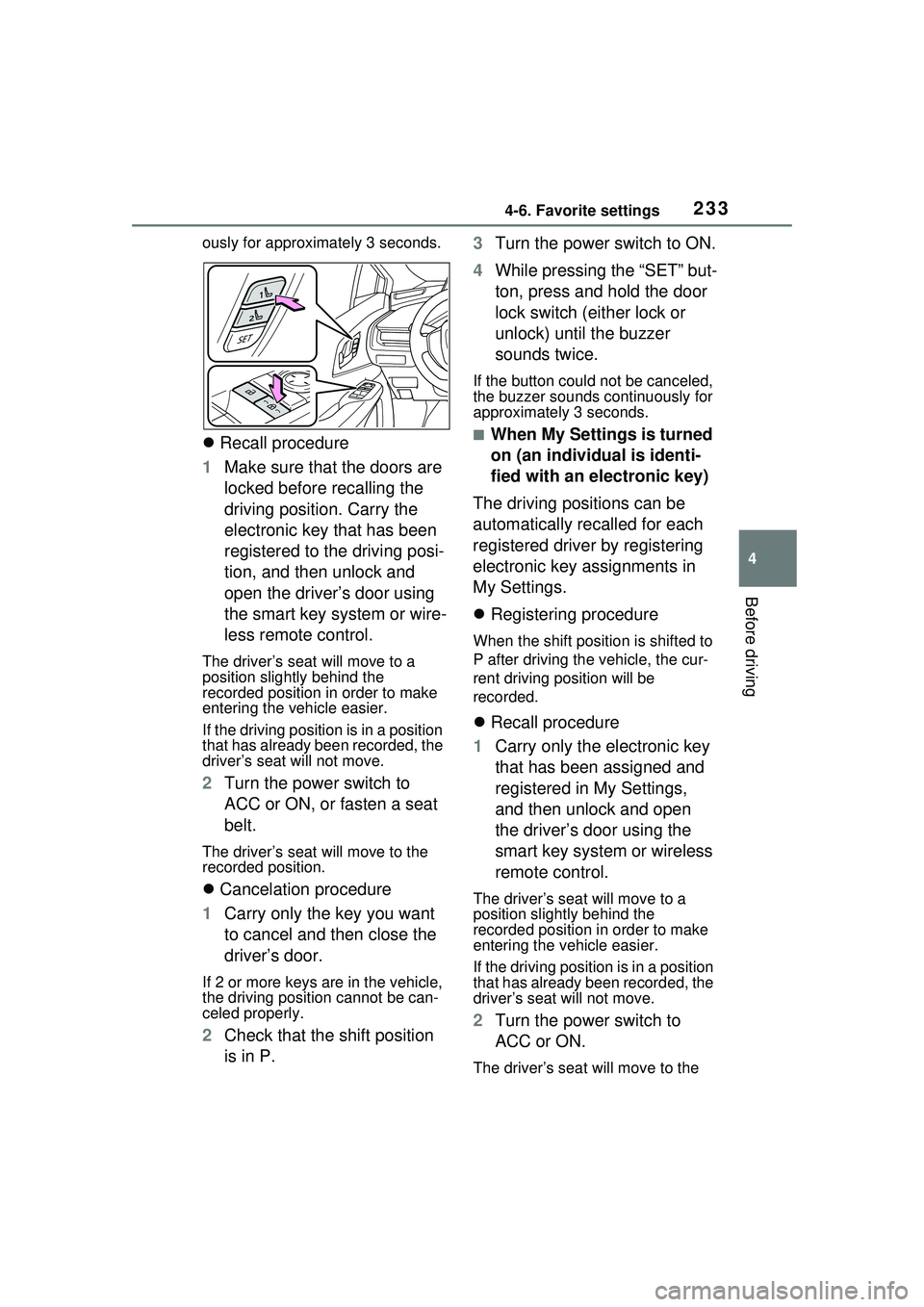
ously for approximately 3 seconds.
Recall procedure
1 Make sure that the doors are
locked before recalling the
driving position. Carry the
electronic key that has been
registered to the driving posi-
tion, and then unlock and
open the driver’s door using
the smart key system or wire-
less remote control.
The driver’s seat will move to a
position slightly behind the
recorded position in order to make
entering the vehicle easier.
If the driving position is in a position
that has already been recorded, the
driver’s seat will not move.
2 Turn the power switch to
ACC or ON, or fasten a seat
belt.
The driver’s seat will move to the
recorded position.
Cancelation procedure
1 Carry only the key you want
to cancel and then close the
driver’s door.
If 2 or more keys are in the vehicle,
the driving position cannot be can-
celed properly.
2Check that the shift position
is in P. 3
Turn the power switch to ON.
4 While pressing the “SET” but-
ton, press and hold the door
lock switch (either lock or
unlock) until the buzzer
sounds twice.
If the button could not be canceled,
the buzzer sounds continuously for
approximately 3 seconds.
■When My Settings is turned
on (an individual is identi-
fied with an electronic key)
The driving positions can be
automatically recalled for each
registered driver by registering
electronic key assignments in
My Settings.
Registering procedure
When the shift position is shifted to
P after driving the vehicle, the cur-
rent driving position will be
recorded.
Recall procedure
1 Carry only the electronic key
that has been assigned and
registered in My Settings,
and then unlock and open
the driver’s door using the
smart key system or wireless
remote control.
The driver’s seat will move to a
position slightly behind the
recorded position in order to make
entering the vehicle easier.
If the driving position is in a position
that has already been recorded, the
driver’s seat will not move.
2Turn the power switch to
ACC or ON.
The driver’s seat will move to the
Page 235 of 680

2354-6. Favorite settings
4
Before driving
Digital Key (if equipped)
An individual is identified when the
smart key system detects their Digi-
tal Key. ( P.183)
Bluetooth® devices
An individual can be identified if the
same Bluetooth
® device that was
used as a hands-free phone the
last time the vehicle was entered is
connected to the audio system.
If an individual is identified by
detecting an electronic key, identifi-
cation by Bluetooth
® device will not
be performed.
Bluetooth
® is a registered trade-
mark of Bluetooth SIG, Inc.
When an individual is identified
from an authentication device,
settings for the following func-
tions are recalled.
Driving position (memory
recall function) (if equipped)
After an individual is identified, the
driving position that was set when
driving was last completed is
recalled when either of the follow-
ing operations is performed.
• Identification using electronic key:
The door is unlocked and opened
using the smart key system or
wireless remote control.
• Identification using Digital Key (if equipped): The door is unlocked
and opened using the smart key
system.
Refer to P.231 for information on
driving position registration and recall.
Multimedia settings*
When an individual is identified, the
multimedia system settings used
when the power switch was last
turned off are recalled.
Vehicle settings* (items that
can be set on the multi-infor-
mation display and Multime-
dia Display)
When an individual is identified, the
vehicle settings used when the
power switch was last turned off are
recalled.
*: Some settings are excluded
Recalled functions
Page 464 of 680

4646-4. Using the other interior features
placed outside the charge area
●The vehicle is in an area where
strong electrical waves or noise
are emitted, such as near a televi-
sion tower, power plant, gasoline
station, broadcasting station, large
display, airport, etc.
●The electronic key is not inside the
vehicle
●Any of the following objects that is
0.08 in. (2 mm) or thicker is stuck
or installed between the charging
side of the smartphone and the
charge area.
• Thick cases or covers
• A case or cover attached with an
uneven or tilted surface, so that
the charging side is not flat
• Thick decorations
• Accessories, such as finger rings, straps, etc.
●When there is a gap between the
charging side of the smartphone
and the charge area due to a pro-
trusion such as a camera on the
charging side of the smartphone.
●When the smartphone is in con-
tact with, or is covered by any of
the following metallic objects:
• A card that has metal on it, such as aluminum foil, etc.
• A pack of cigarettes that includes aluminum foil
• A wallet or bag that is made of
metal
• Coins
• A heating pad
• CDs, DVDs or other media
• A metal accessory
• A case or cover made of metal
• A flip type case with a magnet on the charging side of the smart-
phone
●Electric wave type wireless
remote controls are being used
nearby
●2 or more smartphones are placed
on the wireless charger at the
same time
●When using a smartphone model
with an internal charging coil that is not located near the center of
the smartphone
If charging is abnormal or the opera-
tion indicator light continues to flash
for any other reason, the wireless
charger may be malfunctioning.
Contact your Toyota dealer.
■If the smartphone OS has been
updated
If the smartphone OS has been
updated to a newer version, its
charging specifications may have
changed significantly. For details,
check the information on the manu-
facturer’s website.
■Trademark information
iPhone is a trademark of Apple Inc.,
registered in the U.S. and other
countries.
WARNING
■Caution while driving
When charging a smartphone, for
safety reasons, the driver should
not operate the main part of the
smartphone while driving.
■Caution regarding interfer-
ence with electronic devices
People with implantable cardiac
pacemakers, cardiac resynchroni-
zation therapy-pacemakers or
implantable cardio verters, as well
as any other electrical medical
device, should consult their physi-
cian about the usage of the wire-
less charger.
■To prevent malfunctions or
burns
Observe the following precau-
tions. Failure to do so may result
in a equipment failure and dam-
age, catch fire, burns due to over-
heat or electric shock.
●This product is specialized for
use with smartphones and can-
not charge other devices.
Page 478 of 680

4786-4. Using the other interior features
HomeLink® indicator light
Illuminates above each button
selected.
Buttons
■Codes stored in the HomeLink®
memory
●The registered codes are not
erased even if the 12-volt battery
cable is disconnected.
●If learning failed when registering
a different code to a HomeLink®
button that already has a code
registered to it, the already regis-
tered code will not be erased.
■Before programming
HomeLink
®
During programming, it is pos-
sible that garage doors,
gates, or other devices may
operate. For this reason,
make sure that people and
objects are clear of the
garage door or other devices
to prevent injury or other
potential harm.
It is recommended that a new
battery be placed in the
remote control transmitter for
more accurate programming.
Garage door opener motors
manufactured after 1995 may
be equipped with rolling code
protection. If this is the case,
you may need a stepladder or
other sturdy, safe device to
reach the “Learn” or “Smart”
button on the garage door
opener motor.
■Programming HomeLink®
Steps 2 through 4 must be per-
formed within 60 seconds, oth-
erwise the HomeLink
® indicator
light will stop flashing and pro-
gramming will not be success-
fully completed.
1 Vehicles with Digital Rear-
view Mirror: Press the
HomeLink
® button or menu
button
WARNING
■When programming a garage
door or other remote control
device
The garage door or other device
may operate, so ensure people
and objects are out of danger to
prevent potential harm.
■Conforming to federal safety
standards
Do not use the HomeLink
® com-
patible transceiver with any
garage door opener or device that
lacks safety stop and reverse fea-
tures as required by federal safety
standards.
This includes any garage door
that cannot detect an interfering
object. A door or device without
these features increases the risk
of death or serious injury.
■When operating or program-
ming HomeLink®
Never allow a child to operate or
play with the HomeLink® buttons.
C
D
Programming HomeLink®
Page 479 of 680

4796-4. Using the other interior features
6
Interior features
When the HomeLink® button is
pressed: Homelink® Training Tuto-
rial will be displayed to assist you
programming the HomeLink
®.
When Homelink
® Training Tutorial
is displayed, follow the instructions
displayed.
When the menu button is pressed:
Press the menu button and
select the “Set Up >”. Homelink
®
Training Tutorial will be displayed
to assist you programming the
HomeLink
®.
When Homelink
® Training Tutorial
is displayed, follow the instructions
displayed.
2 Press and release the
HomeLink
® button you want
to program and check that
the HomeLink
® indicator light
flashes (orange).
3 Point the remote control
transmitter for the device at
the rear view mirror, 1 to 3 in.
(25 to 75 mm) from the
HomeLink
® buttons.
Keep the HomeLink® indicator light
in view while programming.
Vehicles with auto anti-glare
inside rear view mirror
Vehicles with Digital Rear-
view Mirror
4 Program a device.
Vehicles with auto anti-glare
inside rear view mirror
Vehicles with Digital Rear-
view Mirror
Programming a device other
than an entry gate (for U.S.A.
owners)
Press and hold the remote con-
trol transmitter button until the
HomeLink
® indicator light
Page 480 of 680

4806-4. Using the other interior features
changes from slowly flashing
orange to rapidly flashing green
(rolling code) or continuously lit
green (fixed code), then release
the button.
Programming an entry gate
(for U.S.A. owners)/Program-
ming a device in the Cana-
dian market
Press and release the remote
control transmitter button at 2
second intervals, repeatedly,
until the HomeLink
® indicator
light changes from slowly flash-
ing (orange) to rapidly flashing
(green) (rolling code) or continu-
ously lit (green) (fixed code).
5 Test the HomeLink
® opera-
tion by pressing the newly
programmed button and
observing the HomeLink
®
indicator light:
HomeLink
® indicator light illu-
minates: Programming of a
fixed code device has com-
pleted. The garage door or
other device should operate
when a HomeLink
® button is
pressed and released.
HomeLink
® indicator light
flashes rapidly: The garage
door opener motor or other
device is equipped with a roll-
ing code. To complete pro-
gramming, firmly press and
hold the HomeLink
® button
for 2 seconds then release it.
If the garage door or other device does not operate, pro-
ceed to “Programming a roll-
ing code system”.
6 Repeat the steps above to
program another device for
any of the remaining
HomeLink
® buttons.
■Programming a rolling code
system
Two or more people may be
needed to complete rolling code
programming.
1 Locate the “Learn” or “Smart”
button on the garage door
opener motor in the garage.
This button can usually be found
where the hanging antenna wire is
attached to the unit. The name and
color of the button may vary by
manufacturer. Refe r to the owner’s
manual supplied with the garage
door opener motor for details.
2 Press and release the
“Learn” or “Smart” button.
Perform step 3 within 30 seconds
Page 511 of 680

5117-3. Do-it-yourself maintenance
7
Maintenance and care
The 12-volt battery is located in
the right-hand side of luggage
compartment.
■Before recharging
When recharging, the 12-volt bat-
tery produces hydrogen gas which
is flammable and explosive. There-
fore, observe the following precau-
tions before recharging:
●If recharging with the 12-volt bat-
tery installed on the vehicle, be
sure to disconnect the ground
cable.
●Make sure the power switch on
the charger is off when connecting
and disconnecting the charger
cables to the 12-volt battery.
■After recharging/reconnecting
the 12-volt battery
●Unlocking the doors using the
smart key system may not be pos-
sible immediately after reconnect-
ing the 12-volt battery. If this
happens, use the wireless remote
control or the mechanical key to
lock/unlock the doors.
●Start the hybrid system with the
power switch in ACC. The hybrid
system may not start with the
power switch turned off. How-
ever, the hybrid system will oper-
ate normally from the second attempt.
●The power switch mode is
recorded by the vehicle. If the 12-
volt battery is reconnected, the
vehicle will return the power
switch mode to the status it was in
before the 12-volt battery was dis-
connected. Make sure to turn off
the power switch before discon-
nect the 12-volt battery. Take
extra care when connecting the
12-volt battery if the power switch
mode prior to discharge is
unknown.
If the hybrid system will not start
even after multiple attempts at all
methods above, contact your
Toyota dealer.12-volt battery
Location
WARNING
■Chemicals in the 12-volt bat-
tery
The 12-volt battery contains poi-
sonous and corrosive sulfuric acid
and may produce hydrogen gas
which is flammable and explosive.
To reduce the risk of death or
serious injury, take the following
precautions while working on or
near the 12-volt battery:
●Do not cause sparks by touch-
ing the 12-volt battery terminals
with tools.
●Do not smoke or light a match
near the 12-volt battery.
●Avoid contact with eyes, skin
and clothes.
●Never inhale or swallow electro-
lyte.
●Wear protective safety glasses
when working near the 12-volt
battery.
●Keep children away from the
12-volt battery.