Page 277 of 496
277
5
5
Interior features
Interior features
.5-1. Using the air conditioning system and defogger
Automatic air conditioning system ....................... 278
Heated steering wheel/seat heaters ...................... 284
5-2. Using the interior lights Interior lights list .......... 286
5-3. Using the storage features List of storage features.................................. 288
5-4. Other interior features Other interior features . 291
Page 286 of 496
2865-2. Using the interior lights
5-2.Using the interior lights
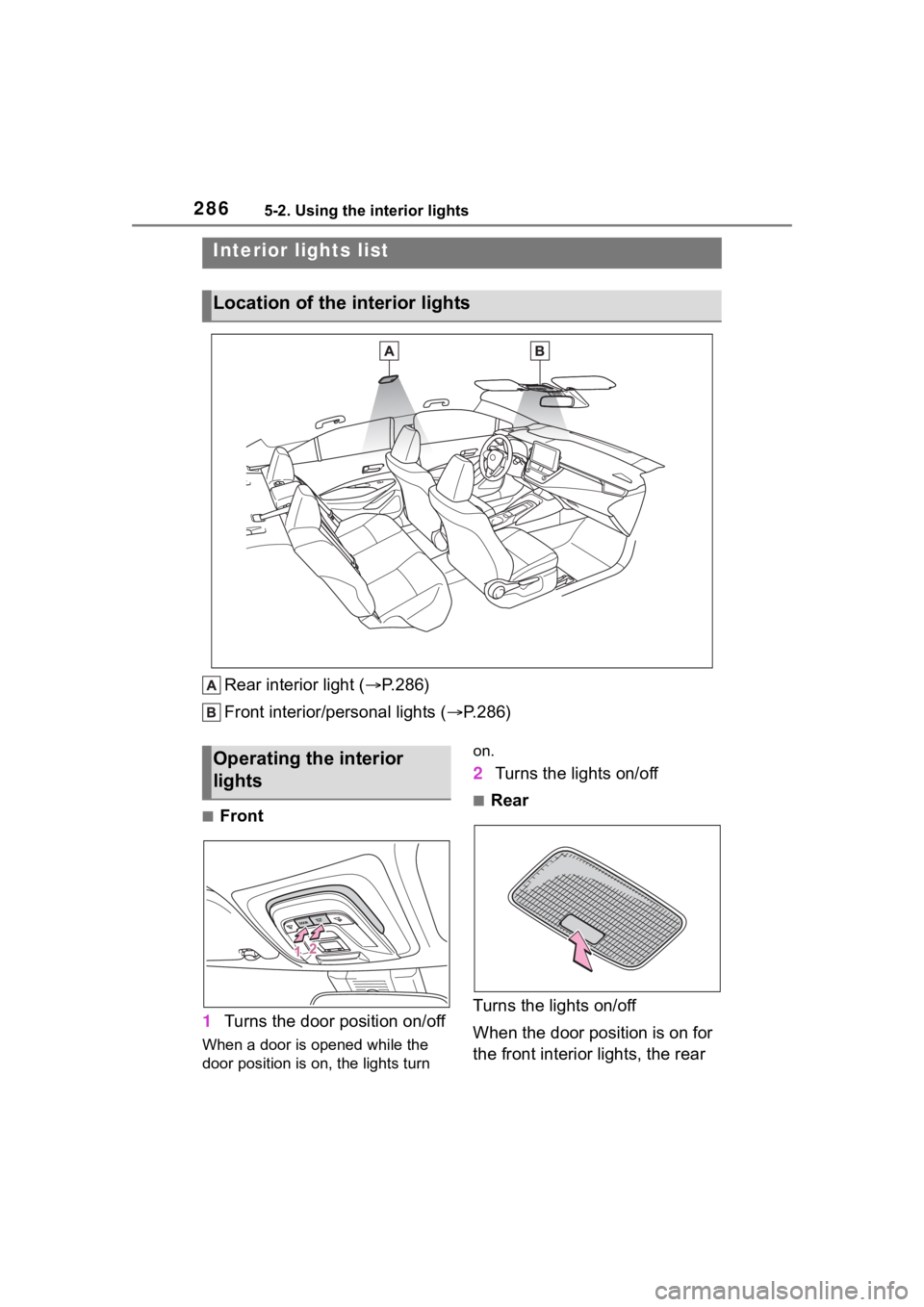
Rear interior light (P.286)
Front interior/personal lights ( P.286)
■Front
1 Turns the door position on/off
When a door is opened while the
door position is on, the lights turn on.
2
Turns the lights on/off
■Rear
Turns the lights on/off
When the door position is on for
the front interior lights, the rear
Interior lights list
Location of the i nterior lights
Operating the interior
lights
Page 287 of 496
2875-2. Using the interior lights
5
Interior features
interior light will turn on when a
door is open and turn off when
all of them are closed.
When the rear interior light is on
linked to the door position for
the front interior lights, it will not
turn off even though the switch
is pressed.
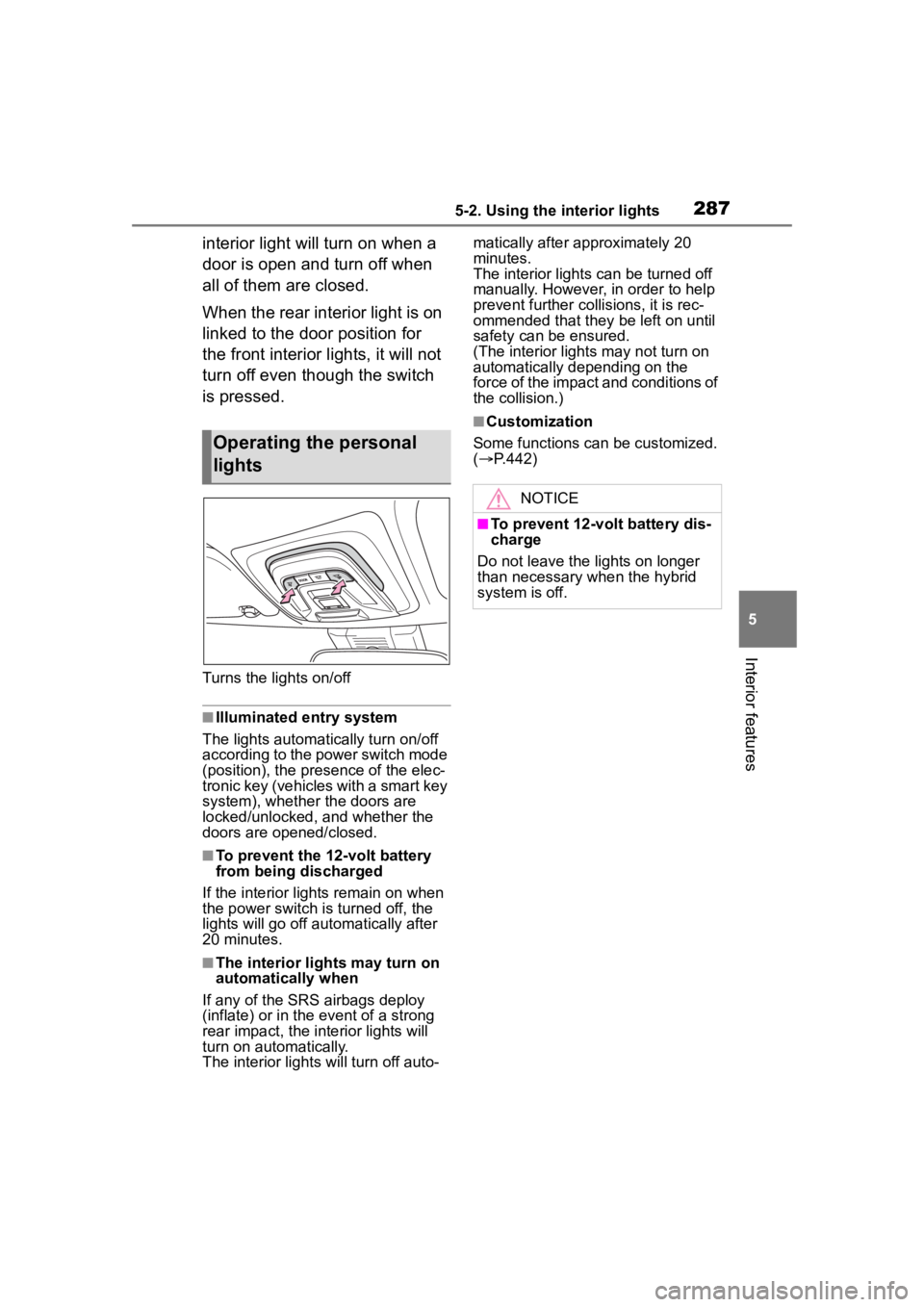
Turns the lights on/off
■Illuminated entry system
The lights automatically turn on/off
according to the power switch mode
(position), the presence of the elec-
tronic key (vehicles with a smart key
system), whether the doors are
locked/unlocked, and whether the
doors are opened/closed.
■To prevent the 12-volt battery
from being discharged
If the interior lights remain on when
the power switch is turned off, the
lights will go off automatically after
20 minutes.
■The interior lights may turn on
automatically when
If any of the SRS airbags deploy
(inflate) or in the event of a strong
rear impact, the interior lights will
turn on automatically.
The interior lights will turn off auto- matically after approximately 20
minutes.
The interior lights can be turned off
manually. However, in order to help
prevent further co
llisions, it is rec-
ommended that they be left on until
safety can be ensured.
(The interior lights may not turn on
automatically depending on the
force of the impact and conditions of
the collision.)
■Customization
Some functions can be customized.
( P.442)
Operating the personal
lights
NOTICE
■To prevent 12-volt battery dis-
charge
Do not leave the lights on longer
than necessary when the hybrid
system is off.
Page 288 of 496
2885-3. Using the storage features
5-3.Using the storage features
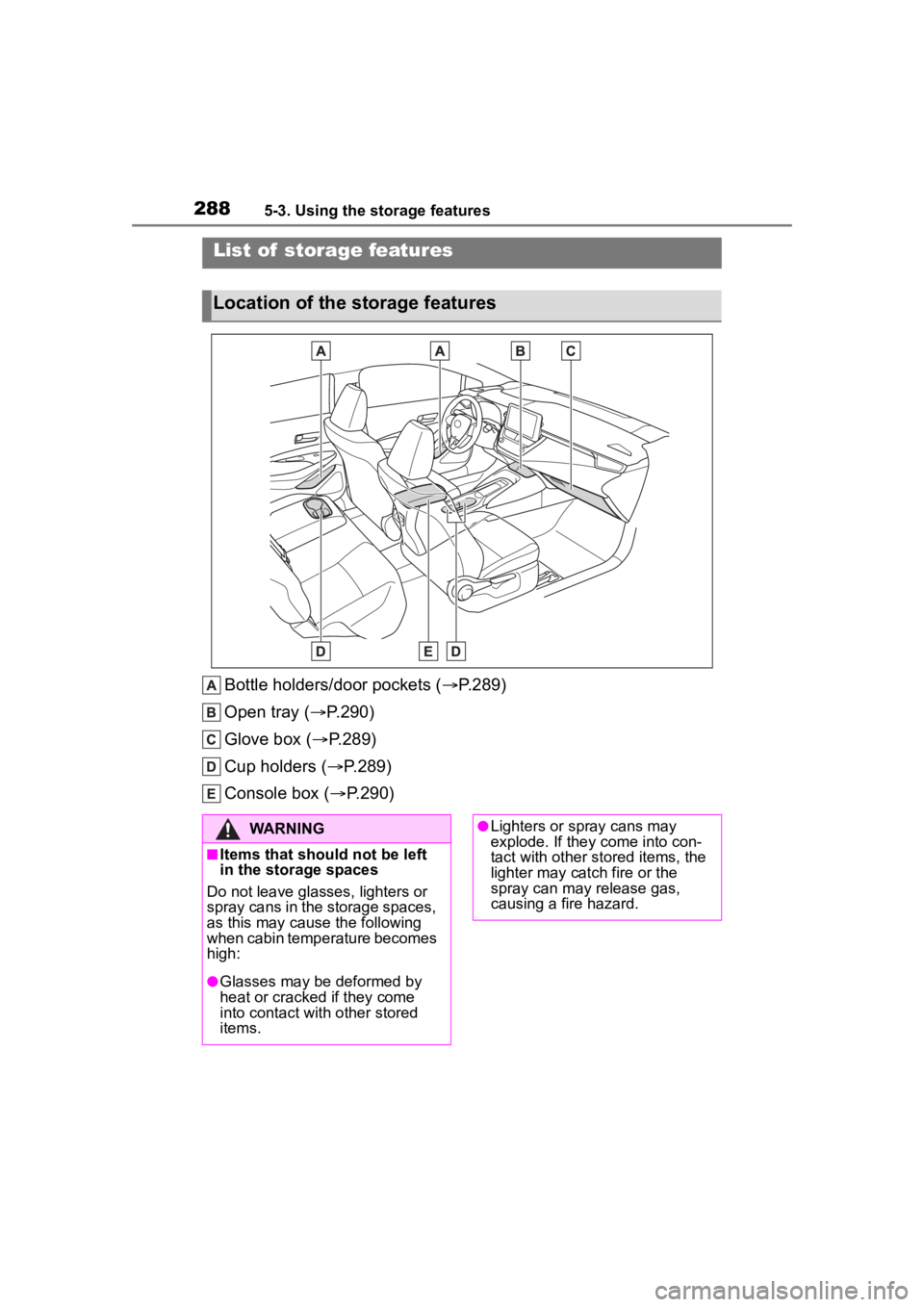
Bottle holders/door pockets (P.289)
Open tray ( P.290)
Glove box ( P.289)
Cup holders ( P.289)
Console box ( P.290)
List of storage features
Location of the storage features
WARNING
■Items that should not be left
in the storage spaces
Do not leave glasses, lighters or
spray cans in the storage spaces,
as this may cau se the following
when cabin temperature becomes
high:
●Glasses may be deformed by
heat or cracked if they come
into contact with other stored
items.
●Lighters or spray cans may
explode. If they come into con-
tact with other stored items, the
lighter may catch fire or the
spray can may release gas,
causing a fire hazard.
Page 289 of 496
2895-3. Using the storage features
5
Interior features
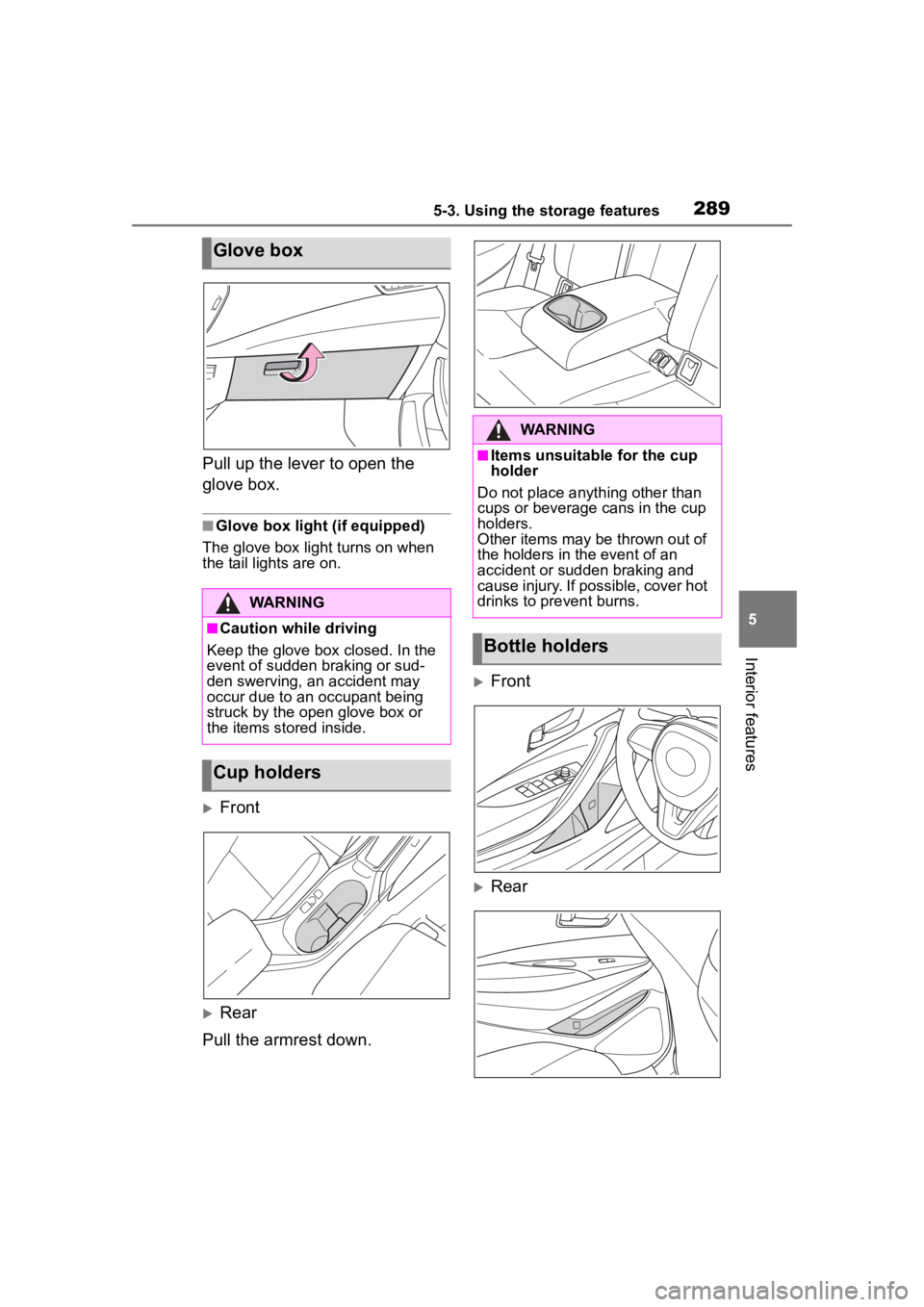
Pull up the lever to open the
glove box.
■Glove box light (if equipped)
The glove box light turns on when
the tail lights are on.
Front
Rear
Pull the armrest down.
Front
Rear
Glove box
WARNING
■Caution while driving
Keep the glove box closed. In the
event of sudden braking or sud-
den swerving, an accident may
occur due to an occupant being
struck by the open glove box or
the items stored inside.
Cup holders
WARNING
■Items unsuitable for the cup
holder
Do not place anyth ing other than
cups or beverage cans in the cup
holders.
Other items may be thrown out of
the holders in the event of an
accident or sudden braking and
cause injury. If possible, cover hot
drinks to pre vent burns.
Bottle holders
Page 293 of 496

2935-4. Other interior features
5
Interior features
is larger than the charging area.
Additionally, depending on the
portable device, the wireless
charger may not operate prop-
erly. Refer to the operation man-
ual of the portable device.
■The “Qi” symbol
The “Qi” symbol is a trademark
of the Wireless Power Consor-
tium.
■Name for all parts
Power supply switch
Operation indicator light
Charge area
*
Charging tray
*: Portable devices and wireless chargers contain charging coils.
The charging coil in the wireless
charger can be m oved within the
charge area near the center of
the charging tray. If the charging
coil inside a portable device is detected in the charge area, the
charging coil inside the wireless
charger will move
toward it and
start charging. If the charging coil
inside a portable device moves
outside of the charge area,
charging will automatically stop.
If 2 or more portable devices are
placed on the charging tray, their
charging coils may not be prop-
erly detected and they may not
be charged.
■Using the wireless charger
1 Press the power supply
switch of the wireless char-
ger.
Pressing the switch again turns the
wireless charger off.
When turned on, the operation indi-
cator light (green) comes on.
When the power switch is turned
off, the on/off state of the wireless
charger will be memorized.
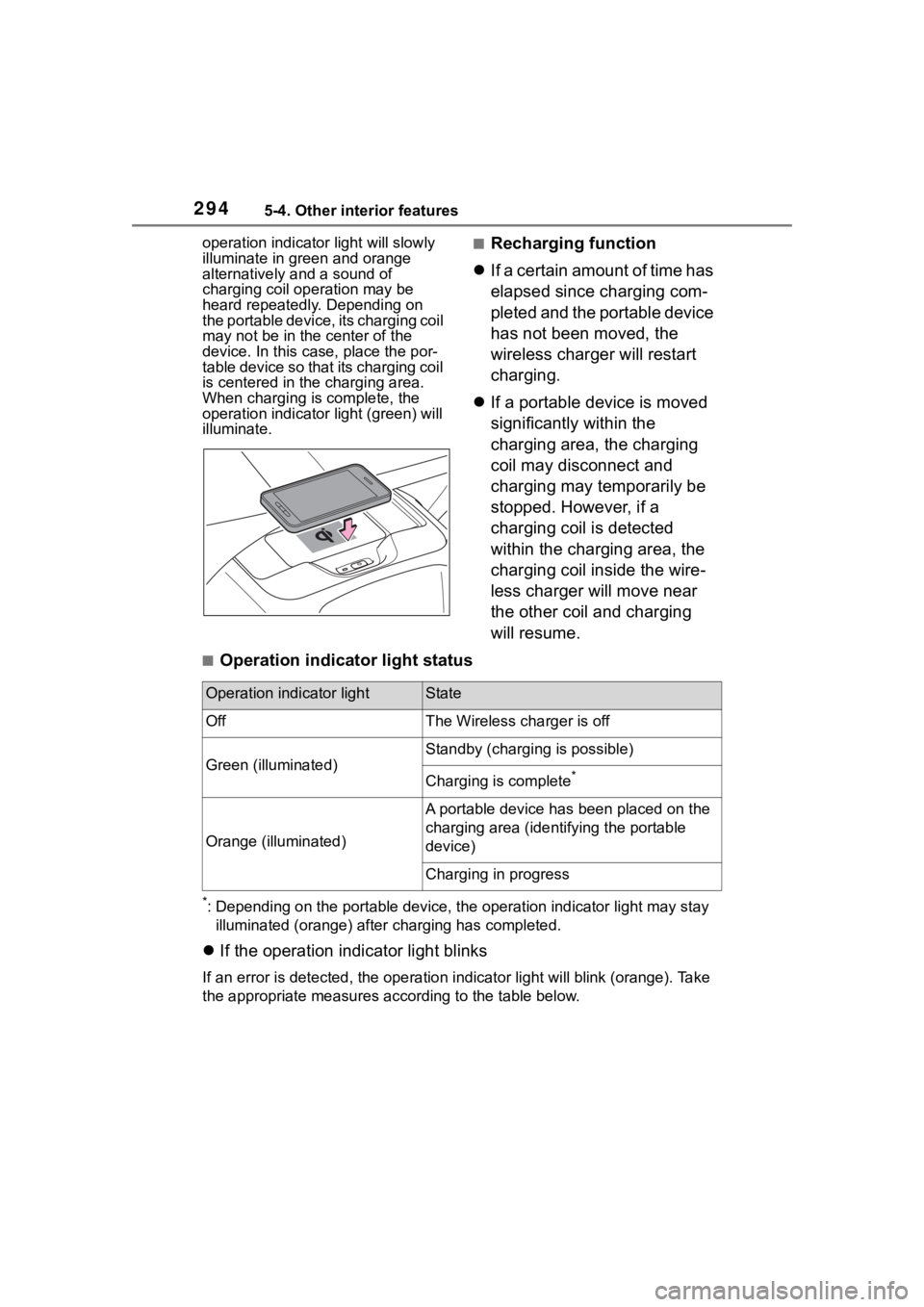
2 Place a portable device on
the charging area with its
charging surface facing
down.
While charging, the operation indi-
cator light (oran ge) will be illumi-
nated.
If charging does not begin, move
the portable device as close to the
center of the char ging area as pos-
sible.
If charging is not performed, the
Page 294 of 496
2945-4. Other interior features
operation indicator light will slowly
illuminate in green and orange
alternatively and a sound of
charging coil operation may be
heard repeatedly. Depending on
the portable device, its charging coil
may not be in the center of the
device. In this case, place the por-
table device so that its charging coil
is centered in the charging area.
When charging is complete, the
operation indicator light (green) will
illuminate.■Recharging function
If a certain amount of time has
elapsed since charging com-
pleted and the portable device
has not been moved, the
wireless charger will restart
charging.
If a portable device is moved
significantly within the
charging area, the charging
coil may disconnect and
charging may temporarily be
stopped. However, if a
charging coil is detected
within the charging area, the
charging coil inside the wire-
less charger will move near
the other coil and charging
will resume.
■Operation indicator light status
*: Depending on the portable devic e, the operation indicator light may stay
illuminated (orange) after charging has completed.
If the operation indicator light blinks
If an error is detec ted, the operation in dicator light will blink (orange). Take
the appropriate measures according to the table below.
Operation indicator lightState
OffThe Wireless charger is off
Green (illuminated)
Standby (charging is possible)
Charging is complete*
Orange (illuminated)
A portable device has been placed on the
charging area (identifying the portable
device)
Charging in progress
Page 295 of 496
2955-4. Other interior features
5
Interior features
■The wireless charger can be
operated when
The power switch i s in ACC or ON.
■Portable devices that can be
charged
●Portable devices compatible with
the Qi wireless charging standard
can be charged by the wireless
charger. However, compatibility
with all devices which meet the Qi
wireless charging standard is not
guaranteed.
●The wireless charger is designed
to supply low power electricity (5
W or less) to a cellular phone,
smartphone, or other portable
device.
■If a cover or accessory is
attached to the portable device
Do not charge a portable device if a cover or accessory w
hich is not Qi
compatible is atta ched. Depending
on the type of cover (including for
certain genuine manufacture parts)
and/or accessory a ttached, it may
not be possible to charge the porta-
ble device. If the portable device is
placed on the charging area and
does not charge, remove the cover
and/or accessories.
■If interference is heard in AM
radio broadcasts while
charging
Turn off the wireless charger and
check if the noise is reduced. If
noise is reduced, press and hold the
power supply switch of the wireless
charger for 2 se conds. The fre-
quency of the wireless charger is
changed and noise may be
reduced. When the frequency is
changed, the operation indicator
light will blink (orange) 2 times.
Operation indicator lightSuspected causeMeasure
Blinks (orange) at a one
second interval continu-
ouslyVehicle to charger com-
munication failure.
If the hybrid system is
turned on, off and then
restart the hybrid sys-
tem.
If the power switch is in
ACC, start the hybrid
system.
Blinks (orange) 3 times
repeatedly
A foreign object exists
between the portable
device and charging
area.
Remove the foreign
object.
Portable device is not
positioned properly on
the charging area.If there is a case or
cover attached to the
portable device, remove
it.
Blinks (orange) 4 times
repeatedlyThe temperature of the
wireless charger is
excessively high.
Stop charging, remove
the portable device from
the charging tray, wait
for the temperature to
drop, and then start
charging again.