2023 TOYOTA CAMRY charging
[x] Cancel search: chargingPage 408 of 708
4065-4. Other interior features
CAMRY_HV_EE
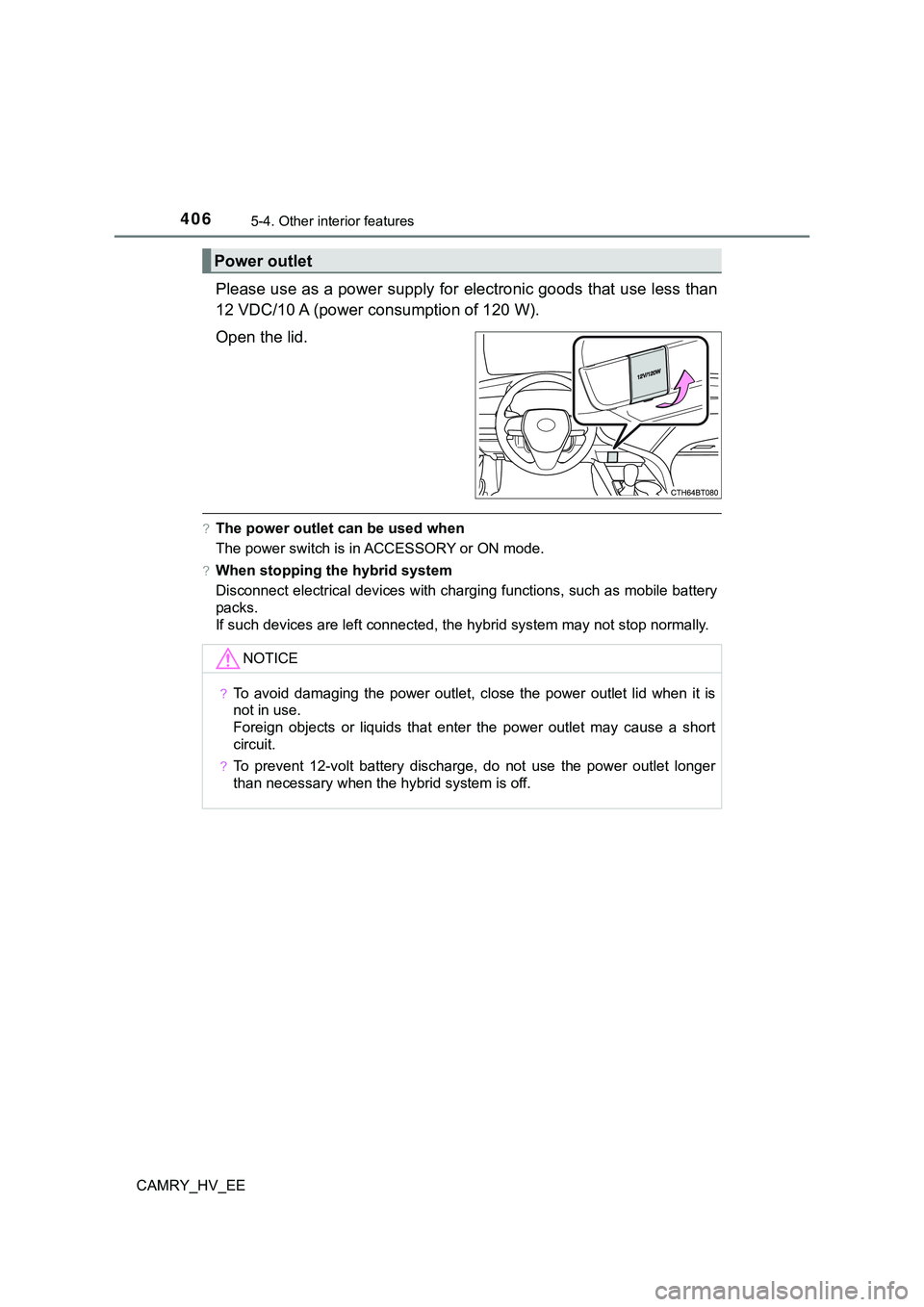
Please use as a power supply for electronic goods that use less than
12 VDC/10 A (power consumption of 120 W).
Open the lid.
?The power outlet can be used when
The power switch is in ACCESSORY or ON mode.
?When stopping the hybrid system
Disconnect electrical devices with charging functions, such as mobile battery
packs.
If such devices are left connected, the hybrid system may not stop normally.
Power outlet
NOTICE
?To avoid damaging the power outlet, close the power outlet lid when it is
not in use.
Foreign objects or liquids that enter the power outlet may cause a short
circuit.
?To prevent 12-volt battery discharge, do not use the power outlet longer
than necessary when the hybrid system is off.
Page 409 of 708
4075-4. Other interior features
CAMRY_HV_EE
5
Interior features
The USB charging ports are used to supply 3.0 A of electricity at 5 V
to external devices (power consumption of 15.75 W).
The USB charging ports are for charging only. They are not designed
for data transfer or other purposes.
Depending on the external device, it may not charge properly. Refer to
the manual included with the device before using a USB charging
port.
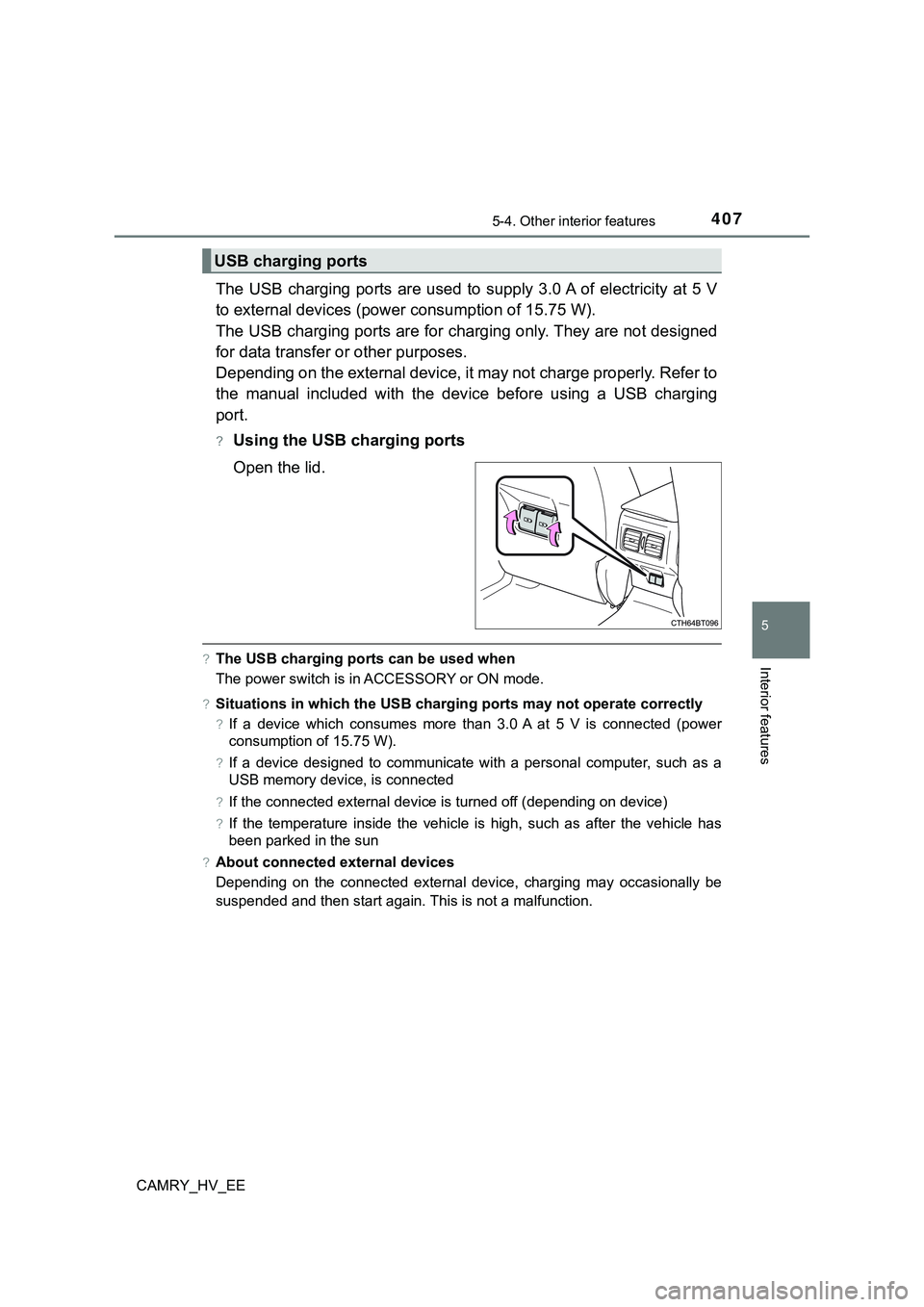
?Using the USB charging ports
Open the lid.
?The USB charging ports can be used when
The power switch is in ACCESSORY or ON mode.
?Situations in which the USB charging ports may not operate correctly
?If a device which consumes more than 3.0 A at 5 V is connected (power
consumption of 15.75 W).
?If a device designed to communicate with a personal computer, such as a
USB memory device, is connected
?If the connected external device is turned off (depending on device)
?If the temperature inside the vehicle is high, such as after the vehicle has
been parked in the sun
?About connected external devices
Depending on the connected external device, charging may occasionally be
suspended and then start again. This is not a malfunction.
USB charging ports
Page 410 of 708
4085-4. Other interior features
CAMRY_HV_EE
NOTICE
?To prevent damage to the USB charging ports
?Do not insert foreign objects into the ports.
?Do not spill water or other liquids into the ports.
?When the USB charging ports are not in use, close the lids. If a foreign
object or liquid enters a port may cause a short circuit.
?Do not apply excessive force to or impact the USB charging ports.
?Do not disassemble or modify the USB charging ports.
?To prevent damage to external devices
?Do not leave external devices in the vehicle. The temperature inside the
vehicle may become high, resulting in damage to an external device.
?Do not push down on or apply unnecessary force to an external device or
the cable of an external device while it is connected.
?To prevent 12-volt battery discharge
Do not use the USB charging ports for a long period of time with the hybrid
system stopped.
Page 411 of 708
4095-4. Other interior features
CAMRY_HV_EE
5
Interior features
A portable device, such as a smartphone or mobile battery, can be
charged by just placing it on the charging area, provided the device is
compatible with the Qi wireless charging standard created by the
Wireless Power Consortium.
The wireless charger cannot be used with a portable device that is
larger than the charging area. Additionally, depending on the portable
device, the wireless charger may not operate properly. Refer to the
operation manual of the portable device.
?The “Qi” logo
The “Qi” logo is a trademark of the Wireless Power Consortium.
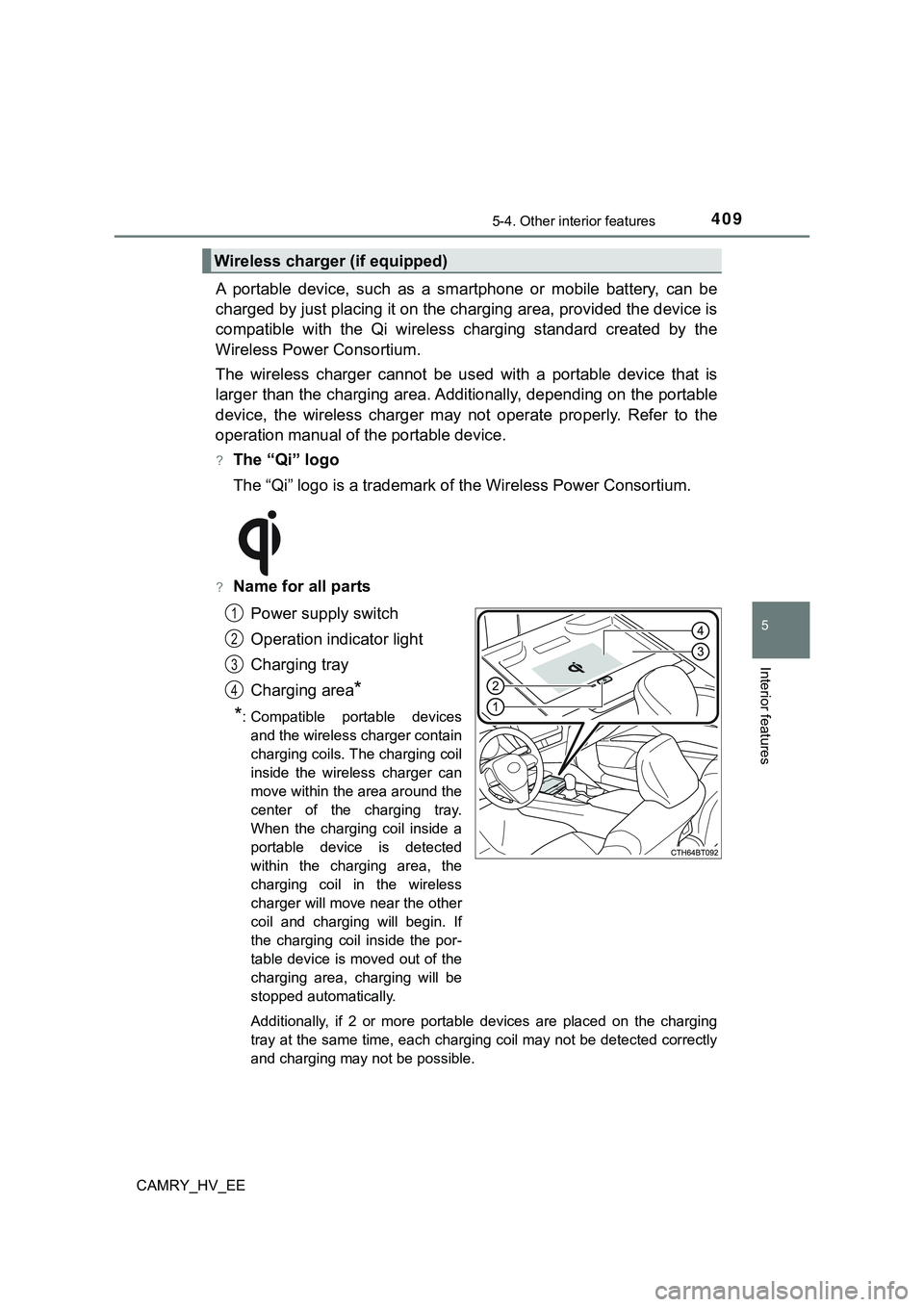
?Name for all parts
Power supply switch
Operation indicator light
Charging tray
Charging area
*
*
: Compatible portable devices
and the wireless charger contain
charging coils. The charging coil
inside the wireless charger can
move within the area around the
center of the charging tray.
When the charging coil inside a
portable device is detected
within the charging area, the
charging coil in the wireless
charger will move near the other
coil and charging will begin. If
the charging coil inside the por-
table device is moved out of the
charging area, charging will be
stopped automatically.
Additionally, if 2 or more portable devices are placed on the charging
tray at the same time, each charging coil may not be detected correctly
and charging may not be possible.
Wireless charger (if equipped)
1
2
3
4
Page 412 of 708

4105-4. Other interior features
CAMRY_HV_EE
?Using the wireless charger
Press the power supply
switch of the wireless char-
ger.
Pressing the switch again turns
the wireless charger off.
When turned on, the operation
indicator light (green) comes on.
When the power switch is turned
off, the on/off state of the wire-
less charger will be memorized.
If the power supply switch is pressed 3 times while charging is being
performed, the rapid charging function will turn on. To turn the wireless
charger off, press the power supply switch when a portable device is not
being charged.
Place a portable device on
the charging tray.
Place the portable device so
that it is centered in the charging
area with its charging surface
facing the portable charger.
Depending on the portable
device, its charging coil may not
be in the center of the device. In
this case, place the portable
device so that its charging coil is
centered in the charging area.
While charging, the operation indicator light (orange) will be illuminated.
If charging does not begin, move the portable device as close to the
center of the charging area as possible.
When charging is complete, the operation indicator light (green) will illu-
minate.
?Recharging function
?If a certain amount of time has elapsed since charging completed
and the portable device has not been moved, the wireless char-
ger will restart charging.
?If a portable device is moved significantly within the charging
area, the charging coil may disconnect and charging may tempo-
rarily be stopped. However, if a charging coil is detected within
the charging area, the charging coil inside the wireless charger
will move near the other coil and charging will resume.
1
2
Page 413 of 708
4115-4. Other interior features
CAMRY_HV_EE
5
Interior features
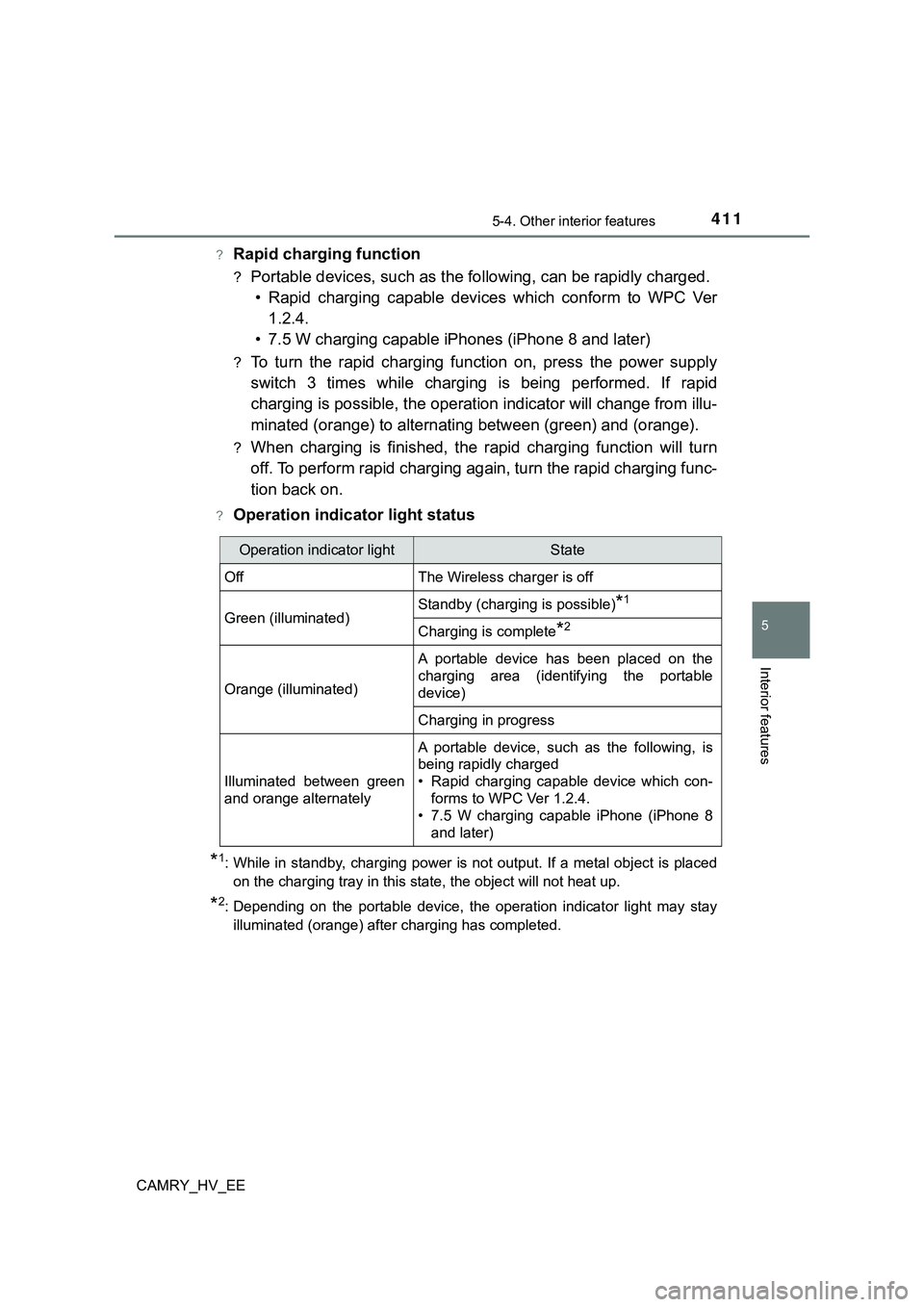
?Rapid charging function
?Portable devices, such as the following, can be rapidly charged.
• Rapid charging capable devices which conform to WPC Ver
1.2.4.
• 7.5 W charging capable iPhones (iPhone 8 and later)
?To turn the rapid charging function on, press the power supply
switch 3 times while charging is being performed. If rapid
charging is possible, the operation indicator will change from illu-
minated (orange) to alternating between (green) and (orange).
?When charging is finished, the rapid charging function will turn
off. To perform rapid charging again, turn the rapid charging func-
tion back on.
?Operation indicator light status
*1: While in standby, charging power is not output. If a metal object is placed
on the charging tray in this state, the object will not heat up.
*2: Depending on the portable device, the operation indicator light may stay
illuminated (orange) after charging has completed.
Operation indicator lightState
OffThe Wireless charger is off
Green (illuminated)Standby (charging is possible)*1
Charging is complete*2
Orange (illuminated)
A portable device has been placed on the
charging area (identifying the portable
device)
Charging in progress
Illuminated between green
and orange alternately
A portable device, such as the following, is
being rapidly charged
• Rapid charging capable device which con-
forms to WPC Ver 1.2.4.
• 7.5 W charging capable iPhone (iPhone 8
and later)
Page 414 of 708

4125-4. Other interior features
CAMRY_HV_EE
?If the operation indicator light blinks
If an error is detected, the operation indicator light will blink
(orange). Take the appropriate measures according to the table
below.
Operation indi-
cator lightSuspected causesMeasure
Continuously
blinks 1 time
per secondCommunication malfunc-
tion between the wire-
less charger and smart
entry & start systemIf the hybrid system is oper-
ating, stop the hybrid sys-
tem and then restart it.
If the power switch is in
ACCESSORY mode, start
the hybrid system.
(P. 210)
Continuously
flashes 3 times
(orange)Foreign matter detected
If a metallic foreign object is
detected in the charge
area, the overheat preven-
tion function of the charging
coil will operateRemove the foreign object
from the charge area.
Portable device not
aligned correctly
If the charging coil of a por-
table device is not properly
positioned on the charging
area, the overheat preven-
tion function of the charging
coil will operateRemove the portable
device from the charging
tray, check that the opera-
tion indicator light changes
back to green, and then
place the portable device
so that it is near the center
of the charging tray.
Also, if a case or cover is
installed to the portable
device, remove it.
Continuously
flashes 4 times
(orange)Temperature inside wire-
less charger exceeded a
certain amountStop charging, remove the
portable device from the
charging tray, and wait for
the temperature to
decrease before attempt-
ing to begin charging again.
Page 415 of 708

4135-4. Other interior features
CAMRY_HV_EE
5
Interior features
?The wireless charger can be operated when
The power switch is in ACCESSORY or ON mode.
?Portable devices that can be charged
?Portable devices compatible with the Qi wireless charging standard can be
charged by the wireless charger. However, compatibility with all devices
<005a004b004c0046004b0003005000480048005700030057004b004800030034004c0003005a004c00550048004f00480056005600030046004b00440055004a004c0051004a0003005600570044005100470044005500470003004c005600030051005200
570003004a0058004400550044005100570048004800470011[
?The wireless charger is designed to supply low power electricity (5 W or
less) to a cellular phone, smartphone, or other portable device.
?However, portable devices, such as the following, can be charged with more
than 5 W.
• 7.5 W charging compatible iPhones can be charged at 7.5 W or less.
• Portable devices which conform to WPC Ver 1.2.4 can be charged at 10
W or less.
?Using the smart entry & start system
During charging, when the smart entry & start system searches for an elec-
tronic key, charging may be temporarily suspended.
?If a cover or accessory is attached to the portable device
Do not charge a portable device if a cover or accessory which is not Qi com-
patible is attached. Depending on the type of cover and/or accessory
attached, it may not be possible to charge the portable device. If the portable
device is placed on the charging area and does not charge, remove the cover
and/or accessories.
?If interference is heard in AM radio broadcasts while charging
?Turn off the wireless charger and check if the noise is reduced. If noise is
reduced, press and hold the power supply switch of the wireless charger for
2 seconds. The frequency of the wireless charger is changed and noise may
be reduced. When the frequency is changed, the operation indicator light
will blink (orange) 2 times.
?Rapid charging for iPhones is performed using a specific radio wave fre-
quency.
Depending on the version of iOS installed, while the frequency is being
changed, rapid charging may not be performed.
?Charging precautions
While charging, the wireless charger and the portable device will become
warm. This is not a malfunction.
If a portable device becomes warm while charging and charging stops due to
the protection function of the portable device, wait until the portable device
cools down and charge it again.
Also, to decrease the temperature inside the wireless charger, a fan may
operate. This does not indicate a malfunction.