2023 TESLA MODEL X high
[x] Cancel search: highPage 3 of 296

Overview................................................................3
Exterior Overview............................................................................3
Interior Overview.............................................................................5
Touchscreen Overview...................................................................7
Opening and Closing.......................................13
Keys.....................................................................................................13
Doors..................................................................................................19
Windows...........................................................................................24
Rear Trunk........................................................................................25
Front Trunk......................................................................................27
Interior Storage and Electronics.............................................30
Sun Visors........................................................................................34
Seating and Safety Restraints.....................35
Front and Rear Seats...................................................................35
Seat Belts.........................................................................................40
Child Safety Seats.........................................................................43
Airbags...............................................................................................51
Driving..................................................................57
Driver Profiles.................................................................................57
Steering Yoke (or Steering Wheel)........................................59
Mirrors...............................................................................................62
Starting and Powering Off.........................................................63
Shifting..............................................................................................65
Lights.................................................................................................68
Instrument Panel.............................................................................71
Wipers and Washers....................................................................75
Braking and Stopping..................................................................76
Traction Control.............................................................................79
Park Assist.......................................................................................80
Vehicle Hold....................................................................................82
Acceleration Modes......................................................................83
Trip Information.............................................................................84
Rear Facing Camera(s)...............................................................85
Pedestrian Warning System......................................................86
Towing and Accessories.............................................................87
Cold Weather Best Practices....................................................96
Autopilot..............................................................98
About Autopilot............................................................................98
Traffic-Aware Cruise Control....................................................101
Autosteer........................................................................................105
Navigate on Autopilot................................................................110
Traffic Light and Stop Sign Control.......................................113
Autopark.........................................................................................120
Summon..........................................................................................122
Smart Summon.............................................................................125
Active Safety Features..................................128
Lane Assist.....................................................................................128
Collision Avoidance Assist.........................................................131
Speed Assist..................................................................................134
Cabin Camera................................................................................135
Using the Touchscreen.................................136
Climate Controls..........................................................................136
Phone, Calendar, and Web Conferencing...........................143
Air Suspension..............................................................................146
Voice Commands.........................................................................148
Safety & Security Settings.......................................................150
Dashcam..........................................................................................152
Sentry Mode..................................................................................153
USB Drive Requirements for Recording Videos..............155
Smart Garage Connectivity.....................................................156
Connecting to Wi-Fi...................................................................159
Software Updates.......................................................................160
Mobile App.....................................................................................162
Navigation and Entertainment..................164
Maps and Navigation.................................................................164
Media................................................................................................170
Theater, Arcade, and Toybox...................................................173
Charging and Energy Consumption........176
Electric Vehicle Components..................................................176
High Voltage Battery Information.........................................178
Charging Instructions................................................................180
Scheduled Charging and Scheduled Departure..............185
Getting Maximum Range..........................................................186
Maintenance......................................................188
Maintenance Service Intervals................................................188
Tire Care and Maintenance......................................................190
Cleaning..........................................................................................196
Windshield Wiper Blades, Jets and Fluid.........................200
Jacking and Lifting....................................................................202
Parts and Accessories..............................................................203
Do It Yourself Maintenance....................................................204
Specifications..................................................205
Identification Labels..................................................................205
Vehicle Loading..........................................................................206
Dimensions...................................................................................208
Subsystems.....................................................................................211
Wheels and Tires..........................................................................213
Roadside Assistance....................................220
Contacting Tesla Roadside Assistance..............................220
Instructions for Transporters...................................................221
Running Out of Range..............................................................225
Jump Starting..............................................................................226
Troubleshooting.............................................228
Contents
Page 18 of 296

CAUTION: Protect the key from impact, high
temperatures, and damage from liquids. Avoid
contact with solvents, waxes, and abrasive
cleaners.
Passive Locking and Unlocking
Locking and unlocking Model X with your key fob is
conveniently hands-free. Although you must be carrying a paired key fob, there is no need to use it.
Model X has
sensors around the vehicle that can recognize the
presence of a key fob within a range of approximately
six feet (two meters). Therefore, you can keep your key
fob in your pocket or purse and press the door handle to
unlock and extend the handle. When carrying your key
fob with you, you can also open the trunk without having to use the key by pressing the
liftgate
Page 23 of 296

CAUTION: In rainy weather, leaving a falcon wing
open while opening the liftgate can result in rain
water falling from the liftgate into the rear seating
area.
WARNING: When opening or closing a falcon wing
door, it is important to proactively monitor the
movement of the door to ensure that it does not
come into contact with a person or object. Failure
to do so can cause serious damage or injury.
Obstacle Detection
A falcon wing door stops moving when one of its many
sensors detects an obstacle, or when the door senses resistance because it has made contact with an object. The touchscreen displays a warning. In these cases, provided it is appropriate to continue opening or closing the falcon wing door, you can override obstacle
detection by pressing and holding the switch located on the door pillar, or touching and holding the associated door icon on the touchscreen.
When Model X detects a low ceiling (for example, in a garage), it opens the falcon wing doors (and trunk) to a lower height, even if no obstacle is detected. You can override this height and open the doors higher by
touching the associated door icon on the touchscreen (
Controls). The touchscreen displays a message asking
you if you always want to open the doors to the higher height at this location, and saves your choice. The next time you open the falcon wing doors at this location, Model X opens them to the height you saved.
WARNING: Before overriding a falcon wing door
Page 33 of 296
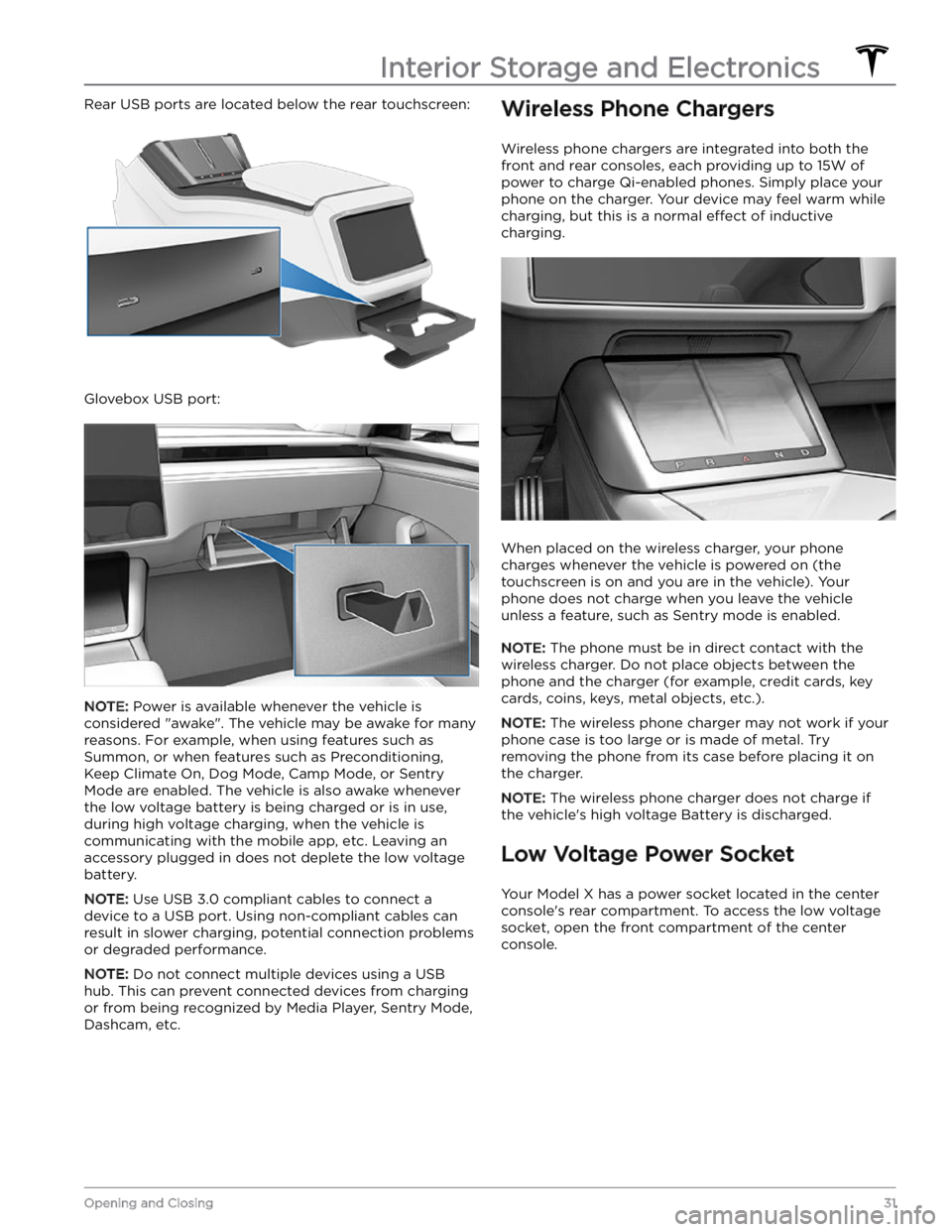
Rear USB ports are located below the rear touchscreen:
Glovebox USB port:
NOTE: Power is available whenever the vehicle is
considered "awake". The vehicle may be awake for many
reasons. For example, when using features such as
Summon, or when features such as Preconditioning,
Keep Climate On, Dog Mode, Camp Mode, or Sentry Mode are enabled. The vehicle is also awake whenever the
low voltage battery is being charged or is in use,
during high voltage charging, when the vehicle is communicating with the mobile app, etc. Leaving an accessory plugged in does not deplete the
low voltage
battery.
NOTE: Use USB 3.0 compliant cables to connect a
device to a USB port. Using non-compliant cables can result in slower charging, potential connection problems or degraded performance.
NOTE: Do not connect multiple devices using a USB
hub. This can prevent connected devices from charging or from being recognized by Media Player, Sentry Mode, Dashcam, etc.
Wireless Phone Chargers
Wireless phone chargers are integrated into both the
front and rear consoles, each providing up to 15W of power to charge Qi-enabled phones. Simply place your phone on the charger. Your device may feel warm while charging, but this is a normal
effect of inductive
charging.
When placed on the wireless charger, your phone
charges whenever the vehicle is powered on (the
touchscreen is on and you are in the vehicle). Your
phone does not charge when you leave the vehicle
unless a feature, such as Sentry mode is enabled.
NOTE: The phone must be in direct contact with the
wireless charger. Do not place objects between the phone and the charger (for example, credit cards, key
cards, coins, keys, metal objects, etc.).
NOTE: The wireless phone charger may not work if your
phone case is too large or is made of metal. Try removing the phone from its case before placing it on the charger.
NOTE: The wireless phone charger does not charge if
the vehicle
Page 34 of 296

The power socket is suitable for accessories requiring up to 12A continuous draw (16A peak).
NOTE: Power is available whenever the vehicle is
considered "awake". The vehicle may be awake for many
reasons. For example, when using features such as Summon, or when features such as Preconditioning, Cabin Overheat Protection, Keep Climate On, Dog Mode,
Camp Mode, Sentry Mode, etc. are enabled. The vehicle
is also awake whenever the
low voltage battery is being
charged or is in use, during high voltage charging, when
the vehicle is communicating with the mobile app, etc. Leaving an accessory plugged in does not deplete the
low voltage battery.
WARNING: The power socket and an accessory
Page 70 of 296

Controlling Lights
Touch Controls > Lights to control the lights.
NOTE: You can also access an abbreviated lights menu
while driving by touching the High Beam button on the
steering yoke (or steering wheel). A lights menu displays
on the touchscreen, providing quick access to headlight controls.
In addition to the lights that you can control from the
touchscreen,
Model X has convenience lights that turn
on and
off automatically based on what you are doing.
For example, interior lights, marker lights, tail lights, and
puddle lights turn on when you unlock
Model X, when
you open a door, and when you shift into Park. They turn
off automatically after a minute or two or when you shift
or lock
Model X.
Exterior Lights
Exterior lights (headlights, tail lights, side marker lights,
parking lights, and license plate lights) are set to
Auto
each time you start Model X. When set to Auto, exterior
lights automatically turn on when driving in low lighting
conditions. If you change to a
different setting, lights
always revert to
Auto on your next drive.
Touch one of these options to change the exterior light setting:
Page 71 of 296

Auto High Beam (if equipped)
The high beam headlights can automatically switch to low beam when there is light detected in front of
Model X (for example, from an oncoming vehicle). To
turn this feature on or
off, touch Controls > Lights >
Auto High Beam. Your chosen setting is retained until
you manually change it.
NOTE: When you touch or press the high beam
headlight button on the left side of the
steering yoke (or
steering wheel), the touchscreen displays an abbreviated
lights menu to provide quick access to control headlights, fog lights (if equipped), and the
Auto High
Beam setting. Use the touchscreen to choose options
from this menu.
NOTE: Auto High Beam is automatically enabled when
Autosteer is engaged. To switch to low beam headlights, press the high beam headlight button on the
steering
yoke (or steering wheel). Auto High Beam is re-enabled
every time Autosteer is activated.
The following indicator lights are visible on the instrument panel to show the status of the headlights:
Low beam headlights are on.High beam headlights are on. Illuminates
when high beams are on but the Auto High
Beam setting is turned off or if the Auto
High Beam setting is turned on but is
temporarily unavailable.
High beams are currently turned on, and
Auto High Beam is ready to turn off the
high beams if light is detected in front of
Model X.
High beams are temporarily turned off
because Auto High Beam is operating and
light is detected in front of
Model X. When
light is no longer detected, high beam headlights automatically turn back on.
WARNING: Auto High Beam is a convenience only
and is subject to limitations. It is the driver
Page 75 of 296

10. The power meter displays real-time power usage. During acceleration, the bar fills to the right with a gray color
(or white if the display is dark) to represent power being used. During deceleration (when
Model X is moving and
you release your foot from the accelerator pedal), the bar
fills to the left with a green color to represent power
being fed back to the Battery by regenerative braking (see
Regenerative Braking on page 77).
11.
When Autosteer is active and detects the driving lane, it is highlighted in blue (see Autosteer on page 105).
Depending on the current driving scenario, you may see neighboring lanes.
NOTE: In situations where Autosteer is unable to detect lane markings, the driving lane is determined based on
the vehicle you are following.
NOTE: If Navigate on Autopilot is active, the driving lane displays as a single blue line in front of Model X (see
Navigate on Autopilot on page 110).
Indicator Lights
Indicator lights display along the top of the instrument panel to show status and alert you of
specific vehicle
conditions.
IndicatorDescriptionA brake system fault is detected or the brake
fluid level is low. See Braking and
Stopping on page 76. Contact Tesla
immediately.
A brake booster fault has been detected. See
Braking and Stopping on page 76.
An ABS (Anti-lock Braking System) fault is detected. See
Braking and Stopping on
page 76. Contact Tesla immediately.
A parking brake fault is detected. Contact Tesla. See
Parking Brake on page
77.
The parking brake is manually applied.
See
Parking Brake on page 77.
Tire pressure warning. The pressure of a tire is out of range. If a fault with the Tire Pressure Monitoring System (TPMS) is
detected, the indicator
flashes. For a
TPMS fault, contact Tesla. See
Tire Care
and Maintenance on page 190.
A seat belt for an occupied seat is not
fastened. See
Seat Belts on page 40.
IndicatorDescriptionAirbag safety. If this red indicator does not
flash on briefly when Model X
prepares to drive, or if it remains on, contact Tesla immediately. See
Airbags
on page 51.
Front fog lights are on, if equipped. See
Lights on page 68.
Parking lights (side marker lights, tail
lights, and license plate lights) are on. See
Lights on page 68.
Low beam headlights are on.
High beam headlights are on. Illuminates when high beams are on but the Auto High Beam setting (if equipped) is turned
off or if the Auto High Beam setting is
turned on but is temporarily unavailable.
See
High Beam Headlights on page 68.
High beam headlights are currently
turned on, and Auto High Beam (if equipped) is ready to turn
off the high
beams if light is detected in front of
Model X. See High Beam Headlights on
page 68.
High beam headlights are temporarily
turned
off because Auto High Beam (if
equipped) is on and is detecting light in
front of
Model X. When light is no longer
detected, the high beams automatically turn back on. See
High Beam Headlights
on page 68.
Instrument Panel
73Seating and Safety Restraints