2023 TESLA MODEL S VIN
[x] Cancel search: VINPage 71 of 276

How It Works
The traction control system constantly monitors the speed of the front and rear wheels. If
Model S
experiences a loss of traction, the system minimizes wheel spin by controlling brake pressure and motor power. By default, the traction control system is on. Under normal conditions, it should remain on to ensure
maximum safety.
This yellow indicator flashes on the
instrument panel whenever the traction
control system is actively controlling brake
pressure and motor power to minimize wheel spin. If the indicator stays on, a fault is detected with the traction control system. Contact Tesla Service.
WARNING: Traction control cannot prevent
collisions caused by driving dangerously or turning
too sharply at high speeds.
Allowing Wheel Slip
To allow the wheels to spin at a limited speed, you can
enable Slip Start.
Slip Start can be enabled only when
Model S is moving 30 mph (48 km/h) or slower. Slip
Start automatically disables when the speed exceeds
50 mph (80 km/h).
Under normal conditions, Slip Start should not be enabled. Enable it only in circumstances where you
deliberately want the wheels to spin, such as:
Page 72 of 276
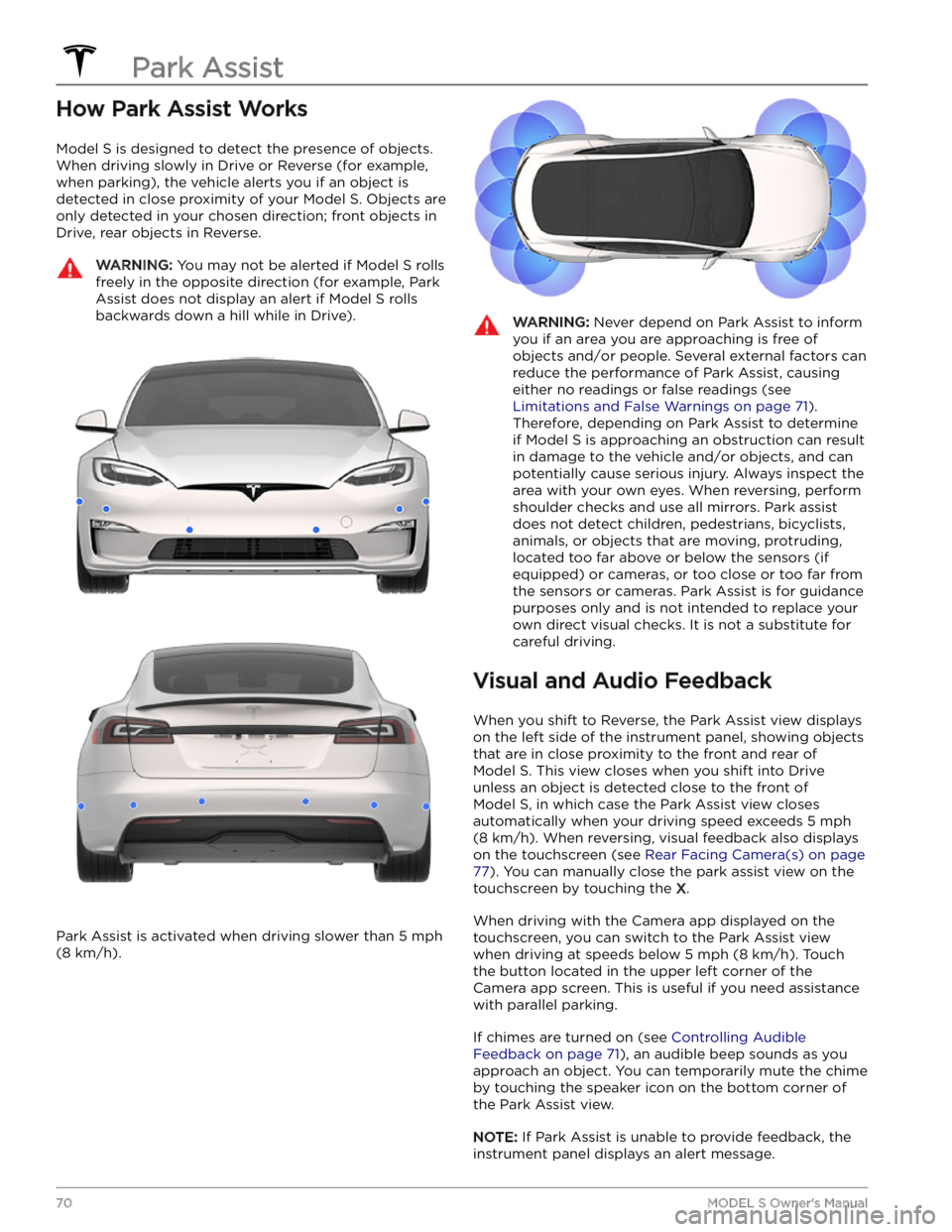
How Park Assist Works
Model S is designed to detect the presence of objects.
When driving slowly in Drive or Reverse (for example,
when parking), the vehicle alerts you if an object is
detected in close proximity of your
Model S. Objects are
only detected in your chosen direction; front objects in Drive, rear objects in Reverse.
WARNING: You may not be alerted if Model S rolls
freely in the opposite direction (for example, Park
Assist does not display an alert if Model S rolls
backwards down a hill while in Drive).
Park Assist is activated when driving slower than 5 mph
(8 km/h).
WARNING: Never depend on Park Assist to inform
you if an area you are approaching is free of
objects and/or people. Several external factors can
reduce the performance of Park Assist, causing
either no readings or false readings (see
Limitations and False Warnings on page 71).
Therefore, depending on Park Assist to determine
if Model S is approaching an obstruction can result
in damage to the vehicle and/or objects, and can
potentially cause serious injury. Always inspect the
area with your own eyes. When reversing, perform
shoulder checks and use all mirrors. Park assist
does not detect children, pedestrians, bicyclists,
animals, or objects that are moving, protruding,
located too far above or below the sensors (if
equipped) or cameras, or too close or too far from
the sensors or cameras. Park Assist is for guidance
purposes only and is not intended to replace your
own direct visual checks. It is not a substitute for
careful driving.
Visual and Audio Feedback
When you shift to Reverse, the Park Assist view displays on the
left side of the instrument panel, showing objects
that are in close proximity to the front and rear of
Model S. This view closes when you shift into Drive
unless an object is detected close to the front of
Model S, in which case the Park Assist view closes
automatically when your driving speed exceeds
5 mph
(8 km/h). When reversing, visual feedback also displays
on the touchscreen (see
Rear Facing Camera(s) on page
77). You can manually close the park assist view on the
touchscreen by touching the
X.
When driving with the Camera app displayed on the
touchscreen, you can switch to the Park Assist view
when driving at speeds below
5 mph (8 km/h). Touch
the button located in the upper left corner of the Camera app screen. This is useful if you need assistance
with parallel parking.
If chimes are turned on (see Controlling Audible
Feedback on page 71), an audible beep sounds as you
approach an object.
You can temporarily mute the chime
by touching the speaker icon on the bottom corner of
the Park Assist view.
NOTE: If Park Assist is unable to provide feedback, the
instrument panel displays an alert message.
Park Assist
70MODEL S Owner
Page 76 of 276

Track Mode, available only on Plaid Model S vehicles, is
designed to modify the stability control, traction control, regenerative braking, and cooling systems to increase performance and handling while driving on closed
circuit courses. Track Mode improves cornering ability by
intelligently using the motors, and regenerative and
traditional braking systems. When enabled, the cooling
system runs at an increased level during and after
aggressive driving sessions to allow your vehicle
Page 79 of 276

Camera Location
Model S is equipped with a rear view camera located
above the rear license plate.
Whenever you shift into Reverse, the touchscreen displays the view from the camera. Lines show your
driving path based on the position of the
steering yoke
(or steering wheel). These lines adjust as you move the
steering yoke (or steering wheel).
Model S also displays images from the side cameras (if
equipped). Simply swipe up or down to hide or show the
side camera views.
NOTE: Visual feedback from Park Assist also appears on
the
instrument panel (see Park Assist on page 70).
To display the view from the rear view
cameras at any time, open the app
launcher and touch the Camera app.
If a black screen appears on the touchscreen instead of the rear view camera feed when in Reverse, use the rear view mirrors and ensure your surroundings are safe before continuing to Reverse. If inoperability of the rear
view camera persists, use the mobile app to schedule a service appointment.
WARNING: Never depend on the cameras to
inform you if the area behind you is free of objects
and/or people. The cameras may not detect
objects or barriers that can potentially cause
damage or injury. In addition, several external
factors can reduce the performance of the
cameras, including a dirty or obstructed lens.
Therefore, depending on the cameras to determine
if Model S is approaching an obstruction can result
in damage to the vehicle and/or objects and can
potentially cause serious injury. Always inspect the
area with your own eyes. When reversing, perform
shoulder checks and use all mirrors. Use the
cameras for guidance purposes only. It is not
intended to replace your own direct visual checks
and is not a substitute for careful driving.
Cleaning a Camera
To ensure a clear picture, the camera lens must be clean
and free of obstructions. Remove any build-up of dirt or debris by spraying water onto the camera lens with a
spray bottle.
CAUTION: Do not attempt to remove dirt or debris
by wiping an exposed lens with your hands or a
cloth. This debris can damage the surface of the
lens when rubbed against it during wiping.
CAUTION: Do not use chemical-based or abrasive
cleaners. Doing so can damage the surface of the
lens.
Rear Facing Camera(s)
77Driving
Page 80 of 276

The Pedestrian Warning System causes Model S to emit
sound when driving below approximately 32 km/h (19 mph), or while driving in reverse. Electric vehicles operate quietly and this sound helps to alert pedestrians of your oncoming vehicle. The sound, which activates whenever
Model S is shifted out of Park, gets louder as
speed increases.
WARNING: If sound cannot be heard, pedestrians
may not be aware of your oncoming vehicle, which
may increase the likelihood of a collision resulting
in serious injury or death. If the Pedestrian
Warning System is not operating, immediately
contact Tesla.
Pedestrian Warning System
78MODEL S Owner
Page 81 of 276

To ensure that Model S provides you with the best
ownership experience possible in harsh cold weather
conditions, follow these best practices.
Before Driving
When snow and ice accumulate on your vehicle, moving
parts, such as the door handles, windows, mirrors, and
wipers can freeze in place. To achieve maximum range
and performance, it is helpful to warm the cabin and Battery before you leave. There are several ways to do
so:
Page 87 of 276

4. To change your speed while using Traffic-Aware
Cruise Control, you can roll the right scroll wheel on
the steering wheel up or down. For more details, see
Changing the Cruising Speed on page 85.
5.
To cancel Traffic-Aware Cruise Control, press the right
scroll wheel, or press the brake pedal. See
Canceling
and Resuming on page 87 for more information.
Set Traffic-Aware Cruise Control
Chime
If you want a chime to sound when you engage or cancel
Traffic-Aware Cruise Control, touch Controls >
Autopilot > Traffic-Aware Cruise Control Chime.
NOTE: Model S must be in Park.
Changing the Cruising Speed
Roll the right scroll wheel up to increase, or down to decrease, the set speed. Slowly rolling the scroll wheel
changes the set speed in
1 mph (1 km/h) increments and
quickly rolling the scroll wheel changes the set speed to the closest
5 mph (5 km/h) increment. For example, if
you are traveling at
57 mph and quickly roll the scroll
wheel, the speed increases to
60 mph.
NOTE: It may take a few seconds for Model S to reach
the new cruising speed, assuming
Model S is not cruising
behind a vehicle that is driving slower than your set
speed.
Cruising at the Set Speed
Traffic-Aware Cruise Control maintains your set cruising
speed whenever a vehicle is not detected in front of
Model S. When cruising behind a detected vehicle,
Traffic-Aware Cruise Control accelerates and decelerates
Model S as needed to maintain a chosen following
distance (see
Adjust the Following Distance on page
86), up to the set speed.
Traffic-Aware Cruise Control also adjusts the cruising
speed when entering and exiting curves.
You can manually accelerate at any time when cruising
at a set speed, but when you release the accelerator,
Traffic-Aware Cruise Control resumes cruising at the set
speed.
NOTE: When Traffic-Aware Cruise Control is actively
slowing down
Model S to maintain the selected distance
from the vehicle ahead, brake lights turn on to alert other road users that you are slowing down. You may
notice slight movement of the brake pedal. However,
when
Traffic-Aware Cruise Control is accelerating
Model S, the accelerator pedal does not move.
WARNING: Traffic-Aware Cruise Control may
occasionally cause Model S to brake when not
required or when you are not expecting it. This can
be caused by closely following a vehicle ahead,
detecting vehicles or objects in adjacent lanes
(especially on curves), etc.
WARNING: Due to limitations inherent in the
onboard GPS (Global Positioning System), you
may experience situations in which Model S slows
down, especially near exits or off-ramps where a
curve is detected and/or you are navigating to a
destination and not following the route.
WARNING: Traffic-Aware Cruise Control may not
detect all objects and, especially when cruising
over 50 mph (80 km/h), may not brake/decelerate
when a vehicle or object is only partially in the
driving lane or when a vehicle you are following
moves out of your driving path and a stationary or
slow-moving vehicle or object is in front of you.
Always pay attention to the road ahead and stay
prepared to take immediate corrective action.
Depending on Traffic-Aware Cruise Control to
avoid a collision can result in serious injury or
death. In addition, Traffic-Aware Cruise Control
may react to vehicles or objects that either do not
exist, or are not in your lane of travel, causing
Model S to slow down unnecessarily or
inappropriately.
WARNING: Traffic-Aware Cruise Control may be
unable to provide adequate speed control because
of limited braking capability and hills. It can also
misjudge the distance from a vehicle ahead.
Driving downhill can increase driving speed,
causing Model S to exceed your set speed (and
potentially the road
Page 88 of 276

HOLD State
When following a vehicle, Traffic-Aware Cruise Control
remains active at low speeds, even when
Model S comes
to a full stop. When the vehicle is moving again,
Traffic-
Aware Cruise Control resumes operating at the set
speed. However, under the following circumstances,
Traffic-Aware Cruise Control goes into a HOLD state, in
which case, you need to
briefly press the accelerator
pedal to resume cruising. When the
HOLD status is
active, the
instrument panel displays the HOLD icon and
a message that indicates that you need to resume cruise control. The following circumstances can cause
Traffic-
Aware Cruise Control to go into the HOLD state: