Page 7 of 296

WARNING: Always pay attention to road and traffic conditions when driving. To minimize driver distraction and
ensure the safety of vehicle occupants as well as other road users, avoid using the touchscreen to adjust
settings while the vehicle is in motion.
Use the touchscreen to control many features that, in traditional cars, are controlled using physical buttons (for example, adjusting the cabin heating and air conditioning, headlights, etc.). You also use the touchscreen to control
media, navigate, use entertainment features, and customize
Model 3 to suit your preferences. For hands-free access
to common touchscreen controls, use voice commands (see
Voice Commands on page 125).
If the touchscreen is unresponsive or demonstrates unusual behavior, you can restart it (see Restarting the
Touchscreen on page 7).
NOTE: Illustrations are provided to improve conceptual understanding only. Depending on vehicle options, software
version, market region and regional and language settings, the details displayed on the screen will differ.
1.
Status bar: This area on the top of the touchscreen displays the time of day, the outside temperature, and the
following icons:
Touch to lock/unlock all doors and trunks.4:20 pmYour vehicle automatically updates the time. If the time is incorrect, confirm your vehicle has
internet and GPS connectivity with the latest software.
Touchscreen Overview
5Overview
Page 10 of 296
3.
After a few seconds, the Tesla logo appears. Wait approximately 30 seconds for the touchscreen to restart. If the
touchscreen is still unresponsive or demonstrating unusual behavior after a few minutes, try power cycling the
vehicle (if possible). See
Power Cycling the Vehicle on page 50.
NOTE: Pressing the scroll buttons only restarts the touchscreen. It does not restart any other vehicle component and
does not power
Model 3 off and on.
Customizing My Apps
For one-touch access to commonly used apps and controls, you can customize what displays in the My Apps area on
the touchscreen
Page 52 of 296
Starting
When you open a door to enter Model 3, the
touchscreen powers on and you can operate all controls.
To drive
Model 3:
1.
Press the brake pedal - Model 3 powers on and is
ready to drive.
2.
Select a drive mode - move the drive stalk down for
Drive or up for Reverse (see
Shifting on page 51).
NOTE: If the PIN to Drive feature is enabled (see PIN to
Drive on page 127), you must also enter a valid PIN on
the touchscreen before you can drive
Model 3.
Everything you need to know when driving Model 3
displays on the touchscreen.
Drive Disabled - Requires Authentication
If Model 3 does not detect a key when you press the
brake (a key fob or phone key is not detected or two
minutes have passed since you used the key card), the touchscreen displays a message telling you that driving requires authentication.
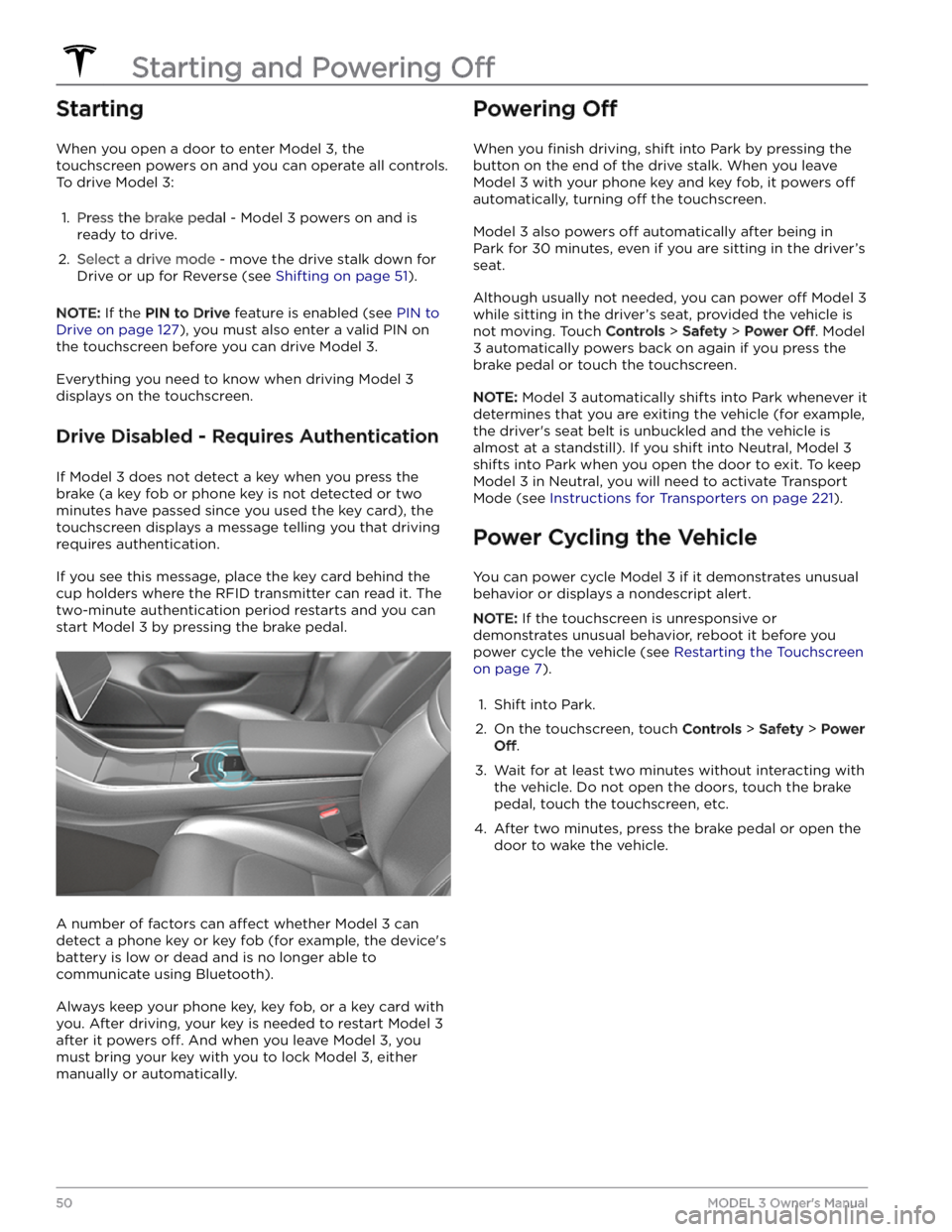
If you see this message, place the key card behind the
cup holders where the RFID transmitter can read it. The
two-minute authentication period restarts and you can start
Model 3 by pressing the brake pedal.
A number of factors can affect whether Model 3 can
detect a phone key or key fob (for example, the device
Page 293 of 296

Radio regulatory information: 285
range: 61, 164
driving tips to maximize: 164
regenerative braking: 61
range assurance: 165
re-naming your vehicle: 9
Re-route: 146
rear seats, folding and raising: 26
rear view camera: 72
rear window switches, disabling: 16
recent (Media Player): 149
Recents (navigation): 142
recording: 129, 131
recording videos (Track Mode): 69
regenerative braking: 61
regenerative braking, in Track Mode: 69
relative speed limit: 114
release notes: 139
restarting the touchscreen: 50
RFID transponders: 190
roadside assistance: 221
roof racks: 207
rotating tires: 177
Round Trip Energy (navigating): 146
run out of range: 224, 225
S
safety defects, reporting: 285
safety information: 31, 37
child seats: 37
seat belts: 31
Schedule: 163
schedule service: 140
scheduled charging: 163
scheduled departure: 163
using: 163
seat belts: 29, 30, 185
cleaning: 185
in a collision: 30
overview of: 29
pre-tensioners: 30
wearing when pregnant: 30
seat covers: 28
seat heaters: 116
seating capacity: 206
seats: 25, 116
adjusting: 25
heaters: 116
security settings: 127
sensors: 77
Sentry Mode: 131
service data recording: 282
service intervals: 166
settings, acceleration: 68
Settings, erasing: 9
shifting drive modes: 51
shortcuts: 7, 8
adding to My Apps: 8
restarting the touchscreen: 7
Show Calendar Upon Entry: 122, 124
side camera(s): 72
Side Clearance (Summon): 102
side collision warning: 108
slip start: 64
Smart Summon: 105
smartphone: 10
authenticating as a key: 10
Software Reinstall: 138
software reset: 9
software update preferences: 138
software updates: 138
specifications: 208, 210, 211, 213
brakes: 210
cargo volume: 210
dimensions: 208
exterior: 208
High Voltage Battery: 211
interior: 208
low voltage battery: 211
motor: 210
steering: 210
subsystems: 210
suspension: 211
tires: 213
transmission: 210
wheels: 213
speed assist: 114
speed limit warning: 114
Stability Assist (Track Mode): 69
stability control: 64
standby: 131
starting: 50
steering specifications: 210
steering wheel: 53
lights, controlling: 53
steering, automatic: 85
summer tires: 181
Summon: 102
Summon Distance: 102
superchargers, displaying on map: 142
Index
