2023 PEUGEOT EXPERT android auto
[x] Cancel search: android autoPage 260 of 348

258
3D Connected Navigation
– Media player connected via the auxiliary
socket (depending on equipment).
–
V
ideo (depending on equipment).
In the "Settings" menu, it is possible to
create a profile for an individual or for a
group of people with shared interests, and
configure a wide range of settings (radio
presets, audio settings, navigation history,
favourite contacts, etc.). Settings are applied
automatically.
In very hot conditions, the volume may
be limited to protect the system. It may
enter standby mode (with the screen and
sound off) for 5 minutes or more.
The system will resume normal operation
when the temperature in the passenger
compartment has dropped.
Steering-mounted
controls
Voice control:
This control is located on the steering
wheel or at the end of the lighting control stalk
(depending on equipment).
Short press, system voice control.
Long press, voice commands from smartphone
or CarPlay
®, Android Auto via the system.Increase volume.
Decrease volume.
Mute by pressing the volume increase
and decrease buttons simultaneously
(depending on equipment).
Restore the sound by pressing one of the two
volume buttons.
Media (short press): change the
multimedia source.
Telephone (short press): start telephone
call.
Call in progress (short press): access
telephone menu.
Telephone (long press): reject an incoming call,
end call; when no call is in progress, access
telephone menu.
Radio (rotate): automatic search for the
previous/next station.
Media (rotate): previous/next track, move
through a list.
Short press: confirm a selection; if nothing
selected, access presets.
Radio: display the list of stations.
Media: display the list of tracks.
Radio (press and hold): update the list of
detected stations.
Menus
Connected navigation
Enter navigation settings and choose a
destination.
Use real-time services, depending on equipment. CarM an uals 2 .c o m
Page 261 of 348
259
3D Connected Navigation
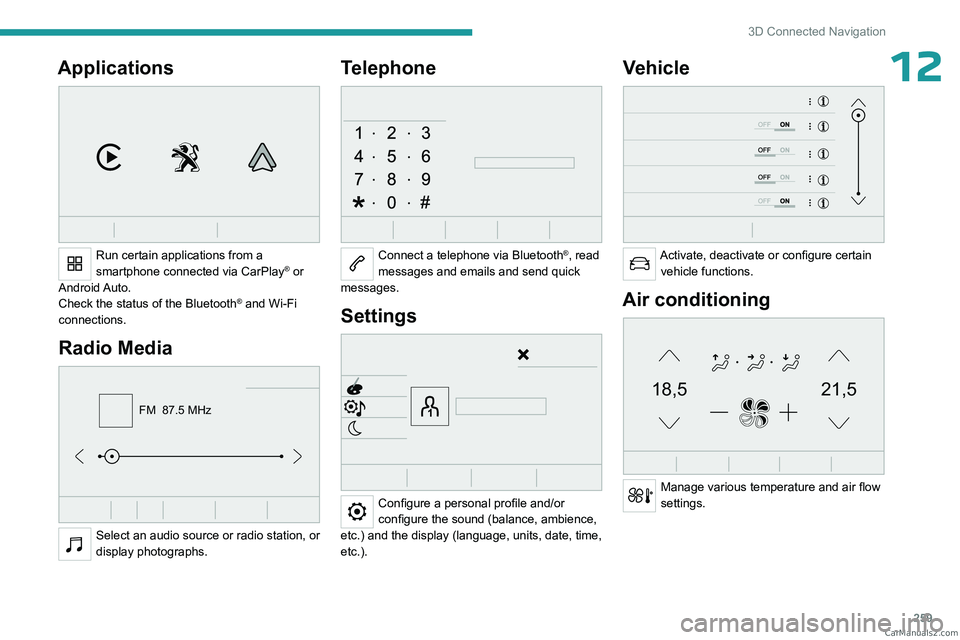
12Applications
Run certain applications from a
smartphone connected via CarPlay® or
Android Auto.
Check the status of the
Bluetooth
® and Wi-Fi
connections.
Radio Media
FM 87.5 MHz
Select an audio source or radio station, or
display photographs.
Telephone
Connect a telephone via Bluetooth®, read
messages and emails and send quick
messages.
Settings
Configure a personal profile and/or
configure the sound (balance, ambience,
etc.) and the display (language, units, date, time,
etc.).
Vehicle
Activate, deactivate or configure certain vehicle functions.
Air conditioning
21,518,5
Manage various temperature and air flow
settings. CarM an uals 2 .c o m
Page 270 of 348
268
3D Connected Navigation
Displaying charging station
details
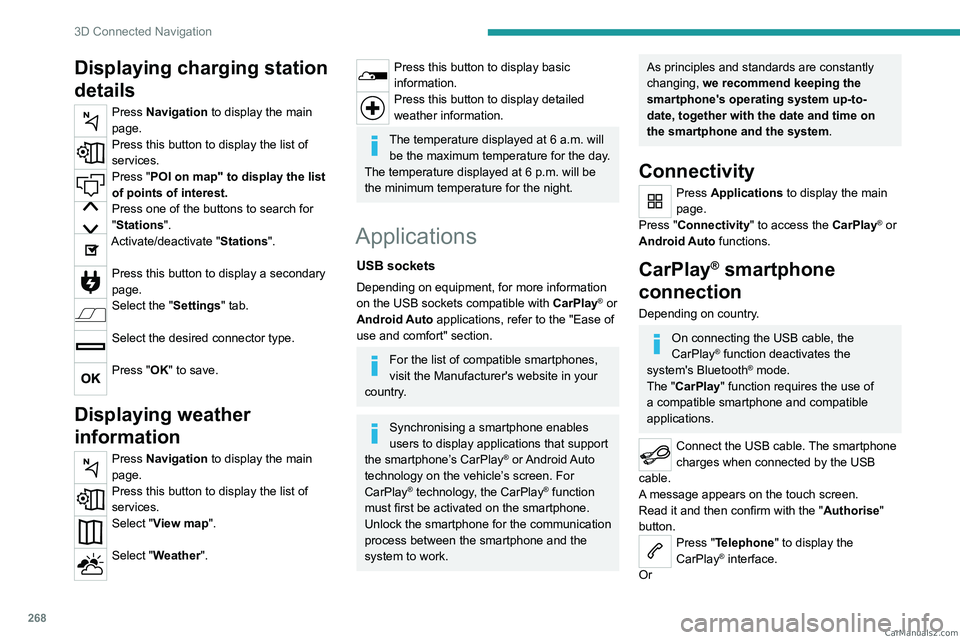
Press Navigation to display the main
page.
Press this button to display the list of
services.
Press "POI on map" to display the list
of points of interest.
Press one of the buttons to search for
"Stations".
Activate/deactivate "Stations".
Press this button to display a secondary
page.
Select the "Settings" tab.
Select the desired connector type.
Press "OK" to save.
Displaying weather
information
Press Navigation to display the main
page.
Press this button to display the list of
services.
Select "View map".
Select "Weather".
Press this button to display basic
information.
Press this button to display detailed
weather information.
The temperature displayed at 6 a.m. will be the maximum temperature for the day.
The temperature displayed at 6 p.m. will be
the minimum temperature for the night.
Applications
USB sockets
Depending on equipment, for more information
on the USB sockets compatible with CarPlay® or
Android Auto applications, refer to the "Ease of
use and comfort" section.
For the list of compatible smartphones,
visit the Manufacturer's website in your
country.
Synchronising a smartphone enables
users to display applications that support
the smartphone’s CarPlay
® or Android Auto
technology on the vehicle’s screen. For
CarPlay
® technology, the CarPlay® function
must first be activated on the smartphone.
Unlock the smartphone for the communication
process between the smartphone and the
system to work.
As principles and standards are constantly
changing, we recommend keeping the
smartphone's operating system up-to-
date, together with the date and time on
the smartphone and the system.
Connectivity
Press Applications to display the main
page.
Press "Connectivity" to access the CarPlay
® or
Android Auto functions.
CarPlay® smartphone
connection
Depending on country.
On connecting the USB cable, the
CarPlay® function deactivates the
system's Bluetooth® mode.
The "CarPlay " function requires the use of
a compatible smartphone and compatible
applications.
Connect the USB cable. The smartphone
charges when connected by the USB
cable.
A message appears on the touch screen.
Read it and then confirm with the " Authorise"
button.
Press "Telephone" to display the
CarPlay® interface.
Or CarM an uals 2 .c o m
Page 271 of 348
269
3D Connected Navigation
12Connect the USB cable. The smartphone
charges when connected by the USB
cable.
From the system, press "Applications " to
display the main page.
Press "Connectivity" to access the "CarPlay
®”
function.
Press "CarPlay" to display the CarPlay®
interface.
When the USB cable is disconnected
and the ignition is switched off then back
on, the system will not automatically switch to
Radio Media mode; the source must be
changed manually.
Android Auto smartphone connection
Depending on country.
Install the "Android Auto" application on
the smartphone via "Google Play".
The "Android Auto" function requires the use
of a compatible smartphone and compatible
applications.
Connect the USB cable. The smartphone
charges when connected by the USB
cable.
From the system, press "Applications " to
display the main page.
Press "Connectivity" to access the "Android
Auto” function.
Press "Android Auto" to start the
application in the system.
During the procedure, several screen
pages relating to certain features are
displayed.
Accept to start and complete the connection.
Access to the different audio sources remains
available in the margin of the Android Auto
display, using the touch buttons located in the
upper bar.
Access to the menus for the system is possible
at any time using the dedicated buttons.
In Android Auto mode, the function that
displays rolling menus by briefly pressing
the screen with three fingers is disabled.
There may be a pause before applications become available,
depending on the quality of the network.
Car Apps
Press Applications to display the main
page.
Press "Car Apps" to display the applications
home page.
Internet Browser
Press Applications to display the main
page.
Press "Connectivity" to access the "Connected
Apps” function.
Press "Connected Apps" to display the browser
home page.
Select the country of residence.
Press "OK" to save and start the browser.
Connection to the internet is via one of
the network connections provided by the
vehicle or the user.
Bluetooth connection®
The services available depend on the network, the SIM card and the
compatibility of the Bluetooth devices used.
Consult the smartphone user guide and the
service provider to check which services are
available.
The Bluetooth function must be activated and the smartphone configured as
"Visible to all".
To complete the pairing, whichever procedure is
used (from the smartphone or from the system),
ensure that the code is the same in the system
and in the smartphone.
If the pairing procedure fails, we
recommend deactivating and then
reactivating the Bluetooth function on the
smartphone. CarM an uals 2 .c o m
Page 282 of 348
280
3D Connected Navigation
The system reads a variety of data (folder, title,
artist, etc.). This can take from a few seconds to
a few minutes.
This is perfectly normal.
Some characters in information about the
currently playing media may not be displayed
correctly.
The audio system is unable to process certain
types of character.
►
Use standard characters to name tracks and
folders.
Playback of streaming files does not start.
The connected device does not automatically
launch playback.
►
Start playback from the device.
T
rack names and playing times are not
displayed on the audio streaming screen.
The Bluetooth profile does not allow the transfer
of this information.
Telephone
I am unable to connect my Bluetooth
telephone.
The telephone's Bluetooth function may be
switched off or the device may not be visible.
►
Check that the telephone has Bluetooth
switched on.
►
Check in the telephone settings that it is
"visible to all".
►
Deactivate then reactivate the telephone’
s
Bluetooth function.
The Bluetooth telephone is not compatible with
the system. ►
Y
ou can check the compatibility of the
telephone on the Brand's website (services).
Android Auto and/or CarPlay do not work.
Android Auto and CarPlay may not activate if the
USB cables are of poor quality.
►
Use genuine USB cables to ensure
compatibility
.
Android Auto and/or CarPlay do not work.
Android Auto and CarPlay are not available in all
countries.
►
Check the list of supported countries via
these
websites: Google Android Auto or Apple.
The volume of the telephone connected via
Bluetooth is too low.
The volume depends on both the system and the
telephone.
►
Increase the volume of the audio system, to
maximum if required, and increase the volume of
the telephone if necessary
.
Ambient noise affects the quality of the
telephone call.
► Reduce ambient noise (e.g. close the
windows, reduce ventilation, slow down).
Some contacts are duplicated in the list.
The options for synchronising contacts are:
synchronise the contacts on the SIM card, the
contacts on the telephone, or both. When both
synchronisations are selected, some contacts
may be duplicated.
►
Select "Display SIM card contacts" or
"Display telephone contacts".
The contacts are not listed in alphabetical
order
.Some telephones offer display options.
Depending on the settings chosen, contacts can
be transferred in a specific order.
►
Modify the telephone directory display
settings.
The system is not receiving SMS text
messages.
Bluetooth mode does not allow SMS text
messages to be sent to the system.
Settings
When the treble and bass settings are
changed, the ambience is deselected.
When the ambience is changed, the treble
and bass settings are reset.
Selecting an ambience imposes the treble and
bass settings, and vice versa.
►
Modify the treble and bass or ambience
settings to obtain the desired musical ambience.
When the balance settings are changed, the
distribution is deselected.
When the distribution setting is changed, the
balance settings are deselected.
Selecting a distribution setting imposes the
balance settings, and vice versa.
►
Modify the balance setting or the distribution
setting to obtain the desired sound quality
.
There is a difference in sound quality
between audio sources.
To allow for optimal listening quality, the sound
settings can be tailored to different audio
sources, which can generate audible differences
when changing source. CarM an uals 2 .c o m
Page 285 of 348

283
Vehicle data recording and privacy
13Comfort and infotainment
functions
Comfort settings and personalised settings
may be saved in the vehicle and modified or
reinitialised at any time.
Depending on the vehicle's equipment level,
this
may
include:
–
Seat and steering wheel position settings.
–
Chassis and air conditioning settings.
–
Personalised settings such as the interior
lighting.
Y
ou can enter your own data into the functions
of your vehicle's audio and telematic system, as
part of the selected functionalities.
Depending on the vehicle's equipment level,
this
may
include:
–
Multimedia data such as music, videos or
photos to be read by an integrated multimedia
system.
–
Address book data to be used with an
integrated hands-free system or with an
integrated navigation system.
–
Entered destinations.
–
Data regarding the use of online services.
This data for the comfort and infotainment
functions may be stored locally in the vehicle
or saved to a device that you have connected
to the vehicle (e.g.
smartphone, USB memory
stick or MP3 player). Data that you have entered
yourself may be deleted at any time.
This data may also be transmitted outside the
vehicle at your request, particularly when using online services in line with the settings that you
have selected. Smartphone integration
(e.g.
Android
Auto
® or
Apple
®CarPlay®)
If your vehicle is equipped accordingly, you can
connect your smartphone or another mobile
device to the vehicle in order to operate it using
the vehicle's integrated controls. Images and
sounds from the smartphone can be transmitted
through the audio and telematics system.
Specific information is simultaneously sent
to your smartphone. Depending on the type
of
integration, this includes data such as location,
day/night mode and other general information
about the vehicle. For more information, please
refer to the user instructions for the vehicle or the
audio and telematics system.
Integrating a smartphone allows you to use
its applications, such as a navigation app or
music player. No other
integration between
the smartphone and the vehicle is possible, in
particular active access to vehicle data. How the
data is processed subsequently is determined
by the supplier of the application being used.
The ability the change settings depends on the
application in question and on the operating
system installed on your smartphone.
Online services
If your vehicle is connected to a wireless
network, data can be exchanged between
your vehicle and other systems. Connection
to a wireless network is made possible
via a
transmitter located in your vehicle or a mobile
device that you have provided (e.g.
smartphone).
The online services can be used via this wireless
connection.
These include online services and
applications (apps) provided to you by the
Manufacturer or other suppliers.
Exclusive services
As regards the Manufacturer's online services,
the corresponding functions are described by
the Manufacturer in an appropriate medium
(e.g.
handbook, Manufacturer's website) and the
information about data protection is provided.
Personal data may be used for online services.
The exchange of data for this purpose takes
place over a secure connection, using for
example the Manufacturer's dedicated computer
systems. The collection, processing and use of
personal data for the development of services
are carried out solely on the basis of a legal
authorisation, for example in the case of a
legal emergency call system or a contractual
agreement or else under a consent agreement.
You can activate or deactivate the services and
functions (some may be chargeable) and, in
some cases, the vehicle's entire connection to
the wireless network. This does not include the CarM an uals 2 .c o m
Page 288 of 348

286
Alphabetical index
Charge level indicator (Electric) 22
Charging cable
180
Charging cable (Electric)
179
Charging connector
(Electric)
178, 183, 185–186
Charging flap (Electric)
178, 183, 185–186
Charging system (Electric)
5, 8, 27, 176, 191
Charging the traction battery
(Electric)
22, 176, 183, 185–186
Checking the engine oil level
19
Checking the levels
191–193
Checking tyre pressures
(using the kit)
204, 206–207
Checks
191, 194–196
Checks, routine
194–195
Child lock
131
Child lock on rear windows
131
Children
106, 113, 119–121, 128, 128–129
Children (safety)
131
Child seats
106, 109–116, 128
Child seats, conventional
112–116
Child seats, i-Size
128
Child seats, ISOFIX
119–121, 128, 128–129
Cleaning (advice)
177, 199–201
Closing the boot
44
Closing the doors
29, 33, 43–44
Collision Risk Alert
162–163
Compressor, tyre inflation
204
Configuration, vehicle
26–27
Connected applications
269
Connection, Android Auto
251, 269
Connection, Apple CarPlay
251, 268Connection,
Bluetooth
239, 252–253, 269–270, 274–275
Connection, Wi-Fi network
270
Connectivity
268
Consumptions
27
Container, AdBlue®
197
Control, emergency boot release
36
Control, emergency door
29, 34–35
Control, heated seats
50–51
Control stalk, lighting
88
Control stalk, wipers
93–95
Control unit
179–180
Courtesy lamp
86
Courtesy lamp, front
86–87, 215
Courtesy lamp, rear
86–87, 215
Courtesy lamps
86–87, 215
Crew cab, fixed
65–66
Crew cab, folding
66
Cruise control
151, 153–154, 156–158
Cruise control,
adaptive
153–154, 158, 161–163
Cruise control,
adaptive with Stop function
153–154
Cruise control by
speed limit recognition
153–154
D
DAB (Digital Audio Broadcasting) -
Digital radio
235–236, 249, 272
Date (setting)
28, 255, 277
Daytime running lamps 89, 212–213
Deactivating the passenger
airbag
107, 111–112
Deactivation of DSC (ESC)
101
Deadlocking
34
Deferred charging
27
Deferred charging (Electric)
27, 178, 183, 186
Defrosting
52, 81
Defrosting, rear screen
82
Demisting
81
Demisting, rear
82
Dimensions
229
Dipstick
19, 192
Direction indicators
(turn signals)
89, 212–214, 216
Display, head-up
11
Domestic charging
180
Domestic charging (Electric)
184–186, 227
Door pockets
68
Doors, rear
43–44
Doors, side
39
Doors, side-hinged
33–34, 43–44, 214
Drive,
electric
5, 8, 27, 176, 189, 191, 216, 220, 227
Driver’s attention warning
166
Drive selector (Electric)
145, 195
Driving
132–133
Driving aids camera (warnings)
150
Driving aids (recommendations)
150
Driving economically
7
Driving modes
146
Driving modes (Electric)
146–147 CarM an uals 2 .c o m