2023 PEUGEOT 508 bluetooth
[x] Cancel search: bluetoothPage 208 of 244
206
PEUGEOT i-Connect Advanced - PEUGEOT i-Connect
smartphone too close to other Wi-Fi networks
to which it can connect automatically.
The cable connection requires that you
deactivate the Android Auto wireless function,
in the Settings menu of the "Android Auto"
application of your smartphone.
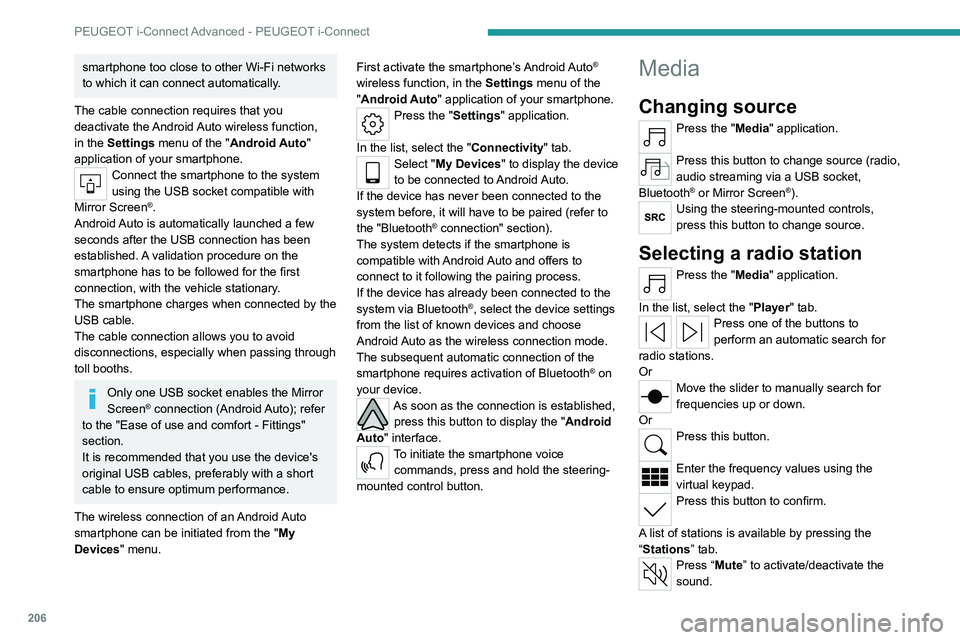
Connect the smartphone to the system
using the USB socket compatible with
Mirror Screen
®.
Android Auto is automatically launched a few
seconds after the USB connection has been
established. A validation procedure on the
smartphone has to be followed for the first
connection, with the vehicle stationary.
The smartphone charges when connected by the
USB cable.
The cable connection allows you to avoid
disconnections, especially when passing through
toll booths.
Only one USB socket enables the Mirror
Screen® connection (Android Auto); refer
to the "Ease of use and comfort - Fittings"
section.
It is recommended that you use the device's
original USB cables, preferably with a short
cable to ensure optimum performance.
The wireless connection of an Android Auto
smartphone can be initiated from the " My
Devices " menu. First activate the smartphone’s Android Auto
®
wireless function, in the Settings menu of the
"Android Auto" application of your smartphone.
Press the "Settings" application.
In the list, select the "Connectivity" tab.
Select "My Devices " to display the device
to be connected to Android Auto.
If the device has never been connected to the
system before, it will have to be paired (refer to
the "Bluetooth
® connection" section).
The system detects if the smartphone is
compatible with Android Auto and offers to
connect to it following the pairing process.
If the device has already been connected to the
system via Bluetooth
®, select the device settings
from the list of known devices and choose
Android Auto as the wireless connection mode.
The subsequent automatic connection of the
smartphone requires activation of Bluetooth
® on
your device.
As soon as the connection is established, press this button to display the " Android
Auto" interface.
To initiate the smartphone voice commands, press and hold the steering-
mounted control button.
Media
Changing source
Press the "Media" application.
Press this button to change source (radio,
audio streaming via a USB socket,
Bluetooth
® or Mirror Screen®).Using the steering-mounted controls,
press this button to change source.
Selecting a radio station
Press the "Media" application.
In the list, select the "Player" tab.
Press one of the buttons to
perform an automatic search for
radio stations.
Or
Move the slider to manually search for
frequencies up or down.
Or
Press this button.
Enter the frequency values using the
virtual keypad.
Press this button to confirm.
A list of stations is available by pressing the
“Stations” tab.
Press “Mute” to activate/deactivate the
sound.
Page 209 of 244
207
PEUGEOT i-Connect Advanced - PEUGEOT i-Connect
10Radio reception may be affected by the
use of electrical equipment not approved
by the Brand, such as a charger with USB
socket connected to the 12
V socket.
The exterior environment (hills, buildings,
tunnels, basement car parks, etc.) may block
reception, including in RDS mode. This
phenomenon is normal in the propagation
of radio waves and does not indicate any
malfunction of the system.
Storing a radio station
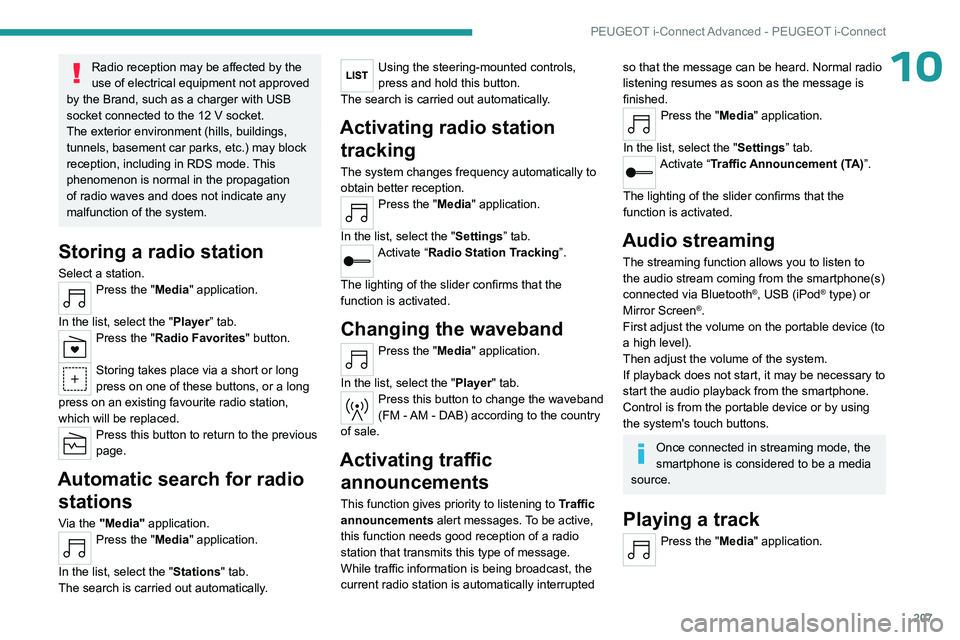
Select a station.Press the "Media" application.
In the list, select the "Player” tab.
Press the "Radio Favorites" button.
Storing takes place via a short or long
press on one of these buttons, or a long
press on an existing favourite radio station,
which will be replaced.
Press this button to return to the previous
page.
Automatic search for radio stations
Via the "Media" application.Press the "Media" application.
In the list, select the "Stations" tab.
The search is carried out automatically.
Using the steering-mounted controls,
press and hold this button.
The search is carried out automatically.
Activating radio station tracking
The system changes frequency automatically to
obtain better reception.
Press the "Media" application.
In the list, select the "Settings” tab.
Activate “Radio Station Tracking”.
The lighting of the slider confirms that the
function is activated.
Changing the waveband
Press the "Media" application.
In the list, select the "Player" tab.
Press this button to change the waveband
(FM - AM - DAB) according to the country
of sale.
Activating traffic announcements
This function gives priority to listening to Traffic
announcements alert messages. To be active,
this function needs good reception of a radio
station that transmits this type of message.
While traffic information is being broadcast, the
current radio station is automatically interrupted
so that the message can be heard. Normal radio
listening resumes as soon as the message is
finished.
Press the "Media" application.
In the list, select the "Settings” tab.
Activate “Traffic Announcement (TA)”.
The lighting of the slider confirms that the
function is activated.
Audio streaming
The streaming function allows you to listen to
the audio stream coming from the smartphone(s)
connected via Bluetooth
®, USB (iPod® type) or
Mirror Screen®.
First adjust the volume on the portable device (to
a high level).
Then adjust the volume of the system.
If playback does not start, it may be necessary to
start the audio playback from the smartphone.
Control is from the portable device or by using
the system's touch buttons.
Once connected in streaming mode, the
smartphone is considered to be a media
source.
Playing a track
Press the "Media" application.
Page 211 of 244
209
PEUGEOT i-Connect Advanced - PEUGEOT i-Connect
10Making a call using the list of recent
calls
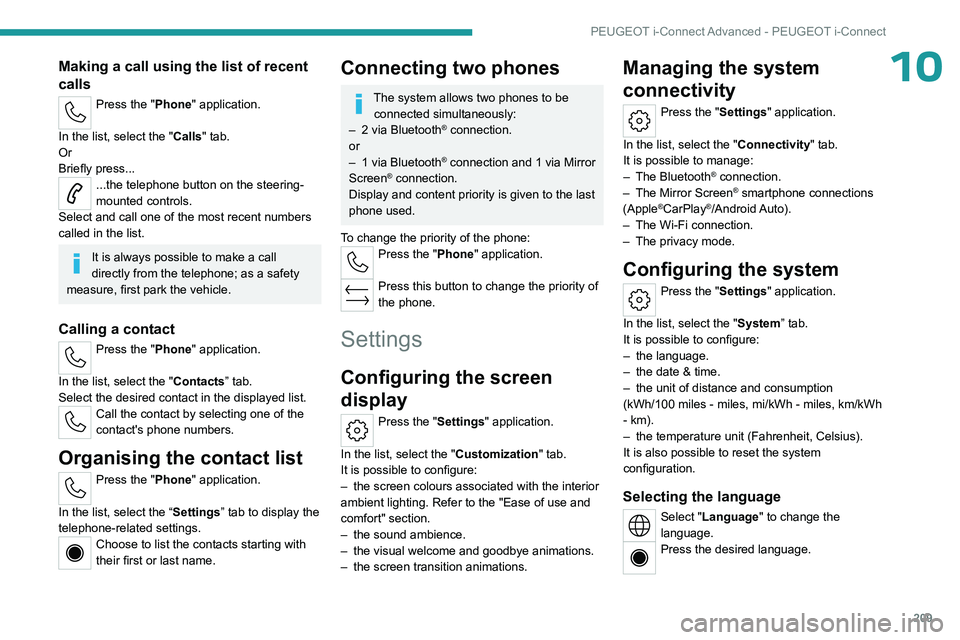
Press the "Phone" application.
In the list, select the "Calls" tab.
Or
Briefly press...
...the telephone button on the steering-
mounted controls.
Select and call one of the most recent numbers
called in the list.
It is always possible to make a call
directly from the telephone; as a safety
measure, first park the vehicle.
Calling a contact
Press the "Phone" application.
In the list, select the "Contacts” tab.
Select the desired contact in the displayed list.
Call the contact by selecting one of the
contact's phone numbers.
Organising the contact list
Press the "Phone" application.
In the list, select the “Settings” tab to display the
telephone-related settings.
Choose to list the contacts starting with
their first or last name.
Connecting two phones
The system allows two phones to be connected simultaneously:
–
2 via
Bluetooth
® connection.
or
–
1 via
Bluetooth
® connection and 1 via Mirror
Screen® connection.
Display and content priority is given to the last
phone used.
To change the priority of the phone:
Press the "Phone" application.
Press this button to change the priority of
the phone.
Settings
Configuring the screen
display
Press the "Settings" application.
In the list, select the "Customization" tab.
It is possible to configure:
–
the screen colours associated with the interior
ambient lighting. Refer to the "Ease of use and
comfort" section.
–
the sound ambience.
–
the visual welcome and goodbye animations.
–
the screen transition animations.
Managing the system
connectivity
Press the "Settings" application.
In the list, select the "Connectivity" tab.
It is possible to manage:
–
The Bluetooth® connection.
–
The Mirror Screen® smartphone connections
(Apple®CarPlay®/Android Auto).
–
The Wi-Fi connection.
–
The privacy mode.
Configuring the system
Press the "Settings" application.
In the list, select the "System” tab.
It is possible to configure:
–
the language.
–
the date & time.
–
the unit of distance and consumption
(kWh/100 miles - miles, mi/kWh - miles, km/kWh
- km).
–
the temperature unit (Fahrenheit, Celsius).
It is also possible to reset the system
configuration.
Selecting the language
Select "Language" to change the
language.
Press the desired language.
Page 217 of 244
215
Alphabetical index
A
ABS 81
Accelerated charging unit (Wallbox)
149–150
Accessories
77, 160
Accessories, electrical
77
Active Safety Brake
129–131
Active suspension
106
Active Suspension Control
106
Adaptive headlamp lighting
70
Adaptive LED Technology
29
AdBlue®
19, 167
AdBlue® tank
168
Additive, Diesel
165–166
Adjusting headlamps
67
Adjusting head restraints
44
Adjusting seat
44–45
Adjusting the air distribution
51, 53
Adjusting the air flow
51, 53
Adjusting the headlamp beam height
67
Adjusting the height and reach of
the steering wheel
47
Adjusting the lumbar support
44–45
Adjusting the seat angle
44
Adjusting the temperature
52
Adjusting the time
210
Advice on care and maintenance
148, 169
Advice on driving
8, 97–98
Airbags
85–87, 89
Airbags, curtain
86–87
Airbags, front
85–86, 90
Airbags, lateral
86–87
Air conditioning 51, 54
Air conditioning, automatic
54
Air conditioning, dual-zone automatic
51
Air intake
53–54
Air vents
50
Alarm
32–33
Amplifier, audio
58
Anti-lock braking system (ABS)
81
Antitheft / Immobiliser
27
Applications
24
Armrest, front
58
Armrest, rear
60
Assistance call
78–79
Assistance, emergency braking
81, 131
Audio streaming (Bluetooth)
207
B
Battery, 12 V 161, 165–166, 182–186
Battery, ancillaries
182
Battery, charging
182–183, 186
Battery, remote control
31
Bicycle carrier
160
Blanking screen (snow shield)
161
Blind
41–42
Blind spot monitoring
136
BlueHDi
19, 165, 172
Bluetooth (hands-free)
204
Bluetooth (telephone)
204
Bodywork
170
Bonnet
162–163
Bonnet, active 87
Boot
35–37, 65
Brake discs
166–167
Brake lamps
181
Brakes
166–167
Braking
104
Braking assistance system
81
Braking, automatic emergency
129–131
Braking, dynamic emergency
101–103
Bulbs (changing)
180–181
C
Capacity, fuel tank 145
Care of the bodywork
170
Central locking
29–30
Changing a bulb
180–181
Changing a fuse
182
Changing a wheel
172–173, 176
Changing a wiper blade
74–75
Changing the remote control battery
31
Changing to free-wheeling
169
Charge level indicator (Rechargeable
hybrid)
21
Charger, induction
57
Charger, wireless
57
Charging cable
151
Charging cable (Rechargeable
hybrid)
149–150, 156
Charging connector (Rechargeable
hybrid)
149, 155–157
Page 218 of 244
216
Alphabetical index
Charging flap (Rechargeable hybrid) 149,
155–157
Charging the traction battery
(Rechargeable hybrid)
21, 147, 155–157
CHECK
21
Checking the engine oil level
18
Checking the levels
163–165
Checking tyre pressures
(using the kit)
174, 176
Checks
163, 165–167
Checks, routine
165–167
Child lock
96
Children
84, 90–92
Children (safety)
96
Child seats
84, 88–89, 92
Child seats, conventional
92, 95
Child seats, i-Size
91–92, 95
Child seats, ISOFIX
90, 92, 95
Cigar lighter
56
Cleaning (advice)
148, 169–171
Closing the boot
28–29, 36
Closing the doors
28–29, 34
Collision Risk Alert
129–130
Comfort mode
107
Configuration, vehicle
10, 24
Connection, Bluetooth
204
Connectivity
209
Consumptions
24
Container, AdBlue®
168
Control, emergency boot release
36
Control, emergency door
30–31
Control, heated seats
46Controls, steering mounted 104
Control stalk, lighting
66–67
Control stalk, wipers
73–75
Control unit
149–151, 156
Courtesy lamp, front
59
Courtesy lamps
59–60
Cruise control
117, 119, 121
Cruise control, adaptive
121–122
Cruise control, adaptive with Stop function
11 7
Cruise control by speed limit recognition
11 7
Cup holder
56
D
Date (setting) 210
Daytime running lamps
67, 181
Deactivating the passenger airbag
85, 89–90
Deadlocking
27, 29
Deferred charging
25, 157
Deferred charging (Rechargeable
hybrid)
24–25, 149, 155
Defrosting
47, 54
Defrosting, front
54
Defrosting, rear screen
55
Demisting
47, 54
Demisting, front
54
Demisting, rear
55
Diagnosis, vehicle
21
Dials and gauges
10
Digital instrument panel
10
Dimensions
194
Dipstick 18, 164
Direction indicators (turn signals)
67, 181
Display screen, instrument panel
10
Domestic charging
151
Domestic charging (Rechargeable
hybrid)
156–157
Door pockets
56
Doors
34
Drive Assist Plus
121
Driver’s attention warning
132–133
Driving
43, 97–98
Driving aids camera (warnings)
11 2
Driving aid shortcuts
11 3
Driving aids (recommendations)
11 2
Driving economically
8
Driving modes
106
Driving positions (storing)
46
Dynamic stability control (DSC)
81
E
EBFD 81
Eco-driving (advice)
8
ECO mode
106
Electric automatic gearbox (Rechargeable
hybrid)
103
Electric windows
39
Electronic brake force distribution (EBFD)
81
Emergency braking assistance (EBA)
81
Emergency call
78–79
Emergency switching off
100