2023 NISSAN TITAN display
[x] Cancel search: displayPage 128 of 644
TOW mode ON indicator
light (green) (if so
equipped)
This light comes on when the tow mode
function is on.
Turn signal/hazard
indicator lights (green)
The appropriate light flashes when the turn
signal switch is activated.
Both lights flash when the hazard switch is
turned on.
AUDIBLE REMINDERS
Brake pad wear warning
The disc brake pads have audible wear
warnings. When a disc brake pad requires
replacement, it makes a high pitched
scraping sound when the vehicle is in mo-
tion, whether or not the brake pedal is de-
pressed. Have the brakes checked as soon
as possible if the warning sound is heard.
Light reminder chime
With the ignition switch placed in the OFF
position, a chime sounds when the driver's
door is opened if the headlights or parking
lights are on.
Turn the headlight control switch off before
leaving the vehicle.
NISSAN Intelligent Key® door
buzzer
The Intelligent Key door buzzer sounds if
any one of the following improper opera-
tions is found.
• The Intelligent Key is lef t inside the vehiclewhen locking the doors.
• The Intelligent Key is taken outside the vehicle when operating the vehicle.
When the buzzer sounds, be sure to check
both the vehicle and the Intelligent Key. For
additional information, see “NISSAN Intelli-
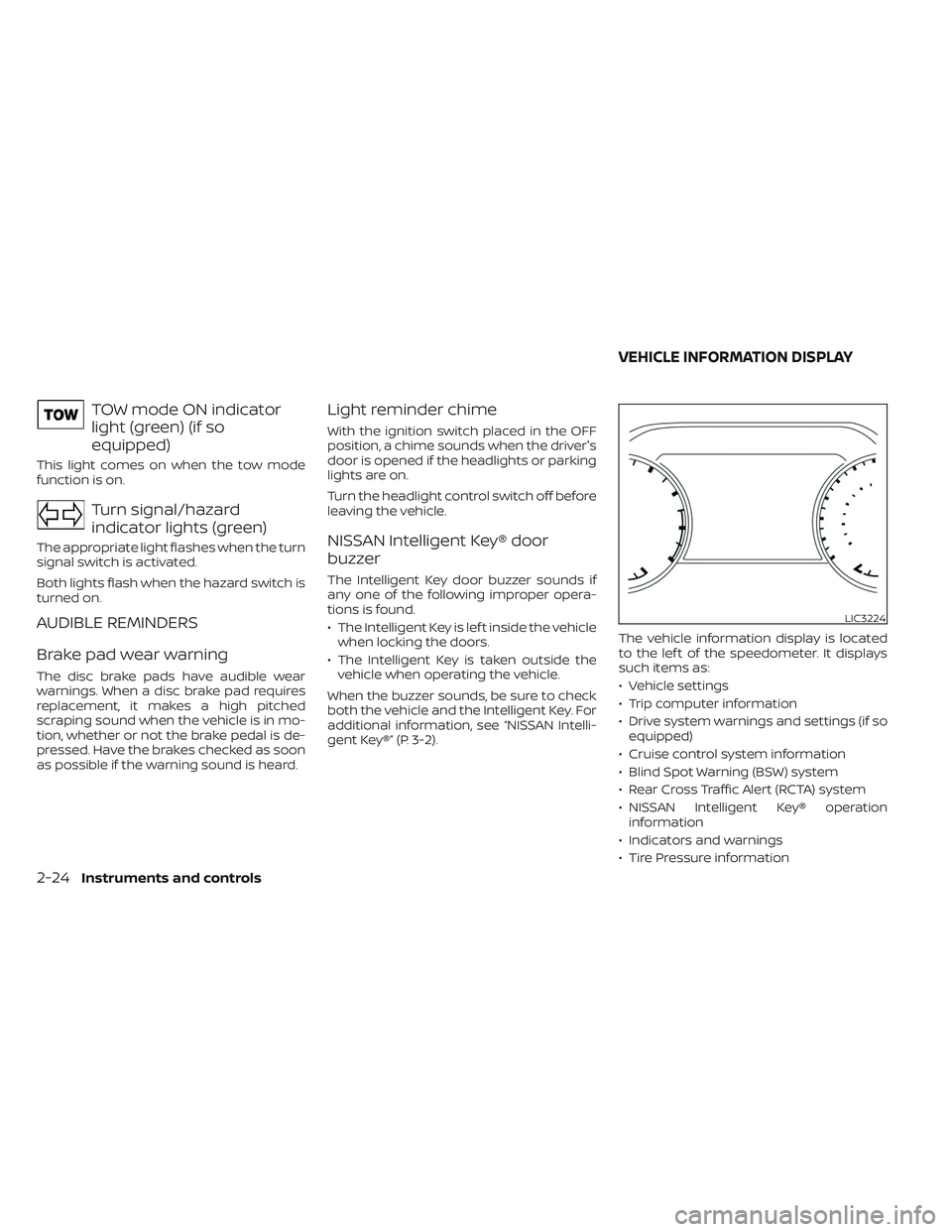
gent Key®” (P. 3-2). The vehicle information display is located
to the lef t of the speedometer. It displays
such items as:
• Vehicle settings
• Trip computer information
• Drive system warnings and settings (if so
equipped)
• Cruise control system information
• Blind Spot Warning (BSW) system
• Rear Cross Traffic Alert (RCTA) system
• NISSAN Intelligent Key® operation information
• Indicators and warnings
• Tire Pressure information
LIC3224
VEHICLE INFORMATION DISPLAY
2-24Instruments and controls
Page 129 of 644

HOW TO USE THE VEHICLE
INFORMATION DISPLAY
The vehicle information display can be
navigated using the ENTER andbut-
tons located on the steering wheel.
1. ENTER — press to select the vehicle infor- mation menu items. Additionally, use the
UP/DOWN
function to navigate the
menu items
2.
— move LEFT/RIGHT to navigate
through the items in the vehicle infor-
mation display The ENTER button also controls audio
functions. For additional information, refer
to the separate NissanConnect® Owner’s
Manual.
STARTUP DISPLAY
When the vehicle is placed in the ON or ACC
(if so equipped) position, the vehicle infor-
mation display may display the following
screens:
• Speed
• Off Road (if so equipped)
• Auxiliary Gauges (if so equipped)
• Driving
• Fuel Economy
• Audio
• Navigation (if so equipped)
• Compass (if so equipped)
• Driving Aids
• Tire Pressures
• Warning Confirmation
• Settings
Warning Confirmation will only display if
there are any warnings present. For addi-
tional information, see “Vehicle information
display warnings and indicators” (P. 2-33).
To control which items display in the ve-
hicle information display, see “Settings”
(P. 2-25).
SETTINGS
The setting mode allows you to change the
information displayed in the vehicle infor-
mation display:
• Driver Assistance
• Meter Settings
• Vehicle Settings
• Towing Settings
• Alerts
• Maintenance
• Unit
• Language
• Factory Reset
LIC4099
Instruments and controls2-25
Page 130 of 644

Driver Assistance
The driver assistance menu allows the user to change the various driving and parking aids.
Some menu items shown below may not be equipped on your vehicle.
Menu itemExplanation
Lane Displays available lane options.
Warning (LDW) Allows user to turn the Lane Departure Warning (LDW) system on or off. For additional information, see “Lane De-
parture Warning (LDW)” (P. 5-26).
Blind Spot Displays available blind spot options.
Warning (BSW) Allows user to turn the Blind Spot Warning (BSW) system on or off. For additional information, see “Blind Spot
Warning (BSW)” (P. 5-31).
Emergency Brake Displays available emergency brake options.
Front Allows user to turn the front emergency braking system on or off. For additional information, see “Automatic Emer-
gency Braking (AEB) with Pedestrian Detection” (P. 5-78) and “Intelligent Forward Collision Warning (I-FCW)” (P. 5-88).
Rear Allows user to turn the rear emergency braking system on or off. For additional information, see “Rear Automatic
Braking (RAB)” (P. 5-73).
Speed Limit Sign Allows use to turn the Speed Limit Sign recognition on or off. For additional information, see “Traffic Sign Recogni-
tion (TSR)” (P. 5-23).
Driver Attention Allows user to turn the Intelligent Driver Alertness system on or off. For additional information, see “Intelligent
Driver Alertness (I-DA)” (P. 5-100).
Parking Aids Displays available parking aids.
Moving Object Allows user to turn the Moving Object Detection (MOD) on or off. For additional information, see “Moving Object De-
tection (MOD)” (P. 4-23).
CTA Allows user to turn the Rear Cross Traffic Alert (RCTA) system on or off. For additional information, see “Rear Cross
Traffic Alert (RCTA)” (P. 5-41).
Sensor Allows the user to enable and disable the front and rear sensors.
Display Allows user to turn the display on or off in the vehicle information display.
Volume Allows user to adjust the volume of warning chimes.
Range Allows user to set a specific range for the sensors to engage.
2-26Instruments and controls
Page 131 of 644
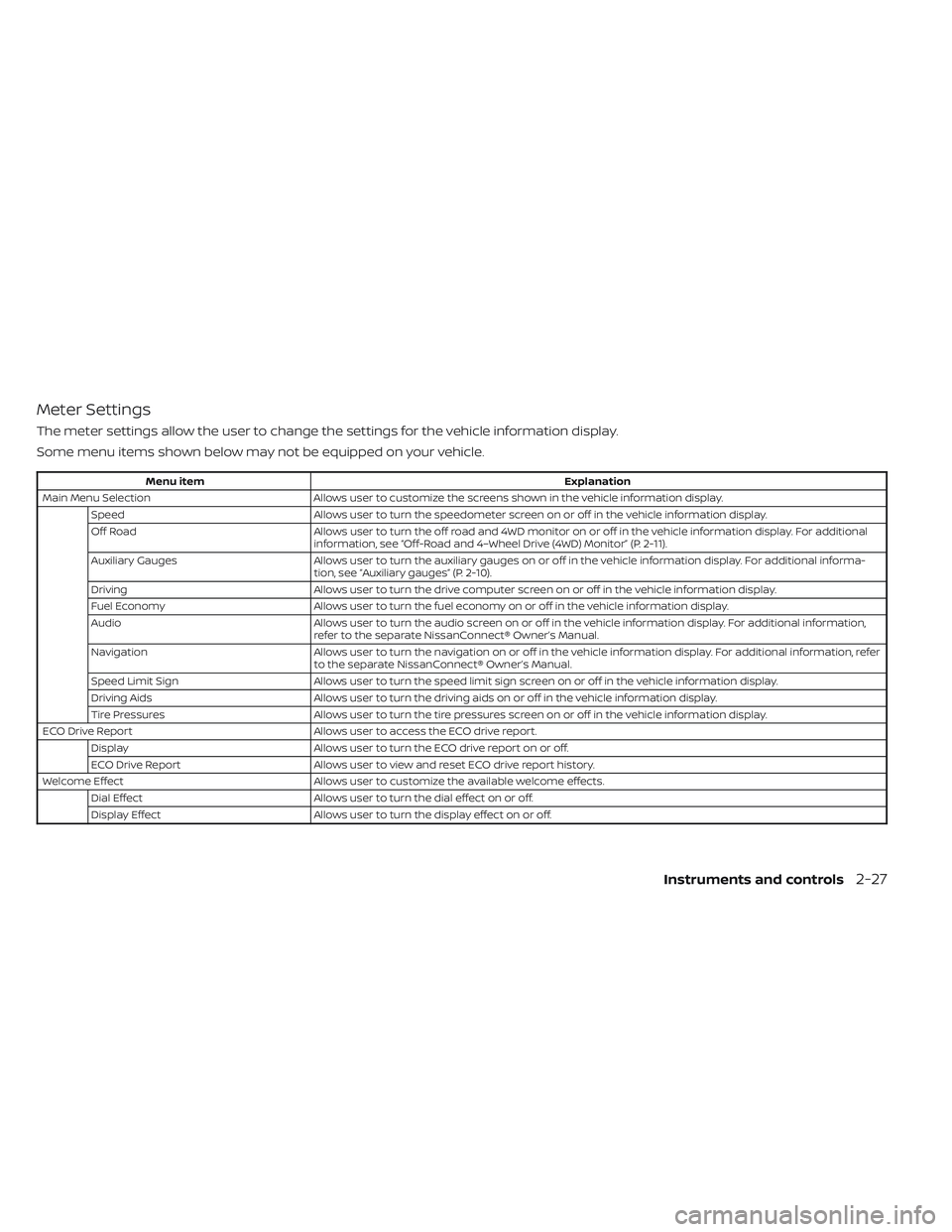
Meter Settings
The meter settings allow the user to change the settings for the vehicle information display.
Some menu items shown below may not be equipped on your vehicle.
Menu itemExplanation
Main Menu Selection Allows user to customize the screens shown in the vehicle information display.
Speed Allows user to turn the speedometer screen on or off in the vehicle information display.
Off Road Allows user to turn the off road and 4WD monitor on or off in the vehicle information display. For additional
information, see “Off-Road and 4–Wheel Drive (4WD) Monitor” (P. 2-11).
Auxiliary Gauges Allows user to turn the auxiliary gauges on or off in the vehicle information display. For additional informa-
tion, see “Auxiliary gauges” (P. 2-10).
Driving Allows user to turn the drive computer screen on or off in the vehicle information display.
Fuel Economy Allows user to turn the fuel economy on or off in the vehicle information display.
Audio Allows user to turn the audio screen on or off in the vehicle information display. For additional information,
refer to the separate NissanConnect® Owner’s Manual.
Navigation Allows user to turn the navigation on or off in the vehicle information display. For additional information, refer
to the separate NissanConnect® Owner’s Manual.
Speed Limit Sign Allows user to turn the speed limit sign screen on or off in the vehicle information display.
Driving Aids Allows user to turn the driving aids on or off in the vehicle information display.
Tire Pressures Allows user to turn the tire pressures screen on or off in the vehicle information display.
ECO Drive Report Allows user to access the ECO drive report.
Display Allows user to turn the ECO drive report on or off.
ECO Drive Report Allows user to view and reset ECO drive report history.
Welcome Effect Allows user to customize the available welcome effects.
Dial Effect Allows user to turn the dial effect on or off.
Display Effect Allows user to turn the display effect on or off.
Instruments and controls2-27
Page 132 of 644
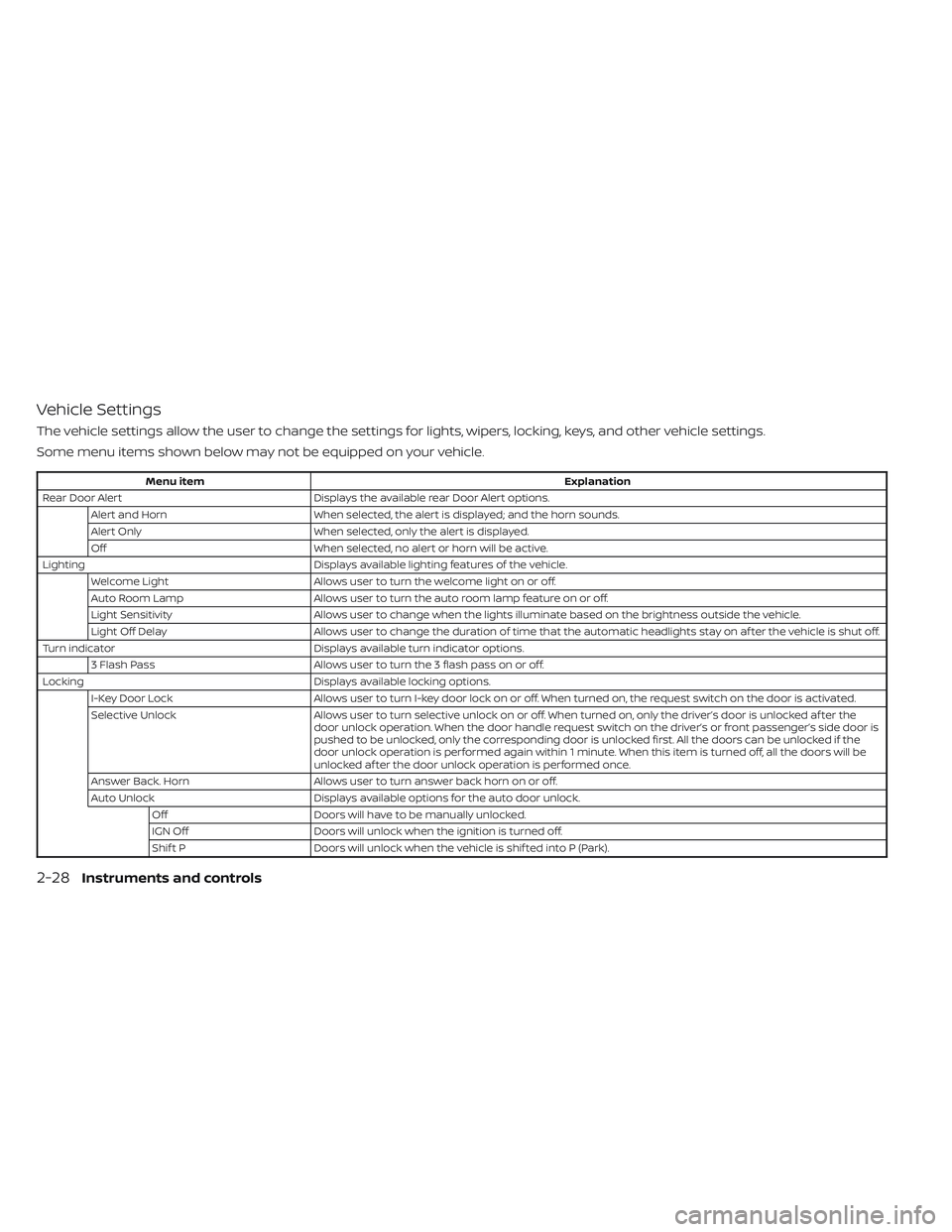
Vehicle Settings
The vehicle settings allow the user to change the settings for lights, wipers, locking, keys, and other vehicle settings.
Some menu items shown below may not be equipped on your vehicle.
Menu itemExplanation
Rear Door Alert Displays the available rear Door Alert options.
Alert and Horn When selected, the alert is displayed; and the horn sounds.
Alert Only When selected, only the alert is displayed.
Off When selected, no alert or horn will be active.
Lighting Displays available lighting features of the vehicle.
Welcome Light Allows user to turn the welcome light on or off.
Auto Room Lamp Allows user to turn the auto room lamp feature on or off.
Light Sensitivity Allows user to change when the lights illuminate based on the brightness outside the vehicle.
Light Off Delay Allows user to change the duration of time that the automatic headlights stay on af ter the vehicle is shut off.
Turn indicator Displays available turn indicator options.
3 Flash Pass Allows user to turn the 3 flash pass on or off.
Locking Displays available locking options.
I-Key Door Lock Allows user to turn I-key door lock on or off. When turned on, the request switch on the door is activated.
Selective Unlock Allows user to turn selective unlock on or off. When turned on, only the driver’s door is unlocked af ter the
door unlock operation. When the door handle request switch on the driver’s or front passenger’s side door is
pushed to be unlocked, only the corresponding door is unlocked first. All the doors can be unlocked if the
door unlock operation is performed again within 1 minute. When this item is turned off, all the doors will be
unlocked af ter the door unlock operation is performed once.
Answer Back. Horn Allows user to turn answer back horn on or off.
Auto Unlock Displays available options for the auto door unlock.
Off Doors will have to be manually unlocked.
IGN Off Doors will unlock when the ignition is turned off.
Shif t P Doors will unlock when the vehicle is shif ted into P (Park).
2-28Instruments and controls
Page 133 of 644

Menu itemExplanation
Wipers Displays available wiper options.
Speed Dependent Allows user to turn the speed dependent feature on or off. For additional information, see “Wiper and washer
switch” (P. 2-42).
Rain Sensor Allows user to turn the rain sensor feature on or off. For additional information, see “Wiper and washer
switch” (P. 2-42).
Headlamp On Displays available headlamp on options.
Off Headlights do not activate automatically when the wipers are activated.
Wiper Low & High Headlights activate when the wiper stalk is set to either low or high mode.
Wiper INT, Low & High Headlights activate when the wiper stalk is set to intermittent, low, or high mode.
Memory Seat (ADP) Displays available memory seat options.
Exit Seat Slide Allows the user to turn the exit seat slide on or off. When turned on, this feature will move the driver’s seat
backward for an easy exit when the ignition is turned off and the driver’s door is opened. Af ter getting into
the vehicle and placing the ignition switch in the ACC position, the driver’s seat will move to the previous set
position. For additional information, see “Memory Seat” (P. 3-41).
Exit Steering Up Allows the user to turn the exit steering up feature on or off. When turned on, this feature will move the steer-
ing wheel upward for an easy exit when the ignition is turned off and the driver’s door is opened. Af ter get-
ting into the vehicle and placing the ignition switch in the ACC position, the steering wheel moves to the pre-
vious position. For additional information, see “Memory Seat” (P. 3-41).
Reverse Tilt Mirror Displays reverse tilt mirror information.
Instruments and controls2-29
Page 136 of 644
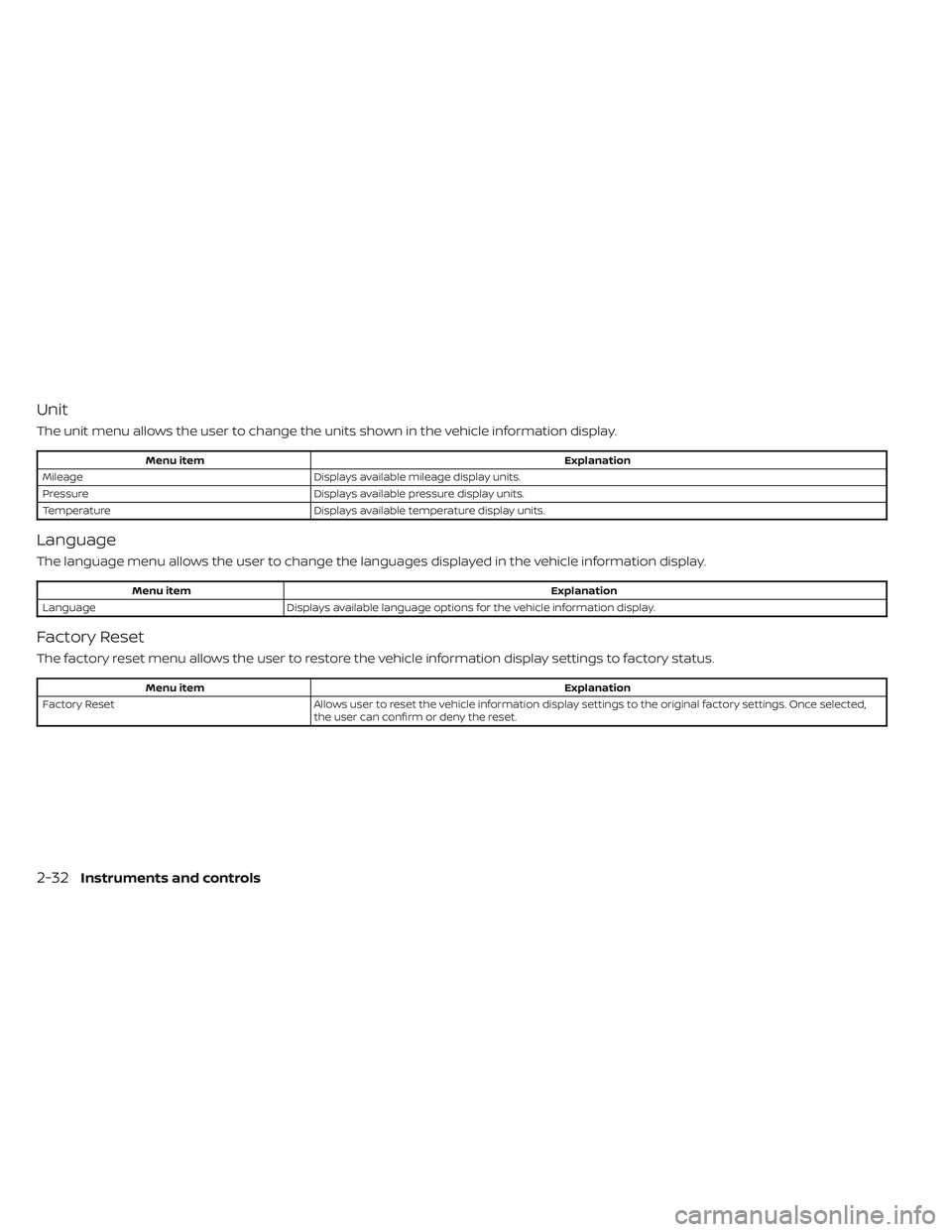
Unit
The unit menu allows the user to change the units shown in the vehicle information display.
Menu itemExplanation
Mileage Displays available mileage display units.
Pressure Displays available pressure display units.
Temperature Displays available temperature display units.
Language
The language menu allows the user to change the languages displayed in the vehicle information display.
Menu item Explanation
Language Displays available language options for the vehicle information display.
Factory Reset
The factory reset menu allows the user to restore the vehicle information display settings to factory status.
Menu item Explanation
Factory Reset Allows user to reset the vehicle information display settings to the original factory settings. Once selected,
the user can confirm or deny the reset.
2-32Instruments and controls
Page 137 of 644
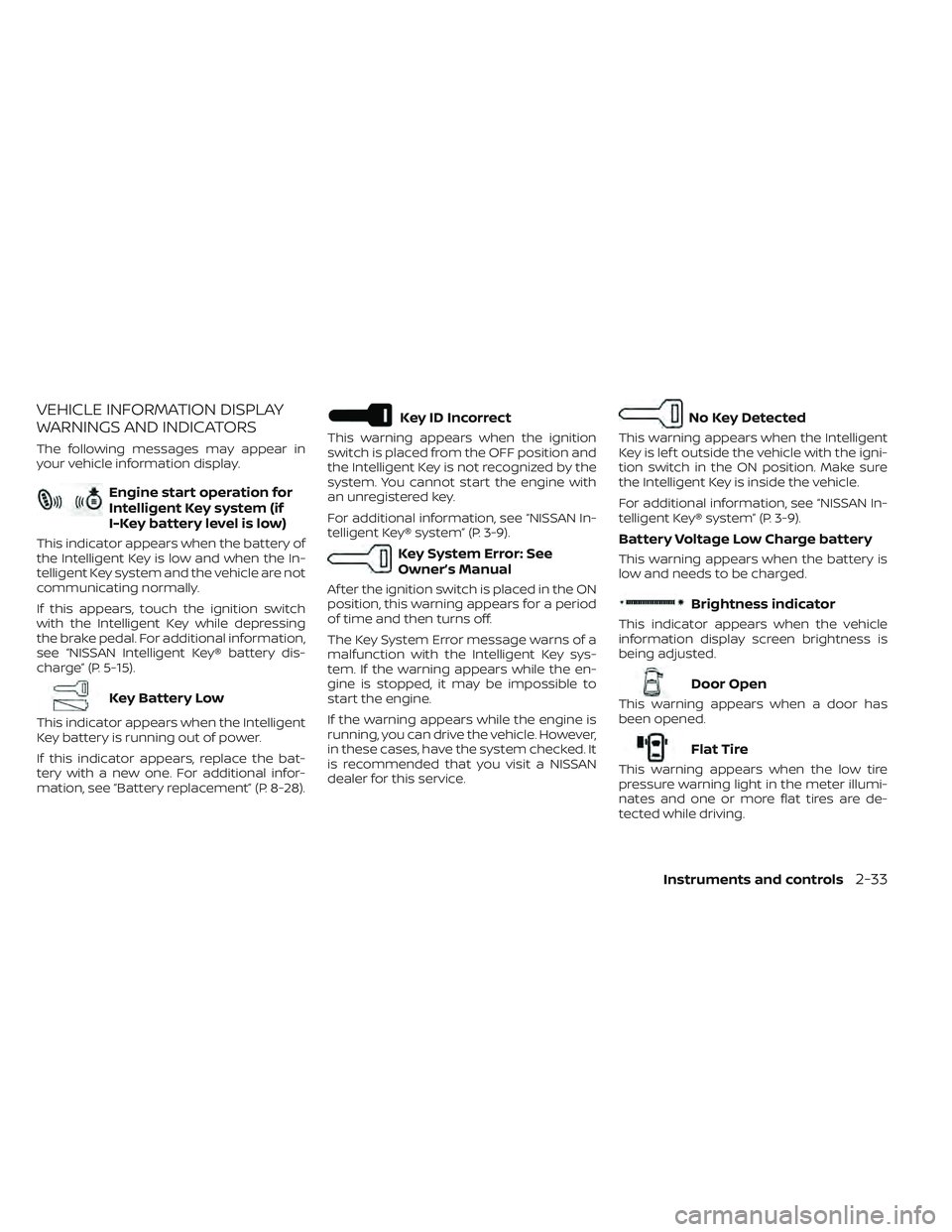
VEHICLE INFORMATION DISPLAY
WARNINGS AND INDICATORS
The following messages may appear in
your vehicle information display.
Engine start operation for
Intelligent Key system (if
I-Key battery level is low)
This indicator appears when the battery of
the Intelligent Key is low and when the In-
telligent Key system and the vehicle are not
communicating normally.
If this appears, touch the ignition switch
with the Intelligent Key while depressing
the brake pedal. For additional information,
see “NISSAN Intelligent Key® battery dis-
charge” (P. 5-15).
Key Battery Low
This indicator appears when the Intelligent
Key battery is running out of power.
If this indicator appears, replace the bat-
tery with a new one. For additional infor-
mation, see “Battery replacement” (P. 8-28).
Key ID Incorrect
This warning appears when the ignition
switch is placed from the OFF position and
the Intelligent Key is not recognized by the
system. You cannot start the engine with
an unregistered key.
For additional information, see “NISSAN In-
telligent Key® system” (P. 3-9).
Key System Error: See
Owner’s Manual
Af ter the ignition switch is placed in the ON
position, this warning appears for a period
of time and then turns off.
The Key System Error message warns of a
malfunction with the Intelligent Key sys-
tem. If the warning appears while the en-
gine is stopped, it may be impossible to
start the engine.
If the warning appears while the engine is
running, you can drive the vehicle. However,
in these cases, have the system checked. It
is recommended that you visit a NISSAN
dealer for this service.
No Key Detected
This warning appears when the Intelligent
Key is lef t outside the vehicle with the igni-
tion switch in the ON position. Make sure
the Intelligent Key is inside the vehicle.
For additional information, see “NISSAN In-
telligent Key® system” (P. 3-9).
Battery Voltage Low Charge battery
This warning appears when the battery is
low and needs to be charged.
Brightness indicator
This indicator appears when the vehicle
information display screen brightness is
being adjusted.
Door Open
This warning appears when a door has
been opened.
Flat Tire
This warning appears when the low tire
pressure warning light in the meter illumi-
nates and one or more flat tires are de-
tected while driving.
Instruments and controls2-33