2023 NISSAN PATHFINDER display
[x] Cancel search: displayPage 164 of 665

Menu itemExplanation
Parking Aids Displays available parking aids.
Moving Object Allows user to turn the Moving Object Detection (MOD) on or off. For additional information, see “Moving Object
Detection (MOD)” (P. 4-26).
Auto Show Sonar Allows user to auto display the sonar. For additional information, see “Front and rear sonar system” (P. 5-183).
Front Sonar Allows user to turn the front sonar on or off.
Rear Sonar Allows user to turn the rear sonar on or off.
Sonar Distance Allows user to set the distance sensor range to Long/Medium/Short.
Sonar Volume Allows the user to set the parking sensor volume to High/Medium/Low.
Rear Cross Traffic Alert Allows user to turn the Rear Cross Traffic Alert (RCTA) system on or off. For additional information, see “Rear Cross
Traffic Alert (RCTA)” (P. 5-77).
Driver Alertness Allows user to turn the Intelligent Driver Alertness on or off. For additional information, see “Intelligent Driver Alert-
ness (I-DA)” (P. 5-165).
Timer Alert Allows user to set the timer alert.
Low Temp. Alert Allows user to turn the low temperature alert on or off.
Personal Display
The Personal Display menu allows the user to set various scr eens in the personal display area in the vehicle information display.
Some menu items shown below may not be equipped on your vehicle.
Menu item Explanation
Blank Allows user to select the blank screen.
Navigation Allows user to select the navigation screen.
Time to Destination Allows user to select the time to destination screen.
Fuel Economy Allows user to select the fuel economy screen.
Trip Allows user to select the trip screen.
Gear position Allows user to select the gear position screen.
Average speed Allows user to select the average speed screen.
Instruments and controls2-57
Page 165 of 665
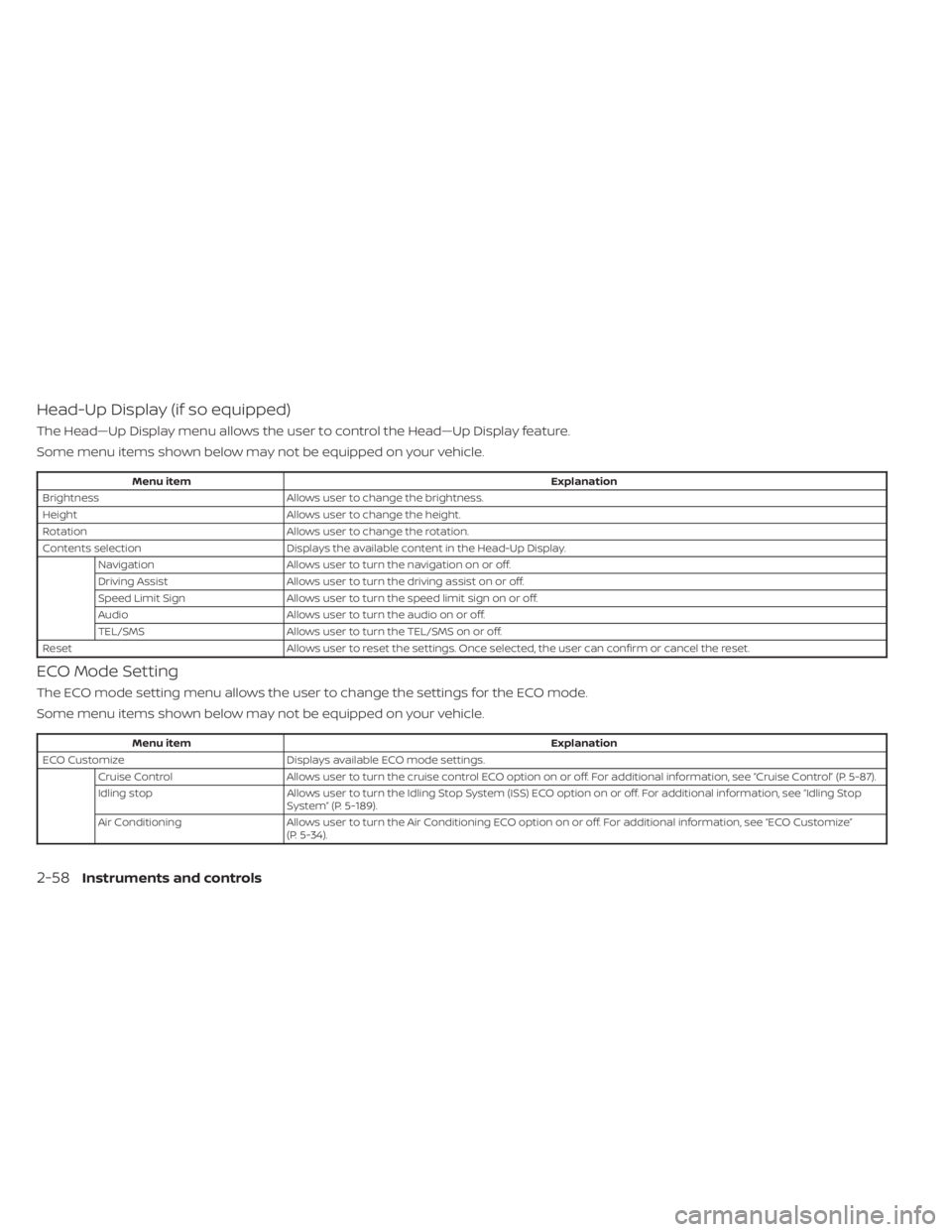
Head-Up Display (if so equipped)
The Head—Up Display menu allows the user to control the Head—Up Display feature.
Some menu items shown below may not be equipped on your vehicle.
Menu itemExplanation
Brightness Allows user to change the brightness.
Height Allows user to change the height.
Rotation Allows user to change the rotation.
Contents selection Displays the available content in the Head-Up Display.
Navigation Allows user to turn the navigation on or off.
Driving Assist Allows user to turn the driving assist on or off.
Speed Limit Sign Allows user to turn the speed limit sign on or off.
Audio Allows user to turn the audio on or off.
TEL/SMS Allows user to turn the TEL/SMS on or off.
Reset Allows user to reset the settings. Once selected, the user can confirm or cancel the reset.
ECO Mode Setting
The ECO mode setting menu allows the user to change the settings for the ECO mode.
Some menu items shown below may not be equipped on your vehicle.
Menu item Explanation
ECO Customize Displays available ECO mode settings.
Cruise Control Allows user to turn the cruise control ECO option on or off. For additional information, see “Cruise Control” (P. 5-87).
Idling stop Allows user to turn the Idling Stop System (ISS) ECO option on or off. For additional information, see “Idling Stop
System” (P. 5-189).
Air Conditioning Allows user to turn the Air Conditioning ECO option on or off. For additional information, see “ECO Customize”
(P. 5-34).
2-58Instruments and controls
Page 166 of 665

Menu itemExplanation
ECO Drive Assist Displays available ECO information settings.
ECO Indicator Allows user to turn the ECO indicator on or off.
ECO Drive Report Allows user to turn the ECO Drive Report on or off.
View History Displays the history report for the vehicle.
Tire Pres ECO advice Allows user to turn the tire pressure ECO advice on or off.
TPMS Setting
The TPMS settings menu allows the user to view or change the tire pressure units displayed in the vehicle information display.
Some menu items shown below may not be equipped on your vehicle.
Menu item Explanation
Tire Pressure Unit Allows user to select the tire pressure units that will display in the vehicle information display.
Clock
Allows user to adjust the clock settings and time within the vehicle information display.
Some menu items shown below may not be equipped on your vehicle.
Menu item Explanation
Display Allows user to turn the display on or off.
Clock Mode Allows user to adjust the clock mode to Auto, Manual or Time Zone.
Clock Format Allows user to adjust the clock format to 24H or 12H.
Daylight Saving Allows user to turnon or off the daylight saving mode.
Time Zone Allows user to select a time zone.
Set Clock Manually Allows user to set the clock manually.
Instruments and controls2-59
Page 167 of 665

Vehicle Settings
The vehicle settings menu allows the user to change the settings for lights, wipers, locking, keys, and other vehicle settings.
Some menu items shown below may not be equipped on your vehicle.
Menu itemExplanation
Power Back Door Allows user to turn the power back door on or off.
Lighting Displays the available lighting options.
Welcome Headlight Allows user to turn the welcome headlight on or off.
Auto Room Lamp Allows user to turn the auto room lamp on or off.
Accent Lighting Allows user to adjust the accent lighting.
Auto Headlight Allows user to change when the lights illuminate based on the brightness outside the vehicle.
Light Off Delay Allows user to change the duration of time that the automatic headlights stay on af ter the vehicle is shut off.
Locking Displays the available locking options.
Ext. Door Switch Allows user to turn the exit door switch on or off.
Selective Unlock Allows user to turn the selective unlock feature o n or off. When this item is turned on (default), only the driver’s
door is unlocked af ter the driver’s door unlock operation. All the doors can be unlocked if the capacitive touch
pad is pressed within 60 seconds of the door handle capacitive unlock feature. When this feature is turned off, all
the doors unlock when the drivers door unlock operation is performed once.
Auto Door Unlock Allows the user to set the auto door unlock to Shif t to P and OFF.
Horn beeps on lock Allows the user to turn the horn beeps on lock feature on or off.
Walk Away Lock Allows the user to turn the walk away lock function ON or OFF. For additional information, see “Walk away lock
function” (P. 3-17).
Approach Unlock Allows the user to turn the approach unlock function ON or OFF. For additional information, see “Approach unlock
function” (P. 3-17).
Wipers Displays the available wiper options.
Speed Dependent Allows user to turn the speed dependent wipers on or off.
Rain Sensor Allows user to turn the rain sensor on or off.
Reverse Link Allows user to turn the reverse link feature on or off.
2-60Instruments and controls
Page 168 of 665
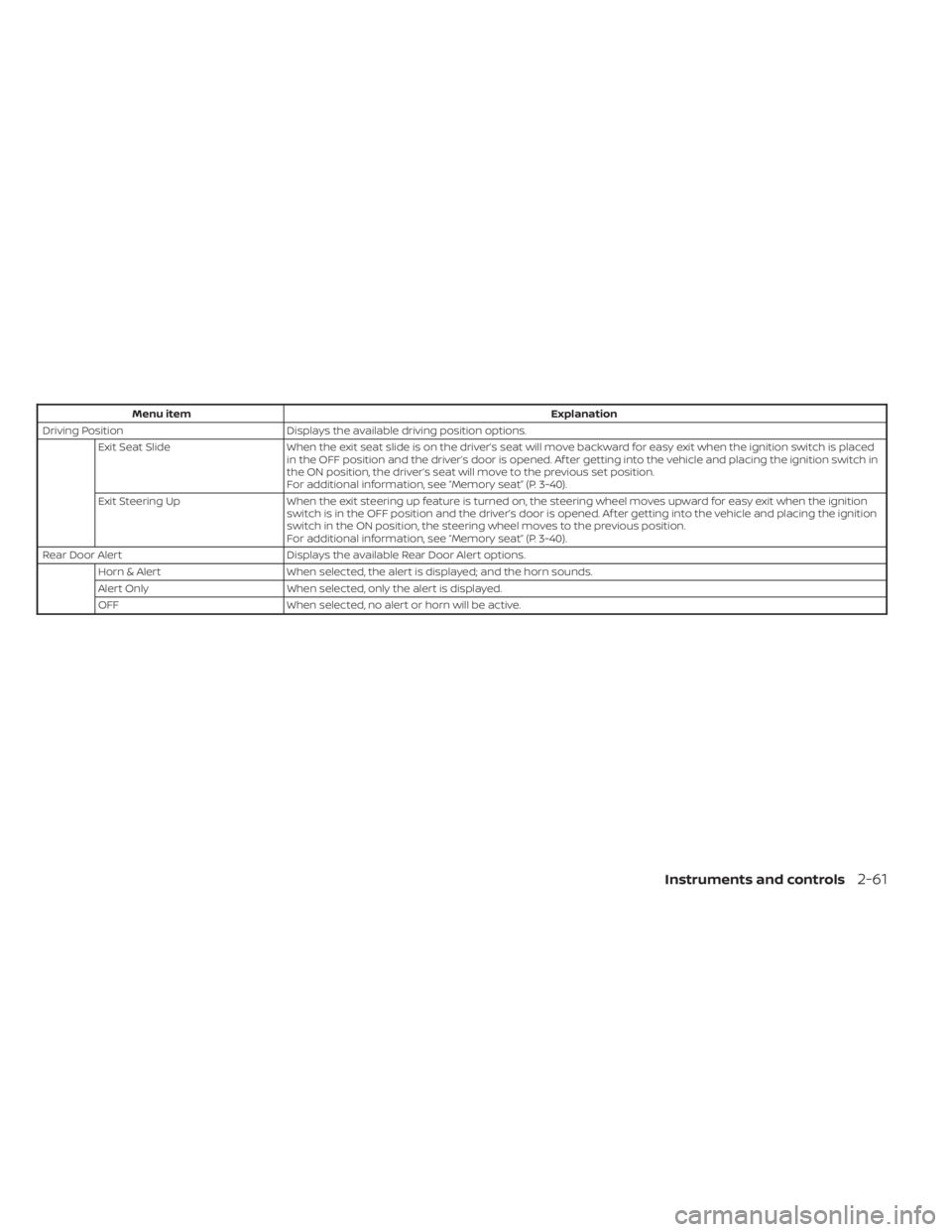
Menu itemExplanation
Driving Position Displays the available driving position options.
Exit Seat Slide When the exit seat slide is on the driver’s seat will move backward for easy exit when the ignition switch is placed
in the OFF position and the driver’s door is opened. Af ter getting into the vehicle and placing the ignition switch in
the ON position, the driver’s seat will move to the previous set position.
For additional information, see “Memory seat” (P. 3-40).
Exit Steering Up When the exit steering up feature is turned on, the steering wheel moves upward for easy exit when the ignition
switch is in the OFF position and the driver’s door is opened. Af ter getting into the vehicle and placing the ignition
switch in the ON position, the steering wheel moves to the previous position.
For additional information, see “Memory seat” (P. 3-40).
Rear Door Alert Displays the available Rear Door Alert options.
Horn & Alert When selected, the alert is displayed; and the horn sounds.
Alert Only When selected, only the alert is displayed.
OFF When selected, no alert or horn will be active.
Instruments and controls2-61
Page 170 of 665
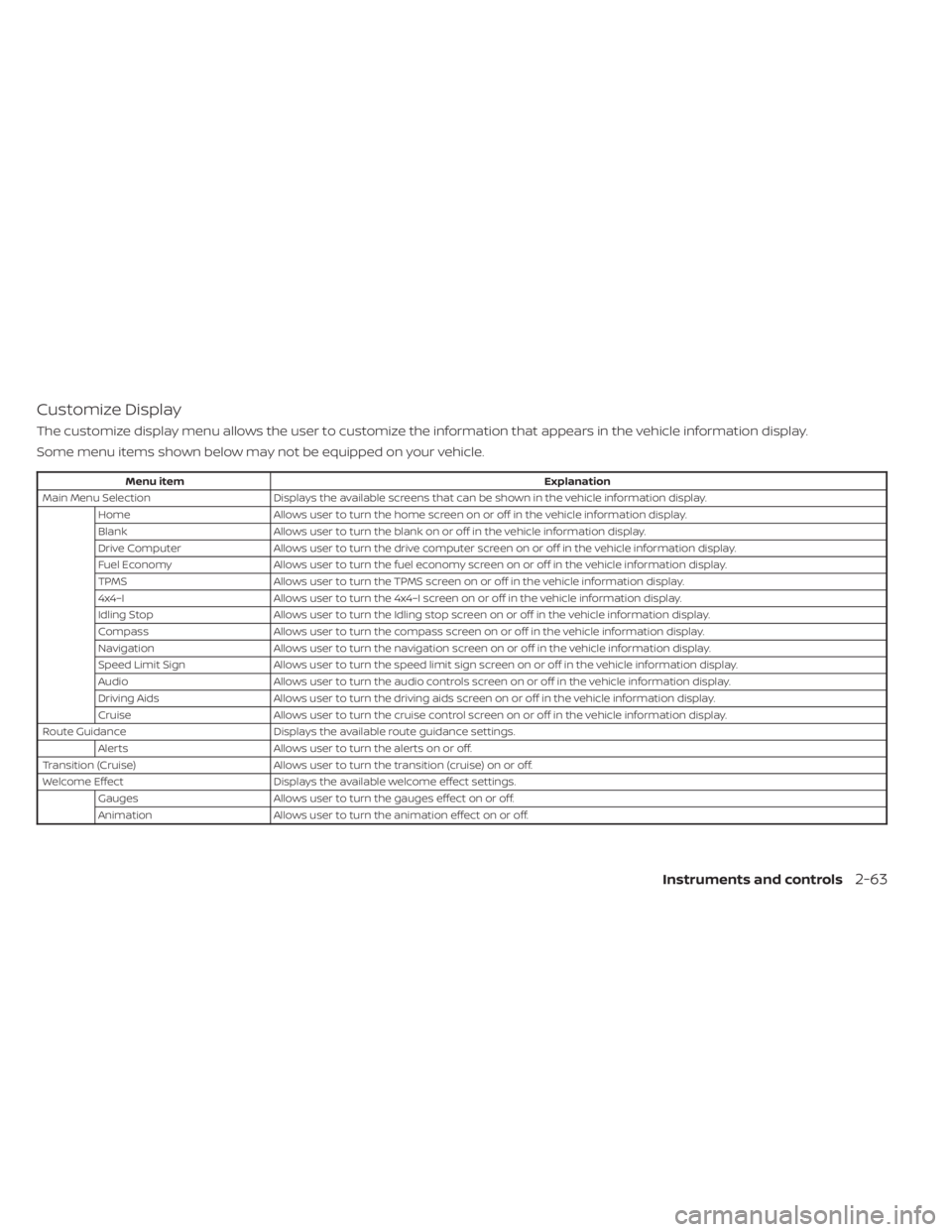
Customize Display
The customize display menu allows the user to customize the information that appears in the vehicle information display.
Some menu items shown below may not be equipped on your vehicle.
Menu itemExplanation
Main Menu Selection Displays the available screens that can be shown in the vehicle information display.
Home Allows user to turn the home screen on or off in the vehicle information display.
Blank Allows user to turn the blank on or off in the vehicle information display.
Drive Computer Allows user to turn the drive computer screen on or off in the vehicle information display.
Fuel Economy Allows user to turn the fuel economy screen on or off in the vehicle information display.
TPMS Allows user to turn the TPMS screen on or off in the vehicle information display.
4x4–I Allows user to turn the 4x4–I screen on or off in the vehicle information display.
Idling Stop Allows user to turn the Idling stop screen on or off in the vehicle information display.
Compass Allows user to turn the compass screen on or off in the vehicle information display.
Navigation Allows user to turn the navigation screen on or off in the vehicle information display.
Speed Limit Sign Allows user to turn the speed limit sign screen on or off in the vehicle information display.
Audio Allows user to turn the audio controls screen on or off in the vehicle information display.
Driving Aids Allows user to turn the driving aids screen on or off in the vehicle information display.
Cruise Allows user to turn the cruise control screen on or off in the vehicle information display.
Route Guidance Displays the available route guidance settings.
Alerts Allows user to turn the alerts on or off.
Transition (Cruise) Allows user to turn the transition (cruise) on or off.
Welcome Effect Displays the available welcome effect settings.
Gauges Allows user to turn the gauges effect on or off.
Animation Allows user to turn the animation effect on or off.
Instruments and controls2-63
Page 171 of 665
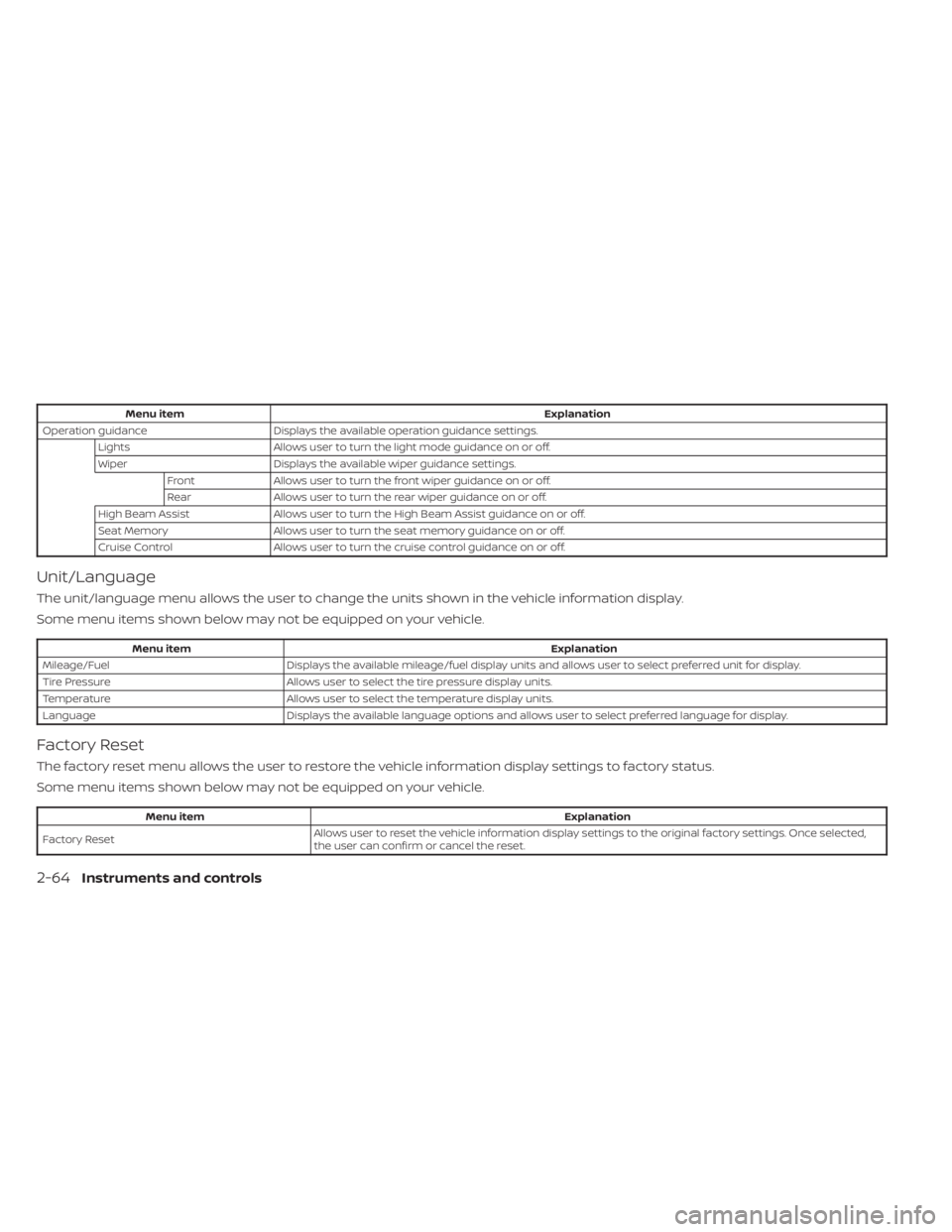
Menu itemExplanation
Operation guidance Displays the available operation guidance settings.
Lights Allows user to turn the light mode guidance on or off.
Wiper Displays the available wiper guidance settings.
Front Allows user to turn the front wiper guidance on or off.
Rear Allows user to turn the rear wiper guidance on or off.
High Beam Assist Allows user to turn the High Beam Assist guidance on or off.
Seat Memory Allows user to turn the seat memory guidance on or off.
Cruise Control Allows user to turn the cruise control guidance on or off.
Unit/Language
The unit/language menu allows the user to change the units shown in the vehicle information display.
Some menu items shown below may not be equipped on your vehicle.
Menu item Explanation
Mileage/Fuel Displays the available mileage/fuel display units and allows user to select preferred unit for display.
Tire Pressure Allows user to select the tire pressure display units.
Temperature Allows user to select the temperature display units.
Language Displays the available language options and allows user to select preferred language for display.
Factory Reset
The factory reset menu allows the user to restore the vehicle information display settings to factory status.
Some menu items shown below may not be equipped on your vehicle.
Menu item Explanation
Factory Reset Allows user to reset the vehicle information display setti
ngs to the original factory settings. Once selected,
the user can confirm or cancel the reset.
2-64Instruments and controls
Page 172 of 665

VEHICLE INFORMATION DISPLAY
WARNINGS AND INDICATORS
The following messages may appear in
your vehicle information display.
Engine start operation for
Intelligent Key system (if
I-Key battery level is low)
This indicator appears when the battery of
the Intelligent Key is low and when the In-
telligent Key system and the vehicle are not
communicating normally.
If this appears, touch the ignition switch
with the Intelligent Key while depressing
the brake pedal. For additional information,
see “NISSAN Intelligent Key® battery dis-
charge” (P. 5-15).
Key ID Incorrect
This warning appears when the ignition
switch is placed from the OFF position and
the Intelligent Key is not recognized by the
system. You cannot start the engine with
an unregistered key.
For additional information, see “NISSAN In-
telligent Key® system” (P. 3-7).
Key System Error: See
Owner’s Manual
Af ter the ignition switch is placed in the ON
position, this warning appears for a period
of time and then turns off.
The Key System Error message warns of a
malfunction with the Intelligent Key sys-
tem. If the warning appears while the en-
gine is stopped, it may be impossible to
start the engine.
If the warning appears while the engine is
running, you can drive the vehicle. However,
in these cases, have the system checked. It
is recommended that you visit a NISSAN
dealer for this service.
Key Battery Low
This indicator appears when the Intelligent
Key battery is running out of power.
If this indicator appears, replace the bat-
tery with a new one. For additional infor-
mation, see “Battery replacement” (P. 8-24).
No Key Detected
This warning appears when the Intelligent
Key is lef t outside the vehicle with the igni-
tion switch in the ON position. Make sure
the Intelligent Key is inside the vehicle.For additional information, see “NISSAN In-
telligent Key® system” (P. 3-7).
Automatic brake hold
indicator light
(white/green)
The automatic brake hold indicator light
(white) illuminates when the automatic
brake hold system is on standby.
The automatic brake hold indicator light
(green) illuminates when the automatic
brake hold system is operating.
For additional information, see “Automatic
brake hold” (P. 5-28).
Brightness indicator
This indicator shows the brightness ad-
justment of the instrument panel. For addi-
tional information, see “Instrument bright-
ness control” (P. 2-88).
Caution Steep slope
This indicator appears, and a chime
sounds when the automatic brake hold
function is activated while the vehicle is on
a steep hill. Apply the foot brake to stop the
vehicle from moving. For additional infor-
mation, see “Automatic brake hold” (P. 5-28).
Instruments and controls2-65