2023 NISSAN PATHFINDER Fuel
[x] Cancel search: FuelPage 156 of 665

3. Short cut menu button— Press this but-ton to open a shortcut menu.
4.
— go back to the previous menu
STARTUP DISPLAY
When the vehicle in placed in the ON posi-
tion the screens that display in the vehicle
information include:
• Active system status (if so equipped)
• Trip computer
• Fuel economy
• Distance to empty
• Tire pressure information
• Intelligent 4x4 (if so equipped)
• Navigation (if so equipped)
• Audio
• Warnings
Warnings will only display if there are any
present. For additional information on
warnings and indicators see “Vehicle infor-
mation display warnings and indicators”
(P. 2-65).
To control what items display in the vehicle
information display, see “Customize Dis-
play ” (P. 2-63).
Instruments and controls2-49
Page 158 of 665
2. Speed and Average speed (if so
equipped)
The Speed and Average speed mode
shows the current vehicle speed and the
average vehicle speed since the last reset.
The Speed and Average speed mode has
three modes of operation. You can switch
between Manual Reset1, Manual Reset2 or
Auto Refuel by pushing the scroll dial.
Manual Reset1 can be reset manually by
using the scroll dial.
Manual Reset2 can be reset manually by
using the scroll dial or will be reset auto-
matically each time the ignition switch is
placed in the OFF position (if so equipped).
Auto Refuel will be reset automatically each
time when refueling.
3. Drive Computer
Average fuel consumption:
The average fuel consumption shows the
average fuel consumption since the last
reset.
Average speed:
The average speed shows the average ve-
hicle speed since the last reset.Trip odometer:
The trip odometer shows the total dis-
tance the vehicle has been driven since the
last reset.
Elapsed time:
The elapsed time shows the time since the
last reset.
The Drive computer mode has three
modes of operation. You can switch be-
tween Manual Reset1, Manual Reset2 or
Auto Refuel by pushing the scroll dial.
Manual Reset1 can be reset manually by
using the scroll dial.
Manual Reset2 can be reset manually by
using the scroll dial or will be reset auto-
matically each time the ignition switch is
placed in the OFF position (if so equipped).
Auto Refuel will be reset automatically each
time when refueling.
4. Fuel economy display
Current fuel consumption:
The Fuel economy display mode shows the
current fuel consumption.
Average fuel consumption:
The Fuel economy display mode shows the
average fuel consumption since the last
reset.
The Fuel economy display mode has three
modes of operation. You can switch be-
tween Manual Reset1, Manual Reset2 or
Auto Refuel by pushing the scroll dial.
Manual Reset1 can be reset manually by
using the scroll dial.
Manual Reset2 can be reset manually by
using the scroll dial or will be reset auto-
matically each time the ignition switch is
placed in the OFF position (if so equipped).
Auto Refuel will be reset automatically each
time when refueling.
5. Eco Pedal Guide
When the ECO mode is selected, you can
view ECO Pedal Guide function for improv-
ing fuel economy.
The ECO Pedal Guide mode has three
modes of operation. You can switch be-
tween Manual Reset1, Manual Reset2 or
Auto Refuel by pushing the scroll dial.
Manual Reset1 can be reset manually by
using the scroll dial.
Instruments and controls2-51
Page 159 of 665

Manual Reset2 can be reset manually by
using the scroll dial or will be reset auto-
matically each time the ignition switch is
placed in the OFF position (if so equipped).
Auto Refuel will be reset automatically each
time when refueling.
For additional information, see “ECO Mode”
(P. 5-34).
6. Tire Pressures
The tire pressure mode shows the pres-
sure of all four tires while the vehicle is
driven.
With the “Tire Pres ECO advice” function ON,
when the tire pressure is getting low,
“Check Tire Pressures for Best Fuel
Economy” or “Add air for Best Fuel
Economy” appears. For additional informa-
tion, see “ECO Mode Setting” (P. 5-34) or “Tire
Pres ECO advice” (P. 5-34).
When the “Tire Pressure Low — Add Air”
warning appears, the display can be
switched to the tire pressure mode by
pushing the scroll dial to reveal additional
details on the displayed warning.
7. Intelligent 4x4 torque
distribution display (if so
equipped)
When the Intelligent 4x4 torque distribution
display is selected, you can view the distri-
bution ratio of the transmission torque to
the front and rear wheels during driving.
8. Compass (if so equipped)
This display indicates the direction the ve-
hicle is heading.
9. Navigation (if so equipped)
When the route guidance is set in the navi-
gation system, this item shows the naviga-
tion route information.
10. Audio
The audio mode shows the status of audio
information.
11. Driver Assistance
The Driver Assistance mode shows the op-
erating condition for the following systems:
•Forward–– Automatic Emergency Braking (AEB)with Pedestrian Detection system –
– Intelligent Forward Collision Warning
(I-FCW)
• Lane: –– Lane Departure Warning (LDW)
–– Intelligent Lane Intervention (I-LI)
• Blind Spot: –– Blind Spot Warning (BSW)
–– Intelligent Blind Spot Intervention (I-
BSI) (if so equipped)
For additional information, see “Intelligent
Blind Spot Intervention (I-BSI)” (P. 5-65),
“Blind Spot Warning (BSW)” (P. 5-52), “Lane
Departure Warning (LDW)” (P. 5-38), “Auto-
matic Emergency Braking (AEB) with Pe-
destrian Detection” (P. 5-137), “Intelligent
Forward Collision Warning (I-FCW)” (P. 5-149)
or “Intelligent Lane Intervention (I-LI)”
(P. 5-45).
12. ProPILOT Assist (if so equipped)
The ProPILOT Assist mode shows operat-
ing conditions for the following systems:
• Intelligent Cruise Control (ICC)
• Steering Assist
The display will also be shown when the
ProPILOT Assist is turned on. For additional
information, see “ProPILOT Assist” (P. 5-88).
2-52Instruments and controls
Page 160 of 665
13. Traffic Sign Recognition (if so
equipped)
The Traffic Sign Recognition (TSR) system
provides the driver with information about
the most recently detected speed limit.
For additional information, see “Traffic Sign
Recognition (TSR) (P. 5-35).
14. Idling Stop System (if so
equipped)
The Idling Stop System provides the driver
with information about the amount of fuel
saved while using the system.
For additional information, see “Idling Stop
System” (P. 5-189).
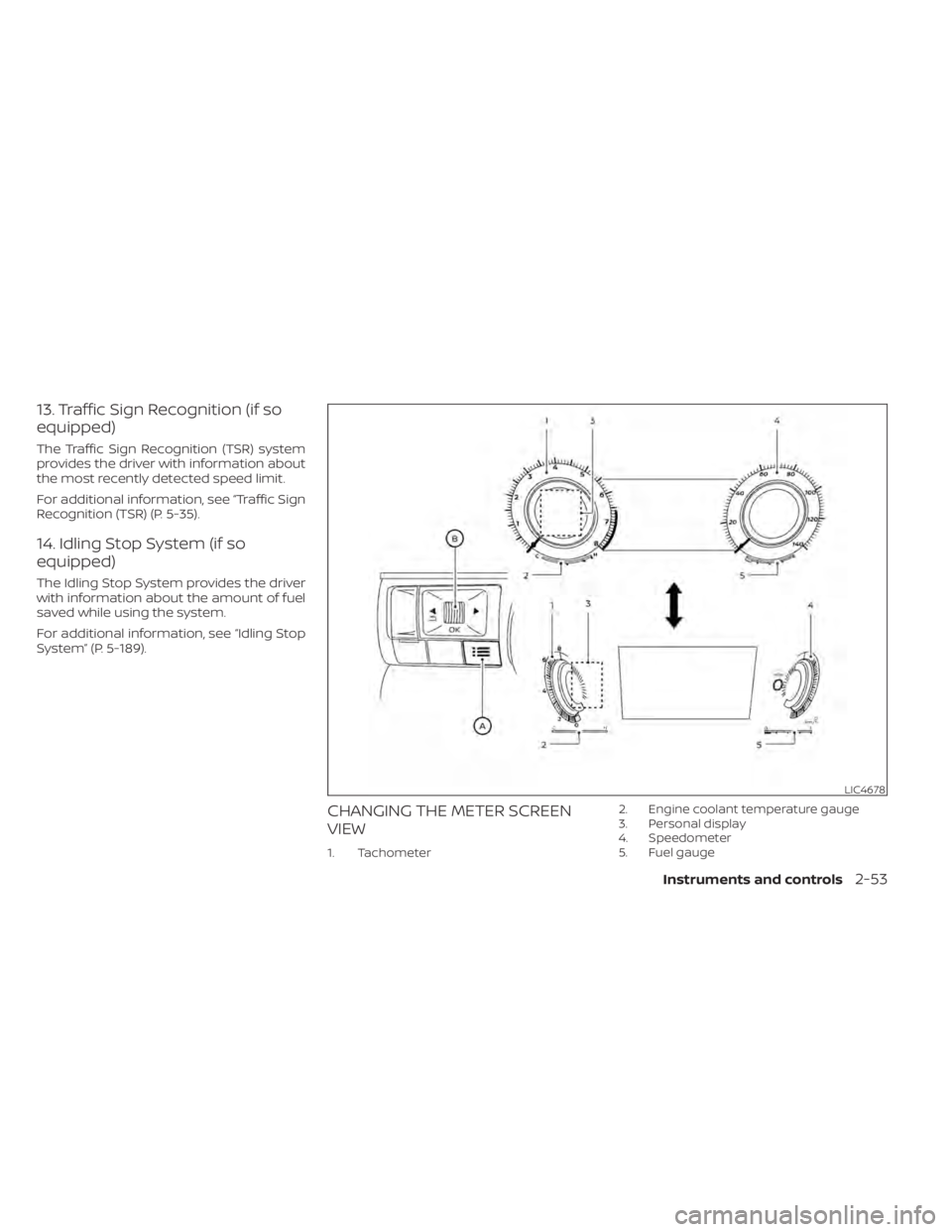
CHANGING THE METER SCREEN
VIEW
1. Tachometer2. Engine coolant temperature gauge
3. Personal display
4. Speedometer
5. Fuel gauge
LIC4678
Instruments and controls2-53
Page 164 of 665

Menu itemExplanation
Parking Aids Displays available parking aids.
Moving Object Allows user to turn the Moving Object Detection (MOD) on or off. For additional information, see “Moving Object
Detection (MOD)” (P. 4-26).
Auto Show Sonar Allows user to auto display the sonar. For additional information, see “Front and rear sonar system” (P. 5-183).
Front Sonar Allows user to turn the front sonar on or off.
Rear Sonar Allows user to turn the rear sonar on or off.
Sonar Distance Allows user to set the distance sensor range to Long/Medium/Short.
Sonar Volume Allows the user to set the parking sensor volume to High/Medium/Low.
Rear Cross Traffic Alert Allows user to turn the Rear Cross Traffic Alert (RCTA) system on or off. For additional information, see “Rear Cross
Traffic Alert (RCTA)” (P. 5-77).
Driver Alertness Allows user to turn the Intelligent Driver Alertness on or off. For additional information, see “Intelligent Driver Alert-
ness (I-DA)” (P. 5-165).
Timer Alert Allows user to set the timer alert.
Low Temp. Alert Allows user to turn the low temperature alert on or off.
Personal Display
The Personal Display menu allows the user to set various scr eens in the personal display area in the vehicle information display.
Some menu items shown below may not be equipped on your vehicle.
Menu item Explanation
Blank Allows user to select the blank screen.
Navigation Allows user to select the navigation screen.
Time to Destination Allows user to select the time to destination screen.
Fuel Economy Allows user to select the fuel economy screen.
Trip Allows user to select the trip screen.
Gear position Allows user to select the gear position screen.
Average speed Allows user to select the average speed screen.
Instruments and controls2-57
Page 170 of 665
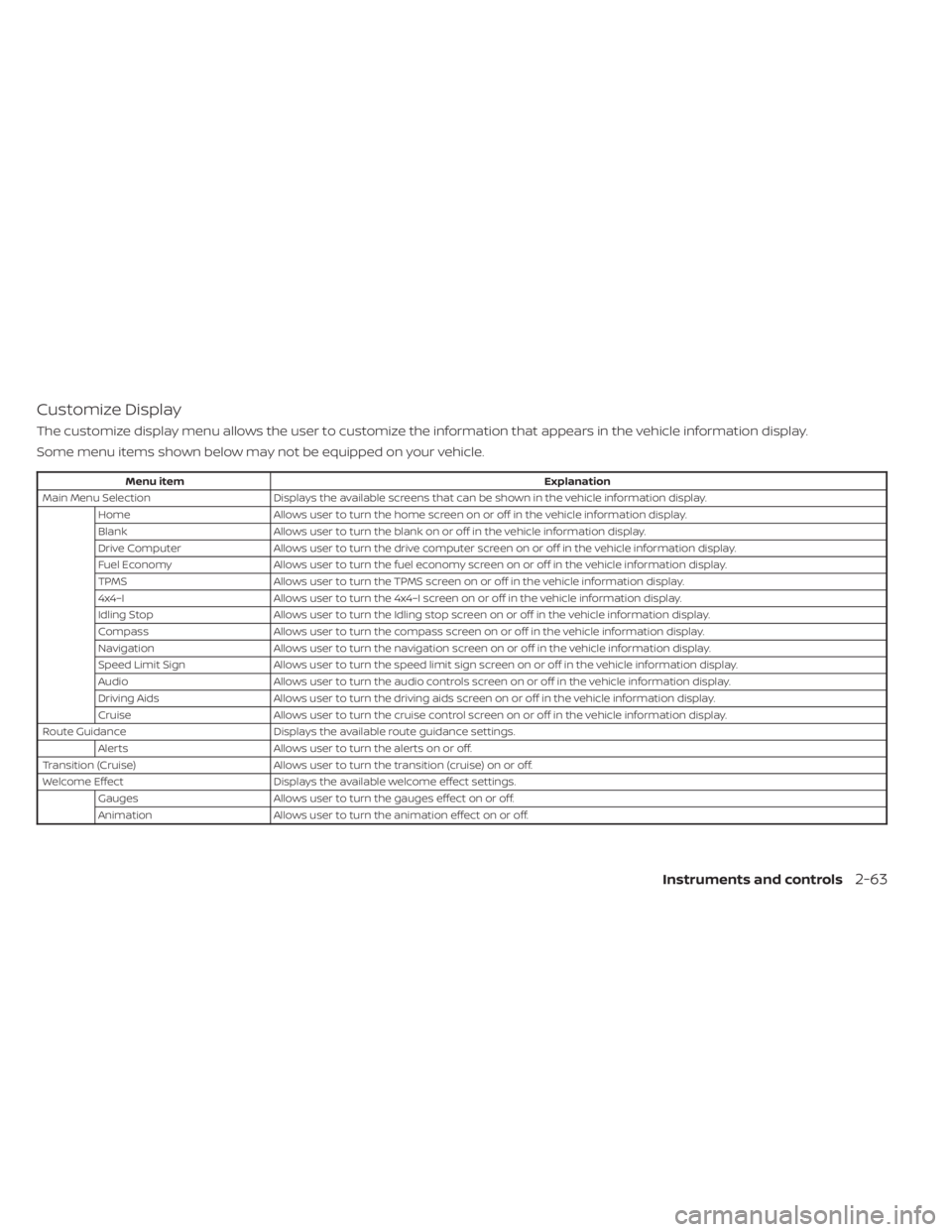
Customize Display
The customize display menu allows the user to customize the information that appears in the vehicle information display.
Some menu items shown below may not be equipped on your vehicle.
Menu itemExplanation
Main Menu Selection Displays the available screens that can be shown in the vehicle information display.
Home Allows user to turn the home screen on or off in the vehicle information display.
Blank Allows user to turn the blank on or off in the vehicle information display.
Drive Computer Allows user to turn the drive computer screen on or off in the vehicle information display.
Fuel Economy Allows user to turn the fuel economy screen on or off in the vehicle information display.
TPMS Allows user to turn the TPMS screen on or off in the vehicle information display.
4x4–I Allows user to turn the 4x4–I screen on or off in the vehicle information display.
Idling Stop Allows user to turn the Idling stop screen on or off in the vehicle information display.
Compass Allows user to turn the compass screen on or off in the vehicle information display.
Navigation Allows user to turn the navigation screen on or off in the vehicle information display.
Speed Limit Sign Allows user to turn the speed limit sign screen on or off in the vehicle information display.
Audio Allows user to turn the audio controls screen on or off in the vehicle information display.
Driving Aids Allows user to turn the driving aids screen on or off in the vehicle information display.
Cruise Allows user to turn the cruise control screen on or off in the vehicle information display.
Route Guidance Displays the available route guidance settings.
Alerts Allows user to turn the alerts on or off.
Transition (Cruise) Allows user to turn the transition (cruise) on or off.
Welcome Effect Displays the available welcome effect settings.
Gauges Allows user to turn the gauges effect on or off.
Animation Allows user to turn the animation effect on or off.
Instruments and controls2-63
Page 171 of 665
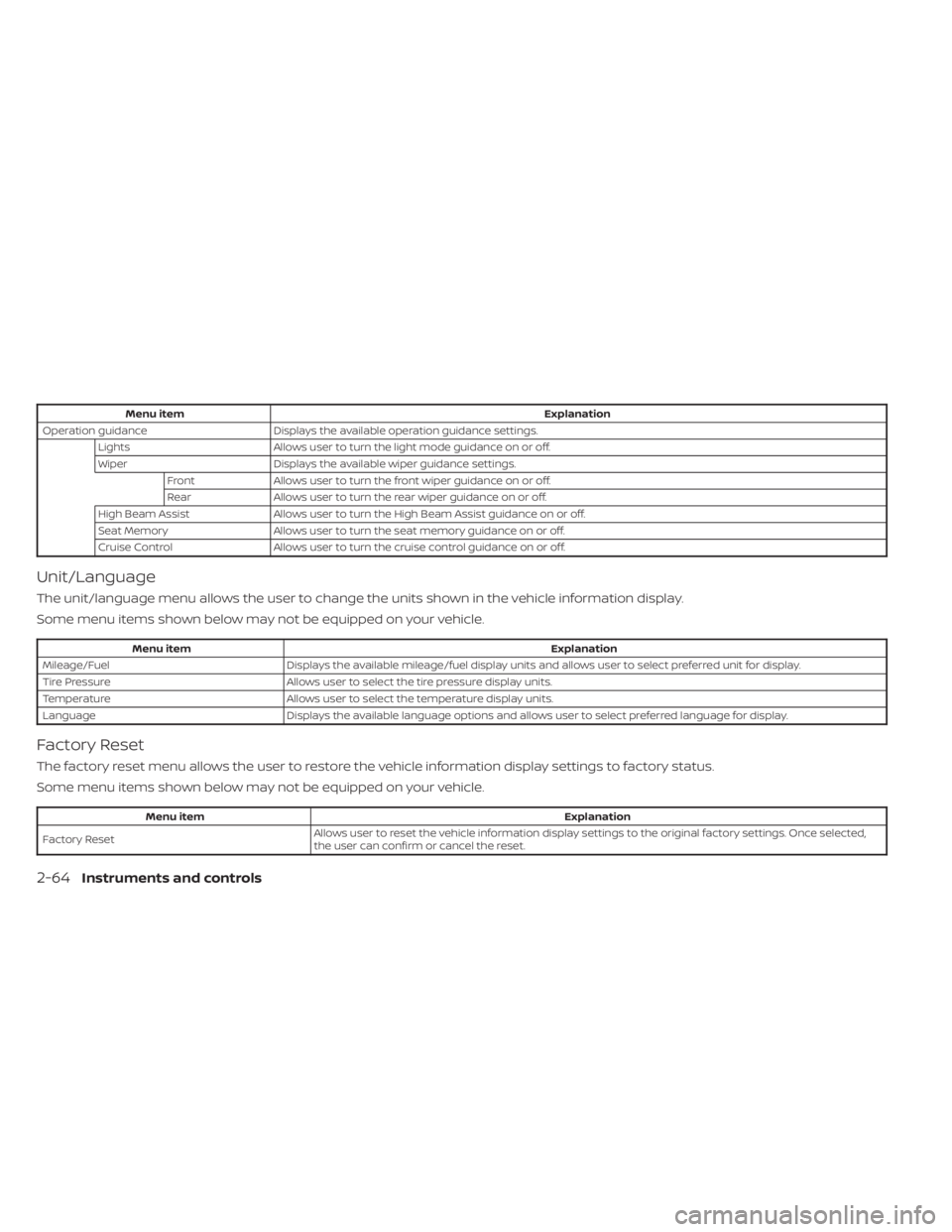
Menu itemExplanation
Operation guidance Displays the available operation guidance settings.
Lights Allows user to turn the light mode guidance on or off.
Wiper Displays the available wiper guidance settings.
Front Allows user to turn the front wiper guidance on or off.
Rear Allows user to turn the rear wiper guidance on or off.
High Beam Assist Allows user to turn the High Beam Assist guidance on or off.
Seat Memory Allows user to turn the seat memory guidance on or off.
Cruise Control Allows user to turn the cruise control guidance on or off.
Unit/Language
The unit/language menu allows the user to change the units shown in the vehicle information display.
Some menu items shown below may not be equipped on your vehicle.
Menu item Explanation
Mileage/Fuel Displays the available mileage/fuel display units and allows user to select preferred unit for display.
Tire Pressure Allows user to select the tire pressure display units.
Temperature Allows user to select the temperature display units.
Language Displays the available language options and allows user to select preferred language for display.
Factory Reset
The factory reset menu allows the user to restore the vehicle information display settings to factory status.
Some menu items shown below may not be equipped on your vehicle.
Menu item Explanation
Factory Reset Allows user to reset the vehicle information display setti
ngs to the original factory settings. Once selected,
the user can confirm or cancel the reset.
2-64Instruments and controls
Page 174 of 665

Electric shif t control
system indicator
This indicator appears when a malfunction
occurs in the electric shif t control system.
When the master warning indicator ap-
pears, the chime sounds and the following
message is displayed in the vehicle infor-
mation display: “When parked apply park-
ing brake”.
When the ignition is placed in the OFF posi-
tion, the chime sounds continuously. En-
sure the parking brake is applied
Have the system checked. It is recom-
mended that you visit a NISSAN dealer for
this service.
Front fog light indicator
(green)
The front fog light indicator appears when
the front fog lights are on. For additional
information, see “Fog light switch” (P. 2-89).
Headlight System Error: See Owner’s
Manual
This warning appears when there is an er-
ror with the system. For additional informa-
tion, see “Headlight and turn signal switch”
(P. 2-82).
High Beam Assist indicator
(green)
This indicator appears when the head-
lights come on while the headlight switch
is in the AUTO position with the high beams
selected and the engine running. This indi-
cates that the high beam assist is
operational.
For additional information, see “Headlight
and turn signal switch” (P. 2-82).
High beam indicator (blue)
This blue indicator appears when the
headlight high beams are on and goes out
when the low beams are selected.
The high beam indicator also appears
when the passing signal is activated.
Hill descent control system
ON indicator
When the ignition switch is placed in the ON
position, this indicator appears briefly and
then turns off.
The indicator appears when the hill de-
scent control system is activated.
If the hill descent control switch is on and
the indicator blinks, the system is not
engaged.If the indicator does not appear when the
hill descent switch is on, the system may
not be functioning properly. Have the sys-
tem checked. It is recommended that you
visit a NISSAN dealer for this service.
For additional information, see “Hill descent
control switch” (P. 2-94) “Hill descent control
system” (P. 5-182).
Low Fuel
This warning appears when the fuel level in
the fuel tank is getting low. Refuel as soon
as it is convenient, preferably before the
fuel gauge reaches 0 (Empty).
There will be
a small reserve of fuel in the tank when
the fuel gauge needle reaches 0 (Empty).
Low Outside Temperature
This warning appears if the outside tem-
perature is below 37°F (3°C). The tempera-
ture can be changed to display in Celsius or
Fahrenheit. For additional information, see
“Driver Assistance” (P. 2-56).
Low tire pressure indicator
Your vehicle is equipped with a Tire Pres-
sure Monitoring System (TPMS) that moni-
tors the tire pressure of all tires except the
spare.
Instruments and controls2-67