2023 NISSAN KICKS reset
[x] Cancel search: resetPage 246 of 558
BACK button
Press theBACK button to return to the
previous menu screen.
AUDIO button
Press to display the audio screen. When
this button is pressed while the audio
screen is not displayed, the last audio
source played will play.
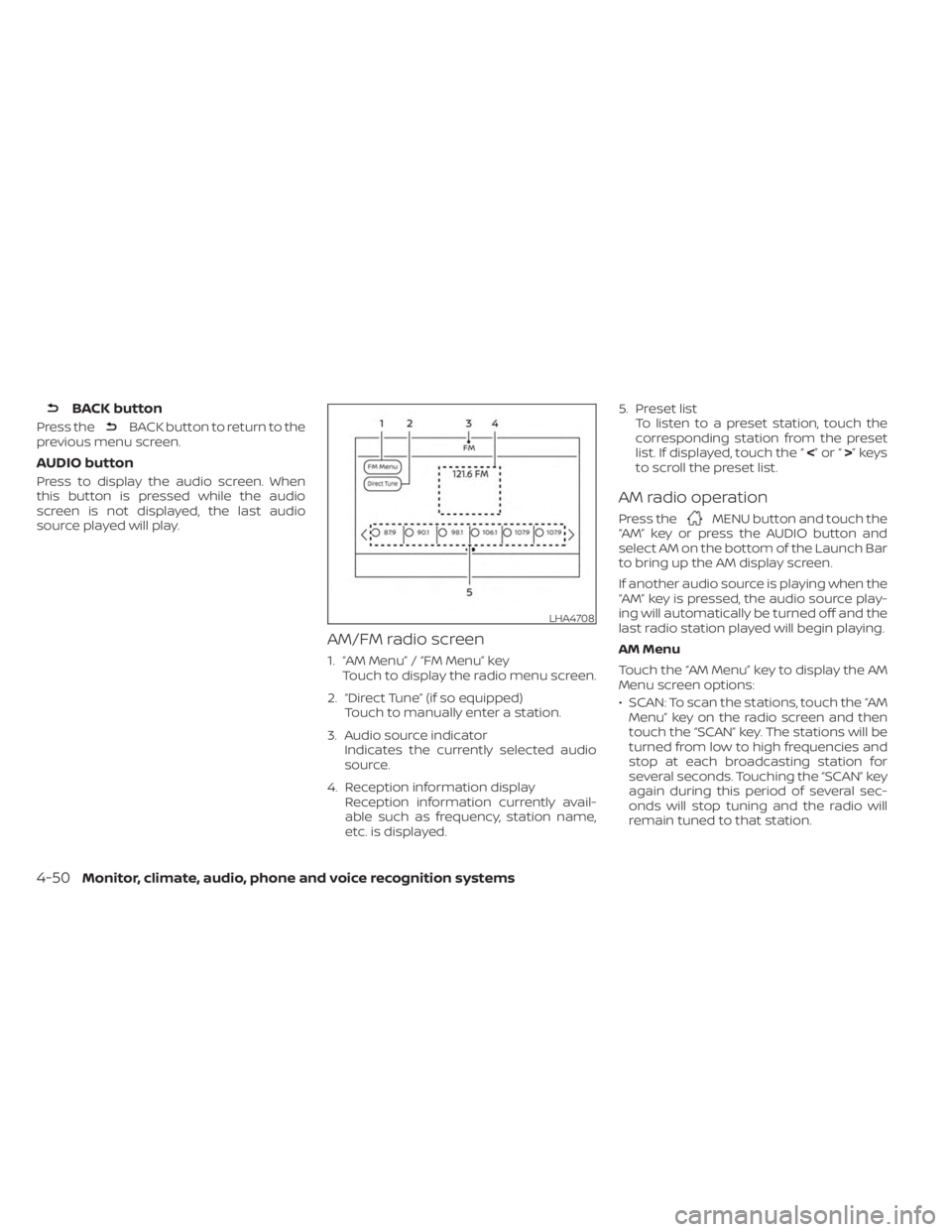
AM/FM radio screen
1. “AM Menu” / “FM Menu” key Touch to display the radio menu screen.
2. “Direct Tune” (if so equipped) Touch to manually enter a station.
3. Audio source indicator Indicates the currently selected audio
source.
4. Reception information display Reception information currently avail-
able such as frequency, station name,
etc. is displayed. 5. Preset list
To listen to a preset station, touch the
corresponding station from the preset
list. If displayed, touch the “ <”or“>”keys
to scroll the preset list.
AM radio operation
Press theMENU button and touch the
“AM” key or press the AUDIO button and
select AM on the bottom of the Launch Bar
to bring up the AM display screen.
If another audio source is playing when the
“AM” key is pressed, the audio source play-
ing will automatically be turned off and the
last radio station played will begin playing.
AM Menu
Touch the “AM Menu” key to display the AM
Menu screen options:
• SCAN: To scan the stations, touch the “AM Menu” key on the radio screen and then
touch the “SCAN” key. The stations will be
turned from low to high frequencies and
stop at each broadcasting station for
several seconds. Touching the “SCAN” key
again during this period of several sec-
onds will stop tuning and the radio will
remain tuned to that station.
LHA4708
4-50Monitor, climate, audio, phone and voice recognition systems
Page 247 of 558
• Refresh: Touch the “Refresh” key to up-date the station list displayed on the right
side of the AM Menu screen.
(SEEK/TRACK) buttons
Press the
orbuttons to tune
from low to high or high to low frequencies
and to stop at the next broadcasting
station.
Direct Tune (if so equipped)
Touch the “Direct Tune” key to display the
Direct Tune menu and manually enter a
station.
1 to 6 station memory operations
Up to six stations can be registered in the
preset list.
1. Select the AM radio band.
2. Tune to the station you wish to store.
3. Touch and hold one of the preset num- bers in the preset list.
The information such as frequency will be
displayed on the preset list.
To select and listen to the preset stations,
press
oron the steering wheel
briefly or touch a preferred station on the
preset list on the radio screen.
FM radio operation
Press theMENU button and touch the
“FM” key or press the AUDIO button and
select FM on the bottom of the Launch Bar
to bring up the FM display screen.
If another audio source is playing when the
“FM” key is pressed, the audio source play-
ing will automatically be turned off and the
last radio station played will begin playing.
The FM stereo indicator (STEREO) is shown
on the screen during FM stereo reception.
When the stereo broadcast signal is weak,
the radio automatically changes from ste-
reo to monaural reception.
FM Menu
Touch the “FM Menu” key to display the FM
Menu screen options:
• SCAN: To scan the stations, touch the “FM Menu” key on the radio screen and then
touch the “SCAN” key. The stations will be
tuned from low to high frequencies and
stop at each broadcasting stations for
several seconds. Touching the “SCAN” key
again during this period of several sec-
onds will stop tuning and the radio will
remain tuned to that station. • Refresh: Touch the “Refresh” key to up-
date the station list displayed on the right
side of the FM Menu screen.
• RDS Info: Radio station and song informa- tion can be displayed on the FM display
screen.
(SEEK/TRACK) buttons
Press the
orbuttons to tune
from low to high or high to low frequencies
and to stop at the next broadcasting
station.
1 to 12 station memory operations
Up to 12 stations can be registered in the
preset list.
1. Select the FM radio band.
2. Tune to the station you wish to store.
3. Touch and hold one of the preset num- bers in the preset list.
The information such as frequency will be
displayed on the preset list.
To select and listen to the preset stations,
press
oron the steering wheel
briefly or touch a preferred station on the
preset list on the radio screen.
Monitor, climate, audio, phone and voice recognition systems4-51
Page 258 of 558
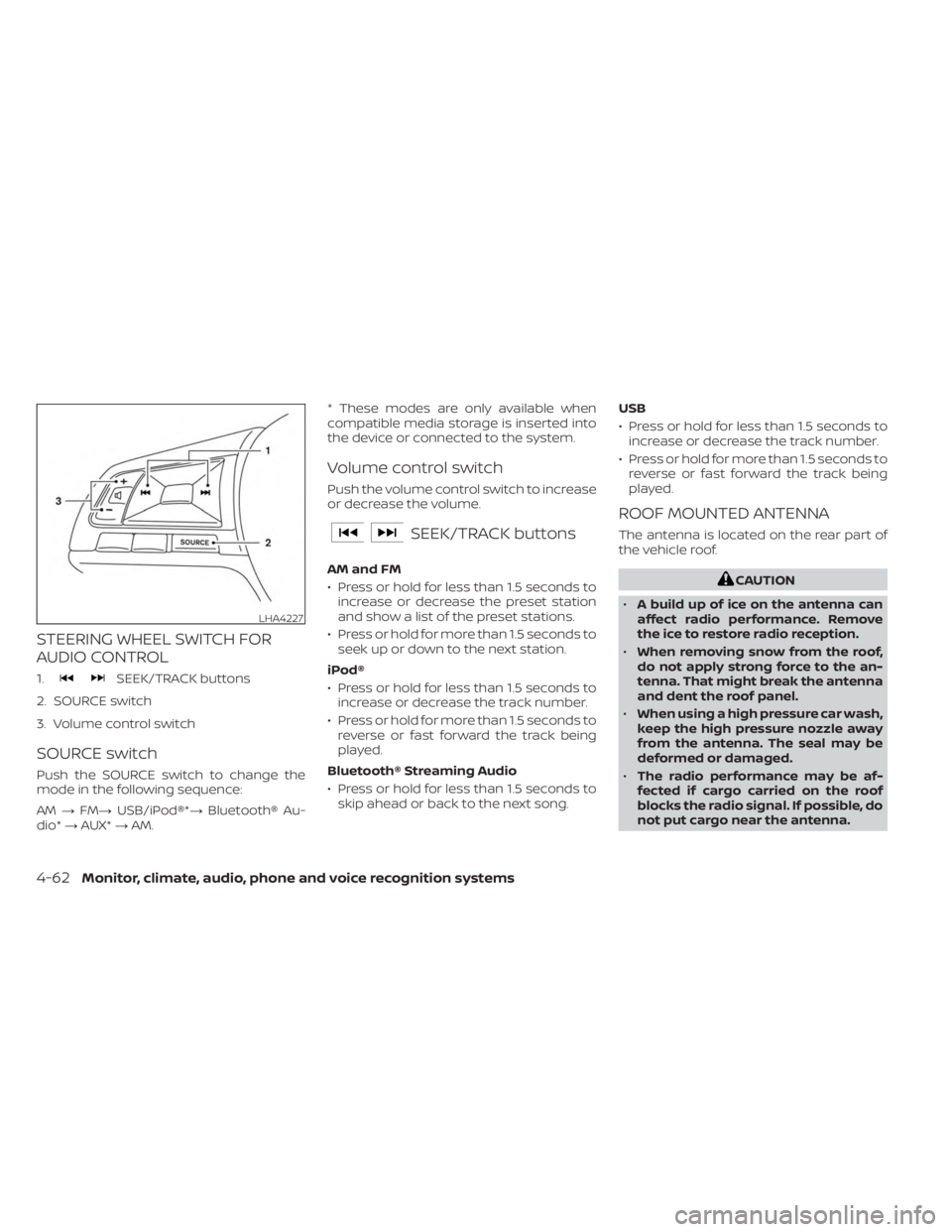
STEERING WHEEL SWITCH FOR
AUDIO CONTROL
1.SEEK/TRACK buttons
2. SOURCE switch
3. Volume control switch
SOURCE switch
Push the SOURCE switch to change the
mode in the following sequence:
AM →FM→ USB/iPod®*→ Bluetooth® Au-
dio* →AUX* →AM. * These modes are only available when
compatible media storage is inserted into
the device or connected to the system.
Volume control switch
Push the volume control switch to increase
or decrease the volume.
SEEK/TRACK buttons
AM and FM
• Press or hold for less than 1.5 seconds to
increase or decrease the preset station
and show a list of the preset stations.
• Press or hold for more than 1.5 seconds to seek up or down to the next station.
iPod®
• Press or hold for less than 1.5 seconds to increase or decrease the track number.
• Press or hold for more than 1.5 seconds to reverse or fast forward the track being
played.
Bluetooth® Streaming Audio
• Press or hold for less than 1.5 seconds to skip ahead or back to the next song. USB
• Press or hold for less than 1.5 seconds to
increase or decrease the track number.
• Press or hold for more than 1.5 seconds to reverse or fast forward the track being
played.
ROOF MOUNTED ANTENNA
The antenna is located on the rear part of
the vehicle roof.
CAUTION
• A build up of ice on the antenna can
affect radio performance. Remove
the ice to restore radio reception.
• When removing snow from the roof,
do not apply strong force to the an-
tenna. That might break the antenna
and dent the roof panel.
• When using a high pressure car wash,
keep the high pressure nozzle away
from the antenna. The seal may be
deformed or damaged.
• The radio performance may be af-
fected if cargo carried on the roof
blocks the radio signal. If possible, do
not put cargo near the antenna.
LHA4227
4-62Monitor, climate, audio, phone and voice recognition systems
Page 285 of 558
•If the low tire pressure warning light
illuminates while driving, avoid sud-
den steering maneuvers or abrupt
braking, reduce vehicle speed, pull
off the road to a safe location and
stop the vehicle as soon as possible.
Driving with under-inflated tires may
permanently damage the tires and
increase the likelihood of tire failure.
Serious vehicle damage could occur
and may lead to an accident and
could result in serious personal in-
jury. Check the tire pressure for all
four tires. Adjust the tire pressure to
the recommended COLD tire pres-
sure shown on the Tire and Loading
Information label to turn the low tire
pressure warning light off. If you have
a flat tire, replace it with a spare tire
as soon as possible. (For additional
information, see “Flat tire” (P. 6-3) for
changing a flat tire.) •
When using a wheel without the
TPMS such as the spare tire, when a
spare tire is mounted or a wheel is
replaced, the TPMS will not function
and the low tire pressure warning
light will flash for approximately 1
minute. The light will remain on af ter
1 minute. Have your tires replaced
and/or TPMS system reset as soon as
possible. It is recommended that you
visit a NISSAN dealer for this service.
• Replacing tires with those not origi-
nally specified by NISSAN could af-
fect the proper operation of the
TPMS.
• Do not inject any tire liquid or aerosol
tire sealant into the tires, as this may
cause a malfunction of the tire pres-
sure sensors.
CAUTION
• The TPMS may not function properly
when the wheels are equipped with
tire chains or the wheels are buried in
snow. •
Do not place metalized film or any
metal parts (antenna, etc.) on the
windows. This may cause poor re-
ception of the signals from the tire
pressure sensors, and the TPMS will
not function properly.
Some devices and transmitters may tem-
porarily interfere with the operation of the
TPMS and cause the low tire pressure
warning light to illuminate.
Some examples are:
• Facilities or electric devices using similar radio frequencies are near the vehicle.
• If a transmitter set to similar frequencies is being used in or near the vehicle.
• If a computer (or similar equipment) or a DC/AC converter is being used in or near
the vehicle.
The low tire pressure warning light may
illuminate in the following cases:
• If the vehicle is equipped with a wheel and tire without TPMS.
• If the TPMS has been replaced and the ID has not been registered.
• If the wheel is not originally specified by NISSAN.
Starting and driving5-7
Page 335 of 558
WARNING
Do not use the cruise control when driv-
ing under the following conditions:
• When it is not possible to keep the
vehicle at a set speed.
• In heavy traffic or in traffic that varies
in speed.
• On winding or hilly roads.
•
On slippery roads (rain, snow, ice, etc.).
• In very windy areas.
Doing so could cause a loss of vehicle
control and result in an accident.
CRUISE CONTROL OPERATIONS
The cruise control allows driving at a speed
between 25 - 89 mph (40 - 144 km/h) without
keeping your foot on the accelerator pedal.
To turn on the cruise control, push the
CRUISE ON/OFF switch. The CRUISE indica-
tor light or
indicator in the instrument
panel comes on.
To set cruising speed, accelerate the ve-
hicle to the desired speed, push the SET–
switch and release it. The SET indicator
light or
indicator in the instrument
panel comes on. Take your foot off the ac-
celerator pedal. Your vehicle maintains the
set speed. •
To pass another vehicle, depress the ac-
celerator pedal. When you release the
pedal, the vehicle returns to the previ-
ously set speed.
• The vehicle may not maintain the set speed when going up or down steep hills.
If this happens, drive without the cruise
control.
To cancel the preset speed, use one of the
following three methods:
• Push the CANCEL switch; the CRUISE indi- cator light or
indicator in the instru-
ment panel goes out.
• Tap the brake pedal; the CRUISE indicator light or
indicator goes out.
• Push the CRUISE ON/OFF switch. The CRUISE indicator light or
indicator in
the instrument panel goes out.
The cruise control is automatically can-
celed and the CRUISE indicator light or
indicator in the instrument panel goes out
if:
• You depress the brake pedal while push- ing the RES+ or SET– switch. The preset
speed is deleted from memory.
• The vehicle slows down more than 8 mph (13 km/h) below the set speed.
• You move the shif t lever to N (Neutral). To reset at a faster cruising speed,
use
one of the following three methods:
• Depress the accelerator pedal. When the vehicle attains the desired speed, push
and release the SET– switch.
• Push and hold the RES+ switch. When the vehicle attains the speed you desire, re-
lease the switch.
• Push and release the RES+ switch. Each time you do this, the set speed increases
by about 1 mph (1.6 km/h).
To reset at a slower cruising speed, use
one of the following three methods:
• Lightly tap the brake pedal. When the ve- hicle attains the desired speed, push the
SET– switch and release it.
• Push and hold the SET– switch. Release the switch when the vehicle slows to the
desired speed.
• Push and release the SET– switch. Each time you do this, the set speed decreases
by about 1 mph (1.6 km/h).
To resume the preset speed, push and
release the RES+ switch. The vehicle re-
turns to the last set cruising speed when
the vehicle speed is over 25 mph (40 km/h).
Starting and driving5-57
Page 337 of 558
•In the conventional (fixed speed)
cruise control mode, a warning
chime will not sound to warn you if
you are too close to the vehicle
ahead. Pay special attention to the
distance between your vehicle and
the vehicle ahead of you or a collision
could occur.
The ICC system maintains a selected dis-
tance from the vehicle in front of you within
the speed range of 0 to 90 mph (0 to 144
km/h) up to the set speed. The set speed
can be selected by the driver between 20 to
90 mph (32 to 144 km/h).
The vehicle travels at a set speed when the
road ahead is clear.
The ICC system can be set to one of two
cruise control modes:
• Vehicle-to-vehicle distance control
mode: For maintaining a selected dis-
tance between your vehicle and the ve-
hicle in front of you up to the preset speed •
Conventional (fixed speed) cruise con-
trol mode: For cruising at a preset speed
Push the ICC switch
OAto choose the
cruise control mode between the vehicle-
to-vehicle distance control mode and the
conventional (fixed speed) cruise control
mode.
Once a control mode is activated, it cannot
be changed to the other cruise control
mode. To change the mode, push the ICC
switch
OAonce to turn the system off. Then
push the ICC switch
OAagain to turn the
system back on and select the desired
cruise control mode.
Always confirm the setting in the ICC sys-
tem display.
For the vehicle-to-vehicle distance control
mode, see “Vehicle-to-vehicle distance
control mode” (P. 5-60).
For the conventional (fixed speed) cruise
control mode, see “Conventional (fixed
speed) cruise control mode” (P. 5-77).
Starting and driving5-59
Page 343 of 558
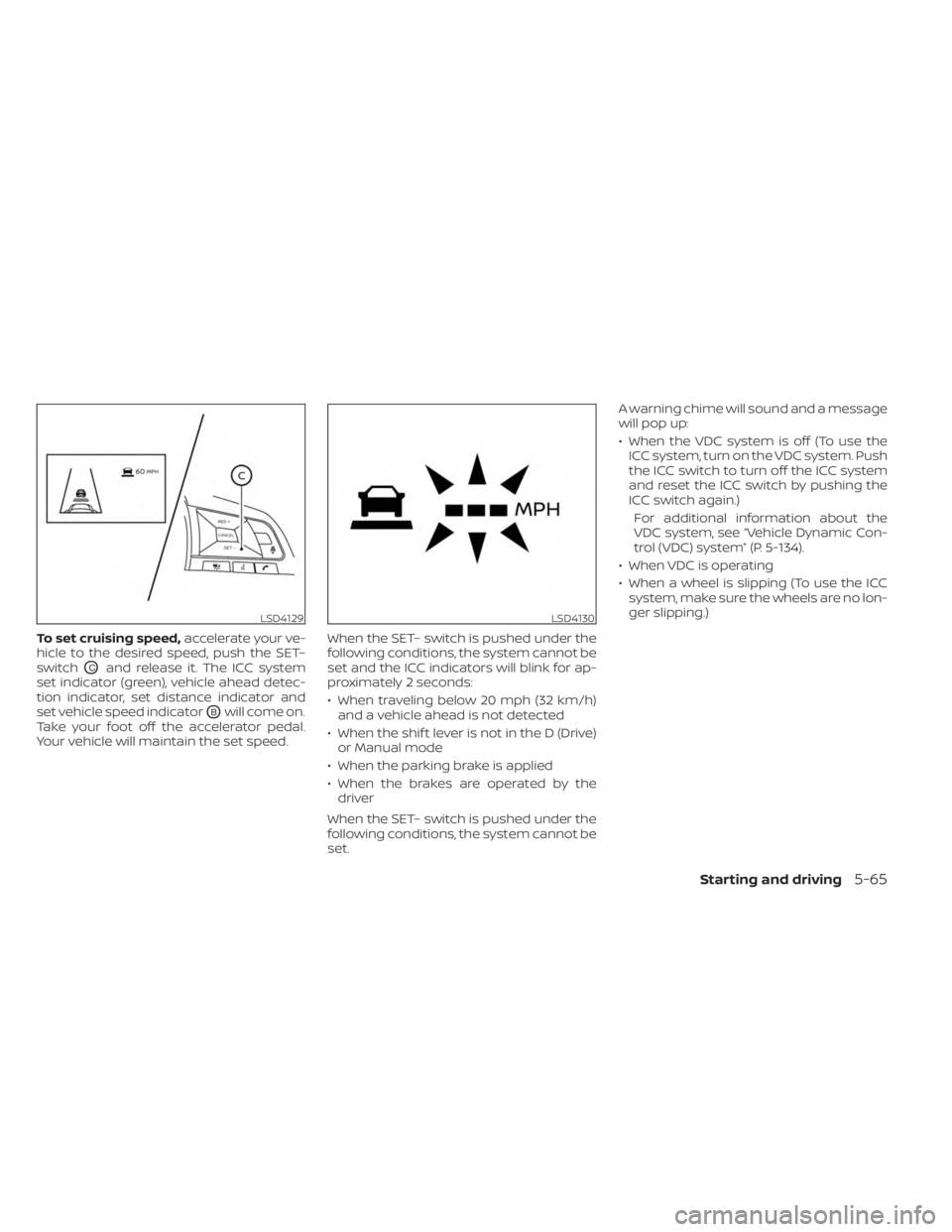
To set cruising speed,accelerate your ve-
hicle to the desired speed, push the SET–
switch
OCand release it. The ICC system
set indicator (green), vehicle ahead detec-
tion indicator, set distance indicator and
set vehicle speed indicator
OBwill come on.
Take your foot off the accelerator pedal.
Your vehicle will maintain the set speed. When the SET– switch is pushed under the
following conditions, the system cannot be
set and the ICC indicators will blink for ap-
proximately 2 seconds:
• When traveling below 20 mph (32 km/h)
and a vehicle ahead is not detected
• When the shif t lever is not in the D (Drive) or Manual mode
• When the parking brake is applied
• When the brakes are operated by the driver
When the SET– switch is pushed under the
following conditions, the system cannot be
set. A warning chime will sound and a message
will pop up:
• When the VDC system is off (To use the
ICC system, turn on the VDC system. Push
the ICC switch to turn off the ICC system
and reset the ICC switch by pushing the
ICC switch again.)
For additional information about the
VDC system, see “Vehicle Dynamic Con-
trol (VDC) system” (P. 5-134).
• When VDC is operating
• When a wheel is slipping (To use the ICC system, make sure the wheels are no lon-
ger slipping.)
LSD4129LSD4130
Starting and driving5-65
Page 345 of 558
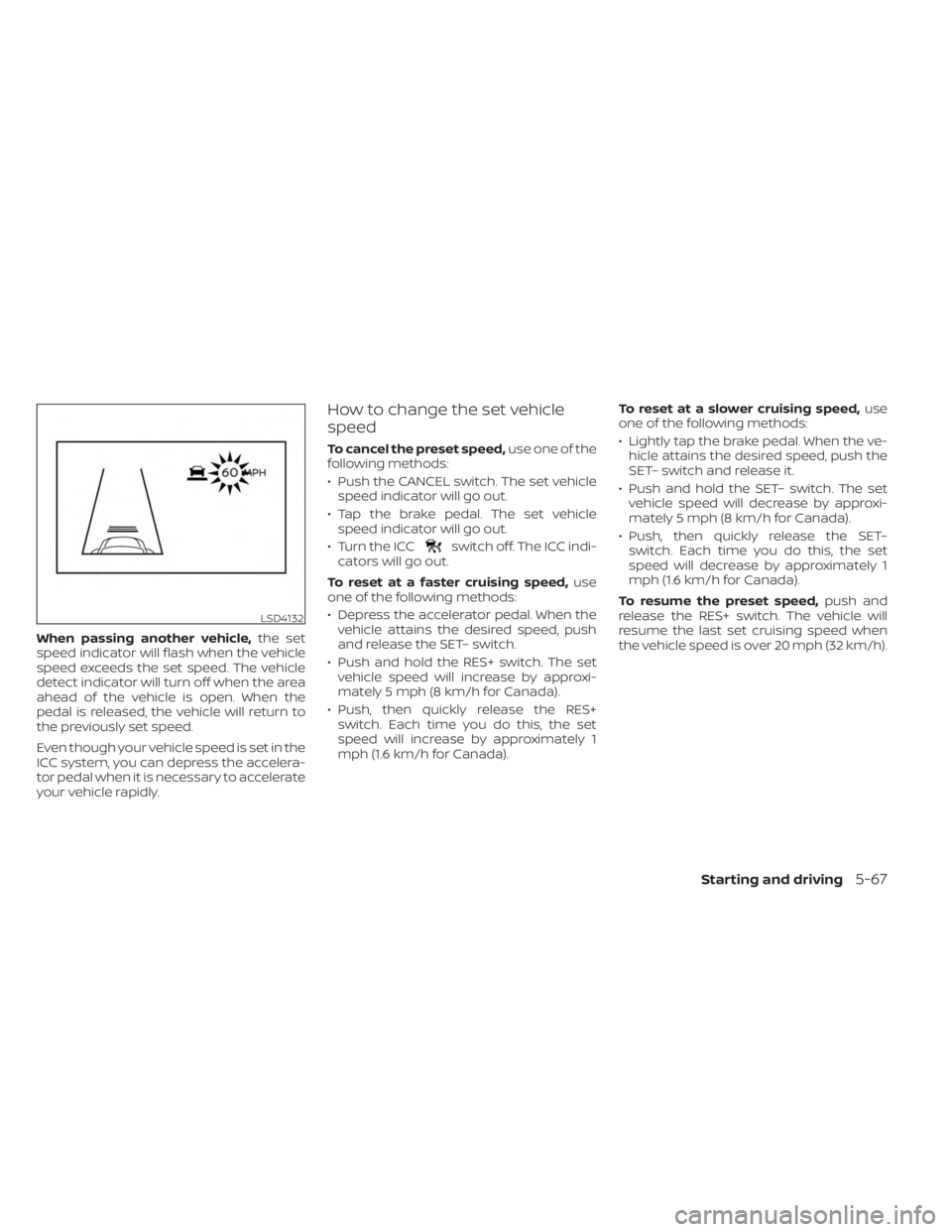
When passing another vehicle,the set
speed indicator will flash when the vehicle
speed exceeds the set speed. The vehicle
detect indicator will turn off when the area
ahead of the vehicle is open. When the
pedal is released, the vehicle will return to
the previously set speed.
Even though your vehicle speed is set in the
ICC system, you can depress the accelera-
tor pedal when it is necessary to accelerate
your vehicle rapidly.
How to change the set vehicle
speed
To cancel the preset speed, use one of the
following methods:
• Push the CANCEL switch. The set vehicle speed indicator will go out.
• Tap the brake pedal. The set vehicle speed indicator will go out.
• Turn the ICC
switch off. The ICC indi-
cators will go out.
To reset at a faster cruising speed, use
one of the following methods:
• Depress the accelerator pedal. When the vehicle attains the desired speed, push
and release the SET– switch.
• Push and hold the RES+ switch. The set vehicle speed will increase by approxi-
mately 5 mph (8 km/h for Canada).
• Push, then quickly release the RES+ switch. Each time you do this, the set
speed will increase by approximately 1
mph (1.6 km/h for Canada). To reset at a slower cruising speed,
use
one of the following methods:
• Lightly tap the brake pedal. When the ve- hicle attains the desired speed, push the
SET– switch and release it.
• Push and hold the SET– switch. The set vehicle speed will decrease by approxi-
mately 5 mph (8 km/h for Canada).
• Push, then quickly release the SET– switch. Each time you do this, the set
speed will decrease by approximately 1
mph (1.6 km/h for Canada).
To resume the preset speed, push and
release the RES+ switch. The vehicle will
resume the last set cruising speed when
the vehicle speed is over 20 mph (32 km/h).
LSD4132
Starting and driving5-67