2023 NISSAN ARMADA key
[x] Cancel search: keyPage 124 of 604
2-30Instruments and controls
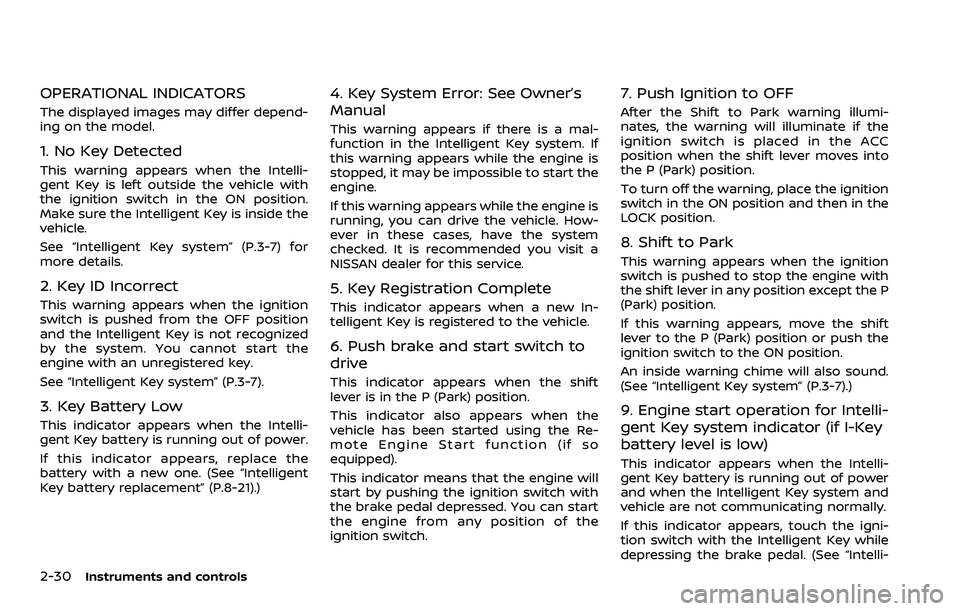
OPERATIONAL INDICATORS
The displayed images may differ depend-
ing on the model.
1. No Key Detected
This warning appears when the Intelli-
gent Key is left outside the vehicle with
the ignition switch in the ON position.
Make sure the Intelligent Key is inside the
vehicle.
See “Intelligent Key system” (P.3-7) for
more details.
2. Key ID Incorrect
This warning appears when the ignition
switch is pushed from the OFF position
and the Intelligent Key is not recognized
by the system. You cannot start the
engine with an unregistered key.
See “Intelligent Key system” (P.3-7).
3. Key Battery Low
This indicator appears when the Intelli-
gent Key battery is running out of power.
If this indicator appears, replace the
battery with a new one. (See “Intelligent
Key battery replacement” (P.8-21).)
4. Key System Error: See Owner’s
Manual
This warning appears if there is a mal-
function in the Intelligent Key system. If
this warning appears while the engine is
stopped, it may be impossible to start the
engine.
If this warning appears while the engine is
running, you can drive the vehicle. How-
ever in these cases, have the system
checked. It is recommended you visit a
NISSAN dealer for this service.
5. Key Registration Complete
This indicator appears when a new In-
telligent Key is registered to the vehicle.
6. Push brake and start switch to
drive
This indicator appears when the shift
lever is in the P (Park) position.
This indicator also appears when the
vehicle has been started using the Re-
mote Engine Start function (if so
equipped).
This indicator means that the engine will
start by pushing the ignition switch with
the brake pedal depressed. You can start
the engine from any position of the
ignition switch.
7. Push Ignition to OFF
After the Shift to Park warning illumi-
nates, the warning will illuminate if the
ignition switch is placed in the ACC
position when the shift lever moves into
the P (Park) position.
To turn off the warning, place the ignition
switch in the ON position and then in the
LOCK position.
8. Shift to Park
This warning appears when the ignition
switch is pushed to stop the engine with
the shift lever in any position except the P
(Park) position.
If this warning appears, move the shift
lever to the P (Park) position or push the
ignition switch to the ON position.
An inside warning chime will also sound.
(See “Intelligent Key system” (P.3-7).)
9. Engine start operation for Intelli-
gent Key system indicator (if I-Key
battery level is low)
This indicator appears when the Intelli-
gent Key battery is running out of power
and when the Intelligent Key system and
vehicle are not communicating normally.
If this indicator appears, touch the igni-
tion switch with the Intelligent Key while
depressing the brake pedal. (See “Intelli-
Page 125 of 604
gent Key battery discharge” (P.5-15).)
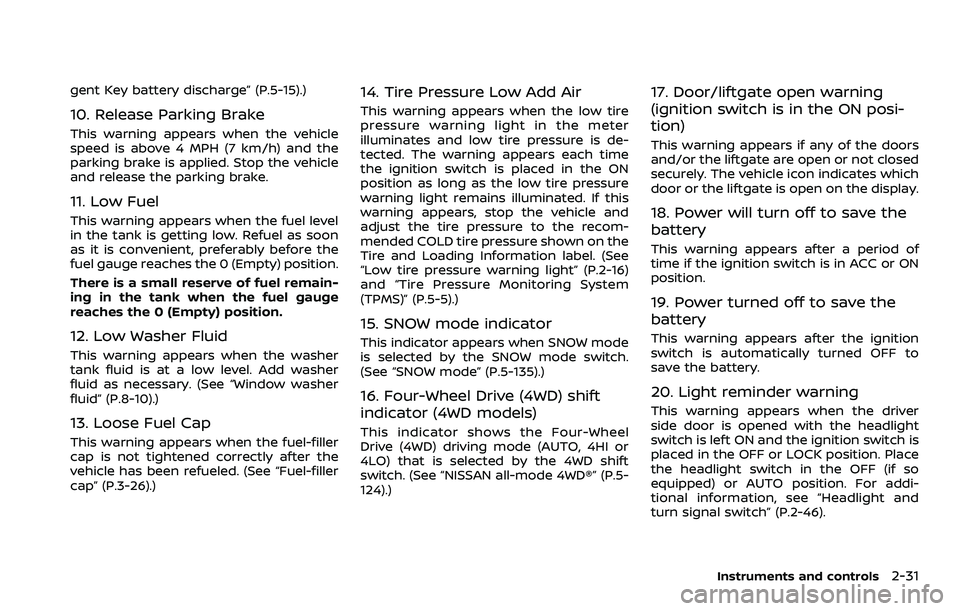
10. Release Parking Brake
This warning appears when the vehicle
speed is above 4 MPH (7 km/h) and the
parking brake is applied. Stop the vehicle
and release the parking brake.
11. Low Fuel
This warning appears when the fuel level
in the tank is getting low. Refuel as soon
as it is convenient, preferably before the
fuel gauge reaches the 0 (Empty) position.
There is a small reserve of fuel remain-
ing in the tank when the fuel gauge
reaches the 0 (Empty) position.
12. Low Washer Fluid
This warning appears when the washer
tank fluid is at a low level. Add washer
fluid as necessary. (See “Window washer
fluid” (P.8-10).)
13. Loose Fuel Cap
This warning appears when the fuel-filler
cap is not tightened correctly after the
vehicle has been refueled. (See “Fuel-filler
cap” (P.3-26).)
14. Tire Pressure Low Add Air
This warning appears when the low tire
pressure warning light in the meter
illuminates and low tire pressure is de-
tected. The warning appears each time
the ignition switch is placed in the ON
position as long as the low tire pressure
warning light remains illuminated. If this
warning appears, stop the vehicle and
adjust the tire pressure to the recom-
mended COLD tire pressure shown on the
Tire and Loading Information label. (See
“Low tire pressure warning light” (P.2-16)
and “Tire Pressure Monitoring System
(TPMS)” (P.5-5).)
15. SNOW mode indicator
This indicator appears when SNOW mode
is selected by the SNOW mode switch.
(See “SNOW mode” (P.5-135).)
16. Four-Wheel Drive (4WD) shift
indicator (4WD models)
This indicator shows the Four-Wheel
Drive (4WD) driving mode (AUTO, 4HI or
4LO) that is selected by the 4WD shift
switch. (See “NISSAN all-mode 4WD®” (P.5-
124).)
17. Door/liftgate open warning
(ignition switch is in the ON posi-
tion)
This warning appears if any of the doors
and/or the liftgate are open or not closed
securely. The vehicle icon indicates which
door or the liftgate is open on the display.
18. Power will turn off to save the
battery
This warning appears after a period of
time if the ignition switch is in ACC or ON
position.
19. Power turned off to save the
battery
This warning appears after the ignition
switch is automatically turned OFF to
save the battery.
20. Light reminder warning
This warning appears when the driver
side door is opened with the headlight
switch is left ON and the ignition switch is
placed in the OFF or LOCK position. Place
the headlight switch in the OFF (if so
equipped) or AUTO position. For addi-
tional information, see “Headlight and
turn signal switch” (P.2-46).
Instruments and controls2-31
Page 134 of 604
2-40Instruments and controls
cannot prevent it, nor can it prevent the
theft of interior or exterior vehicle com-
ponents in all situations. Always secure
your vehicle even if parking for a brief
period. Never leave your Intelligent Key(s)
in the vehicle, and always lock it when
unattended. Be aware of your surround-
ings, and park in secure, well-lit areas
whenever possible.
Many devices offering additional protec-
tion, such as component locks, identifica-
tion markers, and tracking systems, are
available at auto supply stores and speci-
alty shops. Your NISSAN dealer may also
offer such equipment. Check with your
insurance company to see if you may be
eligible for discounts for various theft
protection features.
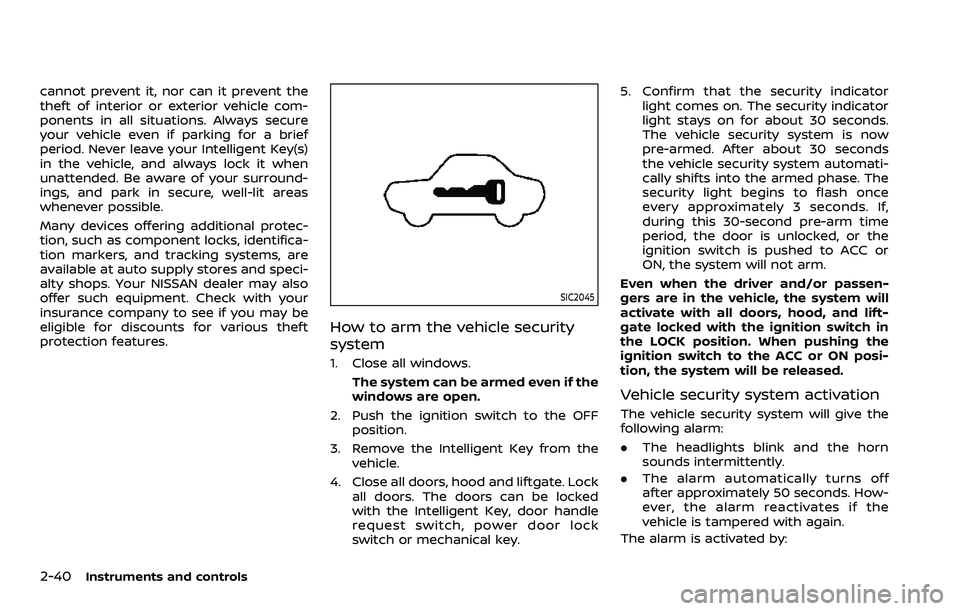
SIC2045
How to arm the vehicle security
system
1. Close all windows.The system can be armed even if the
windows are open.
2. Push the ignition switch to the OFF position.
3. Remove the Intelligent Key from the vehicle.
4. Close all doors, hood and liftgate. Lock all doors. The doors can be locked
with the Intelligent Key, door handle
request switch, power door lock
switch or mechanical key. 5. Confirm that the security indicator
light comes on. The security indicator
light stays on for about 30 seconds.
The vehicle security system is now
pre-armed. After about 30 seconds
the vehicle security system automati-
cally shifts into the armed phase. The
security light begins to flash once
every approximately 3 seconds. If,
during this 30-second pre-arm time
period, the door is unlocked, or the
ignition switch is pushed to ACC or
ON, the system will not arm.
Even when the driver and/or passen-
gers are in the vehicle, the system will
activate with all doors, hood, and lift-
gate locked with the ignition switch in
the LOCK position. When pushing the
ignition switch to the ACC or ON posi-
tion, the system will be released.
Vehicle security system activation
The vehicle security system will give the
following alarm:
. The headlights blink and the horn
sounds intermittently.
. The alarm automatically turns off
after approximately 50 seconds. How-
ever, the alarm reactivates if the
vehicle is tampered with again.
The alarm is activated by:
Page 135 of 604
.Unlocking the door or opening the
liftgate without using the button on
the Intelligent Key, the door handle
request switch or the mechanical key.
(Even if the door is opened by releas-
ing the door inside lock knob, the
alarm will activate.)
. Opening the hood.
How to stop an activated alarm
The alarm will stop when a door is
unlocked by pushing the unlock button
on the Intelligent Key, the door handle
request switch or using the mechanical
key, or when the ignition switch is pushed
to the ACC or ON position.
If the system does not operate as
described above, it is recommended
you have it checked by a NISSAN dealer.
NISSAN VEHICLE IMMOBILIZER SYS-
TEM
The NISSAN Vehicle Immobilizer System
will not allow the engine to start without
the use of the registered Intelligent Key.
Never leave these keys in the vehicle.
FCC Notice:
For USA:
This device complies with Part 15 of the
FCC Rules. Operation is subject to the
following two conditions: (1) This device
may not cause harmful interference, and (2) this device must accept any
interference received, including inter-
ference that may cause undesired op-
eration.
NOTE:
Changes or modifications not expressly
approved by the party responsible for
compliance could void the user’s
authority to operate the equipment.
For Canada:
This device complies with Industry Ca-
nada licence-exempt RSS standard(s).
Operation is subject to the following
two conditions: (1) this device may not
cause interference, and (2) this device
must accept any interference, including
interference that may cause undesired
operation of the device.
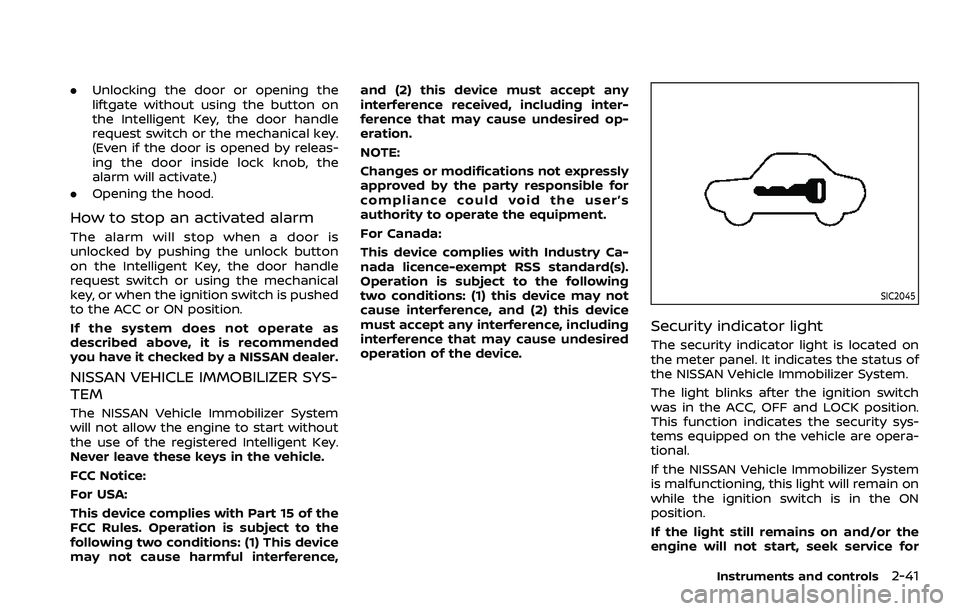
SIC2045
Security indicator light
The security indicator light is located on
the meter panel. It indicates the status of
the NISSAN Vehicle Immobilizer System.
The light blinks after the ignition switch
was in the ACC, OFF and LOCK position.
This function indicates the security sys-
tems equipped on the vehicle are opera-
tional.
If the NISSAN Vehicle Immobilizer System
is malfunctioning, this light will remain on
while the ignition switch is in the ON
position.
If the light still remains on and/or the
engine will not start, seek service for
Instruments and controls2-41
Page 136 of 604
2-42Instruments and controls
the NISSAN Vehicle Immobilizer System
as soon as possible. Please bring all
registered keys that you have. It is
recommended you visit a NISSAN dealer
for this service.
WARNING
In freezing temperatures the washer
solution may freeze on the window
and obscure your vision which may
lead to an accident. Warm the win-
dow with the defroster before you
wash the window.
CAUTION
.Do not operate the washer con-
tinuously for more than 30 sec-
onds.
. Do not operate the washer if the
reservoir tank is empty.
. Do not fill the window washer
reservoir tank with washer fluid
concentrates at full strength.
Some methyl alcohol based
washer fluid concentrates may
permanently stain the grille if
spilled while filling the window
washer reservoir tank.
. Pre-mix washer fluid concen-
trates with water to the manu-
facturer’s recommended levels
before pouring the fluid into the
window washer reservoir tank. Do not use the window washer re-
servoir tank to mix the washer
fluid concentrate and water.
If the wiper operation is interrupted by
snow or ice, the wiper may stop moving
to protect its motor. If this occurs, turn
the wiper switch to the OFF position
and remove the snow or ice that is on
and around the wiper arms. In approxi-
mately 1 minute, turn the switch on
again to operate the wiper.
WIPER AND WASHER SWITCH
Page 159 of 604
WAC0621X
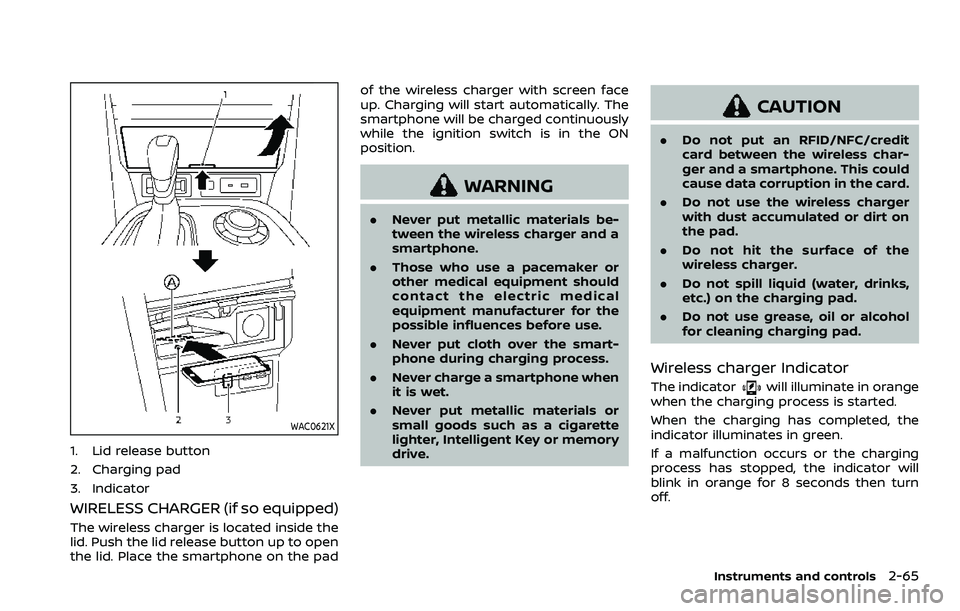
1. Lid release button
2. Charging pad
3. Indicator
WIRELESS CHARGER (if so equipped)
The wireless charger is located inside the
lid. Push the lid release button up to open
the lid. Place the smartphone on the padof the wireless charger with screen face
up. Charging will start automatically. The
smartphone will be charged continuously
while the ignition switch is in the ON
position.
WARNING
.
Never put metallic materials be-
tween the wireless charger and a
smartphone.
. Those who use a pacemaker or
other medical equipment should
contact the electric medical
equipment manufacturer for the
possible influences before use.
. Never put cloth over the smart-
phone during charging process.
. Never charge a smartphone when
it is wet.
. Never put metallic materials or
small goods such as a cigarette
lighter, Intelligent Key or memory
drive.
CAUTION
.Do not put an RFID/NFC/credit
card between the wireless char-
ger and a smartphone. This could
cause data corruption in the card.
. Do not use the wireless charger
with dust accumulated or dirt on
the pad.
. Do not hit the surface of the
wireless charger.
. Do not spill liquid (water, drinks,
etc.) on the charging pad.
. Do not use grease, oil or alcohol
for cleaning charging pad.
Wireless charger Indicator
The indicatorwill illuminate in orange
when the charging process is started.
When the charging has completed, the
indicator illuminates in green.
If a malfunction occurs or the charging
process has stopped, the indicator will
blink in orange for 8 seconds then turn
off.
Instruments and controls2-65
Page 160 of 604
2-66Instruments and controls
Operation of the wireless charger
To use the wireless charger, it is neces-
sary to properly position the smartphone
on the charging pad with the screen
facing up. To maximize charging perfor-
mance, ensure the smartphone is fully
seated on the center of the charging pad
over the
logo. Because the location
of the power receiver may vary depend-
ing on the smartphone, you will need to
try and find the area that suits your
smartphone.
Because some smartphone cases or ac-
cessories may adversely affect charging,
remove them before wireless charging.
Turn off the vibration function of the
smartphone before wireless charging.
NOTE:
. Only a Qi compatible smartphone
can be used.
. The smartphone or the wireless
charger may be warmed during
charging process and the charging
may stop by the protection function
of the smartphone or the wireless
charger. This is not a malfunction. If
this occurs, restart charging after
the smartphone or the wireless
charger cooled down. The indicator
will blink in orange then turn off. .
The wireless charging process may
be stopped by the status of the
smartphone (battery temperature,
etc.).
. If a radio noise interference occurs
during charging process, put the
smartphone onto the center (logo) position of the wireless char-
ger.
. The wireless charging process will
stop during process of searching the
Intelligent Key.
. The wireless charging process will
not be started when a USB (Univer-
sal Serial Bus) cable is connected to
the smartphone. The indicator may
illuminate in orange or blink if the
smartphone is put on the wireless
charger with a USB cable connected.
However, charging is not performed.
. Depending on the type of the smart-
phone, the indicator may remain
illuminated in orange even when
the charging process has been com-
pleted.
FCC ID: BEJWC500MNM
IC: 2703H-WC500MNM
This device complies with part 15 of the
FCC Rules and RSS-Gen of IC Rules.
Operation is subject to the following
two conditions: (1) This device may not cause harmful
interference, and
(2) This device must accept any inter-
ference received, including interference
that may cause undesired operation.
Changes or modifications not expressly
approved by the party responsible for
compliance could void the user’s
authority to operate the equipment.
RF Radiation Exposure Statement: This
equipment complies with FCC RF Radia-
tion exposure limits set forth for an
uncontrolled environment.
This device and its antenna must not be
co-located or operating in conjunction
with any other antenna or transmitter.
This equipment should be installed and
operated with a minimum distance of
15cm between the radiator and your
body.
ISED Compliance Statement
This device complies with RSS-Gen of IC
Rules
Operation is subject to the following
two conditions:
(1) This device may not cause harmful
interference, and
(2) This device must accept any inter-
ference received, including interference
Page 165 of 604
JVI0619X
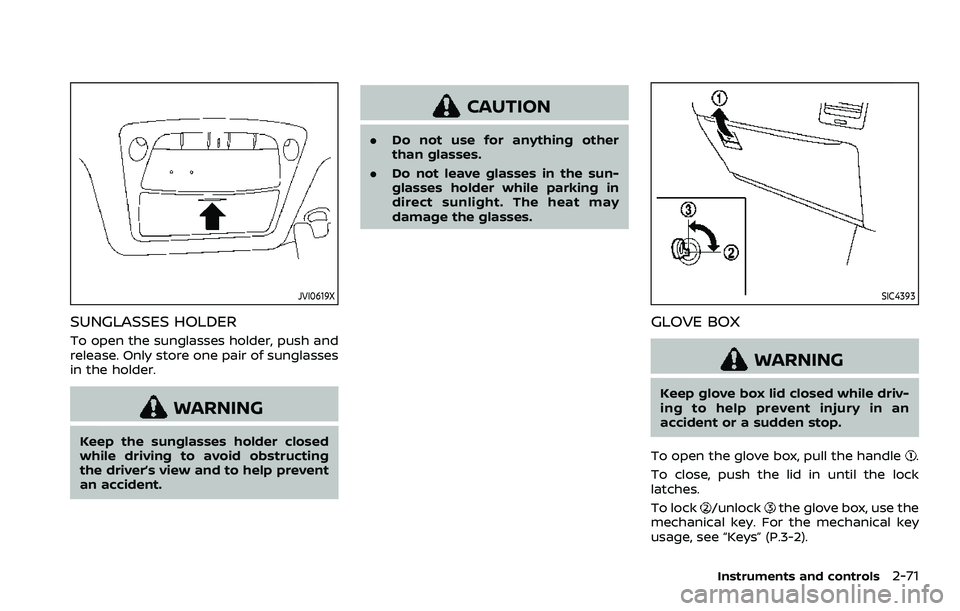
SUNGLASSES HOLDER
To open the sunglasses holder, push and
release. Only store one pair of sunglasses
in the holder.
WARNING
Keep the sunglasses holder closed
while driving to avoid obstructing
the driver’s view and to help prevent
an accident.
CAUTION
.Do not use for anything other
than glasses.
. Do not leave glasses in the sun-
glasses holder while parking in
direct sunlight. The heat may
damage the glasses.
SIC4393
GLOVE BOX
WARNING
Keep glove box lid closed while driv-
ing to help prevent injury in an
accident or a sudden stop.
To open the glove box, pull the handle
.
To close, push the lid in until the lock
latches.
To lock
/unlockthe glove box, use the
mechanical key. For the mechanical key
usage, see “Keys” (P.3-2).
Instruments and controls2-71