2023 NISSAN ALTIMA USB port
[x] Cancel search: USB portPage 14 of 644
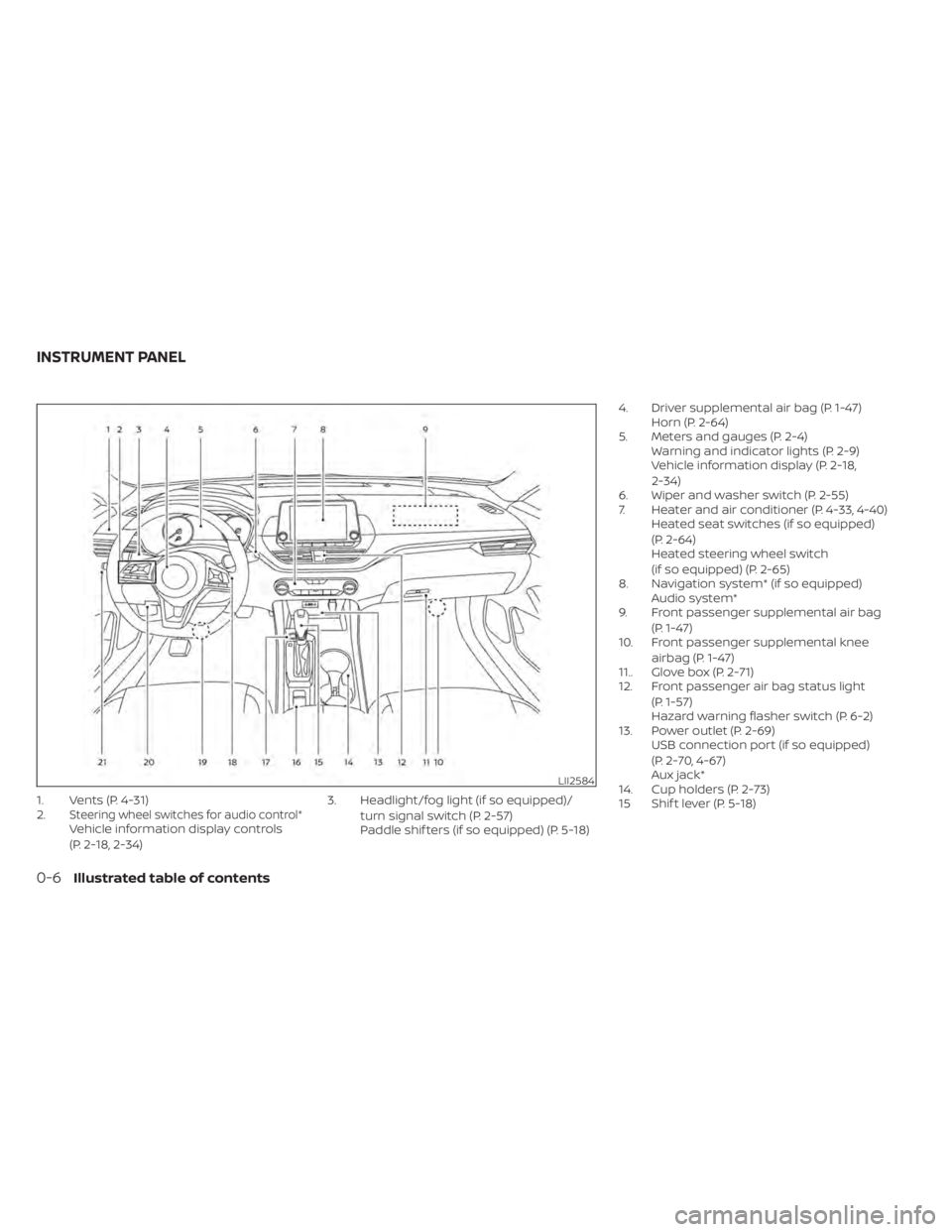
1. Vents (P. 4-31)
2.Steering wheel switches for audio control*Vehicle information display controls
(P. 2-18, 2-34)3. Headlight/fog light (if so equipped)/
turn signal switch (P. 2-57)
Paddle shif ters (if so equipped) (P. 5-18) 4. Driver supplemental air bag (P. 1-47)
Horn (P. 2-64)
5. Meters and gauges (P. 2-4) Warning and indicator lights (P. 2-9)
Vehicle information display (P. 2-18,
2-34)
6. Wiper and washer switch (P. 2-55)
7. Heater and air conditioner (P. 4-33, 4-40) Heated seat switches (if so equipped)
(P. 2-64)
Heated steering wheel switch
(if so equipped) (P. 2-65)
8. Navigation system* (if so equipped) Audio system*
9. Front passenger supplemental air bag
(P. 1-47)
10. Front passenger supplemental knee
airbag (P. 1-47)
11.. Glove box (P. 2-71)
12. Front passenger air bag status light
(P. 1-57)
Hazard warning flasher switch (P. 6-2)
13. Power outlet (P. 2-69) USB connection port (if so equipped)
(P. 2-70, 4-67)
Aux jack*
14. Cup holders (P. 2-73)
15 Shif t lever (P. 5-18)
LII2584
INSTRUMENT PANEL
0-6Illustrated table of contents
Page 91 of 644
Heated seat switches (if so equipped)..........2-64
Heated steering wheel switch (if so equipped) . . 2-65
Steering Assist switch (for vehicles with
ProPILOT Assist) (if so equipped) ................2-66
Emergency call (SOS) button (if so equipped) . . . 2-67
Rear Door Alert ................................. 2-67
Power outlet ................................... 2-69
USB/iPod® charging port (if so equipped) .......2-70
Extended storage switch .......................2-70
Storage ........................................ 2-71
Front-door pockets ......................... 2-71
Seatback pockets (if so equipped) ...........2-71
Glovebox ................................... 2-72
Console box ................................. 2-72
Overhead sunglasses storage ...............2-73
Cup holders ................................. 2-73
Windows ....................................... 2-75
Power windows ............................. 2-75Moonroof (if so equipped)
......................2-77
Power moonroof ............................ 2-77
Interior lights ................................... 2-79
Map lights ................................... 2-80
Personal lights .............................. 2-80
Trunk light ................................... 2-80
HomeLink® Universal Transceiver
(if so equipped) ................................. 2-81
Programming HomeLink® ...................2-81
Programming HomeLink® for Canadian
customers and gate openers ...............2-83
Operating the HomeLink® Universal
Transceiver .................................. 2-84
Programming trouble-diagnosis ............2-84
Clearing the programmed information ......2-84
Reprogramming a single HomeLink®
button ...................................... 2-84
If your vehicle is stolen ......................2-85
Page 92 of 644
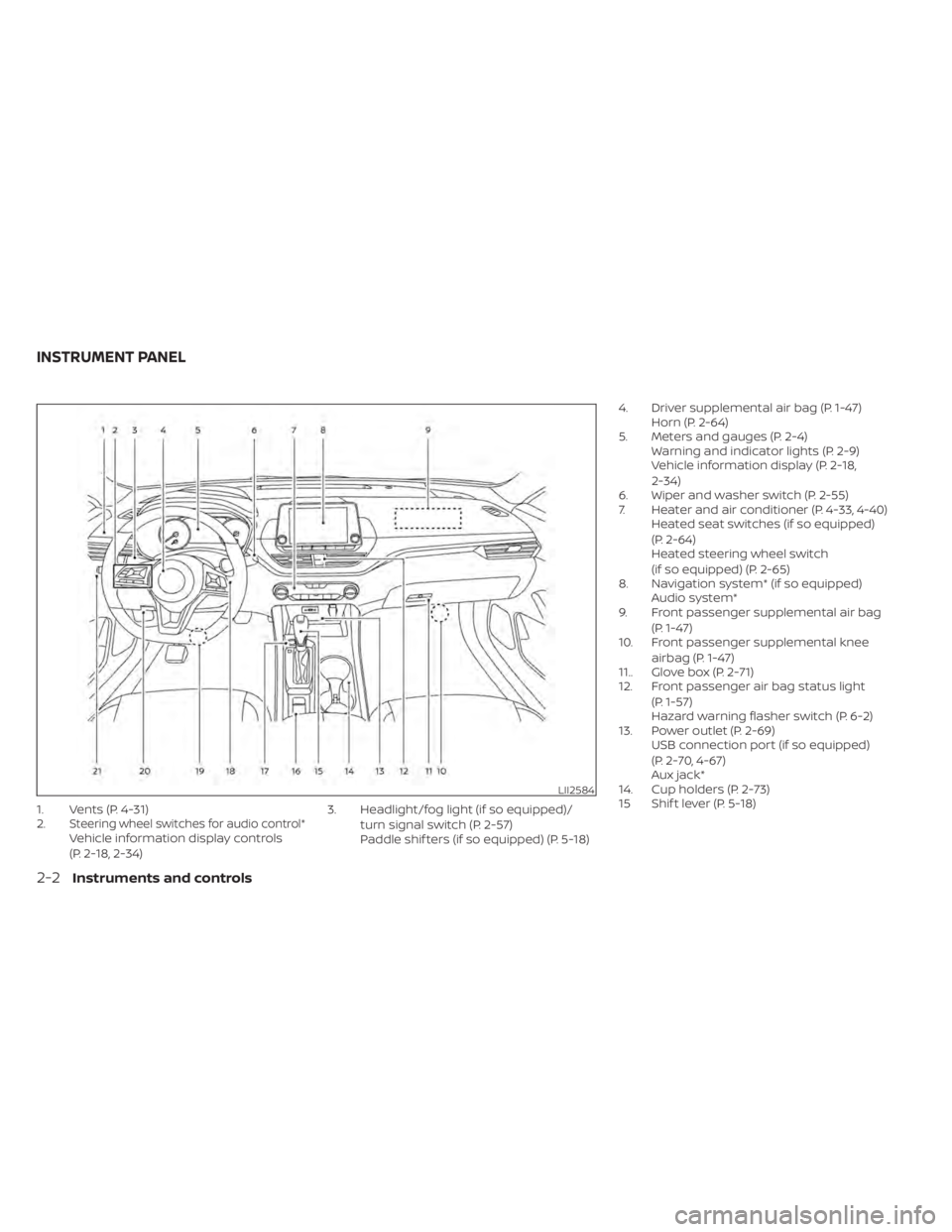
1. Vents (P. 4-31)
2.Steering wheel switches for audio control*Vehicle information display controls
(P. 2-18, 2-34)3. Headlight/fog light (if so equipped)/
turn signal switch (P. 2-57)
Paddle shif ters (if so equipped) (P. 5-18) 4. Driver supplemental air bag (P. 1-47)
Horn (P. 2-64)
5. Meters and gauges (P. 2-4) Warning and indicator lights (P. 2-9)
Vehicle information display (P. 2-18,
2-34)
6. Wiper and washer switch (P. 2-55)
7. Heater and air conditioner (P. 4-33, 4-40) Heated seat switches (if so equipped)
(P. 2-64)
Heated steering wheel switch
(if so equipped) (P. 2-65)
8. Navigation system* (if so equipped) Audio system*
9. Front passenger supplemental air bag
(P. 1-47)
10. Front passenger supplemental knee
airbag (P. 1-47)
11.. Glove box (P. 2-71)
12. Front passenger air bag status light
(P. 1-57)
Hazard warning flasher switch (P. 6-2)
13. Power outlet (P. 2-69) USB connection port (if so equipped)
(P. 2-70, 4-67)
Aux jack*
14. Cup holders (P. 2-73)
15 Shif t lever (P. 5-18)
LII2584
INSTRUMENT PANEL
2-2Instruments and controls
Page 160 of 644
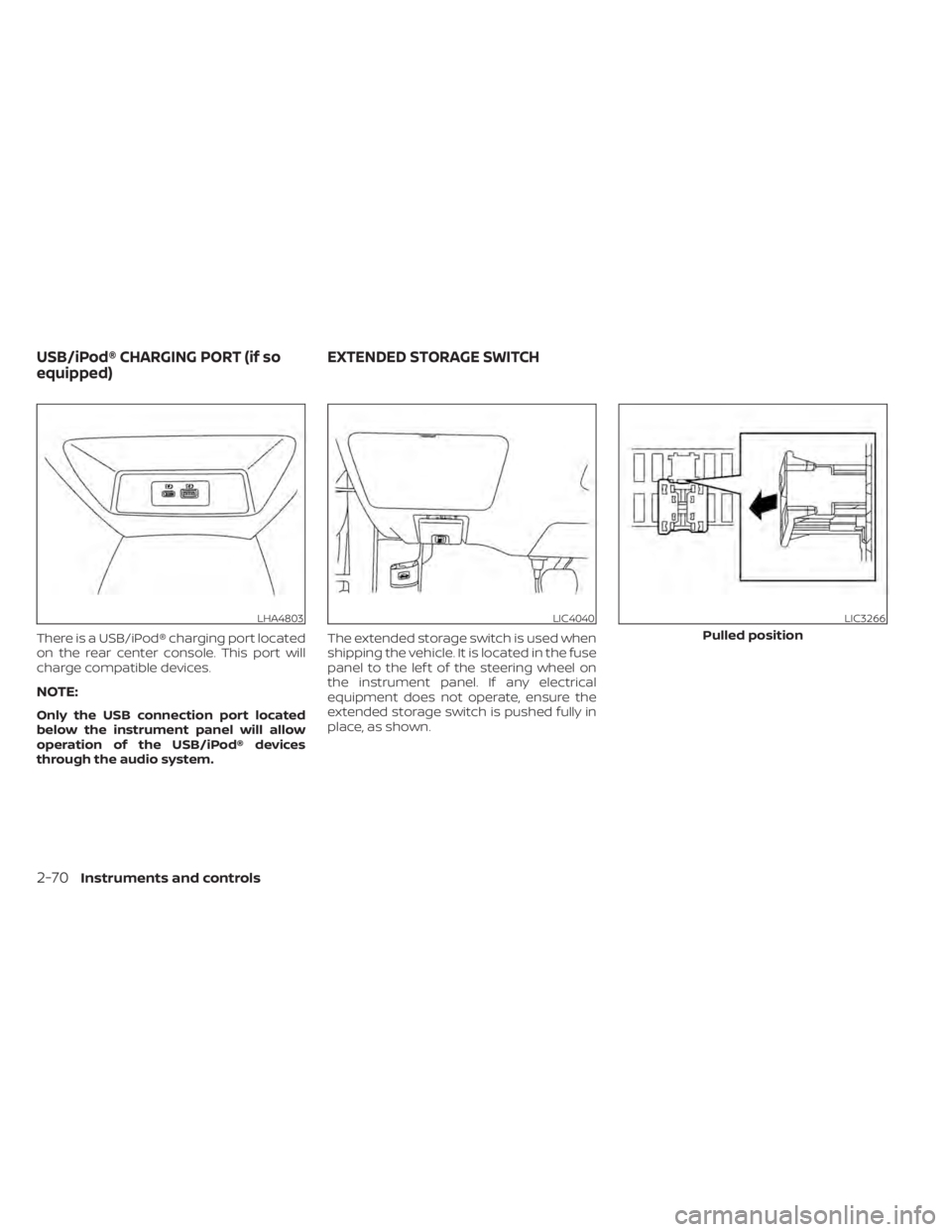
There is a USB/iPod® charging port located
on the rear center console. This port will
charge compatible devices.
NOTE:
Only the USB connection port located
below the instrument panel will allow
operation of the USB/iPod® devices
through the audio system.The extended storage switch is used when
shipping the vehicle. It is located in the fuse
panel to the lef t of the steering wheel on
the instrument panel. If any electrical
equipment does not operate, ensure the
extended storage switch is pushed fully in
place, as shown.
LHA4803LIC4040LIC3266
Pulled position
USB/iPod® CHARGING PORT (if so
equipped)
EXTENDED STORAGE SWITCH
2-70Instruments and controls
Page 211 of 644
Servicing air conditioner........................4-44
Audio system .................................. 4-45
Radio ....................................... 4-45
FM radio reception .......................... 4-45
AM radio reception .......................... 4-45
Audio operation precautions ................4-46
FM/AM radio ................................ 4-49
USB (Universal Serial Bus) Connection
Port......................................... 4-54
iPod®* player operation .....................4-57
Bluetooth® streaming audio .................4-60
Steering wheel switch for audio control .....4-63
Antenna ........................................ 4-64
Siri® Eyes Free (if so equipped) ..................4-64
Requirements ............................... 4-64
Operating Siri® Eyes Free ....................4-65
Troubleshooting guide ......................4-66Car phone or CB radio
.......................... 4-67
Bluetooth® Hands-Free Phone System .........4-67
Regulatory information ......................4-69
Using the system ........................... 4-69
Indicators ................................... 4-71
Control buttons ............................. 4-71
Bluetooth® connecting procedure ...........4-72
Voice commands ........................... 4-73
Phone display screen .......................4-75
Making a call ................................ 4-76
Receiving/Ending a call ......................4-76
During a call ................................. 4-77
Text messaging (if so equipped) .............4-77
Bluetooth® connections screen .............4-81
Phone and text message settings ...........4-82
Volume & beeps ............................. 4-84
iPod®/iPhone® ................................. 4-84
Page 256 of 644
for several seconds during ionospheric tur-
bulence even in areas where no obstacles
exist.
Static: Caused by thunderstorms, electrical
power lines, electric signs and even traffic
lights.
AUDIO OPERATION PRECAUTIONS
MP3 or WMA terms
•MP3 — MP3 is short for Moving Pictures
Experts Group Audio Layer 3. MP3 is the
most well-known compressed digital au-
dio file format. This format allows for near
“CD quality” sound, but at a fraction of the
size of normal audio files. MP3 conversion
of an audio track from CD-ROM can reduce
the file size by approximately a 10:1 ratio
with virtually no perceptible loss in quality.
MP3 compression removes the redundant
and irrelevant parts of a sound signal that
the human ear doesn’t hear.
• WMA — Windows Media Audio (WMA)* is a compressed audio format created by Mi-
crosof t as an alternative to MP3. The WMA
codec offers greater file compression
than the MP3 codec, enabling storage of
more digital audio tracks in the same
amount of space when compared to
MP3s at the same level of quality. • Bit rate — Bit rate denotes the number of
bits per second used by a digital music
file. The size and quality of a compressed
digital audio file is determined by the bit
rate used when encoding the file.
• Sampling frequency — Sampling fre- quency is the rate at which the samples
of a signal are converted from analog to
digital (A/D conversion) per second.
• Multisession — Multisession is one of the methods for writing data to media. Writ-
ing data once to the media is called a
single session, and writing more than
once is called a multisession.
• ID3/WMA Tag — The ID3/WMA tag is the part of the encoded MP3 or WMA file that
contains information about the digital
music file such as song title, artist, encod-
ing bit rate, track time duration, etc. ID3
tag information is displayed on the Artist/
song title line on the display.
* Windows® and Windows Media® are reg-
istered trademarks and trademarks in the
United States of America and other coun-
tries of Microsof t Corporation of the USA.
USB (Universal Serial Bus)
Connection Port
WARNING
• Do not connect, disconnect or oper-
ate the USB device while driving. Do-
ing so can be a distraction. If dis-
tracted you could lose control of your
vehicle and cause an accident or se-
rious injury.
CAUTION
• Do not force the USB device into the
USB port. Inserting the USB device
tilted or up-side-down into the port
may damage the port. Make sure
that the USB device is connected cor-
rectly into the USB port.
• Do not grab the USB port cover (if so
equipped) when pulling the USB de-
vice out of the port. This could dam-
age the port and the cover.
• Do not leave the USB cable in a place
where it can be pulled unintention-
ally. Pulling the cable may damage
the port.
4-46Monitor, climate, audio, phone and voice recognition systems
Page 257 of 644
The vehicle is not equipped with a USB de-
vice. USB devices should be purchased
separately as necessary.
This system cannot be used to format USB
devices. To format a USB device, use a per-
sonal computer.
In some jurisdictions, the USB device for the
front seats plays only sound without im-
ages for regulatory reasons, even when the
vehicle is parked.
This system supports various USB
memory devices, USB hard drives and
iPod® players. Some USB devices may not
be supported by this system.
• Partitioned USB devices may not playcorrectly.
• Some characters used in other lan- guages (Chinese, Japanese, etc.) may not
appear properly in the display. Using Eng-
lish language characters with a USB de-
vice is recommended.
General notes for USB use:
• For additional information, refer to your device manufacturer’s owner informa-
tion regarding the proper use and care of
the device. Notes for iPod® use:
iPod® is a trademark of Apple Inc., regis-
tered in the U.S. and other countries.
• Improperly plugging in the iPod® may
cause a checkmark to be displayed on
and off (flickering). Always make sure that
the iPod® is connected properly.
• An iPod® nano (1st Generation) may re- main in fast forward or rewind mode if it is
connected during a seek operation. In
this case, please manually reset the
iPod®.
• An iPod® nano (2nd Generation) will con- tinue to fast-forward or rewind if it is dis-
connected during a seek operation.
• An incorrect song title may appear when the Play Mode is changed while using an
iPod® nano (2nd Generation).
• Audiobooks may not play in the same order as they appear on an iPod®.
• Large video files cause slow responses in an iPod®. The vehicle center display may
momentarily black out, but will soon
recover.
• If an iPod® automatically selects large video files while in the shuffle mode, the
vehicle center display may momentarily
black out, but will soon recover.iPod®* player
• Some characters used in other lan-guages (Chinese, Japanese, etc.) are not
displayed properly on the vehicle center
screen. We recommend using English or
Spanish language characters with an
iPod®.
• Large video podcast files cause slow re- sponses in the iPod®. The vehicle center
display may momentarily black out, but it
will soon recover.
• If the iPod® automatically selects large video podcast files while in the shuffle
mode, the vehicle center display may
momentarily black out, but it will soon
recover.
• Improperly plugging in the iPod® may cause a checkmark to be displayed on
and off (flickering). Always make sure that
the iPod® is connected properly.
• The iPod® nano (2nd Generation) will con- tinue to fast forward or rewind if it is dis-
connected during a seek operation.
• An incorrect song title may appear when the Play Mode is changed while using the
iPod® nano (2nd Generation).
• Audiobooks may not play in the same order as they appear on the iPod®.
Monitor, climate, audio, phone and voice recognition systems4-47
Page 263 of 644
The AUX input jack accepts any standard
analog audio input such as from a portable
cassette player, CD player, MP3 player or
phone.
Insert a 1/8 in (3.5 mm) stereo mini plug in
the audio input jack. If a cable with a mono
plug is used, the audio output may not
function normally.
Activation and playing
Turn on the AUX device. Connect an AUX
cable to the AUX device and the AUX input
jack. Select AUX mode from the audio
source menu screen or by pressing the
Source button on the steering wheel.
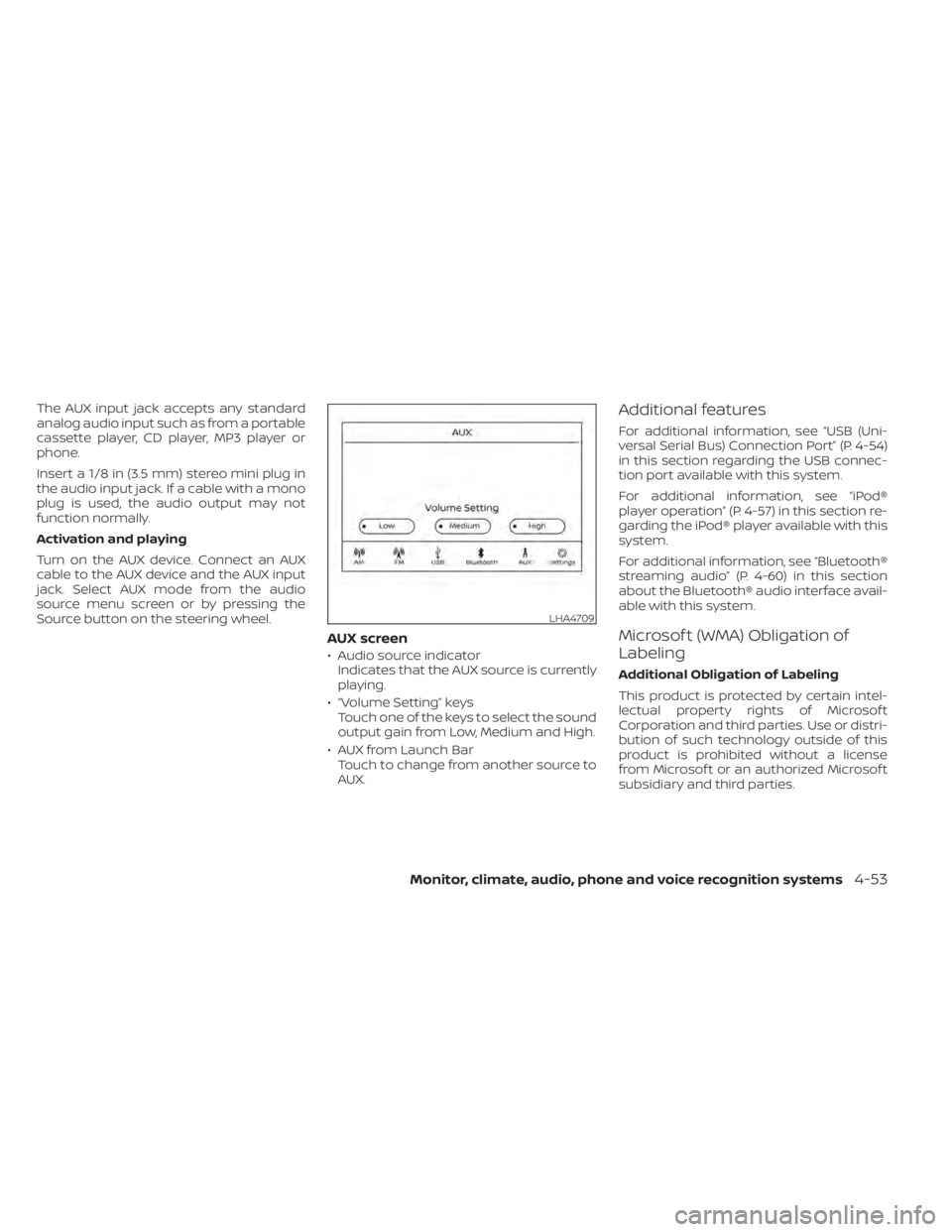
AUX screen
• Audio source indicatorIndicates that the AUX source is currently
playing.
• “Volume Setting” keys Touch one of the keys to select the sound
output gain from Low, Medium and High.
• AUX from Launch Bar Touch to change from another source to
AUX.
Additional features
For additional information, see “USB (Uni-
versal Serial Bus) Connection Port” (P. 4-54)
in this section regarding the USB connec-
tion port available with this system.
For additional information, see “iPod®
player operation” (P. 4-57) in this section re-
garding the iPod® player available with this
system.
For additional information, see “Bluetooth®
streaming audio” (P. 4-60) in this section
about the Bluetooth® audio interface avail-
able with this system.
Microsof t (WMA) Obligation of
Labeling
Additional Obligation of Labeling
This product is protected by certain intel-
lectual property rights of Microsof t
Corporation and third parties. Use or distri-
bution of such technology outside of this
product is prohibited without a license
from Microsof t or an authorized Microsof t
subsidiary and third parties.
LHA4709
Monitor, climate, audio, phone and voice recognition systems4-53