2023 NISSAN ALTIMA display
[x] Cancel search: displayPage 199 of 644
•Closely supervise children when they
are around cars to prevent them
from playing and becoming locked in
the trunk where they could be seri-
ously injured. Keep the car locked,
with the rear seatback and trunk lid
securely latched when not in use, and
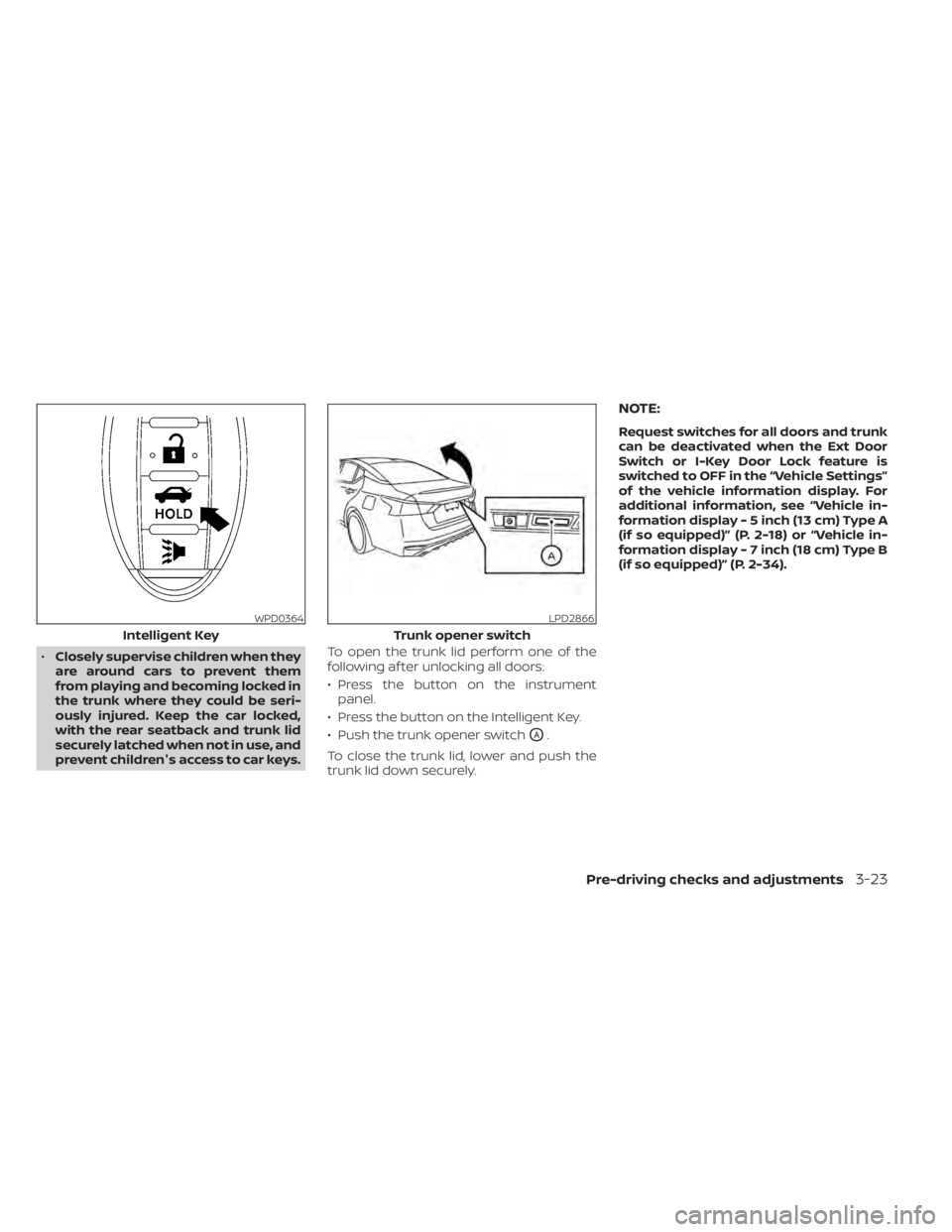
prevent children's access to car keys. To open the trunk lid perform one of the
following af ter unlocking all doors:
• Press the button on the instrument
panel.
• Press the button on the Intelligent Key.
• Push the trunk opener switch
OA.
To close the trunk lid, lower and push the
trunk lid down securely.
NOTE:
Request switches for all doors and trunk
can be deactivated when the Ext Door
Switch or I-Key Door Lock feature is
switched to OFF in the “Vehicle Settings”
of the vehicle information display. For
additional information, see “Vehicle in-
formation display - 5 inch (13 cm) Type A
(if so equipped)” (P. 2-18) or “Vehicle in-
formation display - 7 inch (18 cm) Type B
(if so equipped)” (P. 2-34).
WPD0364
Intelligent Key
LPD2866
Trunk opener switch
Pre-driving checks and adjustments3-23
Page 202 of 644
•The Loose Fuel Cap warning mes-
sage will be displayed/warning will
appear if the fuel-filler cap is not
properly tightened. It may take a few
driving trips for the message to be
displayed. Failure to tighten the fuel-
filler cap properly af ter the Loose
Fuel Cap warning message is
displayed/warning appears may
cause the
Malfunction Indicator
Light (MIL) to illuminate.
• Failure to tighten the fuel-filler cap
properly may cause the
Mal-
function Indicator Light (MIL) to illu-
minate. If the
light illuminates
because the fuel-filler cap is loose or
missing, tighten or install the cap and
continue to drive the vehicle. The
light should turn off af ter a few
driving trips. If thelight does not
turn off af ter a few driving trips, have
the vehicle inspected. It is recom-
mended that you visit a NISSAN
dealer for this service.
• For additional information, see “Mal-
function Indicator Light (MIL)”
(P. 2-15).
• If fuel is spilled on the vehicle body,
flush it away with water to avoid
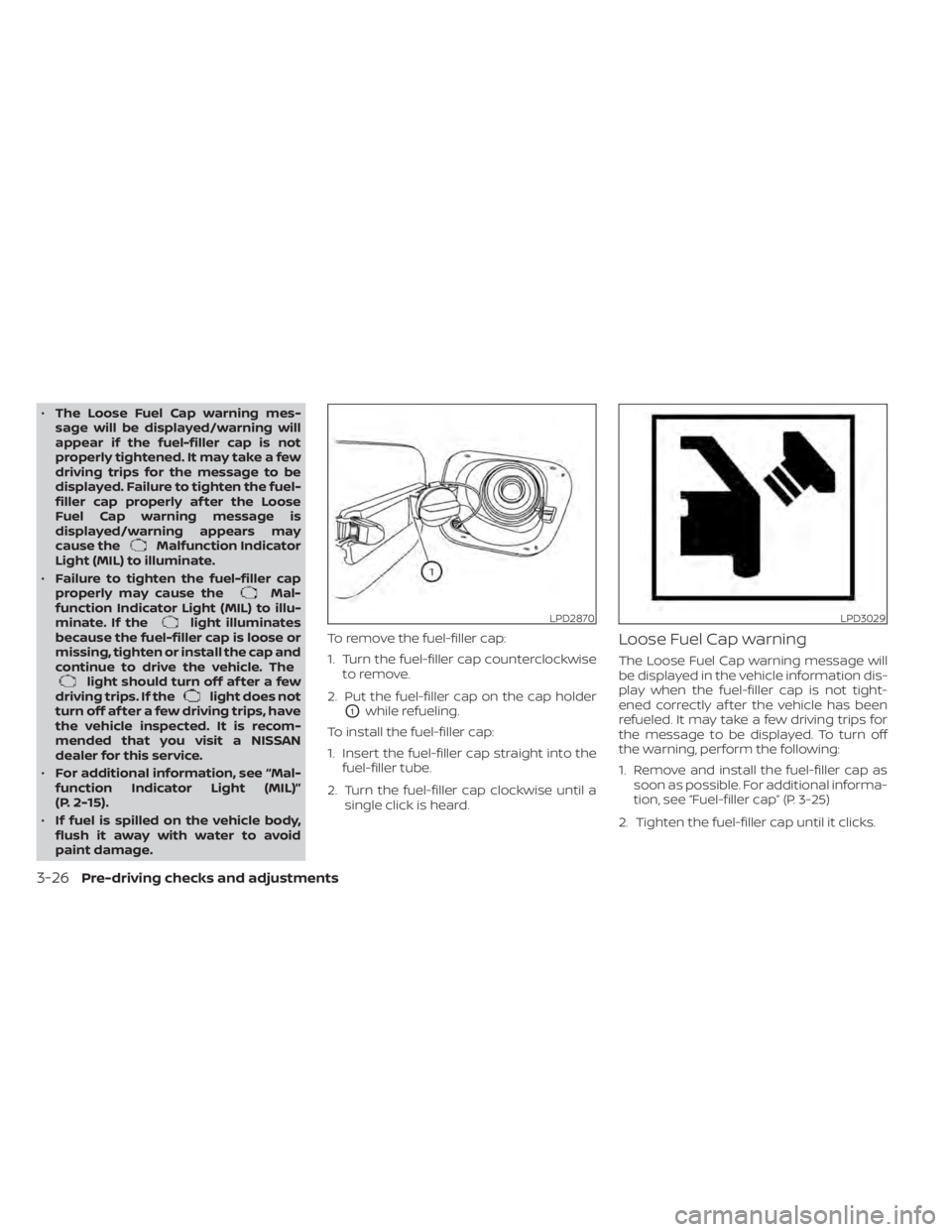
paint damage. To remove the fuel-filler cap:
1. Turn the fuel-filler cap counterclockwise
to remove.
2. Put the fuel-filler cap on the cap holder
O1while refueling.
To install the fuel-filler cap:
1. Insert the fuel-filler cap straight into the fuel-filler tube.
2. Turn the fuel-filler cap clockwise until a single click is heard.
Loose Fuel Cap warning
The Loose Fuel Cap warning message will
be displayed in the vehicle information dis-
play when the fuel-filler cap is not tight-
ened correctly af ter the vehicle has been
refueled. It may take a few driving trips for
the message to be displayed. To turn off
the warning, perform the following:
1. Remove and install the fuel-filler cap assoon as possible. For additional informa-
tion, see “Fuel-filler cap” (P. 3-25)
2. Tighten the fuel-filler cap until it clicks.
LPD2870LPD3029
3-26Pre-driving checks and adjustments
Page 207 of 644
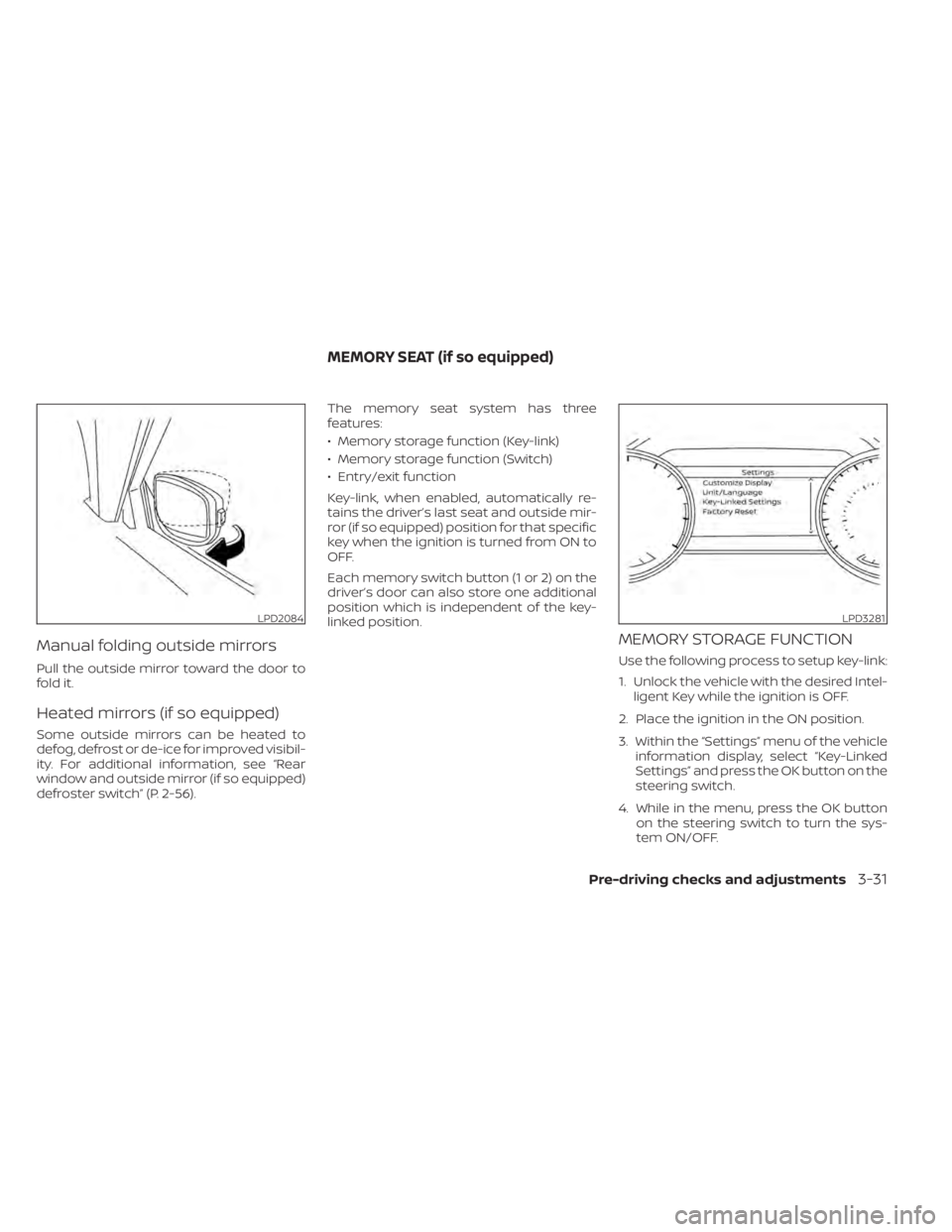
Manual folding outside mirrors
Pull the outside mirror toward the door to
fold it.
Heated mirrors (if so equipped)
Some outside mirrors can be heated to
defog, defrost or de-ice for improved visibil-
ity. For additional information, see “Rear
window and outside mirror (if so equipped)
defroster switch” (P. 2-56).The memory seat system has three
features:
• Memory storage function (Key-link)
• Memory storage function (Switch)
• Entry/exit function
Key-link, when enabled, automatically re-
tains the driver’s last seat and outside mir-
ror (if so equipped) position for that specific
key when the ignition is turned from ON to
OFF.
Each memory switch button (1 or 2) on the
driver’s door can also store one additional
position which is independent of the key-
linked position.
MEMORY STORAGE FUNCTION
Use the following process to setup key-link:
1. Unlock the vehicle with the desired Intel-
ligent Key while the ignition is OFF.
2. Place the ignition in the ON position.
3. Within the “Settings” menu of the vehicle information display, select “Key-Linked
Settings” and press the OK button on the
steering switch.
4. While in the menu, press the OK button on the steering switch to turn the sys-
tem ON/OFF.
LPD2084LPD3281
MEMORY SEAT (if so equipped)
Pre-driving checks and adjustments3-31
Page 208 of 644
Once step 4 is completed, every time the
ignition is switched from ON to OFF, the
memory positions of the driver’s seat and
outside mirror (if so equipped) are linked to
the Intelligent Key.
Follow the same procedure if you want
to link the 2nd, 3rd or 4th Intelligent Key.
NOTE:
If new memory positions are set prior to
turning the ignition from ON to OFF, the
previously linked memory positions for
the respective key will be overwritten by
new positions.
Recalling Intelligent Key memory
positions
If the “Key-Linked Settings” are enabled in
the vehicle information display for that par-
ticular key, every time you enter the vehicle
the driver’s seat and outside mirrors (if so
equipped) will automatically move to the
driver’s last position of the respective Intel-
ligent Key.
NOTE:
The key-linked memory positions can be
different from the positions stored in the
memory switch (1 or 2).
MEMORY STORAGE FUNCTION
(switch)
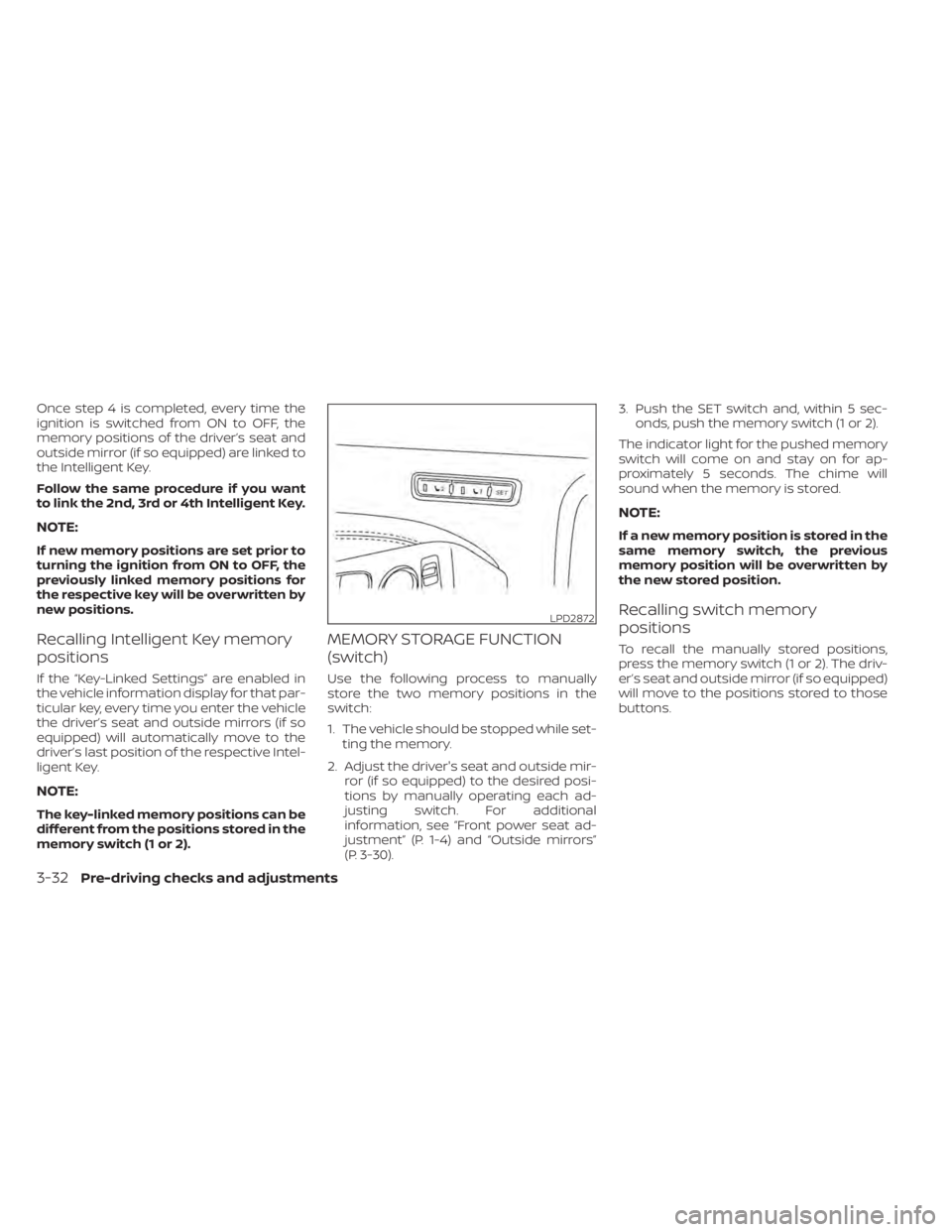
Use the following process to manually
store the two memory positions in the
switch:
1. The vehicle should be stopped while set-ting the memory.
2. Adjust the driver's seat and outside mir- ror (if so equipped) to the desired posi-
tions by manually operating each ad-
justing switch. For additional
information, see “Front power seat ad-
justment” (P. 1-4) and “Outside mirrors”
(P. 3-30). 3. Push the SET switch and, within 5 sec-
onds, push the memory switch (1 or 2).
The indicator light for the pushed memory
switch will come on and stay on for ap-
proximately 5 seconds. The chime will
sound when the memory is stored.
NOTE:
If a new memory position is stored in the
same memory switch, the previous
memory position will be overwritten by
the new stored position.
Recalling switch memory
positions
To recall the manually stored positions,
press the memory switch (1 or 2). The driv-
er’s seat and outside mirror (if so equipped)
will move to the positions stored to those
buttons.
LPD2872
3-32Pre-driving checks and adjustments
Page 209 of 644
ENTRY/EXIT FUNCTION
This system is designed so that the driver's
seat will automatically move when the shif t
lever is in the P (Park) position. This allows
the driver to easily get in and out of the
driver’s seat.
The driver’s seat will slide backward:
• When the driver's door is opened and theignition switch is in the OFF position.
• When the ignition switch is turned from ACC to OFF with the driver’s door open.
The driver’s seat will return to the previous
position:
• When the ignition switch is turned to ACC or ON while the shif t lever is in the P (Park)
position.
The entry/exit function can be adjusted or
canceled through the “Vehicle Settings” in
the vehicle information display by perform-
ing the following:
• Switch the Exit Seat Slide from ON to OFF.
SYSTEM OPERATION
The memory seat system will not work or
will stop operating under the following
conditions:
• When the vehicle speed is above 4 mph (7 km/h).
• When any of the memory switches are pushed while the memory seat is
operating.
• When the switch for the driver’s seat and steering column is pushed while the
memory seat is operating.
• When the seat has already been moved to the memorized position.
• When no seat position is stored in the memory switch.
• When the shif t lever is moved from P (Park) to any other position.
The memory seat system can be adjusted
and canceled. It is recommended you visit
a NISSAN dealer for this service.
Pre-driving checks and adjustments3-33
Page 210 of 644
4 Monitor, climate, audio, phone and
voice recognition systems
NissanConnect® Owner’s Manual...............4-2
Control panel buttons ...........................4-3
How to use the touch-screen ................4-4
How to use the
MENU button ...........4-5(brightness control) button .............4-7
How to use the VOL (volume) knob /
PUSH
(power)button....................4-7
Selecting menu from launch bar .............4-7
RearView Monitor (if so equipped) ...............4-8
RearView Monitor system operation ..........4-9
How to read the displayed lines ..............4-9
Difference between predicted and
actual distances ............................ 4-10
How to park with predicted course
lines .......................................... 4-11
Adjusting the screen ........................ 4-13
How to turn on and off predicted
course lines ................................. 4-13
RearView Monitor system limitations ........4-13
System maintenance ....................... 4-15
Intelligent Around View Monitor
(if so equipped) ................................. 4-16
Intelligent Around View Monitor system
operation ................................... 4-17
Difference between predicted and
actual distances ............................ 4-20How to park with predicted course
lines
......................................... 4-22
How to switch the display ...................4-23
Adjusting the screen ........................ 4-24
Intelligent Around View Monitor system
limitations .................................. 4-24
System maintenance .......................4-26
Moving Object Detection (MOD)
(if so equipped) ................................. 4-27
MOD system operation ......................4-28
Turning MOD on and off (if so equipped) .....4-30
MOD system limitations .....................4-30
System maintenance ....................... 4-31
Vents .......................................... 4-31
Heater and air conditioner (manual)
(if so equipped) ................................. 4-33
Controls ..................................... 4-34
Heater operation ............................ 4-34
Air conditioner operation ....................4-35
Air flow charts ............................... 4-36
Heater and air conditioner (automatic)
(if so equipped) ................................. 4-40
Automatic operation ........................ 4-41
Manual operation ........................... 4-42
Operating tips ............................... 4-43
Page 211 of 644
Servicing air conditioner........................4-44
Audio system .................................. 4-45
Radio ....................................... 4-45
FM radio reception .......................... 4-45
AM radio reception .......................... 4-45
Audio operation precautions ................4-46
FM/AM radio ................................ 4-49
USB (Universal Serial Bus) Connection
Port......................................... 4-54
iPod®* player operation .....................4-57
Bluetooth® streaming audio .................4-60
Steering wheel switch for audio control .....4-63
Antenna ........................................ 4-64
Siri® Eyes Free (if so equipped) ..................4-64
Requirements ............................... 4-64
Operating Siri® Eyes Free ....................4-65
Troubleshooting guide ......................4-66Car phone or CB radio
.......................... 4-67
Bluetooth® Hands-Free Phone System .........4-67
Regulatory information ......................4-69
Using the system ........................... 4-69
Indicators ................................... 4-71
Control buttons ............................. 4-71
Bluetooth® connecting procedure ...........4-72
Voice commands ........................... 4-73
Phone display screen .......................4-75
Making a call ................................ 4-76
Receiving/Ending a call ......................4-76
During a call ................................. 4-77
Text messaging (if so equipped) .............4-77
Bluetooth® connections screen .............4-81
Phone and text message settings ...........4-82
Volume & beeps ............................. 4-84
iPod®/iPhone® ................................. 4-84
Page 213 of 644
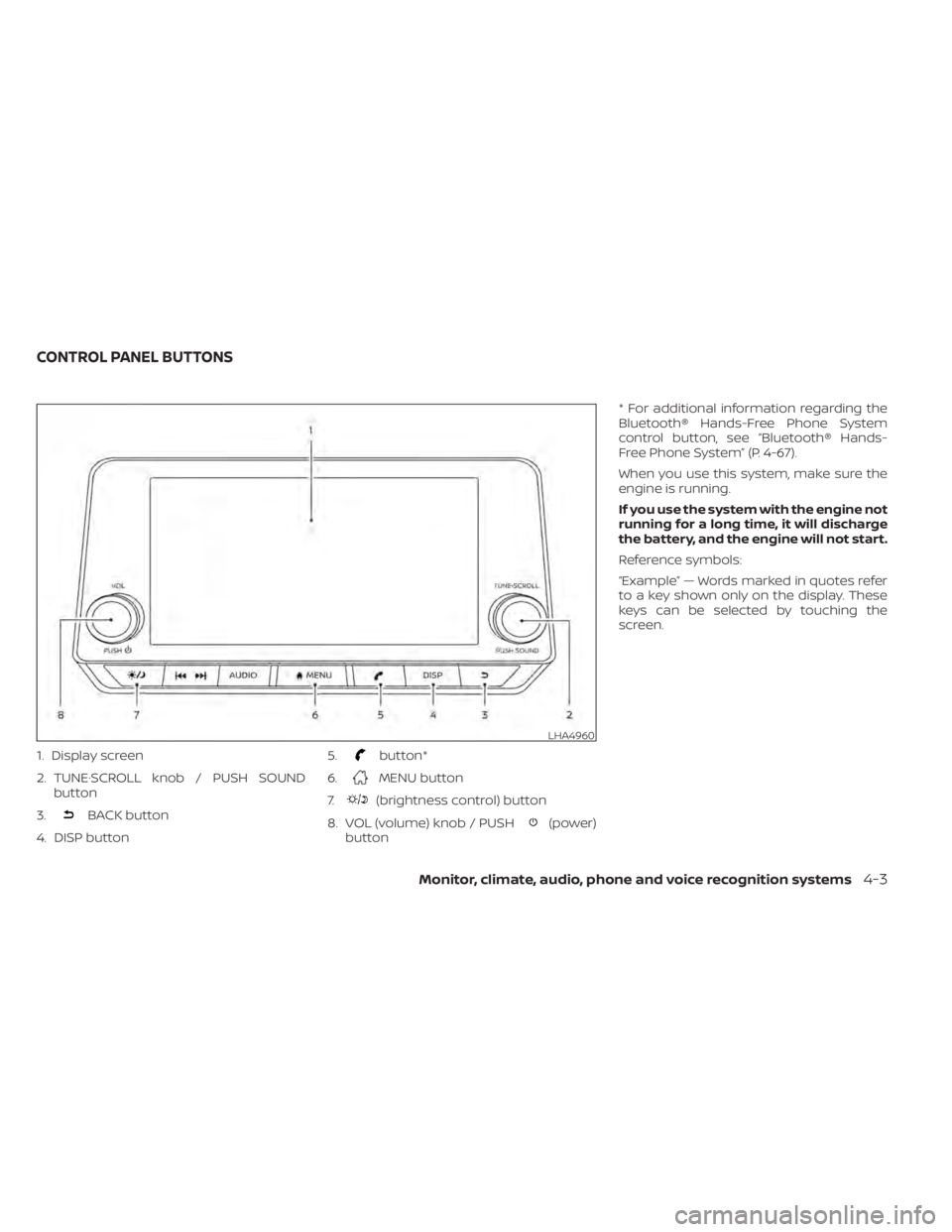
1. Display screen
2. TUNE·SCROLL knob / PUSH SOUNDbutton
3.
BACK button
4. DISP button 5.
button*
6.
MENU button
7.
(brightness control) button
8. VOL (volume) knob / PUSH
(power)
button * For additional information regarding the
Bluetooth® Hands-Free Phone System
control button, see “Bluetooth® Hands-
Free Phone System” (P. 4-67).
When you use this system, make sure the
engine is running.
If you use the system with the engine not
running for a long time, it will discharge
the battery, and the engine will not start.
Reference symbols:
“Example” — Words marked in quotes refer
to a key shown only on the display. These
keys can be selected by touching the
screen.
LHA4960
CONTROL PANEL BUTTONS
Monitor, climate, audio, phone and voice recognition systems4-3