Page 172 of 364
6-18
c c Can see the message details.
d d Reads out the message through the speakers in the vehicle.
e e Used to close the notification window.
A
The message notification window does not appear when the privacy mode is enabled or
the message notification is turned off.
A
The screen display may differ depending on the mobile phone model.
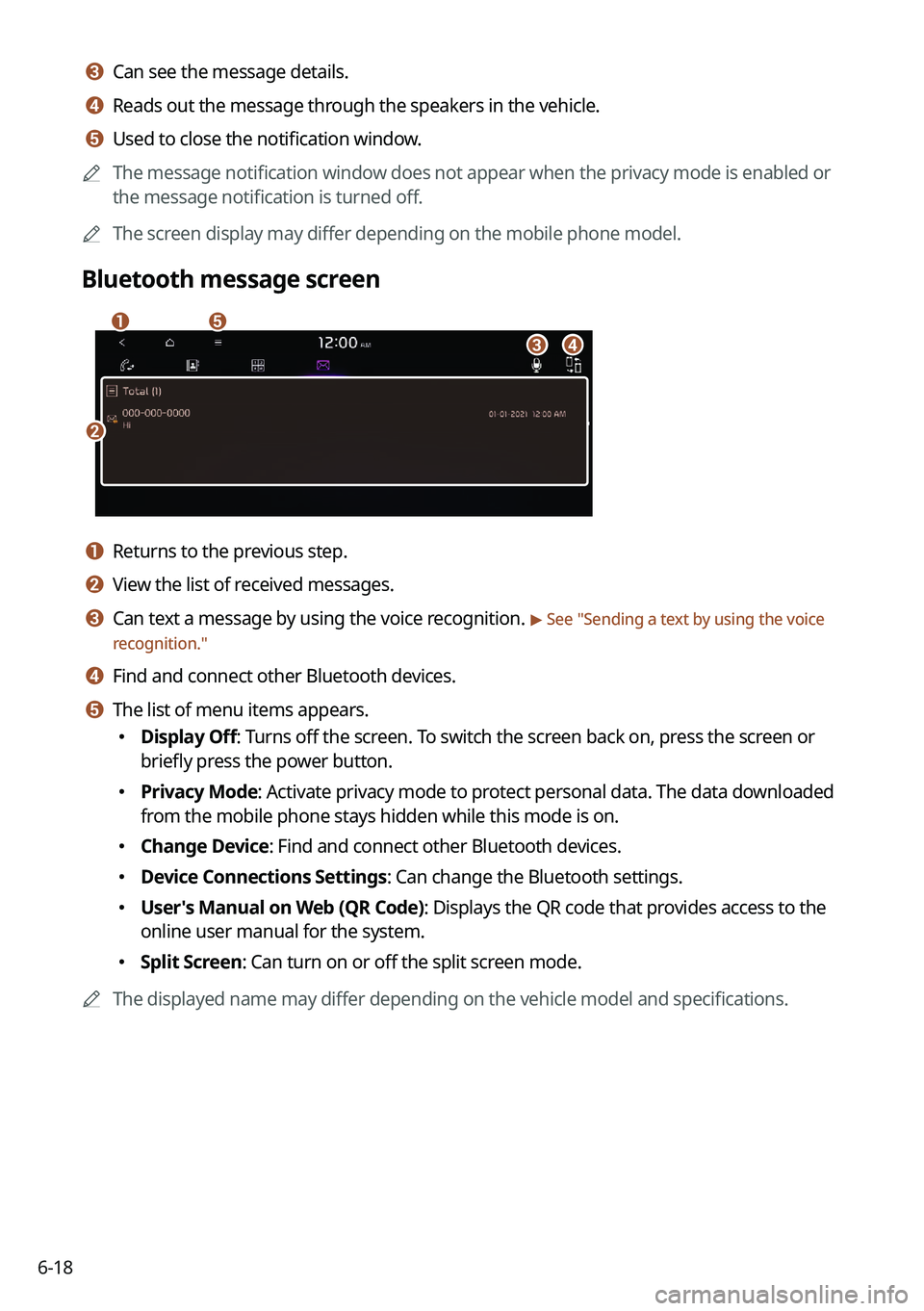
Bluetooth message screen
b
a
d
e
c
a a Returns to the previous step.
b b View the list of received messages.
c c Can text a message by using the voice recognition. > See "Sending a text by using the voice
recognition."
d d Find and connect other Bluetooth devices.
e e The list of menu items appears.
� Display Off: Turns off the screen. To switch the screen back on, press the screen or
briefly press the power button.
�Privacy Mode: Activate privacy mode to protect personal data. The data downloaded
from the mobile phone stays hidden while this mode is on.
�Change Device: Find and connect other Bluetooth devices.
�Device Connections Settings: Can change the Bluetooth settings.
�User's Manual on Web (QR Code): Displays the QR code that provides access to the
online user manual for the system.
�Split Screen: Can turn on or off the split screen mode.
A
The displayed name may differ depending on the vehicle model and specifications.
Page 187 of 364

Co")
7-13
A
Vehicle control commands are recognizable in English only.
A
Some commands may not be supported, depending on the vehicle model and f\
unctions.
Rear-seat function commands (if equipped)
Command Function
Passenger Talk Turn on the Passenger Talk.
Quiet Mode
Turn off Quiet Mode Turn on or off the Quiet Mode.
A
Some commands may not be supported, depending on the vehicle model and f\
unctions.
Search commands
Command Function
Search settings for
You can search for a setting menu.
For example, say "Search settings for Bluetooth" or "Search
settings for Display."
> See "Configuring system settings."
Other commands
Command
Function
Help Move to the help screen.
Line <1 to 4>* Select an item with the designated number on a list. Simple
numbers, such as "One" or "Two," can be recognized.
Yes* Accept a notification asking for your confirmation in an
exceptional situation.
No* Deny a notification asking for your confirmation in an
exceptional situation.
Next* If there are more than five items on a list, scroll to the next page.
Previous* If you scroll to the next page of a list, scroll back to the previous
page.
Manual Input* When using the Dial Number command, open the keypad to
enter a phone number manually.
Go Back* Returns to the previous step.
Exit End voice recognition.
* These commands are available only in certain situations.
Page 204 of 364
7-30
Voice Memo
You can use the microphone on the vehicle to record and play voice memos.
Running the voice memo
On the All Menus screen, press Voice Memo.
Voice memo screen
ae
cdb
a a Returns to the previous step.
b b Displays the list of recorded voice memos.
c c Starts or pauses the recording.
d d Stops recording.
e e The list of menu items appears.
�Display Off: Turns off the screen. To switch the screen back on, press the screen or
briefly press the power button.
�Delete: Can delete a voice memo.
�Save to USB Device: Can record a voice memo to a USB storage device. Check that
the USB device is compatible.
> See "USB storage devices."
�Storage Information: Can see the file size of recorded voice memos.
�User's Manual on Web (QR Code): Displays the QR code that provides access to the
online user manual for the system.
�Split Screen: Can turn on or off the split screen mode.
Page 210 of 364

8-4
Running the Kia Connect menu
You can run the Kia Connect in the system to use the service.
On the All Menus screen, press Kia Connect.
bfgdec
aj
hi
a a Returns to the previous step.
b b Call to the Roadside Assistance using the Kia Connect service. > See "Contacting the
roadside assistance."
c c View the schedule details for today and tomorrow (if equipped). > See " Checking schedule
details (if equipped)."
d d Can see the weather information (if equipped). > See "Checking weather information (if
equipped)."
e e Checks your vehicle for abnormal conditions and displays the result. > See " Diagnosing the
vehicle."
f f See the information about the intervals for the last and next maintenance services (if
equipped).
> See "Checking maintenance service intervals (if equipped) ."
g g Call the Kia Connect Center to request help or make inquiries about using the Kia Connect
service.
h h Call the Kia Connect Center and request assistance regarding use of the Kia Connect
service, including information on subscribing to the Kia Connect service\
and service
activation.
i i Access the Kia Connect service to use it on the system, activate the aut\
omatic 911
connection feature, or access modem information.
j j The list of menu items appears.
�Display Off: Turns off the screen. To switch the screen back on, press the screen or
briefly press the power button.
�User's Manual on Web (QR Code): Displays the QR code that provides access to the
online user manual for the system.
A
The screen may differ depending on the vehicle model and specifications.
Page 212 of 364

8-6
Calendar screen
eadbc
a a Returns to the previous step.
b b Select the account to provide schedule details to.
c c View the schedule details for today or tomorrow.
d d Update with the latest schedule details.
e e The list of menu items appears.
�Display Off: Turns off the screen. To switch the screen back on, press the screen or
briefly press the power button.
�Sync now: Sync to the latest schedule details of the linked account.
�Select Calendar(s): Select the calendar to display on the screen.
�User's Manual on Web (QR Code): Displays the QR code that provides access to the
online user manual for the system.
�Split Screen: Can turn on or off the split screen mode.
A
Available icons and their arrangement may differ depending on the vehicle model and
specifications.
Setting a destination
You can view schedule details and set a destination by pressing on an event from the
calendar screen.
A
If location information is registered in the schedule, the registered location is
automatically set as the destination.
1 From the calendar screen, press on the event to set a destination.
Page 215 of 364

8-9
�Search: Can see the weather information by searching for an address (if equipped).
�Forecast: Provides the weather forecast (if equipped).
�Update: Update to the latest weather information (if equipped).
�User's Manual on Web (QR Code): Displays the QR code that provides access to the
online user manual for the system.
�Split Screen: Can turn on or off the split screen mode.
Diagnosing the vehicle
If you are curious about whether or not there is a problem with your vehicle, you can
diagnose your vehicle. With the diagnosis result, you can also reserve a maintenance service.
1 Park your vehicle in a safe location.
A
The vehicle must be stationary because some components cannot be diagnos\
ed
while driving.
2 On the All Menus screen, press Kia Connect >
Vehicle Diagnostics.
Remote vehicle diagnosis starts.
A
Keep the screen on until the diagnosed result appears. When you switch to another
screen during diagnosis, the diagnosis service is canceled.
3 See the diagnosis results and perform a required function, as follows:
A
A diagnosis result provided by this service is only an estimated result based on the signals
from your vehicle. Visit a Kia dealership for a detailed diagnosis.
A
When a critical diagnostics issue is detected on your vehicle, an automa\
tic diagnosis
starts when a warning light illuminates on the instrument cluster. You are notified of the
diagnosis result.
A
Your preferred dealership must be registered on owners.kia.com for you to schedule a
maintenance service with it.
Page 216 of 364

8-10
Checking maintenance service intervals (if equipped)
You can see information about the intervals for the last and next maintenance services. This
feature can help you maintain your vehicle on a regular basis.
1 On the All Menus screen, press Kia Connect >
Maintenance.
2 Check the maintenance information.
A
You can see the distance driven and the number of days remaining before the
vehicle should receive maintenance again. Use the information to determine when to
perform the next maintenance service.
A
To reset the information, press Reset.
A
To access the online user's manual on the Maintenance screen, press >
User's
Manual on Web (QR Code) and then scan the displayed QR code.
Contacting the Kia Connect Center
You can contact a Kia Connect Center representative directly to request help or make
inquiries about using the Kia Connect services.
A
The UVO service name has been changed to Kia Connect.
Perform any of the following methods:
�On the All Menus screen, press Kia Connect
>
Virtual Assistant.
� Press the button on the vehicle.
l (2 Button Type) : Press the [] button on the vehicle.
l l (3 Button Type) : Press the [] button on the vehicle.
A
The exact appearance or position of the button may differ depending on the vehicle
model and specifications.
A
To end a call, press the button in the vehicle again or press End on the screen.
A
This feature is not available during a Bluetooth call.
Page 219 of 364
8-13
Route guidance service (if equipped)
Use a more convenient, accurate route guidance service through the Kia Connect route
guidance service.
Finding a route by manually entering a destination
You can use fast and accurate route guidance based on real-time and forecast traffic data
collected by the Kia Connect Center.
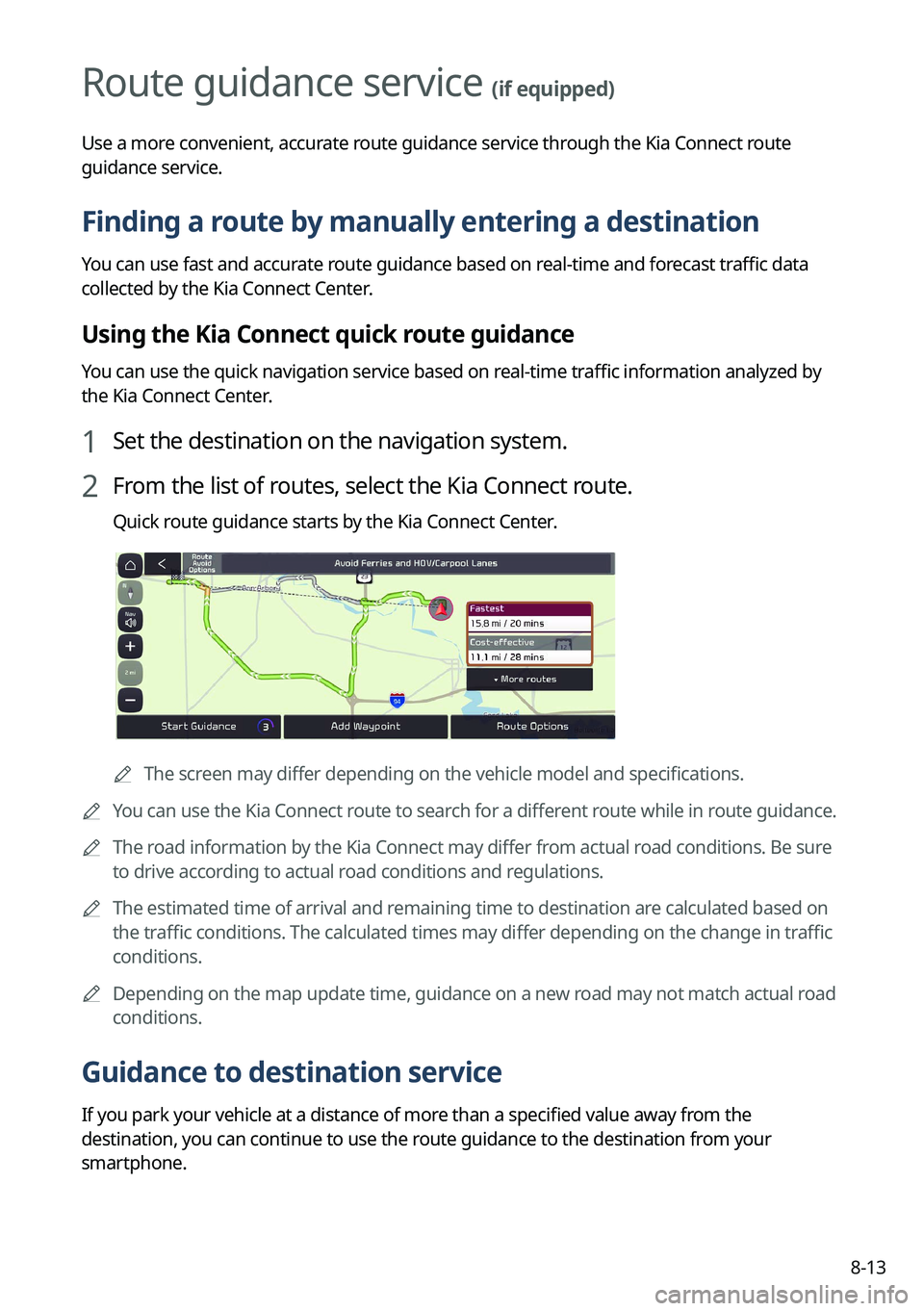
Using the Kia Connect quick route guidance
You can use the quick navigation service based on real-time traffic information analyzed by
the Kia Connect Center.
1 Set the destination on the navigation system.
2 From the list of routes, select the Kia Connect route.
Quick route guidance starts by the Kia Connect Center.
AThe screen may differ depending on the vehicle model and specifications.
A
You can use the Kia Connect route to search for a different route while in route guidance.
A
The road information by the Kia Connect may differ from actual road conditions. Be sure
to drive according to actual road conditions and regulations.
A
The estimated time of arrival and remaining time to destination are calculated based on
the traffic conditions. The calculated times may differ depending on the change in traffic
conditions.
A
Depending on the map update time, guidance on a new road may not match actual road
conditions.
Guidance to destination service
If you park your vehicle at a distance of more than a specified value away from the
destination, you can continue to use the route guidance to the destination from your
smartphone.
