2023 JEEP RENEGADE ignition
[x] Cancel search: ignitionPage 114 of 364

112 STARTING AND OPERATING
vehicle into a parallel or a perpendicular parking
space on either side (i.e., driver side or passenger
side), as well as exiting a parallel parking space.
NOTE:
The driver is always responsible for controlling
the vehicle, responsible for any surrounding
objects, and must intervene as required.
The system is designed to assist the driver and
not to substitute the driver.
During a semi-automatic maneuver, if the driver
touches the steering wheel after being
instructed to remove their hands from the
steering wheel, the system will cancel, and the
driver will be required to manually complete the
parking maneuver.
The system may not work in all conditions (e.g.
environmental conditions such as heavy rain,
snow, etc., or if searching for a parking space
that has surfaces that will absorb the ultrasonic
sensor waves).
ENABLING AND DISABLING THE
P
ARKSENSE ACTIVE PARK ASSIST
S
YSTEM
The ParkSense Active Park Assist system
can be enabled and disabled with the
ParkS e
nse Active Park Assist switch,
located on the switch panel below the
Uconnect display. To enable or disable the ParkSense Active Park
Assis
t
system, push the ParkSense Active Park
Assist switch once (LED turns on). Pushing the
switch a second time will disable the system (LED
turns off).
The ParkSense Active Park Assist system will turn off
autom a
tically for any of the following conditions:
Parking maneuver is complete
Vehicle speed is greater than 18 mph (30 km/h)
when se
arching for a parking space
Vehicle speed is greater than 5 mph (7 km/h)
during
active steering guidance into the parking
space
Steering wheel is touched during active steering
guidance into the parking space
ParkSense Front/Rear Park Assist switch is
pushed
Driver's door is opened
Rear liftgate is opened
Electronic Stability Control/Anti-Lock Brake
System intervention
The ParkSense Active Park Assist system will allow
a maxi
mum number of shifts between DRIVE and
REVERSE. If the maneuver cannot be completed
within the maximum amount of shifts, the system
will cancel and the instrument cluster display will
instruct the driver to complete the maneuver
manually. The ParkSense Active Park Assist system will only
operat
e
and search for a parking space when the
following conditions are present:
Gear selector is in DRIVE.
Ignition is in the RUN position.
ParkSense Active Park Assist switch is acti -
vated.
Driver's door is closed.
Rear liftgate is closed.
Vehicle speed is less than 15 mph (25 km/h).
NOTE:
If the vehicle is driven above approximately
15 mph
(25 km/h), the instrument cluster display
will i
nstruct the driver to slow down. If the vehicle
is driven above approximately 18 mph (30 km/h),
the sy
stem will cancel. The driver must then reac -
tivate the system by pushing the ParkSense Active
Park A
ssist switch.
The outer surface and the underside of the front
and rear fascias/bumpers are clean and clear
of snow, ice, mud, dirt or other obstruction.
When pushed, the LED on the ParkSense Active
Park A
ssist switch will blink momentarily, and then
the LED will turn off if any of the above conditions
are not present.
Page 119 of 364
STARTING AND OPERATING 117
LANESENSE — IF EQUIPPED
LANESENSE OPERATION
The LaneSense system is operational at speeds
above 37 mph (60 km/h) and below 112 mph
(180 km
/h). The LaneSense system uses a
f or
wa
rd
looking camera to detect lane markings
and measure vehicle position within the lane
boundaries.
When both lane markings are detected and the
driver
unintentionally drifts out of the lane (no turn
signal applied), the LaneSense system provides a
haptic warning in the form of torque applied to the
steering wheel to prompt the driver to remain within
the lane boundaries. If the driver continues to
unintentionally drift out of the lane, the LaneSense
system provides a visual warning through the
instrument cluster display to prompt the driver to
remain within the lane boundaries.
The driver may manually override the haptic warning
by app l
ying torque to the steering wheel at any time.
When only a single lane marking is detected and
the dr
iver unintentionally drifts across the lane
marking (no turn signal applied), the LaneSense
system provides a visual warning through the
instrument cluster display to prompt the driver to
remain within the lane. When only a single lane
marking is detected, a haptic (torque) warning will
not be provided.
NOTE:
When operating conditions have been met, the
LaneSe n
se system will monitor if the driver’s
hands are on the steering wheel and provides an
audible warning to the driver when the driver’s
hands are not detected on the steering wheel. The
system will cancel if the driver does not return their
hands to the wheel.
TURNING LANESENSE ON OR OFF
The LaneSense button is located on the
center stack.
To turn the LaneSense system on, push the
La neSen
se button (LED turns off). A “Lane Sense
On” message is shown in the instrument cluster
display.
To turn the LaneSense system off, push the
LaneSen
se button once (LED turns on).
NOTE:
The LaneSense system will retain the last system
state
on or off from the last ignition cycle when the
ignition is changed to the ON/RUN position.
LANESENSE WARNING MESSAGE
The LaneSense system will indicate the current
lane drift condition through the instrument cluster
display.
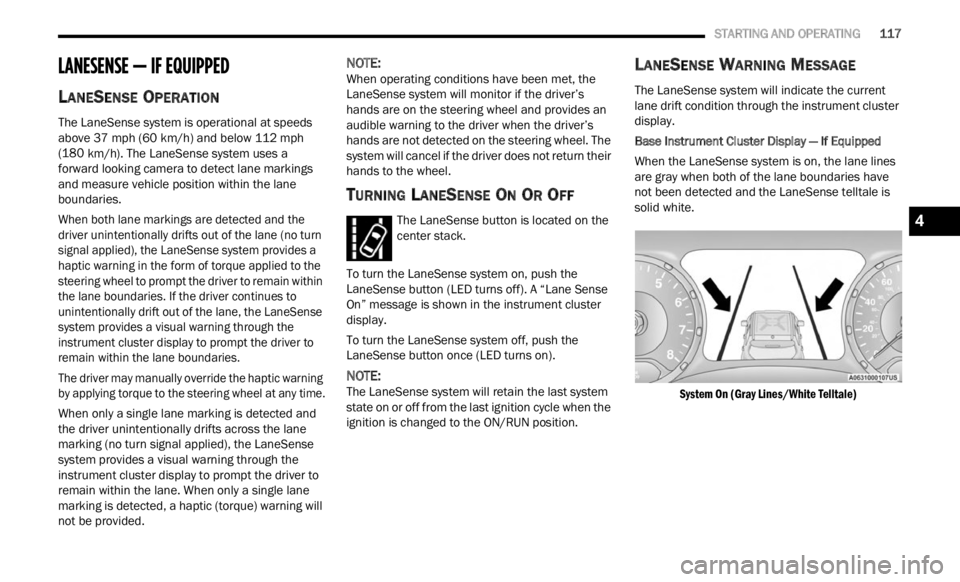
Base Instrument Cluster Display — If Equipped
When the LaneSense system is on, the lane lines
a re gr
ay when both of the lane boundaries have
not been detected and the LaneSense telltale is
solid white.
System On (Gray Lines/White Telltale)
4
Page 123 of 364

STARTING AND OPERATING 121
CHANGING LANESENSE STATUS
The LaneSense system has settings to adjust the
intensity of the torque warning and the warning
zone sensitivity (early/late) that you can configure
through the Uconnect system
Ú page 133.
NOTE:
When enabled the system operates above
37 mph (60 km/h) and below 112 mph
(180 km
/h).
Use of the turn signal suppresses the warnings.
The system will not apply torque to the steering
wheel whenever a safety system engages
(Anti-Lock Brakes, Traction Control System,
Electronic Stability Control, Forward Collision
Warning, etc.).
REAR BACK UP CAMERA
The Rear Back Up Camera allows you to see an
on-screen image of your vehicle's rear
surroundings when the gear selector is put into
REVERSE. The image will be displayed on the
touchscreen display along with a note to “Check
Entire Surroundings” across the top of the screen.
After five seconds, this note will disappear. The
camera is located above the rear license plate.
Parking Camera
When the vehicle is shifted out of REVERSE with
camer a
delay turned off, the rear camera mode is
exited and the navigation or audio screen appears
again.
When the vehicle is shifted out of REVERSE with
camera
delay turned on, the camera image will
continue to be displayed for up to 10 seconds unless
the vehicle speed exceeds 8 mph (13 km/h), the
vehic l
e is shifted into PARK or the ignition is placed
in the OFF position.
When the vehicle is shifted out of REVERSE, a
touchs c
reen "X" button is shown on the camera
image in order to disable the visualization earlier
than 10 seconds.
When enabled, active guidelines are overlaid on
the im
age to illustrate the width of the vehicle and
its projected backup path based on the steering
wheel position. Different colored zones indicate the distance to
the r
e
ar of the vehicle.
The following table shows the approximate
distan
ces for each zone:
NOTE:
If snow, ice, mud, or any foreign substance builds
up on t
he camera lens, clean the lens, rinse with
water, and dry with a soft cloth. Do not cover the
lens.
Zone Distance To The Rear Of
The Ve hicle
Red 0 - 1 ft (0 - 30 cm)
Yellow 1 ft - 3 ft (30 cm - 1 m)
Green 3
ft or greater
(1 m or
greater)
WARNING!
Drivers must be careful when backing up even
when using the Rear Back Up Camera. Always
check carefully behind your vehicle, and be sure
to check for pedestrians, animals, other
vehicles, obstructions, or blind spots before
backing up. You are responsible for the safety of
your surroundings and must continue to pay
attention while backing up. Failure to do so can
result in serious injury or death.
4
Page 131 of 364

STARTING AND OPERATING 129
Automatic Transmission
Select the DRIVE range when towing. The
transmission controls include a drive strategy to
avoid frequent shifting when towing. However, if
frequent shifting does occur while in DRIVE, you
can use the AutoStick shift control to manually
select a lower gear.
NOTE:
Using a lower gear while operating the vehicle
under
heavy loading conditions will improve perfor -
mance and extend transmission life by reducing
e xcess
ive shifting and heat build up. This action
will also provide better engine braking.
AutoStick
When using the AutoStick shift control, select
the highest gear that allows for adequate perfor -
mance and avoids frequent downshifts. For
exampl
e, choose “5” if the desired speed can be
maintained. Choose “4” or “3” if needed to
maintain the desired speed.
To prevent excess heat generation, avoid
continuous driving at high RPM. Reduce vehicle
speed as necessary to avoid extended driving at
high RPM. Return to a higher gear or vehicle
speed when grade and road conditions allow.
Cruise Control — If Equipped
Do not use in hilly terrain or with heavy loads.
When using the Cruise Control, if you experience
speed drops greater than 10 mph (16 km/h),
d i
s e
n g
age until you can get back to cruising
speed.
Use Cruise Control in flat terrain and with light
loads to maximize fuel efficiency.
RECREATIONAL TOWING
TOWING THIS VEHICLE BEHIND
A
NOTHER VEHICLE
NOTE:
When towing your vehicle, always follow appli -
cable state and provincial laws. Contact state
a nd
p
r
ovincial Highway Safety offices for addi -
tional details.
You must ensure that the Auto Park Brake
feature is disabled before towing this vehicle, to
avoid inadvertent Electric Park Brake engage -
ment. The Auto Park Brake feature is enabled or
disab l
ed via the customer programmable
features in the Uconnect Settings.
RECREATIONAL TOWING
Models With Front-Wheel Drive (FWD)
Recreational towing is allowed ONLY if the front
w he
el
s
are OFF the ground. This may be
accomplished using a tow dolly (front wheels off
the ground) or vehicle trailer (all four wheels off the
ground). If using a tow dolly, follow this procedure:
Properly secure the dolly to the tow vehicle,
following the dolly manufacturer's instructions.
Drive the front wheels onto the tow dolly.
Apply the Electric Park Brake (EPB). Place the
transmission in PARK. Turn the engine off.
Properly secure the front wheels to the dolly,
following the dolly manufacturer's instructions.
Turn the ignition to the RUN position, but do not
start the engine.
Towing
Condit i
on Wheels
Off T h
e
Ground Front-
Wheel
D
rive
(FWD) Four-
Wheel D
rive
(4WD)
Flat Tow NONENOT
ALLOWED N
O
T
ALLOWED
Dol
ly Tow REAR
NOT
ALLOWED N
O
T
ALLOWED
FR
ONT OK NOT
ALLOWED
O n
Trailer ALLBEST
METHOD O
K
4
Page 132 of 364

130 STARTING AND OPERATING
Press and hold the brake pedal.
Release the EPB.
Turn the ignition OFF, and release the brake
pedal.
Models With Four-Wheel Drive (4WD)
Recreational towing (with all four wheels on the
g roun d
, or using a towing dolly) is NOT ALLOWED.
This vehicle may be towed on a flatbed or vehicle
trailer provided all four wheels are OFF the ground.
DRIVING TIPS
ON-ROAD DRIVING TIPS
Utility vehicles have higher ground clearance and a
narrower track to make them capable of
performing in a wide variety of off-road
applications. Specific design characteristics give
them a higher center of gravity than conventional
passenger cars.
An advantage of the higher ground clearance is a
better
view of the road, allowing you to anticipate
problems. They are not designed for cornering at
the same speeds as conventional passenger cars
any more than low-slung sports cars are designed
to perform satisfactorily in off-road conditions.
Avoid sharp turns or abrupt maneuvers. As with
other vehicles of this type, failure to operate this
vehicle correctly may result in loss of control or
vehicle rollover.
OFF-ROAD DRIVING TIPS
When To Use 4WD LOW
When off-road driving, shift to 4WD LOW for
additional traction and control on slippery or
difficult terrain, ascending or descending steep
hills, and to increase low-speed pulling power
Ú page 91. This range should be limited to
extreme situations such as deep snow, mud, or
s and w
here additional low speed pulling power is
needed. Vehicle speeds in excess of 25 mph
(40 km/
h) should be avoided when in 4WD LOW.
Driving Through Water
Although your vehicle is capable of driving through
water, there are a number of precautions that
must be considered before entering the water:
Driving through water more than a few inches/
centi m
eters deep will require extra caution to
ensure safety and prevent damage to your vehicle.
If you must drive through water, try to determine
CAUTION!
DO NOT flat tow this vehicle. Damage to the
drivetrain will result. If this vehicle requires
towing, make sure the drive wheels are OFF
the ground.
Ensure that the Electric Park Brake is
released, and remains released, while being
towed.
Towing this vehicle in violation of the above
requirements can cause severe transmission
damage. Damage from improper towing is not
covered under the New Vehicle Limited
Warranty.
CAUTION!
Towing this vehicle with ANY of its wheels on the
ground can cause severe transmission and/or
power transfer unit damage. Damage from
improper towing is not covered under the New
Vehicle Limited Warranty.
CAUTION!
When driving through water, do not exceed
5 mph (8 km/h). Always check water depth
before
entering as a precaution, and check all
fluids afterward. Driving through water may
cause damage that may not be covered by the
New Vehicle Limited Warranty.
Page 136 of 364

134 MULTIMEDIA
Buttons on the faceplate are located below and/or
beside the Uconnect system in the center of the
instrument panel. In addition, there is a SCROLL/
ENTER control knob located on the right side. Turn
the control knob to scroll through menus and
change settings. Push the center of the control
knob one or more times to select or change a
setting.
Your Uconnect system may also have SCREEN OFF
and MU
TE buttons on the faceplate.
Push the SCREEN OFF button on the faceplate to
turn of
f the Uconnect screen. Push the button
again or tap the screen to turn the screen on.
Press the Back Arrow button to exit out of a Menu
or cer t
ain option on the Uconnect system.
CUSTOMER PROGRAMMABLE FEATURES
Uconnect 4/4C/4C NAV With 8.4-inch Display Buttons On
Faceplate And Buttons On Touchscreen
Press the Apps button, then press the Settings
button
on the touchscreen to display the menu
setting screen. In this mode, the Uconnect system
allows you to access programmable features.
NOTE:
Depending on the vehicle’s options, feature
settings may vary.
All settings should be changed with the ignition
in the ON/RUN position.
When making a selection, only press one button at
a time
to enter the desired menu. Once in the
desired menu, press and release the preferred
setting option until a check mark appears next to
the setting, showing that setting has been
selected. Once the setting is complete, press the X
button on the touchscreen to close out of the
settings screen. Pressing the Up or Down Arrow
button on the right side of the screen will allow you
to toggle up or down through the available settings.
1 — Uconnect Buttons On The Touchscreen
2 — Uconnect Buttons On The Faceplate
Page 145 of 364

MULTIMEDIA 143
Seats & Comfort
Key Off Options/Engine Off Options
When the Seats & Comfort button is pressed on the touchscreen, the system displays the options related to the vehicle’s comfort systems when remote start
has been activated or the vehicle has been started.
NOTE:
Depending on the vehicle’s options, feature settings may vary.
Setting Name Description
Auto-On Driver Heated/Ventilated Seat & Steering Wheel With Vehicle Start This setting will activate the vehicle’s comfort system and heated seats (if
equip
p
ed) or heated steering wheel (if equipped) when the vehicle is remote
started or ignition is started. The “Off” setting will not activate the comfort
systems. The “Remote Start” setting will only activate the comfort systems
when using Remote Start. The “All Start” setting will activate the comfort
systems whenever the vehicle is started.
When the Key Off Options/Engine Off Options button is pressed on the touchscreen, the system displays the options related to vehicle shutoff. These settings
will only activate when the ignition is set to OFF.
NOTE:
Depending on the vehicle’s options, feature settings may vary.
Setting Name Description
Radio Off Delay This setting will keep the radio on for the selected amount of time after
vehic
l
e shut off. The available options are “0 sec” or “20 min”.
Radio Off With Door This setting will shut the radio off when the door is opened. The available
s
etti
n
gs are “On” and “Off”.
5
Page 165 of 364

MULTIMEDIA 163
AUX MODE
Overview
Auxiliary Mode (AUX) is entered by inserting an AUX
device
using a cable with a 3.5 mm audio jack into
t h
e
A U
X port, or by pressing the AUX button on the
left side of the touchscreen, or under the Source
Select button (if equipped).
To insert an Auxiliary device, gently insert the
Auxili
ary device cable into the AUX port. If you
insert an Auxiliary device with the ignition and the
radio on, the unit will switch to AUX Mode and
begin to play.
Controlling The Auxiliary Device
The control of the Auxiliary device (e.g., selecting
p layl i
sts, play, fast forward, etc.) cannot be
provided by the radio; use the device controls
instead. Adjust the volume with the Volume button,
VOLUME/MUTE rotary knob, or the On/Off rotary
knob, or with the volume of the attached device.
NOTE:
The radio unit is acting as the amplifier for audio
output
from the Auxiliary device. Therefore, if the
volume control on the Auxiliary device is set too
low, there will be insufficient audio signal for the
radio unit to play the music on the device. Seek Up
/Seek Down
In USB Mode, press the Seek Up button on the
t ouchs c
reen for the next selection on the USB
device. Press and release the Seek Down button
on the touchscreen to return to the beginning of
the current selection, or to return to the beginning
of the previous selection if the USB device is within
the first three seconds of the current selection.
In Bluetooth® Mode, press and release the Seek
Up bu t
ton on the touchscreen for the next
selection on the Bluetooth® device. Press and
release the Seek Down button on the touchscreen
to return to the beginning of the current selection,
or return to the beginning of the previous selection
if the Bluetooth® device is within the first second
of the current selection.
Browse
In USB Mode, press the Browse button on the
touchs c
reen to display the browse window. In USB
Mode, the left side of the browse window displays
a list of ways you can browse through the contents
of the USB device. If supported by the device, you
can browse by Folder, Artist, Playlist, Album, Song,
etc. Press the desired button on the touchscreen
on the left side of the screen. The center of the
browse window shows items and their
sub-functions, which can be scrolled through by
pressing the Up and Down buttons to the right. The
TUNE/SCROLL knob can also be used to scroll. Media Mode
In USB Mode, press the Media button on the
touchs
c
reen to select the desired audio source:
USB.
In Bluetooth® Mode, press the Media button on
the t ou
chscreen to select the desired audio
source: Bluetooth®.
In AUX Mode, press the Media button on the
touchs c
reen to select the desired audio source:
AUX.
Repeat
In USB Mode, press the Repeat button on the
t ouchsc
reen to toggle the repeat functionality. The
Repeat button on the touchscreen is highlighted
when active. The Radio will continue to play the
current track, repeatedly, as long as the repeat is
active. Press the Repeat button again to enter
Repeat All. The radio will continue to play all the
current tracks, repeatedly, as long as the repeat
function is active. To cancel Repeat, press the
Repeat button a third time.
Shuffle
In USB Mode, press the Shuffle button on the
touchs c
reen to play the selections on the USB
device in random order to provide an interesting
change of pace. Press the Shuffle button on the
touchscreen a second time to turn this feature off.
5